
How to set up DMARC/DKIM/SPF for DreamIT Host

Published 22 Nov 2026
Updated 22 Nov 2026
12 min read
Summarize with
Set up DreamIT Host email authentication by authorizing its servers in your single SPF TXT record, enabling DKIM signing in your hosting control panel, and publishing DMARC at _dmarc.example.com. Start a new DMARC policy with p=none and a working reporting address. Keep an existing quarantine or reject policy while repairing authentication.
I check authoritative DNS first, then test actual messages. DreamIT Host supports cPanel and DirectAdmin, so follow the branch available on your hosting account.
Add your domain
Use the domain attached to your DreamIT Host hosting service. If it already appears in your control panel, continue with mailbox and DNS verification.
- Open your panel. Sign in to MyDreamIT, find Auto Login Panels, and select Login to cPanel or Login to DirectAdmin.
- Add the domain. In cPanel, open Domains > Create A New Domain, enter your domain and submit. In DirectAdmin, open Account Manager > Domain Setup > Add New, enter the domain and click Create. Additional domains depend on your plan.
- Create a mailbox. In cPanel, open Email > Email Accounts > Create. In DirectAdmin, open E-mail Manager > Email Accounts > +Create. Create sender@example.com with a strong password and save.
- Verify access. Open the mailbox in webmail and confirm it can send and receive. Check public NS records to identify the authoritative DNS provider; publish authentication records in that provider's active zone.
I treat a domain listed in the hosting panel and a domain delegated to its DNS as separate checks. A local DNS zone is ineffective when public nameservers point elsewhere.
DreamIT Host's public getting-started documentation covers both control panels. The cPanel example below illustrates domain creation; existing domains do not need to be added again.
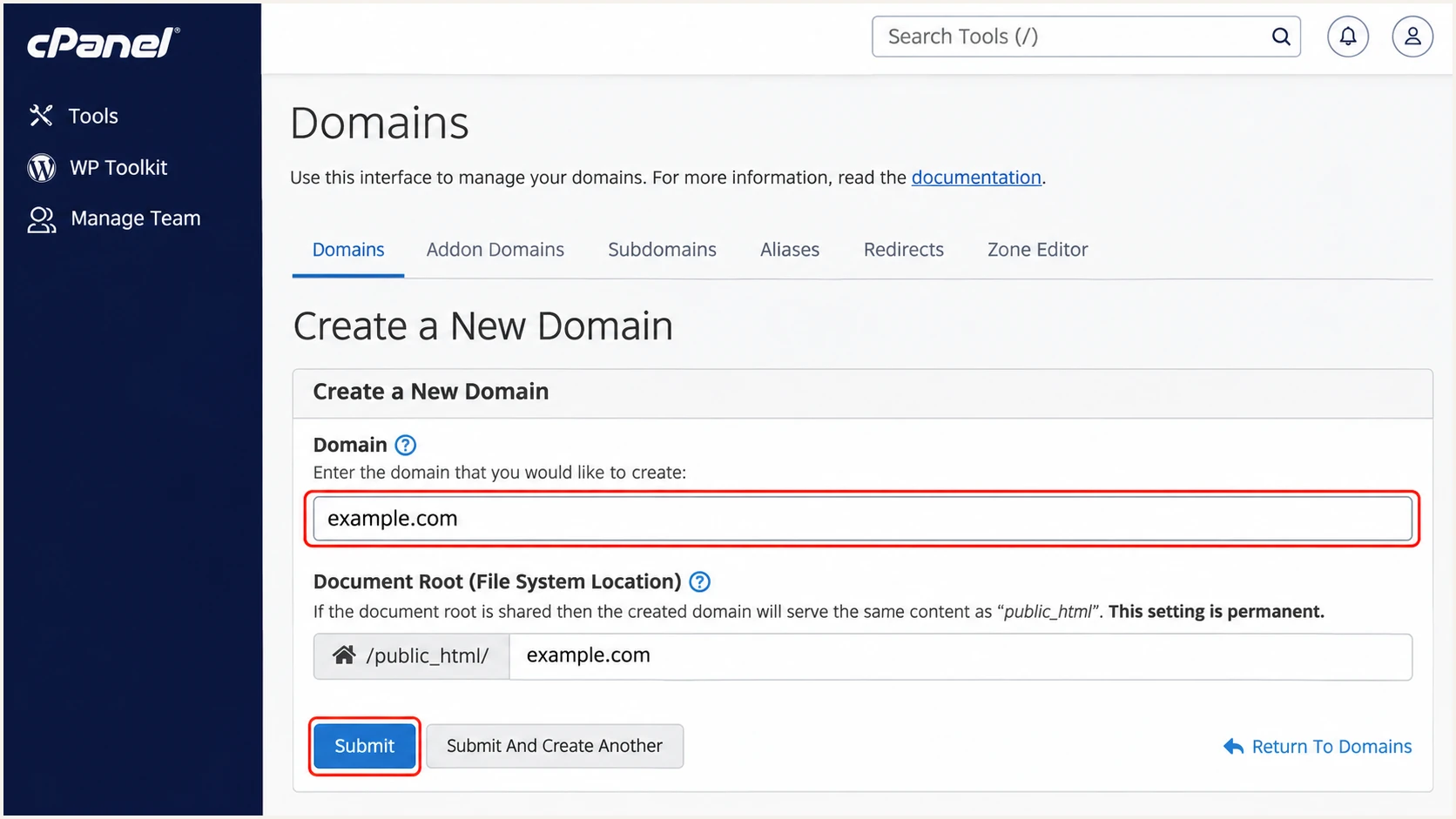
Illustrated cPanel form for adding a domain to DreamIT Host.
Set up SPF
DreamIT Host's public Google Workspace and Microsoft 365 connection guides use include:hosting-cloud.net in combined SPF examples. Check your account's suggested SPF value before applying the example below.
I preserve authorization for every legitimate sender. Replacing an existing record with a DreamIT-only example would remove the other services' permission to send.
- Inspect the record. In cPanel, open Email > Email Deliverability > Manage for your domain and inspect SPF. In DirectAdmin, open Account Manager > DNS Management and find the TXT value beginning v=spf1.
- Edit one TXT record. Use cPanel > Domains > Zone Editor > Manage, or DirectAdmin > DNS Management. Edit the existing SPF record at your sending domain. If DNS is hosted elsewhere, make the edit there.
- Authorize DreamIT. Add include:hosting-cloud.net before the final all mechanism when it matches your DreamIT account's configuration. Retain any additional server or relay authorization required by that account, plus other active senders.
- Check the envelope. DreamIT Host supports your own domain in the envelope sender. Configure the application's SMTP MAIL FROM address and verify the resulting Return-Path. Editing a Return-Path header does not configure the envelope.
- Respect lookup limits. Keep SPF within 10 DNS-lookup-causing terms during evaluation, including nested includes. Publish one SPF record per hostname; unrelated TXT records can coexist.
SPF example for a DreamIT-only sending domaintext
Name: example.com
Type: TXT
Value: v=spf1 include:hosting-cloud.net -all
Use that complete value only when DreamIT Host is your sole sender and the account uses this authorization. For multiple senders, merge their documented mechanisms into the existing record.
Enter the domain used in the SMTP envelope into the SPF checker. It checks the published record and its lookup usage; a message test checks the actual sending IP.
SPF checker
Find SPF syntax issues, lookup limits, and weak records.
?/16tests passed
For SPF to count toward DMARC, it must pass for a domain with the required relationship to the visible From domain. Under default relaxed alignment, both share the same organizational domain.
For example, sender@example.com in both From and Return-Path gives an exact domain match. A provider-owned Return-Path does not gain that match by adding an include to example.com.
Set up DKIM
I enable signing on the hosting server and publish the public key it generates. Publishing a DKIM TXT record alone does not enable signing.
- Use cPanel. Open Email > Email Deliverability > Manage for your domain. Under DKIM, generate a local key if needed, then copy the suggested Name and public Value. Install the suggested record when cPanel controls authoritative DNS.
- Use DirectAdmin. Select your domain, then open E-mail Manager > E-mail Accounts > Enable DKIM when available. Find the generated public TXT record under Account Manager > DNS Management. If the control is absent, ask DreamIT Host to enable signing for the domain.
- Publish the exact key. At your authoritative DNS provider, copy the generated selector hostname and full public value without changing them. Never publish the private key. Do not substitute a key generated outside the hosting server.
- Confirm the signature. Send a message and inspect DKIM-Signature. Its s= value identifies the selector and d= identifies the signing domain. Require a passing signature whose domain matches From under your DMARC alignment mode.
The lookup name is the selector followed by ._domainkey and the signing domain. Use the actual selector shown by your account or message, rather than assuming a universal DreamIT Host selector.
An externally hosted DNS zone needs the same generated public key. The illustrated cPanel screen shows where to copy it; the visible key excerpt is not a usable key.
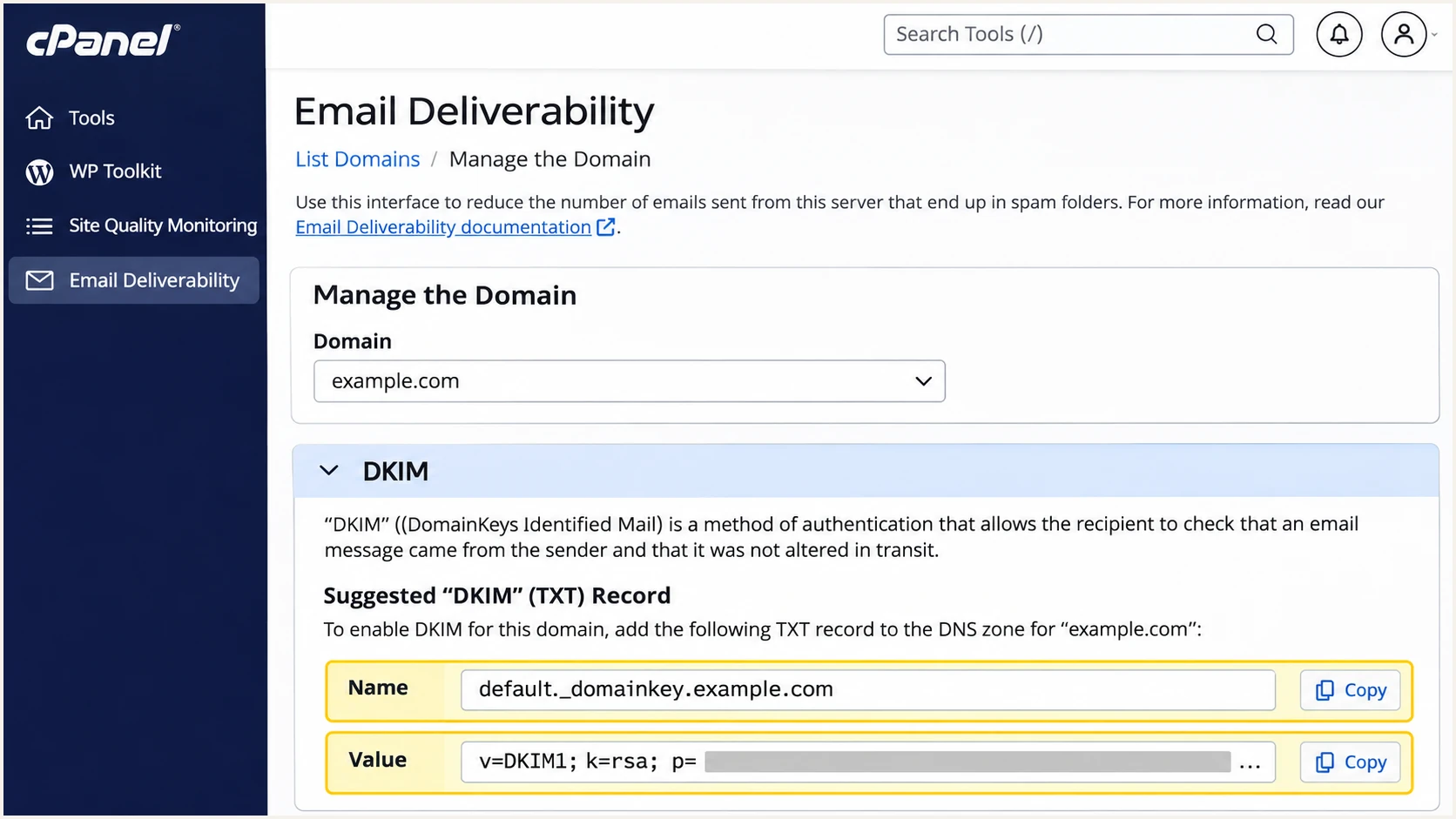
Illustrated cPanel DKIM fields for copying the generated public record.
I test webmail and application mail separately because they can use different signing paths. For website forms, send through authenticated DreamIT SMTP with a From address on your own domain.
Use the visitor's address in Reply-To. Check the application's actual Return-Path before treating an SPF alignment warning as a DNS error.
Your domain in Return-Path
A passing SPF result can satisfy DMARC when the envelope domain has the required match to From. Keep DKIM working as well, particularly for forwarded messages.
A provider domain in Return-Path
If a sending path fixes the envelope to a provider domain, expect SPF alignment failures. Adding SPF to your own domain will not fix that relationship. A passing DKIM signature with the required domain match still passes DMARC.
Set up DMARC
For a domain without DMARC, start with p=none and collect aggregate reports. I use those reports to check every sending source before requesting enforcement.
Create a working reporting mailbox or use the reporting address assigned by your report processor. Replace the example address before publishing.
- Open the active zone. In cPanel, use Domains > Zone Editor > Manage > Add Record > TXT. In DirectAdmin, use Account Manager > DNS Management > Add Record and select TXT. Use the external DNS provider instead when it is authoritative.
- Set the hostname. Create _dmarc.example.com. Use _dmarc where the editor appends your domain automatically. For a fully qualified name in DirectAdmin, include the final dot to avoid duplicating the domain.
- Set the value. Use the monitoring example below for a new policy, with your real report mailbox. Keep exactly one DMARC TXT record at this hostname and save using the zone's normal TTL.
- Retain enforcement. If your domain already uses p=quarantine or p=reject, keep that policy. Repair SPF or DKIM and update reporting without downgrading to the example.
New DMARC policy, replace the domain and report mailboxtext
Name: _dmarc.example.com
Type: TXT
Value: v=DMARC1; p=none; rua=mailto:dmarc@example.com
Use the DMARC record generator to build the final value. The example address is a placeholder, not a Suped reporting address. An external reporting destination also needs the appropriate authorization from its operator.
After saving, check the published hostname below. Allow existing DNS caches to expire according to the previous TTL before expecting every receiver to see the new value.
DMARC checker
Look up a domain's DMARC record and catch policy issues.
?/7tests passed
A p=none policy requests reporting without requesting quarantine or rejection for DMARC failure. Receivers still apply their own spam filtering.
Check each sending subdomain as well as the main domain. A subdomain with its own DMARC record has a separate policy to review.
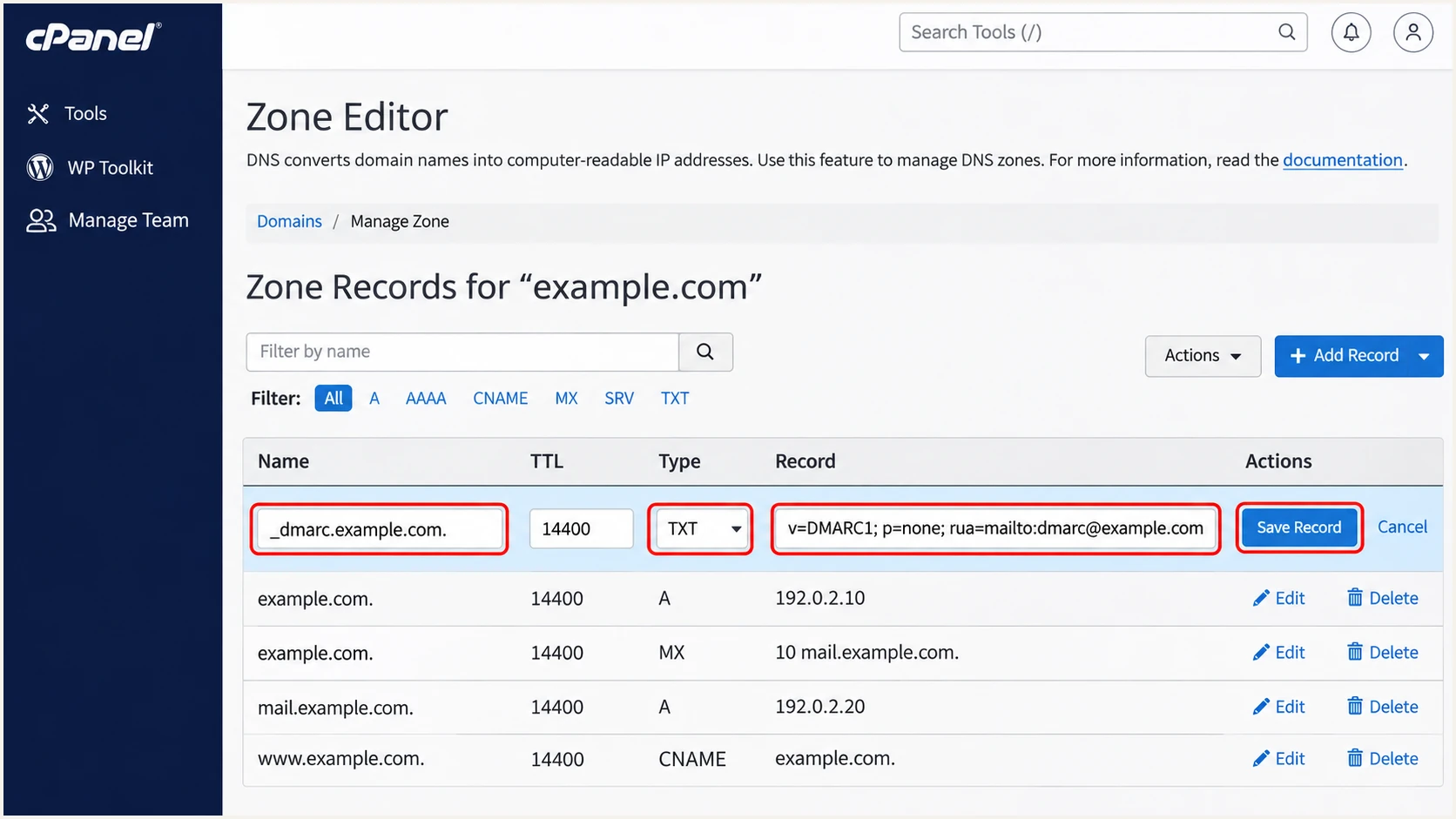
Illustrated cPanel Zone Editor entry for the initial DMARC TXT record.
Verify and troubleshoot
I verify public DNS and then send real messages through every production sending path. A valid DNS record does not prove the mail server is using it.
Replace example.com and the sample selector default in these commands. Get the real selector from the message's s= value and the signing domain from d=.
Check public DNS with your actual domain and selectorbash
dig +short NS example.com
dig +short TXT example.com
dig +short TXT _dmarc.example.com
dig +short TXT default._domainkey.example.com
- Check DNS answers. Confirm one SPF value and one DMARC value at their respective names, plus the full public DKIM key at the actual selector. If answers differ from your panel, check authoritative nameservers and cached TTLs.
- Test every route. Send a fresh email through DreamIT webmail, then repeat through each application or website form. Use the destination displayed by the email tester below.
- Inspect receiver results. Look for dmarc=pass in the receiving server's Authentication-Results. Inspect spf, smtp.mailfrom, dkim and header.d to confirm which mechanism passed with the required domain match.
- Configure SMTP. In cPanel, use Email Accounts > Connect Devices for account settings. Configure applications with the supplied SMTP hostname, mailbox authentication, and port 465 with implicit TLS. Use your domain in From and the envelope sender where supported.
The email tester is the quickest end-to-end check: send to the address it displays and inspect the authentication diagnosis. It evaluates an actual message rather than just the DNS configuration.
Repeat after changing a DNS record, migrating a server, or editing application SMTP settings. A successful webmail test does not verify the application's separate sending path.
Email tester
Send a real email to this address. Suped shows a results button when the test is ready.
?/43tests passed
SPF alignment failures with a provider-owned Return-Path are expected on that path. DMARC still passes when DKIM passes with the required domain match; adding more SPF includes does not repair the mismatch.
If DKIM is missing, investigate signing on the sending server. If a signature exists but fails, check its selector and public key, then look for message changes after signing.
|
|
|---|---|
SPF permerror | Merge SPF; check lookups |
No DKIM signature | Enable server signing |
DKIM key missing | Check selector DNS |
DMARC failure | Check domain matching |
PTR mismatch | Ask DreamIT Host |
Start with the failed check, then change the responsible setting.
Get alerted when it breaks
Our platform, Suped, turns incoming DMARC reports into source-level authentication issues and notifications. Use its DMARC monitoring to track DreamIT Host mail after the initial setup.
- Keep reports flowing. Maintain the active collector address in rua and confirm reports are arriving. A report mailbox that nobody processes leaves failures undiscovered.
- Enable notifications. In Suped's Notifications settings, configure Issues detected and Sending sources need verification notifications, plus DMARC summary emails for the responsible team.
- Investigate the source. Open the affected source and its detail view. Compare SPF, DKIM and DMARC results, then repair the sender configuration in DreamIT Host or the authoritative DNS zone.
- Review DNS changes. Use Suped's DNS history to compare old and new values after migrations. Retest the affected sending path before treating an issue as resolved.
- Check reputation separately. If authentication passes but delivery deteriorates, review Suped's blocklist monitoring and delivery insights where enabled. A shared-IP blacklist listing needs investigation with DreamIT Host.
I assign an owner to the alerts so detected failures lead to a tested fix. Suped keeps the report evidence and repair steps together for that workflow.
DMARC notifications depend on receivers sending reports, commonly daily. They are not an immediate signal for every message; use the email tester immediately after configuration changes.
Separate detection time from send time
An alert can only describe data that has arrived. Compare the report's time window with the change you made before deciding that a fresh fix has failed.
Secure your domain with p=reject
Use p=reject for domains whose legitimate sending paths you can control and verify. I review Suped's source results over a complete sending cycle before moving a suitable domain into enforcement.
Suped's source verification and issue details support that review. Hosted DMARC also lets you manage policy changes in the dashboard once its DNS delegation is configured.
Check general-purpose mailbox domains first
RFC 9989 advises against p=reject for general-purpose email domains because forwarding and mailing lists can break authentication. Use a dedicated subdomain for controlled application mail when those indirect flows are required. Passing direct-delivery tests alone does not establish reject readiness.
- Inventory senders. Verify DreamIT webmail, website forms, invoicing systems, and other services that use the domain. Confirm unknown sources before marking them legitimate.
- Fix legitimate failures. Require working DKIM with the appropriate domain match. Configure SPF for your own envelope domain where supported. Do not rely on SPF alone when deploying p=reject.
- Observe a full cycle. Include low-volume and month-end senders. Investigate forwarding and mailing-list failures separately from unauthorized traffic; a high overall pass rate can hide a broken legitimate sender.
- Stage enforcement. For a suitable domain starting at p=none, move to p=quarantine, inspect new reports and delivery errors, then set p=reject. Keep existing stronger policies while fixing configuration. Do not depend on percentage sampling.
- Check subdomains. Review inherited policy and any explicit subdomain DMARC records before changing the parent policy. Keep a working rua destination and continue monitoring after enforcement.
Enforcement stages for a suitable domain, replace the report mailboxtext
v=DMARC1; p=quarantine; rua=mailto:dmarc@example.com
v=DMARC1; p=reject; rua=mailto:dmarc@example.com
Publish one of these values at a time by editing the existing DMARC TXT record. In Suped, verify that the published policy changed and review subsequent reports for legitimate failures. Rejection remains a receiver decision.
Frequency asked questions
A PTR hostname ending in .hosting-cloud.net is consistent with DreamIT Host infrastructure. DreamIT Host uses hosting-cloud.net for its hosting and email services. Treat the suffix as an identification clue, then confirm the sending IP against your account and message headers. rDNS alone does not establish authorization or a DMARC pass.
DreamIT Host uses include:hosting-cloud.net in its published SPF configuration examples, including its Google Workspace and Microsoft 365 connection guides. Follow the authorization required by your own DreamIT account. Do not copy every nested include observed in DNS into your SPF record.
Yes. A passing DKIM signature with the required match to the From domain is sufficient for DMARC. If a sending path uses a provider-owned Return-Path, SPF can pass while SPF alignment fails. DreamIT Host supports using your own envelope domain, so check the application configuration when you expect that domain match.
Use the selector generated for your domain in cPanel or DirectAdmin. Confirm it against s= in an actual DKIM-Signature header, and use d= as the signing domain when constructing the lookup name. There is no shared public key to copy for every DreamIT Host customer.
DNS visibility depends on publication at the authoritative nameservers and expiry of cached answers under the previous TTL. DMARC aggregate reports commonly arrive daily and only describe traffic observed by reporting receivers. Test a fresh message after the live DNS values are correct instead of waiting for a report to validate the initial setup.




