How to set up DMARC/DKIM/SPF for Dotdigital

Published 29 Jul 2026
Updated 4 Oct 2026
14 min read
Summarize with
Updated on 4 Oct 2026: We added the purchased-domain setup path and revised DMARC enforcement steps for the current standard.
Set up  Dotdigital Marketing authentication by creating a dedicated Custom from address (CFA), delegating a new sending subdomain to Dotdigital or publishing the exact self-hosted DNS records it supplies, and then verifying SPF, DKIM, and DMARC. With delegation, Dotdigital creates and maintains the authentication records.
A branded CFA supports a custom Return-Path and DKIM signing domain, so both SPF and DKIM can satisfy DMARC domain matching. Dotdigital's authentication documentation confirms that new CFA domains use a 2048-bit DKIM key and start with DMARC monitoring.
Keep the sending domain exclusive
Use a new subdomain such as email.example.com. Do not delegate the apex of your existing business domain, an existing mail subdomain, or a subdomain used by another sender. Dotdigital expects exclusive control of a delegated CFA.
Add a Dotdigital custom from address
Prepare the sending domain before changing campaign settings. The normal path is a fresh subdomain delegated to Dotdigital. Self-hosting is the fallback when the parent domain uses DNSSEC or the DNS provider cannot delegate a subdomain.
- Choose a new sending subdomain such as email.example.com. Keep normal staff mail on the parent domain.
- Use NS delegation unless DNSSEC or provider restrictions prevent it. Get Dotdigital approval before self-hosting.
- Add all three Dotdigital name servers at the new subdomain with a 3600-second TTL. Remove other NS records at that subdomain.
- Give the Customer Success representative the delegated subdomain, the alias before the @ sign, and the Dotdigital account username.
- In Dotdigital Marketing, open Account menu > Settings > Email > From addresses and check that the CFA is active after setup.
Dotdigital can take up to 48 hours to activate a delegated CFA. For self-hosting, the CFA must already exist in the account before the Verify action exposes the required DNS records.
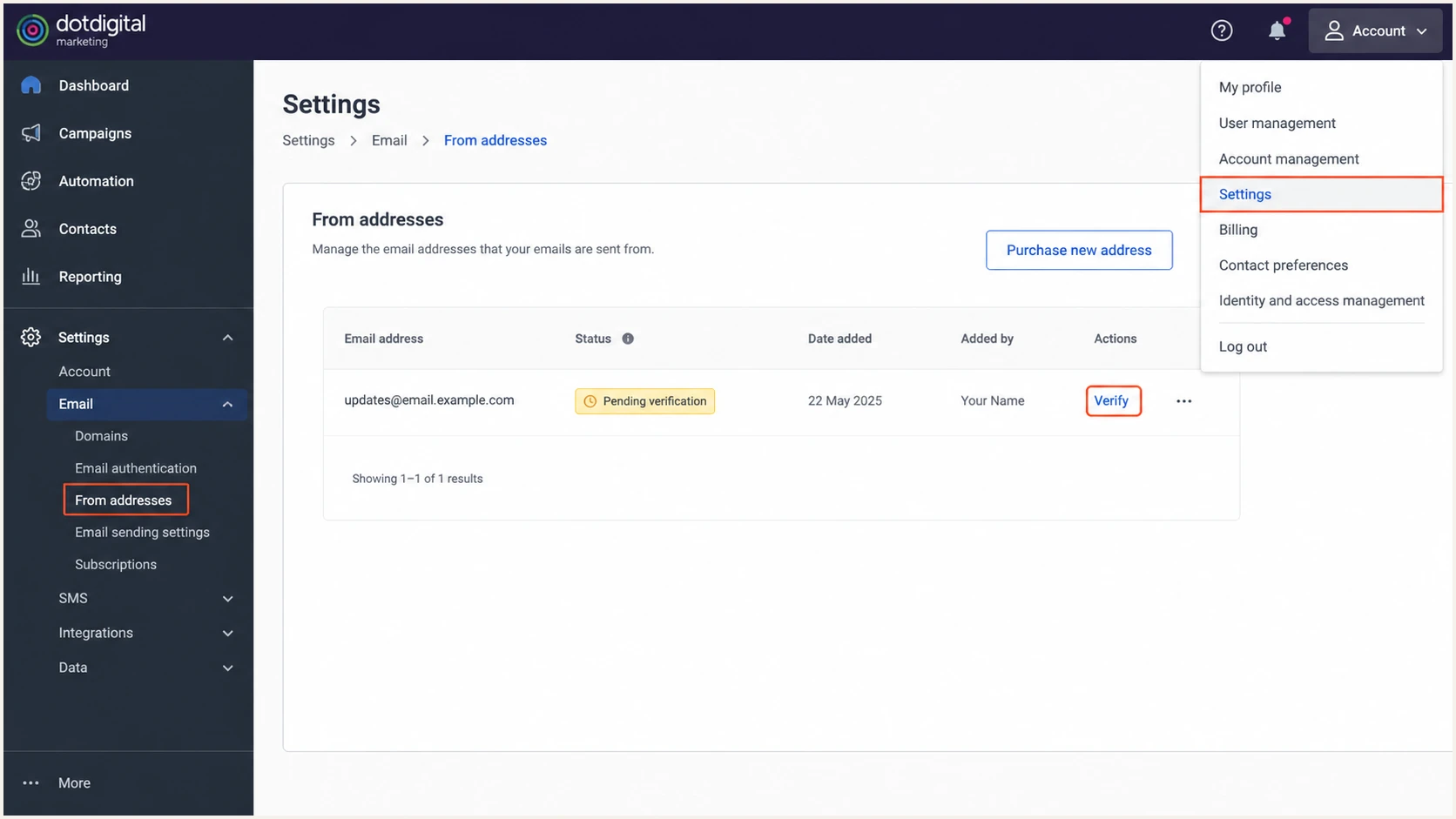
Dotdigital From addresses screen with a CFA awaiting verification
The NS records belong on the subdomain label, not the apex. If the chosen name is email.example.com, many DNS consoles want email in the Name field. A provider that expects a fully qualified name wants email.example.com instead.
After delegation, Dotdigital creates the web, inbound-mail, SPF, DKIM, and DMARC records inside that child zone. Do not duplicate those records in the parent zone.
Dotdigital subdomain delegationdns
Name: email
Type: NS
Value: ns0.dns.dotdigital.com

Name: email
Type: NS
Value: ns1.dns.dotdigital.com

Name: email
Type: NS
Value: ns2.dns.dotdigital.com

TTL: 3600
If self-hosting is approved, open Verify for the CFA and publish every required TXT, MX, and A record exactly as shown. CAA records are optional in Dotdigital's verification. Return to the same screen, select Verify, accept the confirmation checkbox, and select Confirm.
NS delegation
- Dotdigital manages the child DNS zone.
- Authentication records are created and maintained automatically.
- Use a new, exclusive sending subdomain.
Self-hosted DNS
- Your team maintains every record.
- Copy only the values shown in Verify.
- Use when DNSSEC or provider restrictions prevent delegation.
Set up a purchased sending domain
Dotdigital also offers a new sending domain when you choose not to use a subdomain of your existing domain. This is a separate CFA route, so complete the domain purchase and ownership checks before sending.
- Open Account menu > Settings > Email > From addresses and select Purchase new address. If the control is unavailable, ask Dotdigital to enable it.
- Choose an available address, enter the registrant details, and confirm the purchase. Check the pending CFA and the domain verification email.
- Complete the registrant verification within 15 days of purchase to avoid suspension. Follow Dotdigital's recommendation to wait at least 30 days before sending from a newly purchased domain.
- After the CFA becomes active, send test messages and gradually increase volume to engaged contacts. Check SPF, DKIM, and DMARC on the actual messages.
The 30-day waiting recommendation applies to a newly purchased domain, not to a subdomain. Test authentication before sending from either type of CFA.
Set up SPF
A delegated CFA already has its SPF record. For a self-hosted CFA, publish the exact SPF TXT value displayed by Dotdigital. Do not infer the record from another customer's DNS because regions and infrastructure change.
- Open the pending CFA at Account menu > Settings > Email > From addresses and select Verify.
- Copy the SPF host, TXT value, and any stated TTL without editing the include or all mechanism.
- Confirm the Return-Path domain has one SPF record. Keep the CFA hostname exclusive to Dotdigital.
- Save the TXT record, allow DNS propagation, and use Verify again.
- Send through the CFA and confirm the Return-Path shares the organizational domain used by the visible From address.
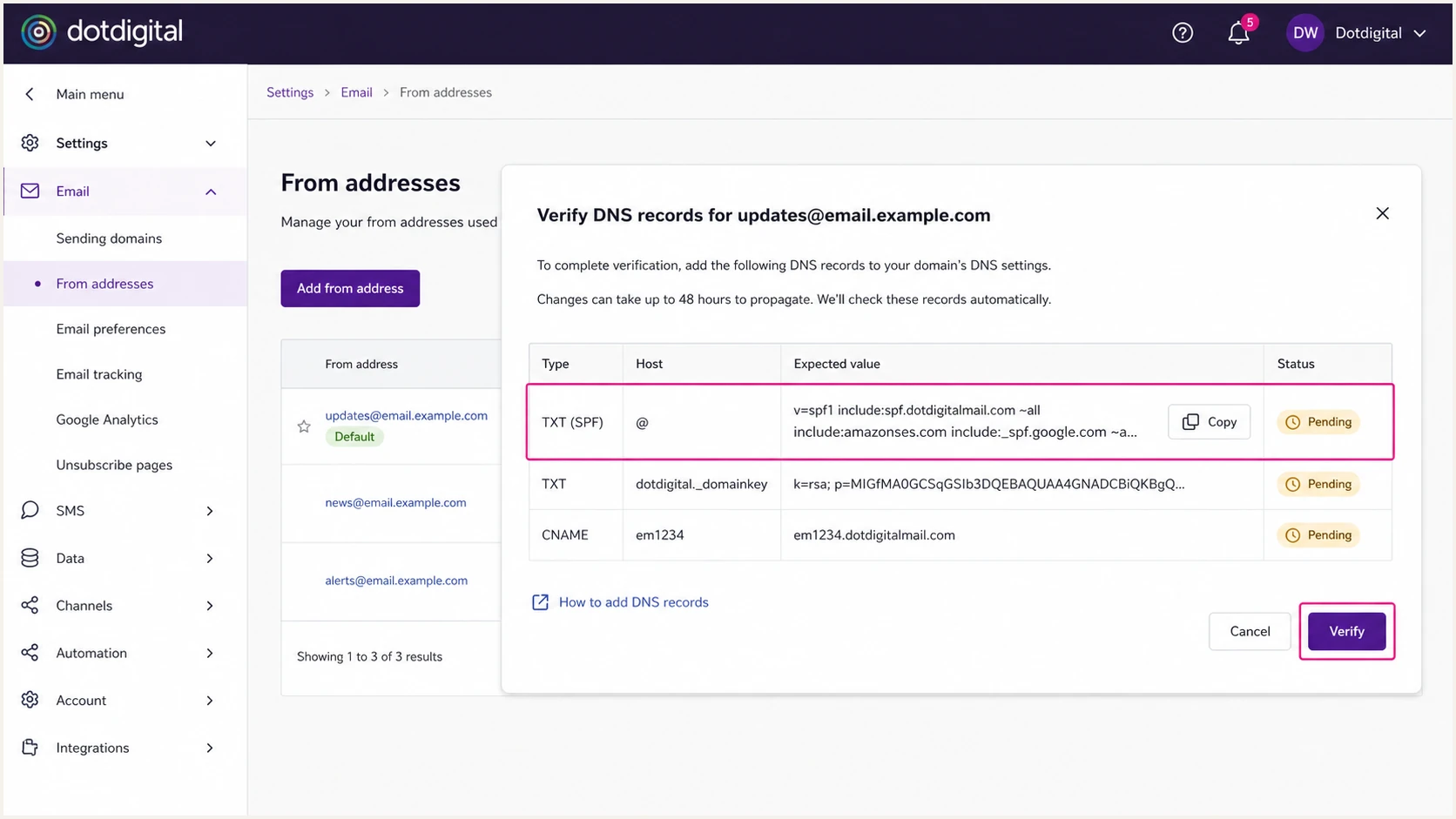
Dotdigital CFA verification screen highlighting the SPF record
SPF authenticates the envelope sender, also called the Return-Path. It does not authenticate the visible From address by itself. DMARC counts SPF only when the authenticated Return-Path domain matches the visible From domain under the active DMARC matching mode.
Dotdigital supports custom Return-Path matching through a correctly configured CFA. If a different sending source cannot set a custom Return-Path, expect SPF domain-matching failures there. That source can still pass DMARC when DKIM passes and its signing domain matches the visible From domain.
SPF checker
Find SPF syntax issues, lookup limits, and weak records.
?/16tests passed
Run the check against the exact Return-Path domain, not only the parent domain. Confirm one SPF record, valid syntax, a terminating all mechanism, and no more than ten DNS-causing lookups.
A passing lookup does not prove DMARC matching. Send a real campaign test and inspect Authentication-Results for both the SPF result and the domain used in that result.
Never add a second SPF record
Two SPF TXT records at one hostname cause a permanent error. If this CFA hostname already has SPF for another sender, stop and assign Dotdigital a new exclusive domain instead of combining unrelated senders.
Set up DKIM
Dotdigital signs CFA mail with DKIM. Delegated domains receive the key automatically. Self-hosted domains must publish the selector and public key shown on the CFA verification screen.
- Find the pending CFA under Settings > Email > From addresses and select Verify.
- Use the full selector host Dotdigital displays. Do not guess a selector or copy one from another CFA.
- Publish the complete public-key TXT value without smart quotes, line breaks, or missing characters.
- If the DNS console appends the zone automatically, enter only the selector and _domainkey labels.
- Send a test and confirm DKIM passes with a signing domain that matches the visible From domain for DMARC.
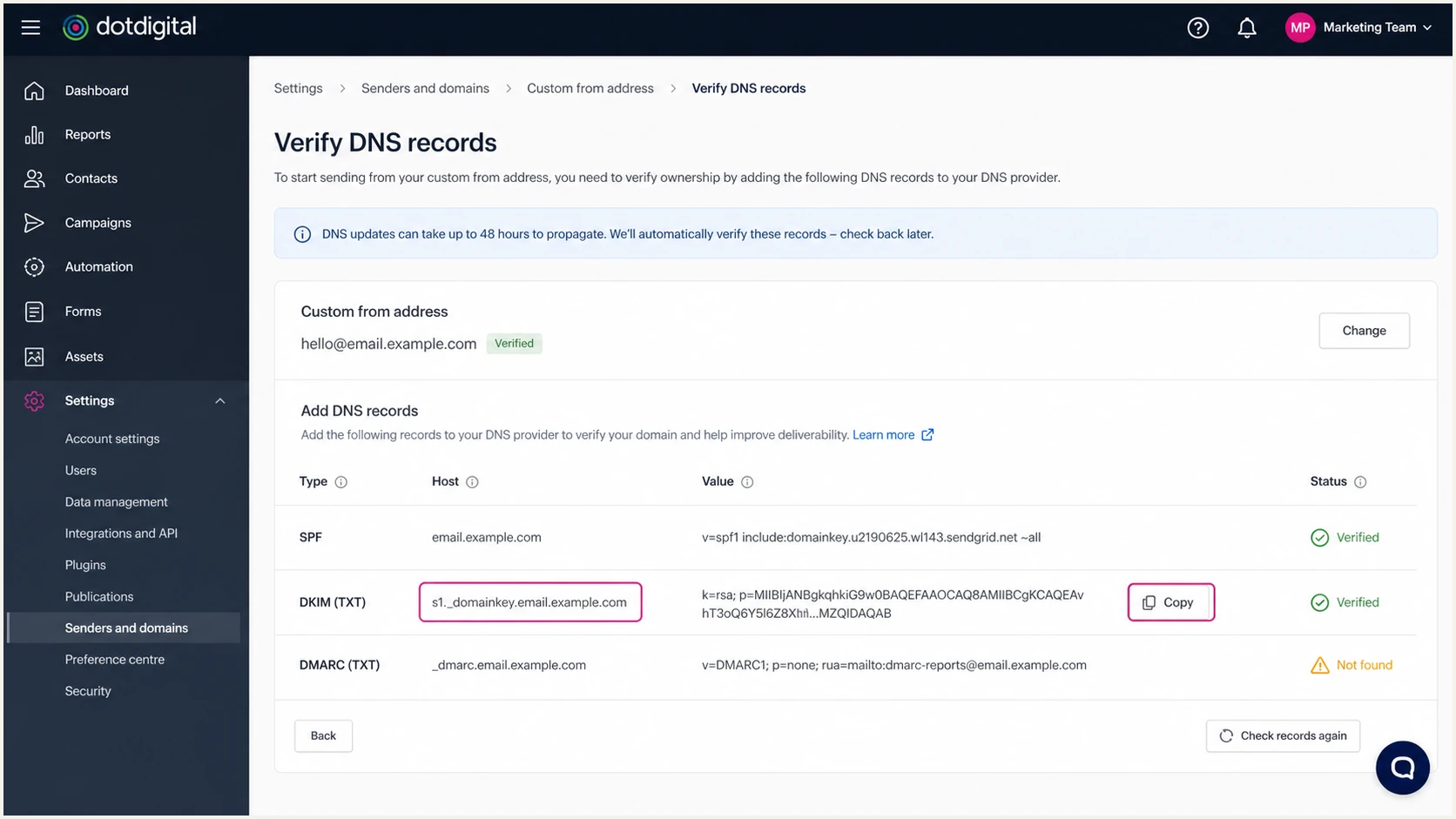
Dotdigital verification page showing the DKIM selector and public key
New Dotdigital CFA domains default to 2048-bit DKIM. Some older CFAs still use 1024-bit keys. Ask Dotdigital support to upgrade or rotate an older key, then publish the replacement before the old selector is retired.
The selector in a received message appears in the DKIM-Signature header after s=. The signing domain appears after d=. Check the key at that exact selector and confirm the d= domain has the required relationship to the visible From domain.
DKIM record shapedns
Host: <selector>._domainkey.email.example.com
Type: TXT
Value: v=DKIM1; k=rsa; p=<public-key-from-Dotdigital>
DKIM can survive forwarding
Forwarding often changes the envelope sender and breaks SPF domain matching. A valid Dotdigital DKIM signature normally survives forwarding when the message body and signed headers remain unchanged.
Set up DMARC
If the organizational domain has no DMARC record, start with p=none and collect aggregate reports. If it already has p=quarantine or p=reject, keep that policy and fix Dotdigital authentication instead of weakening enforcement.
- Query _dmarc.example.com and confirm whether an organizational-domain DMARC TXT record already exists.
- Update the existing record when one exists. Multiple DMARC records at one name make DMARC evaluation fail.
- For a new organizational-domain deployment, publish the p=none record below and replace the example report mailbox with a real address.
- Dotdigital creates DMARC on delegated CFAs. Contact its support team before changing that child-domain policy or when the parent already enforces DMARC.
- If the domain already uses quarantine or reject, leave it in place and validate Dotdigital with test messages and reports.
Starting DMARC recorddns
v=DMARC1; p=none; rua=mailto:dmarc@example.com
Use the DMARC record generator to build a record with a real aggregate-report mailbox and any required subdomain policy. Publish it as TXT at _dmarc on the organizational domain you manage. Dotdigital controls the separate record for a delegated CFA.
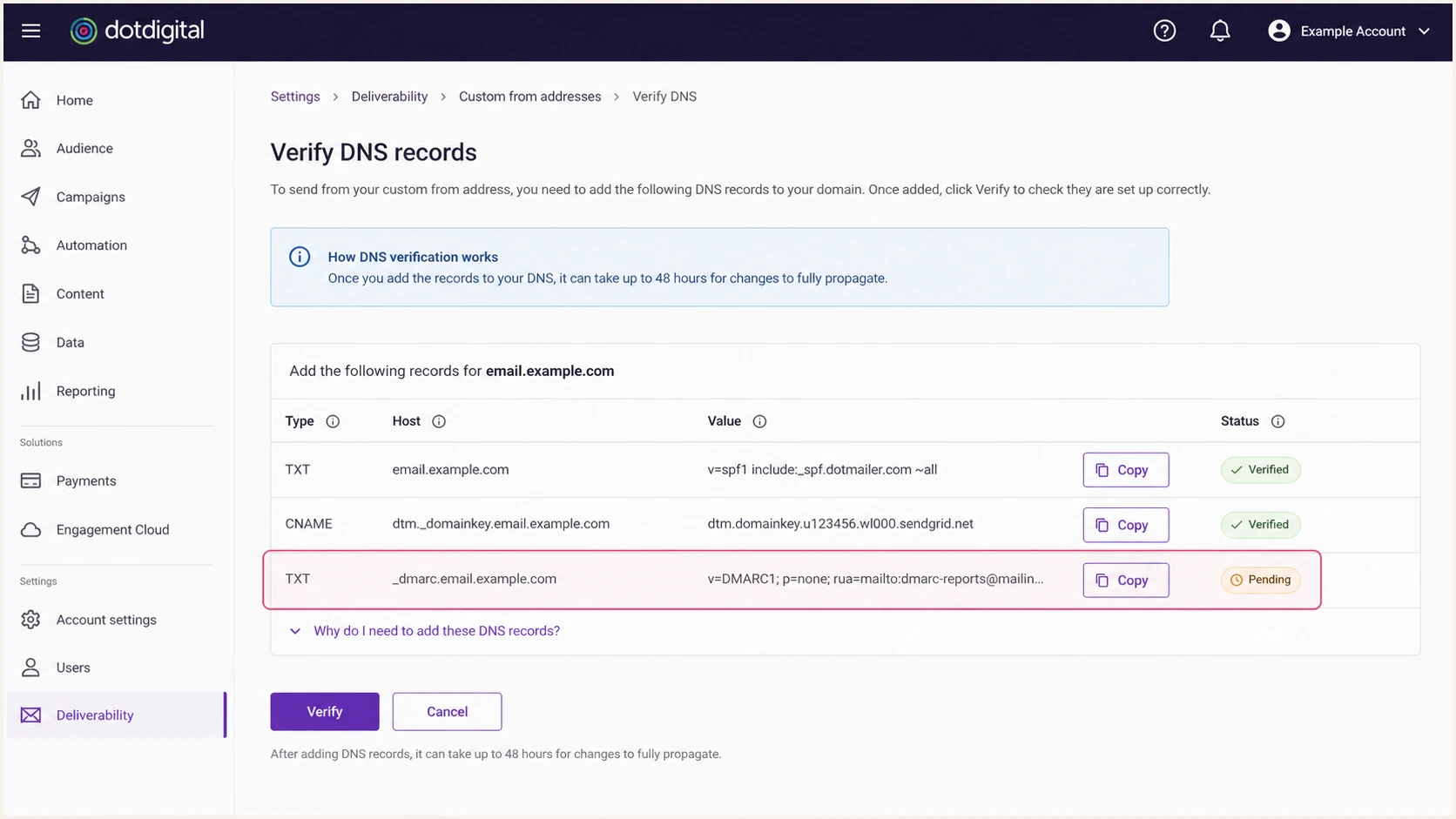
Dotdigital CFA verification screen highlighting its DMARC record
Dotdigital's delegated CFA normally starts at p=none and sends reports to its configured reporting address. To add another report destination or change the CFA policy, contact Dotdigital support because it controls that delegated DNS zone.
A parent-domain DMARC policy applies to subdomains that lack their own record. Tell Dotdigital when the organizational domain already has enforcement so the CFA can receive an explicit child policy where needed.
DMARC checker
Look up a domain's DMARC record and catch policy issues.
?/7tests passed
Run the embedded check against the visible From domain. The result should show one parsed policy, a valid rua destination, and no syntax errors. The DMARC checker also gives a shareable result for a DNS administrator.
When rua uses a reporting address on another domain, confirm that the destination domain authorizes external DMARC reports. Without that authorization, receivers can withhold reports even when the DMARC record parses.
DMARC passes when either SPF passes with matching domains or DKIM passes with matching domains. Aim for both on Dotdigital, but treat matched DKIM as the durable path for forwarded mail.
Do not replace active enforcement
Changing p=reject or p=quarantine to p=none exposes the whole domain while solving a single sender. Correct the Dotdigital CFA, then prove that its authenticated domains match.
Verify and troubleshoot
Verification has two layers: Dotdigital must accept the CFA's DNS records, and a real message must pass authentication with domains that match the visible From address. Complete both before sending a live campaign.
- Open Settings > Email > From addresses, select Verify, then select Verify again at the bottom of the DNS page.
- Read the confirmation notice, select the acknowledgement checkbox, and select Confirm.
- Use the new CFA as the campaign From address and send through the same account and stream intended for production.
- Check Authentication-Results, Return-Path, DKIM-Signature d= and s=, and the visible From domain.
- Confirm SPF or DKIM passes with the required domain match. A raw SPF pass on an unrelated domain does not count.
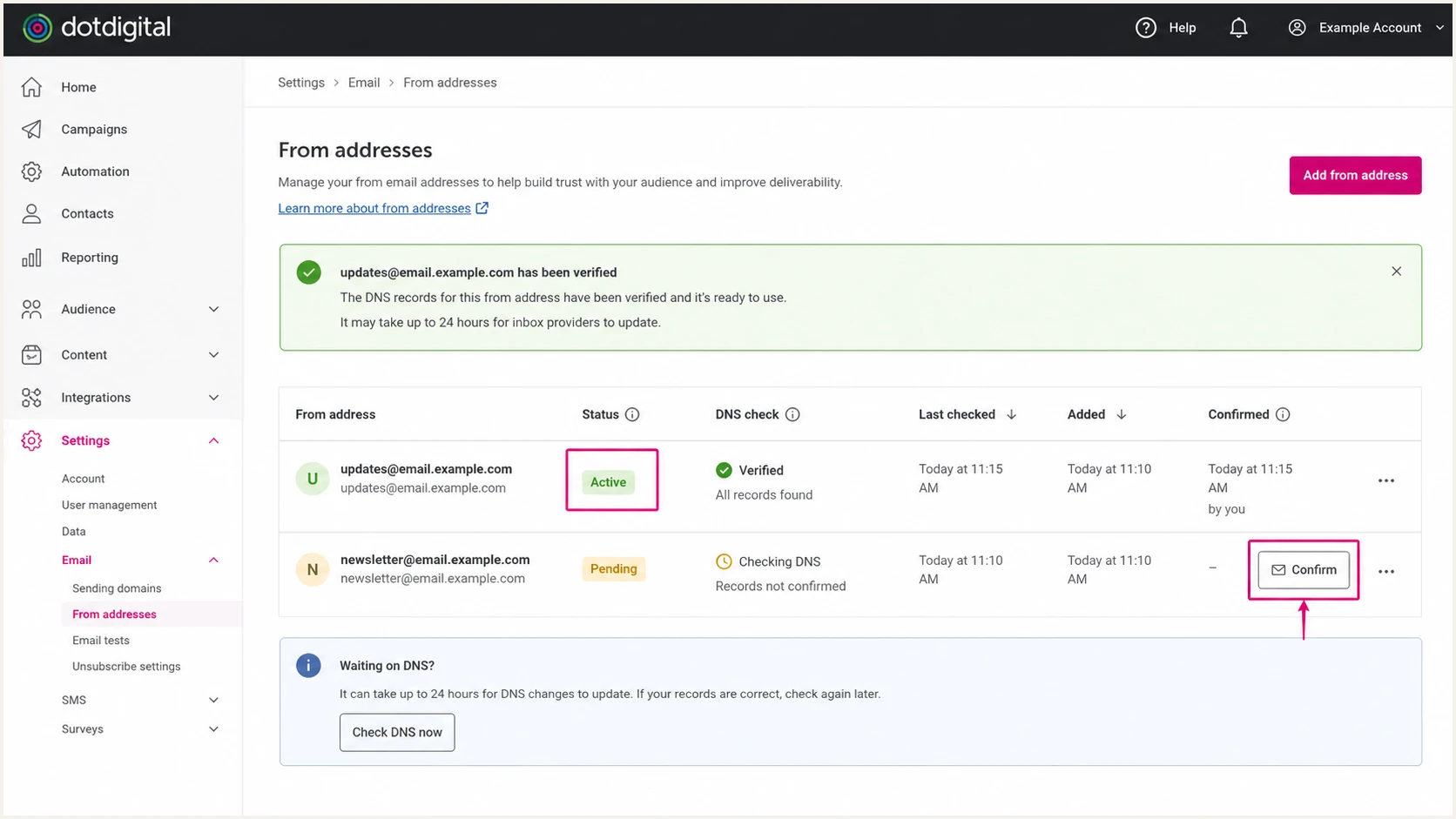
Dotdigital From addresses screen showing an active verified CFA
Dotdigital says records can take about ten minutes to appear on its verification page, while DNS propagation can take up to 48 hours. A newly added CFA also has a four-hour no-send window after creation. Repeated changes during these windows make diagnosis harder, so compare authoritative DNS with the exact expected values first.
When verification fails, check for missing TXT, MX, or A records, unexpected MX or A records, unequal MX priorities, invalid DMARC policy values, and missing p or reporting tags. Also check whether the DNS console appended the zone name twice.
|
|
|
|---|---|---|
SPF pass | Envelope authorized | Check domain match |
DKIM pass | Signature valid | Check d= domain |
DMARC pass | Matching auth | Ready to monitor |
DMARC fail | No matching pass | Fix SPF or DKIM |
Compact authentication result guide
The quickest end-to-end check is a message sent through Dotdigital to the test address below. Use the exact CFA, campaign path, and account region planned for production.
The report separates DNS publication from message behavior. That distinction catches cases where SPF and DKIM records exist but the live campaign uses a different Return-Path, signing domain, or selector.
Email tester
Send a real email to this address. Suped shows a results button when the test is ready.
?/43tests passed
Treat a clean DNS check as necessary but incomplete. Save the received headers from the email test as deployment evidence and compare them after any CFA, DNS, or account-region change.
If DKIM fails, query the selector found in the actual message. If SPF fails, query the actual Return-Path domain. If both pass but DMARC fails, the problem is domain matching rather than authorization.
Monitor Dotdigital authentication
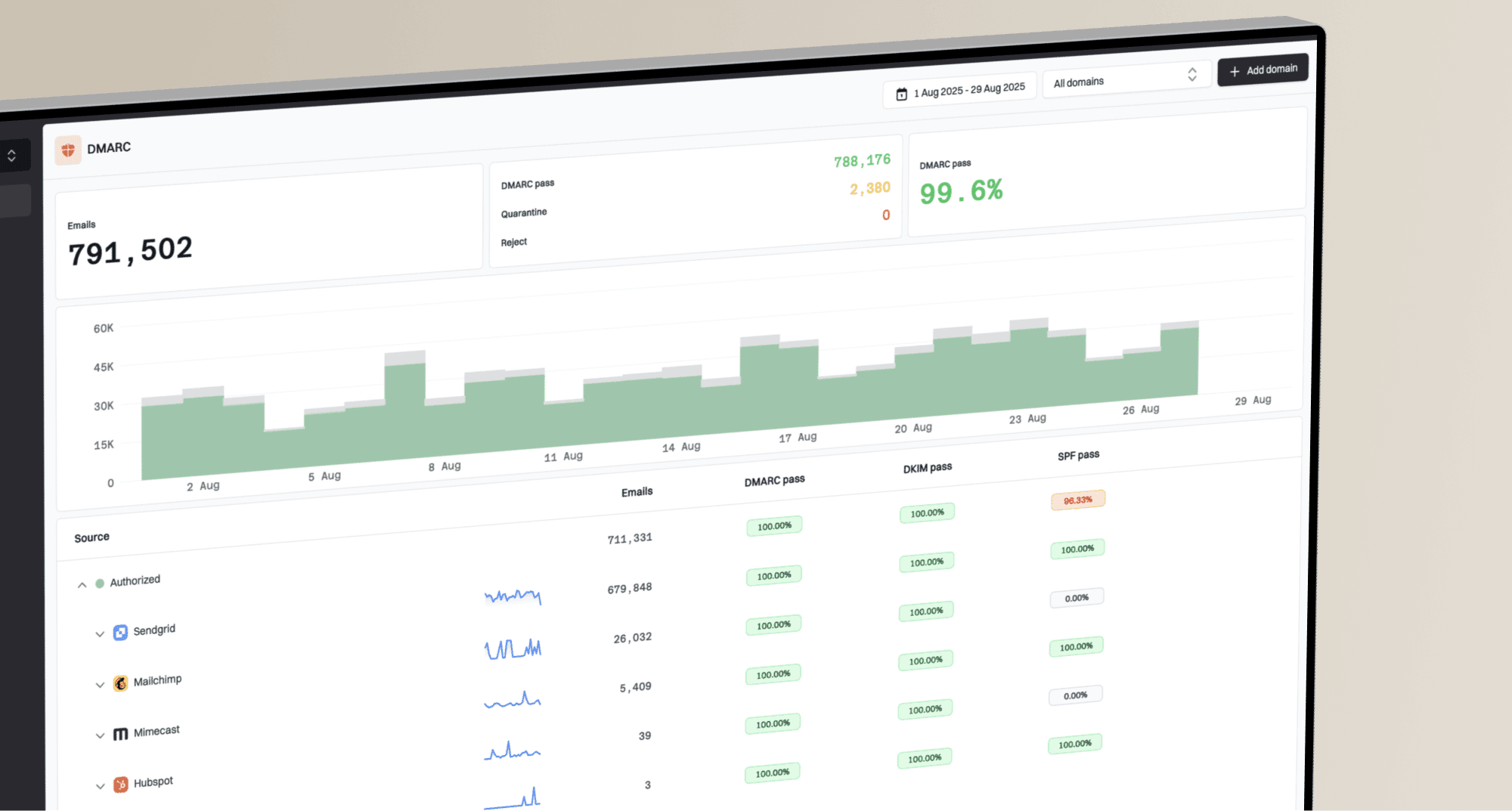
DNS checks prove the configuration only at one moment. Suped is our DMARC reporting and email authentication platform. Use it to review aggregate reports for the Dotdigital CFA, spot source or domain-matching changes, and route alerts to the team that owns DNS and campaigns.
- Add the aggregate-report address to the existing rua tag without creating a second DMARC record. For a delegated CFA, ask Dotdigital support to add it.
- Mark the Dotdigital source as authorized after its live SPF or DKIM result matches the visible From domain.
- Send sudden failure, new-source, and policy-change alerts to the team that owns DNS and campaigns.
- Use the observed Return-Path, DKIM selector, and failure details to correct the affected DNS record or Dotdigital setting.
- Review blocklist (blacklist) signals and delivery changes alongside DMARC reports.
Suped combines DMARC monitoring with SPF, DKIM, blocklist, and deliverability diagnostics. Its reports help detect a CFA that still looks healthy in DNS while the live sending path stops matching.
For agencies and managed service providers, the multi-tenant dashboard keeps each client's Dotdigital domain, alert recipients, policy stage, and verified sources separate. Weekly summaries support routine review, while alerts cover abrupt failures.
Alert on changes that require action
- Investigate a new source before authorizing it.
- Check the active selector and message changes when DKIM failures rise.
- Inspect the Return-Path record and lookup count when SPF fails.
- Restore the approved DMARC policy and reporting tags after an unexpected change.
Move a dedicated sending domain to p=reject
Move a dedicated Dotdigital sending domain to p=reject only after every legitimate sender has a matching SPF or DKIM pass. For Dotdigital, prioritize DKIM because forwarding can break SPF. Review general-purpose organizational domains separately because mailing lists and forwarding create more indirect mail paths. RFC 9989 advises against p=reject on general-purpose domains.
- Monitor at least one complete business sending cycle, including scheduled campaigns, automations, low-frequency transactional mail, and test sends.
- Authorize Dotdigital only when the CFA passes. Remove obsolete senders instead of adding broad SPF permission.
- Require matching DKIM on important streams and retest forwarding, list redistribution, message modification paths, and gateway rewriting.
- Move the dedicated sending domain to p=quarantine after reviewing reports and legitimate failures. Watch delivery results before the next policy change.
- Move to p=reject only when every material legitimate source is understood and passing with domain matching.
- Watch new sources and failure spikes after enforcement because sender configurations continue to change.
A high overall pass rate does not replace source review. A small failure percentage can contain important password resets or receipts. Identify the business owner and message type behind every material source.
Example enforcement stagesdns
v=DMARC1; p=quarantine; rua=mailto:dmarc@example.com

v=DMARC1; p=reject; rua=mailto:dmarc@example.com
RFC 9989 marks the old pct tag historic. Do not rely on pct=10 or another percentage to stage enforcement. Change the policy after reviewing reports and testing the affected mail streams.
Do not publish these example records inside a Dotdigital-delegated child zone. Ask Dotdigital to change that CFA policy. For a self-managed organizational domain, update the single existing DMARC record and retain every required reporting tag.
Suped's hosted DMARC supports policy changes without repeated direct TXT edits. Use its source reports and alerts to check the effect of each change, while Dotdigital support still owns changes inside a delegated CFA zone.
Stop the rollout on legitimate impact
Pause policy changes when an authorized source loses matching authentication, a business-critical stream appears unknown, or recipient rejection rises. Fix and retest before continuing.
Dotdigital authentication FAQ
These checks cover the details that usually surface after the first CFA test, including infrastructure identifiers found in SPF records and reverse DNS.
Treat an identifier as evidence, not authorization. Confirm the sending account, live headers, and DMARC aggregate data before changing DNS.