
How to set up DMARC/DKIM/SPF for DomainFactory

Published 22 Nov 2026
Updated 22 Nov 2026
13 min read
Summarize with
For DomainFactory, publish one SPF TXT record for the service that actually sends your mail, configure that service to sign with your domain using DKIM, and publish a DMARC TXT record at _dmarc.yourdomain. Start a new DMARC deployment with p=none and reporting. Keep an existing p=quarantine or p=reject policy.
I check the sending route before copying DNS values. DomainFactory Professional Email, legacy hosting mail and Microsoft 365 have different settings. A website hosted by DomainFactory also needs its own sending test, even when the mailbox already passes authentication.
Add your domain
Use the domain already attached to your DomainFactory hosting or email order. There is no separate universal DMARC domain-verification step. If your domain and mailbox are active, keep them and go straight to the authentication records.
I use the account product name and a received message to identify the correct setup. Domain registration at DomainFactory does not prove that DomainFactory sends the email.
|
|
|
|---|---|---|
Legacy hosting | DNS assistant | Plan support |
Professional Email | Email & Office | Email & Office |
Microsoft 365 | Tenant settings | Tenant settings |
Website or app | Actual mail route | Actual mail route |
Choose records by the sending service, rather than the domain registrar.
For a new Professional Email mailbox, the documented setup starts in the Productivity Panel. For an external domain on legacy hosting, DomainFactory documents a separate activation process.
Check the authoritative nameservers before editing DNS. If another provider hosts the active zone, publish the records there.
- Select the order: Sign in to the Kundenmenü. Select the relevant order, then Auftrag verwalten. Open Nameserver-Einstellungen and choose Editieren beside your domain.
- Activate external domains: For a domain absent from a legacy hosting account, use Externe Domain freischalten. If DomainFactory will host its mail, enable E-Mail-Verkehr and follow the account-specific MX instructions.
- Create a mailbox: For Professional Email, open the Productivity Panel, choose Konten einrichten if shown, select your domain and Weiter, complete the user details and password, then choose Erstellen.
- Confirm readiness: Wait for mailbox provisioning, sign in and send a message to an external mailbox. Check that your intended domain appears in From. Existing domains do not need to be added again.
Keep the DNS records shown by your own email setup screen. They are the reference for account-specific DKIM targets and any required ownership verification.
Changing MX records changes incoming delivery. Authentication setup alone is not a reason to move working mailboxes or replace MX records.
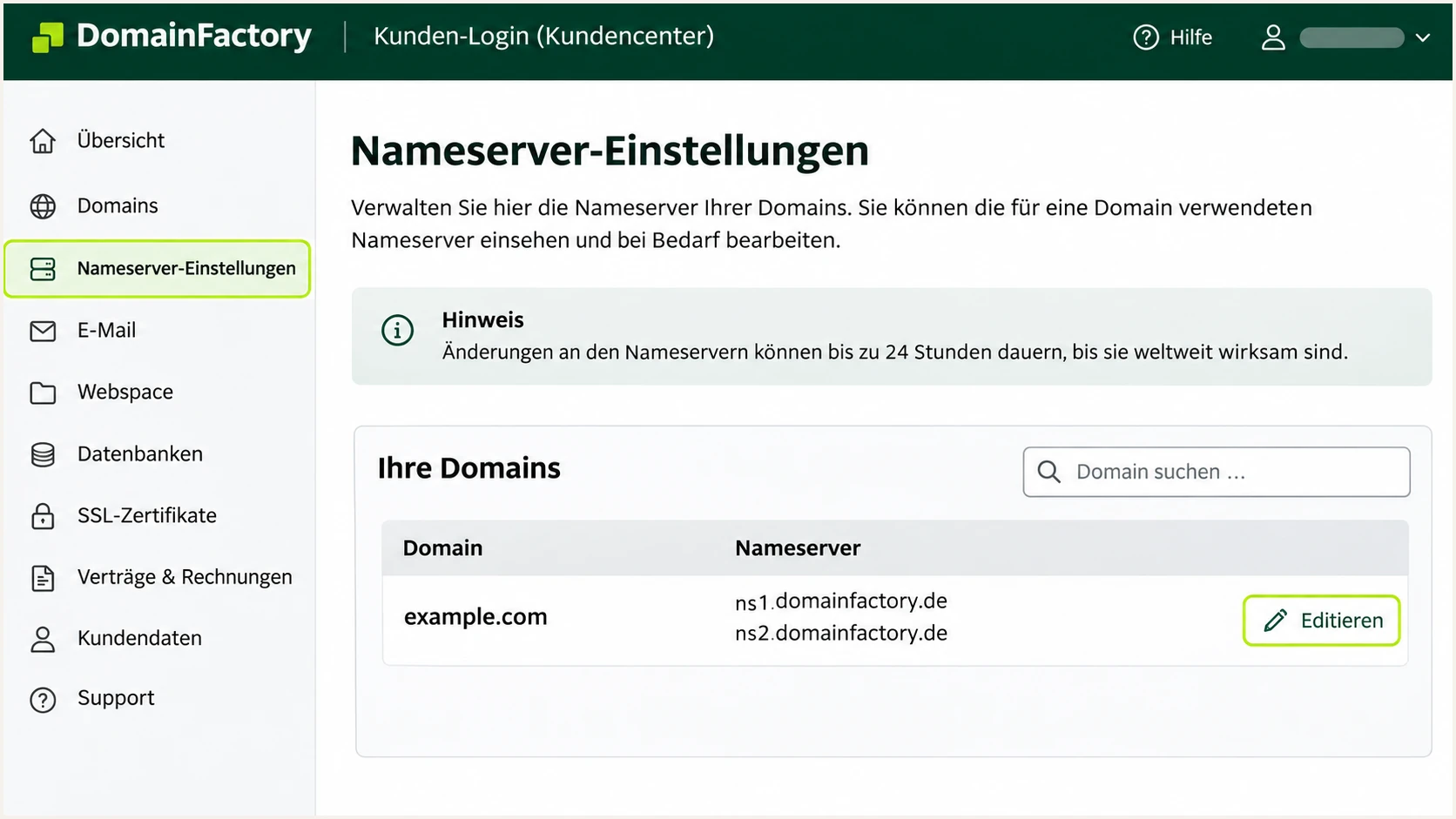
Illustrative DomainFactory screen showing where to open a domain's DNS settings.
Set up SPF
DomainFactory's legacy SPF instructions use a configuration assistant in Nameserver-Einstellungen. Professional Email has a different documented SPF value. I use the value for the actual sending route and preserve other authorized senders.
The examples below apply to separate routes. Use the legacy example only when your account confirms that route. Do not replace an existing multi-service SPF record with a single-service example.
SPF TXT values for separate DomainFactory sending routestext
# Legacy hosting, when confirmed by the account SPF assistant
v=spf1 include:ispgateway.de ~all

# Professional Email, when it is the only authorized sender
v=spf1 include:secureserver.net -all
SPF checks the SMTP envelope sender, normally visible as Return-Path after delivery. To contribute to DMARC, that domain must match the visible From domain under the DMARC alignment rules.
For example, bounce.example.com and example.com match under the default relaxed rules. Publishing SPF for example.com does not fix a message whose envelope sender uses an unrelated provider domain.
- Configure legacy SPF: Open Nameserver-Einstellungen > Editieren > Eintrag hinzufügen. Choose SPF in the legacy assistant. Set SMTP-Server for DomainFactory mail and enable E-Mail-Versand durch Skripts only when the hosted scripts actually send mail. Review the generated value, then Speichern.
- Configure Professional Email: In its DNS editor, add or edit a TXT record at the domain root, shown as @ in the current instructions. Use the setup screen value. If other senders exist, merge their mechanisms into this same record.
- Set the envelope sender: For your application, use an envelope sender under your domain if its mail library and sending account permit it. Use your own address in From and put a contact-form visitor's address in Reply-To. Check the delivered Return-Path for rewriting.
- Validate the result: Publish only one TXT record beginning v=spf1 at each sending domain. Keep SPF within 10 DNS-querying terms across recursive evaluation. Authorize direct script delivery with its actual outbound IP, rather than assuming the website's A record is sufficient.
Check the envelope-sender domain below, including its subdomain when applicable. SPF records are not automatically inherited by existing subdomains.
A DNS check confirms record syntax and authorization mechanisms. A received message is still needed to establish which domain your application actually uses.
SPF checker
Find SPF syntax issues, lookup limits, and weak records.
?/16tests passed
If a route forces a provider-owned Return-Path, an SPF alignment failure is expected for that route. DMARC still passes when DKIM passes with a signing domain that matches From.
Do not add unrelated SPF includes to chase that mismatch. Fix the envelope sender where supported, and verify matching DKIM on every sending route.
Set up DKIM
DKIM must be enabled on the sending service as well as published in DNS. Creating a key yourself does not cause DomainFactory to sign messages with it.
For Professional Email, DomainFactory's technical FAQ specifies two CNAME selectors with account-specific targets. Microsoft 365 uses its tenant-generated selectors instead. Legacy hosting needs confirmation of signing support for the specific plan.
- Retrieve Professional Email records: Open the E-Mail und Office overview. Under Benutzer choose Konfigurieren, then E-Mail-Ziel festlegen or Hilf mir, das zu beheben. Copy both DKIM CNAME targets from Schritt 2.
- Publish both selectors: Add CNAME records named secureserver1._domainkey and secureserver2._domainkey, using their respective copied targets. Set TTL to 1 hour and save. If the editor appends your domain, do not enter that suffix twice.
- Handle Microsoft 365 separately: Use the domain's DKIM settings in Microsoft Defender to obtain both CNAME targets. Publish selector1._domainkey and selector2._domainkey, then return to enable signing for that domain. Do not reuse Professional Email targets.
- Check legacy signing: If your hosting account provides no DKIM settings, ask DomainFactory whether that exact outgoing service signs with your domain. If it cannot, send the application through a DomainFactory mailbox service that supports domain-specific DKIM and test again.
Preserve existing selectors used by other legitimate senders. Each selector name must resolve to the intended key, and a CNAME owner cannot also contain a TXT record.
After saving, send a fresh message. In DKIM-Signature, s= identifies the selector and d= identifies the signing domain. The receiver must report dkim=pass for a signature whose d= domain matches From.
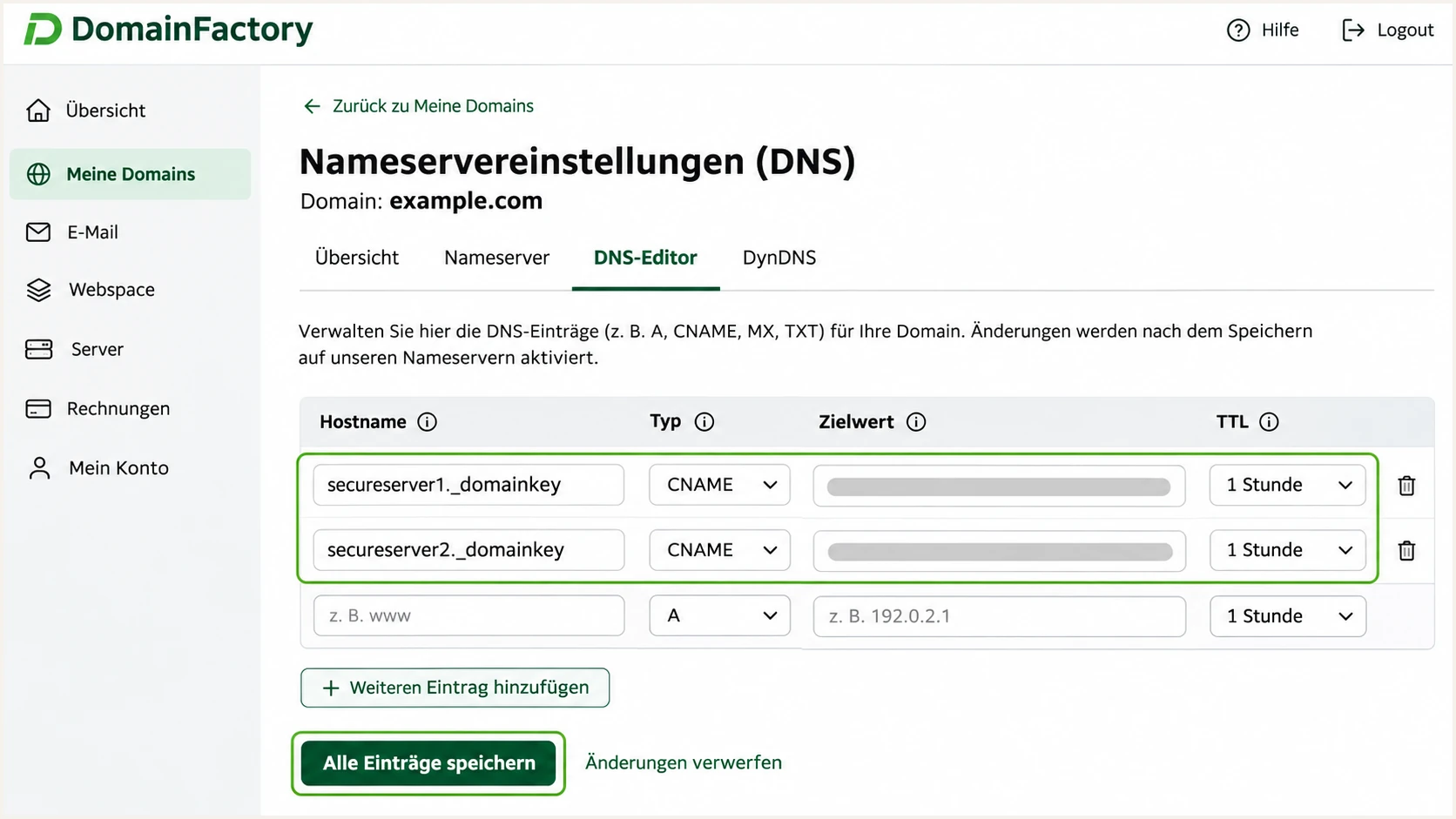
Illustrative DomainFactory DNS editor with the two Professional Email DKIM selectors.
If DKIM is absent, investigate the actual sending service before changing the DNS key. An unsigned website message often follows a different route from a signed mailbox message.
If the signature exists but fails, check its selector target and public key first. Message changes after signing, including footer insertion, also break signature verification.
Set up DMARC
For a new deployment, publish the exact monitoring value below as a TXT record at _dmarc.example.com. Replace example.com and the report mailbox before saving. Create a working report mailbox or use a reporting destination assigned to you.
Keep an existing p=quarantine or p=reject policy. To prepare a record with your real reporting address, use our DMARC record generator.
Initial DMARC TXT value at _dmarc.example.comtext
v=DMARC1; p=none; rua=mailto:dmarc@example.com
The p=none policy requests no DMARC-based quarantine or rejection. Receivers continue their other filtering, and participating receivers send aggregate reports to the rua destination.
Relaxed SPF and DKIM alignment are the defaults when aspf and adkim are omitted. I keep those defaults during setup so that legitimate subdomain sending does not needlessly fail.
- Open the active zone: Use the same authoritative DNS editor as SPF and DKIM. In DomainFactory, open Nameserver-Einstellungen, select the domain and choose Editieren.
- Add the record: Choose TXT and enter _dmarc if the editor adds the domain automatically. Otherwise use the full _dmarc.example.com hostname. Paste the TXT value without adding literal surrounding quotes.
- Preserve one policy: Edit an existing DMARC record instead of adding a second one. Keep its enforcement setting and any required reporting destinations. Two DMARC records at the same policy name invalidate policy discovery.
- Save and confirm: Use the editor's save action, then look up _dmarc at the actual From domain. For an external rua destination, confirm that the report recipient authorizes reports for your domain.
The checker below tests the published DMARC policy. Check the From domain used by your application, rather than an unrelated website hostname.
A valid policy does not establish that outgoing mail passes it. SPF or DKIM must pass and have a domain match with From on the delivered message.
DMARC checker
Look up a domain's DMARC record and catch policy issues.
?/7tests passed
Allow cached DNS answers to expire after changes. Query the authoritative nameservers to distinguish an unpublished edit from an older cached answer.
DomainFactory documents that DNS changes commonly appear within an hour, with global updates taking up to 48 hours. Check the record location and saved value before attributing every failure to propagation.
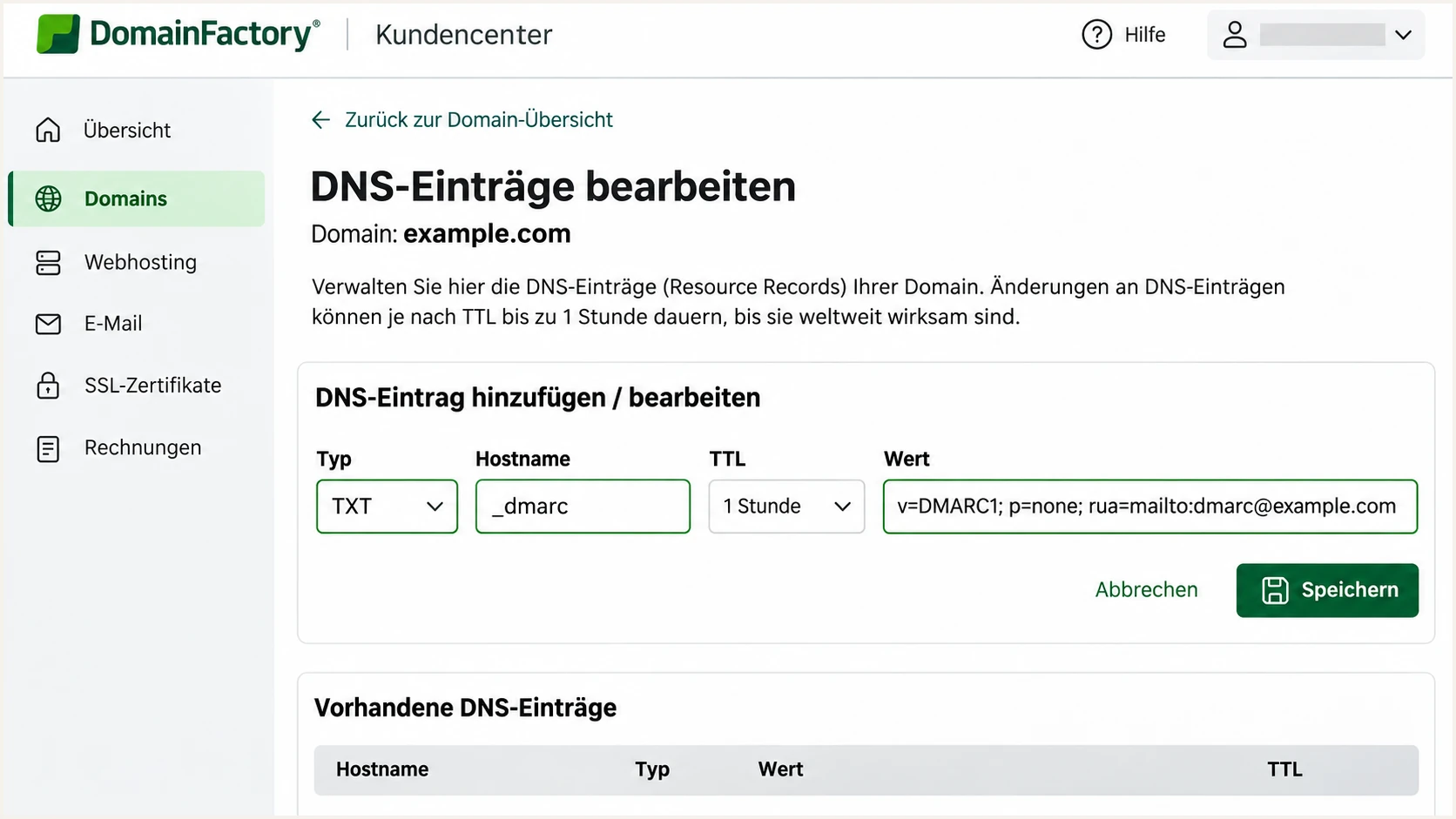
Illustrative DomainFactory DNS editor for a monitoring-only DMARC TXT record.
Verify and troubleshoot
I test a fresh message through each production route. A mailbox message proves nothing about a contact form that still uses the web server's local mail transport.
Use the email tester below for the quickest message-level check. Send to the address it provides through the DomainFactory mailbox or application you are configuring; it returns a diagnosis of the received message.
- Exercise real workflows: Send a mailbox message, submit a contact form, trigger a password reset and generate an order notification where those workflows exist. Keep the visible From domain consistent with the intended authenticated domain.
- Read receiver results: Check the final receiver's Authentication-Results for spf, dkim and dmarc. Compare smtp.mailfrom and DKIM header.d with header.from. Do not treat spf=pass alone as a DMARC pass.
- Check public records: Confirm one SPF record and one DMARC record. Query each actual DKIM selector from the received signature. For CNAME-based DKIM, confirm that the target ultimately returns a public key.
- Fix the failure: For SPF permerror, check duplicate records and the lookup limit. For dkim=none, fix signing on the sender. For dkim=fail, check the selector and message changes. For dmarc=fail with authentication passes, correct the domain mismatch.
Email tester
Send a real email to this address. Suped shows a results button when the test is ready.
?/43tests passed
These DNS commands check the example domain and Professional Email selectors. Substitute your domain and the selectors actually used by the sender.
If you use a different DNS provider, its authoritative answers must contain the changes. Saving records in an inactive DomainFactory zone has no effect on public authentication.
Inspect authoritative DNS and authentication recordsbash
dig +short NS example.com
dig +short TXT example.com
dig +short TXT _dmarc.example.com
dig +short CNAME secureserver1._domainkey.example.com
dig +short CNAME secureserver2._domainkey.example.com
dig +short TXT secureserver1._domainkey.example.com
A passing message needs at least one matching, passing authentication path for DMARC. Configure both SPF and DKIM where supported so normal forwarding does not leave SPF as the only path.
Authentication does not guarantee inbox placement. If authentication passes but delivery still fails, inspect the SMTP rejection and sending reputation separately.
Get alerted when it breaks
Our platform, Suped, turns DomainFactory authentication reports into source-level issues and notifications. Its DMARC monitoring gives a team a repeatable way to detect failures after mailbox migrations or DNS edits.
I keep reporting enabled after the initial setup. A one-off successful test cannot detect a selector removed next month or a website deployment that changes its envelope sender.
- Deliver reports: Keep Suped's assigned rua destination in the existing DMARC policy. Preserve the current policy strength and verify that aggregate reports are arriving.
- Enable notifications: Enable Issues detected and Sending sources need verification notifications for the people responsible for DomainFactory mail. Use DMARC summary emails for recurring review.
- Verify sources: Review DomainFactory sending IPs and expected domains before marking a source as verified. Investigate unfamiliar traffic instead of authorizing it based only on a provider name or rDNS suffix.
- Resolve regressions: Open the affected source and detailed DMARC records. Inspect SPF and DKIM diagnostics, apply the supplied fix steps at the responsible service, then send a new test and check later reports.
Suped's source filters help distinguish a failing website route from a healthy mailbox route. DNS history helps connect a changed record with the start of failures.
Aggregate reports arrive on the receiver's reporting schedule, commonly daily. Report-driven alerts are not immediate checks of every message at send time.
Manual review
Receive XML reports in a mailbox and inspect their authentication results yourself.
This requires repeated review and a separate process to notice new failures.
Suped monitoring
Our platform groups reports by source and flags authentication issues with fix steps.
Notifications bring changes to the team responsible for correcting the sending configuration.
Keep an independent test message after application changes. It catches mistakes before the next batch of aggregate reports arrives.
If mail stops entirely, aggregate reports alone do not establish availability. Check the application queue and SMTP errors as part of the incident.
Secure your domain with p=reject
Move to p=reject after every legitimate sender has a tested DMARC pass. I include infrequent mail, such as monthly billing, in the observation period instead of using a fixed number of days as proof.
Suped's verified sources and detailed failure records support that decision. Our Hosted DMARC product lets teams manage policy changes in the dashboard after configuration, while continuing to review the same sources.
- Complete the inventory: Account for DomainFactory mailboxes and website mail, plus every other legitimate service using the domain. Judge failures by legitimate source; a high overall pass rate can hide a broken low-volume sender.
- Fix legitimate failures: Require a matching SPF or DKIM pass for each legitimate route. Prefer working DKIM as well as SPF. Do not add unknown senders to SPF just to improve a dashboard percentage.
- Stage enforcement: Change a new monitoring deployment to p=quarantine after validation. Review fresh reports and delivery tests through normal business cycles. Keep existing stronger policies in place.
- Enforce and monitor: Change to p=reject once legitimate failures are resolved. Keep rua reporting active. Review any sp tag and explicit subdomain DMARC records so the intended policy covers the right domains.
The values below show policy stages for the same record, not additional records to publish. Replace the example reporting address and preserve other settings you intentionally use.
A reject policy requests rejection of messages that fail DMARC. Receivers retain local discretion, and DMARC does not prevent abuse using lookalike domains.
Enforcement after verification
Edit the existing DMARC TXT value when the corresponding stage is ready. Keep reporting enabled throughout.
Example policy progressiontext
# Quarantine stage
v=DMARC1; p=quarantine; rua=mailto:dmarc@example.com

# Reject stage
v=DMARC1; p=reject; rua=mailto:dmarc@example.com
Without an sp tag, the organizational domain's policy also applies to subdomains that do not publish an overriding DMARC policy. Review those senders before enforcing.
After a DomainFactory migration or DKIM rotation, repeat the production-route tests and review new source data before treating the change as complete.
Frequency asked questions
Professional Email documents v=spf1 include:secureserver.net -all for a domain using only that service. Legacy hosting uses its SPF assistant; include:ispgateway.de applies when that route is confirmed. Merge actual senders into one SPF record instead of publishing both examples separately.
Professional Email supports DKIM with two account-specific CNAME targets. Microsoft 365 uses tenant-specific DKIM records and signing activation. For legacy hosting, confirm signing support with DomainFactory for the exact plan and outgoing mail route.
The documented names are secureserver1._domainkey and secureserver2._domainkey beneath your domain. Copy the targets from your own Email & Office setup. Microsoft 365 selector1 and selector2 targets are a separate configuration.
SPF authenticates the envelope-sender domain. If it does not match the visible From domain under the configured alignment mode, SPF does not satisfy DMARC. A passing DKIM signature with a matching signing domain still satisfies DMARC independently.
The ispgateway.de suffix is associated with DomainFactory hosting and mail infrastructure. It identifies infrastructure rather than proving that a message is authorized for your domain. I check the source IP, envelope sender and DKIM signing domain before treating that traffic as legitimate DomainFactory mail.
DomainFactory states that most DNS changes take effect within an hour, with global updates taking up to 48 hours. Check the authoritative nameservers and saved hostname first, then retest after cached records expire. A record saved in the wrong DNS zone never becomes effective through waiting.




