
How to set up DMARC/DKIM/SPF for Domain.com


To authenticate Domain.com email, publish the SPF record for your actual mail product, enable its DKIM signing, and add a DMARC TXT record at _dmarc. Test a message through each sending route before enforcing rejection. Domain registration alone does not configure authentication for website applications or separately hosted mail.
I start by identifying the sending service and authoritative DNS host. Domain.com's account migration to Network Solutions means the current screens and authentication settings depend on the email product attached to your account. Keep an existing p=quarantine or p=reject policy while correcting authentication.
Select your domain
An existing Domain.com registration does not need a separate 'add domain' or sender-verification process. Select the domain already in your account, then confirm where its DNS is managed.
- Open the account. Use Domain.com's Login button. After migration, your services open in Network Solutions Account Manager using the credentials specified in your migration notice.
- Open DNS. Select Domains, choose your domain, click Manage, then open DNS. Older accounts use Advanced Tools > Advanced DNS Records > Manage. The legacy Domain.com panel uses DNS & Nameservers > DNS Records.
- Check authority. Confirm that the domain's published nameservers belong to the DNS service you are editing. If DNS is hosted elsewhere, publish the authentication records there.
- Identify the sender. Check the email product attached to the mailbox. Record website contact forms and application SMTP settings separately; those messages can use a different outgoing relay.
- Configure legacy SMTP. For email purchased from Domain.com before migration, the documented outgoing server is smtp.domain.com on port 587, or 465 with SSL. Enable outgoing authentication and use the full mailbox address as the username.
I save the existing DNS values before making changes. Leave working MX records in place: they route incoming email and do not enable outgoing DKIM signing.
If a separate mail product requests domain ownership verification, publish its account-generated verification record and finish verification there. Do not invent a verification token or copy another domain's DKIM key.
Set up SPF
SPF authorizes servers for the envelope sender domain, normally visible in the delivered Return-Path header. Choose the record for your confirmed mail product, rather than copying the SPF record of Domain.com's own corporate domain.
- Choose the value. For Network Solutions Cloud Mail, use the Cloud Mail example below. For Webmail 7.10.2, use its separate example. Use the combined example only for the documented Network Solutions hosted contact-form and mail setup.
- Edit one TXT record. In DNS, locate the TXT value beginning v=spf1 and select Edit. If absent, click +Add Record, select TXT, choose @ for the root domain, and enter the value. Keep the default TTL, normally 7200 seconds.
- Preserve other senders. Merge required mechanisms into the existing SPF record before its final all mechanism. Publish only one SPF record at each name and stay within SPF's limit of 10 terms that trigger DNS lookups, including nested includes.
- Verify the envelope. Use your own domain for the application's envelope sender where supported. Send a message and compare smtp.mailfrom with the visible From domain. A matching organizational domain satisfies default relaxed SPF alignment.
Choose one example for the confirmed Network Solutions mail producttext
# Cloud Mail only
v=spf1 include:spf.cloudus.oxcs.net ~all

# Webmail 7.10.2 only
v=spf1 include:spf.registeredsite.com ~all

# Network Solutions hosted contact form and mail
v=spf1 include:spf.registeredsite.com include:spf.cloudus.oxcs.net ~all
Paste only the applicable record value, without the comment labels. For legacy Domain.com hosting, obtain the relay's current SPF instructions for that account before replacing working values; migration does not prove that its outgoing mail platform has changed.
Run the SPF check against the actual envelope sender domain. If it is a sending subdomain, its SPF record is separate from the root domain's record. This lookup checks DNS configuration; a live message checks the sending route.
SPF checker
Find SPF syntax issues, lookup limits, and weak records.
?/16tests passed
If the relay rewrites the Return-Path to a provider-owned domain, adding an include at your root domain does not fix SPF alignment. Ask support about the account's envelope-sender support, and ensure DKIM passes with your domain as its signing domain.
I repeat this check for contact forms, password resets, and mailbox messages. A successful mailbox test does not validate a website script that uses another relay.
Set up DKIM
DKIM must be enabled by the system sending the message. Publishing a public key in Domain.com's DNS cannot make an unrelated website application sign its outgoing mail.
Cloud Mail or Standard Email
These products include DKIM automatically. Verify the signature on a live message before changing keys.
Webmail 7.10.2, Edge Desk, or ProMail
Use the account's DKIM Manager. Multi-user accounts require an administrator to change signing settings.
For the DKIM Manager route, follow the account controls below. If your email is hosted by another service, enable signing there and copy its generated DNS records into the authoritative zone.
- Open the mailbox. Select Professional Email, or Email & Office > Professional Email. Choose the mailbox, click Manage, then DKIM Manager.
- Enable signing. Select Configure with auto-generated keys. Preserve an existing enforcement policy if the form also edits DMARC.
- Publish the key. Managed nameservers receive the generated DNS updates automatically. With external DNS, open View DNS TXT Record Information and copy the supplied name and value to that DNS host.
- Verify the signature. Send fresh mail. Read d= and s= in DKIM-Signature, query that selector under the signing domain, and confirm dkim=pass plus a domain match with From.
Keep the selector supplied by the sending platform. Do not assume it is 'default', and never publish the private signing key in DNS.
I check the final message after any outbound relay has processed it. Message changes after signing can invalidate DKIM even when the DNS key is correct.
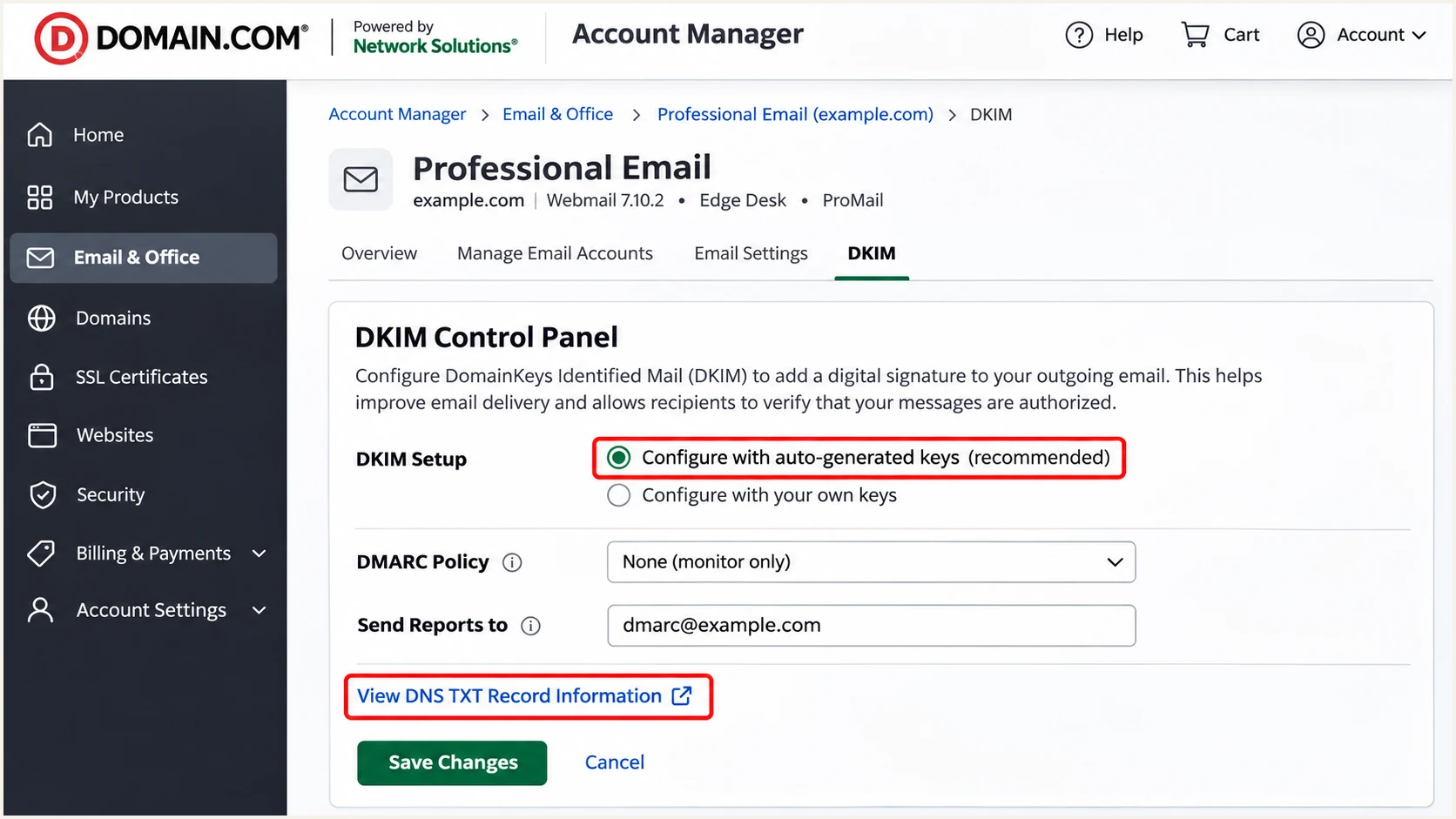
Domain.com migrated account: DKIM Manager controls for supported Professional Email plans.
Set up DMARC
DMARC checks whether a passing SPF or DKIM identity matches the visible From domain. It passes when at least one of those authentication methods passes with the required domain match.
For a domain without an enforcement policy, start with p=none. If p=quarantine or p=reject is already published, keep that policy and correct the sending configuration.
- Find the policy. In DNS, check for an existing TXT record at _dmarc. Edit it instead of creating a second DMARC record.
- Enter the host. Click +Add Record, choose TXT, select Other Host, and enter _dmarc. In the legacy panel, use _dmarc in Host/Name. Confirm the resulting name is _dmarc.example.com, without a duplicated domain suffix.
- Set reporting. Use a working reporting mailbox under your domain or an authorized report destination. Replace the example address before publishing and retain existing report recipients when editing.
- Save and recheck. Keep default relaxed SPF and DKIM alignment unless a specific requirement needs strict matching. Save the record, then query public DNS after cached values expire.
Create the value with the DMARC record generator. For example.com, the initial monitoring record is:
Initial DMARC record for example.comtext
Type: TXT
Host: _dmarc
TTL: 7200
Value: v=DMARC1; p=none; rua=mailto:dmarc@example.com
The exact TXT value is v=DMARC1; p=none; rua=mailto:dmarc@example.com. The example mailbox must be replaced with your actual report destination. A destination on another domain requires authorization by that destination's operator.
A p=none policy requests monitoring without requesting quarantine or rejection for DMARC failures. It does not prevent receiving systems from applying their own spam or security decisions.
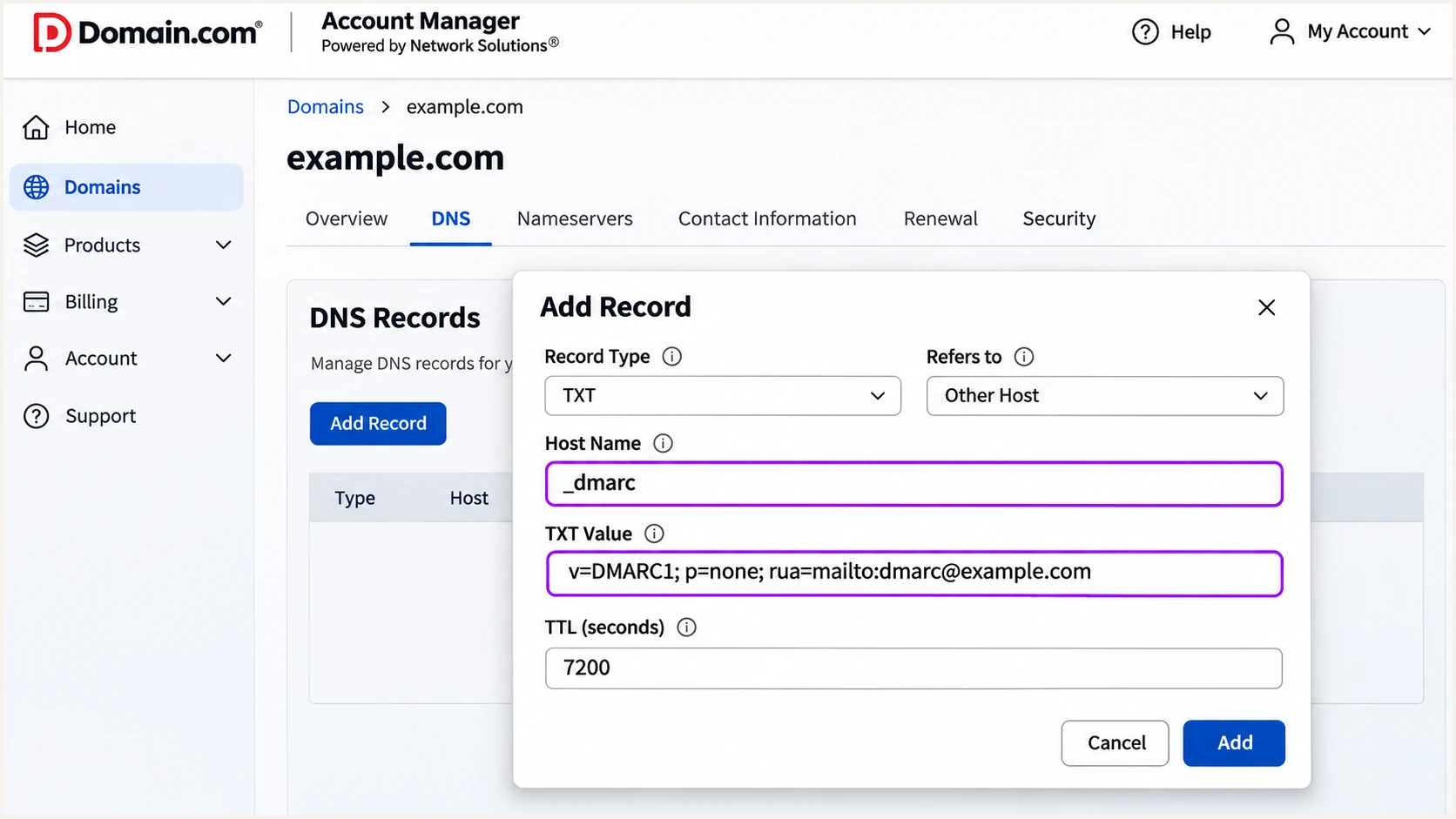
Domain.com migrated account: enter the DMARC TXT record at _dmarc.
Check the domain used in your visible From address. A sending subdomain with its own DMARC record uses that policy; otherwise the parent domain's policy normally applies.
The DMARC checker below validates the published policy and reporting syntax. Run it after saving, and compare the returned value with the value you intended to publish.
DMARC checker
Look up a domain's DMARC record and catch policy issues.
?/7tests passed
A valid record confirms publication, not that every message passes DMARC. DKIM Manager can also write DMARC settings, so recheck the policy after changing that control panel.
I keep the reporting destination active throughout testing and enforcement. Aggregate reports provide evidence about other sending sources that a single test message does not cover.
Verify and troubleshoot
Send a new message through the actual Domain.com mailbox and a separate message through each hosted application. For a contact form, use your domain in From and the visitor's address in Reply-To.
The email tester is the quickest end-to-end check. Send to the address shown in the widget through your normal sending route to receive a diagnosis of authentication and other delivery checks.
Email tester
Send a real email to this address. Suped shows a results button when the test is ready.
?/43tests passed
Read the authentication verdict added by the receiving system, including smtp.mailfrom, the DKIM signing domain, and header.from. Do not treat a signature's presence as proof that it passed verification.
Compare each authenticated domain with the visible From domain. Under relaxed matching, a subdomain such as bounce.example.com can match example.com; an unrelated provider domain cannot.
|
|
|
|---|---|---|
SPF | Pass | Envelope sender |
DKIM | Pass | Signing domain |
DMARC | Pass | Visible From |
Domain match | SPF or DKIM | Same organization |
Expected results on a fresh message sent through the configured route.
- SPF errors. Merge duplicate v=spf1 records, correct invalid mechanisms, and reduce excessive lookup terms. Check the real sending IP against the envelope sender's policy.
- DKIM errors. Query the selector found in the message. Check for missing keys, incorrect hostnames, and changes to the message after signing. If the sender supplies a CNAME, preserve that record type.
- Website failures. Configure the application to use the intended authenticated SMTP route. Confirm its envelope sender and signing domain separately from the mailbox settings.
- Stale DNS. Compare authoritative answers with cached answers and allow the previous TTL to expire. Fix an incorrect record name immediately; waiting does not repair a duplicated domain suffix.
Inspect public DNS, using the selector from your test messagebash
dig +short NS example.com
dig +short TXT example.com
dig +short TXT _dmarc.example.com
dig +short CNAME selector._domainkey.example.com
dig +short TXT selector._domainkey.example.com
Replace example.com with your domain. For DKIM, replace selector with s= and use the signing domain from d=; it is not always the same as the From domain.
If the result remains wrong at the authoritative nameserver, return to the active DNS zone. If only cached answers differ, retest after expiry and send a fresh message.
An SPF alignment warning is compatible with a DMARC pass when DKIM passes and its signing domain matches From. Keep valid DKIM signing in place, particularly for forwarding paths where SPF often fails.
Get alerted when it breaks
A one-time check does not detect a later relay change or missing DNS key. Our platform, Suped, provides DMARC monitoring that connects incoming aggregate reports with authentication issues and fix instructions for Domain.com sending sources.
- Enable issue alerts. In Suped's notification settings, enable Issues detected and Sending sources need verification. Enable DMARC summary emails for regular review.
- Confirm the source. Match each reported Domain.com source to an authorized mailbox or application before marking it verified. Investigate unfamiliar traffic rather than adding it to SPF automatically.
- Diagnose the change. Open the affected records and compare SPF, DKIM, and DMARC results. Use DNS history to check whether a record changed before failures started.
- Verify recovery. Apply the fix in the sending product or authoritative DNS host, run a fresh email test, and check subsequent reports for the affected source.
I investigate failures by sending route, rather than relying only on the domain's overall pass rate. A high-volume mailbox can hide a broken low-volume contact form.
DMARC aggregate reports arrive on the reporting receiver's schedule, commonly daily. Suped's notifications act on the information available; report-based alerts do not provide instant visibility into every individual message.
Secure your domain with p=reject
Move to p=reject after every legitimate sending route has a reliable DMARC pass. I review a complete business sending cycle, including infrequent invoices and password resets, before changing enforcement.
- Resolve legitimate failures. Use Suped's source-level records and issue diagnostics to fix each authorized sender. Do not wait for spoofed traffic to pass, and do not authorize unknown IPs to improve a percentage.
- Stage enforcement. For a new deployment, move from p=none to p=quarantine, then review reports and delivery failures before p=reject. Keep an existing stronger policy while fixing individual senders.
- Check subdomains. Review sending subdomains and any explicit subdomain policies. Separate a problematic application onto a controlled sending subdomain when it needs independent remediation.
- Change one policy. Edit the existing _dmarc record, preserve reporting, and retest each route. With Hosted DMARC, follow its supplied DNS setup and manage subsequent policy changes there; avoid competing TXT and CNAME records at _dmarc.
Our Hosted DMARC lets you stage policy changes in Suped after its DNS setup is complete. Use it alongside source diagnostics and notifications to check legitimate mail before and after each enforcement change.
Ready for p=reject
Every known sender has a working domain match through SPF or DKIM, fresh tests pass, and reporting covers the normal sending cycle.
Fix before enforcement
A legitimate application has no matching authenticated identity, or a sending route has not been tested since a relay change.
For a DNS-managed policy, the final example below retains aggregate reporting. Replace the report address with your real destination, and keep any other required tags from your existing policy.
Final enforcement example after verificationtext
Type: TXT
Host: _dmarc
Value: v=DMARC1; p=reject; rua=mailto:dmarc@example.com
After saving, verify public DNS, send new tests, and review subsequent reports in Suped. A p=reject policy requests rejection for DMARC failures; receiving systems retain control over delivery decisions.
Keep the DKIM Manager policy setting consistent with the policy you published. Recheck DNS after account migrations or automated setup changes that write authentication records.
Frequency asked questions
No. Cloud Mail uses spf.cloudus.oxcs.net, while documented Webmail 7.10.2 settings use spf.registeredsite.com. Legacy hosting and separately hosted email require their own sending service's instructions. Confirm the account's actual mail product before choosing a value.
It depends on the mail product. Cloud Mail and Standard Email include DKIM. Supported Webmail 7.10.2, Edge Desk, and ProMail accounts use DKIM Manager. Always verify a live signature and its signing domain, including when signing is automatic.
The form can use a different relay or an unauthorized From address. Use your domain in From, the visitor's address in Reply-To, and the intended authenticated SMTP route. Test the form itself and check its envelope sender and DKIM signing domain.
Yes. DMARC passes if DKIM passes with a signing domain that matches the visible From domain under the policy's matching rules. Adding an SPF include to your domain does not change a provider-owned Return-Path.
The eigbox.net suffix is a clue to shared Newfold hosting mail infrastructure, including legacy Domain.com services. It does not uniquely identify Domain.com or prove a message is authorized. Confirm the source using a known test message, the sending IP, and its SPF and DKIM results.
Keep an existing p=reject or p=quarantine policy. Fix and verify the affected sending route while retaining enforcement. The p=none starting record is for domains beginning monitoring without an established enforcement policy.




