
How to set up DMARC/DKIM/SPF for DELTA Fiber

For a domain you own, publish SPF and DMARC in its authoritative DNS and enable DKIM on the service that sends your DELTA Fiber email. For an @delta.nl or @zeelandnet.nl mailbox, DELTA manages the domain authentication. You cannot change those provider-owned DNS records yourself.
I first distinguish a DELTA internet connection from DELTA-hosted email. Only the outgoing mail service determines which SPF authorization and DKIM key you need. DELTA Zakelijk documents Plesk for business-domain DNS management; the Plesk steps below apply when your subscription includes that control panel.
Add your domain
DELTA Zakelijk's "Dienstbeschrijving Zakelijk Pro", under "Toelichting Domeinregistratie", describes domain registration through its business customer service and DNS management through Plesk. I check that the domain is attached to the correct hosting subscription before editing authentication.
A standard DELTA mailbox does not need a custom-domain onboarding step. DELTA's "Welkom" instructions activate it through MijnDELTA > Zelf regelen > Beheer e-mailadressen, using the lock icon to set the mailbox password. Continue with DNS changes only for a domain you control.
- Confirm the service: Check the domain after @ in your From address. Confirm with DELTA that your package hosts outgoing email for that domain, rather than only its registration, website or internet connection.
- Open the domain: Sign in to the Plesk panel supplied with the hosting account. Open Websites & Domains and select your domain. If an additional domain is needed and your subscription permits it, choose Add Domain and complete the form.
- Confirm DNS authority: Run the NS lookup below. Edit records at the DNS service named by the delegation. Use Plesk > Websites & Domains > your domain > DNS Settings only when Plesk manages that authoritative zone.
- Confirm sending access: Send a message from an existing mailbox on the custom domain. Check its From address and Return-Path. If the domain or mail controls are absent, ask DELTA to provision the correct service and supply its outgoing authentication settings.
Identify the DNS service for your domainbash
dig +short NS example.com
Adding a domain to Plesk creates hosting configuration; it does not automatically change the public DNS delegation. I preserve existing MX records and website records while adding authentication.
Use the actual outgoing service
A fiber connection alone does not make DELTA an authorized sender for your domain. If another mail host sends the messages, configure that host's authentication records in your domain's DNS. There is no need to move nameservers just to add TXT records.
Set up SPF
I configure SPF for the domain used in the SMTP MAIL FROM address, shown as Return-Path after delivery. For SPF to satisfy DMARC, that authenticated domain must match the visible From domain under the applicable DMARC matching rules.
For a custom-domain DELTA sending account, verify that the Return-Path uses your domain or a subdomain of it. Changing the display name or the From address alone does not configure the Return-Path.
- Read the envelope domain: Send through the production DELTA mailbox or relay and inspect Return-Path at the recipient. If it uses a separate bounce subdomain, check SPF at that subdomain rather than assuming the root record applies.
- Get the sending values: Ask DELTA for the SPF include hostname or outbound IPv4/IPv6 addresses for your exact mail service. An SMTP login hostname is not automatically an SPF include, and an incoming MX address is not proof of an outbound sending address.
- Edit one TXT record: In the authoritative DNS editor, find the existing TXT value beginning v=spf1 at the envelope domain. Merge the confirmed DELTA authorization with existing authorized senders. Keep one SPF record and one final all mechanism.
- Check the lookup limit: Keep SPF within the limit of 10 DNS-querying terms during evaluation, including nested includes. Direct ip4 and ip6 mechanisms do not consume that term limit. Save the record and apply pending DNS changes if prompted.
Illustrative SPF value, replace the documentation IPtext
v=spf1 ip4:192.0.2.10 ~all
The address 192.0.2.10 above is reserved for documentation. Publish the actual DELTA-provided authorization instead, preserving any other legitimate senders. I do not infer an include value from DELTA's corporate domain.
Enter the envelope domain in the SPF checker below. For a separate bounce subdomain, enter that exact subdomain. Check both the syntax and the total evaluated lookup count.
SPF checker
Find SPF syntax issues, lookup limits, and weak records.
?/16tests passed
A successful DNS check establishes that the SPF policy is valid. A new delivered message must also show spf=pass for the actual outgoing IP and the expected MAIL FROM domain.
If the account keeps a provider-owned Return-Path, SPF can pass without contributing to DMARC. In that case, require passing DKIM with a signing domain that matches your From domain. Publishing extra SPF includes at your root domain does not fix an unrelated Return-Path.
Set up DKIM
DKIM needs a signature added by the outgoing mail server and a matching public key in DNS. Publishing a public key alone does not turn on signing. I use the selector and public key generated by the server that actually sends the message.
The following controls are documented in Plesk's "DKIM, SPF, and DMARC Protection and ARC Support". Use them only when your DELTA subscription exposes Mail Settings and that Plesk server handles outgoing mail. Otherwise, ask DELTA to enable signing for your domain and provide its exact DNS records.
- Open mail settings: In Plesk, open Websites & Domains > your domain > Mail > Mail Settings. Some panel layouts also expose Mail Settings directly under the domain.
- Enable signing: Select "Use DKIM spam protection system to sign outgoing email messages" and save with Apply or OK. If the control is unavailable, ask DELTA to enable outgoing DKIM support for the subscription.
- Publish the public records: For external DNS, open "How to configure external DNS" and copy the displayed hostnames and TXT values to the authoritative DNS service. For Plesk-managed DNS, inspect the generated records in DNS Settings and apply pending changes.
- Verify the active selector: Send a fresh message. Read d= and s= in DKIM-Signature, then query s._domainkey.d using those actual values. Require dkim=pass and a signing domain that matches the From domain under DMARC.
Plesk commonly uses the selector default, but the live DKIM-Signature is the authority for the active selector. The lookup below is an example for s=default and d=example.com.
Copy the complete public key without truncating it. Keep the private key on the signing server. If DNS is hosted externally, a record visible only inside Plesk is not sufficient.
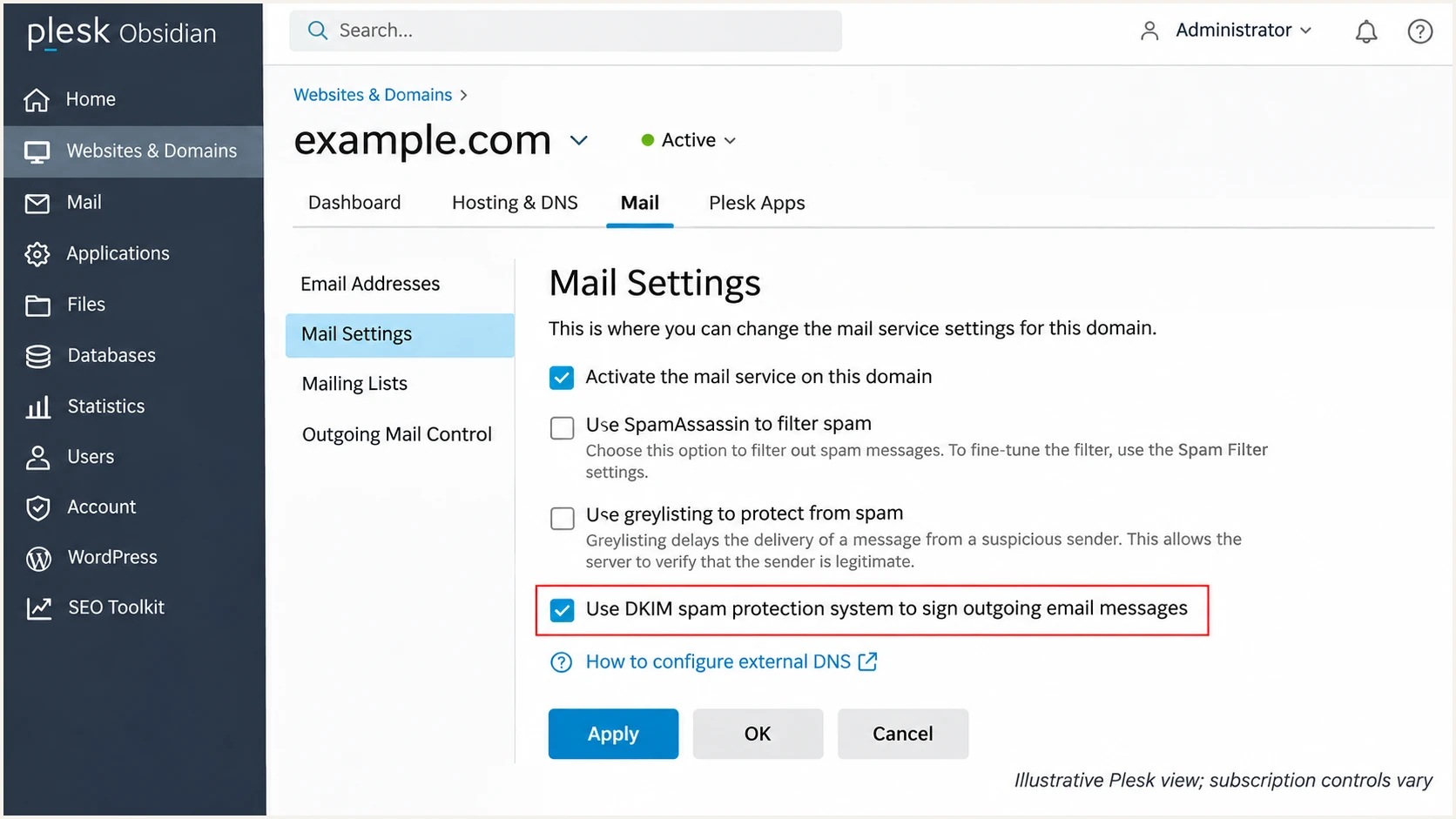
Illustrative Plesk mail settings for a DELTA business domain, showing DKIM signing.
If a fresh message has no DKIM-Signature, check the outgoing route before changing DNS again. A website script or separate SMTP relay can bypass the Plesk server where signing was enabled.
A passing signature with an unrelated provider domain does not satisfy DMARC for your custom From domain. I check the signature domain as well as the cryptographic result.
Example lookup for the selector found in the messagebash
dig +short TXT default._domainkey.example.com
DKIM satisfies DMARC
From uses example.com. DKIM passes with d=example.com. The signature authenticates the domain used in the visible sender address.
DKIM passes for another domain
From uses example.com. DKIM passes with d=provider.example. That signature does not satisfy DMARC for example.com. Configure signing with your own domain.
Set up DMARC
For a domain without an existing enforcement policy, I start with p=none and collect aggregate reports. If your domain already uses p=quarantine or p=reject, keep that policy while fixing the DELTA sender.
Use the DMARC record generator to prepare the TXT value, then publish it at the authoritative DNS service. DMARC is a domain policy, so use one record for the From domain rather than a separate policy for every sender.
- Check the existing policy: Look up TXT at _dmarc.example.com. Edit an existing DMARC record rather than creating a second one. For a sending subdomain without its own record, check the organizational domain's inherited policy too.
- Create the TXT entry: In Plesk-managed DNS, open Websites & Domains > your domain > DNS Settings > Add Record. Select TXT and enter _dmarc in the domain-name field if the panel appends your domain automatically.
- Enter the monitoring value: Use the exact starting value shown below for a new policy. Replace dmarc@example.com with a working report destination you control before publishing it.
- Save and publish: Save the entry and apply pending DNS changes. Query the full hostname afterward to confirm it is _dmarc.example.com rather than a hostname with the domain appended twice.
Starting DMARC TXT record for a domain without enforcementtext
Host: _dmarc
Type: TXT
Value: v=DMARC1; p=none; rua=mailto:dmarc@example.com
The example reporting address is a placeholder. A normal mailbox receives XML attachments; a reporting platform processes them. If the reporting destination uses a different domain, follow that recipient's external-report authorization requirements.
Check the published record below after saving it. Verify that exactly one DMARC policy is returned and that the report destination is correct.
DMARC checker
Look up a domain's DMARC record and catch policy issues.
?/7tests passed
The DMARC checker validates DNS configuration. It does not prove that DELTA signs outgoing mail correctly or that every sending application passes DMARC.
The monitoring policy requests reports without asking receivers to quarantine or reject messages because of DMARC failure. Aggregate reports usually arrive on a daily schedule; allow roughly 24-48 hours for initial report data rather than treating missing immediate data as a setup failure.
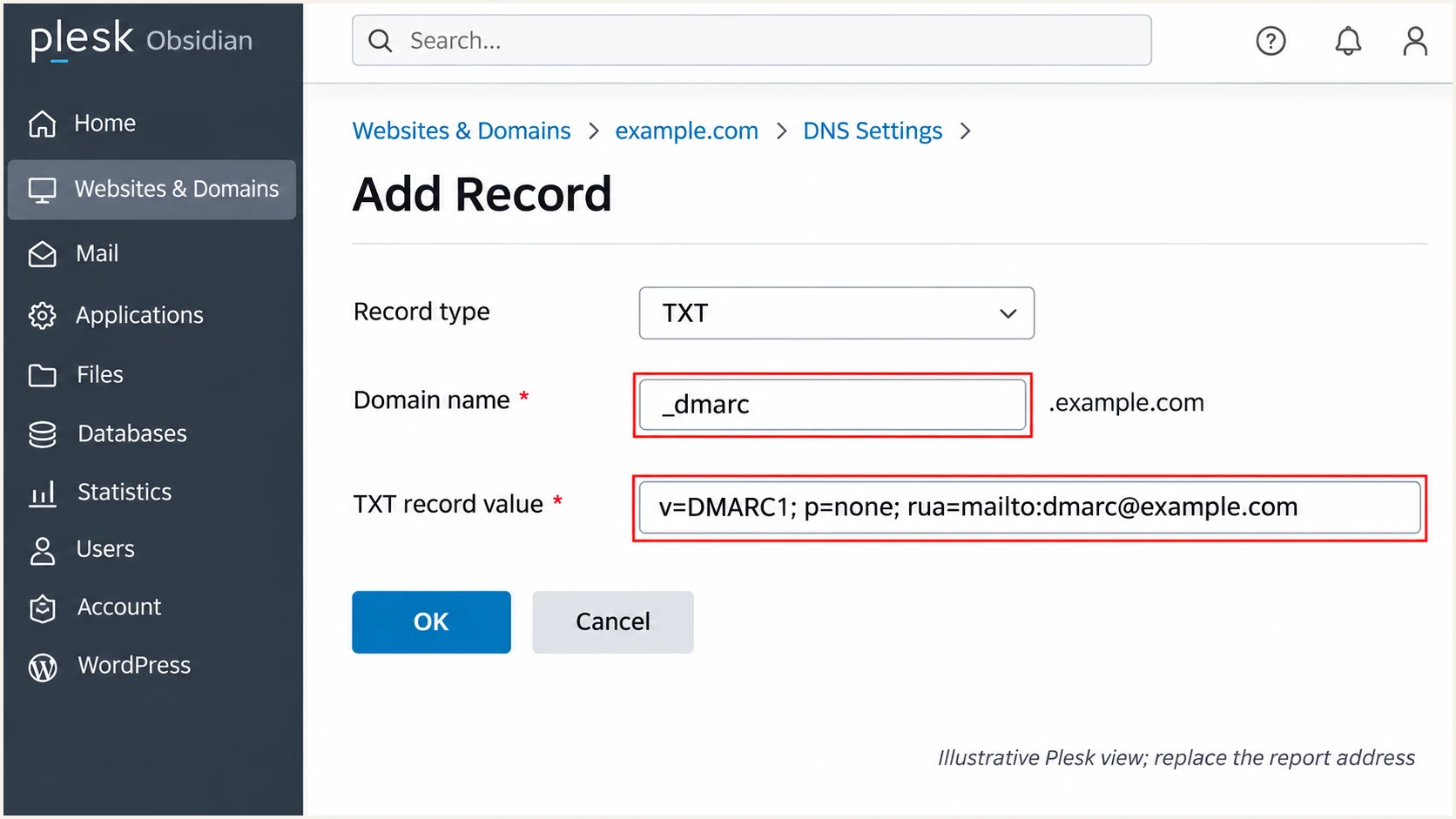
Illustrative Plesk TXT entry for a DELTA-hosted domain using DMARC monitoring.
Verify and troubleshoot
I test a delivered message through the same route used for normal email. A valid DNS record is only one part of the check; the recipient must see the expected sending IP and domain identities.
DELTA's "Serverinstellingen" lists the consumer SMTP settings below. These settings establish a mailbox connection. For custom-domain hosting, use the SMTP settings assigned to that hosting account.
|
|
|
|
|---|---|---|---|
DELTA | mail.delta.nl | 465 | SSL/TLS |
ZeelandNet | mail.zeelandnet.nl | 465 | SSL/TLS |
Published consumer settings; sign in with the mailbox credentials.
- Use the production route: Test the custom-domain mailbox and any application that sends through a different route. A successful webmail test does not establish that a website contact form uses the same mail server.
- Send a diagnostic message: Use the recipient address supplied by the email tester below. Send a normal message through your actual DELTA mailbox or configured relay.
- Inspect the identities: Compare the visible From domain with smtp.mailfrom in Authentication-Results and d= in DKIM-Signature. Require dmarc=pass through at least one passing mechanism with the required domain match.
- Retest after changes: Wait for the previous DNS TTL to expire where caching applies, then send a new message. Save the test result and sending route so later failures can be compared with the working configuration.
The email tester is the quickest check of a real message. It supplies a test address and diagnoses the authentication results after you send to it.
Use the mailbox or application being configured, rather than forwarding an old message. Forwarding changes the delivery route and often changes SPF results.
Email tester
Send a real email to this address. Suped shows a results button when the test is ready.
?/43tests passed
A message with passing DKIM for your From domain can pass DMARC even when SPF fails or its domain does not match. I still investigate a direct-sending SPF failure, but I do not treat an unrelated Return-Path as something a root-domain TXT change can repair.
Read the recipient-generated Authentication-Results header. These illustrative results show the relevant identities; the receiver name and domains are examples, not values to publish in DNS.
Illustrative passing authentication resultstext
Authentication-Results: receiver.example;
 spf=pass smtp.mailfrom=example.com;
 dkim=pass header.d=example.com;
 dmarc=pass header.from=example.com
|
|
|
|---|---|---|
SPF permerror | Duplicate or excess lookups | Merge and simplify |
SPF fails | Actual outbound IP | Correct authorization |
DKIM missing | Outgoing route | Enable server signing |
DKIM fails | Selector and public key | Republish exact value |
DMARC fails | Authenticated domains | Fix domain matching |
DNS unchanged | Authority and cached TTL | Publish in live zone |
Check the failing mechanism before changing the DMARC policy.
If authentication passes but delivery still fails, retain the SMTP rejection and ask DELTA to investigate the outgoing server. Authentication does not guarantee inbox placement. For a blocklist (blacklist) problem, investigate the actual sending IP rather than the IP of your office connection.
Get alerted when it breaks
Use Suped to detect authentication regressions after setup. Suped is our DMARC monitoring platform. It turns aggregate reports into source-level results and detected issues, so the DELTA sending route can be investigated without reading raw XML.
I keep the DELTA mailbox configuration in its hosting panel and use Suped for ongoing checks and follow-up. Once reports are flowing, configure notifications around recognized sending sources.
- Enable issue notifications: Open Suped's organization notification settings and enable Issues detected. Assign someone to investigate messages about SPF, DKIM or DMARC problems.
- Review new sources: Enable Sending sources need verification. Check unfamiliar sources against your actual mail services, then verify only the sources authorized to send for the domain.
- Investigate the affected source: Open the detected issue and its steps to fix. Use the DMARC data and detail views to inspect the source IP, reporter and authentication identities associated with the failure.
- Compare DNS changes: Use Suped's DNS history to compare old and new record values. Check whether a DNS edit or hosting change coincides with the failing reports, then retest the production route.
- Keep a regular review: Enable DMARC summary emails and review low-volume senders too. Resolve an issue only after the corrected DNS and fresh message results show the intended behavior.
Suped's notifications depend on the reports and checks available to it. DMARC aggregate reporting is delayed and does not provide an instant event for every sent message; use a fresh email test for immediate confirmation of a change.
Secure your domain with p=reject
I move to p=reject only after every legitimate sending route has a reliable DMARC pass. Review DELTA alongside other authorized senders. A high overall pass rate can hide a broken payroll or invoicing application with low volume.
Suped provides the source breakdown and authentication diagnostics needed to make that decision. Use report evidence to clear each authorized source before changing the domain policy.
- Cover a full sending cycle: Collect reports across normal business activity and scheduled mail. Include monthly or occasional applications before enforcing a domain-wide policy; a few successful test messages are insufficient.
- Resolve authorized failures: In Suped, review each recognized source and fix its detected issues. Confirm passing DKIM with your domain, passing SPF with the required domain match, or both. Do not authorize unknown infrastructure just to raise a pass rate.
- Stage enforcement: When moving from p=none, use p=quarantine after legitimate routes pass. Review fresh reports and delivery errors before changing the same record to p=reject. Keep an existing quarantine or reject policy during sender repairs.
- Check subdomain scope: Inventory sending subdomains and their own DMARC records. Review the inherited policy and any sp tag before enforcement so a legitimate subdomain is not overlooked. Keep relaxed domain matching unless a documented requirement calls for stricter matching.
- Keep reporting active: Retain rua when changing policy. Use Suped notifications and source reviews after enforcement, and repeat the email test whenever DELTA changes the sending route or DKIM configuration.
Edit the same TXT record as each stage is approvedtext
Quarantine stage:
v=DMARC1; p=quarantine; rua=mailto:dmarc@example.com

Reject stage:
v=DMARC1; p=reject; rua=mailto:dmarc@example.com
Publish only one of these values at _dmarc, with your real reporting destination. Suped's Hosted DMARC also lets teams manage policy changes through the dashboard after the required DNS configuration, while continuing to review source-level results.
Reject requires a working sender identity
If DELTA mail fails both qualifying SPF and DKIM checks, p=reject asks receivers to reject it. Fix the sending route before enforcement. DMARC protects the domain named in From; it does not stop messages sent with lookalike domains or through compromised authorized accounts.
Frequency asked questions
No. DELTA controls DNS and signing for provider-owned mailbox domains such as delta.nl and zeelandnet.nl. Use the mailbox settings supplied by DELTA and report authentication failures to its support team. Publish your own authentication records only for a domain you control.
Use the include hostname or outbound IP addresses confirmed by DELTA for your particular mail or relay account. A DELTA internet subscription, corporate SPF record or SMTP login hostname does not establish the correct authorization for your custom domain. Merge the confirmed authorization into one SPF TXT record at the actual MAIL FROM domain.
Use the selector generated by the outgoing hosting service. Plesk commonly uses default, but read s= and d= in a newly delivered DKIM-Signature and query that exact selector under that signing domain. If DELTA manages signing outside your control panel, request its selector and complete public DNS value.
DELTA/ZeelandNet is the provider to investigate for mail-server names under these domains. Treat the suffix as an attribution clue, not proof that a message is authorized. Verify the actual sending IP, its PTR and forward DNS, and the message authentication results. A DELTA internet customer can also send through an entirely different mail service.
Yes, if DKIM passes with a signing domain that matches the visible From domain under DMARC. DMARC needs one qualifying pass, either SPF or DKIM. A passing DKIM signature for an unrelated provider domain does not qualify. For direct DELTA sending that supports your own Return-Path, configure SPF correctly as well.




