
How to set up DMARC/DKIM/SPF for Dealer Inspire

Set up Dealer Inspire email authentication by requesting your dealership's DNS records, enabling a custom Return-Path and DKIM signing, and publishing DMARC for the domain in your From address. DMARC passes when either SPF or DKIM passes with domain alignment. I configure both paths where supported, then test a message sent through the actual Dealer Inspire workflow.
The public Dealer Inspire help pages I checked do not publish authentication DNS values or a self-service domain verification screen. I request the account-specific records through Dealer Inspire support rather than guessing an SPF include, DKIM selector, or menu path.
Add your domain
I start with the dealership's sending identity and a support request. Registering a website domain alone does not prove that outgoing email uses that domain for authentication.
- Identify the sender: Record the dealership account, website, and intended From address, such as sales@example.com. Identify each enabled email workflow, including vehicle inquiries and customer notifications.
- Request configuration: Email support@dealerinspire.com to request custom sending-domain authentication, a custom Return-Path, DKIM signing, and any domain ownership verification record required for your account.
- Get exact DNS values: Ask for each hostname, record type, and value, plus the DKIM signing domain and selectors. Confirm which workflows the configuration covers and who activates it after DNS publication.
- Publish ownership proof: If Dealer Inspire supplies a verification TXT or CNAME, add it at your authoritative DNS provider exactly as supplied. Ask support to verify ownership and confirm the sending domain is active.
Cars Commerce lists support@dealerinspire.com as the Dealer Inspire support contact. Include your dealership details and ask for authentication records for your account, rather than a copy of Dealer Inspire's corporate SPF record.
The support request below illustrates the existing Cars Commerce Help Center form for Dealer Inspire. It is a request for configuration, not a domain-authentication settings screen.
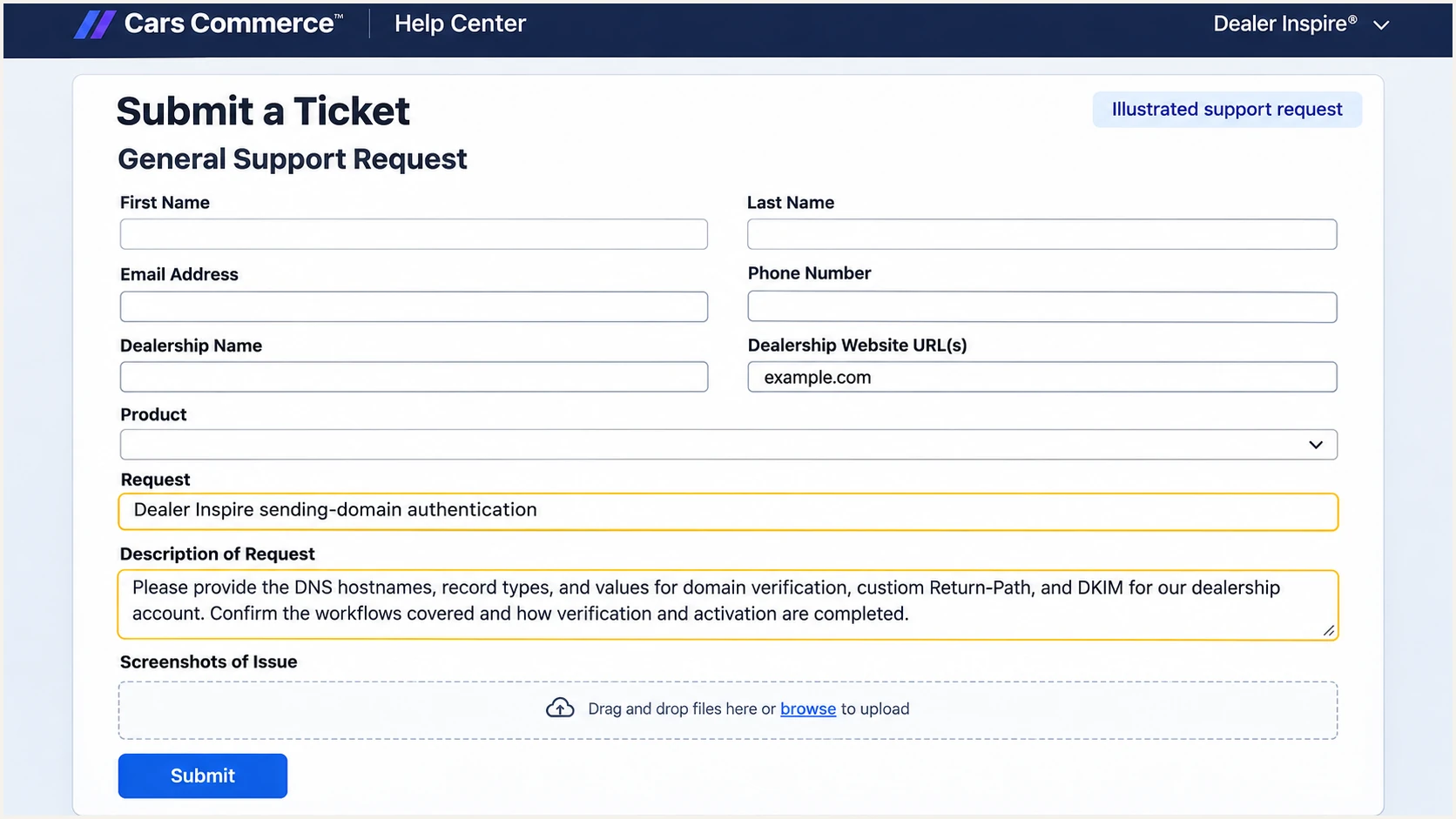
Illustrated Dealer Inspire support request for sending-domain DNS records.
Keep the dealership-controlled address in From. For website inquiries, put the customer's address in Reply-To instead of sending as the customer's domain. Your dealership cannot authenticate a domain owned by a visitor.
After publishing the supplied records, obtain confirmation that Dealer Inspire has verified and enabled the domain. A DNS record that exists publicly is only one part of activation.
Set up SPF
Dealer Inspire supports custom Return-Path configuration. I ask support to enable it for the relevant workflow, because SPF checks the envelope sender domain, not the visible From address. With relaxed DMARC settings, a Return-Path under example.com matches a From domain of example.com.
- Confirm the envelope domain: Get the exact custom Return-Path hostname from Dealer Inspire. A name such as bounce.example.com is an illustration, not a prescribed Dealer Inspire hostname.
- Publish supplied records: Create the requested CNAME or TXT records at the specified names. Add an MX record only if Dealer Inspire explicitly supplies one for bounce handling.
- Preserve existing SPF: If support requires an SPF include at a name that already has SPF, merge it into the existing record before the final all mechanism. Keep one SPF record per hostname.
- Check DNS limits: Keep SPF within the 10 DNS-querying-term limit, including nested includes and redirects. Do not replace your current authorized senders with a Dealer Inspire-only record.
A supplied CNAME delegates that hostname. Do not add a TXT record or MX record at the same name as a CNAME, and do not add an SPF include at the root unless the supplied instructions require it.
Enter the actual Return-Path domain in the SPF checker below. If Dealer Inspire directs you to change root-domain SPF, check that domain too. A valid root record does not authenticate a different envelope domain.
SPF checker
Find SPF syntax issues, lookup limits, and weak records.
?/16tests passed
After Dealer Inspire activates the custom Return-Path, inspect a new message. Expect SPF to pass for that envelope domain and verify that it shares the From domain's organizational domain under relaxed settings.
If the message still uses a provider-owned Return-Path, adding SPF to your root domain will not fix SPF alignment. Ask support to finish activation. A passing DKIM signature with domain alignment can still make that message pass DMARC.
Do not authorize the website IP
The IP address hosting a dealership website is not automatically its outgoing mail IP. Use Dealer Inspire's supplied sending records; adding a website address or an inferred include can authorize the wrong infrastructure.
Set up DKIM
I request DKIM signing with the dealership's domain, then publish the exact selector records supplied for the account. A signature using an unrelated provider domain does not satisfy DMARC for your dealership's From address.
- Copy every selector: Publish each supplied TXT or CNAME record. Keep existing selectors used by other senders and publish every selector requested for key rotation.
- Check the hostname: Watch for DNS panels that append your domain automatically. The completed name must match the supplied selector under _domainkey without repeating your domain.
- Keep DNS unmodified: Use DNS-only mode if your DNS host offers proxying for CNAME records. Preserve the supplied target or public key exactly; never publish a private key.
- Activate signing: Have Dealer Inspire verify the records and enable signing for the workflow. Confirm the signing domain in a new message shares your From domain's organizational domain.
For a message with selector s=selector and signing domain d=example.com, the public key lookup is selector._domainkey.example.com. Replace both illustrative values with the actual signature values.
These read-only commands inspect a published selector. Use the record type supplied by Dealer Inspire; a CNAME response should point to the exact target they provided.
Inspect an illustrative DKIM selectorbash
dig +short CNAME selector._domainkey.example.com
dig +short TXT selector._domainkey.example.com
DNS visibility does not prove that a message was signed. I inspect the receiver's authentication results for dkim=pass and check the signature's d= domain against the visible From domain.
A passing signature on a direct Dealer Inspire message is the useful test. Forwarding or content changes introduce additional variables, so send a fresh message directly to the test recipient.
DNS verification
The supplied selector resolves to the expected public key. This confirms DNS publication, but does not prove Dealer Inspire is signing outgoing messages.
Message verification
A new Dealer Inspire message has dkim=pass and a signing domain that matches the From domain under your DMARC settings. This confirms the authentication path actually works.
Set up DMARC
DMARC belongs in your DNS, not in a Dealer Inspire-specific policy record. I start a new deployment with p=none and aggregate reporting. If your domain already uses p=quarantine or p=reject, keep that policy while configuring Dealer Inspire.
- Inspect the current policy: Look up TXT records at _dmarc.example.com, replacing example.com with your From domain. Check any applicable parent-domain policy when using a subdomain.
- Publish one record: For a domain without DMARC, create one TXT record at _dmarc with the monitoring value below. Edit an existing policy instead of creating a second DMARC record.
- Set real reporting: Replace dmarc@example.com with a report destination you control or the exact address issued by your reporting platform. Complete external reporting authorization when required.
- Check matching rules: Relaxed SPF and DKIM alignment are the defaults. Existing strict settings require exact domain matches, so confirm Dealer Inspire's identities satisfy your current policy.
Monitoring example: TXT at _dmarc.example.comtext
v=DMARC1; p=none; rua=mailto:dmarc@example.com
Use the DMARC record generator to build the policy with your real reporting destination. The example address above is a placeholder; publishing it unchanged will not deliver your reports to you.
Check your sending domain below after DNS publication. Confirm that the lookup returns one valid policy with the intended enforcement and reporting settings.
DMARC checker
Look up a domain's DMARC record and catch policy issues.
?/7tests passed
A valid policy proves that receivers can read your DMARC instructions. It does not prove Dealer Inspire messages pass. That requires a message test and authentication results for real sending traffic.
With p=none, receivers are not asked to quarantine or reject messages because of a DMARC failure. Use this period to identify legitimate senders and correct their authentication before requesting enforcement.
Verify and troubleshoot
I test each Dealer Inspire email workflow separately. A working vehicle-inquiry notification does not prove that a customer confirmation or another enabled workflow uses the same sender configuration.
- Send through Dealer Inspire: Generate a fresh message through the workflow being configured. Use an approved test contact or ask support to send a test when you cannot choose the recipient yourself.
- Inspect actual identities: Check From, Return-Path, DKIM d= and s=, and the receiver's Authentication-Results header. Expect dmarc=pass with at least one passing authentication method that has domain alignment.
- Trace DNS errors: Compare published names and values with the support instructions. Check for duplicated domain suffixes, missing selectors, CNAME conflicts, and multiple SPF or DMARC records.
- Escalate with evidence: Give support the affected workflow, sending domain, UTC timestamp, Message-ID, and authentication results. Include the bounce response if the message was rejected.
The email tester below provides a temporary receiving address. Send a non-sensitive Dealer Inspire message directly to that address for a diagnosis of authentication, reverse DNS, and other delivery checks.
Do not forward a message from your mailbox to the tester. Forwarding changes the delivery path and tests the forwarder as well as the original sender.
Email tester
Send a real email to this address. Suped shows a results button when the test is ready.
?/43tests passed
Read the domain identities alongside the pass results. SPF and DKIM can both pass for provider domains while DMARC fails for the dealership's From domain.
The examples below assume relaxed DMARC settings. 'Same domain' means the authenticated domain and the From domain share an organizational domain; 'unrelated' means they do not.
|
|
|
|
|---|---|---|---|
Pass, same domain | Pass, same domain | Pass | Monitor |
Pass, unrelated | Pass, same domain | Pass | Fix Return-Path |
Fail | Pass, same domain | Pass | Investigate SPF |
Pass, unrelated | Pass, unrelated | Fail | Fix identities |
DMARC needs one passing authentication method with domain alignment.
SPF misalignment is compatible with DMARC passing when DKIM passes with domain alignment. Since Dealer Inspire supports a custom Return-Path, investigate why the expected configuration is absent rather than adding unrelated SPF permissions.
If authentication passes but mail is rejected or lands in spam, inspect the SMTP response and sending reputation. DMARC success alone does not guarantee inbox placement.
Get alerted when it breaks
Suped is our DMARC platform for tracking these failures after setup. Our DMARC monitoring connects incoming report data with source diagnostics and notifications, so a dealership IT team can investigate an affected sender without manually reading XML.
- Confirm report collection: Make sure your DMARC reporting destination is receiving reports and your Dealer Inspire traffic is visible. Check message samples before marking a source as an authorized sender.
- Enable notifications: In Suped notification settings, enable Issues detected and Sending sources need verification emails. Enable DMARC summaries for periodic review.
- Investigate changes: Open the affected source and record details. Compare SPF and DKIM results with DNS history to identify a changed record, selector, or sending identity.
- Verify the repair: Follow the issue's fix steps, coordinate account-side changes with Dealer Inspire, and send another test. Check subsequent reports to confirm the repair covers production traffic.
I prioritize failures on confirmed dealership senders and investigate unfamiliar sources before authorizing them. An unfamiliar IP address is not sufficient evidence to expand SPF permissions.
Report-based alerts depend on reports arriving from receivers. They are not an immediate signal for every message, so use a direct message test to verify an urgent repair.
Keep diagnosis and follow-up together
Suped combines authentication issue detection with fix instructions and DNS history. That workflow helps dealership IT teams keep ownership of a Dealer Inspire issue until both message tests and production reports show recovery.
Secure your domain with p=reject
I move to p=reject after every legitimate sender is accounted for and passes DMARC across representative traffic. Dealer Inspire is one sender in that review; staff mail and other dealership systems need the same attention.
- Inventory every sender: Review normal operations and less frequent campaigns. Confirm Dealer Inspire's enabled workflows, staff mail, CRM messages, and service reminders before changing the domain-wide policy.
- Fix legitimate failures: Require a passing authentication method with domain alignment for each authorized sender. Keep DKIM working even when SPF passes, because forwarding often disrupts SPF.
- Stage enforcement: Move a new deployment to p=quarantine, review representative traffic and delivery errors, then request p=reject. Base the change on sender readiness rather than an arbitrary waiting period.
- Review policy scope: Check subdomain policies and any existing strict settings. Keep reporting enabled and retain the previous record so you can reverse a policy change if legitimate delivery breaks.
Suped's Hosted DMARC manages policy staging through our dashboard after DNS delegation. Use source diagnostics to resolve legitimate failures before each change, then use incoming reports to assess the result.
If you manage DMARC directly in DNS, these are alternative enforcement values for the same TXT record. Publish only the chosen policy and retain your real reporting destination.
Alternative enforcement values: publish one policytext
v=DMARC1; p=quarantine; rua=mailto:dmarc@example.com
v=DMARC1; p=reject; rua=mailto:dmarc@example.com
For an established p=reject domain, authenticate Dealer Inspire before enabling production sending under that From domain. Keep the existing policy while support verifies the new sender configuration.
Keep checking authorized sources after enforcement. A new Dealer Inspire workflow or a changed signing configuration still needs verification, even when the policy itself has not changed.
Frequency asked questions
Use the exact SPF instructions supplied by Dealer Inspire for your dealership account. Do not infer an include from its website domain or corporate SPF record. A custom Return-Path configured through CNAME records does not automatically require an additional SPF include at your root domain.
Yes. DMARC passes when a valid DKIM signature has domain alignment with the From domain, even if SPF fails or its authenticated domain is unrelated. Confirm both the DKIM pass result and the signing domain. Investigate an absent custom Return-Path when it was part of your intended Dealer Inspire configuration.
Keep an existing p=reject or p=quarantine policy. Have Dealer Inspire configure and verify authentication before sending production email with your domain. The p=none example is for a new monitoring deployment, not a reason to reduce an established policy.
A reverse DNS hostname is a clue about sending infrastructure, not proof of the platform or dealership account that sent a message. The public Dealer Inspire pages checked here do not confirm a specific rDNS suffix. Check the source IP, DKIM signing domain, Return-Path, and a known Dealer Inspire test message, then ask support to confirm the source.
Check that Dealer Inspire has activated signing, that the message uses a published selector, and that DNS names do not repeat your domain. A valid public key does not prove the sender is signing with its matching private key. Test a new message directly after cached DNS expires and share the results with support.
Use a verified dealership address in From and the customer's address in Reply-To. Dealer Inspire cannot authenticate an unrelated customer's domain on your behalf. Changing your dealership's DMARC record does not fix authentication for that customer's From domain.




