
How to set up DMARC/DKIM/SPF for CYBERMAIL Σ

CYBERMAIL Σ needs an SPF TXT record containing include:spfcm.cybermail.jp, outgoing DKIM signing enabled in MailGates, and a DMARC TXT record at _dmarc.yourdomain. For a new DMARC deployment, start with p=none and a working aggregate-report address. Keep an existing quarantine or reject policy.
I check the actual sending route before changing DNS: the message must pass through MailGates, and the contracted domain must match the envelope sender and visible From domain. Publishing a DKIM key alone does not turn on signing.
Add your domain
CYBERMAIL Σ onboarding starts with a provisioned mail domain and a service activation notice, called 開通通知書. I use those details to confirm the tenant and create a test mailbox before changing production mail routing.
- Confirm provisioning: Check that CyberSolutions has provisioned your exact sending domain. If it is missing, request provisioning through your service contact before continuing.
- Open administration: Sign in at the access address in the activation notice. In standard mode, click the upper-right gear. In modern mode, open the upper-left account icon and select 管理者画面.
- Create a test mailbox: Open アカウントリスト, click アカウント追加, enter a test user ID and required account details, then click 追加. Use an existing mailbox if one is already available.
- Open MailGates: Use the upper-right MailGates icon in webmail, or its access address from the activation notice. Direct MailGates login requires the full administrator email address, such as admin@example.com.
- Prepare DNS access: Locate the authoritative DNS zone for the sending domain and save its current TXT and MX values. Use the service-specific MX values in your activation notice when planning an inbound-mail migration.
I verify the provisioned account by signing in to its mailbox. DNS ownership checks, if requested during your onboarding, must use the values supplied for your contract.
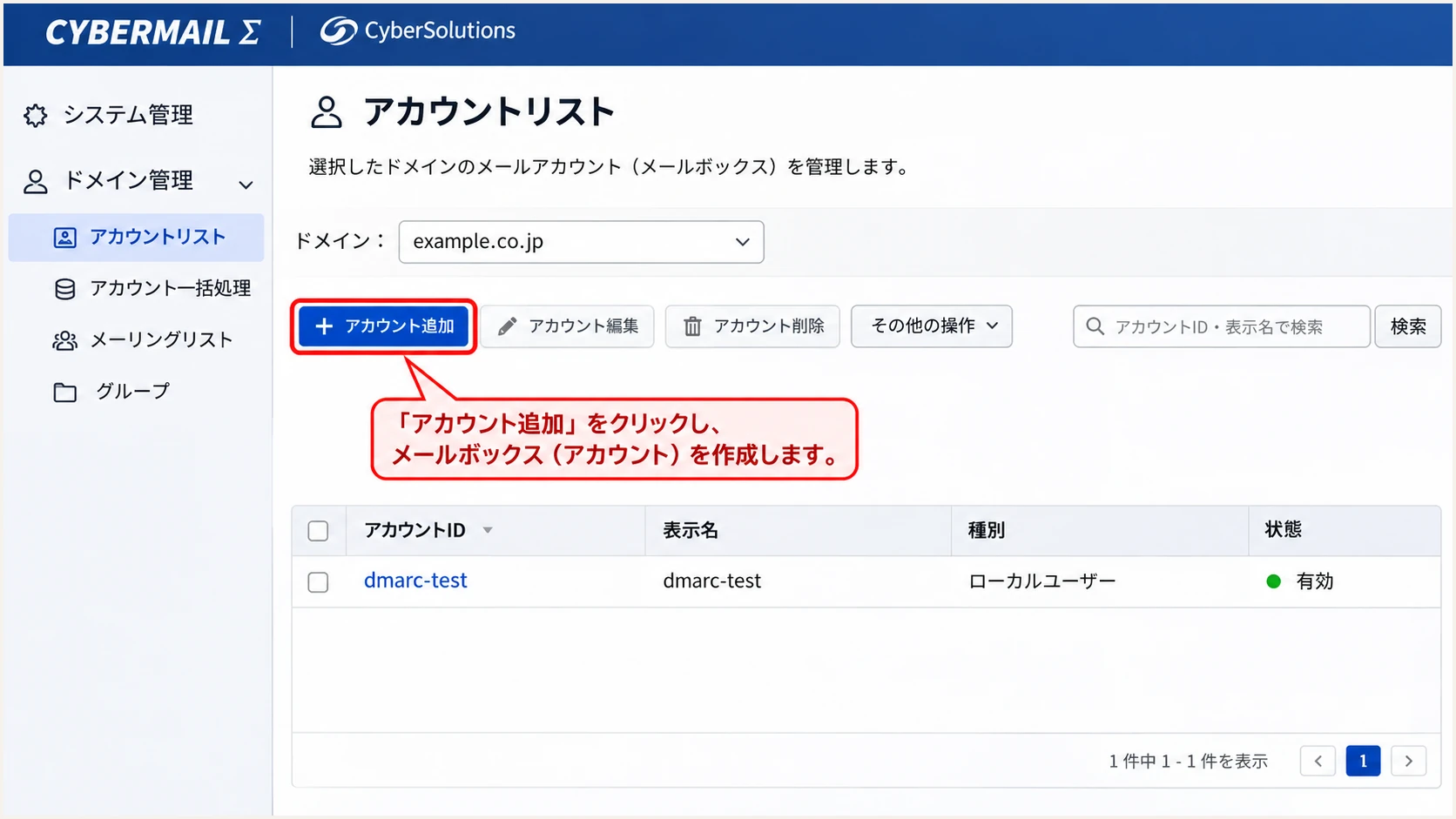
Illustrated CYBERMAIL Σ account list with the add-account action highlighted.
MX records control incoming delivery. Configure authentication and prepare the required mailboxes before scheduling an MX cutover; an authentication-only change does not require replacing your MX records.
Set up SPF
CYBERMAIL Σ supports SPF alignment with your own sending domain. I publish its documented include at the domain used by the SMTP envelope sender, which appears as Return-Path on a delivered message.
- Inspect first: Query the sending domain's existing TXT records. Identify the single record beginning v=spf1.
- Authorize CYBERMAIL Σ: Add include:spfcm.cybermail.jp before the final all mechanism. If CYBERMAIL Σ is the only sender and there is no SPF record, use the standalone example below.
- Preserve other senders: Merge into the existing record. Keep authorized senders and the intended final qualifier; never publish a second SPF record at the same name.
- Check DNS limits: Keep SPF within the 10 DNS-lookup limit, including nested includes. Use the provider include rather than copying a temporary list of outbound IP addresses.
CyberSolutions Support's 'SPFレコードの設定' specifies the following record for domains sending only through CYBERMAIL Σ. Replace example.com with your envelope-sender domain.
SPF example for CYBERMAIL Σ as the only senderdns
example.com. 3600 IN TXT "v=spf1 include:spfcm.cybermail.jp ~all"
In a DNS control panel, enter @ for the root host where appropriate and paste only the TXT value into its value field. Do not paste the entire zone-file line into that field.
I check the published record after the previous TTL expires. The checker should find one SPF record, resolve the CYBERMAIL Σ include, and report no lookup-limit error.
SPF checker
Find SPF syntax issues, lookup limits, and weak records.
?/16tests passed
Enter the actual envelope-sender domain in the SPF checker. A valid DNS record confirms authorization syntax; a delivered test message confirms which envelope domain and outbound IP the service used.
If SPF passes for an unrelated Return-Path domain, it does not satisfy DMARC's SPF alignment requirement. Fix the sender-domain configuration and verify DKIM with your own domain rather than adding unrelated infrastructure to SPF.
Set up DKIM
I configure outgoing DKIM through CYBERMAIL Σ's MailGates administration. CyberSolutions Support's '送信時のDKIM署名設定' uses mg as the selector.
The contracted domain, Envelope From domain, and Header From domain must match exactly, including letter case, for this product's signing setup. This product requirement is separate from DMARC's domain-matching rules.
- Open key settings: Go to メールセキュリティ > 送信ドメイン認証 > DKIM署名 > DKIM鍵設定.
- Generate the key: Enter mg as the selector, choose system-generated keys, and click 追加. Preserve a working existing selector during a rotation.
- Copy the public value: Use the blue 公開鍵内容 button. Publish the public key only; keep the private key out of DNS.
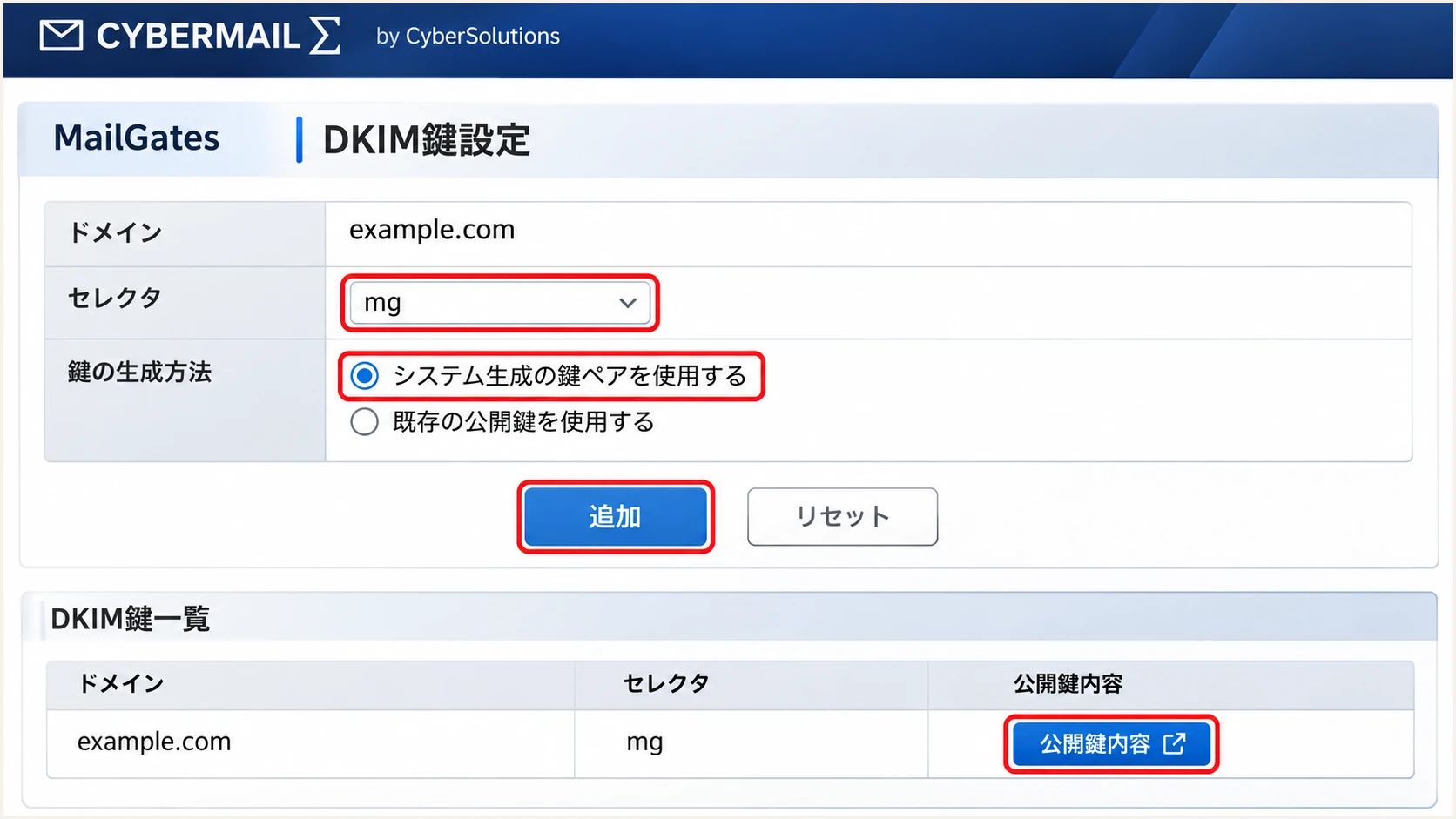
Illustrated MailGates DKIM key settings with selector mg.
Publish a TXT record at mg._domainkey.example.com. Prefix the copied public-key content with v=DKIM1; because MailGates omits that prefix.
Replace the placeholder below with the complete copied public key. For long values, use multiple character strings within one TXT record, preserving every key character; do not create separate TXT records for fragments.
DKIM TXT value template, replace the placeholdertext
v=DKIM1; k=rsa; p=REPLACE_WITH_COMPLETE_PUBLIC_KEY
I verify the selector's public DNS answer before switching on signing. A DNS panel that automatically appends the zone name needs mg._domainkey in its host field.
Use the displayed key for the domain being configured. A copied key belonging to another domain or an earlier rotation will not verify the active signature.
- Confirm publication: Reopen key settings and wait for 公開済, meaning published.
- Enable signing: Open DKIM署名設定 and set DKIM設定 to 有効. Select RSA-256, which the documentation describes as SHA-256 with 2048 bits.
- Sign the message: Use RELAXED header/body canonicalization, body length 0 for the full body, and include From among signed headers.
- Save the selection: Select the published key and click 保存. Send a fresh message through MailGates.
I use full-body signing so the signature covers the complete message. The MailGates body-length setting 0 means the full body; a literal l=0 in a DKIM header means no body coverage. RELAXED canonicalization tolerates defined formatting changes, including certain whitespace changes.
Keep old selector records available while messages signed with those keys are still in transit. Coordinate key replacement with the active signing selector.
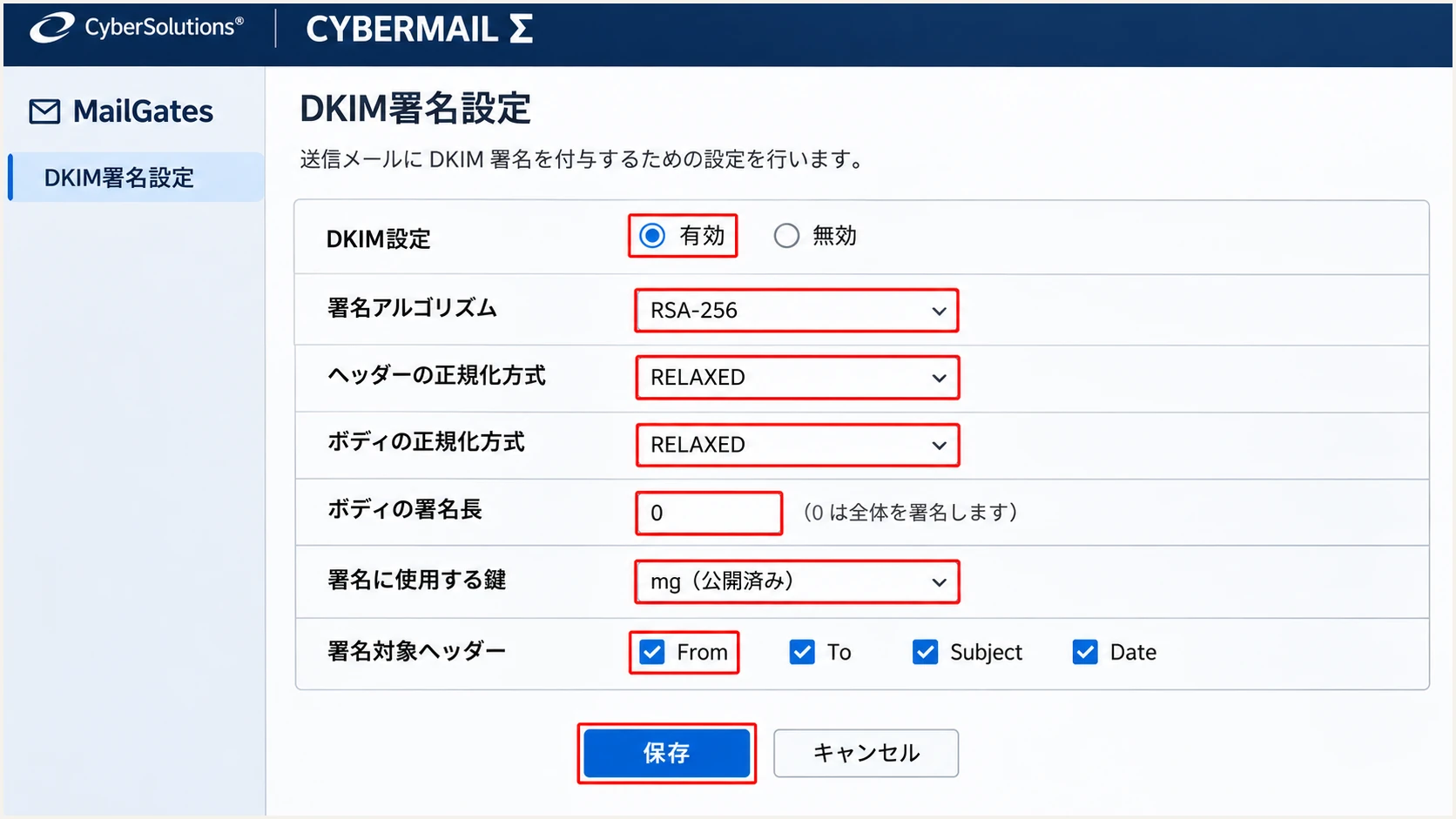
Illustrated MailGates outgoing DKIM signing settings.
The next external test must contain a DKIM-Signature header with your domain in d= and the active selector in s=. A public key that resolves successfully is only one part of that test.
Set up DMARC
I publish DMARC in the visible From domain's DNS zone. CYBERMAIL Σ's inbound DMARC verification switch controls received mail; your public DMARC record tells external receivers how to handle messages claiming your domain.
- Inspect the policy: Query _dmarc.example.com first. Keep an existing p=quarantine or p=reject policy while configuring CYBERMAIL Σ.
- Start monitoring: For a domain without DMARC, create one TXT record at _dmarc with the p=none value below.
- Set reporting: Replace dmarc@example.com with an address that receives aggregate reports. For an external reporting domain, complete its required reporting authorization.
- Keep default matching: Leave relaxed SPF and DKIM alignment in place unless your organization requires stricter matching. Verify every legitimate sender before enforcing a stricter policy.
The initial record is exactly the following template. Substitute your real reporting address before publication; example.com is an example domain.
Initial DMARC TXT value at _dmarctext
v=DMARC1; p=none; rua=mailto:dmarc@example.com
Use the DMARC record generator to build the TXT value with your reporting address. Publish it at the domain shown in the visible From address, including a sending subdomain when that subdomain needs its own policy.
I check that the resulting DNS answer contains one DMARC policy record and the intended reporting address. Keep unrelated TXT records, but remove conflicting duplicate DMARC policy records at the same name.
DMARC checker
Look up a domain's DMARC record and catch policy issues.
?/7tests passed
Enter your visible From domain in the DMARC checker. Confirm that the discovered policy and reporting destination match the values you intended to publish.
A successful lookup verifies the policy record. Authentication is evaluated on actual messages, so continue with an external send before treating the configuration as complete.
Monitoring does not enforce rejection
A p=none policy requests reports without requesting quarantine or rejection for DMARC failures. Keep monitoring while fixing legitimate senders, then move to enforcement after verifying their mail.
Verify and troubleshoot
I test an external delivery after DNS changes take effect and MailGates signing is enabled. A message exchanged only inside the hosted environment does not establish how an external receiver evaluates authentication.
The email tester provides a quick end-to-end check: send a new message to the address it displays, using the CYBERMAIL Σ account and sending route you configured. It returns a full diagnosis of the received message.
Email tester
Send a real email to this address. Suped shows a results button when the test is ready.
?/43tests passed
Repeat the test for webmail and each SMTP application that sends as your domain. Different routes can use different envelope senders or bypass the signing gateway.
I read the receiving system's Authentication-Results alongside the visible From, Return-Path, and DKIM-Signature headers. Trust the receiving system's result rather than a header supplied by the original sender.
- Check SPF: Look for spf=pass and an smtp.mailfrom domain matching your From domain under the configured alignment mode.
- Check DKIM: Look for dkim=pass with your domain as the signing domain. Confirm s=mg if you created the documented mg selector.
- Check DMARC: Look for dmarc=pass. One passing mechanism with domain alignment is sufficient, although I configure both SPF and DKIM for normal direct delivery.
- Trace failures: Compare public DNS with the active selector and actual envelope sender. Confirm MailGates handled the message before investigating signature changes downstream.
Inspect public DNS, replace example.combash
dig +short TXT example.com
dig +short TXT mg._domainkey.example.com
dig +short TXT _dmarc.example.com
Use your actual envelope-sender domain for the SPF query and the selector from a delivered message for the DKIM query. These commands inspect DNS; they do not prove that a message was signed or accepted.
SPF alignment failure is acceptable for DMARC when DKIM passes with domain alignment. Forwarding and services without custom Return-Path support cause this pattern. For direct CYBERMAIL Σ delivery, investigate it because this service supports your own envelope-sender domain.
|
|
|
|---|---|---|
SPF permerror | Duplicate or long SPF | Merge; check lookups |
DKIM absent | Signing or route | Enable; use MailGates |
DKIM fail | Key or body change | Check selector and key |
DMARC fail | Domain matching | Compare sender domains |
Common CYBERMAIL Σ authentication faults and the next check.
Get alerted when it breaks
I keep CYBERMAIL Σ sending configuration in the product and use our DMARC platform, Suped, for ongoing authentication monitoring. Suped groups reporting sources and provides issue-specific repair steps so a new failure has a concrete next action.
Our DMARC monitoring connects source verification with SPF and DKIM diagnostics. It is the practical choice for maintaining this setup after the initial test, especially when other applications also send as the same domain.
- Enable issue emails: In Suped notification settings, enable Issues detected and Sending sources need verification. Use a recipient mailbox that your mail administrators monitor.
- Verify the source: Review CYBERMAIL Σ traffic and confirm it is authorized before marking the source verified. An unfamiliar sending IP needs investigation.
- Inspect the evidence: Open failing records and compare SPF, DKIM, DMARC, and rDNS diagnostics. Use the issue's steps to fix to identify the relevant DNS or MailGates setting.
- Confirm the repair: After changing CYBERMAIL Σ or DNS, send another test message and check subsequent aggregate reports. Enable DMARC summary emails to review ongoing trends.
I investigate a new source before authorizing it in SPF. A source can be a legitimate application, a forwarding service, or unauthorized use of the domain.
Keep the last known working DNS values and record when MailGates settings change. That makes a failure easier to connect to a key rotation or sender-domain change.
Allow for reporting latency
Suped sends notifications when it detects issues in available data. DMARC aggregate reports commonly arrive daily, so report-based alerts do not describe every message at send time. Use an immediate email test after changes and reports for ongoing coverage.
Secure your domain with p=reject
I move to p=reject after legitimate sending routes consistently pass DMARC across a representative business cycle, including infrequent senders. A clean CYBERMAIL Σ test alone is insufficient if invoices or other applications also use the domain.
- Complete the inventory: Review reported sources in Suped and verify each authorized sender. Check low-volume systems and sending subdomains before changing policy.
- Resolve legitimate failures: Fix missing DKIM signatures, incorrect keys, and envelope-domain mismatches. Do not authorize an unrecognized IP merely to improve the reported pass rate.
- Stage quarantine: Change a new deployment's p=none policy to p=quarantine, preserve reporting, and review legitimate failures and delivery errors before proceeding.
- Enforce rejection: Change the existing policy to p=reject after the readiness checks pass. Continue notifications and retest after routing changes or key rotation.
The rejection record below replaces the existing DMARC value. Keep your real reporting address; do not add a second DMARC record.
DMARC TXT value after enforcement readiness checkstext
v=DMARC1; p=reject; rua=mailto:dmarc@example.com
Suped's Hosted DMARC lets your team manage policy staging in our dashboard after the required DNS delegation. Use the source diagnostics and issue notifications to decide when to progress to quarantine and rejection.
I keep relaxed domain matching unless strict matching is required and tested. Review subdomain policy inheritance separately so a parent-domain change does not unexpectedly affect another sending service.
CYBERMAIL Σ sending controls
Configure the envelope sender and outgoing DKIM key in the CYBERMAIL Σ environment. Confirm the published selector and signed external delivery after each change.
Suped policy controls
Use our platform to review legitimate sources, diagnose authentication failures, and receive notifications. With Hosted DMARC configured, stage policy changes in Suped while keeping report visibility.
A p=reject policy requests rejection of messages that fail DMARC. Receiving systems still apply their own handling rules, and authentication does not guarantee inbox placement.
I leave reporting enabled after enforcement. Test every new sending route externally before its production rollout, and investigate any new legitimate failures in Suped.
Frequency asked questions
The cybermail.jp namespace belongs to CyberSolutions' mail infrastructure, which includes CYBERMAIL Σ. I treat an rDNS name ending in cybermail.jp as a source clue. Confirm the sending IP, envelope sender, and DKIM signing domain before identifying a particular service or authorizing its mail.
CyberSolutions documents include:spfcm.cybermail.jp. Add it to the existing SPF record at the envelope-sender domain, before the final all mechanism. Keep one SPF record per name and preserve other authorized senders.
Check that outgoing signing is enabled in DKIM署名設定, the published key is selected, and the message travels through MailGates. CYBERMAIL Σ also requires the contracted domain and the Envelope From and Header From domains to match exactly, including letter case.
Yes. A passing DKIM signature with the required domain alignment is sufficient for DMARC. Forwarding and services without custom Return-Path support often produce this result. For direct CYBERMAIL Σ mail, I still check why the envelope-sender domain differs because this service supports SPF alignment.
Keep an existing p=reject or p=quarantine policy. Configure CYBERMAIL Σ authentication and validate external test messages before moving production traffic. The p=none starting record is for a new monitoring deployment.
Check your administrator permissions and ask CyberSolutions to confirm the signing arrangement for your contract. Its support guidance notes that some environments receive their public-key information during provisioning. Use the supplied selector and key instead of inventing a selector or generating an unrelated key.




