
How to set up DMARC/DKIM/SPF for Crazy Domains

Published 22 Nov 2026
Updated 22 Nov 2026
12 min read
Summarize with
To set up email authentication for Crazy Domains hosting, publish the SPF value and DKIM public key shown in cPanel's Email Deliverability screen, then add a DMARC TXT record at _dmarc on your domain. Start with p=none if you have no enforcement policy. I verify a message sent through the actual website or mailbox before tightening DMARC.
These steps cover Crazy Domains' cPanel-based hosting email. If Crazy Domains only registers your domain, obtain SPF and DKIM values from the service that actually sends your email. Domain registration alone does not make Crazy Domains your outgoing mail provider.
Add your domain
I first check that the sending domain exists in the hosting account and identify its active DNS zone. An existing primary domain needs no separate domain-verification wizard for this cPanel setup.
- Open hosting. Sign in to Crazy Domains, find your hosting product, and click Manage. On current plans, choose CONTROL PANEL, then Quick Links > CPANEL. Classic plans have LOGIN TO CPANEL.
- Add if missing. In cPanel, open Domains > Domains > Create A New Domain. Enter your registered domain, choose the document root appropriate for your website, and click Submit. Skip this for a domain already listed.
- Confirm availability. Check the domain appears under both Domains and Email > Email Deliverability. This confirms its presence in hosting; public DNS and a sending test verify authentication.
- Locate DNS. For ns1.crazydomains.com and ns2.crazydomains.com, use Account Manager. Premium DNS uses ns1.dnspackage.com and ns2.dnspackage.com. Linux hosting with ns1.syrahost.com and ns2.syrahost.com uses cPanel Zone Editor.
For Account Manager DNS, open My Products > Domain Registration > MANAGE > DNS Settings. To add a TXT record, click ADD RECORD, select TXT, click ADD, enter Sub Domain and Content, then click UPDATE.
For cPanel DNS, open Domains > Zone Editor > Manage beside your domain. Use + Add Record, select TXT, enter Name and Record, then click Save Record. Use the existing authoritative DNS provider if your nameservers point elsewhere.
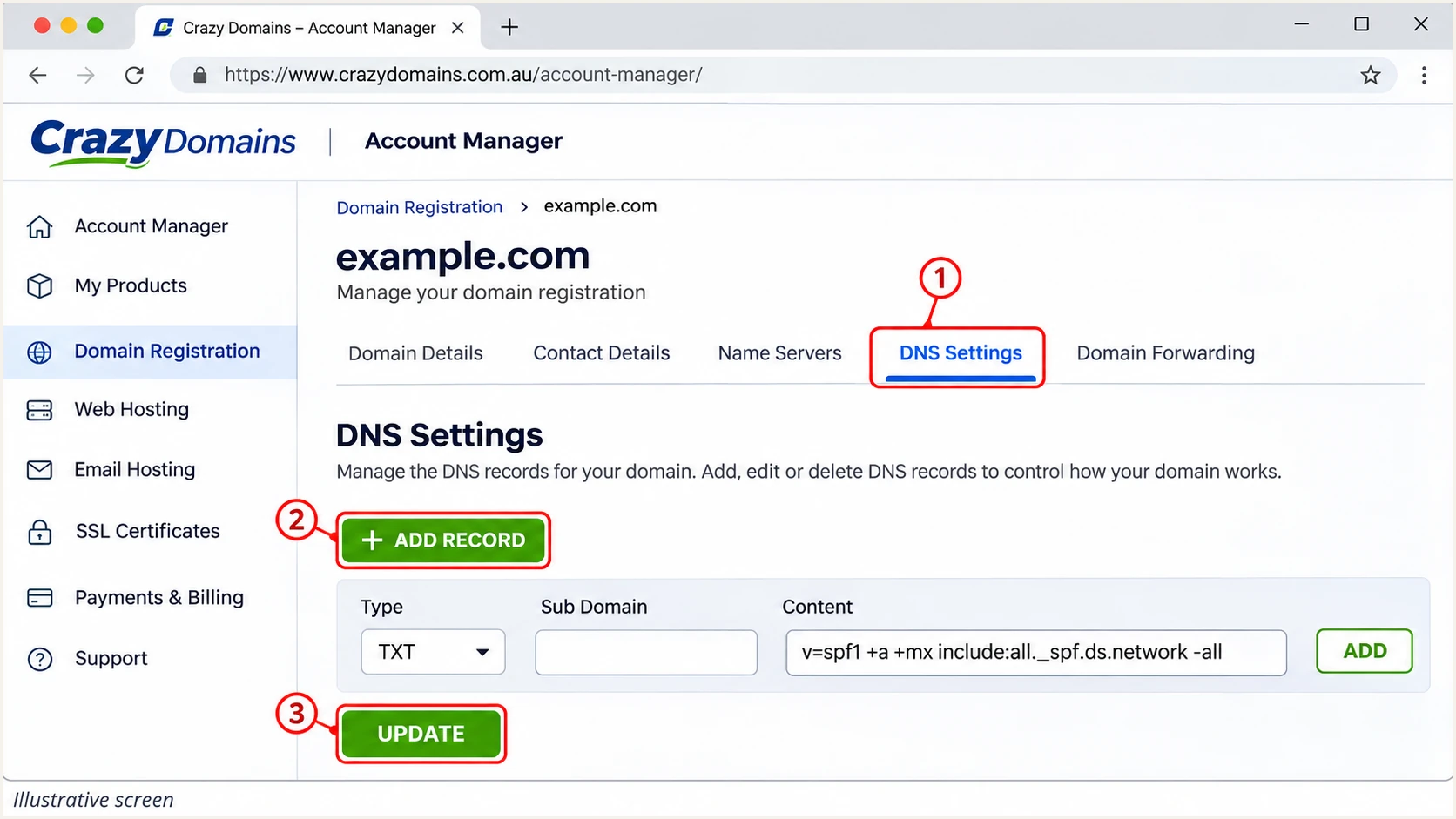
Illustrative Crazy Domains DNS Settings screen for adding a TXT record.
Account Manager appends your domain to Sub Domain: leave it blank for SPF, enter default._domainkey for the usual cPanel DKIM selector, and enter _dmarc for DMARC. In cPanel, check that the saved Name is the intended full hostname.
Keep your existing nameservers and MX records unless you are deliberately migrating services. Changing nameservers just to add authentication records risks disrupting the website and incoming email.
Set up SPF
Crazy Domains supports SPF authentication using your domain as the Return-Path domain. I check the actual message headers because a website script and a mailbox can use different outgoing routes.
- Copy the value. Open cPanel > Email > Email Deliverability > Manage beside your domain. Copy the suggested SPF Name and Value.
- Edit one policy. At the active DNS host, edit the root TXT record beginning with v=spf1, or add it if absent. Merge other authorised senders into that same policy before the final all mechanism.
- Check the envelope. Configure the application's envelope sender or Return-Path to use your sending domain where the mail setup permits. For contact forms, use your domain in From and the visitor's address in Reply-To.
- Check lookup usage. Keep SPF evaluation within its limit of 10 DNS-querying terms, including nested includes. A second SPF record causes permerror; it does not extend the first policy.
Crazy Domains documents the following SPF value for its web hosting products. Confirm it against your account's suggested value, especially after a hosting migration.
This is a complete example for the hosting sender. Preserve the authorisations for any other active services in your existing record.
Crazy Domains hosting SPF value, TXT at the domain roottext
v=spf1 +a +mx include:all._spf.ds.network -all
In Account Manager, the root record has a blank Sub Domain field. In cPanel, it is your full domain. Save the value as TXT without adding quotation marks yourself.
Enter the domain below to check the published policy and lookup usage. A valid record still needs a test message to confirm that it authorises the real outbound IP.
SPF checker
Find SPF syntax issues, lookup limits, and weak records.
?/16tests passed
For SPF to count toward DMARC, SPF must pass and its authenticated domain must have DMARC alignment with the visible From domain. Under default relaxed alignment, that normally means the same organisational domain.
If the outgoing route uses a provider-owned Return-Path that you cannot change, adding SPF to your own domain will not fix that mismatch. Require passing DKIM with your domain instead; an SPF alignment error alone does not make DMARC fail.
Set up DKIM
I copy the DKIM public key generated for the domain by its sending server. A key generated elsewhere will not match the private key Crazy Domains uses to sign messages.
- Find the key. In cPanel > Email Deliverability > Manage, locate the DKIM area. If no local key exists and Generate Local DKIM Key is available, use it. Otherwise ask Crazy Domains to enable signing.
- Copy both fields. Copy the suggested Name and full Value. The usual selector is default, making the DNS name default._domainkey.example.com. Use the selector actually shown in your account.
- Publish the public key. Install the suggested record when cPanel controls public DNS. Otherwise add the TXT record at the active DNS provider. In Account Manager, enter default._domainkey as Sub Domain for that selector.
- Keep one complete key. Paste the entire public value beginning with v=DKIM1. Preserve other active selectors. Never publish the private key.
A long DKIM value can be stored as several DNS character strings within one TXT record. Those strings form one key; do not split the key across separate TXT records or manually insert line breaks.
Use the copy control for your account's real value. The illustrative screen below identifies the fields; its abbreviated key is not a record to publish.
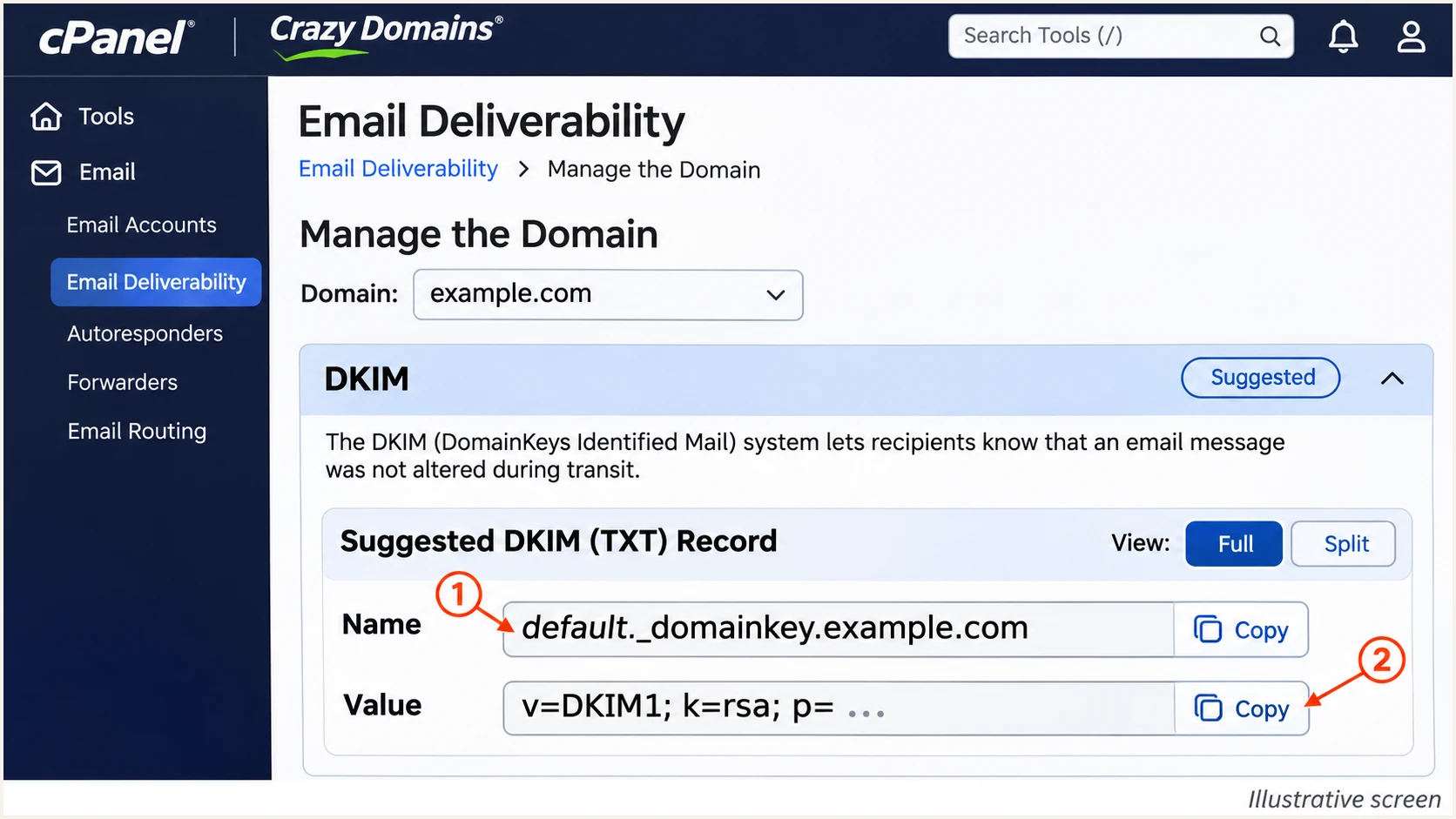
Illustrative Crazy Domains cPanel screen showing the DKIM name and public key fields.
After publishing, send through the website or application itself. Check for dkim=pass and inspect the DKIM-Signature d= domain and s= selector. The signing domain must have DMARC alignment with the visible From domain.
If mailbox email passes but a website form has no DKIM signature, check the application's mail route. Use the authenticated SMTP settings assigned to your Crazy Domains mailbox, then retest. A valid DNS key does not prove that PHP-generated mail is signed.
Set up DMARC
For a domain starting DMARC, I publish a monitoring policy with aggregate reporting. Keep an existing p=quarantine or p=reject policy while fixing the Crazy Domains sender.
- Prepare the policy. Use the DMARC record generator to create the TXT value. For a new setup, choose p=none and a working aggregate-report mailbox.
- Set the name. In Account Manager, add TXT with Sub Domain _dmarc. In cPanel Zone Editor, use _dmarc.example.com as the Name for example.com.
- Set reporting. Replace dmarc@example.com in the baseline below with a mailbox you control or your assigned reporting destination. An external destination also needs report-receiving authorisation.
- Save one record. Edit an existing DMARC policy instead of creating another. Save with UPDATE in Account Manager or Save Record in cPanel.
The baseline below is for a domain without an existing enforcement policy. Replace the example domain and reporting address before publishing.
The rua address receives aggregate XML reports. It is separate from your normal From address and does not change where incoming business email is delivered.
Start with monitoring
Publish this value as TXT at _dmarc.example.com for a new setup. If your policy is already quarantine or reject, keep that policy.
Initial DMARC valuetext
v=DMARC1; p=none; rua=mailto:dmarc@example.com
DMARC passes when at least one authentication method passes with the required domain alignment. I aim for both SPF and DKIM to pass on direct mail, with DKIM protecting the authentication path through ordinary forwarding.
Check the public record below after saving. This validates the DNS policy; the later email test verifies a real sending route.
DMARC checker
Look up a domain's DMARC record and catch policy issues.
?/7tests passed
A p=none policy requests reporting without requesting quarantine or rejection for DMARC failures. Receiving servers still apply their normal filtering.
Aggregate reports arrive after participating receivers process your traffic, commonly within 24-48 hours. Existing DNS caches also need time to expire, so a newly saved record is not visible everywhere immediately.
Verify and troubleshoot
I verify the exact route used in production. A test from webmail does not validate an order confirmation sent by a website script.
- Check public DNS. Query TXT at your domain, the selector's _domainkey hostname, and _dmarc. Confirm one SPF policy and one DMARC policy at their respective names.
- Test each route. Send a mailbox message and trigger each website mail flow, including contact forms and password resets. Use your domain in From and test the configured SMTP route.
- Read receiver results. Look for spf=pass, dkim=pass and dmarc=pass in the recipient's Authentication-Results. Compare smtp.mailfrom and header.d with header.from.
- Recheck cPanel. Refresh Email Deliverability after the DNS update. For persistent PTR or outbound-server issues, give Crazy Domains the sending IP and full message headers.
The email tester below prompts you to send a message to its test address and returns a diagnosis. Send through the application you are checking, rather than forwarding an old message.
Review the authentication results and domain identities together. A green SPF result for an unrelated provider domain does not establish DMARC alignment.
Email tester
Send a real email to this address. Suped shows a results button when the test is ready.
?/43tests passed
After a correction, generate a fresh message and compare its results. Changing DNS does not rewrite the authentication results of email already received.
If public DNS remains wrong, check nameservers and the saved hostname before waiting longer. Crazy Domains allows up to 72 hours for DNS updates; editing an inactive zone will never update the active one.
|
|
|
|---|---|---|
SPF permerror | Duplicate policy | Merge SPF |
SPF fail | Unauthorised IP | Outbound route |
DKIM none | Unsigned message | SMTP signing |
DKIM fail | Key or message change | Selector and key |
DMARC fail | No aligned pass | From identities |
Common failures and the next check.
SPF often fails after forwarding because the forwarding server's IP is different. Passing DKIM with the correct domain can still produce a DMARC pass if the signed content survives.
A PTR record belongs to the sending IP's owner. On shared hosting, Crazy Domains handles that record; adding a PTR entry to your domain's ordinary DNS zone will not repair reverse DNS.
Get alerted when it breaks
Suped is our DMARC platform for monitoring receiver reports and detecting authentication issues after setup. I treat a successful test as a starting point: a hosting move or website mail change needs continuing checks.
- Collect reports. Keep the assigned reporting destination in rua while preserving the existing DMARC policy. Our DMARC monitoring groups authentication results by sending source.
- Enable notifications. Use Suped's Issues detected and Sending sources need verification notifications, plus DMARC summary emails for ongoing review.
- Investigate the source. Inspect affected IPs and SPF/DKIM results in the detail view. Mark a source as verified only after confirming that your organisation actually uses it.
- Trace the change. Use DNS history to compare old and new records, fix the active Crazy Domains configuration, and send a fresh test message.
Suped combines report review with detected issues and steps to fix them. That gives the person managing Crazy Domains a concrete record or sending route to investigate.
DMARC notifications depend on incoming aggregate reports. They do not detect every failed message immediately, so retest important sending changes directly.
Crazy Domains cPanel
Retrieve server-generated SPF and DKIM values, edit hosting DNS when authoritative, and inspect the current Email Deliverability status.
Repeat message tests after configuration changes.
Suped monitoring
Review authentication reported by receiving servers, identify affected sources, and receive notifications when issues are detected.
Use source verification and diagnostics to prioritise corrections.
Keep access to the hosting account and authoritative DNS available to whoever resolves alerts. A report identifies the failure; the underlying DNS or mail configuration still needs correction.
When a change is intentional, verify the new sender before closing the issue. An unfamiliar rDNS hostname alone is insufficient evidence that a source is authorised.
Secure your domain with p=reject
I move to p=reject after every legitimate sending route has reliable domain authentication. Suped's source verification and report diagnostics make that decision easier to review than a single passing test.
- Inventory senders. Identify the Crazy Domains mailbox and website routes, plus every other authorised source in Suped. Resolve legitimate failures before changing policy.
- Cover real traffic. Observe a complete business sending cycle, including infrequent invoices or monthly notifications. Test forwarding paths and require dependable DKIM before enforcement.
- Stage the policy. Update the existing record to p=quarantine, inspect reports and delivery problems, then change it to p=reject when authorised traffic remains healthy.
- Review subdomains. Check explicit subdomain policies and any sp value. An existing sp=none leaves inheriting subdomains outside the root domain's rejection request.
- Keep monitoring. Retain rua and Suped notifications after enforcement. Investigate new failures before authorising an unfamiliar source.
If you manage the TXT record directly, make each policy change in the active DNS zone. Our Hosted DMARC also supports managing policy in Suped after its DNS delegation is configured; retain one active policy arrangement.
Use the final value below only after verification, substituting your actual report destination. Keep default relaxed alignment unless a documented requirement calls for strict matching.
Final enforcement policy
This requests rejection of messages that fail DMARC. Receiving servers decide final handling using their local policies.
DMARC value after all authorised routes are verifiedtext
v=DMARC1; p=reject; rua=mailto:dmarc@example.com
Assess failures by source rather than demanding a perfect domain-wide pass rate. Unauthorised messages can continue to fail while legitimate Crazy Domains email passes.
If enforcement disrupts legitimate mail, identify the affected route in Suped, repair its authentication, and retest. Keep a copy of the previous policy so any necessary temporary rollback is controlled.
Frequency asked questions
Crazy Domains documents include:all._spf.ds.network in its web hosting SPF policy. Copy the full value shown for your domain in cPanel and preserve other authorised senders within one SPF record. Other email products sold through Crazy Domains need their own product-specific values.
No. Add the TXT record at the provider serving your authoritative DNS. With Crazy Domains nameservers, that is Account Manager or the hosting DNS editor, depending on the nameserver set. Registrar access alone does not establish which DNS zone is active.
A valid record confirms that the public key is available. The actual message still needs a matching signature. Check its d= domain and s= selector, confirm the application uses the intended sending server, and investigate message changes after signing.
Yes, if DKIM passes and its signing domain has the required alignment with the visible From domain. This matters when a route uses a provider-owned Return-Path or mail is forwarded. For direct Crazy Domains hosting mail, configure your own envelope-sender domain wherever supported.
Crazy Domains uses ds.network hostnames for some mail infrastructure, but the suffix alone does not identify the customer or prove the source is authorised. Treat it as an infrastructure clue. Confirm the sending IP against your hosting details and compare the message's authentication domains before approving the source.
No. It states your handling preference for messages failing DMARC. Recipients still apply filtering and reputation checks to authenticated email, and their local policies determine whether messages are accepted or rejected.




