
How to set up DMARC/DKIM/SPF for ContactOffice

Published 22 Nov 2026
Updated 22 Nov 2026
11 min read
Summarize with
Set up ContactOffice authentication by validating your custom domain, publishing the SPF and DKIM records supplied by its domain wizard, and adding a DMARC TXT record at _dmarc. Start a new DMARC deployment with p=none, test a message sent through ContactOffice, then strengthen the policy after checking every legitimate sender.
I verify the actual sending domain in a received message before treating setup as complete. DMARC needs a passing SPF result with Return-Path domain alignment, or a passing DKIM signature with signing-domain alignment. A DNS record alone does not prove that outgoing mail passes.
Add your domain
Use a paid ContactOffice account and a domain you control. ContactOffice's Messages user guide documents the following domain-validation workflow.
- Open settings. Go to Settings > Messages > Email domains, choose Add an email domain, and enter your domain.
- Prove ownership. Publish the exact DNS verification record or website file requested, then click Validate.
- Complete routing. Follow the wizard's MX instructions when ready to move incoming mail. Provision your mailboxes first, since the change affects the domain's incoming mail.
- Collect authentication records. Continue through the wizard and copy its SPF instructions and DKIM record names and values. Keep these available while editing DNS.
Make DNS changes at the provider hosting your authoritative nameservers. Buying a domain at one company does not mean that company hosts its active DNS zone.
MX records control incoming delivery. SPF and DKIM authenticate outgoing messages, so completing the MX step does not replace either authentication step.
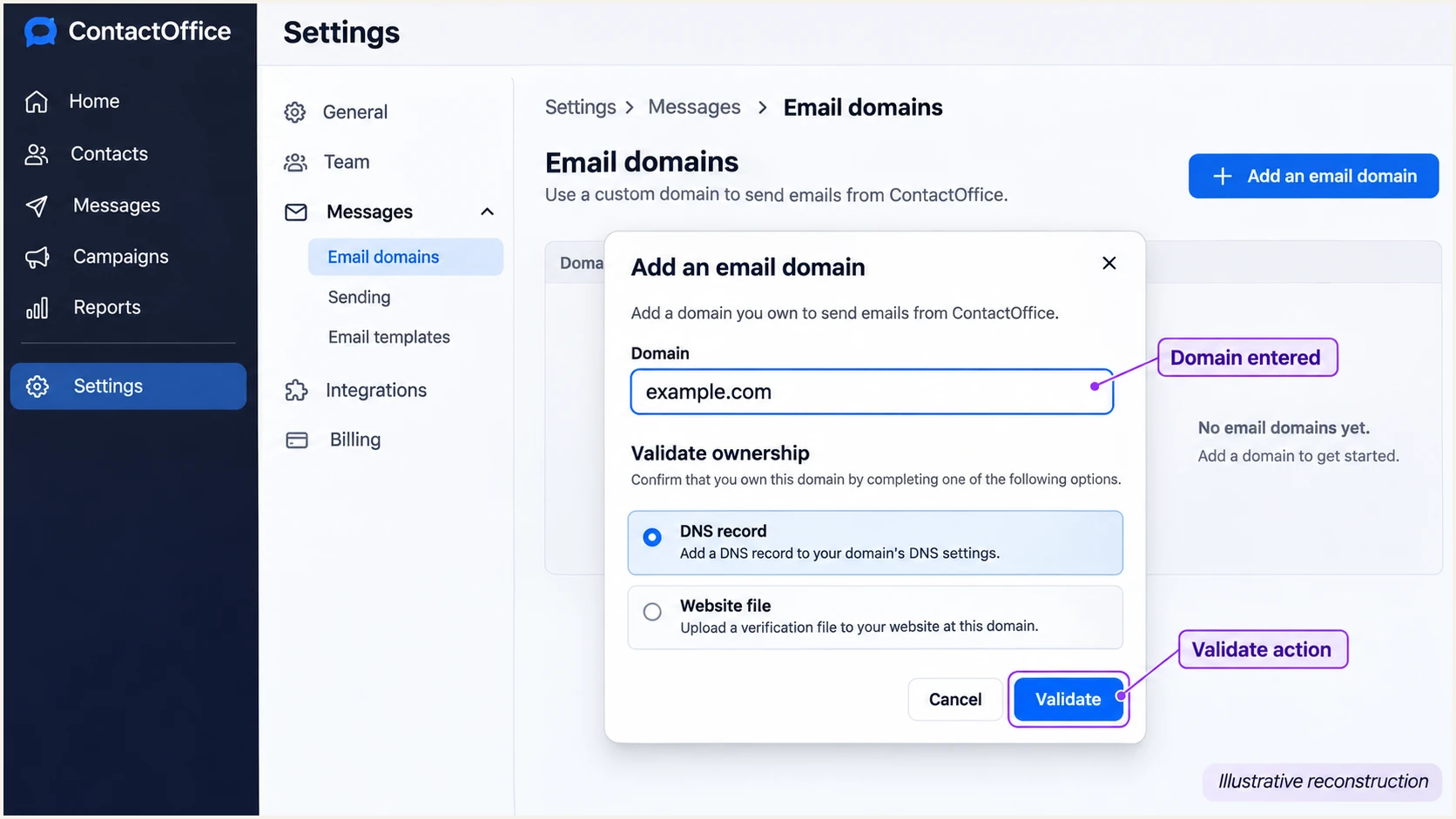
Illustrated ContactOffice workflow for adding and validating a custom domain.
Set up SPF
ContactOffice supports Return-Path domain alignment. Check the domain after the @ in the delivered message's Return-Path, then publish SPF for that exact domain. SPF records are not inherited by subdomains.
- Copy the authorization. Use the SPF value supplied by your ContactOffice domain wizard. Treat its include hostname as authoritative; do not infer an SPF include from the SMTP hostname.
- Choose the DNS name. For a Return-Path at example.com, edit the TXT record at @. For a Return-Path at a subdomain, edit that subdomain's TXT record instead.
- Merge existing senders. Keep one v=spf1 record per DNS name. Add ContactOffice's authorization before the final all mechanism while retaining every other approved sender.
- Check the lookup limit. Keep SPF evaluation within 10 DNS-lookup-causing terms, including nested includes. Multiple SPF records or too many lookups produce a permanent error.
The template below shows the record structure for a domain whose only sender is ContactOffice. Replace CONTACTOFFICE_INCLUDE_HOST with the exact hostname supplied by the wizard before publishing. If the wizard supplies a different authorization mechanism, use that mechanism instead.
SPF template, replace the include placeholder before publishingtext
v=spf1 include:CONTACTOFFICE_INCLUDE_HOST -all
For an existing record, preserve approved mechanisms and review its existing ending. Do not replace the whole record with the template when other systems also send email for this domain.
Enter the Return-Path domain in the SPF checker below. It checks the published record and lookup budget; the message test later checks whether ContactOffice actually uses that domain.
SPF checker
Find SPF syntax issues, lookup limits, and weak records.
?/16tests passed
A passing SPF result counts for DMARC only when its authenticated domain matches the visible From domain under your DMARC alignment mode. With default relaxed alignment, a Return-Path subdomain under the same organizational domain works.
Set up DKIM
I copy DKIM values directly from the domain wizard. The selector and public key are account-specific setup values, so a selector guessed from another customer's email is not a substitute.
- Copy every field. Record the DKIM DNS type, full name and value supplied for your domain. Use the provided selector rather than assuming default or selector1.
- Publish the record. Create the requested TXT or CNAME record exactly as shown. If your DNS editor appends the domain automatically, enter only the relative host portion.
- Complete validation. Return to the ContactOffice wizard and complete its DKIM validation step after the record resolves. Follow any signing-activation instructions it displays.
- Check a fresh signature. Send new mail and inspect DKIM-Signature. Its d= domain must match your From domain under your DMARC alignment mode, and the recipient must report dkim=pass.
If ContactOffice supplies a TXT public key, copy the complete value without inserting whitespace inside the key. A DNS editor can split a long TXT value into adjacent quoted strings while keeping it as one record.
SPF and DKIM provide separate routes to a DMARC pass. Keep both working where possible, especially because forwarding commonly disrupts SPF.
SPF route
The connecting server passes SPF for the Return-Path domain, and that domain has alignment with the visible From domain. A forwarding server can change the connecting IP and break SPF.
DKIM route
A signature verifies successfully, and its d= domain has alignment with the visible From domain. An intact signature can survive forwarding even when SPF fails.
Set up DMARC
Publish DMARC for the domain in your visible From address. If it already uses p=quarantine or p=reject, retain that policy while adding ContactOffice; do not weaken an existing deployment to p=none.
- Inspect the existing record. Look up TXT at _dmarc.example.com. Edit an existing DMARC record rather than adding a second one.
- Start monitoring. For a domain without DMARC, create a TXT record at host _dmarc using the p=none example below.
- Choose report delivery. Replace dmarc@example.com with a real aggregate-report destination you control. An off-domain destination needs external reporting authorization.
- Validate the result. Check the published policy and reporting syntax, then send a new ContactOffice message to confirm the receiving system reports dmarc=pass.
Use the DMARC record generator to build the TXT value. The following exact starting record is an example for example.com; replace the reporting address before using it on your domain.
Initial DMARC TXT value at _dmarctext
v=DMARC1; p=none; rua=mailto:dmarc@example.com
A normal mailbox receives aggregate reports as XML attachments. A reporting platform processes those files into source-level authentication results. The rua address controls report delivery, not the handling of ordinary email.
Run the DMARC checker against your visible From domain after saving DNS. It checks the published policy; verifying an actual message remains necessary to confirm SPF or DKIM domain alignment.
DMARC checker
Look up a domain's DMARC record and catch policy issues.
?/7tests passed
Leave alignment at its relaxed defaults unless a documented requirement needs strict matching. Strict alignment requires an exact domain match and can break a working configuration that uses a Return-Path subdomain.
Aggregate reports describe traffic observed by participating receivers. Allow for DNS caching and the receiver's reporting schedule before expecting a complete view.
Monitoring does not enforce rejection
A p=none policy requests reporting without DMARC-based quarantine or rejection. Keep monitoring while correcting legitimate failures, then strengthen the policy once your approved sources pass.
Verify and troubleshoot
I test the same sending path people use every day. A successful DNS lookup cannot detect a desktop client sending through the wrong SMTP server or a message signed for the wrong domain.
- Choose your From address. Compose a new ContactOffice message and select your custom-domain address in From. Test each alias or sending domain that needs separate authentication.
- Check SMTP submission. For a desktop client, use smtp.contactoffice.com on port 465 with TLS/SSL and ContactOffice authentication, as documented in its Messages user guide.
- Send a direct test. Use an external recipient without forwarding first. Inspect the receiver's Authentication-Results for spf=pass, dkim=pass and dmarc=pass, and compare the authenticated domains with From.
- Retest after changes. Send a fresh message after DNS caches expire. Test forwarding separately, and distinguish an expected SPF failure from a DKIM signature failure.
Check the sender before sending the test. An address displayed in the message composer determines the visible From identity that DMARC evaluates.
ContactOffice supports multiple sender addresses. A test of its provider-domain address does not verify authentication for your custom domain.
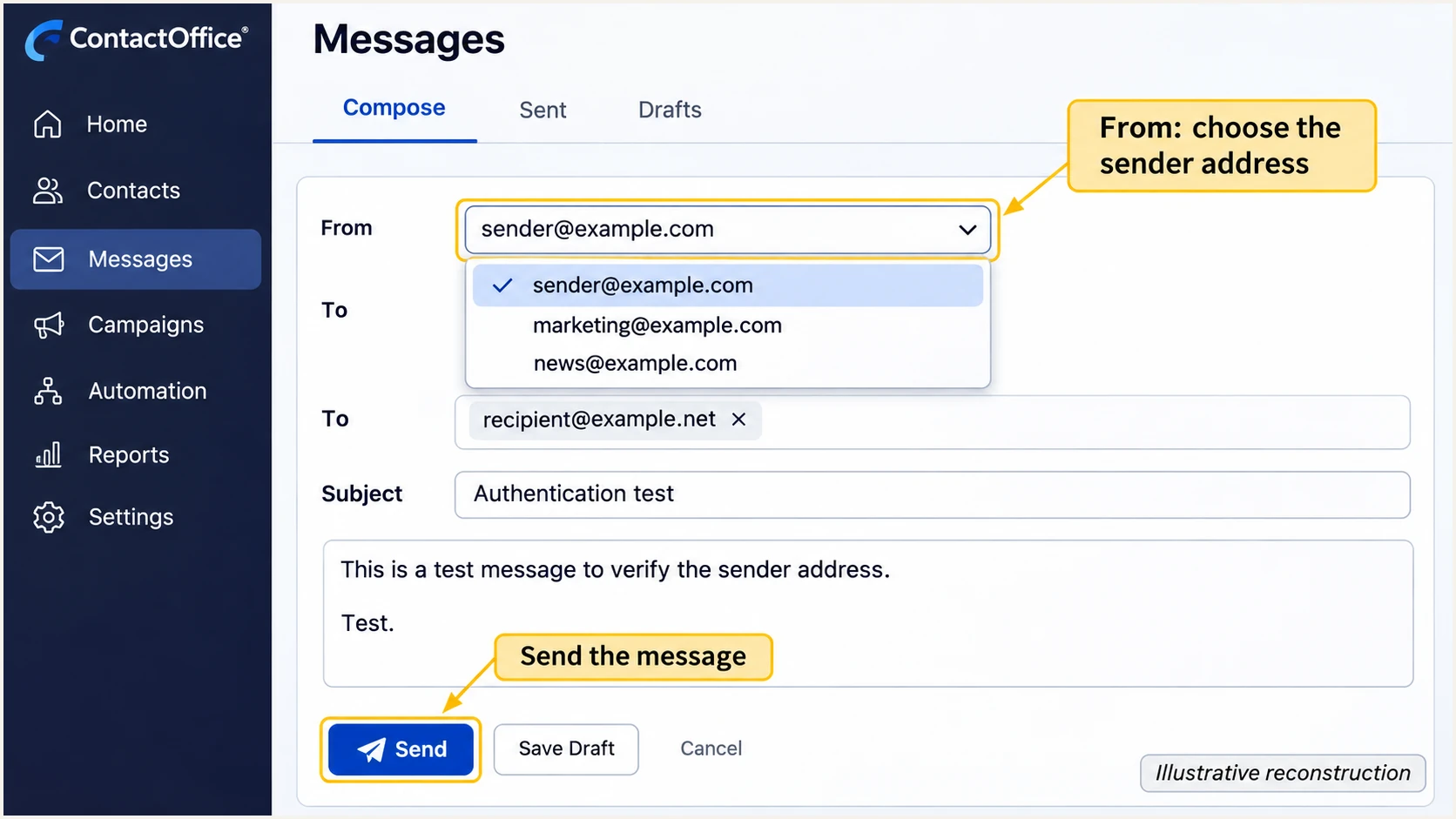
Illustrated ContactOffice composer with the custom-domain From address selected.
The email tester below gives you a test address. Send a fresh message to that address through ContactOffice to get a diagnosis of the received message's authentication and delivery-related checks.
This is the quickest check of the complete sending configuration because it examines a real message. Run separate tests for webmail and any SMTP clients you use.
Email tester
Send a real email to this address. Suped shows a results button when the test is ready.
?/43tests passed
If SPF passes but DMARC fails, compare the Return-Path domain with From. If DKIM passes but DMARC fails, compare d= with From. Authentication success for an unrelated domain does not satisfy DMARC.
An SPF alignment warning is compatible with a DMARC pass when DKIM passes with domain alignment. Since ContactOffice supports Return-Path alignment, investigate unexpected mismatches, but retain the working DKIM signature while troubleshooting.
|
|
|
|---|---|---|
SPF permerror | Duplicates / lookups | Merge / reduce |
No DKIM | Signing status | Finish validation |
DKIM fail | Key / message edits | Correct / retest |
DMARC fail | Domain alignment | Match From domain |
Start with the failed check reported on a newly received message.
Get alerted when it breaks
Suped is our DMARC reporting and email authentication platform. Our DMARC monitoring connects ContactOffice traffic to source-level failures and steps to fix, so ongoing checks do not depend on someone opening individual XML reports.
- Enable notifications. In Suped's Notifications settings, enable Issues detected and DMARC summary emails. Enable Sending sources need verification to catch unfamiliar senders.
- Verify sending sources. Review ContactOffice traffic and mark it verified only after confirming it belongs to your organization. Investigate unfamiliar IP addresses before approving them.
- Inspect failures. Filter the Data view by source or IP, then open Detail view for SPF, DKIM and DMARC diagnostics. Use the issue's steps to fix to correct the affected configuration.
- Confirm recovery. Retest ContactOffice after the fix and check subsequent reports. Use DNS history to compare record changes around the start of the failure.
Report-based alerts follow the arrival of aggregate data, commonly on a daily schedule. Detection timing depends on the receiver's reporting schedule and the data received.
Use a direct message test after a DNS change for immediate evidence, then use Suped's ongoing reports to confirm the result across observed receivers and sending paths.
Make each alert actionable
Keep a record of the domain's DNS owner and ContactOffice administrator. When Suped detects an issue, use its diagnostics to identify the failed check, make the correction, and verify the next message and report data.
Secure your domain with p=reject
Move to p=reject after every approved sending path passes DMARC. I assess readiness by legitimate source and business workflow, because a high overall pass rate can hide failures in a low-volume billing system.
- Review a complete cycle. Use Suped's source table and filtered records to cover normal mail plus periodic workflows. Include your billing system and website notifications, even when ContactOffice is your main mailbox provider.
- Fix legitimate failures. Confirm ContactOffice DKIM passes with domain alignment. Correct unexpected Return-Path mismatches and authenticate every other approved sender before enforcement.
- Stage quarantine. Change the existing policy to p=quarantine and review new failures and delivery complaints. Continue until legitimate exceptions are understood and resolved.
- Enable rejection. Change that same record to p=reject while retaining reporting. Check inherited subdomain policy and any separate subdomain DMARC records before making the change.
- Keep monitoring. Use Suped's issue notifications and DMARC summaries after enforcement. Test new ContactOffice domains or sending paths before putting them into production.
Our Hosted DMARC lets teams manage policy in Suped after its DNS setup is complete. Combine those policy controls with verified-source review and message tests to decide when enforcement is ready.
These policies request handling for messages that fail DMARC. Receivers retain local delivery decisions, including spam filtering for messages that pass authentication.
|
|
|
|---|---|---|
p=none | No DMARC enforcement | Discover senders |
p=quarantine | Treat as suspicious | Observe enforcement |
p=reject | Reject failures | Protect authenticated domain |
Use observed legitimate traffic to decide when to strengthen policy.
For a DNS-managed deployment, the final example below replaces the monitoring record at _dmarc. Keep your real reporting destination and any other intentional policy tags.
Do not add this alongside the monitoring record. Replace the existing value so there is only one DMARC policy record at that name.
Enforced DMARC example after legitimate sources passtext
v=DMARC1; p=reject; rua=mailto:dmarc@example.com
Recheck the public record after the change, then send another ContactOffice test. Keep reporting active to detect a later DNS edit or signing failure.
DMARC enforcement addresses unauthorized use of the protected From domain. It does not prevent someone registering a different, similar-looking domain or misusing a compromised authorized account.
Frequency asked questions
Copy the authorization and selector supplied by your ContactOffice domain wizard. Replace the SPF template's placeholder before publishing. A shared SMTP hostname or a selector copied from someone else's message is not a reliable configuration value for your domain.
Yes. A passing DKIM signature with domain alignment is sufficient for DMARC, even when SPF fails or its domain has no alignment with From. ContactOffice supports Return-Path alignment, so investigate unexpected SPF mismatches while keeping working DKIM signing.
wilbur.contactoffice.com is an observed ContactOffice outbound mail hostname. A .contactoffice.com rDNS suffix is a clue to the sending infrastructure, not proof that the message is authorized. Match the connecting IP, receiver-recorded headers and authentication results; shared infrastructure does not identify a particular customer.
ContactOffice manages DNS authentication for its own domains. These setup steps apply when you send with a custom domain you control. Authenticate any other sending service separately if it also uses that domain.
Publishing a public key does not activate a sender's signing configuration. Complete ContactOffice's domain-wizard validation and signing instructions, then send fresh mail through its actual servers. Check the delivered message for DKIM-Signature and the receiver's dkim result.
Keep an existing p=reject or p=quarantine policy. Publish ContactOffice's authentication records and verify fresh messages before using it for production mail. Use p=none as the starting policy for a new DMARC deployment.