
How to set up DMARC/DKIM/SPF for Concur

Published 21 Nov 2026
Updated 21 Nov 2026
11 min read
Summarize with
For Concur email sent from your own domain, ask SAP Concur Support to configure a matching custom Return-Path and supply the required SPF records. Publish DMARC for your visible From domain. Concur signs outgoing email with DKIM, but a signature using a Concur-owned domain does not automatically satisfy DMARC for your domain.
I start with a real notification and check its From address. If it uses a Concur-owned domain such as concursolutions.com, Concur manages that domain's authentication. Changing your company's SPF or DMARC records does not change authentication for that message.
Add your domain
For a customer-owned From domain, use a support case to confirm the configuration available for your Concur tenant. I get the exact sender identities and DNS requirements confirmed before making changes.
Verifying a personal email address for receipt submission does not authorize Concur to send authenticated email using your company domain.
- Open support: Sign in as an Authorized Support Contact. Select the ? icon, then Help > Contact Support. In the support portal, choose Contact Support > Create a Case when shown.
- Identify the sender: Provide your Concur company or tenant identifier, region, intended From address, and the notification types that need your domain.
- Request DNS details: Ask for custom MAIL FROM activation, the exact SPF record location and value, and any required bounce-routing records. Ask separately whether customer-domain DKIM signing is supported.
- Confirm activation: Publish only the records supplied for your tenant. Complete any ownership check requested by support, then request confirmation that the sender configuration is active.
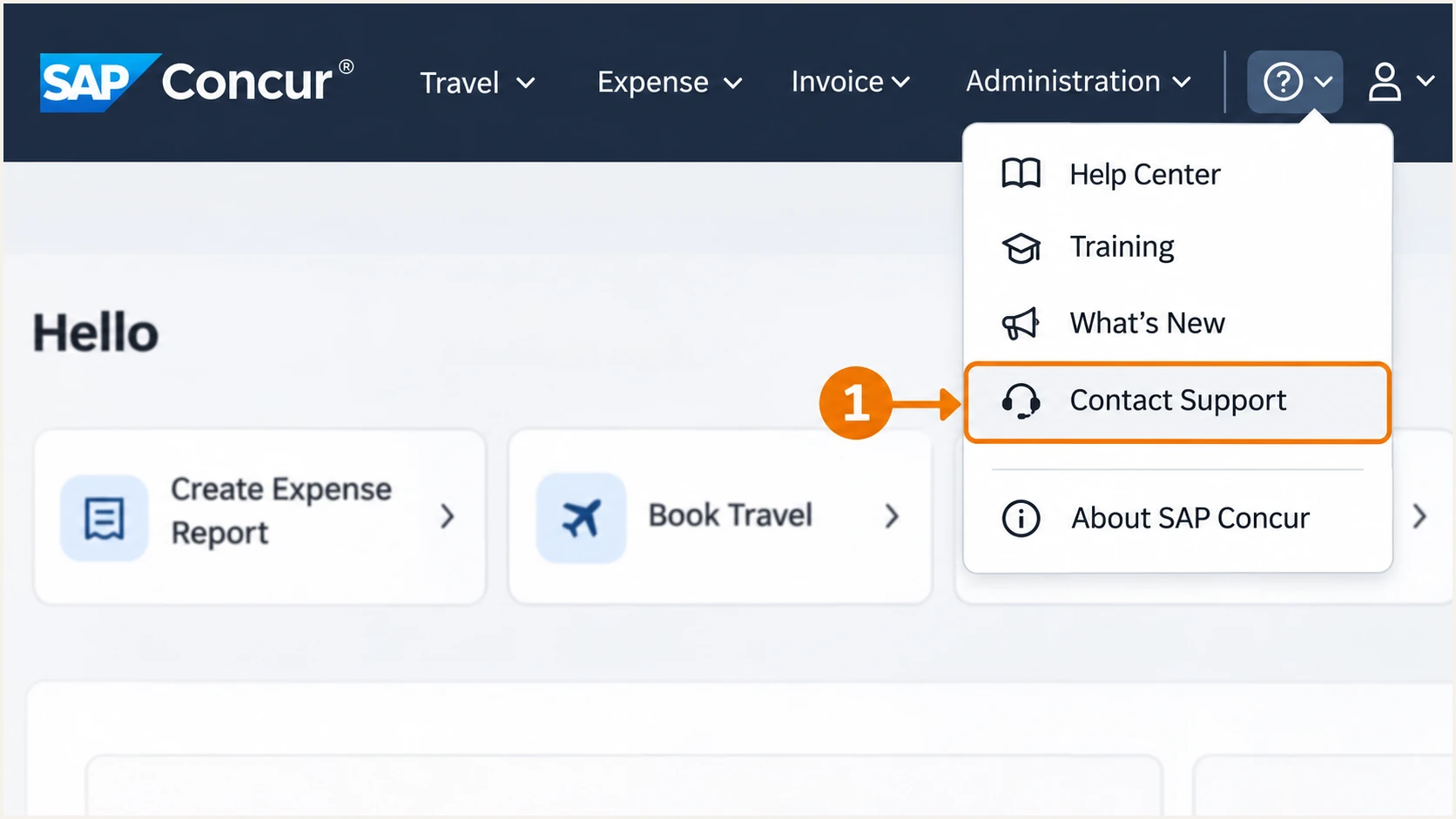
Illustrated SAP Concur Help menu with Contact Support highlighted.
If Contact Support is missing, ask your company's Concur administrator or Authorized Support Contact to submit the case. Support access depends on your role and your company's support arrangement.
Keep the support response as the configuration reference. It should identify the actual From domain and MAIL FROM domain, plus the DNS changes and activation steps applicable to your tenant.
Set up SPF
Concur supports Return-Path alignment. For a custom sender, have support confirm the MAIL FROM domain actually used by your notification stream. SPF checks that domain, which appears in the delivered message's Return-Path.
I use the current values supplied for the tenant rather than copying historical Concur IP ranges. There is no tenant-independent SPF include established by the public documentation reviewed for this setup.
- Match domains: For From expenses@example.com, a MAIL FROM domain such as bounce.example.com satisfies relaxed SPF alignment. With aspf=s, the domain names must match exactly.
- Publish correctly: Add the supplied SPF TXT record at the MAIL FROM hostname. If support supplies a CNAME delegation instead, follow that design and do not add TXT records at the same hostname.
- Preserve senders: If the hostname already has SPF, merge the authorized mechanisms before the final all mechanism. Keep exactly one SPF record at that name and preserve existing legitimate senders.
- Check activation: Have support activate the custom MAIL FROM configuration, then check a new notification. Adding SPF to your root domain does not change the Return-Path.
SPF checker
Find SPF syntax issues, lookup limits, and weak records.
?/16tests passed
Enter the actual MAIL FROM domain in the SPF checker. A passing SPF result for a Concur-owned Return-Path does not establish SPF alignment with your company's From domain.
Check nested includes against SPF's limit of 10 DNS-querying mechanisms and modifiers. SPF does not inherit a parent domain's record, so query the precise hostname provided by support.
Inspect the MAIL FROM domain and existing SPFbash
dig +short TXT bounce.example.com
dig +short TXT example.com
Replace these example names with your real domains. If support keeps the Return-Path on its own domain, an SPF alignment failure is acceptable for DMARC only when DKIM passes using a domain that matches your From domain.
Set up DKIM
SAP Concur's public security recommendations state that Concur signs outgoing email with DKIM. That describes signing on Concur's infrastructure; it does not establish customer-domain DKIM support for every notification stream.
I inspect the signature's d= domain and s= selector before adding DNS. A successful signature using concursolutions.com does not satisfy DKIM alignment for a From address at example.com.
- Read the signature: Obtain an original Concur notification. Record d= and s= in DKIM-Signature, then check the receiving server's Authentication-Results for dkim=pass.
- Confirm capability: Ask support whether your exact notification stream can sign using your From domain. Do not assume another SAP product's DKIM instructions apply to Concur.
- Publish supplied records: If custom signing is available, publish the exact selector TXT or CNAME records supplied by Concur. Concur must hold the matching private key and activate signing.
- Verify a new message: After activation, confirm dkim=pass and a signing domain that matches your From domain under the applicable DMARC settings.
Concur-owned signing domain
DKIM authenticates the Concur signing domain. It does not provide DKIM alignment for your company domain.
For your custom From address, DMARC must then pass through SPF with a matching MAIL FROM domain.
Customer-owned signing domain
DKIM can satisfy DMARC when the signature passes and its domain matches your From domain.
This requires explicit support and activation by Concur. Publishing an unrelated public key cannot enable it.
If customer-domain DKIM is unavailable, keep Concur's existing valid signature and establish DMARC through the supported custom Return-Path. Do not invent a selector such as concur or assume a generic DKIM toggle exists.
Forwarding often breaks SPF. Without customer-domain DKIM, a custom From configuration that depends on SPF needs particular attention on forwarded delivery paths.
Set up DMARC
DMARC belongs in DNS for the domain in the visible From address. A message passes when SPF passes with a matching domain, or a valid DKIM signature has a matching domain. Both methods are useful, but either matching method is sufficient for DMARC.
I keep an existing p=quarantine or p=reject policy during setup. For a domain without an enforcement policy, start with p=none while you validate Concur and your other legitimate senders.
- Inspect the policy: Look up _dmarc at the From domain. Check for an explicit subdomain policy and any applicable parent-domain policy before publishing a change.
- Create one record: For example.com, create or update one TXT record at _dmarc.example.com. Some DNS interfaces require only _dmarc in the host field.
- Set reporting: Use a mailbox that you control and can process aggregate XML reports. Replace the example reporting address before publication.
- Generate the value: Use the DMARC record generator to build the policy. Preserve existing enforcement and reporting destinations when updating a record.
Initial monitoring policy at _dmarc.example.com (TXT)text
v=DMARC1; p=none; rua=mailto:dmarc@example.com
This is the initial monitoring example, not a replacement for an existing enforcement policy. Substitute your real reporting mailbox. An external reporting destination also needs authorization in the destination domain's DNS.
The example leaves SPF and DKIM alignment in relaxed mode. That permits a custom bounce subdomain under the same organizational domain as the From address; strict SPF alignment requires an exact domain match.
DMARC checker
Look up a domain's DMARC record and catch policy issues.
?/7tests passed
Check the visible From domain after saving DNS. Confirm that there is one valid DMARC record and that its reporting destination is correct. A DNS validation result does not prove that Concur messages pass DMARC.
A p=none policy requests monitoring without DMARC enforcement. Receivers still apply their own spam filtering. Keep reporting enabled so you can validate legitimate traffic before changing the policy.
Verify and troubleshoot
I verify a newly generated Concur notification after activation and DNS propagation. Existing messages cannot show whether the new configuration works.
Test each relevant notification stream separately, including expense approvals and travel messages where enabled. Different streams can use different sender identities.
- Send a controlled test: Use a test user or approved workflow to generate a real notification. If Concur permits the tester address as a recipient, deliver the notification directly to it.
- Run the diagnosis: Use the email tester below. It provides a destination address; send the Concur message there to get authentication results and configuration diagnostics.
- Check original headers: Inspect the receiving server's Authentication-Results, Return-Path, From, and DKIM-Signature. Confirm dmarc=pass for your actual From domain.
- Repeat after changes: Check authoritative DNS and allow cached answers to expire. Generate another message after every SPF, signing, or MAIL FROM change.
Email tester
Send a real email to this address. Suped shows a results button when the test is ready.
?/43tests passed
Use direct delivery for the initial test. Forwarding a notification through your own mailbox changes the delivery path and can break SPF. If Concur cannot send to the tester address, inspect an original message delivered to a controlled mailbox instead.
The example below shows DMARC passing through SPF even though the valid DKIM signature uses Concur's domain. These are illustrative header values, not records to publish or guaranteed Concur defaults.
Illustrative result with a customer Return-Pathtext
From: expenses@example.com
Return-Path: <bounces@bounce.example.com>
Authentication-Results: receiver.example;
 spf=pass smtp.mailfrom=bounce.example.com;
 dkim=pass header.d=concursolutions.com;
 dmarc=pass header.from=example.com
SPF authentication and SPF alignment are separate checks. When SPF passes but the MAIL FROM domain belongs to Concur, adding more IP addresses to your company's SPF does not repair the domain mismatch.
I use the failure type to decide whether to change DNS, request a Concur configuration change, or investigate an intermediary.
|
|
|
|---|---|---|
SPF permerror | Duplicate or over limit | Repair MAIL FROM SPF |
SPF pass, DMARC fail | Domain mismatch | Check Return-Path |
DKIM fail | Key or message change | Check selector and route |
DKIM pass, DMARC fail | Signing domain mismatch | Confirm custom signing |
DMARC pass, junk folder | Other filtering | Inspect delivery evidence |
For escalation, capture a failing original message, its UTC timestamp, Message-ID, recipient domain, and complete delivery error. Record the expected From and MAIL FROM domains so support can compare them with the active configuration.
Open your existing Concur case or choose Create a Case in the support portal. Describe the observed authentication failure and attach the evidence rather than requesting a general allowlist exception.
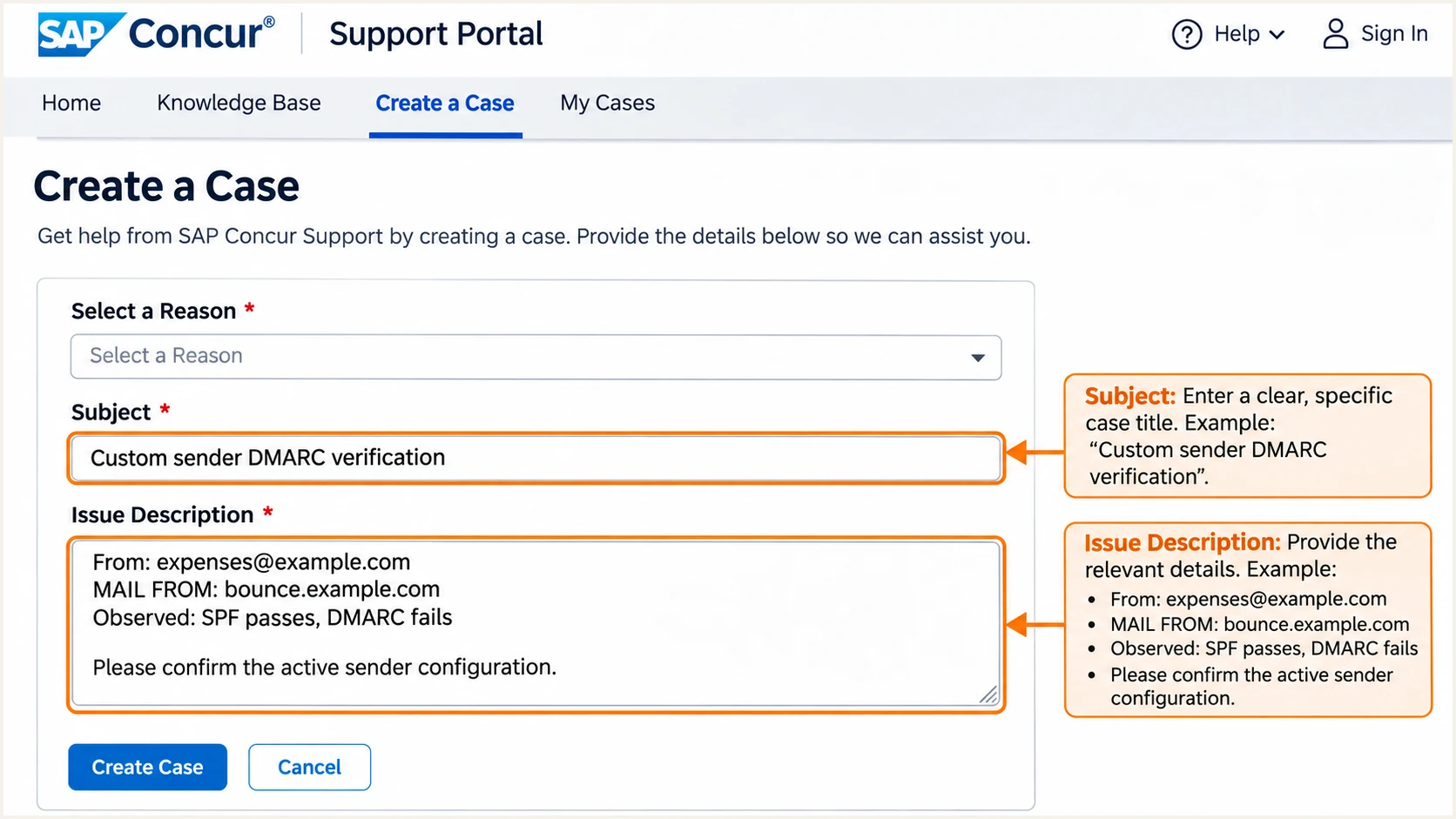
Illustrated Concur support case with sender identities and a DMARC failure.
Attach headers through your approved support process and remove unrelated expense or traveler information. Keep the authentication fields intact so support can diagnose the problem.
Concur or its infrastructure provider controls the sending IP's reverse DNS. If a PTR record is missing or incorrect, report it to Concur; a TXT record in your company domain cannot fix that PTR record.
Get alerted when it breaks
Our DMARC platform, Suped, provides DMARC monitoring for checking whether Concur continues to pass after setup. Its source-level data and issue diagnostics help distinguish a changed Return-Path from a broken SPF record.
I use notifications alongside periodic test messages. Aggregate reports arrive on receivers' reporting schedules, so report-based alerts follow the available data rather than each individual email.
- Enable issue alerts: In Suped notification settings, enable Issues detected and route the emails to the person responsible for sender configuration.
- Review source changes: Enable Sending sources need verification. Confirm that a newly observed Concur source is authorized before marking it verified.
- Trace failures: Filter DMARC data to Concur and the affected period. Inspect the From domain and SPF or DKIM results, then compare DNS history with the last passing configuration.
- Close the loop: Apply the issue's fix steps, send another Concur notification, and confirm recovery in subsequent reports. Enable DMARC summary emails for continuing review.
Keep message tests and reports together
A passing test confirms one delivery path. Suped shows authentication results reported across your actual traffic, helping you catch a failing notification stream that the initial test missed.
Secure your domain with p=reject
I move to p=reject after legitimate senders consistently pass DMARC across representative business activity. Include infrequent Concur notifications in that review; one successful expense email is not enough evidence for every stream.
Suped supports this process with source verification and authentication diagnostics. Our Hosted DMARC lets you manage policy changes after its DNS configuration is in place, while keeping reporting available for each stage.
- Inventory every sender: Review all authorized sources using the From domain, including systems outside Concur. Identify the owner of every legitimate source.
- Fix legitimate failures: Confirm Concur has passing SPF with a matching MAIL FROM domain, or passing DKIM with a matching signing domain. Resolve unexplained failures before increasing enforcement.
- Stage enforcement: Move a monitoring policy to p=quarantine when the evidence supports it. Use Suped to inspect legitimate failures before proceeding to p=reject.
- Keep matching rules suitable: Retain relaxed SPF alignment when Concur uses a bounce subdomain. Review subdomain policy scope before applying enforcement broadly.
Enforcement example after legitimate traffic is verifiedtext
v=DMARC1; p=reject; rua=mailto:dmarc@example.com
Replace the example mailbox and preserve your real reporting destinations. Update the existing record rather than creating a second one. Receivers apply their own handling rules even when your policy requests rejection.
Keep Suped issue alerts active after enforcement. If Concur depends on SPF alone, investigate forwarded-message failures with support and confirm whether customer-domain DKIM or a Concur-owned From address is available for that workflow.
Frequency asked questions
Yes. Have SAP Concur Support confirm and activate the custom MAIL FROM configuration for your tenant. SPF must pass for that domain, and the domain must match your visible From domain under your DMARC settings. A customer bounce subdomain works with relaxed SPF alignment.
Concur signs outgoing email, but that does not guarantee customer-domain signing for your notification stream. Ask support to confirm availability and provide the exact DNS records if supported. Otherwise, your custom From domain needs passing SPF with a matching MAIL FROM domain to pass DMARC.
Both checks can authenticate Concur-owned domains while your visible From address uses your company domain. DMARC requires at least one passing method with a matching domain. Check smtp.mailfrom and header.d against the From domain in the trusted receiving server's results.
Concur manages authentication for its own From domains. Your company SPF and DMARC records do not control those messages. Check the original receiving-server results and escalate failures to Concur instead of adding unrelated DNS records to your domain.
SAP Concur uses concursolutions.com for email, including the regional mail domains us.mail.concursolutions.com and eu.mail.concursolutions.com. Those names do not establish a universal Concur rDNS suffix. I confirm attribution using the sending IP, trusted authentication results, and the Concur tenant's actual mail stream; a shared infrastructure PTR name alone does not identify the application.
Keep your existing p=reject or p=quarantine policy. Configure and test Concur's authenticated sender identities before enabling the custom From address for production traffic. The p=none example is for an initial monitoring setup, not a required downgrade.




