
How to set up DMARC/DKIM/SPF for ColoCrossing

To set up DMARC, DKIM and SPF for ColoCrossing, authorize your server's outbound IP in SPF, enable DKIM signing for your sending domain, and publish a DMARC TXT record in authoritative DNS. ColoCrossing provides the hosting infrastructure. Your installed mail server controls the envelope sender and DKIM signing.
I first check whether the application delivers mail directly or uses an external SMTP relay. With a relay, authenticate the relay rather than the website server. The cPanel & WHM controls apply only if that software is installed; a manually managed Exim server needs its own signing configuration.
Add your domain
Add the sending domain in your installed hosting or mail software. Buying a ColoCrossing server does not automatically configure domain authentication.
- Identify the server. Open your ColoCrossing service or device details and record its assigned IP. Confirm the actual outbound IP in a delivered message, especially with NAT or a relay.
- Add the domain. If you use cPanel, open Domains > Create a New Domain, enter your registered domain and click Submit. Skip creation if it is already listed. A server without a control panel has no equivalent ColoCrossing domain-verification wizard.
- Locate public DNS. Check the domain's NS records. Edit TXT records at that authoritative DNS host. A local server zone has no public effect when DNS is hosted elsewhere.
- Set the sender. Use a From address such as notifications@example.com. Configure a working envelope sender such as bounce@example.com in the application or MTA.
- Prepare reverse DNS. For direct delivery, point mail.example.com to the sending IP. Set that IP's PTR to mail.example.com using the ColoCrossing rDNS control or your account provider, and use the same hostname for SMTP EHLO.
Find the authoritative DNS and mail hostnamebash
dig +short NS example.com
dig +short A mail.example.com
I verify that the PTR hostname resolves back to the sending IP. ColoCrossing's documented device management interface includes a Reverse DNS Records tab; cloud and reseller account layouts differ. Request the PTR change through support if your account lacks that control.
All example.com names and 192.0.2.10 addresses are documentation values. Replace them with your domain and actual outbound IP. Keep existing MX records unless you are also moving inbound mail.
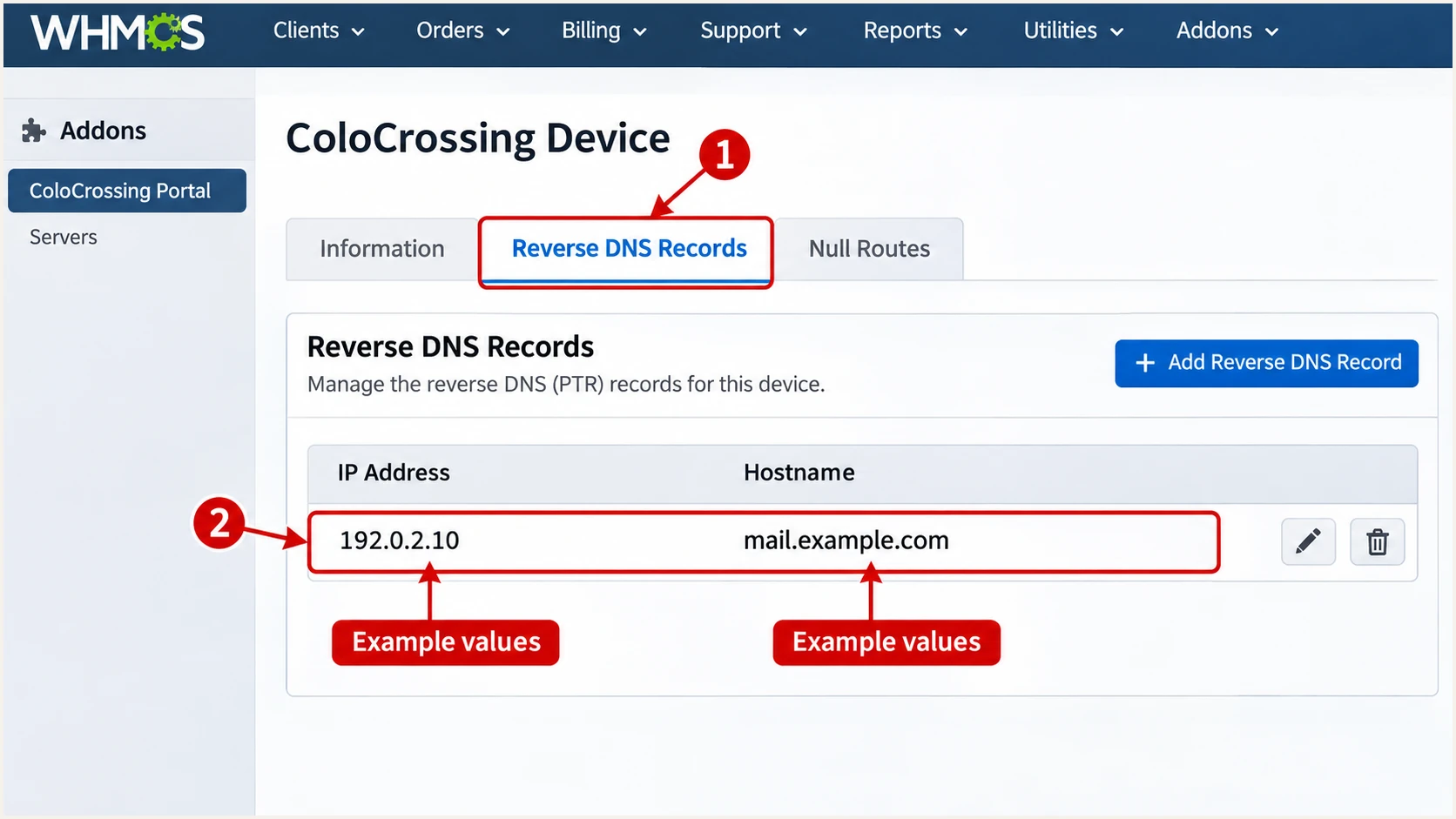
Illustrative ColoCrossing device screen showing Reverse DNS Records and example PTR values.
Set up SPF
SPF authorizes the IP connecting to the recipient for the SMTP MAIL FROM domain, which is normally visible in Return-Path. ColoCrossing infrastructure supports using your own envelope domain when you control the mail configuration.
I authorize the actual sending IP rather than guessing a ColoCrossing include. A website IP is relevant only when that server also delivers the message to the recipient.
- Read existing SPF. Query TXT records for the envelope domain. Keep exactly one record beginning with v=spf1 at each hostname.
- Publish at the right name. For bounce@example.com, edit the TXT record at example.com, often entered as @. For bounce@bounces.example.com, publish SPF at bounces.example.com; SPF does not inherit from the parent.
- Authorize each delivery IP. Add ip4: followed by the real IPv4 address, and ip6: for any sending IPv6 address. Preserve other legitimate senders and keep DNS-lookup-causing SPF terms within the limit of 10.
- Configure MAIL FROM. Set the envelope sender in the SMTP client or MTA. Adding a Return-Path header manually does not set it. For relaxed DMARC alignment, its domain must share the organizational domain of the visible From address.
Example SPF for one direct-delivery IPv4 addresstext
Name: example.com
Type: TXT
Value: v=spf1 ip4:192.0.2.10 -all
This example assumes that one IP is the only authorized sender for this envelope domain. Merge the IP into existing SPF before the final all mechanism when other senders exist. Do not authorize an entire hosting network.
Enter the actual envelope domain in the SPF checker. Check its syntax and lookup count, then compare the authorized IPs with the delivery IP shown in a received message.
SPF checker
Find SPF syntax issues, lookup limits, and weak records.
?/16tests passed
A valid SPF record does not prove that the application uses the intended envelope domain. I verify that separately on a freshly delivered test message.
If an external relay does not support a custom return path, adding the ColoCrossing IP will not fix SPF alignment. In that situation, expect SPF alignment failures and configure passing DKIM with a signing domain that matches your From domain. That DKIM result is sufficient for DMARC.
Set up DKIM
DKIM requires both a server-side private key and a public DNS record. Publishing a TXT record alone does not sign mail. I use a 2048-bit RSA key and SHA-256 for new RSA signing setups.
- Enable cPanel signing. In WHM, open Account Functions > Modify an Account, select the account and click Modify. Under DNS Settings, select Enable DKIM on this account and save.
- Copy the public record. In cPanel, open Email > Email Deliverability > Manage for the domain. Use Generate Local DKIM Key if needed, then copy the suggested DKIM Name and Value.
- Publish authoritative DNS. Create the suggested TXT record at your public DNS host. Use the exact selector shown by the server, often default, rather than assuming a ColoCrossing-wide selector. Keep the complete public key and never publish the private key.
- Use the signing path. Send application mail through the configured MTA, preferably authenticated SMTP. Verify a new message has a DKIM-Signature with d= matching your domain and s= matching the published selector.
For a manually managed Exim server, generate a separate key and publish the resulting public TXT value at mail2026._domainkey.example.com. These commands create the private key locally and print its public DNS value.
Generate a DKIM key for a manually managed serverbash
umask 077
openssl genrsa -out example.com.key 2048
openssl rsa -in example.com.key -pubout -out example.com.pub
printf 'v=DKIM1; k=rsa; p='
sed '/^-----/d' example.com.pub | tr -d '\n'
printf '\n'
Install the private key at the configured path with access limited to root and the Exim runtime user. Add these options to the existing outgoing SMTP transport dedicated to example.com, then validate and reload Exim. Use domain-specific key selection on a server sending for multiple domains.
Outgoing Exim transport options for a single-domain sendertext
dkim_domain = example.com
dkim_selector = mail2026
dkim_private_key = /etc/exim/dkim/example.com.key
dkim_hash = sha256
dkim_strict = true
Use the cPanel controls on a cPanel-managed server; its generated Exim configuration is managed by the control panel. For other MTAs, configure their outgoing DKIM signer with the same domain, selector and key pair.
A DNS key that exists is only half the setup. The real acceptance check is dkim=pass at the receiving server with a signing domain that matches the visible From domain. Test website forms separately from mailbox mail.
Set up DMARC
For a domain without an existing enforcement policy, I start with p=none to collect evidence without requesting DMARC rejection. If the domain already uses p=quarantine or p=reject, keep that policy while adding ColoCrossing as a legitimate sender.
Use the DMARC record generator to build the TXT value with your actual reporting address. DMARC needs either passing SPF with a matching envelope domain or passing DKIM with a matching signing domain.
- Choose the domain. For From: notifications@example.com, manage the DMARC policy at _dmarc.example.com. A DNS editor for example.com usually expects the host label _dmarc.
- Preserve existing policy. Edit the existing DMARC record instead of publishing a second one. Retain current reporting destinations when extending reporting.
- Set a working recipient. Replace dmarc@example.com with a mailbox or report-processing address you control. It receives aggregate XML reports; it is not automatically an alert service.
Initial monitoring record, with an example reporting addresstext
Name: _dmarc.example.com
Type: TXT
Value: v=DMARC1; p=none; rua=mailto:dmarc@example.com
If your reporting destination is on another domain, confirm that its operator publishes the required external reporting authorization. I keep the default relaxed SPF and DKIM alignment unless an exact domain match is required.
Run the DMARC checker after publishing. It checks public DNS and record syntax; it does not prove that the application signs or sends correctly.
DMARC checker
Look up a domain's DMARC record and catch policy issues.
?/7tests passed
Recheck after the previous record's TTL has expired if a resolver still returns the old value. Confirm there is exactly one valid DMARC policy record at the lookup name.
Allow roughly 24-48 hours for initial aggregate reports after sending real mail to participating receivers. Reports follow receiver schedules, and not every receiver sends them.
Verify and troubleshoot
I test each real sending path, including website forms and scheduled jobs. A successful mailbox test does not prove that a PHP application uses the same envelope sender or signing configuration.
- Send a real test. Use the email tester below and send to its generated address through the ColoCrossing-hosted application or mailbox you are configuring.
- Read the diagnosis. Confirm the observed sending IP, SPF envelope domain and DKIM signing domain. Require dmarc=pass; aim for both matching SPF and DKIM on direct server delivery.
- Check failed DKIM. Compare the signature selector with the public DNS name. Check for truncated keys, missing private-key permissions and message changes after signing.
- Check failed SPF. Compare the observed delivery IP with SPF at the actual envelope domain. Check IPv6, duplicate SPF records and excessive DNS lookups.
The email tester gives a message-based diagnosis faster than waiting for an aggregate report. Send a fresh message after each configuration change so the result reflects the current signing path.
Email tester
Send a real email to this address. Suped shows a results button when the test is ready.
?/43tests passed
In the recipient's trusted Authentication-Results header, check the domains as well as the pass/fail words. SPF passing for an unrelated domain does not satisfy DMARC for your From address.
Illustrative receiver results for matching authenticationtext
From: notifications@example.com
Return-Path: <bounce@example.com>
Authentication-Results: receiver.example;
  spf=pass smtp.mailfrom=example.com;
  dkim=pass header.d=example.com header.s=mail2026;
  dmarc=pass header.from=example.com
Use receiver-added results rather than an Authentication-Results header supplied by the sender. With relaxed alignment, a subdomain and its organizational domain can match; strict alignment requires the identical domain.
Separate authentication errors from transport and reputation failures. If delivery fails despite passing authentication, inspect the SMTP response and server logs before changing DNS.
|
|
|
|---|---|---|
SPF fail | Delivery IP | Correct SPF |
DKIM none | Signing path | Enable signing |
DMARC fail | Domain match | Fix sender domains |
PTR mismatch | Reverse DNS | Correct PTR and A |
SMTP timeout | Port 25 access | Check network policy |
Checks for mail delivered directly by the ColoCrossing server.
Forwarding often breaks SPF while an unchanged DKIM signature continues to pass DMARC. A blocklist (blacklist) listing is a separate delivery issue. Review its cause and the SMTP rejection text instead of weakening a valid DMARC policy.
Get alerted when it breaks
Suped is our DMARC platform. Its DMARC monitoring turns aggregate reports into source-level authentication results and issues with steps to fix. For a ColoCrossing server, that makes an unexpected outbound IP or a DKIM regression easier to investigate.
I keep server logs for immediate SMTP failures. Aggregate-report alerts depend on when receivers send reports; they do not inspect every outgoing message in real time.
- Enable issue notifications. In Suped, open Settings > Notifications and enable Issues detected for authentication problems.
- Review new sources. Enable Sending sources need verification. Match each source to your server inventory and application owner before marking it verified.
- Investigate the record. Open the affected source and record details. Compare SPF and DKIM results with the sending IP, then check the corresponding ColoCrossing mail logs.
- Confirm the repair. Send a fresh application test and review subsequent reports. Enable DMARC summary emails for periodic review after migrations or key changes.
Secure your domain with p=reject
I move to p=reject after every legitimate sending path has a passing, matching authentication method. Review a full business sending cycle, including infrequent notifications, rather than relying on one successful test.
- Inventory legitimate mail. Use Suped source results to identify each application and assigned IP. A ColoCrossing rDNS label identifies infrastructure, not permission to send for your domain.
- Fix before enforcing. Resolve failures on legitimate sources. Keep unauthorized sources unauthorized; adding their IPs to SPF would grant them permission.
- Stage the policy. For a new rollout, review p=none reports, move to p=quarantine, then p=reject after legitimate traffic remains healthy. Review subdomain policies and existing exceptions separately.
- Keep monitoring. Retain reporting and issue notifications after enforcement. Test replacement IPs and new DKIM keys before moving production traffic.
Our hosted DMARC manages policy changes in Suped after a one-time DNS delegation. Source diagnostics and policy controls stay in the same workflow, reducing repeated DNS edits during enforcement.
Choose either a manually maintained TXT record or hosted policy delegation at the DMARC hostname. A CNAME and TXT record cannot coexist at that same name.
Manual DNS policy
Edit the existing DMARC TXT record at your authoritative DNS host. Each policy change needs DNS access and a syntax check.
Policy managed in Suped
Publish the supplied delegation once, then stage enforcement through our dashboard while reviewing source results. Server-side SPF and DKIM configuration still happens on your mail infrastructure.
For a manual TXT deployment, retain the real reporting address and change the policy only after confirming legitimate traffic. If the domain already uses reject, keep it while validating the new server.
Manual enforcement example after validationtext
Name: _dmarc.example.com
Type: TXT
Value: v=DMARC1; p=reject; rua=mailto:dmarc@example.com
A reject policy asks receivers to reject messages that fail DMARC; receivers retain control over handling. Keep alerts active so a server migration or signing failure is investigated promptly.
Frequency asked questions
That hostname pattern is associated with ColoCrossing-hosted infrastructure. It does not identify a particular customer or sending application. Compare the source IP with your server inventory and authentication results before treating the mail as authorized.
For a server you manage, authorize its actual delivery IPs and use the selector generated by your mail software. Do not invent an include for colocrossing.com or copy another server's DKIM key. If mail uses a relay, use that relay's documented authentication values.
SPF authenticates the envelope sender domain. DMARC also requires that domain to match the visible From domain under the configured alignment mode. If SPF does not match, a passing DKIM signature with a matching signing domain is required for DMARC to pass.
No. SPF, DKIM and DMARC configure outgoing authentication without moving incoming mail. Keep your current MX records unless you are changing where inbound messages are delivered. The envelope sender must still have a working route for bounce handling.
Keep an existing p=reject or p=quarantine policy. Configure and test the new ColoCrossing sending path before production use. The p=none starting record is for a new monitoring rollout, not a reason to remove established enforcement.




