
How to set up DMARC/DKIM/SPF for Cogeco

For a standard @cogeco.ca or @cgocable.ca mailbox, Cogeco controls SPF, DKIM and DMARC for the domain. Customers do not publish those records themselves. For a domain you own, configure SPF and DKIM with the service actually sending your email, then publish DMARC in your own DNS.
I check the address in the From field first. A Cogeco Internet connection, a Cogeco mailbox and a custom-domain business email subscription have different authentication requirements. SMTP login settings alone do not configure DMARC.
Add your domain
Only a custom-domain email service needs domain onboarding. Cogeco's standard My Account email management screen manages mailboxes, not ownership verification for a domain you registered.
- Check the mailbox. In Cogeco My Account, select Services > Internet > Manage my email addresses under Quick Links. Confirm whether your sending address uses a Cogeco domain or your own domain.
- Check the subscription. For a custom domain, confirm the actual mailbox service with Cogeco business support. Cogeco's older business instructions cover separate Office 365 and G Suite subscriptions; those are not the standard Cogeco mailbox service.
- Add the business domain. If your existing subscription still uses the documented My Online Productivity portal, select Hosted Domains > Add Domain Registered Elsewhere. Enter the domain, select the correct Subscription, then choose Next and Finish. For its Office 365 service, continue through Microsoft Office 365 > Domains > Add Domains, select the domain and choose Add.
- Verify ownership. In the underlying mailbox service's domain setup wizard, copy its exact verification DNS record. Publish it at your authoritative DNS host, then return to the wizard and complete verification. Adding a domain to a billing portal alone is not proof of ownership.
The screenshot below illustrates Cogeco's mailbox management route. It is not a custom-domain DNS editor.
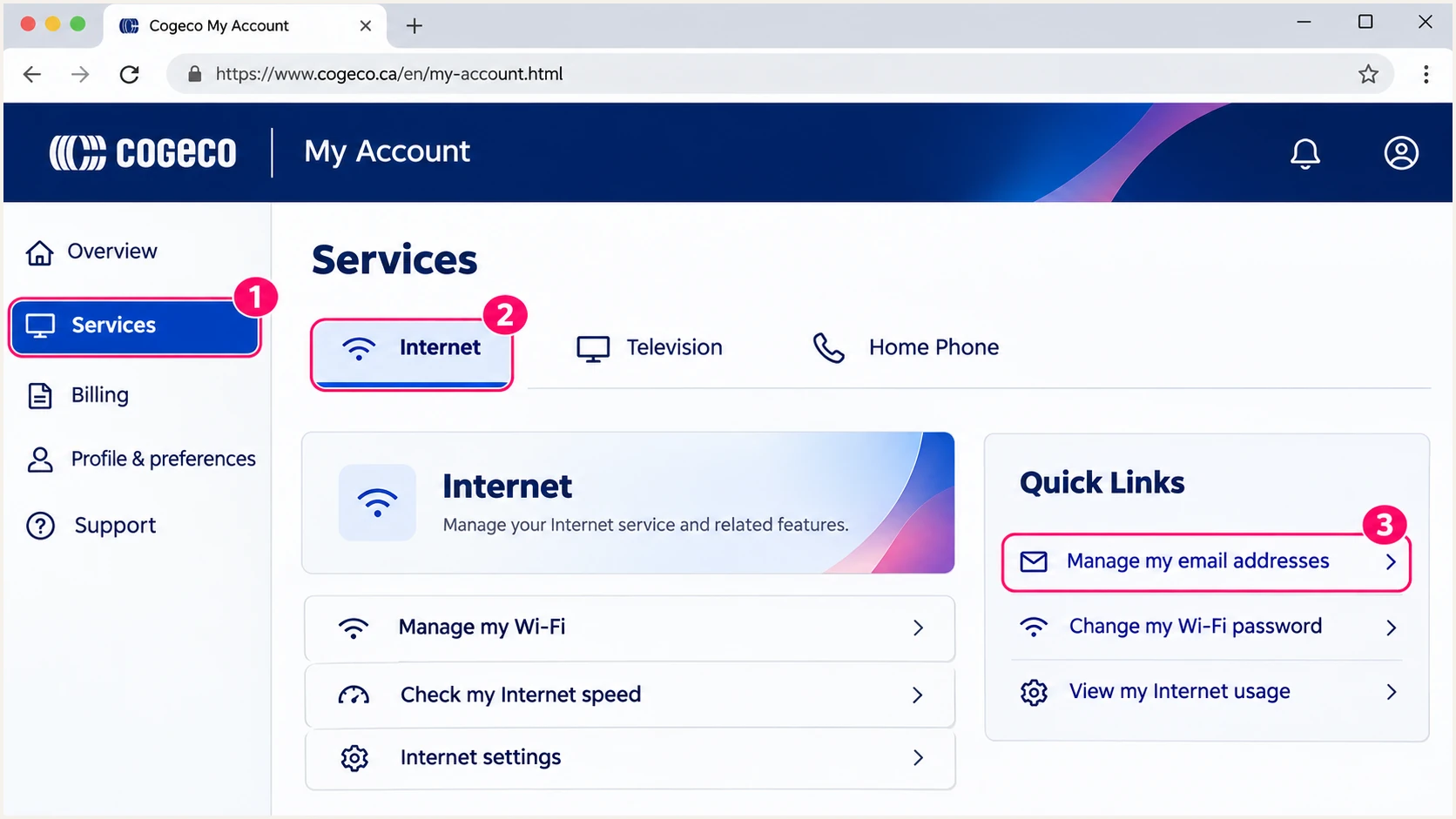
Illustrative Cogeco My Account navigation to Manage my email addresses.
For an @cogeco.ca or @cgocable.ca address, skip customer DNS changes in the next sections. Test the messages you send and escalate authentication failures to Cogeco.
Set up SPF
SPF checks the sending server against the domain used in SMTP MAIL FROM, normally visible in Return-Path. It does not authenticate the visible From address by itself.
For a domain you control, I inspect the existing SPF record before changing it. Enter the actual Return-Path domain in the checker, including its subdomain when applicable.
SPF checker
Find SPF syntax issues, lookup limits, and weak records.
?/16tests passed
The checker validates published DNS. A message test is still necessary to establish which envelope domain and outbound IP your Cogeco sending route actually uses.
Cogeco's public consumer setup instructions give SMTP settings, not a universal custom-domain SPF include. Obtain the authorization value for your exact service instead of copying Cogeco's corporate SPF record or guessing an include.
- Use authenticated SMTP. For Ontario mailboxes, use smtp.cogeco.ca. For Quebec mailboxes, use smtp.cgocable.ca. Cogeco documents port 587 with STARTTLS, SMTP authentication enabled, and your full Cogeco email address and mailbox password.
- Confirm Return-Path. Send a message to an external mailbox and inspect its received headers. For custom-domain SPF to contribute to DMARC, the envelope domain must match the From domain under the applicable DMARC alignment mode.
- Publish one SPF record. At the envelope domain's DNS host, merge the service-confirmed mechanisms into its existing TXT record beginning v=spf1. Keep all legitimate senders, use one final all mechanism, and stay within SPF's 10 DNS-lookup limit.
- Handle provider domains. If Return-Path remains on a Cogeco-owned domain, changing SPF at your own domain does not change that SPF check. A custom From domain then needs passing DKIM with domain alignment to pass DMARC.
Inspect SPF at your domain and any custom Return-Path subdomainbash
dig +short TXT example.com
dig +short TXT bounce.example.com
|
|
|
|
|---|---|---|---|
Ontario | smtp.cogeco.ca | 587 | STARTTLS |
Quebec | smtp.cgocable.ca | 587 | STARTTLS |
Cogeco's documented outgoing settings for standard mailboxes.
Set up DKIM
DKIM must be enabled on the sending service. Publishing a public key alone does not make Cogeco sign messages with your domain. For standard Cogeco addresses, signing is Cogeco's responsibility.
- Inspect a fresh message. Find DKIM-Signature in a message received externally. Record its d= signing domain and s= selector. Use the receiver's Authentication-Results to check whether signature verification passed.
- Request domain signing. For your own domain, open the actual mailbox service's DKIM settings or ask Cogeco business support for the required record names and values. Cogeco's public consumer instructions do not document a customer DKIM toggle or a universal selector.
- Publish exact values. Add the supplied TXT key or CNAME target at the supplied selector name. Keep the private key on the signing service. Do not generate an unrelated key and expect Cogeco's server to use it.
- Enable and retest. Complete the service's verification or activation step, send a new message, and check for dkim=pass. For DMARC, its d= domain must also satisfy alignment with your visible From domain.
Look up the selector and domain found in the message signaturebash
SELECTOR="replace-with-s-value"
SIGNING_DOMAIN="replace-with-d-value"
dig +short TXT "${SELECTOR}._domainkey.${SIGNING_DOMAIN}"
dig +short CNAME "${SELECTOR}._domainkey.${SIGNING_DOMAIN}"
I distinguish a valid signature from a signature that authenticates your From domain. The following comparison assumes you send as someone@example.com with relaxed DMARC alignment.
DKIM for your domain
A passing signature with d=example.com or d=mail.example.com satisfies relaxed DKIM alignment for From: someone@example.com.
With strict DKIM alignment, d= must be example.com exactly.
DKIM for Cogeco's domain
A passing signature with d=cogeco.ca does not satisfy DKIM alignment for From: someone@example.com.
That message needs passing SPF with domain alignment or a passing DKIM signature for example.com.
Set up DMARC
Publish DMARC only for a domain you control. A standard Cogeco mailbox does not give you permission to edit _dmarc.cogeco.ca or _dmarc.cgocable.ca.
Start by checking the From domain's current policy. If it already uses p=quarantine or p=reject, keep that policy while correcting the sender configuration.
DMARC checker
Look up a domain's DMARC record and catch policy issues.
?/7tests passed
The checker establishes whether a usable policy is published. It does not establish whether actual Cogeco messages pass SPF or DKIM with the required domain alignment.
For an initial monitoring policy on your own domain, build the TXT value with the DMARC record generator. Use the example below as the starting template, then replace its reporting address with a working destination you control.
- Create the reporting destination. Make sure the rua address accepts aggregate reports. If the reporting address is on another domain, arrange DMARC external-reporting authorization where required.
- Add the TXT record. In your authoritative DNS zone, set the host to _dmarc, or _dmarc.example.com if the editor requires a full name. Publish one DMARC TXT record at that name.
- Start with monitoring. For a domain without an enforcement policy, use p=none while discovering legitimate sending sources. It requests reports without requesting quarantine or rejection of DMARC failures.
- Verify publication. Query the record after the previous DNS TTL has expired, rerun the checker, and send a new test message. Reports arrive according to participating receivers' reporting schedules.
Initial DMARC TXT value at _dmarc.example.comtext
v=DMARC1; p=none; rua=mailto:dmarc@example.com
The example address dmarc@example.com is a placeholder. Replace it before publishing. Do not downgrade an existing p=quarantine or p=reject policy to use this monitoring example.
Verify and troubleshoot
I test the route people actually use: Cogeco Webmail, the configured email client, or the custom-domain business mailbox. A successful SMTP login is separate from SPF, DKIM and DMARC results.
Use our email tester below for the quickest message-level diagnosis. It supplies a destination address; send a fresh email there using your normal Cogeco sending route and inspect the resulting authentication checks.
Email tester
Send a real email to this address. Suped shows a results button when the test is ready.
?/43tests passed
Check the visible From domain, the Return-Path domain and the DKIM signing domain against the receiver's authentication results. DMARC passes when at least one of SPF or DKIM passes with domain alignment.
Test direct delivery first, then test forwarding separately. Forwarding often breaks SPF; DKIM can preserve DMARC passage when the signature remains valid and its signing domain satisfies alignment.
- Open received headers. In Cogeco Webmail, right-click a message in Inbox or another folder and select Show Original. For an outbound test, inspect the copy delivered to the external recipient, not just the copy in Sent.
- Fix SPF failures. Compare the receiver-observed connecting IP with the SPF policy for smtp.mailfrom. An SPF pass for a Cogeco-owned envelope domain does not authenticate an unrelated custom From domain.
- Fix DKIM failures. Check that the published selector matches s= and that DNS is queried under d=. For missing signatures, have the sender enable signing. For failed signatures, check the published key and message modification after signing.
- Separate delivery problems. An SMTP 535 error points to login authentication. An SPF permerror points to an invalid policy or evaluation limit. A DMARC failure means neither authentication method passed with the required domain alignment.
Illustrative receiver result for a custom-domain messagetext
Authentication-Results: receiver.example;
 spf=pass smtp.mailfrom=cogeco.ca;
 dkim=pass header.d=example.com;
 dmarc=pass header.from=example.com
In this example, SPF passes for Cogeco's domain, but DKIM supplies the domain alignment needed for DMARC. Do not change a working DKIM configuration just to remove an SPF alignment warning.
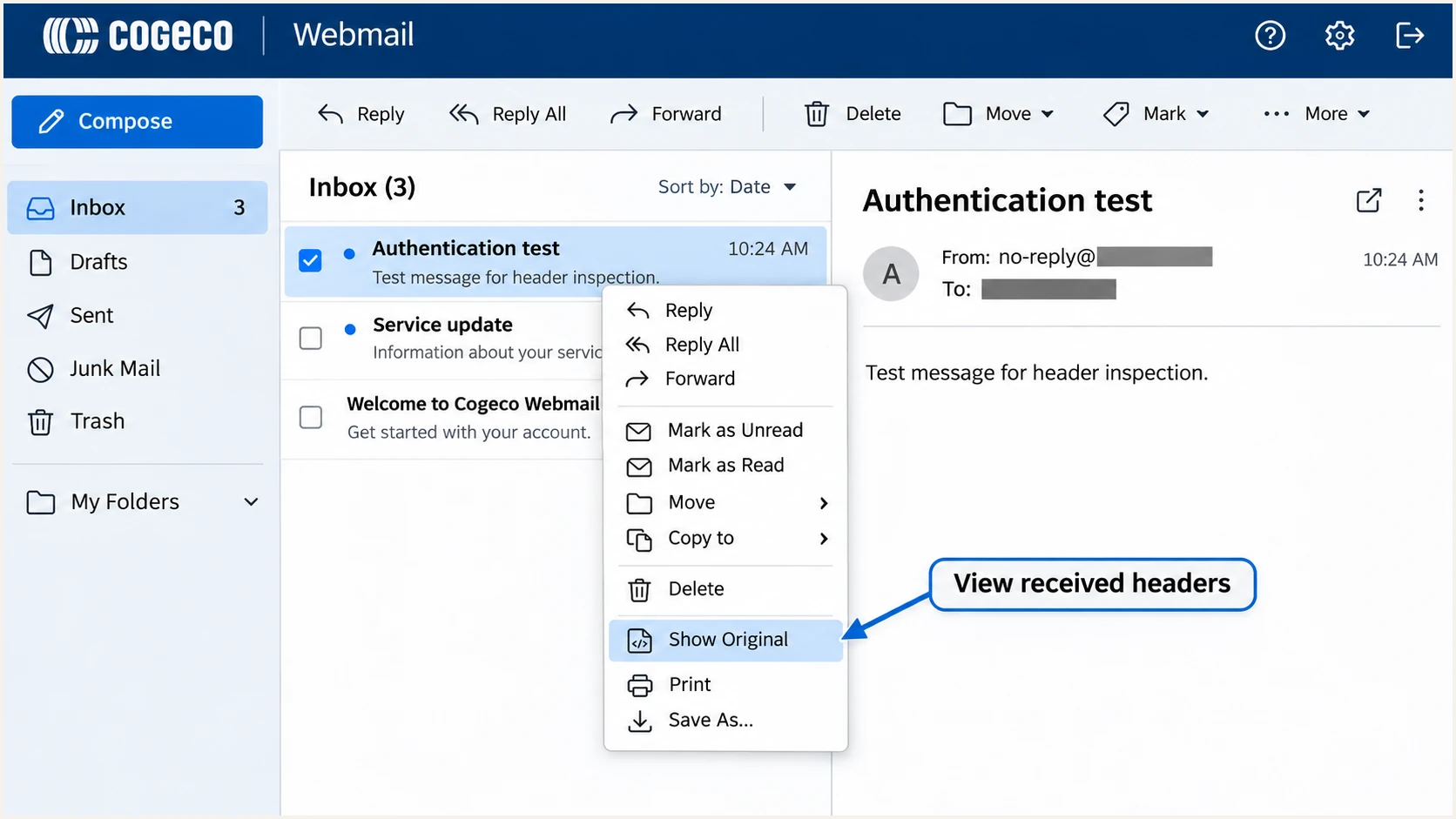
Illustrative Cogeco Webmail right-click menu with Show Original selected.
Get alerted when it breaks
For a domain you control, I recommend our platform, Suped, for ongoing DMARC monitoring. Its source diagnostics and issue notifications make it practical to investigate a Cogeco-related failure without manually reading each aggregate XML report.
- Keep reports flowing. Maintain the reporting destination configured for your domain. Suped needs incoming aggregate reports to detect reported authentication changes; it cannot receive private reports for Cogeco-owned domains without Cogeco's authorization.
- Enable notifications. In Suped's notification settings, enable Issues detected and Sending sources need verification. Enable DMARC summary emails for routine review.
- Investigate the source. Open the affected source and record details. Compare the reported IP, SPF result, DKIM domain and DMARC outcome, then follow the issue's steps to fix.
- Confirm recovery. Send another message through the same Cogeco route, rerun the email tester and check subsequent reports. Escalate provider-controlled signing or relay problems to Cogeco with the received headers.
Aggregate-report alerts depend on receivers sending reports and on report processing. They are not an instant alarm for every failed message. Use a fresh email test when checking an urgent change.
Secure your domain with p=reject
Move your own domain to p=reject after every legitimate sending route passes DMARC reliably. Cogeco customers cannot change the enforcement policy for Cogeco-owned mailbox domains.
- Inventory real senders. In Suped's source table, verify only services your organization actually uses. Check routine mail and infrequent workflows such as billing runs before changing the policy.
- Resolve failures first. For each legitimate sender, establish passing SPF with domain alignment or passing DKIM with domain alignment. Prefer working custom-domain DKIM for routes that include forwarding.
- Stage enforcement. Use p=quarantine as an intermediate policy if you are starting at p=none. Review legitimate failures and delivery feedback before proceeding to p=reject. Keep existing enforcement when the domain is already protected.
- Manage the change. Our Hosted DMARC product lets you manage the policy in Suped after its DNS configuration is complete. Review source diagnostics before each policy change and keep aggregate reporting enabled afterward.
- Check the scope. Review any explicit subdomain policies and the sp= setting. Confirm that strict alignment settings, if present, are compatible with every legitimate sender before enforcing rejection.
Final DMARC TXT value at _dmarc.example.comtext
v=DMARC1; p=reject; rua=mailto:dmarc@example.com
Replace the reporting placeholder with your real destination and update the existing record, rather than adding a second one. Keep monitoring new sources and authentication changes after enforcement.
A p=reject policy asks receiving systems to reject messages that fail DMARC for your domain. It does not guarantee inbox placement or stop impersonation that uses a different domain.
Frequency asked questions
Cogeco controls that domain's DNS and DMARC policy. You can configure your email client's SMTP settings and test delivered messages, but authentication changes for cogeco.ca require Cogeco. You can publish DMARC yourself only for a domain whose DNS you control.
Cogeco's public consumer setup instructions do not publish a universal custom-domain SPF include or DKIM selector. Obtain the values for your exact business email service. For an existing signed message, its DKIM-Signature contains the selector in s= and signing domain in d=. Do not copy a corporate SPF record as a customer setup template.
SPF can pass for a Cogeco-owned Return-Path domain while your visible From address uses your own domain. Those domains do not satisfy DMARC alignment. Passing DKIM with a signing domain that satisfies alignment still lets the message pass DMARC. Changing SPF on your own domain does not change a provider-owned Return-Path.
Those suffixes are associated with Cogeco infrastructure. I use rDNS as an investigation clue, then confirm the connecting IP in trusted receiver headers and examine authentication results. A Cogeco network address alone does not prove that a message came through Cogeco's managed email service or that your organization authorized it.
No. Publishing DMARC does not require an MX change. MX controls inbound routing, while DMARC evaluates authentication for the visible From domain. Change MX only when your actual mailbox-service setup or migration requires it.
DNS visibility depends on cached records and their TTLs. After publication is visible, send a fresh message through your normal sending route to the email tester for message-level results. Aggregate reports and notifications arrive later according to receiver reporting schedules and report processing.




