How to set up DMARC/DKIM/SPF for Coaxis

Published 22 Nov 2026
Updated 22 Nov 2026
11 min read
Summarize with
To set up DMARC, DKIM and SPF for Coaxis, confirm your outbound relay with Coaxis support, publish its approved SPF authorization, enable DKIM signing for your sending domain, and add a DMARC TXT record. I verify the result with an email sent through the actual Coaxis application or relay before changing enforcement.
For a domain without DMARC, start with p=none and working aggregate reporting. If you already have p=quarantine or p=reject, keep that policy while you authenticate Coaxis.
Add your domain
I start by confirming which server sends the application's messages. A domain hosted by Coaxis does not establish which outbound relay it uses. Coaxis's public support portal has a sign-in screen; I found no public domain-authentication wizard or published DKIM selector to reproduce.
Use your existing Coaxis support access for domain provisioning and relay-specific instructions. The steps below are a support-assisted workflow, with DNS changes made wherever your authoritative zone is managed.
- Sign in. Open your Coaxis support portal and enter your assigned Login ID and Password. Use the Database value supplied for your account if required.
- Register the sender. Ask Coaxis to authorize your exact From domain for the application or SMTP relay. Include a sample sender address and identify each automated message workflow.
- Request the records. Ask for the approved SPF authorization, custom Return-Path configuration and DKIM DNS records. Request the signing domain and selector explicitly.
- Verify ownership. Publish any ownership record Coaxis supplies, then ask support to confirm domain verification and outbound authorization. Do not invent a verification TXT value.
- Confirm activation. Send one application notification and have Coaxis confirm that it used the intended relay and sender domain.
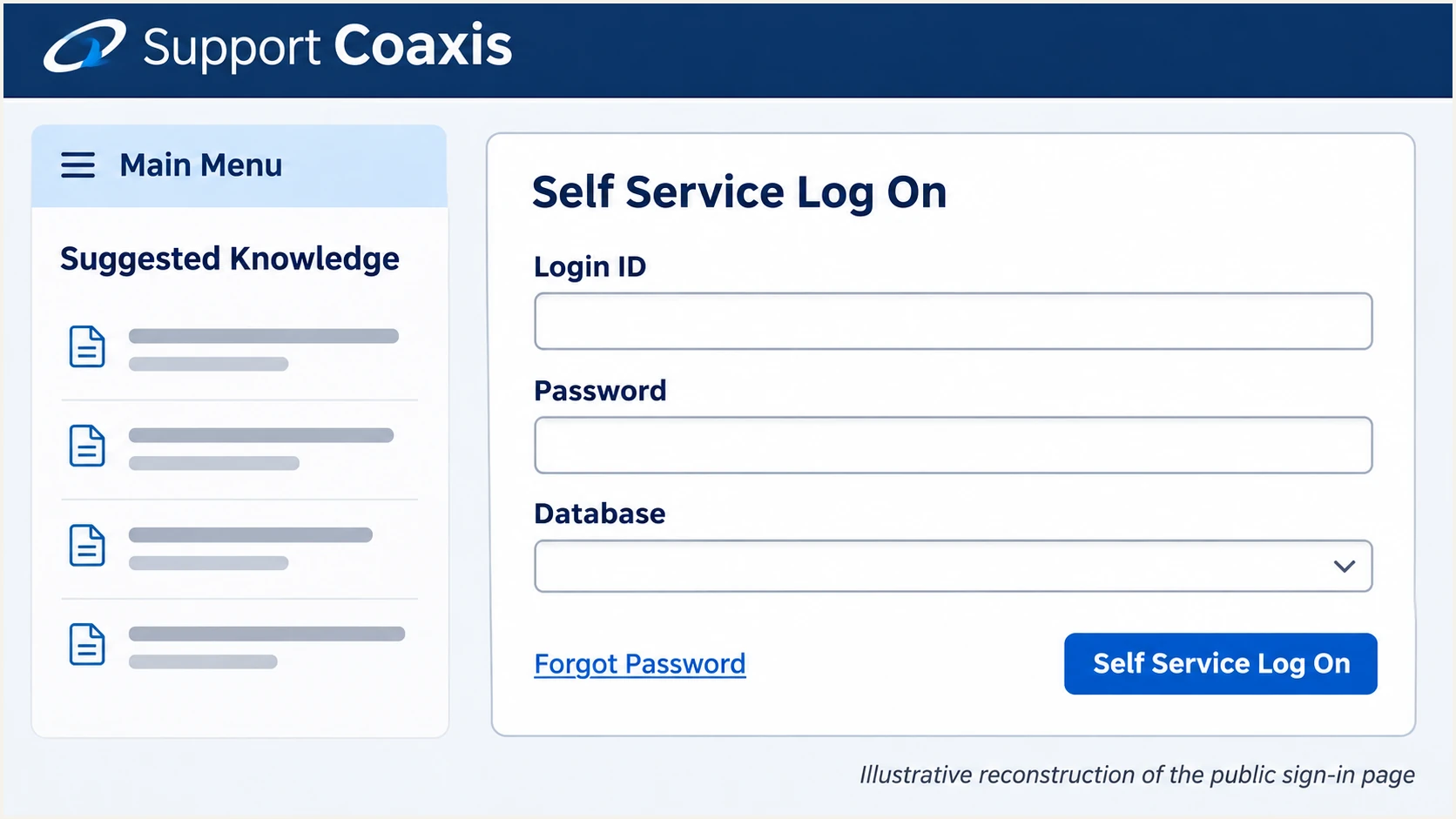
Illustrative Coaxis Support sign-in screen for accessing account-specific setup help.
Keep the support response with your DNS change notes. It should identify the envelope sender domain and the DKIM signing domain, so you can compare both against a delivered message.
Adding the domain or verifying ownership does not enable DKIM signing by itself. Ask Coaxis to confirm signing is active on every relay that handles these messages.
Set up SPF
I configure SPF at the envelope sender domain shown in Return-Path. SPF authentication alone does not establish DMARC alignment: that domain must also match the visible From domain under your DMARC settings.
Coaxis supports Return-Path alignment; ask support to confirm the configuration for your account. For example, bounce.example.com and example.com satisfy relaxed SPF alignment. Strict alignment requires identical domains.
- Confirm authorization. Ask Coaxis whether include:coaxis.com is the correct SPF mechanism for your outbound relay. Use the conditional example below only after confirmation.
- Edit one record. If the envelope sender domain already has SPF, merge the approved mechanism before its final all term. Preserve other authorized senders and keep one SPF TXT record at that name.
- Use the right name. Publish at the actual envelope sender domain. A bounce subdomain does not inherit SPF from the parent. Follow Coaxis's exact instructions if it delegates this name with CNAME records.
- Check the limit. Keep SPF evaluation within 10 DNS-querying mechanisms and modifiers, including nested includes. Recheck the complete record after the change.
Conditional SPF value, only if Coaxis confirms and is the only senderdns
v=spf1 include:coaxis.com -all
This is a conditional example, not a verified account-specific Coaxis instruction. Do not replace an existing multi-sender SPF record with it, and do not copy Coaxis's own IP ranges into your record without approval.
Enter the actual envelope sender domain in the SPF checker. If Coaxis uses bounce.example.com, checking example.com alone does not validate that sending identity.
SPF checker
Find SPF syntax issues, lookup limits, and weak records.
?/16tests passed
A valid SPF record still needs a live send. Confirm the receiver reports spf=pass for the expected envelope sender domain.
If a delivered message still uses a Coaxis-owned Return-Path, changing your own SPF cannot create SPF alignment. Request the custom Return-Path configuration. Until it is active, DMARC can pass through valid DKIM with a matching signing domain.
Set up DKIM
I ask Coaxis to enable DKIM signing with my sending domain. Publishing a public key only makes verification possible; the outbound server must sign with the corresponding private key.
- Get the exact selector. Request the selector, signing domain, DNS record type and complete public value or CNAME target. Do not assume selector1, default or any other selector is correct.
- Publish the supplied record. Create the TXT or CNAME at the exact selector hostname Coaxis supplies. Check whether your DNS editor automatically appends the domain name.
- Enable signing. Ask Coaxis to activate custom-domain signing after DNS is resolvable. Request a 2048-bit RSA key where its signing service supports it.
- Verify a delivery. Inspect the DKIM-Signature d= and s= values and confirm the receiver reports dkim=pass. The signing domain must satisfy DMARC alignment with the visible From domain.
For selector news and signing domain example.com, the lookup name is news._domainkey.example.com. These are illustrative names; replace them with the values Coaxis actually issues.
TXT and CNAME are alternative publishing methods at a selector name. Use the requested method and keep the complete key or target intact.
TXT publishing
Publish the complete public key supplied for the selector. Coaxis must hold the matching private key. Never publish the private key in DNS.
CNAME publishing
Point the selector to the exact hostname Coaxis supplies. Do not add a TXT record at the same name; a CNAME cannot coexist with it.
To inspect DNS, replace COAXIS_SELECTOR below with the selector in the support response or a delivered message. Check the CNAME target too when the selector is delegated.
Look up the actual Coaxis-issued selectorbash
dig +short CNAME COAXIS_SELECTOR._domainkey.example.com
dig +short TXT COAXIS_SELECTOR._domainkey.example.com
If the relay cannot sign with your domain, get that limitation confirmed before enforcement. Coaxis-authenticated SPF with a matching Return-Path can pass DMARC, but valid custom-domain DKIM gives forwarded messages another authentication path.
Set up DMARC
I publish DMARC for the domain in the visible From address. For example.com, the DNS name is _dmarc.example.com. A dedicated sending subdomain needs its own policy or a review of the policy inherited from its parent.
DMARC passes when SPF or DKIM passes and the successful method satisfies domain alignment. Configuring both gives the sending route more resilience, but both are not required to pass on every message.
- Inspect the policy. Look up the current DMARC record first. Keep an existing quarantine or reject policy and preserve its reporting destinations.
- Start monitoring. For a domain without DMARC, create one TXT record at the correct _dmarc name using the p=none example below.
- Set the report address. Replace dmarc@example.com with a real mailbox or your assigned aggregate-report address. Preserve existing report recipients when updating the record.
- Validate publication. Save the record, allow cached DNS answers to expire, and check that exactly one valid DMARC policy is returned at that name.
Initial DMARC TXT value at _dmarc.example.comdns
v=DMARC1; p=none; rua=mailto:dmarc@example.com
Build the record with the DMARC record generator. The example address is a placeholder. When reports go to a different domain, confirm the reporting destination has the required external-report authorization.
Check the visible From domain below after publishing. This checks the DNS policy; it does not send a message through Coaxis.
DMARC checker
Look up a domain's DMARC record and catch policy issues.
?/7tests passed
A p=none policy requests monitoring without DMARC-based quarantine or rejection. Other recipient filtering still applies.
Aggregate reports arrive after receivers process traffic, usually on a daily schedule. DNS validation and a live email test provide earlier configuration checks; reports then show behavior across actual sending activity.
Verify and troubleshoot
I test the exact Coaxis workflow that sends production messages. An email sent through a separate mailbox does not validate an application's outbound relay.
Send a fresh message after each change and inspect authentication results added by the receiving system. A DNS record check cannot prove that the relay used the intended sender domain or signing key.
- Exercise each route. Trigger an automated notification and test every other distinct outbound workflow. Keep the receiving headers and sending time.
- Compare identities. Check the visible From domain against Return-Path and the DKIM d= domain. Use the actual s= selector for DKIM DNS checks.
- Read the result. Require dmarc=pass. Investigate direct-delivery SPF or DKIM failures even when the other method provides a DMARC pass.
- Retest changes. After correcting DNS or relay settings, send again. For an unresolved failure, give Coaxis support the message headers, timestamp and message ID.
Illustrative successful receiver authentication resultstext
Authentication-Results: receiving.example;
 spf=pass smtp.mailfrom=bounce.example.com;
 dkim=pass header.d=example.com header.s=EXAMPLE_SELECTOR;
 dmarc=pass header.from=example.com
The email tester is the quickest end-to-end check here. It supplies a test address; send to that address through Coaxis to receive an authentication diagnosis.
Use an actual application notification where possible. If the application cannot send to a chosen address, ask Coaxis to run a test through the same outbound configuration.
Email tester
Send a real email to this address. Suped shows a results button when the test is ready.
?/43tests passed
Use the resulting report to distinguish DNS errors from missing signatures or a mismatched sending identity. Fix the failing layer, then send another test.
Forwarding sometimes breaks SPF because the connecting IP changes. A valid DKIM signature with a matching domain can still produce dmarc=pass, provided the signed content survives forwarding.
|
|
|
|---|---|---|
SPF permerror | Invalid SPF | Duplicates or lookup limit |
SPF pass, DMARC fail | No matching pass | Return-Path and DKIM domain |
DKIM none | No signature | Relay signing |
DKIM fail | Invalid signature | Selector, key or message changes |
DMARC pass | Matching method passed | Repeat across workflows |
Common results and the next check.
Get alerted when it breaks
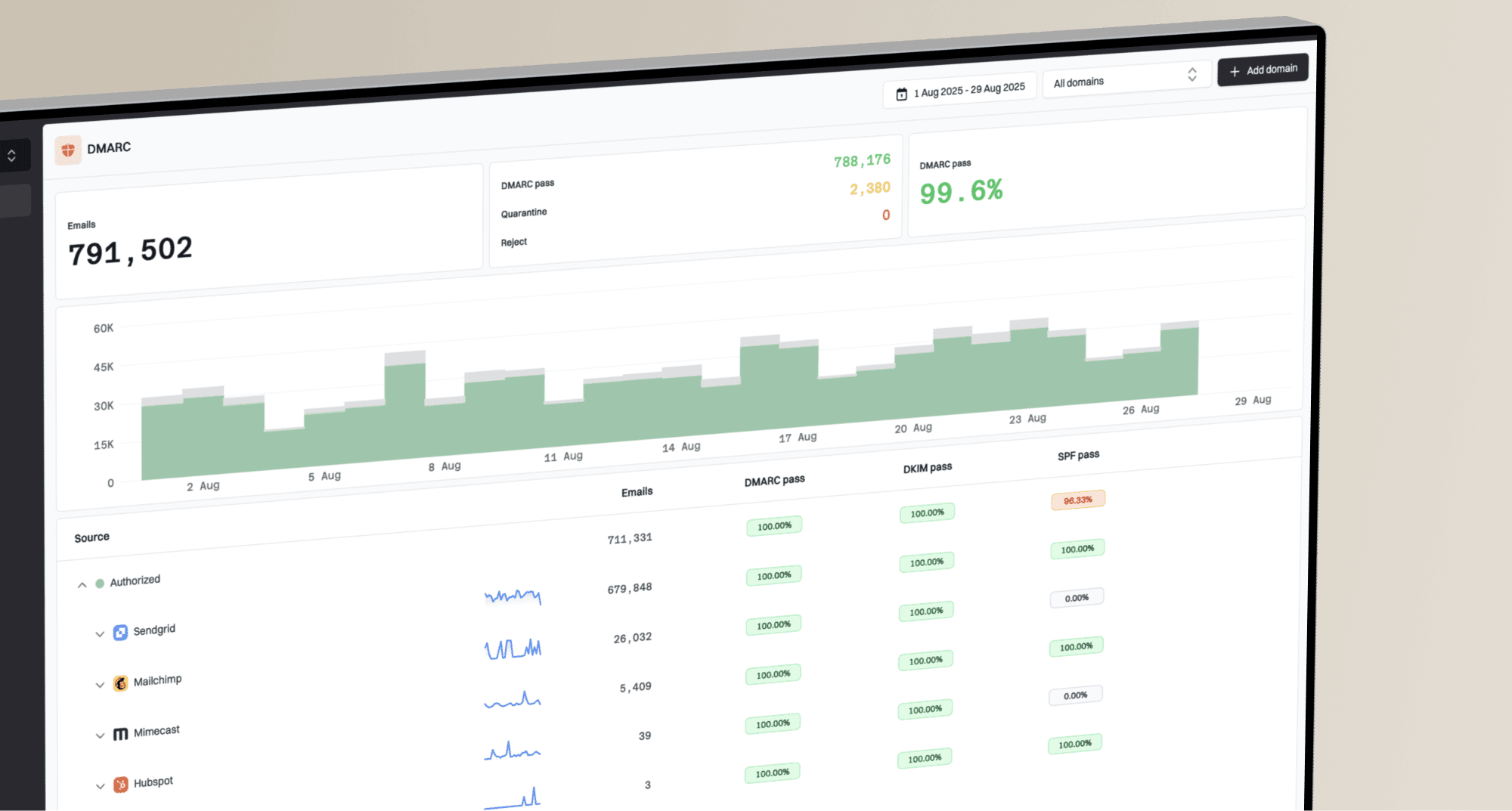
Our Suped platform provides DMARC monitoring for the ongoing part of this workflow. I use its source-level results and issue detection to investigate changes after the initial Coaxis test.
- Confirm report collection. Check that your DMARC reporting destination is receiving aggregate reports and that Coaxis traffic appears under the expected sending domain.
- Verify the source. Review Coaxis's sending IPs and authentication results before marking the source as verified. An infrastructure name alone does not authorize a sender.
- Enable notifications. In Suped's notification settings, enable Issues detected and Sending sources need verification notifications. Enable DMARC summary emails for regular review.
- Investigate changes. Open the affected record's detail view, compare SPF and DKIM results, and use DNS history to check recent record changes.
- Close the loop. Follow the issue's fix steps, have Coaxis correct relay-side problems, and verify a fresh delivery plus subsequent reports.
This keeps authentication evidence and follow-up work together. Suped's detailed checks help distinguish a new sending source from a broken selector or a changed envelope sender.
Report timing matters
DMARC-based alerts depend on aggregate reports reaching Suped. They are not an instantaneous notification for every rejected message. Use a fresh email test when checking a change immediately.
Secure your domain with p=reject
I move to p=reject after the known legitimate sending workflows consistently pass DMARC and their remaining failures are understood. Our Suped platform supports this review with source verification and issue diagnostics; Hosted DMARC adds policy management through the dashboard.
- Inventory senders. Review Coaxis alongside every other service using the same From domain. Include infrequent jobs and month-end communications before increasing enforcement.
- Resolve legitimate failures. Fix each authorized route's authentication and domain matching. Keep custom-domain DKIM working wherever supported, including when direct-delivery SPF already passes.
- Cover a business cycle. Review enough traffic to include each scheduled workflow. Use Suped's source and detail views to investigate failures instead of relying on one overall pass rate.
- Stage the policy. If starting at none, change the existing record to quarantine and review the effect before reject. Preserve reporting destinations. Keep an existing reject policy while fixing Coaxis.
- Enforce and monitor. Set p=reject after validation, then watch legitimate failures and new sources in Suped. Review subdomain policy inheritance and any explicit sp setting separately.
With Hosted DMARC already configured, make the policy change in Suped. With a directly published TXT record, edit that record at your DNS host. Preserve your actual reporting address and any other intentional tags.
The example below is a replacement policy value, not a second record. Keep relaxed domain matching unless there is a specific requirement for strict matching.
Enforcement example, replace the reporting placeholderdns
v=DMARC1; p=reject; rua=mailto:dmarc@example.com
Continue testing after relay migrations or DKIM key rotation. In Suped, review newly detected sources before authorizing them and confirm that known Coaxis traffic remains authenticated.
Rejection follows receiver policy
p=reject requests rejection of messages that fail DMARC. Receivers retain local policy control, and a DMARC pass does not guarantee inbox placement.
Frequency asked questions
Ask Coaxis to confirm the authorization for your outbound relay. If it confirms include:coaxis.com and Coaxis is the only authorized sender at that envelope sender domain, the conditional example is v=spf1 include:coaxis.com -all. Merge authorization into an existing record rather than adding a second SPF record.
I found no publicly documented universal Coaxis selector. Request the selector and DNS value from Coaxis support, or read s= and d= in a message's DKIM-Signature header. A delivered header identifies a lookup name, but a passing receiver result is needed to verify the signature.
Yes. Valid DKIM with a signing domain that matches the visible From domain under the published DMARC settings is sufficient. If Return-Path uses a provider-owned domain, SPF alignment fails even when SPF authentication passes. A custom Return-Path addresses that mismatch; do not weaken DMARC solely to remove the warning.
Coaxis is the likely infrastructure provider when an outbound server's reverse DNS ends in .coaxis.com. That is an inference from the hostname, not proof of sender authorization. I confirm the connecting IP and its forward DNS, then check receiver authentication results and the expected application workflow before classifying the source.
SPF, DKIM and DMARC setup does not normally require changing the MX records for your mailbox domain. Follow Coaxis's explicit instructions if a dedicated bounce subdomain needs an MX record. Avoid changing your main inbound mail routing while configuring outbound authentication.