How to set up DMARC/DKIM/SPF for ClubHouse Online

Set up ClubHouse Online by confirming your sender address, adding the SPF include for each active module, publishing its DKIM records, and creating one DMARC TXT record. Website emails use include:smtp1.clubhouseonline-e3.com; Campaigner Email Marketing uses include:mailer.clubhouseonline-e3.com.
I check website notifications and marketing campaigns separately because they use different sending infrastructure. DMARC needs a passing SPF or DKIM result with domain alignment to the visible From address. A published DNS record alone does not prove that outgoing messages pass.
Add your domain
For Email Marketing, I start by registering an address on the club's sending domain. ClubHouse Online documents sender email confirmation and support-assisted DNS activation, rather than a universal self-service domain authentication screen.
- Open the campaign: Sign in to the club website, switch to Club Central, and open Email Marketing > Email Campaigns. Open a draft and select Edit Details to reach Step 4 Edit Email Details in the Drag & Drop Editor.
- Add the address: In From Email, select Manage email addresses..., then Add New email address. Enter a mailbox you control, such as office@example.com, and click Submit.
- Confirm the mailbox: Open the confirmation email, follow its validation link, and click Confirm. Refresh the editor, select the address in From Email, and save the draft.
- Request DNS activation: Give ClubHouse Online support your sending domain and active modules. Request the website's domain-specific DKIM records and the custom return-path configuration for your account.
Use the domain after the @ in From Email as the starting point for DKIM and DMARC. Reply to Email controls where replies go; changing it does not configure authentication.
The screenshot illustration below follows the documented sender-address workflow. Interface labels depend on the editor enabled for your club.
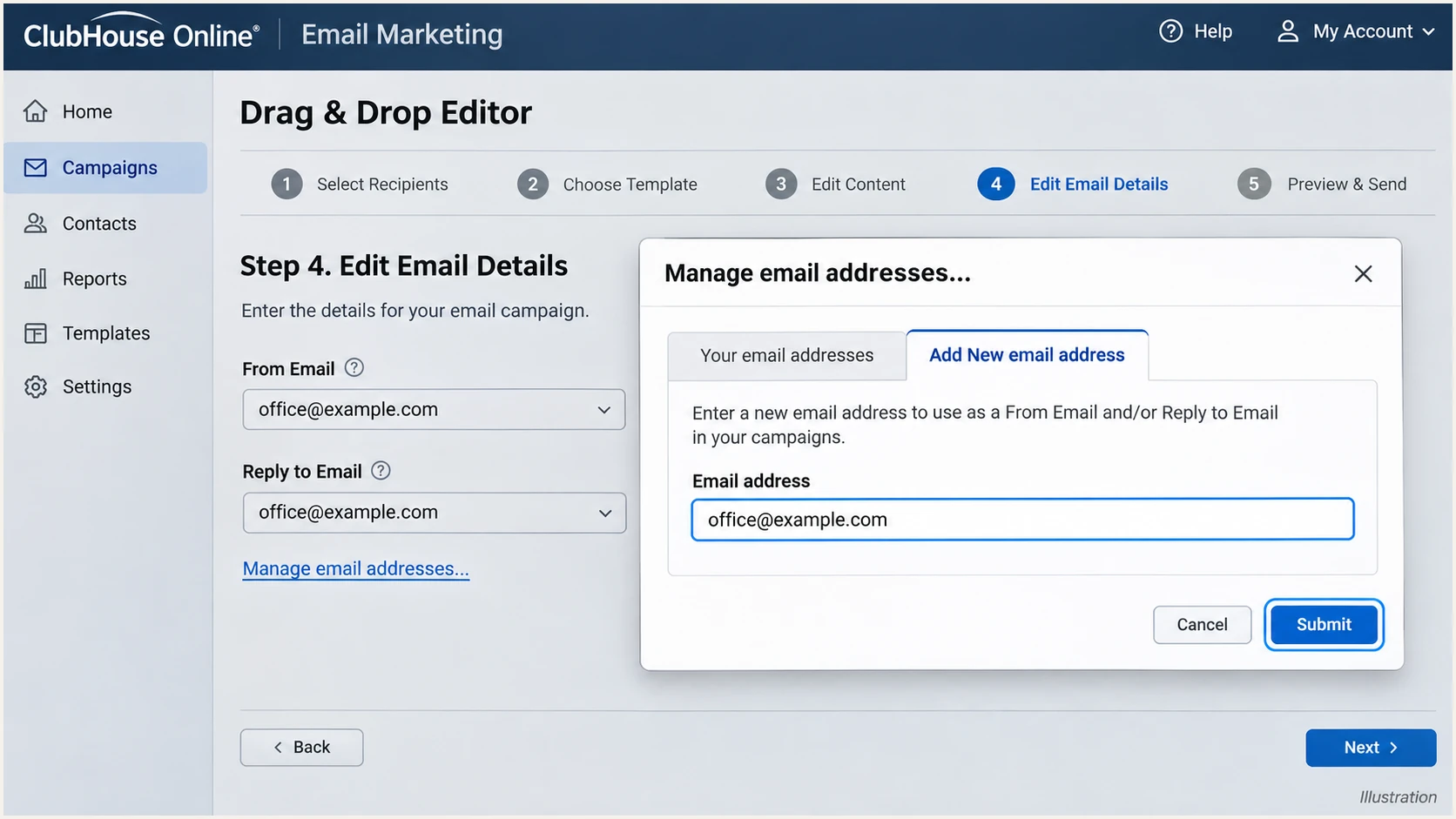
Illustration of adding a sender address in ClubHouse Online Email Marketing.
Mailbox confirmation permits selection of that sender address. DKIM still needs DNS publication and signing activation by the sending platform.
For website-generated messages, ask support to confirm which sender addresses each notification uses. A campaign sender change does not establish that website notifications use the same settings.
Set up SPF
I use ClubHouse Online's public Configuring the SPF Record documentation to select the include for each enabled module. Add only the modules your club actually uses.
|
|
|---|---|
Website | include:smtp1.clubhouseonline-e3.com |
Campaigner Email Marketing | include:mailer.clubhouseonline-e3.com |
Frankie | include:e2ma.net |
MemberInsight | include:spf.trpcem.com |
Module-specific SPF includes published by ClubHouse Online.
- Read existing DNS: At your authoritative DNS provider, find the TXT record beginning v=spf1. Edit that record and preserve existing authorized senders. Never create a second SPF record at the same name.
- Insert the includes: Place the required include mechanisms before the final ~all or -all. Keep the existing ending unless your domain administrator approves changing it.
- Configure the return path: ClubHouse Online supports return-path alignment. Ask support to activate the account's custom MAIL FROM domain and provide its DNS requirements. Adding an include alone does not change the Return-Path header.
- Check the right name: SPF is evaluated at the actual MAIL FROM domain. If that is bounce.example.com, configure that subdomain as instructed by support; SPF at example.com is not inherited by subdomains.
Website and Campaigner example, preserve your other sendersdns
example.com. IN TXT (
  "v=spf1 include:smtp1.clubhouseonline-e3.com "
  "include:mailer.clubhouseonline-e3.com ~all"
)
This zone-file example is one TXT record with two strings that concatenate into one SPF value. In a DNS dashboard, enter the combined value in one record. Replace example.com with the applicable domain and retain any existing sender mechanisms.
Check the domain you edited below. For a custom return path, also check its exact subdomain. Follow support's record type instructions, including any delegated DNS configuration.
SPF checker
Find SPF syntax issues, lookup limits, and weak records.
?/16tests passed
Keep SPF within the limit of 10 DNS-querying mechanisms and modifiers evaluated during a check, including nested includes. Exceeding the limit produces permerror; the number of visible includes is not the complete count.
A valid SPF record confirms DNS configuration. I also inspect a delivered message's smtp.mailfrom result to establish that ClubHouse Online is using the intended return path.
Set up DKIM
The ClubHouse Online Website SPF and DKIM Configuration documentation says a representative supplies website DKIM records tailored to your domain. I obtain those values rather than reuse a marketing selector for website mail.
- Get website records: Request the exact DKIM record names, types and values from ClubHouse Online support. Publish every supplied record for the domain used in website From addresses.
- Match the module: For Campaigner, the installation guide specifies em._domainkey pointing to dkim.emailcampaigns.net. Frankie and MemberInsight use the separate records below. Publish only records for enabled modules.
- Enter names correctly: Replace example.com with your sending domain. If the DNS provider appends your domain automatically, enter only the relative record name. A CNAME name cannot also hold another record type.
- Activate and retest: Tell support when DNS is published and request confirmation that custom-domain signing is enabled. Send a fresh message and inspect the DKIM signature's d= domain and s= selector.
Marketing module DKIM records, replace example.comdns
; Campaigner Email Marketing
em._domainkey.example.com. IN CNAME dkim.emailcampaigns.net.

; Frankie, publish all three records if this module is used
e2ma-k1._domainkey.example.com. IN CNAME e2ma-k1.dkim.e2ma.net.
e2ma-k2._domainkey.example.com. IN CNAME e2ma-k2.dkim.e2ma.net.
e2ma-k3._domainkey.example.com. IN CNAME e2ma-k3.dkim.e2ma.net.

; MemberInsight, only if this module is used
trp._domainkey.example.com. IN CNAME dkim.trpcem.com.
These values are published in ClubHouse Online's installation guide and the Frankie and MemberInsight authentication support articles. Account-specific instructions supplied by support take priority over these module examples.
Require a passing signature for your domain
A DKIM DNS lookup does not prove messages are signed. Require dkim=pass for a signing domain that meets your DMARC alignment settings. A passing signature for an unrelated provider domain does not satisfy that requirement.
Set up DMARC
DMARC is published in your domain's DNS, not inside the campaign editor. I start new deployments with p=none so reporting can identify legitimate failures before enforcement. Use the DMARC record generator to build the TXT value.
- Preserve enforcement: If your existing record has p=quarantine or p=reject, keep that policy while configuring ClubHouse Online. Do not replace it with the monitoring example.
- Publish one record: For a new deployment on example.com, create a TXT record at _dmarc.example.com. DNS dashboards that append the domain usually need only _dmarc in the name field.
- Set the destination: Replace dmarc@example.com with a working aggregate-report mailbox or your reporting platform's assigned address. For an external reporting domain, confirm that destination authorization is configured.
- Keep compatible settings: Leave adkim and aspf unset for the default relaxed alignment unless an existing policy requires strict matching. Strict SPF alignment requires an exact domain match, so a bounce subdomain alone does not satisfy it.
Initial DMARC record for a domain without enforcementdns
_dmarc.example.com. IN TXT (
  "v=DMARC1; p=none; rua=mailto:dmarc@example.com"
)
The TXT value above is v=DMARC1; p=none; rua=mailto:dmarc@example.com. It requests monitoring without asking receivers to quarantine or reject messages because of DMARC failure. Other receiver filtering still applies.
Check the visible From domain below after DNS caches refresh. The checker validates publication and syntax; a delivered email is still needed to verify authentication and domain matching.
DMARC checker
Look up a domain's DMARC record and catch policy issues.
?/7tests passed
Review reports for website notifications and each marketing module separately. Success in one sending stream does not establish that another stream is configured.
I keep the report destination active while changing policy. Reports arrive on receivers' schedules, so a missing report immediately after a test is not evidence of a broken record.
Verify and troubleshoot
I test messages sent through ClubHouse Online itself. Sending a message through the club's regular mailbox checks a different sending system.
- Open the test view: In Email Marketing > Email Campaigns, open your draft. Select ...More > Preview & Test.
- Send to the tester: Copy the address provided by the email tester below. Under Send test email(s) to:, choose Specific address(es), enter that address, press Enter, and click Send Test.
- Check production sending: Repeat with a small campaign to controlled recipients and trigger a website notification. Check each module and From domain because preview tests do not establish coverage of every production path.
- Inspect receiver results: Require dmarc=pass. Check spf=pass against smtp.mailfrom and dkim=pass against header.d, then compare those domains with the visible From domain.
ClubHouse Online's How to Preview & Test a Campaign documentation describes sending to specific addresses, including addresses outside the contact list. This makes the test workflow usable without importing the tester as a campaign contact.
The screenshot illustration shows the documented test controls. Use a draft containing no confidential member information when sending to a diagnostic address.
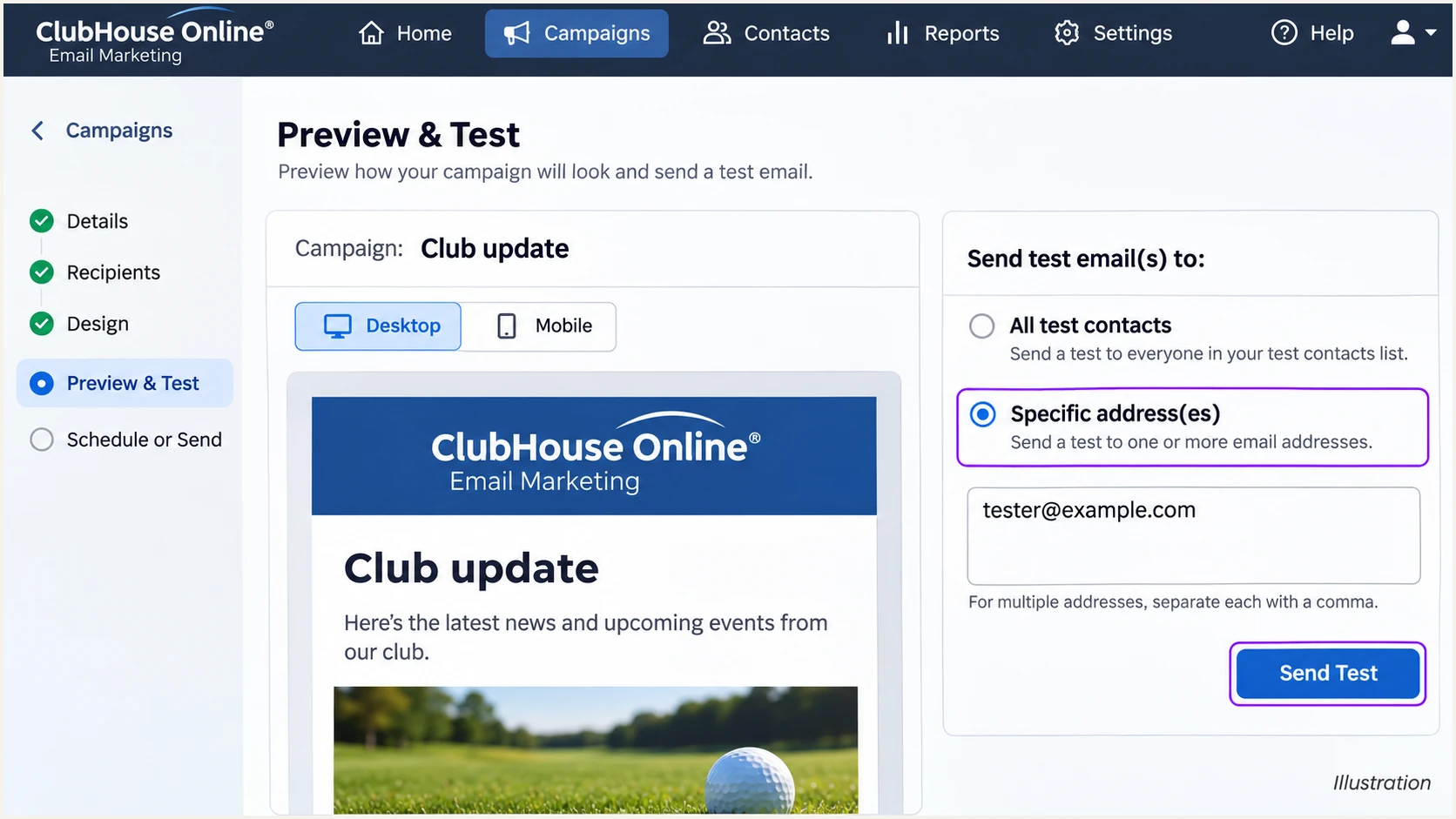
Illustration of sending a ClubHouse Online campaign test to a specific address.
The email tester prompts you to send a message and returns a diagnosis of authentication and other delivery checks. Use the actual destination generated by the widget, rather than the illustrative address shown above.
Wait for the test message to be processed, then review the detailed results. Save the received headers when escalating a failure to support; they identify the sending IP and authentication domains.
Email tester
Send a real email to this address. Suped shows a results button when the test is ready.
?/43tests passed
The following headers are an illustrative successful result under relaxed alignment. The return path uses a subdomain of example.com, and DKIM signs with example.com.
Illustrative received headers, not live test resultstext
From: Club Office <office@example.com>
Return-Path: <bounce@bounce.example.com>
Authentication-Results: mx.receiver.example;
 spf=pass smtp.mailfrom=bounce.example.com;
 dkim=pass header.d=example.com;
 dmarc=pass header.from=example.com
Read the authentication result and domain matching together. For DNS failures, check the authoritative record, accidental duplicate domain suffixes, missing CNAME targets and cached old values before requesting another activation check.
SPF passes, alignment fails
A provider-owned MAIL FROM domain can pass SPF without matching your From domain. Adding an SPF include at your domain does not change that identity. Request the custom return path from support.
DKIM satisfies DMARC
DMARC still passes when a valid DKIM signature meets the domain alignment requirement, even if SPF alignment fails. Keep that signing configuration active and retest after any sender-domain change.
Get alerted when it breaks
Suped is our DMARC platform. Its DMARC monitoring combines source-level authentication results with issue detection and repair steps, so a ClubHouse Online failure has a clear investigation path.
- Route aggregate reports: Use your Suped-provided aggregate reporting address in rua while preserving your existing DMARC policy. Confirm reports are arriving before relying on failure notifications.
- Enable notifications: In Suped's notification settings, enable DMARC failure alerts and summary emails for the responsible administrators. Review the alert preview and failure threshold settings.
- Verify the source: Mark ClubHouse Online as verified only after confirming that the club uses it. Inspect failing records by reporter, sending IP and authentication domain instead of trusting the source name alone.
- Resolve and confirm: Use the issue's steps to fix, compare DNS history if the failure followed a change, and send another ClubHouse Online test. Confirm recovery in subsequent reports.
I check whether a failure affects website notifications, Campaigner, Frankie or MemberInsight before editing DNS. Removing or changing one module's records can leave the others working and hide the scope of the problem.
Report-based alerts have reporting delay
Suped detects failures when the relevant data arrives and is processed. DMARC aggregate alerts are not an immediate notification for every SMTP rejection. Use the email tester for a fresh configuration check and ClubHouse Online delivery records for a specific missing message.
Secure your domain with p=reject
I move to p=reject after legitimate sending streams have demonstrated DMARC passes across their normal sending cycles. Suped's Hosted DMARC lets the team manage policy in the dashboard after DNS delegation, while the reports provide evidence for each policy change.
- Inventory legitimate mail: Include regular club mailboxes, website notifications, campaigns, billing messages and occasional event mail. A successful ClubHouse Online test does not validate other senders.
- Fix legitimate failures: Use Suped's source results and issue diagnostics to establish a passing authentication method with the required domain matching for every legitimate stream. Investigate unexplained sources before changing policy.
- Stage enforcement: For a new deployment, use p=quarantine after monitoring, review another complete sending cycle, then change to p=reject. Keep an existing enforced policy while adding ClubHouse Online.
- Monitor the change: Retain rua reporting and alerts. Review subdomain policy and any separate subdomain records before enforcement. After changing policy, send fresh ClubHouse Online tests and investigate legitimate failures promptly.
Enforced DMARC example after verificationdns
_dmarc.example.com. IN TXT (
  "v=DMARC1; p=reject; rua=mailto:dmarc@example.com"
)
Change the existing record rather than adding a second one, and retain your real report destination. With Hosted DMARC already configured, make the policy change in Suped instead of publishing a conflicting TXT record at the delegated DNS name.
A reject policy requests rejection of messages that fail DMARC for the covered domain. Receivers retain delivery discretion, and the policy does not protect unrelated lookalike domains or guarantee inbox placement.
FAQ
Investigate ClubHouse Online Email Marketing. ClubHouse Online documents mailer.clubhouseonline-e3.com as its email marketing sending domain. For hostnames such as mail01.mailer.clubhouseonline-e3.com and mail02.mailer.clubhouseonline-e3.com, cross-check the sending IP, campaign activity and authentication results before verifying the source. A matching rDNS suffix alone does not authenticate a message.
No. Confirmation authorizes the address for selection in the editor. DKIM also requires the correct DNS records and active signing by the platform. Website DKIM records are supplied by a ClubHouse Online representative; marketing modules have their own selectors.
Yes, if DKIM passes with a signing domain that satisfies DMARC alignment. SPF authentication and SPF alignment are different checks. Ask support to configure the supported custom return path, but keep valid custom-domain DKIM active while that work is completed.
No. Keep p=reject or p=quarantine while configuring the new sender. Use controlled tests and fix ClubHouse Online's authentication before sending broadly. The p=none example applies to a domain starting without an enforced DMARC policy.
Allow the previous record's TTL and any negative DNS cache to expire. Confirm the new values at the authoritative DNS provider, request support activation where required, and send a fresh test. DMARC reports arrive separately on receiver reporting schedules, so they are not the quickest way to validate a single DNS edit.