
How to set up DMARC/DKIM/SPF for CloudLoop

Published 21 Nov 2026
Updated 21 Nov 2026
12 min read
Summarize with
To authenticate CloudLoop email, publish its SPF authorization, enable your domain's DKIM signing in cPanel, and add a DMARC TXT record at _dmarc.yourdomain. Start a new DMARC deployment with p=none; keep an existing quarantine or reject policy.
I verify the result with an actual outgoing message. DMARC passes when SPF or DKIM passes and its authenticated domain matches the visible From domain under the configured DMARC alignment mode. These steps cover CloudLoop hosting that uses cPanel; ask CloudLoop for the equivalent server settings on other installations.
Add your domain
I first confirm that the sending domain belongs to the correct CloudLoop hosting account. A domain already listed in cPanel does not need adding again.
- Open cPanel: Use the hosting login supplied by CloudLoop. Open Domains and locate the exact domain used in your email's From address.
- Add if missing: Click Create a New Domain, enter your registered domain and submit. Choose the document root appropriate for your website. Ask CloudLoop to provision it if your plan hides this option.
- Find authoritative DNS: Check the domain's nameservers. Edit records in cPanel > Zone Editor only when that zone is authoritative; otherwise publish them at the active DNS host.
- Prepare a mailbox: Open Email Accounts > Create and create forms@example.com, replacing the example with your domain. For an existing mailbox, open Connect Devices to obtain its SMTP settings.
- Configure sending: Use authenticated SMTP for websites and applications, the full mailbox address as username, and its password. Follow Connect Devices for the server name and TLS settings, normally port 465 with TLS or 587 with STARTTLS.
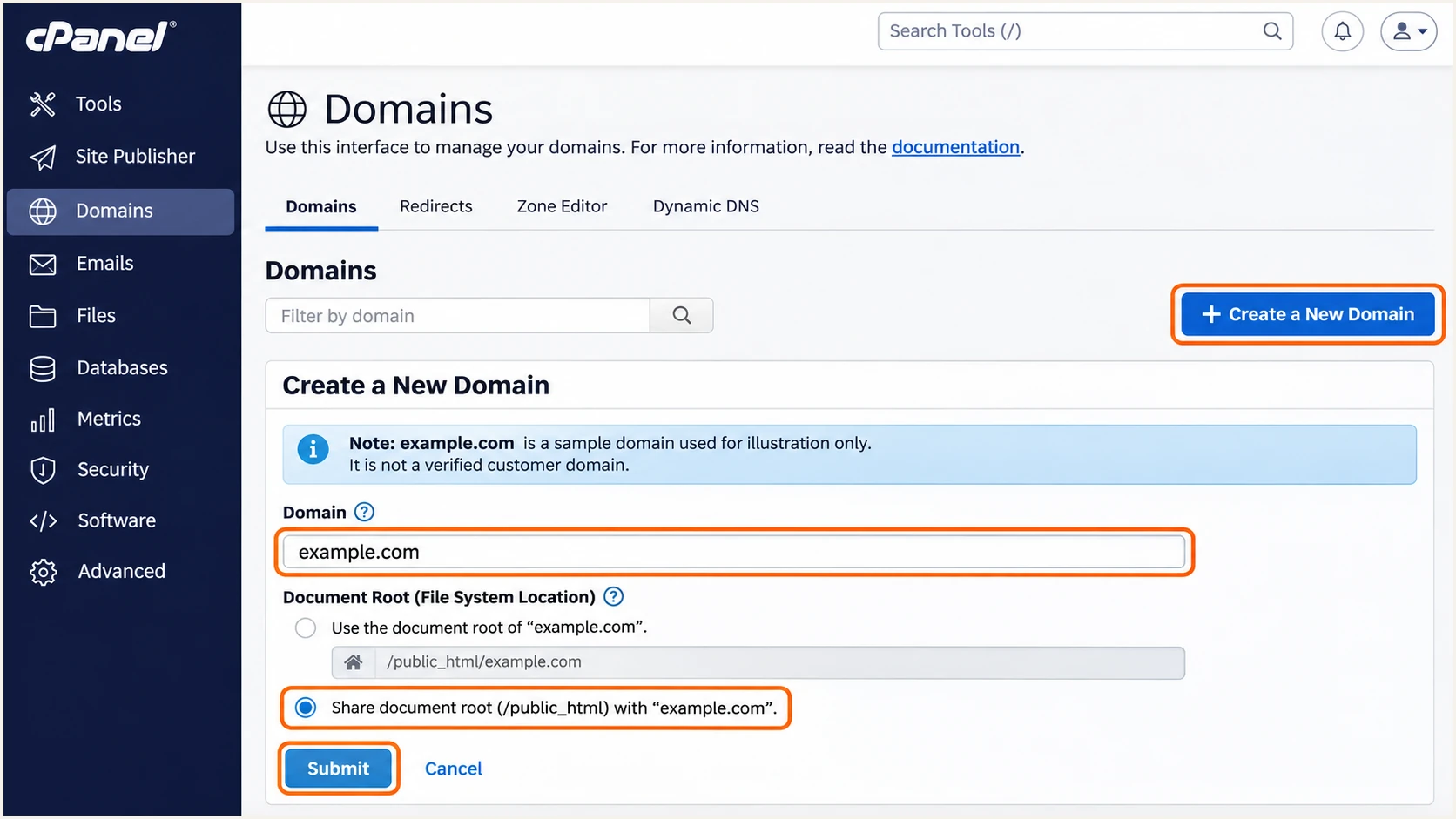
Illustrative cPanel domain creation screen for CloudLoop hosting.
Use an address on your domain as the website's From address. Put a contact form visitor's address in Reply-To rather than impersonating their domain in From.
For this cPanel workflow, I verify control by checking authoritative DNS and then testing a message. Keep existing nameservers and MX records unless a separate hosting migration requires changing them.
Set up SPF
CloudLoop's support article 'What is CloudLoop's SPF Record?' publishes the baseline below. I merge its authorization into any existing SPF record.
- Locate the record: In the authoritative zone, find the TXT record beginning v=spf1 at your sending domain. In cPanel, use Zone Editor > Manage and filter for TXT.
- Authorize CloudLoop: If CloudLoop is your only sender, use the published value below. Otherwise add include:relay.mailchannels.net to your existing record before its final all mechanism, preserving other legitimate senders.
- Save one policy: Keep one v=spf1 TXT record per domain name and one final all mechanism. Check the complete evaluation stays within SPF's 10 DNS lookup term limit, including nested includes.
- Check Return-Path: Send through the domain's authenticated mailbox and inspect the delivered Return-Path. CloudLoop supports a domain-matching envelope sender; ask support to correct a server-hostname sender if your application still uses one.
CloudLoop baseline: TXT value at example.comtext
v=spf1 +a +mx include:relay.mailchannels.net -all
The a and mx mechanisms also authorize addresses associated with your domain's current A/AAAA and MX records. Review whether those hosts should send email.
Run the lookup against the actual Return-Path domain. SPF authenticates that domain, which differs from the visible From address in some application configurations.
SPF checker
Find SPF syntax issues, lookup limits, and weak records.
?/16tests passed
The SPF checker validates published DNS and lookup limits. I also inspect a delivered message to confirm that its actual outbound IP receives spf=pass.
If Return-Path uses a subdomain, publish SPF at that subdomain too. SPF records are not inherited automatically from the parent domain.
Keep one SPF record
Adding CloudLoop as a second SPF TXT record causes a permanent SPF error. Merge the authorization into the existing record instead of publishing a competing policy.
With default relaxed DMARC settings, a passing SPF domain on a subdomain can match a From address on its organizational domain.
An SPF alignment failure is compatible with a DMARC pass when a valid DKIM signature matches the From domain. I still correct an unexpected CloudLoop Return-Path.
Set up DKIM
I use the DKIM key generated by the CloudLoop server. Publishing an unrelated public key does not configure that server to sign messages.
- Open management: In cPanel, open Email > Email Deliverability and click Manage beside your domain. Ask CloudLoop to enable the interface if it is unavailable.
- Generate if needed: In the DKIM section, use Generate Local DKIM Key if no key exists. Copy the exact Name and Value shown for the suggested DKIM TXT record.
- Publish the key: At the authoritative DNS host, add a TXT record with that exact Name and public Value, then save. In authoritative cPanel zones, use Zone Editor > Manage > Add Record, select TXT and click Save Record.
- Confirm signing: Send through the configured SMTP mailbox. Inspect DKIM-Signature for d= matching your From domain and s= matching the published selector, then confirm dkim=pass in the recipient's results.
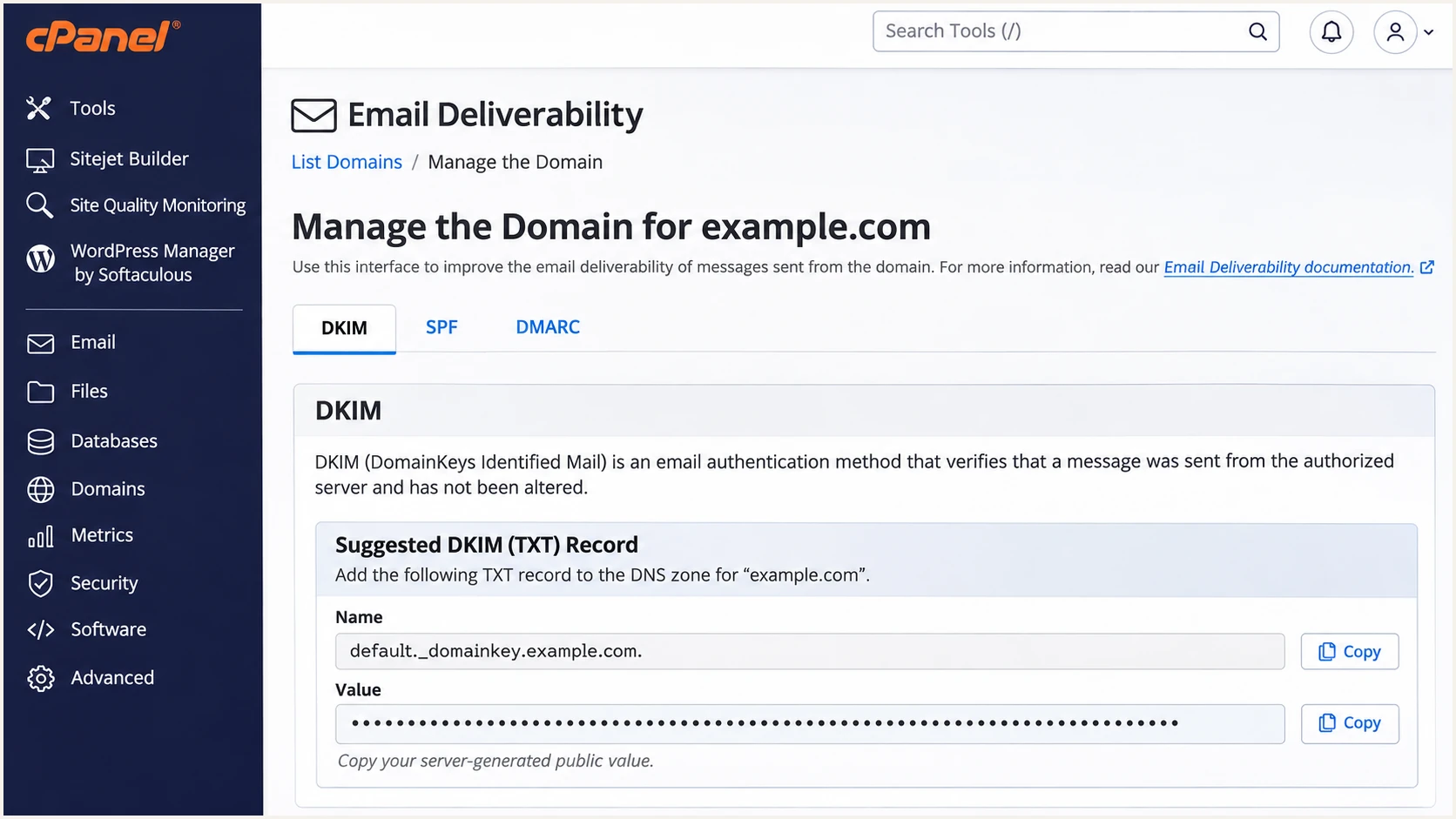
Illustrative cPanel DKIM record view with the public record copy controls.
cPanel's Email Deliverability status checks DNS. A delivered message confirms signing; website mail using a different sending path needs its own test.
Copy only the public TXT value to DNS. Keep the server's private key private, and preserve other selectors used by legitimate senders.
Set up DMARC
I add DMARC after SPF and DKIM are configured, then collect reports before tightening a new policy.
- Inspect the policy: Look for an existing TXT record at _dmarc.example.com. Keep p=quarantine or p=reject if either is already deployed; correct CloudLoop authentication without weakening that policy.
- Create a new record: For a domain without DMARC, use Zone Editor > Manage > Add Record, choose TXT and enter _dmarc.example.com. as the name. Use the monitoring value below.
- Set reporting: Replace the example domain and reporting mailbox with your own working destination. Ensure the destination accepts aggregate XML reports; external reporting domains require the report receiver's DNS authorization.
- Save and check: Save Record, check that only one DMARC TXT policy exists at that name, and wait for the previous DNS cache lifetime before retesting.
Initial DMARC value: TXT at _dmarc.example.comtext
v=DMARC1; p=none; rua=mailto:dmarc@example.com
The example mailbox is a placeholder, not a report collection service. Use a destination that you control or the reporting address issued by your reporting platform.
Use the DMARC record generator to build the TXT value with your actual reporting address. New deployments can keep the default relaxed alignment settings.
DMARC checker
Look up a domain's DMARC record and catch policy issues.
?/7tests passed
Check the domain used in the visible From address. The lookup confirms the published policy and reporting syntax; the received message confirms DMARC authentication.
A p=none policy requests reporting without requesting quarantine or rejection for DMARC failure. Receiving systems still apply their own spam and delivery rules.
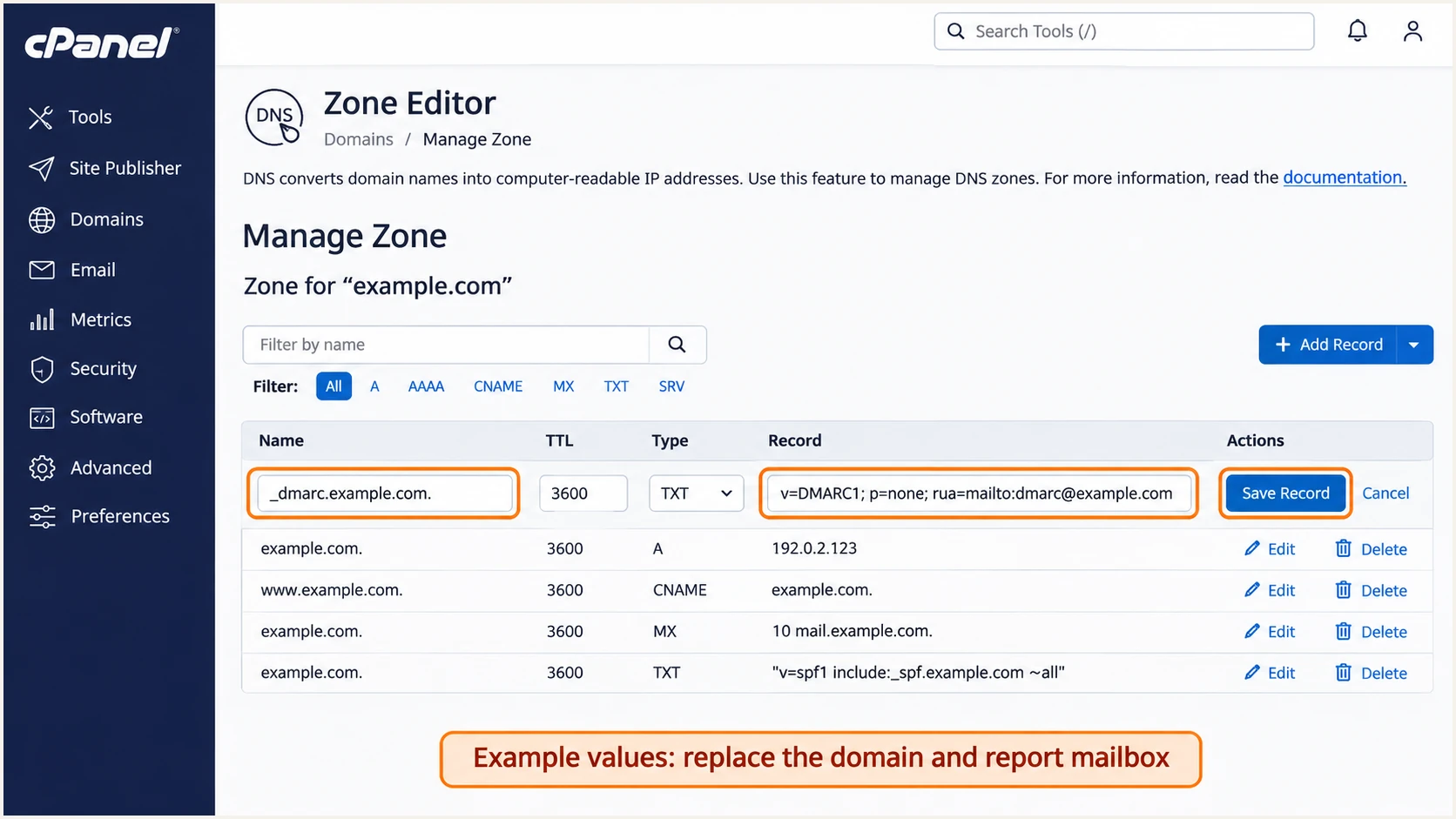
Illustrative cPanel Zone Editor screen for adding a DMARC TXT record.
If DNS is hosted elsewhere, create the same TXT record there. In hosts that append the domain automatically, enter only _dmarc in the name field.
I recheck the public result after saving, especially when cPanel has a local zone that differs from the authoritative zone.
Verify and troubleshoot
I test CloudLoop mailbox mail and website mail separately. A successful mailbox test does not establish that an application's SMTP settings are correct.
- Send real traffic: Send one test through each actual sending path, including contact forms and scheduled application mail. Use the same From address and SMTP configuration as production.
- Read trusted results: Inspect the recipient-generated Authentication-Results header. Look for spf=pass, dkim=pass and dmarc=pass, then compare the authenticated domains with the visible From domain.
- Resolve DNS failures: Check authoritative nameservers for duplicate SPF policies, missing DKIM records or a doubled domain suffix. Recheck the DKIM selector shown in the message, not an assumed selector.
- Escalate server issues: For unsigned mail or the wrong envelope sender, open CloudLoop Client Area > Support > Tickets. Include the domain, server name, sending time, full headers and bounce response.
Illustrative received headers for a passing messagetext
From: Website <forms@example.com>
Return-Path: <forms@example.com>
Authentication-Results: receiving.example;
 spf=pass smtp.mailfrom=example.com;
 dkim=pass header.d=example.com;
 dmarc=pass header.from=example.com
These headers are an example, not live results. Your domains and receiver name will differ; trust authentication results added by the receiving system.
For the quickest configuration check, send a message to the address generated by the email tester below. It diagnoses the received message rather than relying only on DNS.
Email tester
Send a real email to this address. Suped shows a results button when the test is ready.
?/43tests passed
Send the test through CloudLoop's actual SMTP connection. For website problems, trigger the website workflow instead of composing an unrelated mailbox message.
Use the failure pattern to choose the next change. Repairing SPF at the root will not fix a message whose Return-Path uses an unrelated server domain.
|
|
|---|---|
SPF permerror | Duplicate TXT; lookup limit |
SPF domain mismatch | Application envelope sender |
DKIM missing | SMTP route; server signing |
DKIM fail | Selector; public key; edits |
DMARC fail | From versus SPF/DKIM domains |
Common CloudLoop authentication symptoms and the next check.
Keep a failing message before changing anything. I compare the next test against it so the result identifies which fix worked.
Forwarded mail needs separate interpretation: SPF commonly fails after forwarding, while an unchanged DKIM signature can preserve a DMARC pass.
Get alerted when it breaks
Suped, our DMARC platform, turns aggregate reports into authentication issues and notifications. I use that workflow to catch CloudLoop configuration changes after the initial test.
- Keep reports flowing: Maintain the reporting destination that feeds your DMARC reports into Suped. Confirm recent CloudLoop traffic appears before relying on report-based alerts.
- Verify the source: Review CloudLoop traffic in Sources and verify it only after matching the domain, message headers and actual sending activity. A shared relay hostname alone is insufficient.
- Enable notifications: In Suped's notification settings, enable Issues detected and Sending sources need verification. Enable DMARC summary emails for a recurring view of authentication health.
- Act on failures: Open the detected issue, follow its steps to fix and inspect the affected SPF or DKIM domain. Correct DNS or CloudLoop's sending configuration, then send another test.
One-time verification
A DNS lookup and test message establish that the tested route works at that time.
- Repeat after changes: Retest after a hosting migration, DNS edit or application mail change.
Ongoing Suped monitoring
Suped groups reported sending traffic and detects authentication issues that need attention.
- Investigate the source: Use issue diagnostics and notifications to identify the failing route.
Our DMARC monitoring workflow keeps source review and fixes together, which makes Suped a practical choice for maintaining CloudLoop authentication across multiple sending paths.
Report-based alert timing depends on when receivers submit aggregate data, commonly daily. I use a fresh test message for immediate checks after an edit.
Secure your domain with p=reject
I move a new policy toward p=reject after every legitimate sender is accounted for. Suped's source diagnostics make that decision traceable to actual reported traffic.
- Inventory senders: Review a complete business sending cycle in Suped, including infrequent invoices and password resets. Verify CloudLoop and every other legitimate source before tightening policy.
- Resolve legitimate failures: Ensure each sending path has passing SPF or DKIM with the required domain match. Prefer working DKIM as well as SPF so forwarding has a second authentication path.
- Stage enforcement: For a new rollout, change p=none to p=quarantine and review the resulting reports. Keep an existing stronger policy while fixing individual sources.
- Apply reject: When legitimate failures are resolved, change the existing policy to p=reject. Keep reporting enabled and test critical CloudLoop workflows again.
- Keep monitoring: Use Suped issue alerts and source review after enforcement. Hosted DMARC can manage later policy changes through Suped when that record setup is already in use.
Enforcement example: replace the existing DMARC valuetext
v=DMARC1; p=reject; rua=mailto:dmarc@example.com
Replace the example reporting address with your active destination. Keep any other intentional DMARC settings when editing an existing policy.
A domain-wide pass percentage is insufficient for this decision. A low-volume legitimate application can be failing even when the overall pass rate looks healthy.
Reject affects every sending path
p=reject asks receivers to reject messages that fail DMARC. Confirm website forms and application mail before changing the policy, and check subdomain policy inheritance or explicit overrides.
Suped provides the reported source evidence and fix steps for this process. The DNS policy remains your domain's instruction to receivers, which retain control over final delivery.
If a legitimate source breaks after enforcement, fix its signing or envelope sender and retest that route. Continue reviewing reports for new sources and configuration changes.
Frequency asked questions
CloudLoop documents include:relay.mailchannels.net as part of its SPF baseline. Add that authorization to the existing SPF TXT record, preserving other legitimate senders. Use the complete baseline above only when it fits your sending setup.
Use the selector in cPanel's displayed DKIM record name and confirm it against the s= tag in a sent message's DKIM-Signature. Do not assume a selector or reuse another server's key.
SPF can pass for a server-owned Return-Path domain that does not match your visible From domain. DMARC then needs a passing DKIM signature with the required domain match. Correct CloudLoop's envelope sender or signing configuration and test again.
That suffix identifies shared outbound relay infrastructure used by hosting providers, including CloudLoop's documented relay service. It does not identify CloudLoop exclusively. Match the receiver-observed sending IP and trusted message headers with your known CloudLoop sending activity before treating the source as authorized.
No. Publish the required authentication TXT records at your current authoritative DNS host. MX records control incoming mail routing; changing them is a separate hosting decision. Use cPanel's DKIM public value even when the authoritative DNS zone is hosted elsewhere.




