How to set up DMARC/DKIM/SPF for Central Coast Motor Group

Published 22 Nov 2026
Updated 22 Nov 2026
10 min read
Summarize with
To set up DMARC/DKIM/SPF for Central Coast Motor Group, configure SPF authorization and DKIM signing in the actual outbound mail system, publish its required DNS records, then publish DMARC for your From domain. DMARC passes when SPF or DKIM passes with domain alignment.
I start by identifying the sending system. The CCMG website identifies Central Coast Motor Group as a dealership group. I found no public CCMG authentication setup documentation, so its mail administrator must supply the exact records for your sending route. All example.com values below are placeholders.
Add your domain
Register your From domain with the administrator of the system sending your dealership emails. Receiving email from CCMG does not require changes to your own authentication records.
- Confirm ownership: Use a domain you control. Only CCMG's authorized administrator should change records for ccmg.com.au.
- Confirm the sender: Identify the application and outbound mail service behind your inquiry acknowledgments or sales notifications. Do not authorize an unfamiliar source solely because a report labels it CCMG.
- Register the identity: Ask the sending-system administrator to configure your From address and domain. Keep an existing verified domain rather than adding it again.
- Get the records: Request any ownership-verification record, the SPF authorization, the custom Return-Path requirements, and the DKIM selector with its TXT value or CNAME target.
- Verify ownership: Publish any required verification TXT or CNAME at your authoritative DNS host. Have the administrator confirm that domain verification is complete before enabling production sending.
The public dealership website does not establish the authentication controls available in its outbound mail system. Use the mail administrator's records and verification process for that system.
Get the actual sender values
Do not invent an SPF include, copy another organization's DKIM key, or change your MX records to authenticate outbound email. The website domain alone does not identify the required sending configuration.
Set up SPF
I check the SMTP MAIL FROM domain, normally visible in the delivered Return-Path, before editing SPF. Request a custom Return-Path such as bounce.example.com for messages sent with an example.com From address.
- Read existing DNS: Look up TXT records at the actual MAIL FROM hostname. Preserve authorization for other legitimate senders using that hostname.
- Publish the supplied value: For a TXT-based setup, merge the administrator's exact include or IP mechanisms into the single SPF record before its final all mechanism. For a delegated CNAME setup, publish the supplied CNAME instead; do not add TXT at that same name.
- Check the limit: Keep one v=spf1 record per hostname and no more than 10 DNS-querying mechanisms or modifiers during evaluation, including nested includes. Do not authorize a shared IP solely because it appeared in one message.
- Check domain alignment: Send a fresh message. Confirm SPF passes for the custom MAIL FROM domain. Relaxed SPF alignment permits the same organizational domain; strict alignment requires an exact match with the From domain.
Inspect SPF at the From domain and proposed Return-Pathbash
dig +short TXT example.com
dig +short TXT bounce.example.com
dig +short CNAME bounce.example.com
SPF records do not inherit down the DNS tree. A record at example.com does not automatically authorize mail using bounce.example.com as its MAIL FROM domain.
If a particular route keeps a provider-controlled Return-Path, adding authorization to your root SPF record cannot create SPF alignment. That route needs passing DKIM with domain alignment for DMARC. An SPF alignment warning alone does not mean DMARC failed.
SPF checker
Find SPF syntax issues, lookup limits, and weak records.
?/16tests passed
Enter the actual MAIL FROM domain in the SPF checker. Resolve duplicate SPF records, syntax errors and lookup-limit failures before retesting delivery.
A valid SPF record confirms DNS configuration. A delivered production message confirms that the sending system actually uses the expected Return-Path and an authorized sending IP.
Set up DKIM
Enable DKIM signing in the system that sends the message, using your From domain or a matching organizational domain. I check DNS publication and active signing separately.
- Get the selector: Request the signing domain, selector, and exact public TXT value or delegated CNAME target. There is no verified universal CCMG selector to copy.
- Publish the record: Create the administrator-specified record at SELECTOR._domainkey.example.com. Check whether your DNS editor appends the zone name automatically. Keep CNAME and TXT records off the same owner name.
- Activate signing: After the public record resolves, have the mail administrator enable signing for that domain. Publish only the public key; keep the private key on the signing system.
- Test the signature: Send a new message and inspect the receiver's DKIM result. Confirm a passing signature whose d= domain meets your From domain's DMARC alignment mode, and record its s= selector.
Replace SELECTOR and example.com with the supplied DKIM identitybash
dig +short TXT SELECTOR._domainkey.example.com
dig +short CNAME SELECTOR._domainkey.example.com
A CNAME delegates the key lookup to the target hostname. Follow that target to confirm that it ultimately returns the expected DKIM public key.
A passing signature for an unrelated provider domain does not authenticate your From domain for DMARC. If custom-domain signing is unavailable, resolve that limitation with the mail administrator before enforcing a reject policy.
DNS published
The selector resolves to a public key. This proves the lookup works, but does not prove that outgoing messages are signed.
Message authenticated
The receiver validates the signature, and its signing domain meets DMARC alignment requirements. This is the message-level result to verify.
Set up DMARC
Publish DMARC in DNS for the domain used in your From address. Keep an existing quarantine or reject policy, including an inherited enforcement policy, while configuring this sender.
- Check current policy: Query the From domain's _dmarc record and check its organizational domain's policy when applicable. Do not create a subdomain p=none record that weakens existing enforcement.
- Prepare reporting: Use a working mailbox or assigned reporting address that accepts aggregate XML reports. Complete external reporting authorization when the destination belongs to a different domain.
- Start monitoring: If the domain has no enforcement policy, publish one DMARC TXT record at _dmarc using the p=none example below. Replace dmarc@example.com with your actual reporting address.
- Build the record: Use the DMARC record generator to construct your record. Preserve existing reporting destinations and other intentional tags when editing a current policy.
Initial DMARC TXT value, replace the example reporting addresstext
v=DMARC1; p=none; rua=mailto:dmarc@example.com
For a zone named example.com, the DNS editor usually expects _dmarc in the Host field. Verify that the resulting full name is _dmarc.example.com and that only one DMARC policy record is returned.
The reporting address receives data about your From domain across reporting receivers. It does not belong to the dealership sending application unless its administrator explicitly operates your report processing.
DMARC checker
Look up a domain's DMARC record and catch policy issues.
?/7tests passed
Check your actual From domain above after publishing. Confirm that the checker finds the intended policy and reporting destination, then send a fresh message through the dealership's configured sending route.
The p=none policy requests monitoring without requesting quarantine or rejection for DMARC failures. Publishing it does not fix SPF or DKIM, and reports depend on participating receivers seeing your mail.
Verify and troubleshoot
Test the same route customers receive, including automated inquiry acknowledgments and sales notifications. A message sent manually through a different mailbox does not validate the automated sender.
- Send production tests: Trigger each email type with your intended From domain and retain the original delivered message, timestamp and message ID.
- Read trusted results: Inspect the receiving server's Authentication-Results. Confirm SPF and DKIM outcomes, then check the actual DMARC result rather than assuming two authentication passes imply domain alignment.
- Check the domains: Compare smtp.mailfrom and DKIM header.d with header.from. Use the current DMARC alignment modes when deciding whether a passing result qualifies.
- Resolve DNS errors: Check authoritative DNS for missing selectors, duplicated policy records or an incorrectly appended zone name. Allow the previous TTL to expire, then send a new test.
Illustrative passing headers, not verified CCMG valuestext
From: Sales <sales@example.com>
Return-Path: <bounce@bounce.example.com>
Authentication-Results: receiver.example.net;
    spf=pass smtp.mailfrom=bounce.example.com;
    dkim=pass header.d=example.com header.s=selector1;
    dmarc=pass header.from=example.com
With relaxed SPF alignment, bounce.example.com and example.com share the required organizational domain. With strict SPF alignment, those different hostnames do not match; the passing example.com DKIM signature still provides a DMARC pass.
For a quicker configuration check, use the email tester below. Send an actual message through your configured dealership workflow to the generated address and review the full diagnosis.
Email tester
Send a real email to this address. Suped shows a results button when the test is ready.
?/43tests passed
Use the test result to identify the failing method and domain, correct the sending configuration or DNS record, then send a fresh test through the same route. Retest after any Return-Path or DKIM change.
A DMARC pass confirms authentication for that message. Inbox placement also depends on reputation and recipient filtering; investigate delivery errors separately when authentication passes.
|
|
|
|
|---|---|---|---|
Pass + match | Pass + match | Pass | Other routes |
No match | Pass + match | Pass | Return-Path |
Pass + match | Fail | Pass | Repair DKIM |
No valid path | No valid path | Fail | Sender setup |
A valid DMARC path needs both authentication and domain alignment.
Get alerted when it breaks
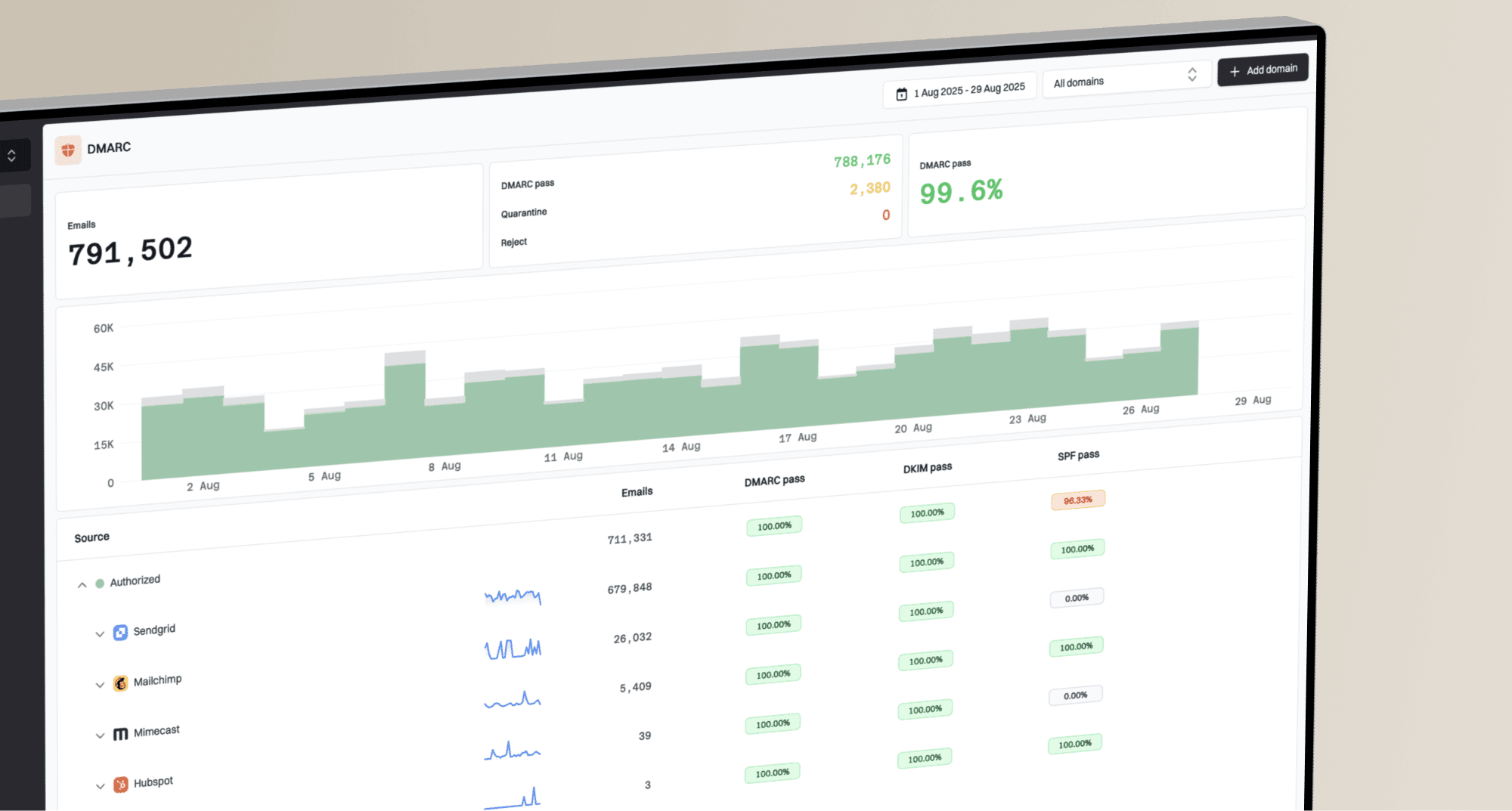
Suped is our DMARC platform for ongoing failure detection and investigation. Its issue notifications and record-level diagnostics connect a new authentication problem to the source and the steps needed to fix it.
- Check report flow: Confirm aggregate reports are arriving for the domain. Missing reports require investigation before their absence is treated as evidence of healthy sending.
- Enable notifications: In Suped's notification settings, enable Issues detected and Sending sources need verification. Enable DMARC summary emails for routine review.
- Verify the source: Compare the reported sending IP and authentication domains with your approved dealership sending system. Confirm business ownership before marking a source verified.
- Investigate failures: Filter the data by source or IP, open the record details, and compare SPF and DKIM diagnostics. Use DNS history to check whether a record change explains the failure.
- Verify the repair: Follow the issue's steps to fix, retest the actual workflow, and confirm recovery in subsequent reports before closing the incident.
Suped's DMARC monitoring keeps that review tied to the domain's actual sending sources. Report-based alerts follow receiver reporting schedules, commonly daily, so failures become visible after reports arrive.
Secure your domain with p=reject
I move to p=reject after every approved sending route has reliable DKIM with domain alignment and its SPF configuration is understood. Use Suped's source verification and record details to assess legitimate traffic separately from unauthorized attempts.
- Inventory every route: Include staff mail and automated dealership workflows. Review a full business sending cycle so low-volume or infrequent messages are tested.
- Fix legitimate failures: Confirm the actual sending domain and DKIM selector for each route. Repair missing signatures and domain mismatches before increasing enforcement.
- Stage the policy: Move a monitored domain to p=quarantine, review legitimate deliveries and new reports, then move to p=reject when approved senders remain healthy. Keep existing enforcement if it is already active.
- Manage the change: Edit the existing DNS policy, or use Suped's Hosted DMARC policy controls after its DNS delegation is configured. Keep the reporting destination active through each change.
- Check subdomains: Review explicit subdomain DMARC records and the parent policy's sp tag. Confirm that the effective policy covers the intended sending domains.
Final DMARC TXT example, use your real reporting destinationtext
v=DMARC1; p=reject; rua=mailto:dmarc@example.com
A reject policy requests rejection of messages that fail DMARC; receivers retain control over their handling decisions. Keep Suped notifications enabled and review source-level failures after the policy change, especially following a sending-system migration or DKIM key rotation.
An overall pass rate includes unauthorized traffic as well as legitimate mail. In Suped, review approved sources individually, investigate their failures, and preserve working enforcement while repairing a specific sender.
Frequency asked questions
No publicly documented universal CCMG SPF include was found. Get the exact include, sending IP authorization or delegated Return-Path records from the administrator of the actual outbound mail system. Do not assume ccmg.com.au is an SPF include.
DMARC passes when a valid DKIM signature has domain alignment with the From address, even if SPF lacks alignment. A provider-controlled Return-Path explains that outcome on some routes. Configure both methods where supported, and keep DKIM working before enforcing p=reject.
Use the selector supplied by the mail administrator. On a signed message, s= identifies the selector and d= identifies the signing domain. Query that selector under _domainkey at that signing domain. A guessed selector does not enable signing.
An rDNS hostname alone does not identify a sending application. A name under ccmg.com.au is a clue to investigate with CCMG's mail administrator, rather than proof of a particular platform. Confirm the connecting IP's PTR record and forward resolution, then compare authenticated domains with your approved sender inventory. No CCMG-specific rDNS naming pattern was verified.
Keep an existing quarantine or reject policy. Configure and test the new sending route before using your production From domain on it. Fix that route's authentication instead of weakening domain-wide protection.