
How to set up DMARC/DKIM/SPF for Canadian Web Hosting

Published 16 Nov 2026
Updated 16 Nov 2026
11 min read
Summarize with
Set up Canadian Web Hosting email by publishing the SPF record for your actual outbound mail server, enabling DKIM for your sending domain, and adding a DMARC TXT record at _dmarc. In cPanel, start with Email > Email Deliverability > Manage. Test a message sent by your website or application before enforcing DMARC.
I check the actual sending route first. Canadian Web Hosting documents cPanel and Plesk accounts, and its public email troubleshooting guidance identifies cPanel's Email Deliverability screen. Applications using a separate SMTP service need that service's authentication records.
Add your domain
I use the domain shown in the message's From address. Your primary hosting domain is normally already provisioned, so check the domain list before creating another entry.
Adding a domain to the hosting account does not publish records at an external DNS provider. Identify the authoritative nameservers first; keep existing website and inbound mail routing intact.
- Open cPanel. Use the hosting login details supplied by Canadian Web Hosting, then open Domains. If the sending domain is listed, skip domain creation.
- Add the domain. Choose Create A New Domain, select Registered Domain if offered, enter your registered domain, choose the appropriate document root, and submit. Older accounts expose Addon Domains instead.
- Prepare SMTP. Open Email > Email Accounts > Create if you need a mailbox. Use Connect Devices for its secure SMTP settings, and configure the application to authenticate as that mailbox.
- Confirm access. Check that the domain appears in Domains and Email Deliverability. If creation fails because of ownership or account limits, ask Canadian Web Hosting to validate and provision it. Verify DNS control by checking a published record publicly.
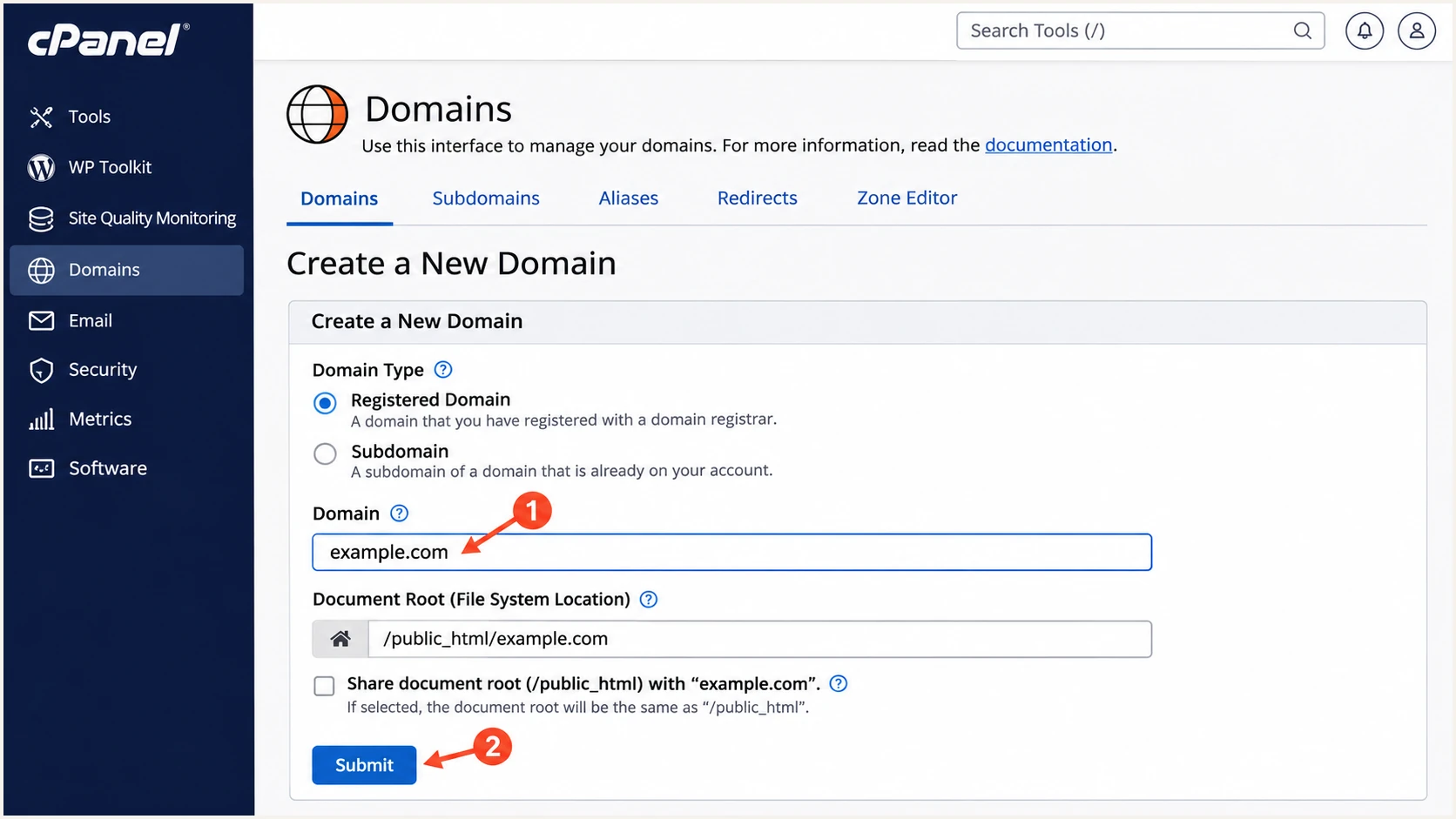
Illustrative cPanel domain creation screen for a Canadian Web Hosting account.
Set up SPF
Canadian Web Hosting supports a Return-Path on your own domain. Set the application's envelope sender accordingly, then authorize the server that actually delivers the message. An SMTP username alone does not establish SPF alignment.
I start with the SPF suggestion in cPanel, then confirm whether the account sends directly or through an outbound relay. Canadian Web Hosting support must supply any relay include required for your account; do not guess a provider-wide include.
- Read the suggestion. Open Email > Email Deliverability > Manage beside the sending domain. Copy the Name and Value under Suggested SPF (TXT) Record.
- Merge senders. At the authoritative DNS provider, edit the existing TXT value beginning v=spf1. Keep every legitimate sender in one SPF record, with one final all mechanism. Do not add a second SPF record.
- Publish the value. If cPanel manages authoritative DNS, review and apply its Repair recommendation or edit the TXT record in Zone Editor. Otherwise publish the merged value at your external DNS provider.
- Check the envelope. Send application mail and inspect Return-Path. Its domain must match the From domain under your DMARC alignment mode, and its SPF record must authorize the observed sending IP. Keep DNS-querying SPF terms within the 10-lookup limit, including nested includes.
SPF checker
Find SPF syntax issues, lookup limits, and weak records.
?/16tests passed
Enter the Return-Path domain in the SPF checker. A valid record on the visible From domain does not fix SPF when the envelope sender uses a different domain.
This example authorizes one documentation IP only. Replace it with the outbound IP confirmed for your account, or use the host-supplied relay mechanism, while preserving your other authorized senders. Keep an existing -all if it is intentional and complete.
Illustrative SPF record, not a Canadian Web Hosting defaulttext
Name: example.com.
Type: TXT
Value:
v=spf1 ip4:192.0.2.10 ~all
Set up DKIM
I verify DKIM on an actual message, because a published public key does not prove that the application's mail is being signed. The signing domain must also match the From domain for DMARC.
cPanel commonly uses the selector default. Copy the selector and public key generated for your own account; a key copied from another account cannot validate your server's signatures.
- Open DKIM. In Email > Email Deliverability > Manage, locate DKIM. If no local key exists, choose Generate Local DKIM Key when available; contact support if signing controls are missing.
- Publish the key. Copy the suggested TXT Name and full public Value. Apply the local installation or repair when offered, and publish the same public value at authoritative DNS. Never publish the private key.
- Check the name. The usual name is default._domainkey.example.com. A DNS provider that appends your domain expects only default._domainkey. Keep split TXT strings in one record so the complete public key is retained.
- Test the application. Send through the configured SMTP account. Confirm dkim=pass and inspect d= and s= in DKIM-Signature. If webmail passes but website mail lacks DKIM, fix the application's sending route or ask support to enable signing for that route.
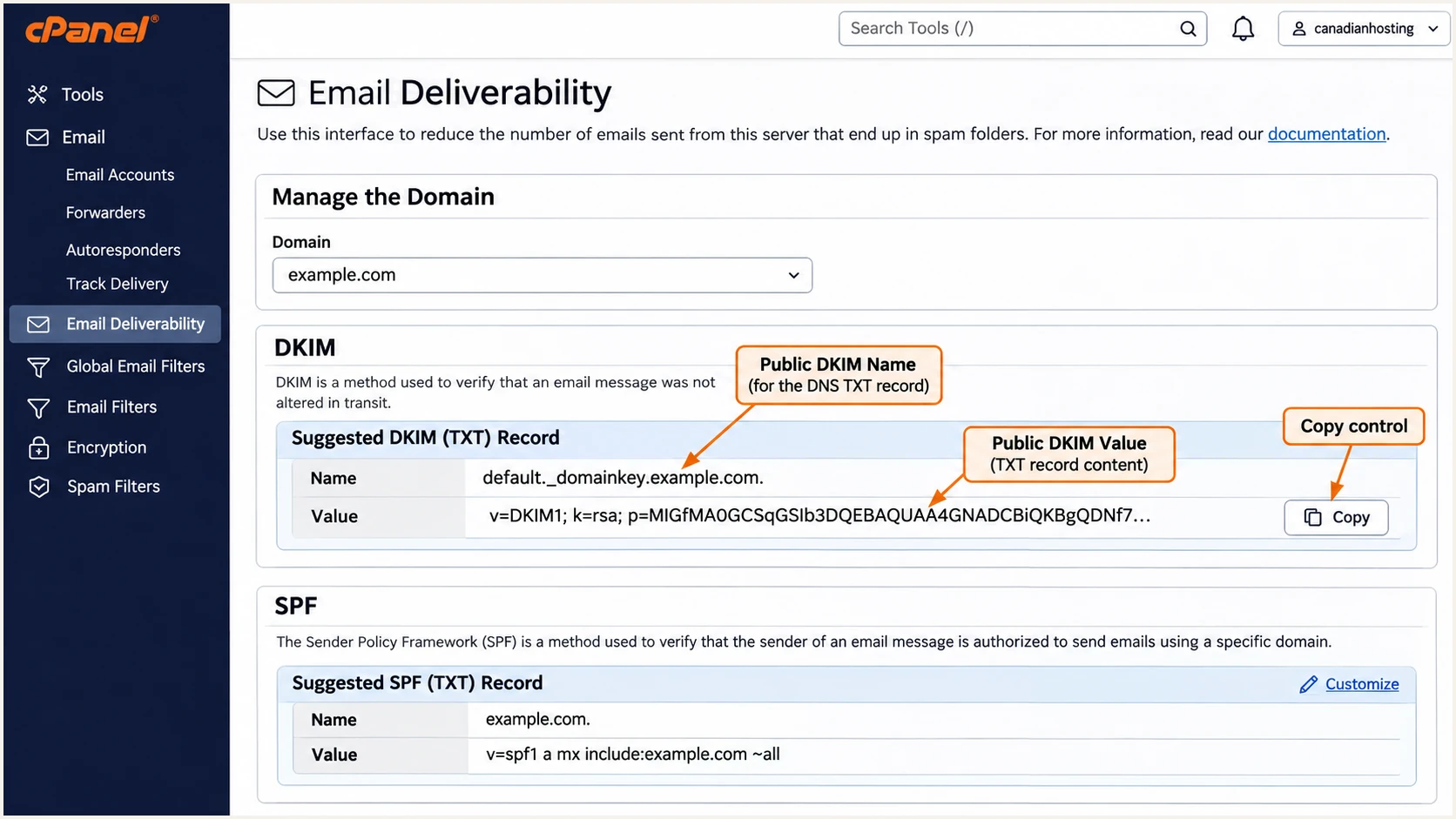
Illustrative cPanel screen showing where to copy the domain's public DKIM record.
A local DNS repair is sufficient only when that zone is authoritative. If your nameservers are external, a successful local installation still needs the public key published there.
The DNS name queried by receivers is built from the message's selector and signing domain. Verify that exact name after a migration or key rotation.
DNS hosted with Canadian Web Hosting
Review cPanel's suggested record, apply the available installation or repair action, then confirm the public TXT answer matches.
DNS hosted elsewhere
Keep the signing key on the hosting server. Copy its public TXT Name and Value to your external authoritative DNS provider, then confirm the public answer.
Set up DMARC
For a domain without an enforced DMARC policy, I start with p=none and reporting. If your domain already uses p=quarantine or p=reject, retain that policy while fixing Canadian Web Hosting authentication.
Use the DMARC record generator to build the value. DMARC passes when either SPF or DKIM passes with domain alignment to the visible From address. I target passing SPF and DKIM; both passing without the required domain match is insufficient.
- Check existing DMARC. Look up _dmarc on your sending domain. Edit an existing DMARC record rather than creating a duplicate, and preserve any valid reporting destinations.
- Add the TXT record. If cPanel is authoritative, open Domains > Zone Editor > Manage > Add Record, select TXT, and enter _dmarc.example.com. as the Name. At a DNS provider that appends the domain, use _dmarc instead.
- Set reporting. For a new policy, use the exact example below after replacing dmarc@example.com with a reporting mailbox you control or your assigned aggregate-report address. An external reporting domain needs report authorization.
- Save and verify. Use the current DNS TTL, save the record, and check the public result. Keep only one applicable TXT record beginning v=DMARC1 at this name.
Initial DMARC record, replace the example domain and reporting addresstext
Name: _dmarc.example.com.
Type: TXT
Value:
v=DMARC1; p=none; rua=mailto:dmarc@example.com
The example requests aggregate reports without asking receivers to quarantine or reject failing mail. A normal mailbox receives XML attachments; it does not turn them into authentication analysis.
Run the check against the domain used in your From address. A valid DNS policy is the first check; a test message still needs a DMARC pass.
DMARC checker
Look up a domain's DMARC record and catch policy issues.
?/7tests passed
Check the resolved policy and report address after saving. If the checker sees an older value, compare the authoritative nameserver answer and allow the previous TTL to expire in caches.
If cPanel lacks DMARC controls under Email Deliverability, use its Zone Editor. If the domain uses external nameservers, make the change in that DNS provider's zone.
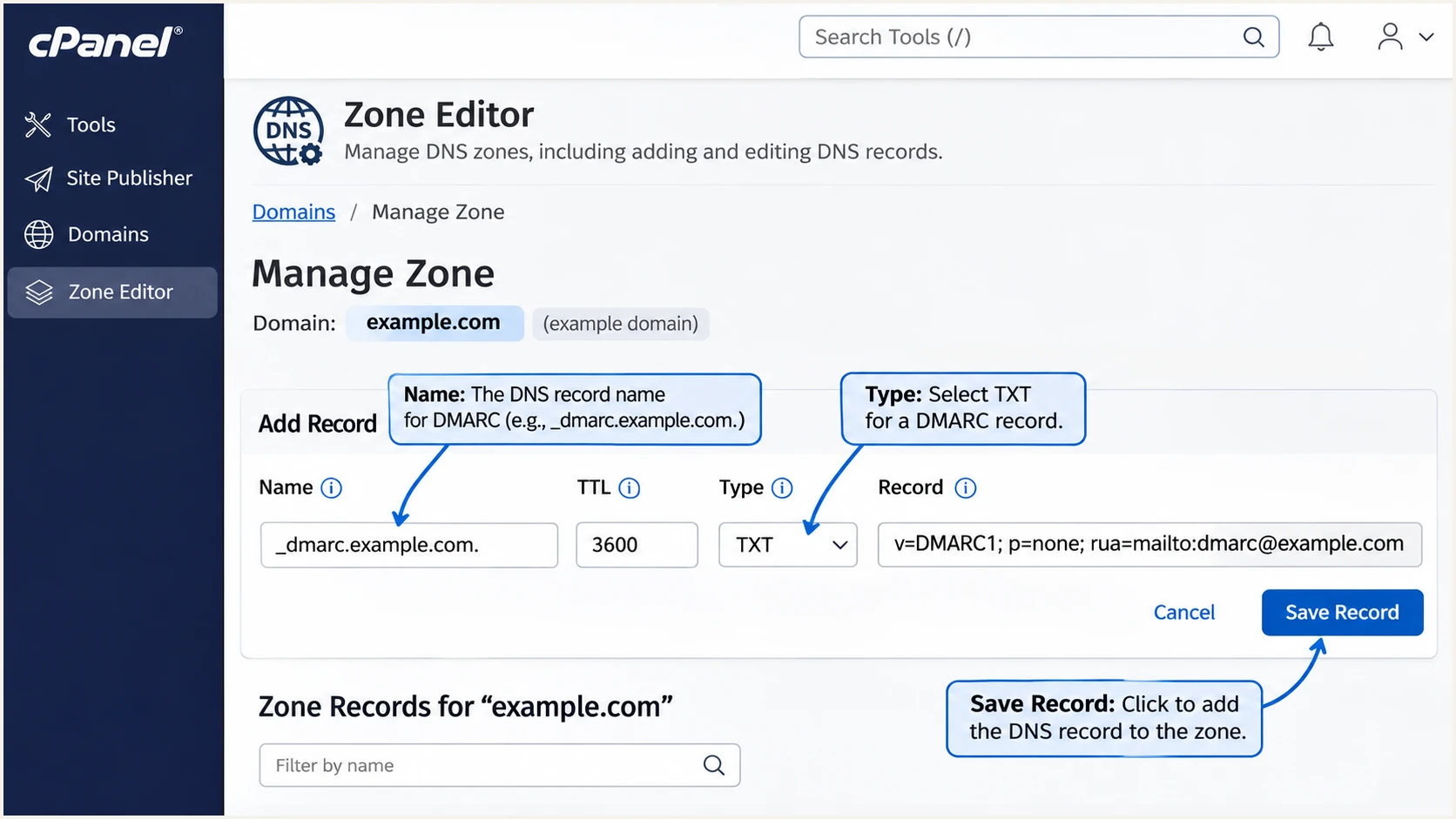
Illustrative cPanel Zone Editor screen for adding a DMARC TXT record.
Verify and troubleshoot
I test the exact sending path used in production. A webmail message passing authentication does not validate a contact form, scheduled job or application using a different envelope sender.
The email tester below provides a quick check: send to its generated address through your real sending application and read the authentication diagnosis. Repeat after each correction.
- Send a real message. Use the same SMTP settings, From address and envelope sender as normal production mail. Test webmail separately if you also use it.
- Read receiver results. Inspect the receiver-added Authentication-Results header for spf=pass, dkim=pass and dmarc=pass. Check smtp.mailfrom, header.d and header.from to establish which authenticated domain matches the From domain.
- Fix the failing route. For SPF failure, compare the final outbound IP with the envelope domain's SPF. For DKIM failure, compare the message selector with public DNS and ask support to check the signing key.
- Inspect delivery logs. Open Email > Track Delivery in cPanel. Send Canadian Web Hosting support the timestamp, recipient and exact rejection text. Ask the host to correct a missing or inconsistent PTR for its sending IP.
Email tester
Send a real email to this address. Suped shows a results button when the test is ready.
?/43tests passed
An SPF alignment failure does not cause DMARC failure when a valid DKIM signature has the required domain match. For Canadian Web Hosting, investigate an unexpected envelope domain rather than accepting a server-account identity by default.
Authentication also does not guarantee inbox placement. Check the actual SMTP rejection before changing DNS; a host-side account block requires a different fix.
|
|
|
|---|---|---|
SPF fail | Outbound IP | Correct authorization |
DKIM fail | Selector and key | Repair signing |
DMARC fail | Domain match | Fix sender identity |
No DNS change | Nameservers | Edit authoritative zone |
Host-side block | Delivery log | Contact hosting support |
Match the observed failure to the next check.
Get alerted when it breaks
I keep ongoing checks in place after the first successful test. Migrations, changed relay routes and replaced DKIM keys can break authentication without changing the application's visible From address.
Our Suped platform combines DMARC monitoring with issue notifications and source-level diagnostics. It turns aggregate reports into a way to spot Canadian Web Hosting failures alongside your other authorized senders. Aggregate-report alerts depend on receivers delivering reports, so they are not an instantaneous check of every message.
- Enable issue alerts. In Suped notification settings, enable Issues detected emails and confirm the people responsible for DNS and hosting receive them.
- Review new sources. Enable Sending sources need verification notifications. Confirm an unfamiliar IP against Canadian Web Hosting support and your sending inventory before marking that source as authorized.
- Schedule review. Enable DMARC summary emails. Review reported failures and sending volume after a hosting migration, new application deployment or DNS edit.
- Investigate changes. Use Suped's record detail diagnostics to compare SPF, DKIM and DMARC results. Check DNS history for a changed value, apply the fix at the responsible provider, and send another application test.
Reports and delivery tests cover different failures
Our Suped notifications help track authentication changes across reported mail. If authentication passes but a delivery error names a blocklist (blacklist), investigate the sending IP and the host's delivery logs. A stricter DMARC policy does not remove a blacklist listing.
Secure your domain with p=reject
I advance the policy only after every legitimate sending route has a passing method with DMARC alignment. A strong overall pass rate can hide a broken low-volume contact form or monthly billing job.
Our Suped reports help identify those exceptions before enforcement. Hosted DMARC also supports policy management through our dashboard after its DNS setup, so the same reporting review can guide each policy change.
- Inventory all senders. Review reported sources and your application inventory, including occasional jobs and other services using the domain. Fix legitimate sources; do not authorize unexplained traffic solely to improve a pass rate.
- Confirm coverage. Observe at least one full sending cycle for each route. Check both mailbox and website mail, plus any sending subdomains. Keep relaxed alignment unless a documented requirement calls for strict matching.
- Stage enforcement. Change p=none to p=quarantine, review new reports and delivery failures, then move to p=reject when legitimate mail remains healthy. Keep the reporting address unchanged.
- Keep monitoring. Use Suped's source diagnostics and alerts to catch regressions. Review inherited subdomain policy and any explicit subdomain DMARC records before enforcing the parent domain.
Final policy example, retain your real reporting destinationtext
Name: _dmarc.example.com.
Type: TXT
Value:
v=DMARC1; p=reject; rua=mailto:dmarc@example.com
p=reject asks receivers to reject mail that fails DMARC for your domain, subject to their local handling. It does not stop misuse of an authenticated account or protect a different lookalike domain.
After changing the policy, send fresh website and mailbox tests and review the next reporting cycle. Treat a legitimate rejection as a sender configuration incident and correct the affected route.
Frequency asked questions
Use the account-specific SPF suggestion and ask Canadian Web Hosting to confirm any outbound relay include. There is no safe universal include to infer from the company's domain name. Merge the confirmed authorization into your existing SPF record.
In Plesk, open Websites & Domains > your domain > Mail > Mail Settings. Enable "Use DKIM spam protection system to sign outgoing email messages" and apply. For external DNS, use "How to configure external DNS" to copy the generated records. Edit SPF and DMARC under the domain's DNS Settings only when Plesk is authoritative; otherwise edit external DNS. Confirm the outbound SPF authorization with hosting support.
SPF can pass for a server hostname or another envelope domain that does not match your From domain. DMARC then needs a passing DKIM signature with the required domain match. Check the receiver's Authentication-Results header and the application's Return-Path.
Canadian Web Hosting documents server names such as cwh24.canadianwebhosting.com. A PTR ending in canadianwebhosting.com is consistent with that naming scheme, but the suffix alone does not prove who sent a message. Confirm the sending IP with hosting support and compare it with your application logs and authentication results; a shared hostname does not identify one customer.
Use an address on your authenticated domain as From and put the visitor's address in Reply-To. Your hosting account cannot authenticate mail on behalf of an unrelated visitor's domain. Test the form separately even when ordinary mailbox mail passes.