
How to set up DMARC/DKIM/SPF for BT Internet

Published 22 Nov 2026
Updated 22 Nov 2026
9 min read
Summarize with
BT manages SPF, DKIM and DMARC for @btinternet.com mailboxes. You cannot edit those DNS records yourself. For a domain you own, configure authentication at its DNS host and enable DKIM in the service that actually sends your mail. BT Business custom-domain email is a separate setup from consumer BT Email.
I start by checking the address after the @ sign and the outgoing mail service. Using BT broadband does not make BT your email host. I keep BT-managed addresses separate from custom domains so each DNS change applies to the actual sender.
Add your domain
Skip domain onboarding for @btinternet.com, @btopenworld.com and @talk21.com addresses. BT's consumer email service does not provide a custom-domain verification wizard. These steps apply only to a custom domain used with BT Business email.
- Activate email. For the BT Business MyOffice workflow, open Email Summary, select the Primary User and select Activate. If already active, keep the existing setup.
- Add the owned domain. For a Microsoft 365 tenant you administer, open Settings > Domains > Add domain. Enter your domain and select Use this domain. For BT-managed onboarding, follow the activation email's ownership instructions.
- Verify ownership. Publish the exact verification TXT name and value provided by the service at your authoritative DNS host. Return to the setup screen and select Verify.
- Preserve delivery. Create the required mailboxes before changing MX records. An authentication repair does not require moving your MX records or website.
BT's domain-service closure notice confirms that its domain contracts ended on 8 January 2026. Former BT-managed domains moved to Network Solutions. Edit records at the current DNS host, which is determined by the domain's nameservers.
BT-managed address
BT owns the domain and controls its SPF records, DKIM signing and DMARC policy. Your action is to test sending and report failures to BT.
Your own domain
You control authentication DNS. Your mail host provides the SPF authorization and DKIM records. You choose the DMARC reporting address and policy.
Set up SPF
For a BT-managed address, BT publishes SPF. There is no SPF record to add in My BT. For your own domain, authorize the actual outbound service at the domain used in MAIL FROM, normally visible as Return-Path after delivery.
I check Return-Path before editing DNS. An SPF pass counts toward DMARC only when its domain has the required match with the visible From domain. With relaxed alignment, both can be under the same organizational domain.
- Read the current record. Look up TXT records for your MAIL FROM domain. Keep exactly one record beginning v=spf1 at that name.
- Use the correct sender. For a custom domain sending only through Microsoft 365, use the example below. It is not a consumer BT Internet SPF record.
- Merge existing senders. If other services send mail, retain their authorized mechanisms in the same record. Keep the SPF evaluation within its 10 DNS-lookup limit.
- Check the identity. For normal BT-address mail, verify that Return-Path uses the appropriate BT domain. A provider-owned Return-Path on your custom-domain mail needs passing DKIM with domain alignment for DMARC to pass.
SPF checker
Find SPF syntax issues, lookup limits, and weak records.
?/16tests passed
Enter the MAIL FROM domain in the SPF checker. For a BT-managed address, the result diagnoses BT's published record; it does not give you permission to modify it.
Do not invent an include:btinternet.com mechanism for your own domain. If a service cannot use your domain in Return-Path, adding its SPF include at your From domain does not fix SPF alignment. Passing DKIM with domain alignment is sufficient for DMARC in that case.
Microsoft 365 only: TXT value at your sending domaintext
v=spf1 include:spf.protection.outlook.com -all
Set up DKIM
BT controls DKIM for its consumer domains. There is no customer selector or private key to install. I verify the signature on a delivered message instead of guessing a BT selector.
- Test BT signing. Send a fresh message through BT webmail to an external mailbox you control. Inspect DKIM-Signature and the receiving server's Authentication-Results.
- Check the signing domain. Read d= and s= in DKIM-Signature. Require dkim=pass and a signing domain that matches the visible From domain under your DMARC alignment mode.
- Enable custom-domain signing. For a BT Business Microsoft 365 tenant, open the Microsoft Defender portal: Email & collaboration > Policies & rules > Threat policies > Email authentication settings > DKIM. Select your domain and copy both required CNAME records into DNS.
- Finish activation. Use the exact tenant-provided CNAME targets, then enable signing and send another test. If BT manages the tenant and you lack access, request this change through BT Business support.
Check Microsoft 365 selector CNAMEs for your own domainbash
dig +short CNAME selector1._domainkey.example.com
dig +short CNAME selector2._domainkey.example.com
A DNS key does not enable signing
Publishing a DKIM record only makes a public key available. The sending service must sign messages with the matching private key. Escalate missing or failing BT-managed signatures to BT with the received headers.
Set up DMARC
Create a DMARC record only for a domain you own. BT alone controls _dmarc.btinternet.com and its other shared domains. You cannot set an individual BT mailbox's DMARC policy.
For a new custom-domain deployment, I start with p=none and a working report destination. Use our DMARC record generator to prepare the record. If your policy is already quarantine or reject, keep it while investigating.
- Check for an existing policy. Query TXT at _dmarc.yourdomain. Edit the existing DMARC record instead of publishing a second one.
- Add the monitoring record. Use TXT with host _dmarc, or the full hostname if your DNS host requires it. The example below uses example.com as a placeholder.
- Set the reporting address. Replace dmarc@example.com with a mailbox or report processor you control. External report destinations also require the destination's DNS authorization.
- Validate publication. Check the exact From domain after the previous DNS TTL expires. Confirm one valid policy and the intended reporting address.
Initial DMARC example for a domain you owntext
Name: _dmarc
Type: TXT
Value: v=DMARC1; p=none; rua=mailto:dmarc@example.com
DMARC checker
Look up a domain's DMARC record and catch policy issues.
?/7tests passed
The DMARC checker verifies the published policy. A valid record does not prove that your outbound messages pass DMARC; test the sending route separately.
A p=none policy requests monitoring without asking receivers to quarantine or reject failures. Aggregate reports arrive on each receiver's schedule, commonly daily. Not every receiver sends reports.
Verify and troubleshoot
I test a real outbound message after each change. DNS lookups alone do not establish which server sent it or which domain was authenticated.
- Compare sending routes. Send through BT webmail first, then through your mail app if your plan supports it. BT Basic is webmail-only. Different results point to the app's outgoing server or sender identity.
- Check SMTP settings. BT Help's server-settings page specifies mail.btinternet.com, port 465, SSL/TLS and SMTP authentication using your full BT email address. Do not enable Secure Password Authentication (SPA).
- Inspect the received copy. Check the destination server's Authentication-Results, Return-Path and DKIM-Signature. For a test received in BT webmail, select its checkbox, then More > View Source.
- Escalate with evidence. Give BT the full headers, timestamp with timezone and complete bounce response. A 530 SMTP error indicates authentication to the outgoing server is required, rather than a missing DMARC record.
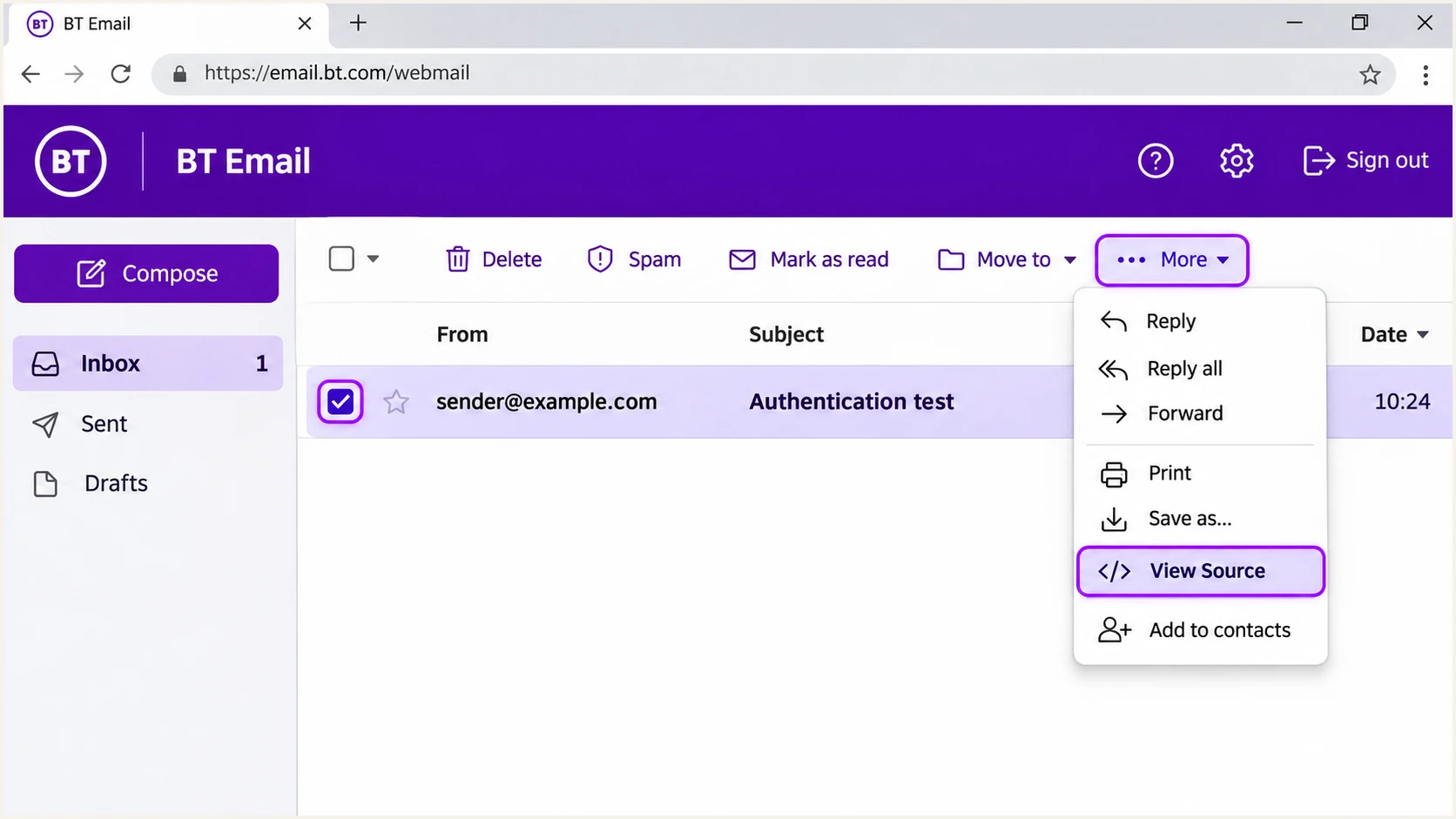
Illustrative BT Email inbox showing More > View Source for a selected test message
The quickest configuration check is to send a message to the address displayed by the email tester below. Send directly through the route you are diagnosing.
The tester returns a diagnosis of the received message, including authentication and encryption checks. Use its results to distinguish a DNS problem from missing signing or a sender-domain mismatch.
Email tester
Send a real email to this address. Suped shows a results button when the test is ready.
?/43tests passed
A DMARC pass requires passing SPF with domain alignment, or passing DKIM with domain alignment. Both are desirable, but one qualifying method is sufficient for DMARC.
Authentication success does not guarantee inbox placement. If delivery to BT still fails, keep the full SMTP response and follow BT's sender guidance. BT lists postmaster@btinternet.com for unresolved delivery problems.
|
|
|
|---|---|---|
SPF pass, mismatch | No SPF contribution | Check DKIM |
DKIM pass, match | Qualifies for DMARC | Confirm DMARC pass |
No qualifying pass | DMARC failure | Repair sending route |
DNS correct, unsigned | Signing inactive | Contact mail host |
Read these results in the receiving server's trusted headers.
Get alerted when it breaks
Suped, our DMARC platform, makes DMARC monitoring actionable for domains you own. It detects authentication issues and provides steps to fix them. It cannot change BT's shared-domain DNS.
- Watch real sending. Use aggregate-report source data to spot legitimate mail failing authentication, including failures after a mail-host migration or DNS change.
- Enable issue notifications. Turn on Issues detected and Sending sources need verification notifications in Suped. Send them to the team responsible for DNS and mail configuration.
- Investigate the source. Use Suped's detail view to inspect SPF and DKIM results alongside the source IP and rDNS. Confirm ownership before treating a source as legitimate.
- Verify the repair. Retest a fresh message immediately, then confirm recovery in subsequent reports. Aggregate-report alerts depend on report arrival and are not an instant delivery-outage detector.
For a personal @btinternet.com mailbox, keep BT support responsible for provider-side authentication failures. Suped's report-driven workflow applies to your own domain, where you control the reporting policy.
Secure your domain with p=reject
Only the domain owner can choose p=reject. For a custom domain, I move to enforcement after checking legitimate sending across a complete business cycle, including infrequent billing or account messages.
- Identify legitimate sources. Use Suped's source table to review every service that sends with your domain. Do not authorize unknown traffic just to improve the pass rate.
- Fix each sending route. Require a qualifying SPF or DKIM pass for every legitimate source. Test forwarded messages where relevant, since forwarding commonly breaks SPF.
- Stage enforcement. Move a new deployment to p=quarantine, review failures and then use p=reject. Keep existing quarantine or reject policies in place while repairing individual sources.
- Keep monitoring. Retain aggregate reporting and Suped issue alerts after enforcement. Review subdomain sending before applying a policy that those subdomains inherit.
Suped's Hosted DMARC supports policy changes from the dashboard after its DNS delegation is configured. That keeps policy management beside the source evidence used to decide when enforcement is ready.
Final TXT policy example for your own domaintext
Name: _dmarc
Type: TXT
Value: v=DMARC1; p=reject; rua=mailto:dmarc@example.com
Choose one policy-management method
The TXT example is for direct DNS management. If you use Hosted DMARC, follow Suped's delegation instructions instead of adding a competing TXT record. Neither method gives control over BT-owned domains.
Frequency asked questions
No. BT controls the domain's DNS and outbound signing. Send a test message, inspect the receiving server's authentication results and report provider-side failures to BT. Custom-domain DNS changes apply only to a domain you own.
For an @btinternet.com mailbox, use BT's authenticated sending service; BT manages SPF. For your own domain, authorize its actual sending service. The Microsoft 365 example applies only to mail sent through Microsoft 365, including applicable BT Business accounts.
Yes. Passing DKIM with a signing domain that meets the From domain's alignment requirement is sufficient. Adding an SPF include to your From domain does not change a provider-owned Return-Path or repair that mismatch.
These names are associated with BT Internet mail infrastructure. The bt.lon5.cpcloud.co.uk suffix appears in historical BT mail headers. Treat rDNS as an identification clue, then verify the current source IP and authentication results before authorizing the traffic.
No. BT also applies spam and delivery policies. Diagnose the complete SMTP response and test with a cooperating BT recipient. Read more about BT's DMARC handling when investigating receiver-side behavior.




