
How to set up DMARC/DKIM/SPF for BigPond

Published 21 Nov 2026
Updated 21 Nov 2026
10 min read
Summarize with
You cannot edit SPF, DKIM or DMARC records for an @bigpond.com or @bigpond.net.au mailbox yourself. Telstra controls those domains and their authentication. I start by verifying the sending account and testing a delivered message. If you send with a domain you own, its DNS and outbound email service need separate configuration; changing the From address in a BigPond account does not authenticate that domain.
Check your BigPond mailbox
BigPond uses Telstra Mail. There is no documented BigPond custom-domain onboarding or DNS verification flow, so there is no domain to add in the consumer mailbox interface.
- Sign in. On Telstra's website, open Sign in, choose Telstra Mail, and enter your full BigPond email address and password.
- Check the sender. Confirm outgoing messages use your actual mailbox address. A display name or Reply-To address does not change the domain DMARC evaluates.
- Confirm ownership. For a business address such as sender@example.com, identify its actual email hosting service and authoritative DNS provider before editing records.
A successful login confirms mailbox access. It does not grant control of bigpond.com or bigpond.net.au. Telstra's public sign-in instructions distinguish Telstra Mail access from My Telstra account access.
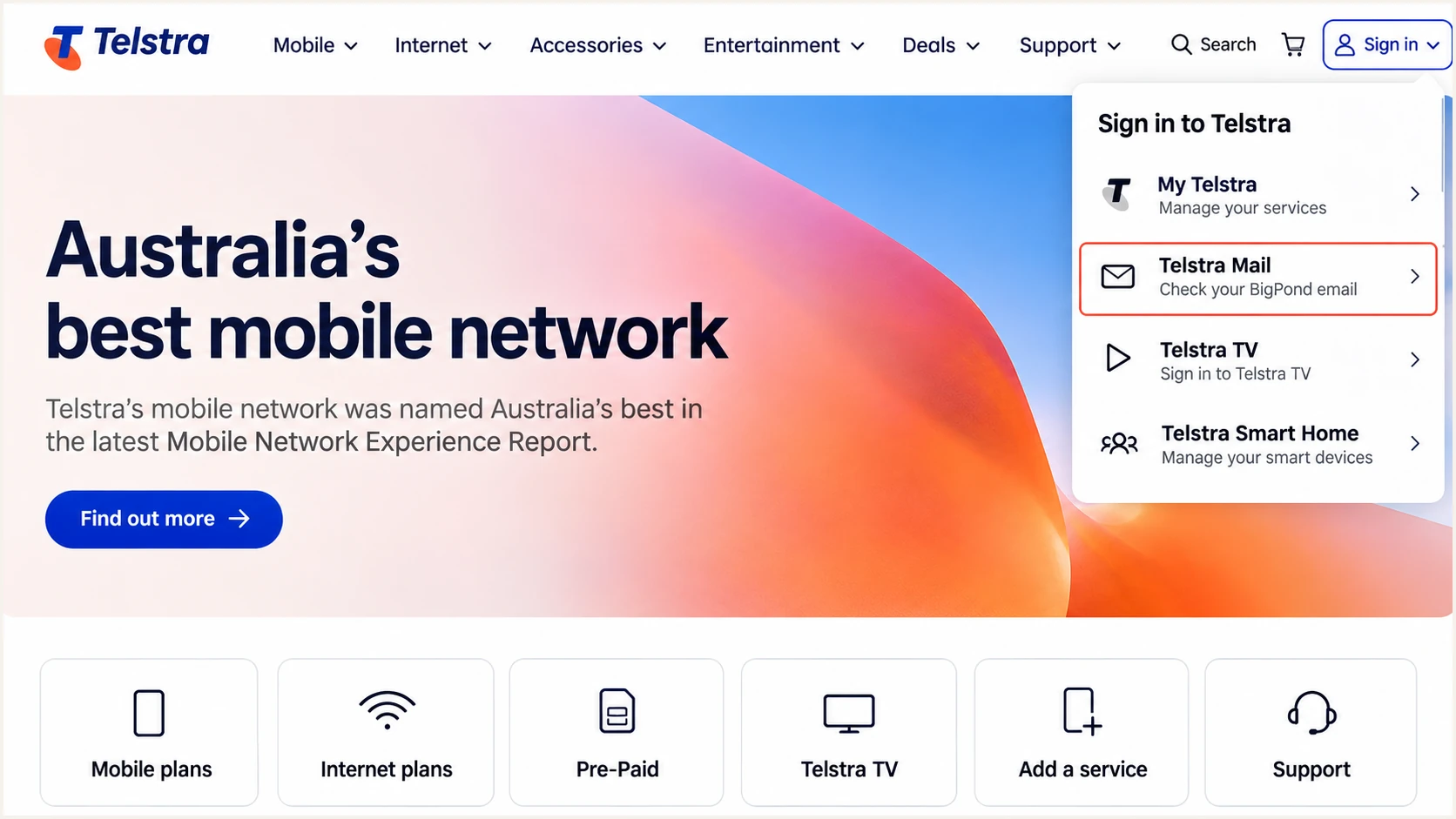
Choose Telstra Mail in Telstra's Sign in menu to access a BigPond mailbox.
The DNS instructions below apply only to a domain you own. An existing BigPond mailbox needs connection checks and authentication testing, with provider-side failures escalated to Telstra.
Set up SPF
SPF checks the sending IP against the SMTP MAIL FROM domain, normally shown in Return-Path after delivery. Telstra maintains SPF for its mailbox domains.
I first confirm the message actually leaves through Telstra's authenticated SMTP service. SMTP login and SPF are separate checks; a successful login is not proof of an SPF pass.
- Configure SMTP. Use the connection settings below in your email application's outgoing server settings. Enable authentication with your full email address and mailbox password.
- Inspect Return-Path. Send a message directly to another mailbox and inspect the recipient's original headers. Check SPF for the domain actually used in MAIL FROM.
- Confirm custom relay support. For a separately provisioned custom-domain relay, obtain Telstra's current SPF instructions and supported MAIL FROM configuration. Do not infer these settings from the SMTP hostname.
- Edit one record. For a domain you own, merge approved senders into its existing SPF TXT record. Keep one SPF record per hostname and stay within the 10 DNS-lookup term limit, including nested includes.
|
|
|---|---|
SMTP host | smtp.telstra.com |
Preferred port | 465, SSL/TLS |
Alternative | 587, STARTTLS |
Authentication | Required |
Outgoing connection settings published by Telstra for BigPond and Telstra Mail.
Use the SPF checker on the MAIL FROM domain. For a BigPond mailbox, this is a read-only inspection of Telstra's DNS, not a record you can change.
A DNS lookup validates the published policy. A delivered-message test is still necessary to establish which IP and envelope domain your account uses.
SPF checker
Find SPF syntax issues, lookup limits, and weak records.
?/16tests passed
For DMARC, an SPF pass also needs domain alignment with the visible From address. Relaxed alignment accepts the same organizational domain; strict alignment requires an exact domain match.
If your sending service does not support a custom Return-Path, an SPF entry on your business domain will not change the provider's envelope domain. Expect SPF alignment failures on that route and require passing DKIM with domain alignment instead.
Set up DKIM
DKIM signing happens on the sending server. Telstra's public BigPond setup instructions do not document a customer DKIM selector or a custom-domain signing control. I verify a received message rather than inventing a selector.
- Read the signature. In the received message's original headers, find DKIM-Signature. Record its d= signing domain and s= selector, then check the receiving server's DKIM result.
- Check DNS. Look up TXT at <selector>._domainkey.<signing-domain>, substituting the actual signature values. Follow any published CNAME target. Do not guess a selector named default or selector1.
- Check domain alignment. A passing signature must use the From domain or, with relaxed alignment, its organizational domain. A valid signature for an unrelated provider domain does not satisfy DMARC.
- Resolve signing failures. For a BigPond mailbox, give Telstra the full received headers. For your own domain, enable custom-domain signing through its actual outbound service and publish that service's supplied DNS records.
Publishing a DKIM public key alone does not enable signing. The outbound server must hold the matching private key and sign messages. Keep the private key off public DNS.
The examples below illustrate DMARC evaluation for a custom domain. They are not a claim that BigPond offers custom-domain DKIM signing.
SPF pass, DMARC fail
From: sender@example.com. Return-Path uses bigpond.com. SPF passes for bigpond.com, but SPF alignment fails for example.com.
Without a passing DKIM signature with domain alignment, this message fails DMARC.
DKIM pass, DMARC pass
From: sender@example.com. DKIM passes with d=example.com. This signature satisfies DMARC even when the Return-Path uses an unrelated domain.
DMARC requires one passing authentication method with domain alignment. Both methods do not have to satisfy it.
Set up DMARC
Only the domain owner can publish its DMARC policy. You cannot change _dmarc.bigpond.com or _dmarc.bigpond.net.au through a mailbox account.
I use the following DNS steps only for a domain under your control. BigPond mailbox users can inspect Telstra's policy with the checker, but cannot edit it.
- Read the existing policy. Check TXT at _dmarc.example.com, replacing example.com with your domain. Keep an existing quarantine or reject policy.
- Build the record. Use our DMARC record generator for a new policy. Start with p=none if the domain has no enforcement policy.
- Publish in DNS. Create one TXT record at _dmarc. Use the example below, replacing the reporting address with a real mailbox you control. Preserve existing reporting destinations when updating a record.
- Check reporting. Confirm the reporting mailbox accepts aggregate XML reports. An external reporting domain needs the required DNS authorization from that destination's operator.
Starting DMARC record for a domain you owntext
Name: _dmarc.example.com
Type: TXT
Value: v=DMARC1; p=none; rua=mailto:dmarc@example.com
In DNS editors that append the zone name automatically, enter only _dmarc as the host. If your domain's DNS is managed through Telstra Apps Marketplace, its documented path is My Apps > Account > Domain Name > Zone Manager; select TXT when adding the record.
Run the DMARC checker after saving. Verify the record is at the correct hostname and that only one applicable DMARC record is published there.
DMARC checker
Look up a domain's DMARC record and catch policy issues.
?/7tests passed
A valid DMARC record does not enable SPF or DKIM. Those methods must already pass with the required domain relationship on legitimate messages.
Monitoring starts when participating receivers send reports, commonly on a daily schedule. No reports immediately after publication is not proof that setup failed.
Preserve existing enforcement
Do not replace p=quarantine or p=reject with the p=none example. Monitoring mode requests no DMARC-based enforcement. Keep stronger existing policies while investigating individual sending failures.
Verify and troubleshoot
I test the actual sending route after every change. The email tester below provides a destination for a fresh message and a diagnosis of its authentication results.
Send directly rather than forwarding an existing message. Test webmail and each configured email application separately, because they do not necessarily use the same outbound route.
Email tester
Send a real email to this address. Suped shows a results button when the test is ready.
?/43tests passed
In Telstra webmail, use the compose control, enter the tester's displayed recipient, add a subject and message, then send. New webmail uses a circular plus control; older webmail uses New Email.
Check the receiver's trusted Authentication-Results together with From, Return-Path and DKIM-Signature. A DNS check by itself cannot prove that a particular message passed.
- SPF failure. Check the sending IP and MAIL FROM domain. For a custom domain, fix its approved sender list. For a Telstra-owned domain, escalate to Telstra.
- DKIM failure. Check the actual selector and signing domain. Missing keys, stale DNS, or message changes after signing require investigation by the signing service.
- DMARC failure. Check domain alignment even when SPF or DKIM says pass. Correct the sending identity or custom-domain configuration before tightening policy.
- Connection failure. For unauthenticated traffic errors, verify SMTP authentication and credentials. In new webmail, Webmail main menu > Settings > Support > Contact us opens Telstra's support route.
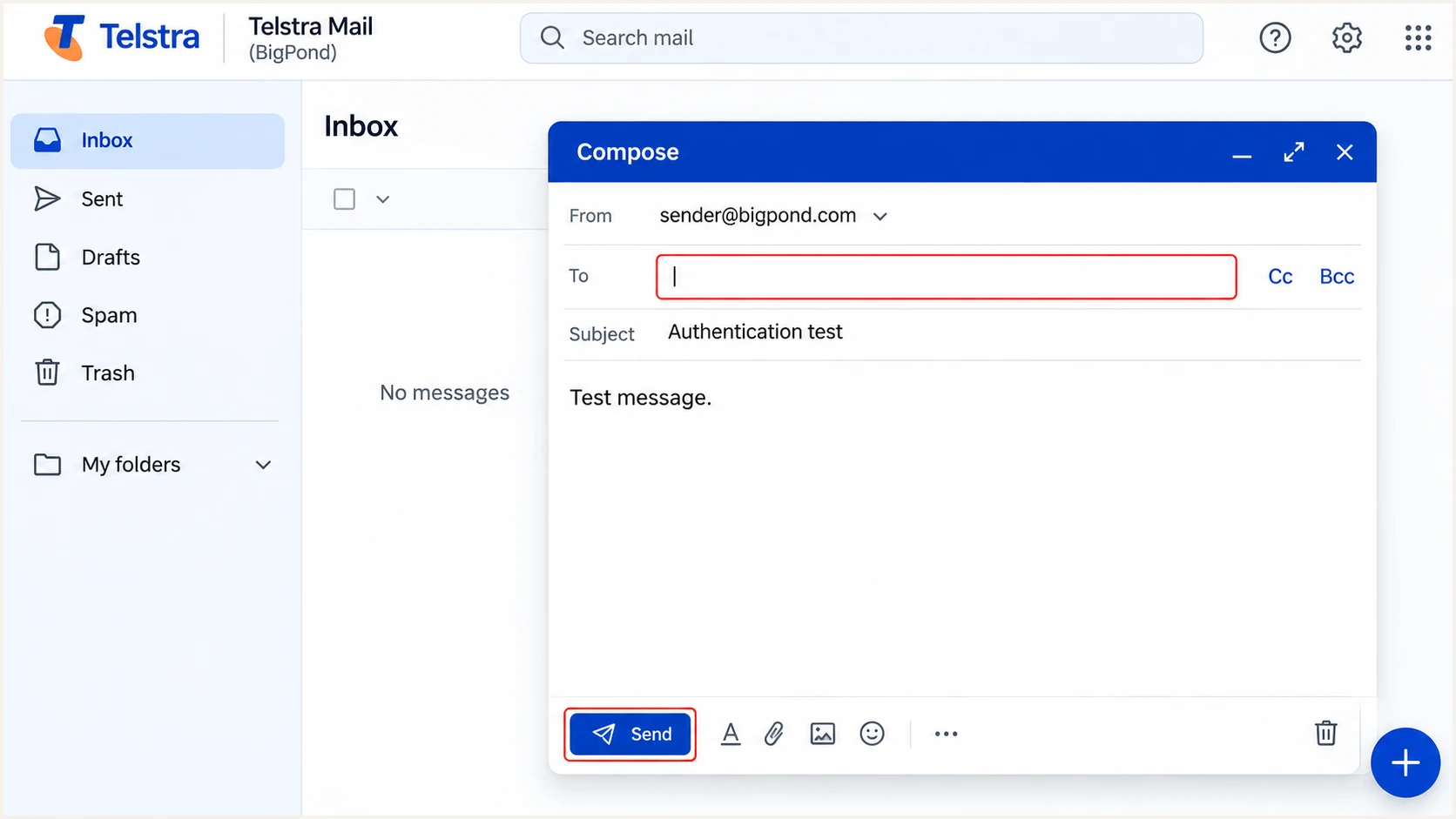
Send a new test message through Telstra Mail using the recipient displayed by the email tester.
Save the complete received headers and any bounce response with its timestamp. These give Telstra the sending route and error details needed to investigate provider-side problems.
For DNS changes, allow the previous TTL to expire, check public DNS again, and send another fresh message. A message delivered before the change retains its original authentication results.
Get alerted when it breaks
For a domain you own, Suped is our platform for ongoing DMARC monitoring. It detects authentication issues and provides steps to fix them, so failures on an established sending route do not depend on someone noticing a bounce.
I monitor individual approved sources rather than relying only on the domain's overall pass rate. A low-volume billing system can fail while most other messages pass.
- Enable notifications. In Suped's notification settings, enable Issues detected and Sending sources need verification. Enable DMARC summary emails for regular review.
- Verify sources. Confirm each source is an authorized sender before marking it verified. A BigPond rDNS name identifies infrastructure, not your permission for that source to send.
- Inspect the failure. Use Suped's data view to filter by source or sending IP. Open the detail view to inspect SPF, DKIM and DMARC results, then follow the issue's fix steps.
- Confirm recovery. Compare DNS history with the failure period, send another test, and check subsequent reports for the corrected route.
Suped cannot collect domain-owner reports for bigpond.com on behalf of an individual mailbox user. Telstra controls those reporting destinations; use message tests and Telstra support for that mailbox.
Report-based alerts follow the arrival of receiver reports. They do not provide an immediate event for every SMTP transaction.
Secure your domain with p=reject
You can enforce p=reject only on a domain you control. Telstra decides the policy for BigPond mailbox domains. I recommend enforcement for your own domain after every legitimate sending route has been checked.
- Inventory real senders. Include staff mail, invoicing systems, website forms and infrequent scheduled mail. Review reports across a period that covers those sending cycles.
- Resolve failures. Use Suped's source verification and issue diagnostics to confirm each approved route passes SPF or DKIM with domain alignment. Investigate forwarded mail and mailing lists separately.
- Stage enforcement. Move a new policy through p=none and p=quarantine before p=reject, reviewing fresh reports at each stage. Keep an existing stronger policy in place.
- Manage the change. Suped's Hosted DMARC lets you manage policy after its DNS setup. Preserve reporting and review subdomain policy inheritance before enforcing the organizational domain.
- Keep checking. Use Suped's notifications to catch new sources and authentication regressions after enforcement. A rejected message still needs investigation when its source is legitimate.
Do not promote the policy based on a high overall pass rate alone. Account for every approved source, and explain the remaining failures before enforcing rejection.
Retain your real reporting destination when changing the policy. The address below is a placeholder, and the example applies only to your own domain.
Final DMARC policy exampletext
Name: _dmarc.example.com
Type: TXT
Value: v=DMARC1; p=reject; rua=mailto:dmarc@example.com
If BigPond SMTP cannot authenticate your custom From domain, correct the outbound service before relying on it under p=reject. Adding a DMARC record will not repair that route.
DMARC rejection requests protection against unauthorized use of your exact domain. It does not guarantee inbox placement or stop messages sent with a different lookalike domain.
Frequency asked questions
No. Telstra controls DNS and signing for bigpond.com and bigpond.net.au. Configure the correct SMTP connection, test a received message, and report provider-side authentication failures to Telstra.
Only when Telstra explicitly instructs you to authorize that relay for your account and it sends using your domain in MAIL FROM. An SMTP hostname or BigPond recipient address is not sufficient evidence. Obtain the current supported settings before changing your SPF record.
Yes, for DMARC, if DKIM passes with domain alignment to the visible From address. A DKIM pass for an unrelated domain is insufficient. Providers without a custom Return-Path need that passing DKIM route; an ordinary SPF failure still deserves investigation.
Check public DNS after caches expire according to the previous TTL, then send a fresh test message. Aggregate reports commonly arrive daily and describe an earlier reporting period, so they do not confirm a change immediately.
The .bpe.bigpond.com suffix is associated with Telstra's BigPond mail infrastructure. For example, clamta04.bpe.bigpond.com appears in published BigPond mail headers. Verify the sending IP's actual PTR and forward DNS records. The hostname alone does not prove the message is authorized or passes DMARC.
No. Authenticate your own outbound email service and From domain. Receiving mail at BigPond does not authorize BigPond to send for you. If only BigPond delivery fails, inspect the exact SMTP response and your sender's authentication results before changing DNS.




