
How to set up DMARC/DKIM/SPF for BigCommerce

Published 21 Nov 2026
Updated 21 Nov 2026
9 min read
Summarize with
For BigCommerce's built-in email delivery, include _spf.bigcommerce.com in your domain's single SPF record, use its automatic DKIM signing, and publish a DMARC TXT record. With custom SMTP, authenticate the SMTP service instead. These delivery paths are described in Email in BigCommerce.
I finish by testing a real store notification. DMARC needs a passing SPF or DKIM result whose authenticated domain matches the visible From domain under your DMARC alignment settings. Automatic signing alone does not prove that match.
Add your domain
I use a store email address on a domain the business controls. If your storefront already uses that domain, keep its existing connection.
- Connect if needed. As the store owner, open Settings > Domain name. In the Account Dashboard, choose Add New under Add an existing. Enter Domain Name and Domain Extension, click Next, and follow the displayed DNS instructions.
- Set the sender. Open Settings > Store profile. Set Email to your store address, such as orders@example.com, and save.
- Verify the address. Open the verification message sent to the new address and click Verify email within 24 hours. Log into the control panel if prompted. The updated address takes effect after verification.
- Check each storefront. For Multi-Storefront, open Channels > Channel Manager, select the storefront, then Storefront settings > Contact information. Check its email address separately.
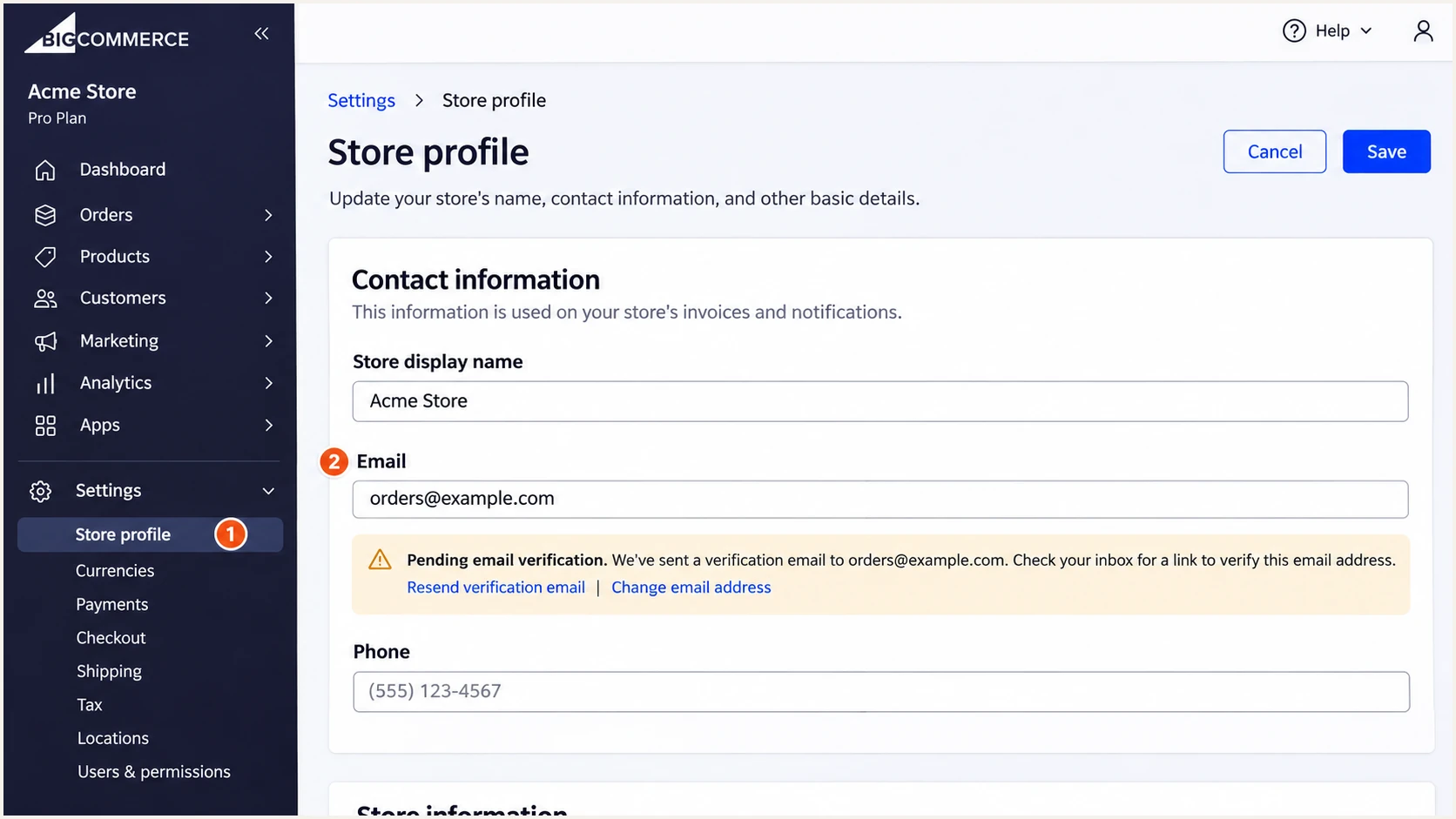
BigCommerce Store profile email field and verification notice.
Email-address verification confirms access to the mailbox. It does not publish SPF, configure DKIM, or create a DMARC policy.
Check the domain's nameservers before editing DNS. Pointing a website at BigCommerce with an A record or CNAME does not transfer DNS authority.
Set up SPF
For native BigCommerce delivery, the documented authorization is include:_spf.bigcommerce.com. I merge it into the existing SPF policy rather than create a second SPF record.
- Open authoritative DNS. With BigCommerce nameservers, use Settings > Email & DNS records > Web Hosts. Otherwise, edit the zone at your current DNS host.
- Edit the TXT record. Find the record starting with v=spf1. Insert include:_spf.bigcommerce.com before its final all mechanism, preserving other authorized senders and the existing enforcement qualifier.
- Use the correct host. In BigCommerce's Fully Qualified Host field, enter the complete domain, such as example.com, not @. Other DNS hosts accept their own relative-name format.
- Check the Return-Path. Compare the delivered message's smtp.mailfrom domain with its visible From domain. The SPF include authorizes sending IPs; it does not change the Return-Path.
SPF TXT value when BigCommerce is the only sendertext
v=spf1 include:_spf.bigcommerce.com ~all
Use this complete example only when no other senders need authorization. SPF permits one policy per hostname and at most 10 DNS-querying terms during evaluation, including nested includes.
SPF checker
Find SPF syntax issues, lookup limits, and weak records.
?/16tests passed
Check the hostname that actually carries the SPF policy. A valid SPF record at example.com does not authenticate an unrelated provider-owned Return-Path.
If the Return-Path is unrelated, confirm the supported setup with BigCommerce or your custom SMTP service. Passing DKIM with a matching signing domain still passes DMARC even when SPF alignment fails.
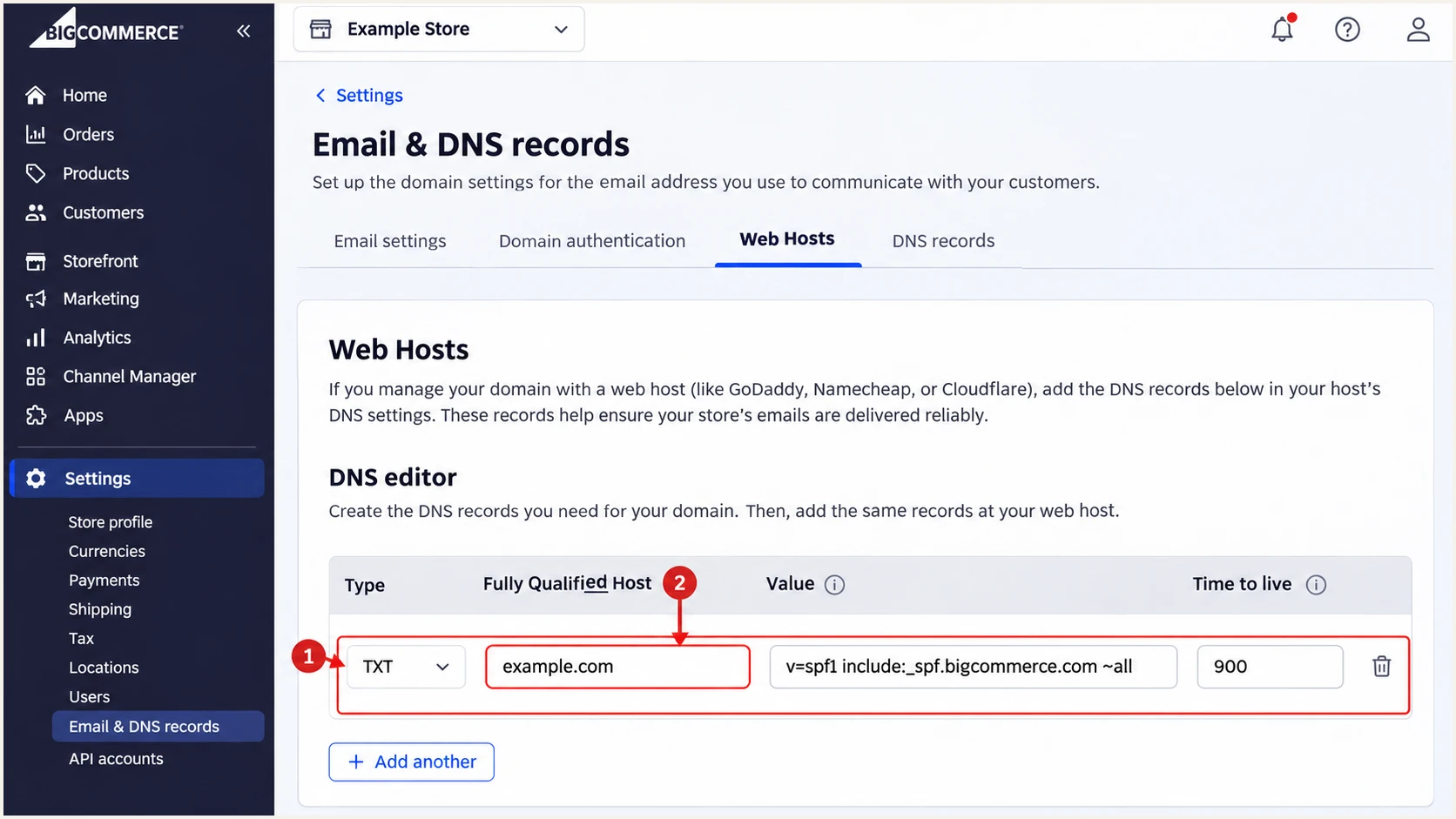
BigCommerce Web Hosts DNS editor with one SPF TXT record.
Set up DKIM
BigCommerce documents automatic DKIM signing for native store emails. There is no manual key-generation step in that setup.
I inspect the received signature's d= signing domain and the receiver's DKIM result. A passing signature using a different organizational domain does not supply DMARC alignment.
Native BigCommerce delivery
- Use automatic signing. BigCommerce handles DKIM automatically. Do not invent a selector or publish a self-generated public key.
- Verify the match. Check dkim=pass and compare header.d with header.from. Aligned SPF can independently supply the DMARC pass.
Custom SMTP delivery
- Authenticate the service. Publish the exact DKIM TXT or CNAME records issued by your SMTP service, then complete its verification.
- Connect the relay. In Settings > Miscellaneous > Use SMTP Server, enter its secure SMTP details. Click Test SMTP Settings, check Administrator's Email, then save. Port 25 is unavailable.
For custom SMTP, use that service's SPF and Return-Path instructions. The BigCommerce include does not authorize an unrelated relay.
An unrelated Return-Path is acceptable for DMARC when DKIM passes with the required domain match. Fix a DKIM failure before relying on this configuration under enforcement.
Set up DMARC
DMARC belongs in DNS for the visible From domain. I check existing policy first so a store change does not weaken protection already in place.
- Preserve enforcement. Keep an existing p=quarantine or p=reject policy, including an inherited parent-domain policy. Fix BigCommerce authentication without switching it to p=none.
- Create a first policy. If no applicable DMARC policy exists, add one TXT record at _dmarc.example.com using the monitoring example below.
- Set the DNS fields. In BigCommerce Web Hosts, choose Add another, select TXT, enter the full _dmarc.example.com hostname, and paste the value. Use TTL 900 if supported, then save.
- Use a working destination. Replace dmarc@example.com with your actual aggregate-report address. It is a placeholder, not a reporting service.
Initial DMARC TXT value for _dmarc.example.comtext
v=DMARC1; p=none; rua=mailto:dmarc@example.com
p=none requests monitoring without quarantine or rejection based on DMARC failure. It does not stop domain impersonation. Publish one DMARC record at this hostname, not separate records for each sender.
Use the DMARC record generator to build the policy with your real reporting destination. For an external report collector, complete any required external reporting authorization.
DMARC checker
Look up a domain's DMARC record and catch policy issues.
?/7tests passed
Query the domain used in From, which is not necessarily the storefront's www hostname. Check the published policy and reporting address after DNS caches refresh.
Keep relaxed alignment unless you have a specific requirement for strict matching. Strict settings require exact domain matches and can break otherwise valid subdomain-based sending.
Verify and troubleshoot
I test both DNS publication and an actual store email. DNS checks alone cannot prove that BigCommerce used the expected sender identity.
- Send a template test. Open Marketing > Transactional Emails, choose the intended storefront, open the template's Action menu, and select Edit template. Click Send test email; it goes to your user account email address.
- Exercise real events. Place a controlled test order and trigger an enabled order-status notification. Test each distinct sending route and storefront; a template preview does not cover them all.
- Inspect trusted results. Use the receiving mailbox's original-message view. Check spf, dkim, and dmarc in its Authentication-Results, then compare smtp.mailfrom and header.d against header.from.
- Separate missing mail. Check Settings > Order notifications and Marketing > Transactional Emails for disabled status notifications or templates. Preserve bounce messages for diagnosis.
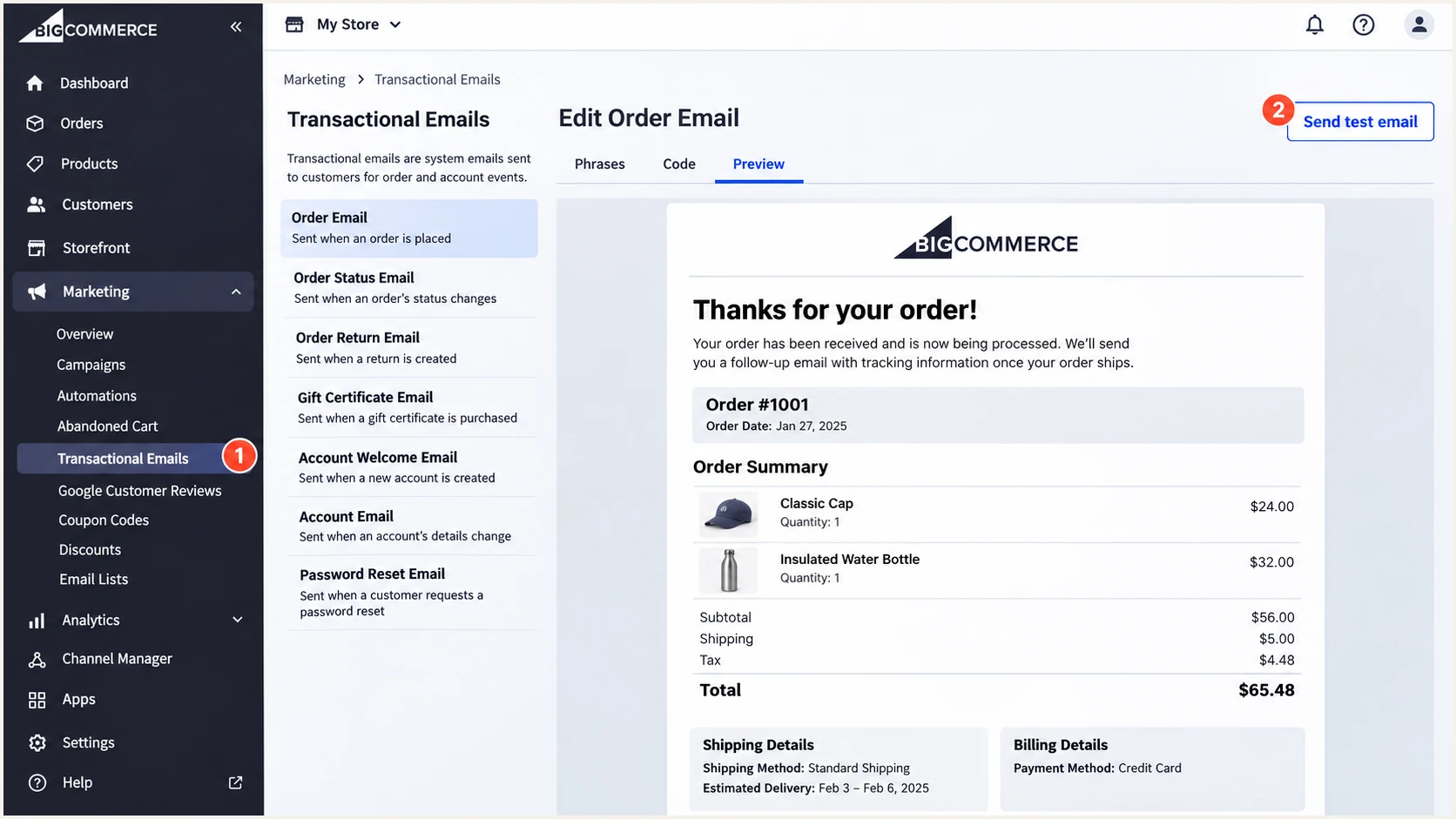
BigCommerce transactional email preview and Send test email button.
For a quick diagnosis, use the tester below and follow its instructions to send a fresh message from the store. For order emails, use its destination for a controlled test customer's email address.
Do not forward an existing notification to the tester, because forwarding changes the delivery path. BigCommerce's template-test button sends to your account address, so it is a separate check.
Email tester
Send a real email to this address. Suped shows a results button when the test is ready.
?/43tests passed
The email tester diagnoses the received message's authentication and reports delivery-related checks. Confirm a DMARC pass with the intended From domain before enabling enforcement.
Use the failing result to select the next action. An SPF alignment failure alone does not mean DMARC failed when a valid, matching DKIM signature is present.
|
|
|
|---|---|---|
SPF permerror | Duplicate policy or lookup limit | Merge records; inspect lookups |
DKIM fail | Key or signature problem | Check actual selector and signer |
DMARC fail | Neither method matches | Compare authenticated domains |
No notification | Template or event disabled | Check notification settings |
Diagnose authentication failures separately from message generation.
A blocklist (blacklist) rejection needs separate investigation. For native delivery, send BigCommerce support the complete bounce and sending IP; changing DMARC does not remove an IP listing.
Get alerted when it breaks
I keep monitoring active after the first successful test. Suped, our DMARC monitoring platform, turns aggregate reports into source-level authentication results and actionable issues.
- Enable issue emails. In Suped's notification settings, enable Issues detected and select the recipients responsible for store email authentication.
- Review new sources. Enable Sending sources need verification. Confirm that a new IP or relay belongs to an authorized sending workflow before marking the source verified.
- Investigate the failure. Open the affected source and inspect its SPF and DKIM results. Use the issue's fix steps, check DNS history, and retest a BigCommerce notification after correcting the cause.
- Keep a summary. Enable DMARC summary emails to review changing volume and authentication trends alongside issue notifications.
Suped detects issues when the underlying data arrives. Aggregate DMARC reports are typically delivered daily, so report-based alerts are not an instant warning for every failed order email. Retain BigCommerce bounce handling and operational checks.
Secure your domain with p=reject
I move to rejection only after legitimate senders consistently pass DMARC across a representative business cycle. A single successful BigCommerce test is insufficient.
- Inventory every sender. Use Suped's source table to verify BigCommerce and every other authorized service using the same From domain. Include infrequent billing or account messages.
- Resolve legitimate failures. Use Suped's record details and issue instructions to fix failing authorized sources. Separate unauthorized traffic from broken store notifications.
- Stage the policy. After monitoring is clean, apply p=quarantine, review legitimate delivery and fresh reports, then change to p=reject. Keep existing quarantine or rejection policies while fixing new routes.
- Check subdomains. Review the parent policy and any subdomain overrides. Test storefront-specific From addresses and confirm their effective policy before enforcement.
Suped's Hosted DMARC lets the team manage policy changes in the dashboard after its DNS setup. Use the same reporting data to verify legitimate sending before and after each change.
Final policy example, with your real reporting address substitutedtext
v=DMARC1; p=reject; rua=mailto:dmarc@example.com
Keep reporting enabled after rejection. Retest after SMTP changes or sender-address changes, and retain working DKIM records during any key rotation.
Frequency asked questions
It is BigCommerce's documented SPF include for native store email. Merge it into the applicable SPF policy when BigCommerce sends your mail. Do not add nested includes observed in DNS unless the service's own instructions require them.
An rDNS hostname alone does not prove that BigCommerce sent a message for your store. Compare the connecting IP with the published SPF authorization and your store activity. Custom SMTP uses the relay's rDNS, which is not a fixed BigCommerce identifier. Do not authorize a source solely because its hostname looks familiar.
No. Native signing is automatic. For custom SMTP, use the DKIM records issued by that service. In either case, inspect a delivered message to establish whether DKIM passes with the domain match DMARC requires.
SPF authenticates the envelope sender domain, not the visible From address. If those domains do not match under the applicable rules, SPF cannot supply a DMARC pass. A valid DKIM signature with the required domain match supplies the other path.
No. Keep enforcement and repair the failing sending route. p=none is an initial monitoring policy for domains without an applicable policy, not a required BigCommerce onboarding step.
BigCommerce's public native-email instructions do not document a separate custom Return-Path setup screen. Inspect the actual delivered message and ask support to confirm the configuration for your sending route. For custom SMTP, follow the service's documented Return-Path options; adding an SPF include does not change it.




