
How to set up DMARC/DKIM/SPF for Astound

Astound manages SPF, DKIM and DMARC for its own mailbox domains, including astound.net and rcn.com. Customers cannot edit those domains' authentication records. For a domain you own, publish SPF for the actual outbound servers, enable DKIM signing through the mail operator, and publish DMARC in your authoritative DNS.
I check domain ownership and the outbound route first. Astound's public support documentation describes regional mailbox settings, but does not establish a universal custom-domain SPF include, DKIM selector, or domain-verification workflow. Get those account-specific details before changing DNS. An Astound internet connection alone does not make Astound your domain's email host.
Confirm your sending domain
Astound's public 'Email Login & Support' page routes customers to their existing mailbox service. There is no documented custom-domain onboarding procedure on that page, so I verify the account's capabilities before treating it as a custom-domain sending service.
- Identify the domain. Read the address in the visible From field. For an Astound-owned address, use the existing mailbox and ask Astound to investigate authentication failures. Continue with DNS changes only for a domain you control.
- Open your mailbox. On Astound's website, open Support, then Email. Select the option matching your address, such as @astound.net, @rcn.com, @mygrande.net or @wavecable.com, and sign in.
- Confirm custom sending. For your own domain, ask Astound to confirm domain hosting or relay authorization, the ownership-verification requirement, the custom Return-Path setup, and the exact SPF and DKIM DNS values. Publish a verification record only when supplied for your account.
- Check DNS access. Locate the authoritative DNS provider and save the existing SPF and DMARC records. Changing a mailbox display name or From address does not verify domain ownership.
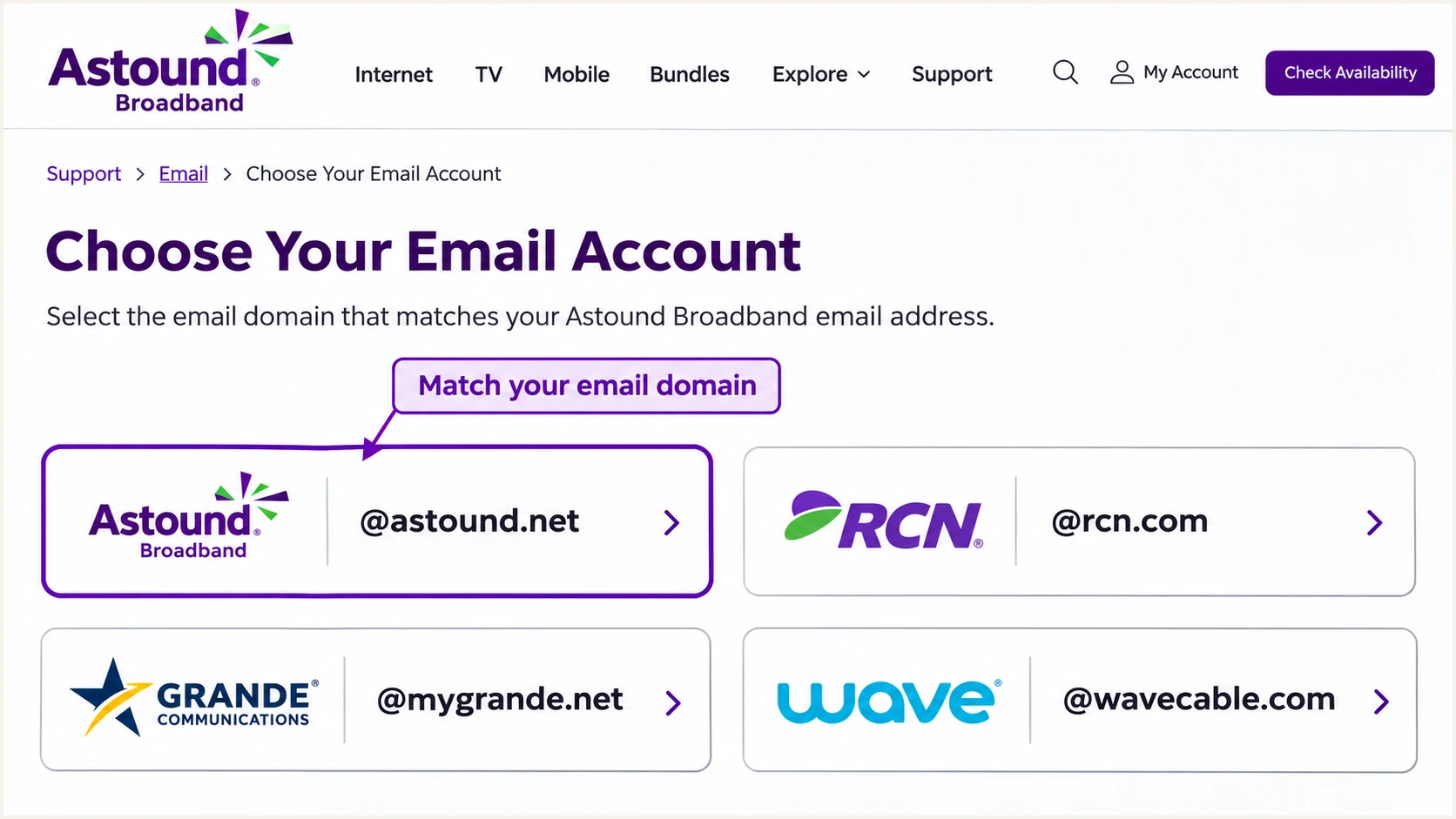
Choose the Astound webmail option that matches your email address.
For a customer-owned domain, distinguish an Astound-managed relay from a server you operate on an Astound connection. The operator of the outbound server controls DKIM signing and the envelope sender.
Astound-owned mailbox
Astound controls domain DNS and server signing. Use the correct account and SMTP service; send a failing message's headers to support. A customer cannot publish a replacement policy for rcn.com or astound.net.
Your own sending domain
You control authentication DNS. The relay operator supplies its records, or you configure your own server. Astound Business's internet FAQ says hosting an email server requires a static IP; confirm routing and PTR support separately.
Set up SPF
SPF authorizes the server sending the message for its envelope-sender domain, usually visible in Return-Path. I inspect a delivered message before editing the From domain's SPF record.
- Confirm Return-Path. For custom-domain sending, have the operator configure an envelope sender under your domain, such as bounce.example.com. Verify the received message actually uses it. A visible From address change does not change Return-Path.
- Get authorized values. Request Astound's account-specific SPF include or outbound IP ranges. Do not assume include:astound.com, use an SMTP hostname as an include, or copy Astound's corporate SPF record.
- Edit one record. At the envelope-sender domain, merge the supplied authorization into the existing TXT record beginning v=spf1. Keep other authorized senders. Publish only one SPF record per name and stay within the 10-term DNS lookup limit, including nested evaluations.
- Handle your own server. If you operate the outbound server on an Astound static IP, authorize its actual public egress IP. Add IPv6 authorization only if that server also sends over IPv6.
Illustration only: a single self-operated outbound servertext
Name: example.com
Type: TXT
Value: v=spf1 ip4:192.0.2.10 -all
192.0.2.10 is a documentation address, not an Astound sending IP. Replace it with your actual static outbound IP, and preserve all other legitimate sending sources. Do not use this example for Astound's shared mailbox service.
Enter the actual envelope-sender domain in the SPF checker below. A DNS check confirms record syntax and lookup behavior; the received message establishes which server and domain were evaluated.
SPF checker
Find SPF syntax issues, lookup limits, and weak records.
?/16tests passed
Under relaxed SPF alignment, bounce.example.com and a visible From address at example.com share the same organizational domain. Strict SPF alignment requires the domains to match exactly.
If a particular account cannot use a custom Return-Path, adding SPF to your From domain does not fix SPF alignment. Expect that alignment failure and require passing DKIM with a signing domain that matches the From domain under your DMARC policy. That DKIM result can still make DMARC pass.
Set up DKIM
DKIM needs signing on the outbound server and a corresponding public DNS key. I do not generate an unrelated key and expect Astound's servers to use it.
- Request signing details. For an Astound-managed custom-domain account, obtain the signing domain, selector, DNS type and complete TXT value or CNAME target. Public mailbox instructions do not supply a customer-configurable selector.
- Publish the key. Add the supplied record at selector._domainkey under the signing domain. Keep the host and value exact. A CNAME selector cannot also have a TXT record at the same name.
- Enable the signer. Ask the operator to verify DNS and activate custom-domain signing. For a server you operate, configure its DKIM signer and protect the private key; publish only its public key.
- Verify a message. Send through the production route. Check d= and s= in DKIM-Signature, then confirm dkim=pass in the receiving server's Authentication-Results. The signing domain must match the visible From domain under the configured alignment mode.
Look up the selector from the actual message headerbash
# Replace SELECTOR and example.com with the message's s= and d=.
dig +short TXT SELECTOR._domainkey.example.com
dig +short CNAME SELECTOR._domainkey.example.com
A DNS key alone does not sign mail
If Astound confirms that custom-domain DKIM is unavailable for your service, that route cannot provide DKIM authentication for your domain. Passing SPF with a matching envelope-sender domain still satisfies DMARC, but forwarding often breaks SPF. Resolve the signing limitation before relying on that route under enforcement.
Set up DMARC
Publish DMARC for a domain you own. Start with p=none when there is no enforcement policy. If the domain already uses p=quarantine or p=reject, keep that policy while correcting the sending configuration.
- Inspect the current policy. Look up TXT at _dmarc.example.com. Edit an existing DMARC record rather than creating a second one. Substitute your domain wherever example.com appears.
- Prepare reporting. Create a working aggregate-report mailbox or use a reporting service's assigned address. Replace dmarc@example.com before publishing. An external reporting domain needs the receiver authorization required for third-party reporting.
- Publish the record. In authoritative DNS, add TXT with host _dmarc, or the full name if your DNS editor requires it. Use the monitoring example below for a new policy and preserve existing enforcement when applicable.
- Confirm public DNS. Recheck after the previous TTL expires. Confirm one valid record and the intended reporting destination. DMARC is published in DNS, not enabled through an Astound webmail preference.
Initial monitoring policy for a domain without enforcementtext
Name: _dmarc.example.com
Type: TXT
Value: v=DMARC1; p=none; rua=mailto:dmarc@example.com
Use the DMARC record generator to build the record with your real reporting address. The example address does not collect reports for your domain.
Check your visible From domain below. The checker verifies DNS publication; a test message confirms that the actual sending route passes DMARC.
DMARC checker
Look up a domain's DMARC record and catch policy issues.
?/7tests passed
A message passes DMARC when either SPF passes with the required domain match, or DKIM passes with the required domain match. Both mechanisms do not have to pass, although configuring both gives the sending route better resilience.
p=none requests monitoring without DMARC-based quarantine or rejection. It does not improve a broken SPF or DKIM result, and it does not guarantee inbox delivery.
Verify and troubleshoot
I test a message sent through the actual Astound mailbox or relay, using the production From address. A message sent through a different server does not validate this configuration.
- Check submission. Astound's 'Email and Server Settings for All Markets' lists regional SMTP hosts. For rcn.com, it lists smtp.rcn.com with authentication and TLS on port 587. For astound.net, the listed host is mail.astound.net with STARTTLS on port 587. Use the settings for your actual service.
- Read receiver results. Use the destination mailbox's trusted Authentication-Results. Compare header.from, smtp.mailfrom and header.d. Distinguish a protocol pass from a domain-alignment pass.
- Diagnose the failure. For SPF, compare the actual public sending IP with the envelope domain's authorization. For DKIM, check the selector lookup and whether the server signed with your domain. For DMARC, check the domain match and duplicate policy records.
- Fix login errors separately. Astound documents error 554 5.7.1 [R8] as an SMTP authentication failure. Check outgoing-server authentication and mailbox credentials before changing DNS.
|
|
|---|---|
SPF pass, DMARC fail | Envelope domain match |
DKIM pass, DMARC fail | Signing domain match |
DKIM absent | Outbound signer |
SPF permerror | Duplicates and lookups |
554 [R8] | SMTP login |
Use the receiving server's results to choose the next diagnostic step.
The quicker end-to-end check is the email tester. Send a fresh message to the address it provides, using the route you want to validate.
The resulting diagnosis checks the received message's authentication and delivery-related settings. Keep the message headers so the operator can investigate the exact source IP, envelope domain and DKIM selector.
Email tester
Send a real email to this address. Suped shows a results button when the test is ready.
?/43tests passed
After each correction, send another message. A previously delivered message keeps its original authentication results even after DNS changes.
Repeat for every production route, including webmail and SMTP clients if both are used. Then review aggregate reports after receivers submit them, commonly within 24-48 hours; report arrival is not immediate.
Get alerted when it breaks
For domains you control, Suped, our DMARC reporting platform, turns incoming reports into source-specific authentication issues and notifications. I use those results to catch failures that a one-time DNS check misses.
- Enable issue notifications. In Suped's notification settings, enable Issues detected. Use the reported domain and authentication details to identify the broken sending route.
- Review sending sources. Enable Sending sources need verification. Check unfamiliar sources before marking them as legitimate; an Astound or RCN network name alone is not authorization.
- Investigate failures. Open the affected source and inspect its SPF and DKIM diagnostics. Follow the issue's steps to fix, then verify the correction with a new message and subsequent reports.
- Keep a recurring review. Enable DMARC summary emails to review sending volume and authentication trends. Check failures after relay changes or DKIM key rotation.
Suped's DMARC monitoring connects those checks with ongoing report analysis. Notifications based on aggregate reports depend on receiver submission timing; they are not a live notification for every failed message.
Astound-owned domains stay with Astound
If your address ends in an Astound-owned domain, its DNS policy and aggregate reporting remain Astound's responsibility. Give support the failed message's complete headers and sending time. Customer mailbox access does not grant domain-level monitoring control.
Secure your domain with p=reject
Move your own domain to p=reject after every legitimate sending route passes DMARC. I base the decision on verified sources and representative traffic, including infrequent business mail.
- Complete the inventory. In Suped, review each source using your domain. Verify legitimate sources, investigate unknown traffic, and fix failures individually. A high overall pass rate does not prove every business process works.
- Test difficult routes. Test forwarding and any systems that modify messages. Passing DKIM is especially useful when forwarding breaks SPF. Keep strict alignment disabled unless every sender supports it.
- Stage enforcement. For a new monitoring deployment, move to p=quarantine and inspect failures before p=reject. An already enforced domain should keep its current policy while you fix individual sources.
- Control policy changes. Use Suped's policy controls through Hosted DMARC when configured, or edit your existing DNS TXT record. Preserve reporting and review how the policy affects subdomains and any explicit subdomain records.
- Verify the change. Confirm the public policy, send fresh test messages, and keep issue notifications enabled. Resolve failures with the sender's SPF or DKIM configuration rather than authorizing an entire ISP network.
Final policy example after legitimate senders are verifiedtext
Name: _dmarc.example.com
Type: TXT
Value: v=DMARC1; p=reject; rua=mailto:dmarc@example.com
Replace the reporting address with your active destination. Suped's Hosted DMARC provides policy management through the dashboard after its DNS setup is complete. Its source diagnostics help identify what needs fixing before changing enforcement.
Reject does not repair authentication
p=reject asks receivers to reject messages that fail DMARC, including legitimate messages with a broken sending configuration. Receivers apply their own handling policies. Keep the saved policy value available and investigate affected legitimate sources immediately after enforcement changes.
Frequency asked questions
No. Astound controls those domains' DNS and authentication policy. Configure the correct mailbox and SMTP settings, then contact Astound with complete message headers if authentication fails. You can publish DMARC only for a domain whose DNS you control.
Astound's reviewed public support articles do not specify universal customer-domain values. Request the exact authorization and selector for your account. Do not infer an SPF include from the website domain or assume a selector named default. For a server you operate, use its real public sending IP and configured selector.
Yes. Passing DKIM with the required match between its signing domain and the visible From domain is sufficient. If the route uses a provider-owned Return-Path, adding SPF to your From domain does not change that envelope domain or fix its alignment.
Treat rcn.net as a clue to Astound/RCN infrastructure, not proof of a particular sending application or authorized sender. I confirm the source IP against trusted Received headers and the SPF and DKIM identities. Network ownership alone does not distinguish provider mail servers from customer-operated servers.
There is no fixed waiting period. Review enough representative traffic to include every legitimate workflow, correct each failing source, and test the actual sending routes. Aggregate reports commonly arrive within 24-48 hours, but infrequent workflows need a longer observation window. Keep an existing quarantine or reject policy during routine sender repairs.




