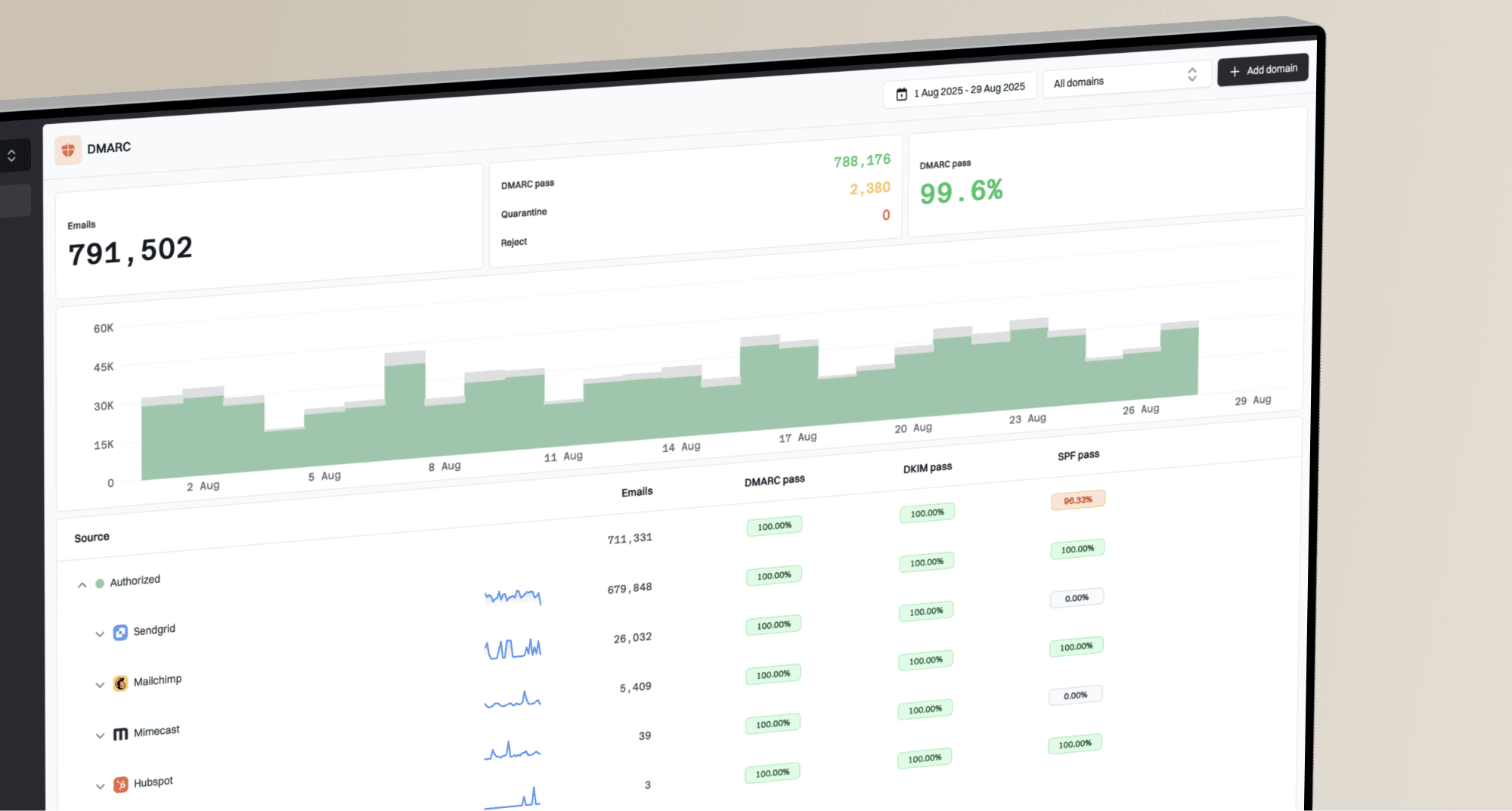
How to set up DMARC/DKIM/SPF for Arventa

To authenticate Arventa email, have Arventa authorise your sending domain, publish the SPF and DKIM records it supplies, and publish a DMARC policy for your visible From domain. I verify the result with a real Arventa notification: DMARC needs a passing SPF or DKIM result with domain alignment.
I could not verify a universal Arventa SPF include, DKIM selector, or self-service authentication menu in its public material. Obtain the current values and activation instructions for your account before changing DNS. Arventa supports Return-Path alignment, so request it alongside custom DKIM.
Add your domain
I start with the exact address Arventa will put in the From header, such as notifications@example.com, and access to that domain's authoritative DNS.
The Arventa website lists info@arventa.com.au as a contact address. Use your existing support contact first, or ask that address to route your domain-authentication request.
- Identify the account. Give Arventa your organisation, account identifier and intended From address. Ask it to register or authorise that sending domain for your account.
- Confirm the sending route. Ask whether notifications use Arventa's mail servers or a separately configured SMTP relay. Authenticate the system that actually delivers your messages.
- Request the records. Ask for ownership-verification instructions, SPF authorisation, DKIM selector and public DNS value, plus the custom Return-Path hostname and any required bounce-routing records.
- Verify ownership. Publish the exact verification record or complete the mailbox challenge Arventa specifies. Ask support to confirm authorisation and activate the sender before testing.
A domain appearing in an account profile does not prove that outgoing mail is authenticated. Keep Arventa's confirmation with the DNS change request.
The public contact details below provide a route to request account-specific instructions. They are not a domain-verification screen.
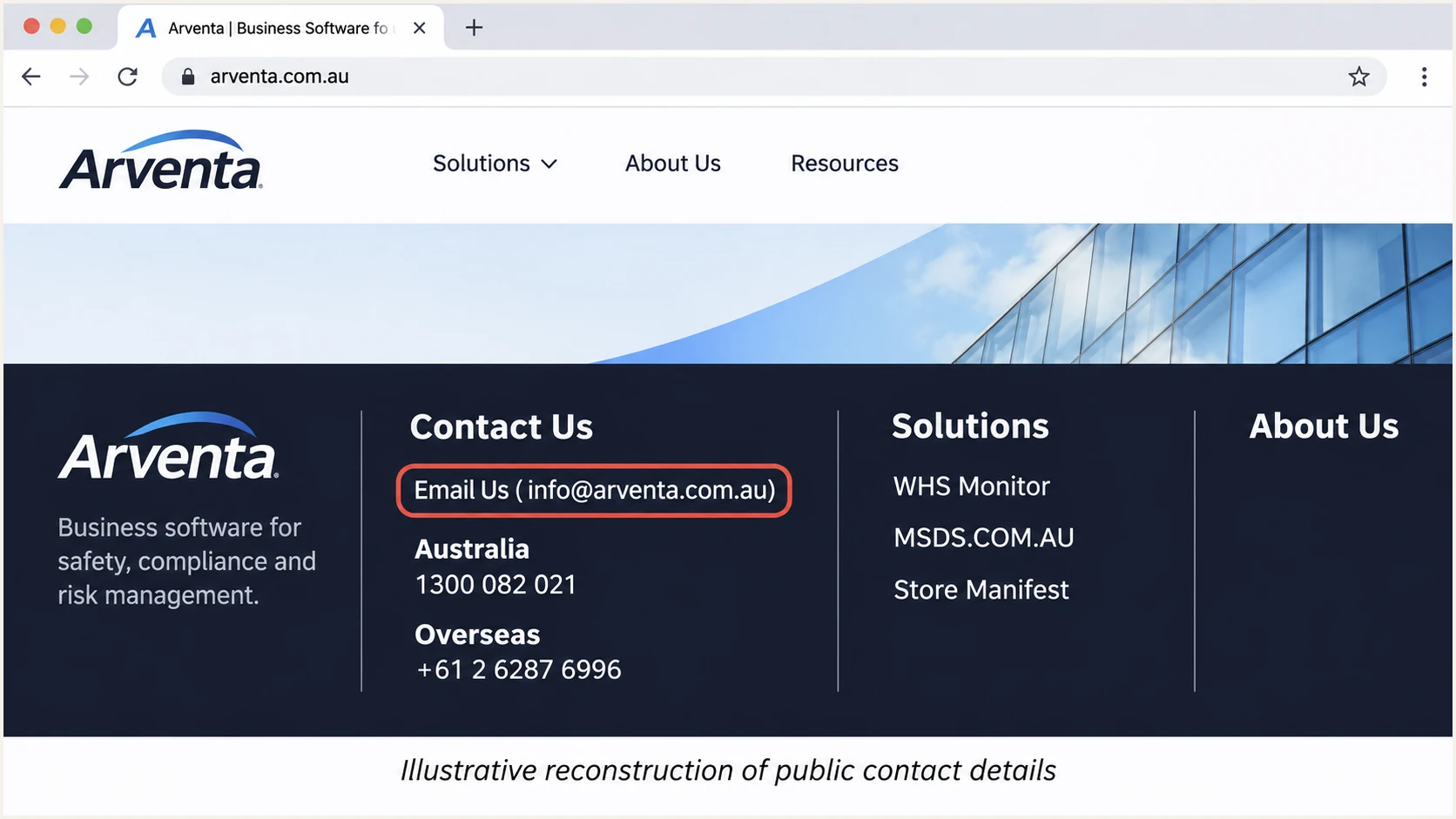
Illustrative reconstruction of Arventa's public contact details for requesting sender authentication.
I ask Arventa to confirm the signing domain and envelope-sender domain explicitly. A branded display name changes neither identity.
If a custom SMTP relay handles delivery, obtain the DNS instructions from its administrator. Arventa's own corporate DNS is not a template for your domain.
Set up SPF
SPF authorises the sending IP for the envelope-sender domain, normally visible in Return-Path. I inspect that domain before deciding which DNS record to edit.
For a From address at example.com, bounce.example.com supports relaxed SPF alignment. With strict SPF alignment, the envelope-sender domain must exactly match the From domain.
- Confirm the hostname. Ask Arventa to enable the agreed custom Return-Path. Establish whether its SPF record belongs at your root domain or a dedicated bounce subdomain.
- Publish the authorisation. Use only the include, IP addresses or DNS delegation Arventa confirms. For an existing SPF TXT record, merge the required authorisation before its final all mechanism.
- Keep one SPF policy. Publish one v=spf1 record per hostname. Preserve existing authorised senders and keep DNS-querying mechanisms and modifiers within the 10-term evaluation limit, including nested includes.
- Check the actual domain. Use the SPF checker below on the envelope-sender domain. If Arventa requires a CNAME, do not also publish TXT or other records at that same hostname.
These lookup commands use example domains. Substitute the actual Return-Path hostname agreed with Arventa.
An SPF record at example.com does not automatically apply to bounce.example.com. Check the hostname the receiver will evaluate.
Inspect the root and bounce-domain DNSbash
dig +short TXT example.com
dig +short TXT bounce.example.com
dig +short CNAME bounce.example.com
Do not guess include:arventa.com.au or copy an IP from an old report. Neither establishes Arventa's current authorisation instructions.
Use the checker to find syntax problems and excessive lookups. A real message test later confirms whether the sending IP actually passes.
SPF checker
Find SPF syntax issues, lookup limits, and weak records.
?/16tests passed
If a message still uses an Arventa-owned Return-Path, changing your root SPF will not fix its SPF alignment. Ask support to activate the custom Return-Path.
Where a sending route retains a provider-owned Return-Path, expect SPF alignment errors. A passing DKIM signature with domain alignment still passes DMARC; no customer SPF edit is needed for that route.
Set up DKIM
For DKIM to satisfy DMARC, Arventa's signing domain must match your From domain under the selected alignment mode. Publishing a public key alone does not enable signing.
I obtain the selector and DNS value from the team operating the outbound server. They retain the private key.
- Request custom signing. Ask Arventa for the DKIM signing domain, selector, record type and complete public value. Request a 2048-bit RSA key where its signing service supports it.
- Publish the record. Add the supplied TXT key or CNAME target at the exact selector hostname under _domainkey. Follow your DNS host's rules for automatically appended domain names.
- Activate signing. Ask Arventa to verify the published record and enable signing for your sending domain. Publish every selector it requires for normal sending and key rotation.
- Check a delivered message. Inspect d= and s= in DKIM-Signature. Confirm dkim=pass in the receiving server's Authentication-Results, then compare the signing domain with the From domain.
With relaxed DKIM alignment, the signing domain and From domain share the same organisational domain. Strict alignment requires an exact domain match.
Use the DNS method Arventa supplies. TXT and CNAME are alternative publishing methods for a selector, not records to combine at one hostname.
TXT key
Publish Arventa's complete public-key value at the supplied selector hostname. Preserve the key characters when your DNS host splits a long TXT value into strings.
CNAME delegation
Point the selector hostname to Arventa's supplied target. Keep the record DNS-only when your DNS host offers proxying, and avoid other records at that name.
I keep retired public keys available while previously signed messages can still be verified. Coordinate removal with Arventa's key-rotation instructions.
If Arventa confirms custom DKIM is unavailable for your sending route, obtain a passing SPF result with Return-Path alignment. Ask about a supported SMTP relay if you require DKIM as well.
Set up DMARC
DMARC is a policy on your From domain, not an Arventa-specific setting. I check for an existing policy before adding or replacing anything.
Start with p=none if you have no enforced policy. If your domain already uses p=quarantine or p=reject, keep that policy while correcting Arventa's authentication.
- Inspect the policy. Look up _dmarc on the visible From domain. Check inherited parent-domain policy when that hostname has no record.
- Prepare reporting. Choose a working mailbox or reporting destination that processes aggregate XML reports. Replace dmarc@example.com with that destination.
- Publish one record. For a new monitoring policy, add the TXT value below at _dmarc.example.com. Edit an existing policy rather than publishing a duplicate.
- Verify DNS. Query the From domain with the DMARC checker below. Confirm the intended policy and reporting address are visible after cached records expire.
Build the TXT value with our DMARC record generator. Select monitoring and your reporting recipient, then copy the generated value into DNS.
The following is the requested starting template. Replace the example domain and mailbox before publishing; the example address does not collect your reports.
New monitoring policy at _dmarc.example.comtext
v=DMARC1; p=none; rua=mailto:dmarc@example.com
Keep existing alignment settings unless you have reviewed their effect. Omitting aspf and adkim uses relaxed alignment.
A valid record confirms policy syntax. It does not prove Arventa is sending correctly, so check live DNS here and test an actual notification next.
DMARC checker
Look up a domain's DMARC record and catch policy issues.
?/7tests passed
For a reporting destination on another domain, confirm that its operator has published the required external reporting authorisation.
The p=none policy requests monitoring without DMARC-based quarantine or rejection. Receivers still apply their own spam and security filters.
Verify and troubleshoot
I test the same Arventa workflow that sends production notifications. A message sent manually through another mailbox does not validate Arventa's sending path.
Use a harmless test notification. Keep its receiving-server authentication results and timestamp with your setup notes.
- Get a test recipient. Open the email tester below and copy its unique destination address.
- Send through Arventa. Use that address as the recipient of a test notification or a test account you control. Trigger the normal workflow and send directly, without forwarding.
- Inspect the diagnosis. Check the sending IP, Return-Path, DKIM signing domain and DMARC result. Confirm a passing authentication method has domain alignment.
- Retest changes. After correcting DNS or activating signing, send a new message. Repeat for each distinct sending domain and notification route.
Our email tester receives the message and diagnoses its authentication and sending configuration. It is the quickest end-to-end check of this setup.
Keep the widget open while sending. If no message arrives, check Arventa's delivery logs or ask support for the SMTP response and message identifier.
Email tester
Send a real email to this address. Suped shows a results button when the test is ready.
?/43tests passed
A clean DNS lookup and a failing message indicate different problems. Use the message's actual domains and selector when investigating.
I use these results to choose the next fix. Only trust Authentication-Results added by the receiving system you control or the tester.
|
|
|
|---|---|---|
SPF permerror | Invalid policy | Duplicates or lookups |
SPF unaligned | Return-Path mismatch | Custom bounce domain |
DKIM missing | Signing inactive | Arventa activation |
DKIM fail | Key or message issue | Selector and DNS value |
DMARC fail | No matching pass | SPF and DKIM domains |
Common authentication results and the next check.
If DNS is missing, check for an accidentally doubled domain suffix and confirm you edited the authoritative zone. Cache lifetimes determine when old answers disappear.
A DMARC pass does not guarantee inbox placement. If authentication passes but delivery fails, use the receiving server's rejection response to investigate the remaining issue.
Get alerted when it breaks
Suped is our DMARC platform for tracking Arventa authentication after setup. It identifies sending sources and turns reported failures into issues with steps to fix them.
With aggregate reports already flowing to Suped, I use source verification and notifications to make authentication failures actionable. One successful test does not cover later sending changes.
- Verify the source. On Issues, review the Arventa source against your account and test message, then mark it verified. Suped tracks authentication issues for verified sources.
- Enable issue alerts. Open Settings, then Notifications. Expand Issues detected and add the people responsible for DNS and Arventa administration.
- Review new sources. Add recipients under Sending sources need verification. Investigate new infrastructure before confirming it belongs to your organisation.
- Keep a review cadence. Enable a weekly or monthly DMARC summary. Record the Arventa account owner beside the source and follow each detected issue's resolution steps.
Our DMARC monitoring connects source identification with authentication diagnostics. I compare Arventa's failures with the test message before requesting a provider-side change.
Source verification records your approval of that sender. It does not change DNS or make a failing message pass authentication.
Allow for reporting delay
Aggregate DMARC reports usually arrive on a daily cycle. Suped's Issues detected and source-verification notification emails are sent during the 9 AM hour in your saved timezone when new items exist.
I use a direct message test for immediate validation and report-based alerts for continued monitoring. Each issue or source is announced once, so keep unresolved items under review.
Secure your domain with p=reject
Move to p=reject after every legitimate sending source has a passing SPF or DKIM result with domain alignment. Review the whole domain, including services unrelated to Arventa.
Our hosted DMARC manages policy changes through Suped after its DNS delegation is configured. It keeps policy control alongside the reports used to assess each change.
- Cover a full sending cycle. Review normal notifications and infrequent jobs, including month-end activity where relevant. Confirm each legitimate source and resolve unexplained authentication failures.
- Fix Arventa first. Confirm custom DKIM is active and the Return-Path uses the intended domain. Do not treat a high overall pass rate as proof that every Arventa workflow works.
- Stage enforcement. Change the policy to p=quarantine, monitor legitimate-source results and investigate rejected or quarantined notifications. Move to p=reject after outstanding legitimate failures are resolved.
- Verify the final policy. Retest Arventa and keep reporting enabled. Review subdomain policy and any explicit child-domain records so the intended enforcement covers every sending domain.
For an ordinary TXT-based setup, update the existing DMARC value. Preserve the real reporting destination and any reviewed policy tags.
The minimal final example below requests rejection for DMARC failures. Replace the example reporting address before using it.
Final policy example at _dmarc.example.comtext
v=DMARC1; p=reject; rua=mailto:dmarc@example.com
If hosted DMARC is already active, change the policy in Suped and retain its CNAME. Do not add a TXT record at the same hostname.
Suped keeps source diagnostics available during enforcement, so a new Arventa server or broken selector has an investigation path without weakening the domain's policy.
Do not rely on percentage sampling
The current DMARC specification removes pct. Stage policy changes using verified sending sources and observed results rather than assuming pct limits enforcement.
A p=reject policy asks receivers to reject failing mail; receivers control final handling. DMARC protects use of your exact From domain, not a display name or lookalike domain.
I keep a copy of the previous working policy and the person responsible for emergency DNS changes. Investigate an affected sending route before making a domain-wide change.
Continue checking both direct test messages and aggregate reports after enforcement. Revalidate Arventa whenever its sending domain or delivery infrastructure changes.
Frequency asked questions
I could not verify a universal Arventa SPF include in its public setup material. Ask Arventa for the current authorisation for your account and envelope-sender domain. Do not assume include:arventa.com.au is valid or copy Arventa's corporate SPF record.
Yes. A passing DKIM signature with domain alignment is sufficient for DMARC even when SPF alignment fails. Arventa supports custom Return-Path alignment, so request that setup. If your particular sending route retains a provider-owned Return-Path, changing your root SPF does not correct that mismatch.
Suped associates the .arventa.com.au reverse DNS suffix with Arventa. I treat that as a source-identification clue and confirm it against the sending IP and your Arventa account. Reverse DNS alone neither authenticates the From domain nor proves that you authorised the message.
Check that Arventa activated signing and that the message uses the selector and signing domain you configured. Look for a doubled DNS suffix, an incorrect CNAME target or a truncated TXT key. A valid signature for an unrelated domain still fails DKIM alignment with your From domain.
Keep your existing p=reject or p=quarantine policy. Correct Arventa's authentication and test the intended sending route before using it for production notifications. The p=none template is for a new monitoring setup, not a reason to reduce existing protection.