
How to set up DMARC/DKIM/SPF for Arctera Insight Archiving


Set up Arctera Insight Archiving by registering your sending domain, authorizing its regional outbound servers in SPF, confirming custom DKIM settings with Arctera Support, and publishing DMARC in DNS. DMARC passes when either SPF or DKIM passes with a domain that matches your visible From domain under your DMARC alignment settings.
I start with a fresh message sent through Personal Archive. Its headers identify the actual return-path domain and sending IP. Arctera's public documentation provides regional delivery IPs and domain registration steps; custom DKIM availability and DNS values need confirmation for your tenant.
Add your domain
Register the domain used in your archive users' email addresses. Arctera's 'Managing Domains' procedure requires an Administrator account with the Archive Settings privilege.
- Open Services. In Arctera Insight Management Console, select Configuration > Services and expand Domains.
- Add the domain. Select + Add New, enter example.com, complete Indicator and Hosting Provider as appropriate, and select Save.
- Verify registration. Search the domain list and confirm the saved entry. Complete any tenant-specific ownership checks requested by Arctera Support.
- Resolve access. If domain editing is unavailable, ask your administrator or Arctera Support to enable it and check your privileges.
A saved domain entry confirms archive configuration. Outbound email authentication still needs DNS configuration and a received-message test.
I record the tenant's data center before changing SPF so that the authorization covers the servers actually sending its email.
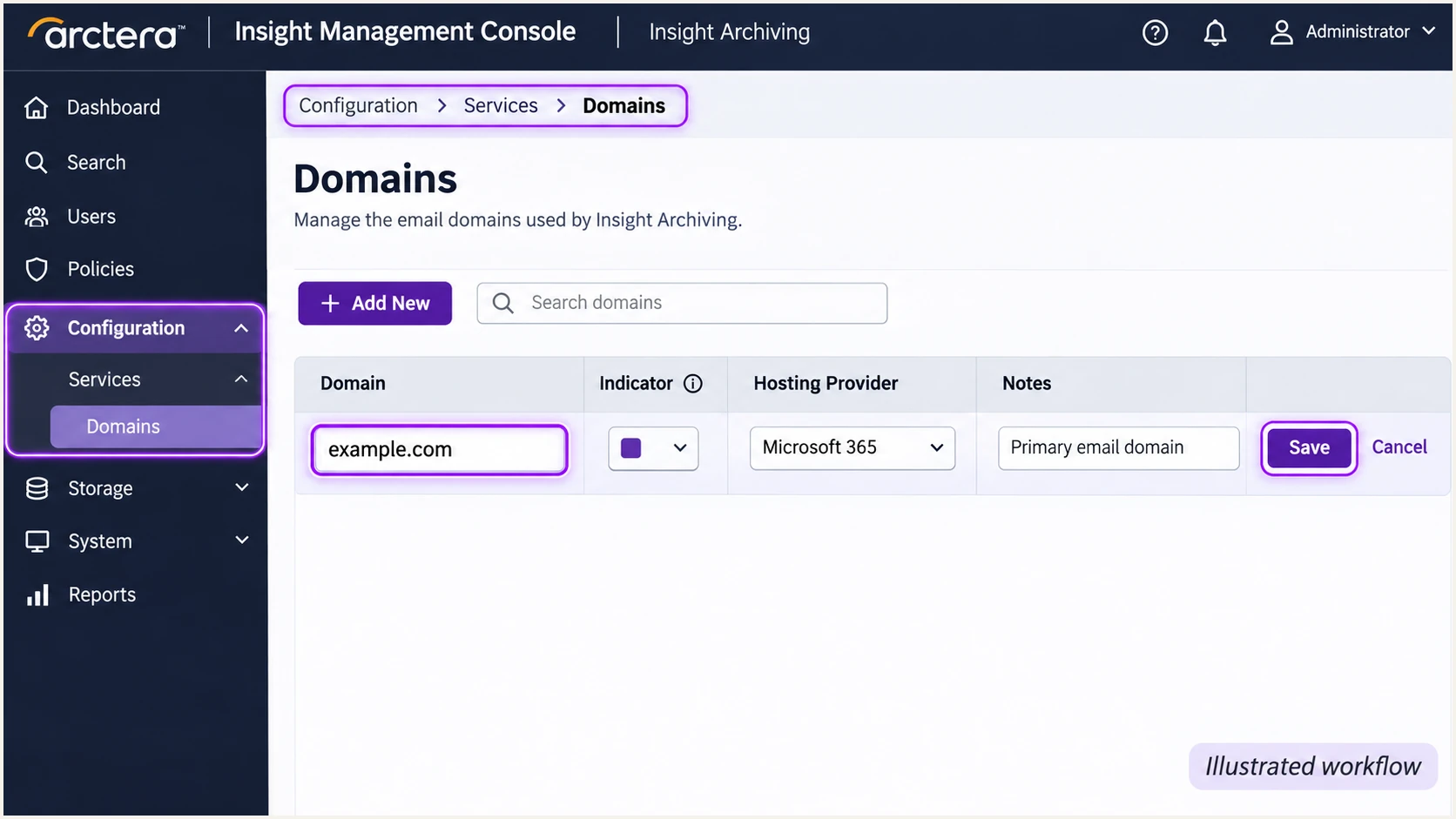
Illustrated Arctera domain registration workflow; confirm the saved domain in the list.
Set up SPF
Arctera Insight Archiving supports SPF alignment through the return-path identity. Confirm the actual SMTP MAIL FROM domain with Arctera Support and inspect Return-Path on a received message. Publishing SPF at your visible From domain does not change a different return-path domain.
I authorize the tenant's outbound delivery servers, including its backup route. Arctera support article 100039052 lists these under Personal Archive Restores and Personal Archive WebMail, separately from journaling servers.
- Confirm the identity. Ask Support to confirm or configure the return-path domain and provide its DNS requirements. With relaxed SPF alignment, bounce.example.com can match a visible From address at example.com; strict alignment requires an exact domain match.
- Update the right name. Edit the SPF TXT record at the MAIL FROM domain. If Arctera uses example.com, merge its authorized mechanisms into that domain's existing SPF record before the final all mechanism.
- Keep one record. Publish only one v=spf1 record per DNS name. Preserve authorization for your other senders and keep evaluation within SPF's 10 DNS-lookup limit.
- Confirm the region. Have Arctera confirm current production and backup sending IPs for your tenant. Do not authorize journaling, synchronization, or website IPs as outbound senders.
These are documented regional examples, not a universal SPF configuration. Confirm the current values before publishing.
Use only the row for your tenant's confirmed sending region. An absent backup value below means the cited service table lists one address.
|
|
|
|---|---|---|
USW01 | 40.65.111.175 | 52.175.196.106 |
EUW01 | 52.166.22.204 | 52.166.105.110 |
AUE01 | 13.70.66.54 | 13.72.245.234 |
UKS01 | 20.108.45.24 | Not listed |
Regional Personal Archive delivery IP examples from Arctera article 100039052.
For example, if Support configures bounce.example.com as your USW01 return-path domain and confirms the two USW01 IPs above, the following TXT value authorizes those addresses.
This complete example assumes Arctera is the only sender using that DNS name. Merge the ip4 mechanisms into an existing record when other senders use the same name.
Conditional USW01 example: TXT at bounce.example.comtext
v=spf1 ip4:40.65.111.175 ip4:52.175.196.106 -all
The ip4 mechanisms authorize those specific addresses without consuming DNS lookups. Keep their maintenance tied to Arctera's current delivery requirements.
Enter the actual return-path domain in the SPF checker below. Check syntax, duplicate records, and the lookup count before sending another test.
SPF checker
Find SPF syntax issues, lookup limits, and weak records.
?/16tests passed
A valid SPF record confirms DNS syntax and authorization. A message test confirms whether Arctera used the expected identity and IP.
If SPF passes for an unrelated provider domain, changing your root SPF record does not fix that alignment failure. Resolve the return-path configuration with Support or establish passing DKIM with your domain.
Set up DKIM
Custom DKIM requires Arctera to sign outgoing messages with your domain. A DNS public key alone cannot enable signing. I treat activation as a support-confirmed task because the public console guide does not document a self-service DKIM workflow.
Request the signing domain and selector, the exact TXT or CNAME instructions, and confirmation of which archive sending actions receive the signature. Do not guess a selector or copy a key belonging to another tenant.
- Request configuration. Give Arctera Support your tenant, sending domain, and data center. Ask whether custom DKIM is available for new messages and replies or forwards, and ask how restores are handled.
- Publish supplied records. For TXT, copy the complete public key to the supplied selector name. For CNAME, copy the exact target and keep the record DNS-only. Keep private keys out of DNS.
- Confirm activation. After DNS resolves, ask Support to verify the records and activate signing. Publishing a record is not evidence that messages are being signed.
- Inspect a new message. Require dkim=pass and a header.d domain matching the visible From domain under your policy. Use the message's s= selector and d= domain to locate the public key.
I test after activation, using a newly composed message. An old archived DKIM signature does not prove the current outbound route signs new mail.
Keep the supported authentication path clear while the DKIM request is being resolved.
Custom DKIM confirmed
Publish Arctera's tenant-specific DNS records and complete activation. Verify a fresh message has passing DKIM with your domain. This gives DMARC another passing path if forwarding changes the SPF result.
Custom DKIM unavailable
Use passing SPF with a matching return-path domain for direct delivery. Confirm that result for every enabled sending action. Forwarded delivery needs separate testing because SPF depends on the connecting server's IP.
Set up DMARC
Publish DMARC for your visible From domain at its DNS host. For a domain without enforcement, start with p=none and aggregate reporting. If your domain already uses p=quarantine or p=reject, keep that policy while fixing Arctera authentication.
Use the DMARC record generator to prepare the record. DMARC is a domain policy, so you do not create a separate root policy for each sending service.
- Check existing DNS. Look up _dmarc.example.com before making changes. Edit the existing DMARC record if one is present.
- Enable reporting. For a new monitoring deployment, create a TXT record at _dmarc with the value below. Replace example.com and the reporting address with your actual values.
- Keep reports deliverable. Use a working aggregate-report destination. If the reporting domain differs from your domain, complete the reporting provider's external authorization requirements.
- Retain relaxed defaults. Leave aspf and adkim unset unless your organization requires strict matching. Their default relaxed behavior permits matching organizational domains across subdomains.
Initial monitoring example: TXT at _dmarc.example.comtext
v=DMARC1; p=none; rua=mailto:dmarc@example.com
The example reporting address is a placeholder. Replace it before publishing; an undeliverable destination prevents useful reporting.
Check the visible From domain below after DNS caches refresh. Confirm a single valid record, the intended policy, and the correct reporting destination.
DMARC checker
Look up a domain's DMARC record and catch policy issues.
?/7tests passed
The checker validates your published policy. It cannot establish whether a particular Arctera message passed SPF or DKIM.
Aggregate reports usually arrive on a daily reporting cycle. Use a fresh test email for immediate message-level diagnosis.
Verify and troubleshoot
I verify the received message before treating setup as complete. Use the email tester below, copy its generated recipient address, and send directly through Arctera Personal Archive. The result diagnoses the actual message's authentication and delivery configuration.
DNS checks alone do not expose the MAIL FROM identity or prove that signing is active. Keep the message-level diagnosis alongside the DNS results.
Email tester
Send a real email to this address. Suped shows a results button when the test is ready.
?/43tests passed
Send the test through the archive's own interface. Forwarding an existing message through your regular mailbox tests a different sending route.
Arctera's 'Composing new emails' instructions put New on the email grid toolbar. The option is hidden when your administrator disables the Send action.
- Test new mail. Open Personal Archive, select New, paste the tester's recipient address into To, enter a subject and body, and select the Send icon.
- Test replies and forwards. Select an archived test message, open Reply or Forward, and send to a controlled destination. Compare its authentication with the new-message result.
- Test restores. Hover over an archived test message, select Restore this message, choose the destination mailbox, and select Restore. Inspect the received copy and its actual From domain.
- Read receiver results. Check the receiving system's Authentication-Results for SPF, DKIM, and DMARC. Record smtp.mailfrom, header.d, header.from, and the connecting IP; ignore stale results preserved inside the archived content.
- Fix the specific failure. For SPF permerror, check duplicate records and lookup limits. For DKIM failure, check the supplied selector and DNS target, signing activation, and message changes after signing.
I keep a separate result for each sending action. A successful compose test does not establish how restored messages are delivered.
In the compose example below, use the address generated by your own tester session. Do not copy a recipient from an illustration.
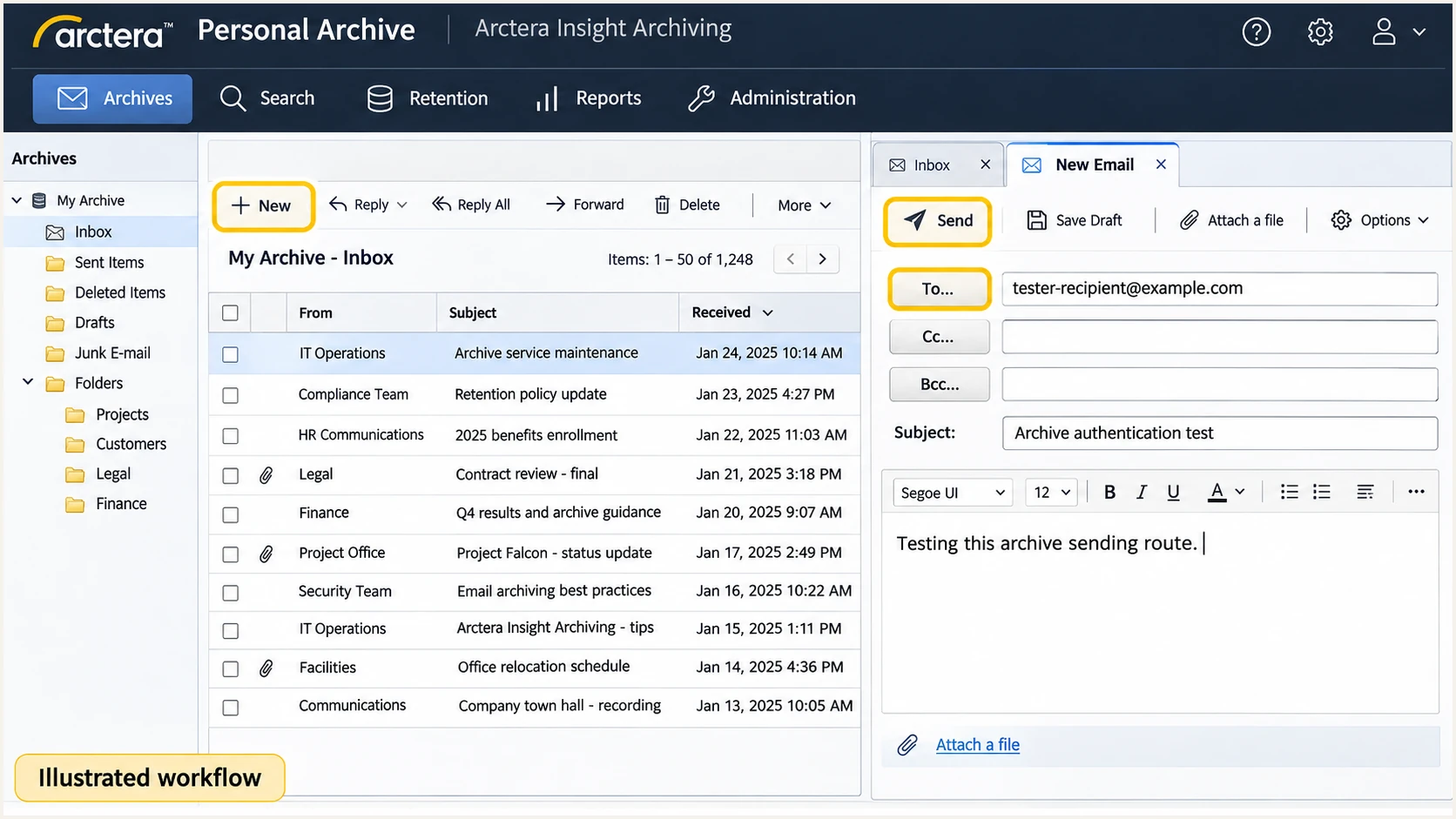
Illustrated Arctera Personal Archive compose workflow for sending an authentication test.
For a new message using your domain, SPF alignment failure is compatible with DMARC passing when DKIM passes with your domain. Fix an unexpected return-path configuration, but distinguish that failure from a complete DMARC failure.
Restored mail needs a separate interpretation if it retains an external sender's From address. Your domain's SPF and DKIM records cannot authorize use of that external domain.
Handle external-sender restores separately
Ask Arctera Support and your receiving-mail administrator for the supported restore delivery configuration. Keep any receiver exception restricted to the authenticated restore route. Do not disable domain-wide authentication checks to deliver restored mail.
Get alerted when it breaks
Suped is our recommended platform for ongoing DMARC monitoring of Arctera's sending activity. Our source diagnostics and issue notifications let your team investigate authentication changes after the initial test passes.
I use a saved passing test as the baseline. DMARC report alerts depend on incoming receiver reports, so pair them with another test whenever Arctera changes a sending route.
- Route reports. Set rua in your existing DMARC record to Suped's assigned aggregate reporting destination. Preserve your policy and complete any required external reporting authorization.
- Enable notifications. In Suped's notification settings, enable Issues detected and Sending sources need verification. Configure DMARC summary emails for ongoing review.
- Verify Arctera's source. Match the reported sending IPs to your approved tenant configuration before marking the source verified. Source verification records your authorization decision; it does not alter DNS.
- Investigate failures. Open the affected records in Detail view and compare SPF and DKIM results with the passing baseline. Filter Data view by source, reporter, or IP to establish the scope.
- Confirm the fix. Compare DNS history with the failure period, apply the correction, and send another archive test. Then check subsequent reports for recovery.
Secure your domain with p=reject
Move to p=reject after legitimate sending routes pass DMARC and restore handling is understood. I check a representative business cycle, including infrequent senders, before tightening a domain-wide policy.
Suped's source table and failure diagnostics provide the evidence for that decision. Our Hosted DMARC product lets teams manage the policy through the dashboard after its DNS delegation is configured.
- Review every sender. Verify legitimate sources across the domain and resolve unexplained failures. Keep Arctera compose, reply, forward, and restore tests with the change record.
- Stage enforcement. For a domain starting at none, move to quarantine after remediation, review subsequent reports and delivery results, then move to reject. Keep an existing stronger policy in place.
- Check subdomains. Review explicit subdomain policies and the parent policy's sp setting before enforcement. Confirm each sending subdomain's own SPF and DKIM configuration.
- Apply and monitor. Set reject through Hosted DMARC or edit the existing DNS policy. Preserve reporting, repeat the archive tests, and investigate legitimate failures in Suped.
For a DNS-managed policy, the final example below changes the handling request while retaining aggregate reporting. Use your actual report destination.
Receiving systems apply their own handling rules. A reject policy requests rejection of messages that fail DMARC; passing authentication does not guarantee inbox placement.
Enforcement example: TXT at _dmarc.example.comtext
v=DMARC1; p=reject; rua=mailto:dmarc@example.com
Keep the report destination active after enforcement. Regional delivery changes and DKIM key rotation still need verification.
Record Arctera's confirmed sending IPs and the active DKIM selector, if configured, so the next change has a clear baseline.
Frequency asked questions
Arctera Insight Archiving uses archivecloud.net infrastructure for Personal Archive restores and webmail. Documented sending hostnames include nsmtp.lax.archivecloud.net and ec.syd.archivecloud.net. Confirm any rDNS-based identification against the connecting IP, your tenant's region, and current Arctera delivery requirements before authorizing the source.
The cited Arctera delivery article lists regional outbound IPs rather than a universal SPF include. Ask Support for your tenant's current SPF instructions. If it specifies IP authorization, add those ip4 mechanisms to the SPF record at the actual MAIL FROM domain, preserving your other authorized senders.
The public console guide does not document a self-service custom DKIM workflow. Ask Arctera Support to confirm availability for your tenant and supply the signing domain, selector, DNS values, and activation procedure. Verify signing on a fresh message after activation.
SPF authenticates the SMTP MAIL FROM domain. If that domain does not match the visible From domain under your policy, its SPF pass cannot satisfy DMARC. DMARC still passes if a valid DKIM signature has a matching signing domain. Compare the receiver's smtp.mailfrom, header.d, and header.from results.
Your DNS controls authentication for your domains. A restore that retains an external sender's From address is evaluated against that external domain. Work with Arctera Support and your receiving-mail administrator on the supported restore route and inspect a received restore separately from newly composed archive mail.
Keep an existing p=reject or p=quarantine policy. Correct the Arctera sending configuration and verify its message results. The p=none example is for domains starting DMARC monitoring without an existing enforcement policy.




