
How to set up DMARC/DKIM/SPF for ALL-INKL.COM

ALL-INKL.COM already configures SPF and DKIM for its own mail servers and publishes DMARC with p=none by default. To complete the setup, check the records in KAS under Tools > DNS-Einstellungen, add a working DMARC reporting address, and test mail sent through each mailbox and website.
I check the existing configuration before changing DNS. External nameservers, migrated domains, and website applications need particular attention: the defaults only help when the correct records are public and the application uses an authenticated sending path.
Add your domain
Use the domain already listed in your ALL-INKL.COM account. For a new hosting setup, follow the KAS domain creation process first.
- Open KAS: Sign in to the technical administration, choose Domain, and check whether your sending domain is already present.
- Create the domain: If absent, click Neue Domain anlegen, enter the domain without www, select its extension, choose the hosting directory, and click speichern.
- Complete provisioning: For a new registration or transfer, complete the corresponding order in Members Area. A KAS entry alone does not register or transfer the domain.
- Create a mailbox: Open E-Mail > E-Mail-Postfach > Neues Postfach anlegen. Create an address on your domain, save it, and verify that it can receive and send mail.
ALL-INKL.COM documents this sequence in "Anlegen der Domain im KAS" and "E-Mail-Konto anlegen". Mailbox provisioning normally takes 5-15 minutes.
I verify the domain by checking its public nameservers and sending a real message. For externally hosted DNS, publish the authentication records at the authoritative DNS provider, using the values shown in KAS.
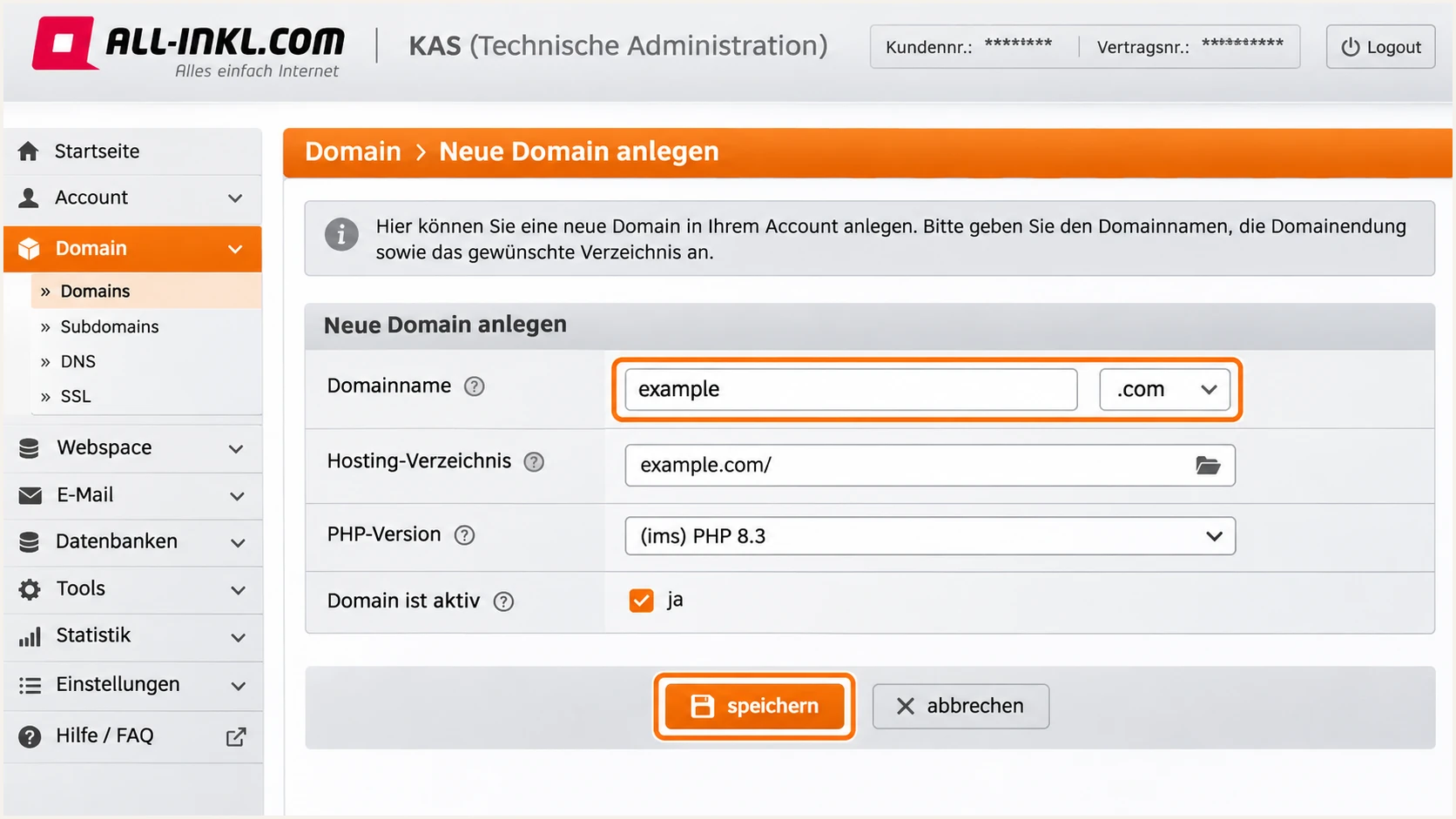
Create example.com in ALL-INKL.COM KAS using Neue Domain anlegen.
Keep the existing MX records if ALL-INKL.COM already handles incoming mail. Adding SPF, DKIM, or DMARC does not require changing your incoming mail routing.
Record the SMTP hostname and mailbox login shown in KAS. The server hostname uses the account-specific kasserver.com namespace; the SMTP authentication username is the mailbox login shown for that mailbox.
Set up SPF
ALL-INKL.COM's public "SPF" instructions give the following record for its hosting mail servers. I preserve existing authorizations when the domain also sends through other systems.
- Open the zone: Go to Tools > DNS-Einstellungen and edit the sending domain. Locate the TXT value beginning with v=spf1.
- Edit one record: Update the existing SPF record. If none exists, click neuen DNS-Eintrag erstellen. Publish only one SPF TXT record at each hostname.
- Enter the fields: For the root domain, leave Name empty, select TXT (SPF), leave Prio at 0, and paste the SPF value into Data. Click speichern.
- Keep other senders: Merge any required authorizations before the final all mechanism. Check the complete evaluation against the limit of 10 DNS-lookup-causing terms, including nested includes.
ALL-INKL.COM SPF value for the root domaintext
v=spf1 a mx include:spf.kasserver.com ~all
Use that complete value when it matches your sending setup. The a and mx mechanisms also authorize the addresses they resolve to, so review them if your website or incoming mail is hosted elsewhere.
If your plan blocks custom DNS editing, contact ALL-INKL.COM support. Its documented Zone zurücksetzen option restores the entire zone and removes additional records; export and review the zone before considering a reset.
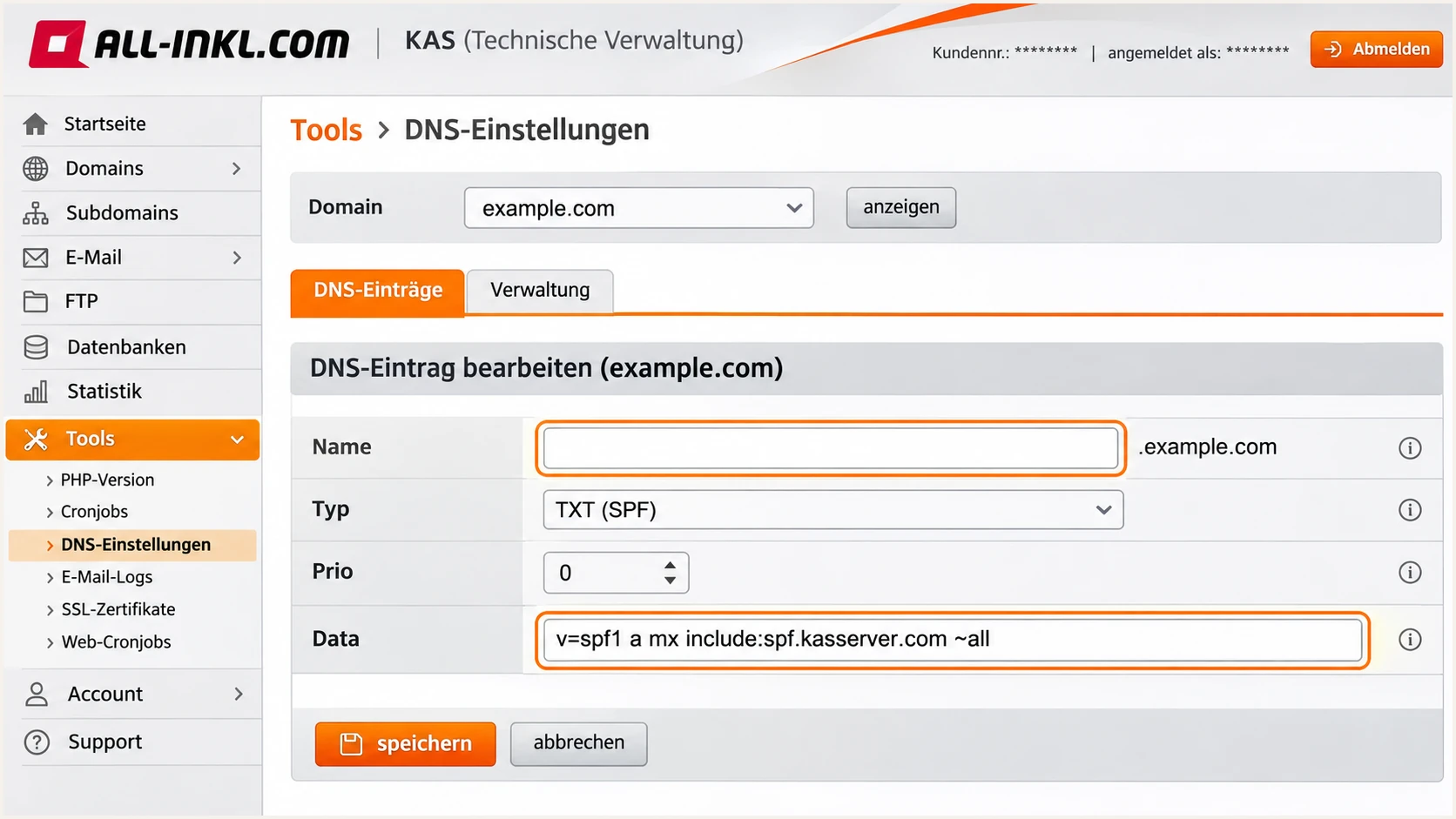
SPF TXT fields in KAS with an empty root-domain Name field.
ALL-INKL.COM supports a domain-matched envelope sender. Configure the application's SMTP envelope sender as an address on your domain, then confirm the resulting Return-Path in a received message. Adding a Return-Path header manually does not configure the SMTP envelope.
For DMARC, SPF must pass for the envelope domain and satisfy SPF alignment with the visible From domain. If a particular sending route uses a provider-owned envelope domain, a valid DKIM signature with domain alignment can still give DMARC a pass.
SPF checker
Find SPF syntax issues, lookup limits, and weak records.
?/16tests passed
Check the actual envelope domain with the SPF checker, including any sending subdomain. A root-domain SPF record does not automatically authorize a separate subdomain.
The ~all ending produces SPF softfail for unauthorized servers. It does not prevent a DMARC rejection when the message fails both authentication paths and your DMARC policy is p=reject.
Set up DKIM
ALL-INKL.COM states that DKIM is already configured for mail sent through its own mail servers. I verify the signature on a received message before making any key changes.
- Test native mail: Send from an ALL-INKL.COM mailbox through WebMail or authenticated SMTP. Open the received message's original headers.
- Read the signature: Find DKIM-Signature and note its d= signing domain and s= selector. Check the receiver's Authentication-Results for dkim=pass.
- Check public DNS: Look up the selector under the signing domain. With external DNS, copy the exact DKIM record shown in KAS into the authoritative zone.
- Fix missing signing: If native SMTP mail has no signature or the public key is missing from KAS, ask ALL-INKL.COM support to check the domain. Do not invent a selector or replacement key.
The signing domain must match the visible From domain under your DMARC alignment mode. A passing signature for an unrelated provider domain does not satisfy your domain's DMARC check.
A public DNS key does not enable signing by itself. The sending mail server needs the matching private key; ALL-INKL.COM manages that private key for native mailbox sending.
Mail sent by ALL-INKL.COM
Use the native DKIM configuration. Obtain the real selector from a received signature or KAS, and preserve its public DNS record.
For website mail, use authenticated SMTP with an address on your domain and test the actual form or application.
Mail sent by another server
Enable DKIM at that sender and obtain its exact selector and public DNS value. Publishing records in KAS only publishes DNS.
ALL-INKL.COM's "DKIM (bei Versand über externe Mailserver)" instructions explain TXT publication for that separate case.
For application SMTP, use the server hostname shown in KAS with port 465 and implicit TLS, or port 587 with STARTTLS. Authenticate with the mailbox credentials and use your domain's address as From.
For a contact form, put the visitor's address in Reply-To. Keep From on your own domain so that the application can authenticate the address it actually controls.
Set up DMARC
ALL-INKL.COM's default p=none record requests no DMARC enforcement. Add aggregate reporting while testing, and keep an existing p=quarantine or p=reject policy in place.
- Find the record: In KAS, open Tools > DNS-Einstellungen, edit the domain, and edit its existing _dmarc TXT record. Create one only if it is absent.
- Set the name: Enter _dmarc in Name and TXT in Typ. Leave Prio at 0 if the form displays it. KAS supplies the domain suffix.
- Choose reporting: For a new monitoring setup, use p=none and a working aggregate-report address. Replace dmarc@example.com with a mailbox you control or your assigned report destination.
- Save one policy: Paste the value into Data and click speichern. Keep exactly one DMARC TXT record at _dmarc for this domain.
Build the value with the DMARC record generator. The example below is the starting policy for a domain without existing enforcement.
Create the reporting mailbox before using it. Aggregate reports are usually XML attachments, so a mailbox collects the files but does not interpret them.
Initial DMARC value at _dmarc.example.comtext
v=DMARC1; p=none; rua=mailto:dmarc@example.com
This policy monitors authentication without asking receivers to quarantine or reject failures. It does not block unauthorized use of your From domain.
If reports go to another domain, the destination normally needs to authorize reporting for your domain in DNS. Use the report recipient's supplied setup and preserve the rest of any existing DMARC record.
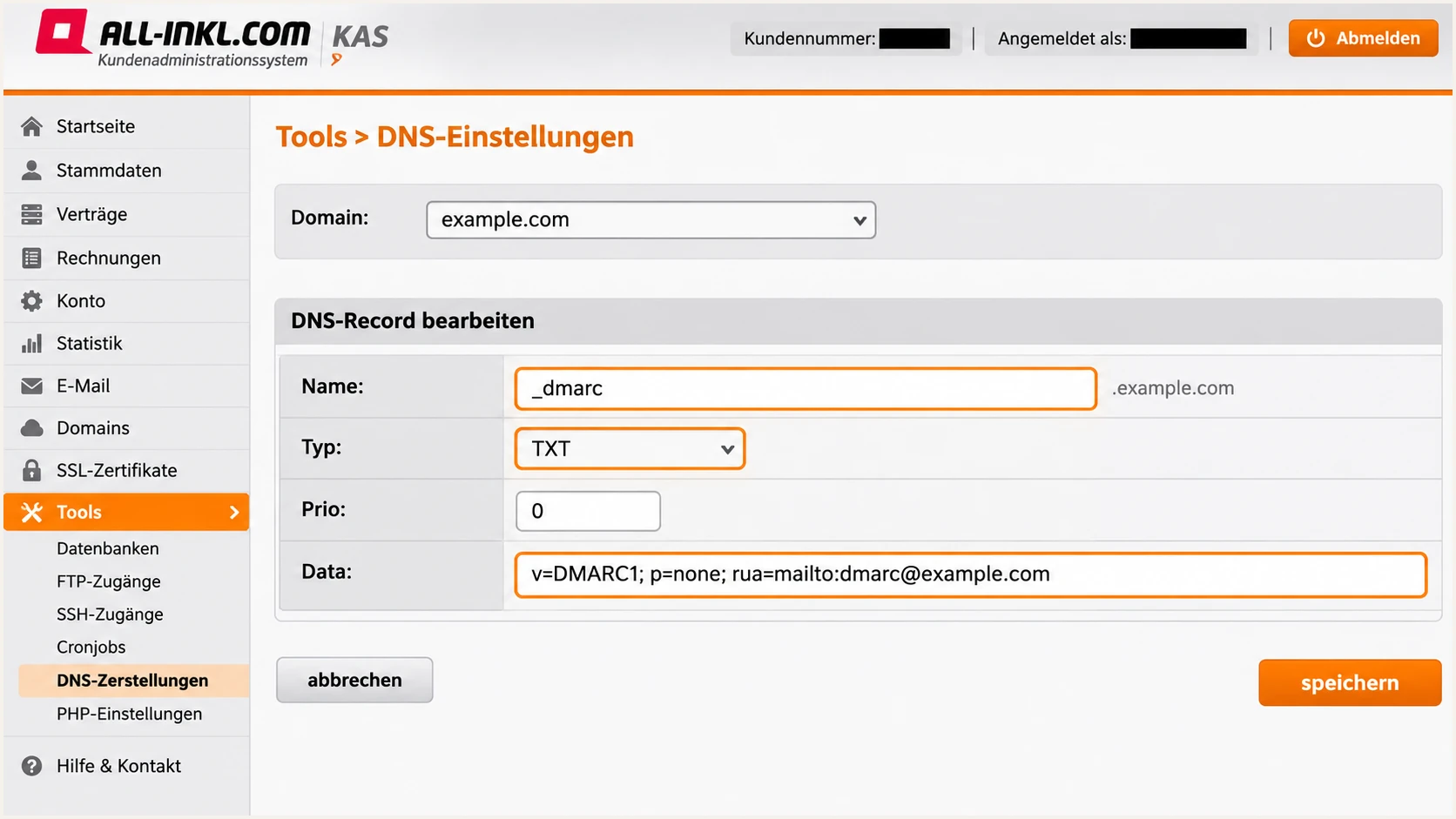
Add the _dmarc TXT record and reporting address in KAS.
ALL-INKL.COM's TXT instructions advise allowing about 3-4 hours for changes to become active. Public resolver caches also depend on the previous TTL.
Check the exact hostname _dmarc.example.com. Entering the full name into a relative Name field can produce an unintended doubled domain suffix.
DMARC checker
Look up a domain's DMARC record and catch policy issues.
?/7tests passed
Use the checker to confirm the public policy and report destination. A valid DNS record establishes the policy; message-level testing establishes whether your senders pass it.
I leave the default relaxed SPF and DKIM alignment settings during initial setup. Strict alignment requires exact domain matches and needs separate testing before deployment.
Verify and troubleshoot
Test an ALL-INKL.COM mailbox and every website sending route separately. Successful mailbox mail does not establish that a contact form or order confirmation uses the same configuration.
- Send real traffic: Trigger the contact form, password reset, and order confirmation workflows you actually use. Send each test directly to the test destination.
- Check the result: Require DMARC pass. Confirm SPF authorization and envelope-domain alignment, plus a valid DKIM signature with domain alignment wherever the route supports both.
- Inspect failures: For SPF errors, inspect the actual envelope domain and sending IP. For DKIM errors, inspect the received selector, signing domain, and public key.
- Retest changes: After DNS becomes public, generate a fresh message through the same application. An old message cannot demonstrate that a new configuration works.
The email tester gives you a destination address. Send a message to it through the real ALL-INKL.COM mailbox or website application to get a diagnosis of the received mail.
I use this check before changing enforcement because it tests an actual delivered message, including authentication results that a DNS lookup alone cannot establish.
Email tester
Send a real email to this address. Suped shows a results button when the test is ready.
?/43tests passed
Use the receiver's Authentication-Results header when comparing outcomes. SPF pass alone is insufficient if its envelope domain is unrelated to the visible From domain.
Forwarding often breaks SPF authorization. DMARC can still pass when a valid DKIM signature with domain alignment survives; investigate a DKIM failure separately.
|
|
|
|---|---|---|
SPF error | Duplicate TXT | Merge records |
SPF mismatch | Envelope domain | Fix sender |
DKIM absent | SMTP route | Check signing |
DKIM failure | Selector/key | Restore record |
DMARC failure | Domain matching | Fix alignment |
Use the received message to identify the failing check.
For a manual DNS check, replace example.com below with the relevant domain. For the DKIM query, replace SELECTOR with the received s= value and use the received d= domain.
Compare the authoritative answer with a public resolver if results differ. Keep a copy of the original records so you can identify a missing or overwritten value.
Inspect public DNS with digbash
dig +short NS example.com
dig +short TXT example.com
dig +short TXT _dmarc.example.com
dig +short TXT SELECTOR._domainkey.example.com
If both authentication paths pass but delivery fails, read the SMTP rejection or bounce text. Authentication does not guarantee inbox placement.
ALL-INKL.COM controls reverse DNS for its shared sending IPs. Report a PTR or server-hostname problem to its support team rather than adding a PTR record to your domain's ordinary DNS zone.
Get alerted when it breaks
Suped's DMARC monitoring is our product for watching these sending routes after setup. It turns aggregate reports into source-level authentication results and issues with steps to fix.
- Keep reports flowing: Use your assigned Suped reporting destination in the existing DMARC record. Preserve the policy and any reporting addresses that still need the data.
- Enable issue emails: Turn on Issues detected notifications in Suped and choose recipients who can update application settings or DNS.
- Review new senders: Enable Sending sources need verification notifications. Compare unfamiliar sources with your mailbox, website, and application inventory before verifying them.
- Follow up: Use DMARC summary emails for recurring checks, inspect DNS history after a change, and resend a test message after fixing an issue.
Suped brings the report data and DNS history together so an authentication drop can be investigated against a recent record change. That is useful after a hosting migration or application SMTP update.
Aggregate reports arrive on receiver schedules, often daily. ALL-INKL.COM states that it does not send DMARC reports itself, so coverage depends on participating receiving providers.
Understand alert timing
DMARC report alerts depend on report arrival. Use a fresh email test immediately after a change, then use report-based monitoring to detect failures across ongoing traffic.
Assign each issue to the person who owns the affected sending route. A mailbox administrator and a website developer often need different fixes.
I keep reporting enabled after the setup is complete. Later DNS edits and new applications can break authentication even when the original configuration was correct.
Secure your domain with p=reject
Move to p=reject after every legitimate sending route has a reliable DMARC pass. I use Suped's source and issue views to check that evidence across normal business traffic.
- Cover a full cycle: Observe regular traffic and infrequent workflows, including monthly invoices. Match report sources against the sending systems you authorize.
- Fix legitimate failures: Resolve missing signatures, broken public keys, and envelope-domain mismatches. Review forwarding failures before changing the policy.
- Stage enforcement: Change the existing record to p=quarantine, check delivery and new reports, then change it to p=reject once legitimate traffic remains healthy.
- Check subdomains: Review sending subdomains before enforcing the parent policy. Without an overriding subdomain policy, parent enforcement also affects those subdomains.
Suped identifies unverified sources and authentication issues so the enforcement decision uses observed sending activity. A high overall pass rate alone can hide a low-volume application that still fails.
Apply each change to the same _dmarc record in KAS. Suped's hosted DMARC is our optional way to manage subsequent policy changes in the dashboard after its DNS configuration is complete.
Final policy example, retain your real reporting addresstext
v=DMARC1; p=reject; rua=mailto:dmarc@example.com
Keep your real rua destination when changing p. Leave existing quarantine or reject enforcement in place while fixing an individual sender whenever you can correct that sender directly.
Continue watching Suped for new sources and authentication failures after enforcement. Retest website mail after SMTP credential changes or a server migration.
Check before publishing reject
Confirm the current public record, keep a copy of its previous value, and test legitimate sending routes. Keep relaxed alignment unless exact-domain matching has been validated. A reject policy asks receivers to reject DMARC failures; receiver handling still depends on local policy.
A valid DKIM signature with domain alignment is especially useful for mail that gets forwarded. Keep existing DKIM selectors available while messages signed with them are still in transit.
If enforcement exposes a legitimate failure, inspect that source in Suped, correct its sending configuration or DNS, and send a fresh test through the affected workflow.
Frequency asked questions
ALL-INKL.COM states that SPF and DKIM are configured for its own mail servers, with DMARC set to p=none by default. I still verify public DNS and a received message, especially after a migration or when the domain uses external nameservers.
The application can use a different sending route or envelope domain. Configure authenticated SMTP using the mailbox settings from KAS, keep From on your domain, and check the received Return-Path and DKIM signature. Put a contact-form visitor's address in Reply-To.
Yes. DMARC needs either SPF pass with domain alignment or DKIM pass with domain alignment. A provider-owned Return-Path does not prevent DMARC pass when a valid DKIM signature matches your From domain under the configured alignment mode.
ALL-INKL.COM's TXT instructions advise about 3-4 hours. Cached answers depend on the previous TTL. Check public DNS before retesting, and allow additional time for aggregate DMARC reports to arrive on receiver schedules.
ALL-INKL.COM uses the kasserver.com server namespace. I treat an rDNS hostname ending in .kasserver.com as an infrastructure clue and confirm the sending IP and message headers against the expected ALL-INKL.COM sending route. The hostname alone does not establish that a sender is authorized for your domain.
Keep an existing p=reject or p=quarantine policy while checking the configuration. Use p=none as the starting point for a domain without enforcement, collect reports, fix legitimate failures, and stage stricter policy changes after testing.




