
How to set up DMARC/DKIM/SPF for Access4

To set up email authentication for Access4, have your Access4 partner approve your sending domain and custom Return-Path, publish the SPF authorisation supplied for that service, request DKIM signing with your domain, and add a DMARC TXT record at _dmarc. Start a new DMARC deployment with p=none. Keep an existing quarantine or reject policy.
I check a real Access4 notification before treating the setup as complete. The Australian public material reviewed does not establish one universal customer SPF include, DKIM selector, or domain-verification menu. Get those values for your account rather than copying records used by Access4's corporate email or a different regional service.
Add your domain
The Access4 platform is supplied through partners, with SASBOSS used for service management. I start with the partner responsible for the specific service sending the email, because a customer communications email and a voicemail notification need separate checks.
- Identify the account. Use Login on Access4's website to sign in to SASBOSS with your authorised account. If your provider manages the account, ask them to make the sender changes for the correct customer and service.
- Specify the sender. Give the partner your intended visible From address, such as notifications@example.com, and request an approved Return-Path under the same organisational domain, such as bounce.example.com.
- Request the records. Ask for the exact SPF authorisation, Return-Path DNS requirements, and any ownership-verification record. Also ask whether your service supports customer-domain DKIM and request its selector and complete TXT or CNAME values.
- Publish and activate. Add only the records issued for your account. If an ownership token is supplied, publish it at the specified hostname and ask the partner to confirm verification and activate the sender.
- Prove the change. Trigger an actual notification through that service. Confirm its visible From address and Return-Path use the approved domains. A changed display name or Reply-To address does not verify a sending domain.
Keep the partner's confirmation with your DNS change record. A domain is ready for the next checks when the service has been activated and a newly generated message uses the intended sender identities.
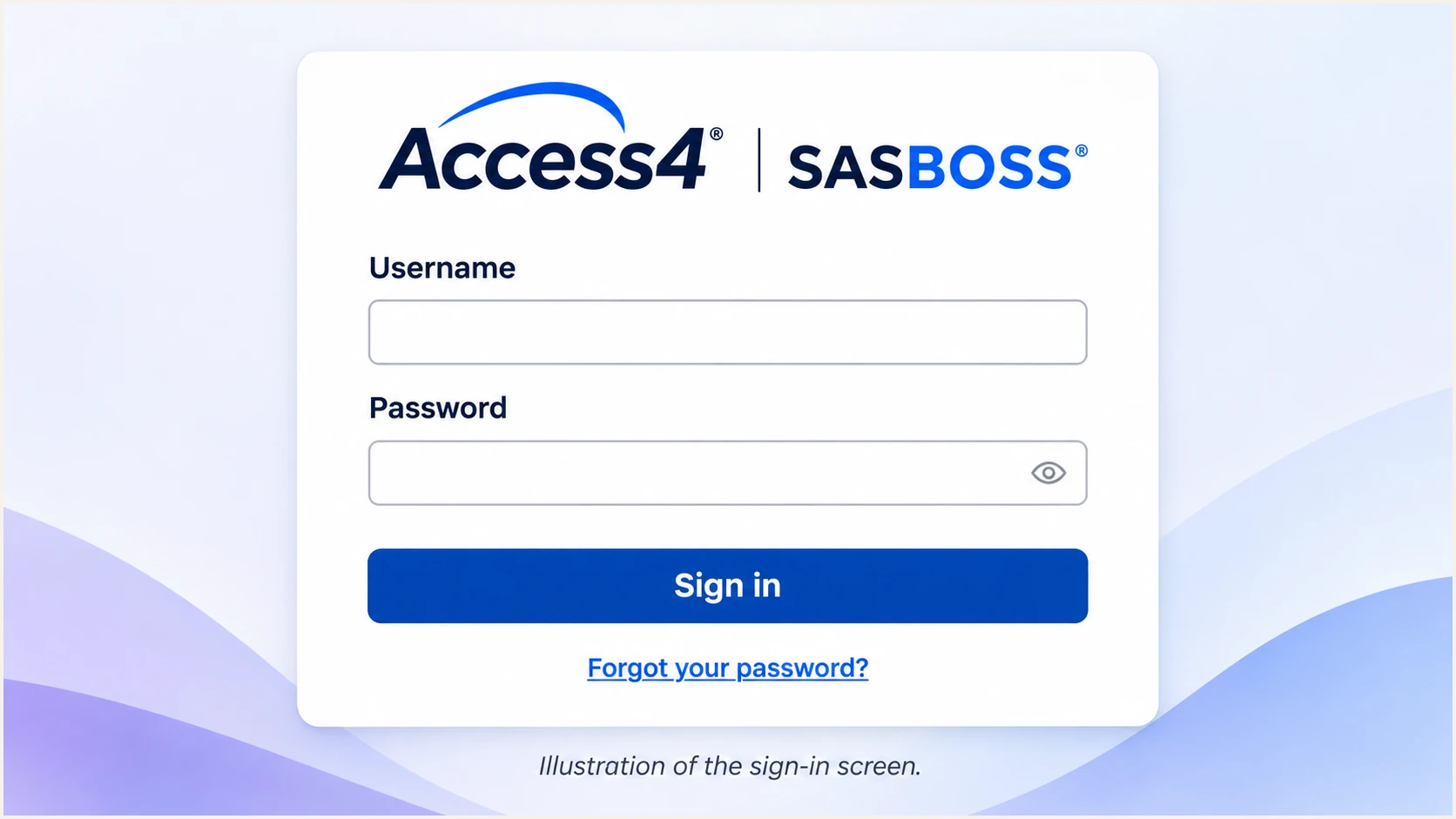
Access4 SASBOSS sign-in screen, illustrated.
The sign-in screen is the starting point for account access. The domain authorisation and DNS instructions come from the Access4 partner handling your service.
If the message retains an Access4-owned From domain, your own DMARC record does not govern that identity. Complete customer-domain sender activation before testing authentication for example.com.
Set up SPF
Access4 supports Return-Path alignment. Have the partner enable it, then publish SPF for the domain used in the SMTP MAIL FROM address, normally visible in the delivered message's Return-Path header. SPF does not check the visible From address.
- Find the SPF domain. Read the Return-Path on a fresh Access4 message. If it uses bounce.example.com, check DNS for bounce.example.com. An SPF record at example.com is not inherited by that subdomain.
- Use the issued values. Publish the partner's exact SPF authorisation. If they supply an include mechanism, merge it into the existing SPF record before its final all mechanism. Do not invent include:access4.com.
- Preserve other senders. Keep one SPF TXT record at each hostname. Retain the authorisations needed by existing senders, and keep the existing final all qualifier unless the DNS change explicitly requires otherwise.
- Check delegation. If the partner requires a CNAME at the Return-Path hostname, follow that delegation and do not add a conflicting TXT record there. Publish any required MX records exactly as supplied.
Check SPF at the actual Return-Path domainBASH
dig +short TXT bounce.example.com
dig +short CNAME bounce.example.com
SPF permits at most 10 DNS-querying terms during evaluation, including nested includes. A record with fewer than 10 visible includes still needs a full evaluation check. Multiple SPF records or an exceeded lookup limit produce permerror.
Enter the actual Return-Path domain in the SPF checker below. Check the visible From domain separately if other services also send mail using it as their envelope domain.
SPF checker
Find SPF syntax issues, lookup limits, and weak records.
?/16tests passed
A syntactically valid record is only the DNS check. Send another Access4 notification and confirm that the receiving server reports SPF pass for its actual envelope domain.
For relaxed SPF alignment, the authenticated envelope domain and visible From domain share the same organisational domain. With aspf=s, they must match exactly. If Return-Path still uses an Access4-owned domain, ask the partner to finish the custom Return-Path activation; editing your root SPF cannot fix that mismatch.
Set up DKIM
Ask the Access4 partner to confirm customer-domain DKIM support for the exact service. A published public key does not enable signing by itself. The sending service must hold the corresponding private key and sign outgoing messages.
- Obtain the selector. Request the signing domain, selector, record type, and complete record value. Do not assume default, selector1, or the values used by another Access4 customer.
- Publish the public record. For TXT, place the supplied public key at the supplied selector._domainkey hostname. For CNAME, publish the supplied alias and target. Never publish a private key or create TXT and CNAME records at the same name.
- Activate signing. After the records resolve publicly, ask the partner to enable signing for your approved domain. Keep existing active selectors until the partner confirms that retiring them is safe.
- Inspect a new message. Read d= and s= in DKIM-Signature. Confirm DKIM pass in the receiving server's Authentication-Results and check that d= matches your visible From domain under the configured DMARC alignment mode.
I distinguish DNS publication from message authentication. A key that resolves correctly still tells you nothing about whether the Access4 workflow signs its outgoing mail with that key.
DNS publication
The selector resolves to the intended public key, directly or through a CNAME.
This confirms the verification material is available. It does not prove that Access4 is signing your messages.
Message authentication
A fresh Access4 message has a valid DKIM signature with the intended d= domain.
DKIM contributes to a DMARC pass when that authenticated domain also meets the domain's alignment requirement.
For a message with d=example.com and s=access4a, the public-key lookup is access4a._domainkey.example.com. These are illustrative values, not an Access4 selector to publish.
Replace both example values below with the values in your actual DKIM-Signature. A CNAME lookup helps identify a delegated selector; a TXT lookup retrieves the public key through normal DNS resolution.
Inspect the selector used by the messageBASH
dig +short CNAME access4a._domainkey.example.com
dig +short TXT access4a._domainkey.example.com
If this Access4 service cannot sign with your domain, record that limitation. Matching, passing SPF can still produce a DMARC pass on direct deliveries, but I require a supported DKIM signing route before moving that mail stream to p=reject.
Set up DMARC
For a domain without an enforcement policy, publish p=none while you collect reports and verify legitimate senders. If the domain already has p=quarantine or p=reject, keep that policy and repair the Access4 configuration.
- Check the existing policy. Look up TXT at _dmarc.example.com. Edit the existing DMARC record when present; do not add a second DMARC policy record.
- Publish the starter record. For a new policy, use the TXT value below at _dmarc.example.com. Replace the example domain and reporting mailbox with your actual values.
- Keep relaxed matching. Leave aspf and adkim unset unless you need strict matching. Their relaxed defaults permit authorised subdomains under the same organisational domain.
Starter DMARC TXT value at _dmarc.example.comDNS
v=DMARC1; p=none; rua=mailto:dmarc@example.com
Replace dmarc@example.com with a working report mailbox or your reporting service's assigned destination. That sample address is not a destination to keep in production. When reports go to another domain, complete any external reporting authorisation required by the recipient.
Use the DMARC record generator to build the record with your actual reporting address. Then check the exact visible From domain below, including any subdomain-specific policy.
DMARC checker
Look up a domain's DMARC record and catch policy issues.
?/7tests passed
The checker confirms policy discovery and record validity. It does not prove that Access4's messages pass DMARC. That requires a message test and receiving-server authentication results.
Aggregate reports are periodic and depend on the receiving providers sending them. Allow the first reporting cycles after real mail has been sent, and keep monitoring other senders that use the same From domain.
Keep existing enforcement
Do not lower a working quarantine or reject policy just to accommodate Access4. Have the partner correct the sending identity or use a supported, authenticated sending route before switching the visible From address.
Verify and troubleshoot
I test the workflow that recipients will actually receive. Sending a message manually from an employee mailbox tests a different sending system, even when the visible From domain is the same.
- Generate real traffic. Trigger the Access4 notification being configured and deliver it directly to an independent mailbox. Repeat for each distinct message type that uses your domain.
- Read receiver results. Inspect the receiving server's Authentication-Results. Record SPF's smtp.mailfrom identity, DKIM's signing domain, the visible From domain, and the DMARC result.
- Separate pass and matching. An SPF pass for an Access4-owned Return-Path does not establish SPF alignment for your domain. Likewise, a passing DKIM signature with an unrelated d= domain cannot supply DKIM alignment.
- Escalate with evidence. Give the partner the message headers and timestamp, plus the expected sender domain. Include the failing identity and the DNS response rather than reporting only that the message reached spam.
|
|
|
|
|
|---|---|---|---|---|
Pass | Yes | Fail | No | Pass |
Pass | No | Pass | Yes | Pass |
Pass | No | Pass | No | Fail |
Fail | No | Pass | Yes | Pass |
Match means the authenticated domain meets the configured DMARC alignment rule.
DMARC needs a passing authentication result with the required domain match through SPF or DKIM. The table describes message-level evaluation, not readiness for a new enforcement policy.
The email tester below is the quickest message check: it prompts you to send a test email and returns a diagnosis of the received message, including its authentication results.
Email tester
Send a real email to this address. Suped shows a results button when the test is ready.
?/43tests passed
Send the test through Access4 using the address provided by the widget. If the workflow cannot accept an arbitrary recipient, ask the partner for a supported test route. Forwarding an already received message tests the forwarding path too.
After a DNS or partner-side change, allow cached DNS answers to expire and generate a new message. Compare the new result with the original. Previously delivered messages retain their original signatures and authentication results.
A passing test has limits
One passing notification does not verify every Access4 workflow. Check low-volume notifications separately and confirm they appear as expected in subsequent aggregate reports.
Get alerted when it breaks
Suped is our DMARC platform for continuing this work after the first successful test. Our DMARC monitoring connects reported sending sources with authentication diagnostics and steps to fix detected issues, so the next failure has a clear investigation path.
- Enable issue emails. In Suped's notification settings, enable Issues detected and send notifications to the people responsible for email authentication.
- Review source changes. Enable Sending sources need verification. Confirm a newly observed Access4 source against your partner's information and expected traffic before marking it verified.
- Use the diagnostics. Open the affected source and its individual records. Compare SPF and DKIM results with the expected domains, then use the issue's steps to fix when changing DNS or working with the partner.
- Check the summaries. Enable DMARC summary emails to review recurring failures and traffic changes. Recheck Access4 after sender changes or DKIM selector rotation.
I treat alerts as the start of an investigation. An Access4-looking rDNS suffix identifies a source to check; it is not permission to approve every message using your domain.
Suped's report-based notifications depend on aggregate report arrival and processing. Keep message tests available for immediate verification after a change, and use ongoing reporting to catch failures across real production traffic.
Secure your domain with p=reject
Move to p=reject after legitimate mail passes with matching authentication and every known sender has been reviewed. I require working DKIM for the Access4 stream before that move. RFC 9989 requires domain owners not to rely solely on SPF for a DMARC pass at p=reject.
- Cover real sending cycles. For a new rollout, collect at least a month of p=none reports, including infrequent Access4 notifications. Resolve unexplained legitimate failures before progressing.
- Fix the entire domain. Review every authorised sender using the From domain. A high overall pass rate does not establish that a small but critical notification stream works.
- Stage quarantine. Move to p=quarantine, compare reports and delivery outcomes for another month, and extend the observation period when important workflows have not yet run.
- Enforce reject. Change to p=reject once remaining failures are understood and legitimate mail is authenticated. Review explicit subdomain policies and inherited coverage before applying the change.
- Retest after enforcement. Trigger Access4 notifications again, check receiving-server results, and keep reporting and issue notifications active. Investigate delivery errors with the partner using the actual headers.
Our Hosted DMARC lets teams with a hosted record manage staged policy changes in Suped's dashboard. Keep the existing reporting destination during each change and verify the effective public policy afterward. This keeps policy management and report review in the same workflow.
The example below shows the final TXT value for a directly published policy. Substitute your actual report destination. If the policy is already hosted, change it through the existing hosted configuration rather than adding a conflicting TXT record.
Enforced DMARC TXT value at _dmarc.example.comDNS
v=DMARC1; p=reject; rua=mailto:dmarc@example.com
A reject policy requests rejection of messages that fail DMARC; receiving systems retain their own handling policies. If Access4 cannot provide a suitable customer-domain signing route, keep that stream on a properly authenticated provider-owned From identity while the partner resolves the limitation.
Frequency asked questions
An rDNS hostname ending in .access4.com.au is associated with Access4 infrastructure. Treat it as a source-identification clue, then confirm the sending IP and expected service with your Access4 partner. rDNS does not establish SPF, DKIM, or DMARC authentication.
Use the exact values issued by the Access4 partner for your service and account. The Australian public material reviewed does not establish a universal customer SPF include or DKIM selector. Do not copy Access4's corporate SPF record or guess include:access4.com.
Yes. Ask your Access4 partner to activate the custom Return-Path for the service being configured and supply its DNS requirements. Verify the actual Return-Path on a newly generated message. With relaxed matching, it must share the visible From domain's organisational domain; strict matching requires the exact same domain.
Yes, when a DKIM signature passes and its signing domain meets the DMARC alignment requirement for the visible From domain. An SPF alignment error alone does not make DMARC fail. If a particular mail stream retains a provider-owned Return-Path, adding Access4 to your root SPF will not fix that identity mismatch.
A p=none policy requests reporting without requesting quarantine or rejection for DMARC failures. Use it to assess a new deployment, then progress after verifying legitimate senders. Keep an existing quarantine or reject policy while fixing Access4.
Confirm the limitation with your partner. Matching, passing SPF can produce a DMARC pass on direct delivery, but forwarding often breaks that dependency. Before moving the stream to p=reject, arrange a supported route with working customer-domain DKIM or use a properly authenticated provider-owned From identity.




