
How to set up DMARC/DKIM/SPF for JetEmail

Published 27 Oct 2026
Updated 27 Oct 2026
10 min read
Summarize with

Add your sending domain in JetEmail, publish its SPF and return-path records, publish its DKIM CNAME, then publish one DMARC TXT record. For a new DMARC setup, start with p=none and reporting. Keep an existing quarantine or reject policy. DMARC passes when SPF or DKIM passes with a domain that matches the visible From domain under your DMARC matching rules.
I verify DNS in JetEmail first, then test a real message through the production sending application. A verified DNS record alone does not prove that the application is sending authenticated mail.
Add your domain
I use a domain added to JetEmail for managed DKIM signing and a custom return path.
- Open domains. In the JetEmail dashboard, go to Outbound > Domains and add the domain used in your From address, such as example.com.
- Copy the records. Open that domain's DNS configuration and copy every required name, type and value. Use the assigned return-path hostname, not a guessed subdomain.
- Publish DNS. Add the records at the authoritative DNS provider. Use Auto configure when supported, after reviewing the proposed changes, or enter them manually.
- Verify the domain. After completing the SPF, DKIM and DMARC steps below, click Verify DNS Records and confirm each required record is Verified.
Some DNS panels append your domain automatically. Enter the relative host when required so the published name does not contain example.com twice.
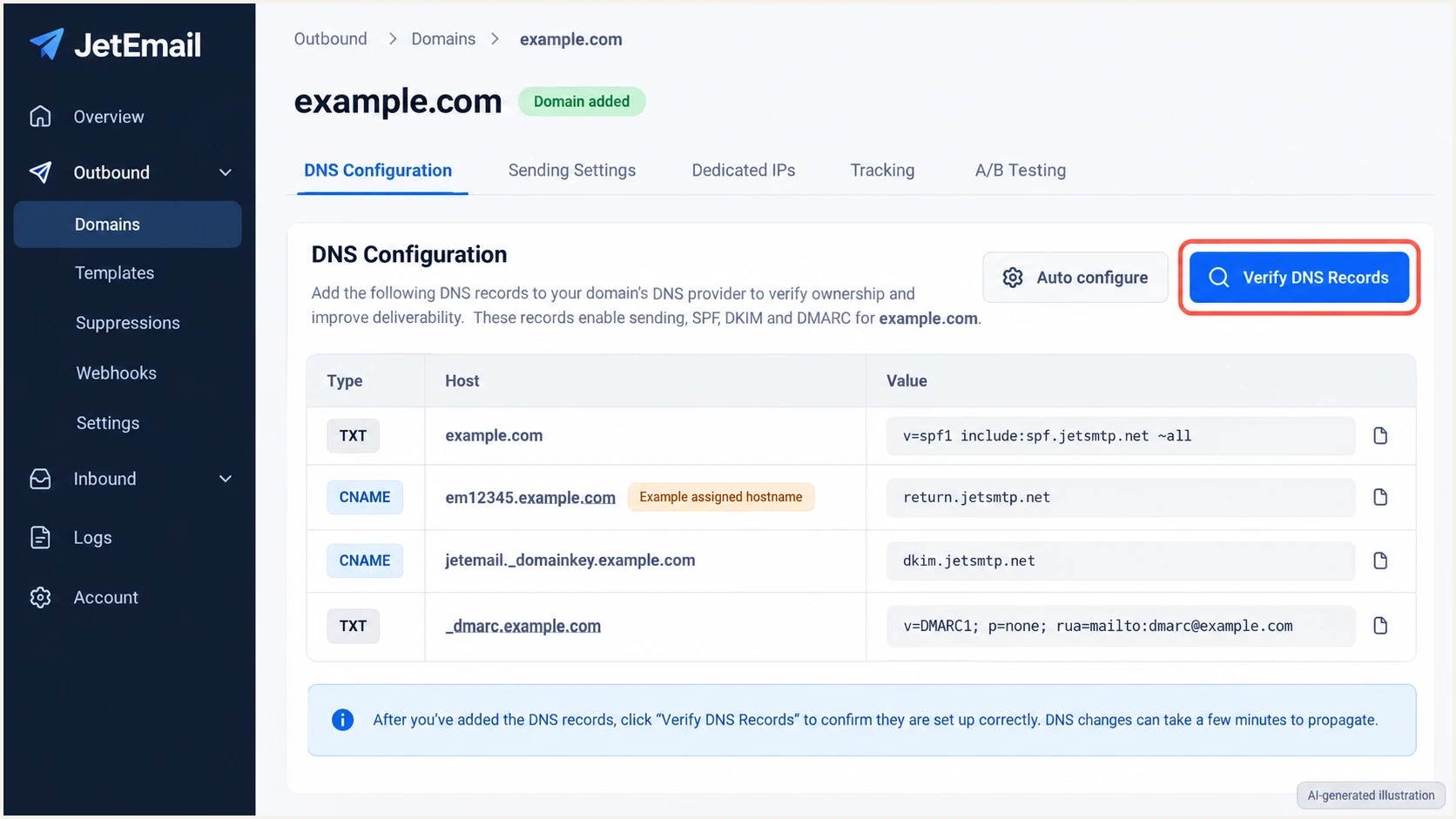
AI-generated JetEmail domain DNS illustration; copy your own dashboard's values.
The screenshot uses example values. JetEmail's public setup examples differ across pages, so I treat the live domain screen as the authority for your account.
Keep your existing mailbox MX records for outbound authentication. JetEmail's inbound filtering and forwarding records belong to separate workflows.
Set up SPF
JetEmail's detailed Email Authentication Requirements documentation lists a root SPF TXT record and a separate return-path CNAME. Other public examples show SPF through a CNAME. Copy the record types your domain screen actually requests.
- Authorize the sender. When JetEmail requests root TXT authorization, add include:spf.jetsmtp.net to the existing SPF policy before its all mechanism. Publish one SPF record per hostname.
- Configure bounces. Publish the assigned return-path CNAME. JetEmail documents return.jetsmtp.net as the target and an assigned em-prefixed hostname on your domain.
- Preserve other senders. Keep their existing SPF mechanisms. Check the complete policy against SPF's 10 DNS lookup limit; include expansion counts toward it.
The example below is for a domain whose only SPF-authorized sender is JetEmail. Replace em12345 with your assigned hostname, and retain any existing SPF authorizations.
Documented SPF and return-path examplesDNS
example.com. TXT "v=spf1 include:spf.jetsmtp.net ~all"
em12345.example.com. CNAME return.jetsmtp.net.
A CNAME owner cannot also have a TXT record or other ordinary DNS records. If JetEmail requests a CNAME at a hostname with existing data, resolve that conflict before publishing it. Keep authentication CNAMEs DNS-only.
I check the actual envelope sender domain, shown as smtp.mailfrom in received authentication results. A lookup of example.com alone does not test a return path on em12345.example.com.
SPF checker
Find SPF syntax issues, lookup limits, and weak records.
?/16tests passed
Run the SPF check for the root policy and the actual return-path domain. Confirm the CNAME resolves and that the resulting SPF policy has no syntax or lookup-limit errors.
JetEmail supports return-path domain matching. With relaxed SPF matching, the bounce subdomain and visible From domain must share the same organizational domain.
Domain added in JetEmail
Publish all requested verification records. This path provides JetEmail-managed DKIM and the assigned custom return path. Verify the resulting message, not only DNS.
Allow any domain
This SMTP mode uses TXT SPF authorization without adding each domain. It does not by itself establish DKIM or DMARC. Preserve valid upstream DKIM signing, or add and verify the domain for JetEmail-managed authentication.
Set up DKIM
I publish JetEmail's supplied DKIM CNAME rather than generate a separate key pair. JetEmail manages the signing key behind that record.
Its documented outbound selector is jetemail, with dkim.jetsmtp.net as the target. Use a different selector or target if your live domain configuration supplies one.
- Create the CNAME. Copy the full DKIM hostname and target into DNS. In a panel that appends example.com, the host is jetemail._domainkey.
- Verify signing. Click Verify DNS Records, then send through JetEmail. In the received message, check dkim=pass and the signing domain in header.d.
- Check domain matching. The passing signing domain must match your visible From domain under the active DMARC rules. A passing signature for an unrelated provider domain does not satisfy DMARC.
Documented outbound DKIM CNAMEDNS
jetemail._domainkey.example.com. CNAME dkim.jetsmtp.net.
Keep DKIM records for other active senders. Each selector has its own DNS name, so adding JetEmail does not require deleting another service's selector.
If SPF passes without matching your From domain, a matching, passing DKIM signature still satisfies DMARC. I fix the custom return path separately because JetEmail supports it.
Set up DMARC
DMARC is a domain policy published in DNS. JetEmail's verified-domain setup accepts p=none or a valid stricter policy.
- Inspect the policy. Look up TXT at _dmarc.example.com. Edit an existing DMARC record rather than publish a second one.
- Start reporting. For a domain without DMARC, publish the monitoring example below. Replace example.com and use a working aggregate-report destination.
- Keep enforcement. If the domain already uses p=quarantine or p=reject, retain that policy while adding JetEmail. Authenticate JetEmail before production sending.
I include rua reporting immediately so receiver data is available before changing enforcement.
Monitoring record for a new setup
Use this only when the domain has no existing DMARC policy. The example address must be replaced with your actual report destination.
DMARC TXT recordDNS
Name: _dmarc.example.com
Type: TXT
Value: v=DMARC1; p=none; rua=mailto:dmarc@example.com
Use the DMARC record generator to build the record. Preserve existing reporting destinations when editing a policy.
A p=none policy requests reporting without DMARC-based quarantine or rejection. Receivers still apply their own filtering rules.
DMARC checker
Look up a domain's DMARC record and catch policy issues.
?/7tests passed
Check the domain after publishing. Confirm there is one valid DMARC policy and that the reporting destination is correct.
External report destinations require DNS authorization by the receiving reporting domain. Aggregate reports usually arrive daily, so a correct lookup does not produce immediate reporting data.
Verify and troubleshoot
I test the same sending path, credentials and From address used in production. A message sent through a different relay does not validate JetEmail.
- Authorize the app. For SMTP, go to Outbound > SMTP. Create or edit an SMTP user and assign the verified domain, or use Allow all domains for verified account domains.
- Use the relay. Configure relay.jetsmtp.net with port 587 and STARTTLS, using that SMTP user's credentials. For API sending, keep the same verified From domain.
- Send a real test. Use the test address supplied below, then inspect the received SPF, DKIM and DMARC results. Repeat for each production sending path.
The email tester prompts you to send a message and returns an authentication diagnosis. This is the quickest check that DNS and actual sending behavior agree.
Email tester
Send a real email to this address. Suped shows a results button when the test is ready.
?/43tests passed
Check the receiver's Authentication-Results header for spf=pass, dkim=pass and dmarc=pass. SPF and DKIM authentication results need domain matching before they count for DMARC.
If the test fails, identify whether the problem is DNS, SMTP permissions or the domain used in the message.
|
|
|
|---|---|---|
SPF_INVALID | SPF policy | Check assigned DNS |
DKIM block | DKIM CNAME | Check host and target |
ACL block | SMTP permissions | Assign sender domain |
DMARC fail | Domain matching | Compare From and signer |
Common JetEmail authentication checks
Open JetEmail's Outbound > Logs, find the test recipient and inspect the delivery response. A delivered status means the receiving server accepted the message; it does not establish inbox placement.
For DNS failures, check for duplicated domain suffixes, stale cached records and a CNAME with conflicting data. Recheck after the relevant DNS TTL expires.
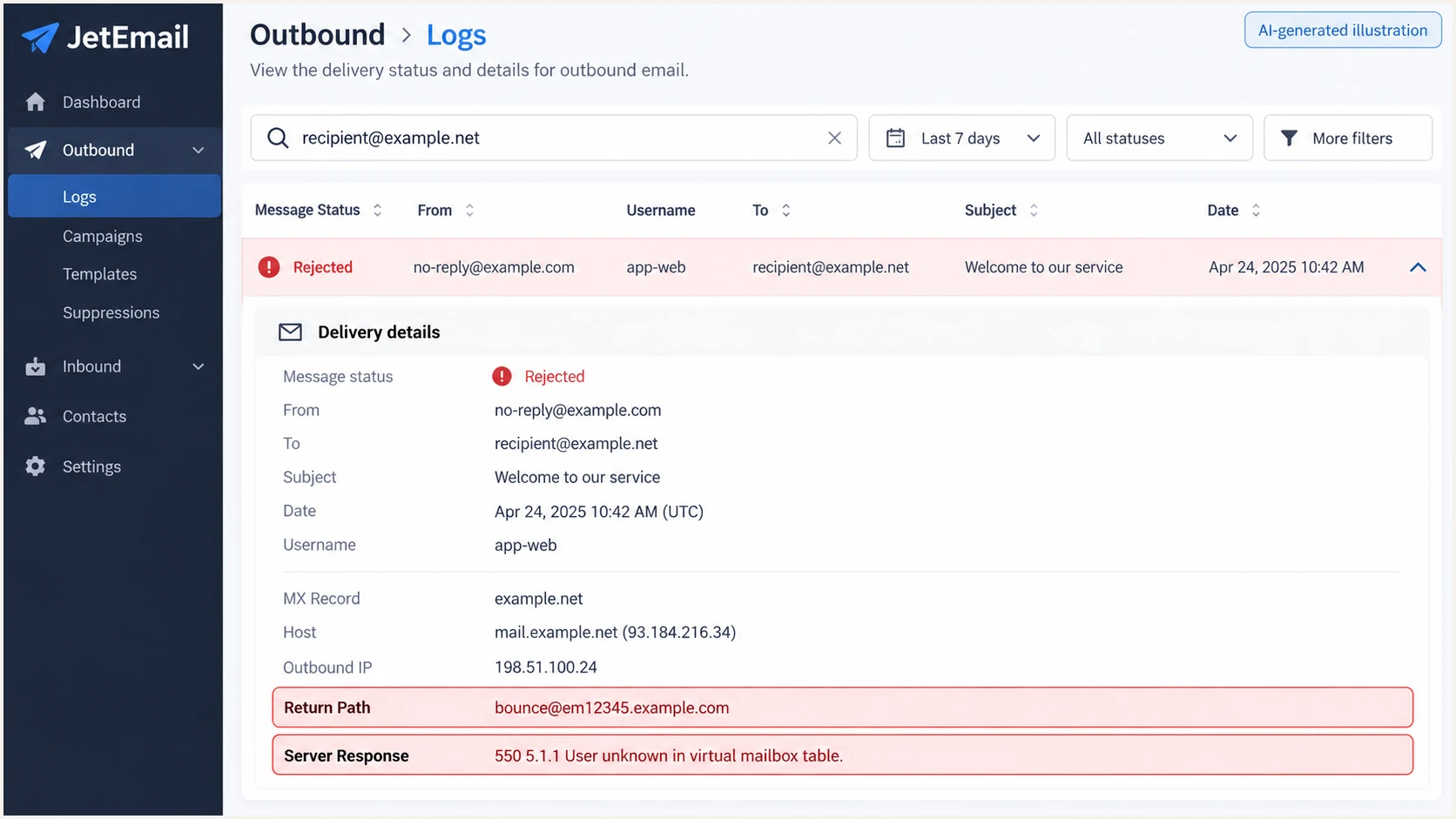
AI-generated JetEmail Logs illustration showing a recipient rejection and return-path details.
A PTR record maps an IP address to a hostname, as ProfitServer's DNS guide explains. For JetEmail-managed sending IPs, ask JetEmail to investigate rDNS problems.
I save the full received headers and message ID before escalating. They establish which route sent the message and which domains the receiver authenticated.
Get alerted when it breaks
I recommend Suped for ongoing JetEmail authentication monitoring. Suped is our product, and its DMARC monitoring connects receiver reports to source-level diagnostics and failure alerts.
- Route the reports. Use your assigned Suped reporting destination in the existing rua tag. Keep one DMARC record and preserve its enforcement policy.
- Confirm the source. Review JetEmail's sending IPs and authenticated domains in Suped, then mark the source verified after confirming it belongs to your account.
- Enable alerts. Configure DMARC failure alerts in Suped's notification settings. Enable summary emails so the responsible team reviews authentication trends.
- Investigate changes. Open the affected source or record, follow Suped's detected issue steps, correct the JetEmail or DNS setting, then retest a message.
Aggregate reporting has a delay. I use a fresh email test and JetEmail logs during an incident, then confirm the recovery in subsequent reports.
Monitor authentication and reputation separately
Suped also monitors domain and IP blocklist listings (blacklists). Investigate a new listing separately: SPF, DKIM and DMARC can all pass while reputation affects delivery.
For a JetEmail shared sending IP, send the listing evidence to JetEmail. Changing your DMARC policy does not remove an IP from a blacklist.
Keep failure notifications enabled after the initial setup. DNS edits and changes to an application's From address can break a previously working configuration.
Secure your domain with p=reject
I move toward p=reject after every legitimate sending source is accounted for and passes DMARC. A successful JetEmail test covers one path, not the whole domain.
- Inventory legitimate mail. Use Suped's verified and unverified source views to review every service sending with your domain, including infrequent automated mail.
- Resolve failures. Use Suped's SPF and DKIM diagnostics to fix legitimate senders. Keep default relaxed domain matching unless exact matching is an intentional requirement.
- Observe normal sending. Review enough reporting cycles to include the domain's business schedule. Classify remaining failures before changing policy; spoofed mail should continue to fail.
- Enforce and watch. Move to p=quarantine, review legitimate delivery, then change to p=reject. Keep reporting and failure alerts active throughout.
Suped's Hosted DMARC lets teams manage policy changes through our dashboard after the hosting DNS record is configured. Use source diagnostics to decide when to advance enforcement.
Final DMARC TXT example for a domain ready to enforceDNS
Name: _dmarc.example.com
Type: TXT
Value: v=DMARC1; p=reject; rua=mailto:dmarc@example.com
Retain your actual reporting address and other intentional tags. Check any sp policy and separate subdomain DMARC records before enforcing the parent domain.
A reject policy asks receivers to reject messages that fail DMARC. It does not authenticate an unconfigured sender or guarantee inbox placement.
FAQ
I use the received message's authentication results to resolve cases where a DNS check passes but mail still fails DMARC.
Compare the visible From domain with the envelope sender and DKIM signing domain. Reverse DNS helps identify infrastructure, but it is not a DMARC passing condition.