How to set up DMARC/DKIM/SPF for Cvent

Published 25 Oct 2026
Updated 25 Oct 2026
11 min read
Summarize with
Enable custom DKIM signing for your Cvent sending domain, publish Cvent's DNS records, and configure DMARC in your domain's DNS. With Cvent's standard managed Return-Path, Cvent handles SPF and your From domain does not need a Cvent SPF include. DMARC passes when DKIM authentication passes and its signing domain meets your From domain's alignment requirements.
I check a real Cvent email before changing DNS, then test again after activation. A published DKIM key alone does not prove Cvent is signing with your domain, and an SPF pass for a Cvent-owned domain does not establish SPF alignment with yours.
Add your domain
I start with the domain in the visible From address, such as example.com for events@example.com. Keep DNS access and a Cvent account administrator available.
Cvent's June 3, 2026 Plan & Promote release documents a self-service planner and envelope domain workflow. Use it when available in your account; it is separate from the support-assisted DKIM request.
- Open domains: In Cvent, go to Admin > Data Lists > Planner Domain and select Add New Domain.
- Enter the sender: Add the domain used by your event emails. If configuring an envelope domain too, use the account-specific instructions Cvent displays.
- Publish verification records: Save the domain, copy the generated CNAME/TXT names and values, and publish them at your authoritative DNS provider. Preserve the supplied record types.
- Verify in Cvent: After the records resolve publicly, return to the domain setup page and run verification. Use the verified domain in your event's sender address.
- Use support if unavailable: If Planner Domain is absent, ask your account administrator or Cvent support to register the sending domain and start custom DKIM setup. Include your account identifier and exact From domain.
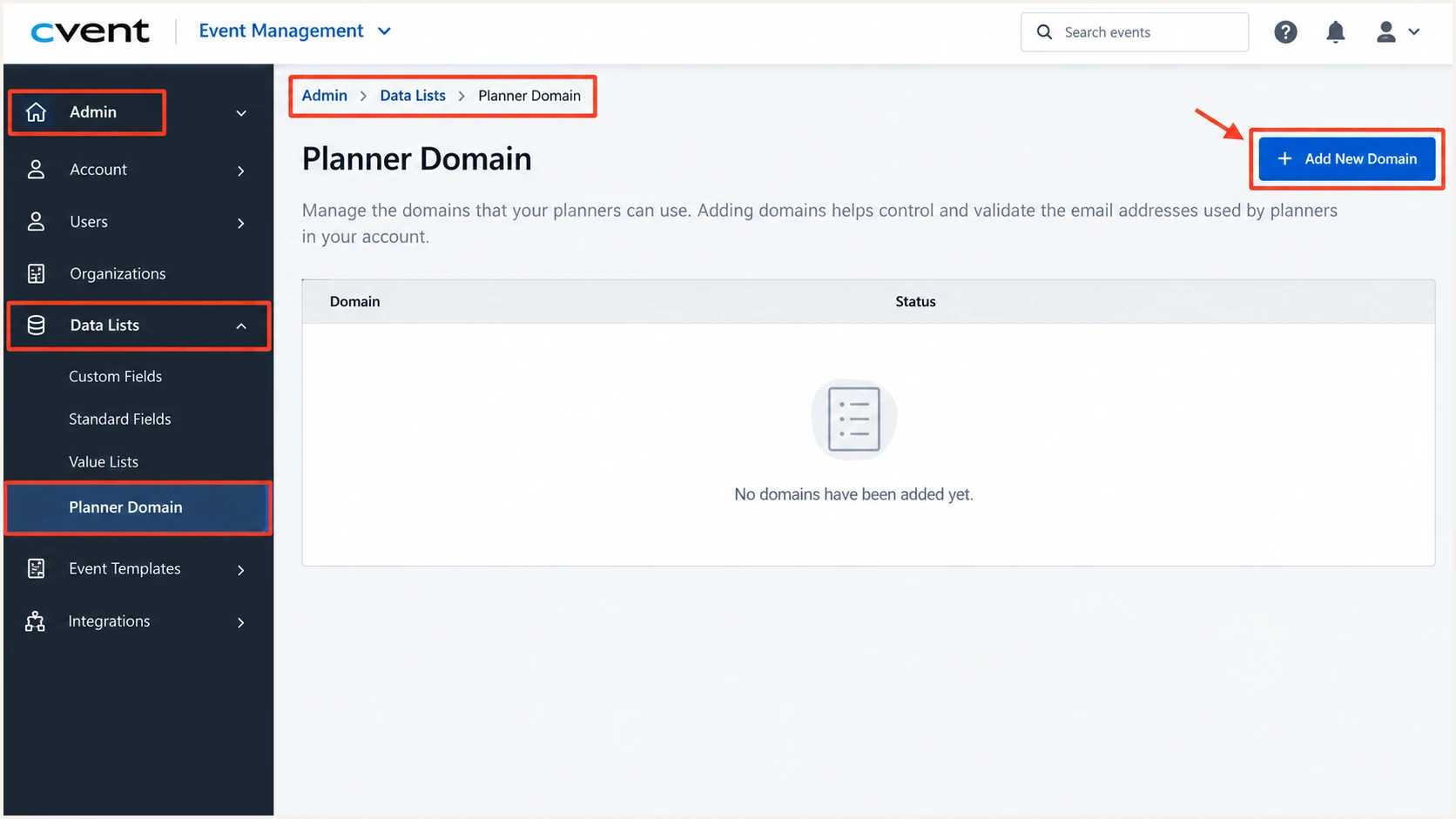
Illustrated Cvent navigation to Admin > Data Lists > Planner Domain and Add New Domain.
The domain verification step establishes control of the domain. I still request custom DKIM signing and check the resulting message headers before treating the sender as DMARC-ready.
For multiple Cvent accounts or sending subdomains, confirm the scope of the setup with Cvent. Do not assume a domain verified in one account covers every account or message type.
Set up SPF
For the standard Cvent-managed Return-Path, leave your From domain's SPF unchanged. SPF checks the envelope sender domain, which is usually visible in the delivered message's Return-Path.
- Inspect the envelope: Send a Cvent email to an external mailbox. Read Return-Path and the receiving server's Authentication-Results, especially smtp.mailfrom.
- Keep existing senders: Preserve SPF authorization for your other email systems. Do not replace your existing record or add a second v=spf1 record.
- Skip unnecessary includes: Do not add include:cvent-planner.com solely to fix DMARC. An include on your From domain does not change a Cvent-owned envelope sender.
- Handle custom envelopes separately: If your account exposes the newer envelope-domain workflow, publish only the SPF-related records Cvent generates for that domain. Confirm the actual envelope domain in a delivered email before expecting SPF alignment.
Use the SPF checker to inspect the domain that actually owns the SPF policy. Checking only example.com will not explain an SPF result for a different Return-Path domain.
SPF checker
Find SPF syntax issues, lookup limits, and weak records.
?/16tests passed
I expect SPF alignment to fail for a Cvent-owned Return-Path used with your own From domain. That is acceptable for DMARC when a DKIM signature passes and meets the domain alignment requirements. An actual SPF authentication failure is a separate issue to investigate with Cvent.
For background on this distinction, see the Cvent alignment details. SPF records you manage must remain within the 10 DNS lookup limit, including nested includes.
Set up DKIM
I use custom DKIM as the DMARC authentication path for Cvent's standard sending setup. Cvent staff describe a support-assisted request followed by publication of two CNAME records.
- Request custom signing: Open a Cvent support case or use the DKIM request process available to your account. Provide your account identifier, exact From domain, and technical contact.
- Confirm the scope: Ask which Cvent products and email types the change covers, which d= signing domain will be used, and whether each sending subdomain needs a separate request.
- Publish both records: Copy the two CNAME selector names and targets supplied by Cvent into public DNS. Use the exact record type Cvent supplies if your account's instructions differ. Never invent selector names or generate replacement keys yourself.
- Confirm activation: Reply to the support case after DNS publication and ask Cvent to validate the records and confirm signing is active. DNS publication and sender activation are separate steps.
- Test the signature: Send a fresh email using the intended From domain. Confirm dkim=pass and check the DKIM-Signature d= signing domain against that From domain.
A DKIM pass under a Cvent-owned signing domain does not authenticate your own From domain for DMARC. I check the signing identity as well as the cryptographic result.
Custom DKIM passes
From events@example.com and a passing DKIM signature with d=example.com satisfy DKIM alignment. Cvent's separate Return-Path can remain outside your domain.
Provider DKIM alone passes
From events@example.com and a passing signature with d=cvent-planner.com do not satisfy DKIM alignment for example.com. Ask Cvent to activate custom signing.
With relaxed DKIM alignment, the signing domain and From domain share the same organizational domain. With adkim=s, the domain names must match exactly. Ask for the exact From domain as d= when strict alignment is required.
For a DNS check, replace the selector below with Cvent's supplied selector or the s= value in a fresh message. Set SIGNING_DOMAIN to the corresponding d= domain; the commands inspect DNS without modifying it.
Look up the Cvent-supplied DKIM selectorbash
SELECTOR='replace-with-cvent-selector'
SIGNING_DOMAIN='example.com'
dig +short CNAME "$SELECTOR._domainkey.$SIGNING_DOMAIN"
dig +short TXT "$SELECTOR._domainkey.$SIGNING_DOMAIN"
Set up DMARC
DMARC belongs in public DNS for the visible From domain. There is no Cvent switch that publishes your organization's DMARC policy.
For a domain without an existing policy, I start with p=none to collect evidence before enforcement. If your domain already uses p=quarantine or p=reject, keep that policy and fix Cvent's DKIM setup.
- Check existing policy: Look up the domain's DMARC record before editing. For a sending subdomain, also check whether the parent domain's policy already applies.
- Choose a reporting mailbox: Use a working address that can receive aggregate DMARC XML reports. Replace dmarc@example.com in the example with your actual reporting address.
- Publish one record: Create or update the TXT record at _dmarc for the From domain. In the example.com DNS zone, the host is usually _dmarc. Avoid publishing a duplicate DMARC record.
- Preserve existing settings: When adding reporting to an existing policy, retain its enforcement and other intentional tags. External reporting destinations also require authorization at the report recipient's domain.
Initial DMARC example for a domain without enforcementtext
Name: _dmarc.example.com
Type: TXT
Value: v=DMARC1; p=none; rua=mailto:dmarc@example.com
The example requests reports without requesting quarantine or rejection for DMARC failures. It does not override other spam filtering or guarantee message acceptance.
Use the DMARC record generator to build the record with your reporting address, then check the published result below. Enter the sending domain, not the _dmarc hostname.
DMARC checker
Look up a domain's DMARC record and catch policy issues.
?/7tests passed
A valid DNS policy is only one part of verification. I also confirm that real Cvent mail passes DMARC and that aggregate reports reach the configured destination.
Reports are normally delivered on a periodic schedule, often daily. No reports immediately after publication do not prove a failure; send representative traffic and check the reporting mailbox and any external-destination authorization.
Verify and troubleshoot
I test a real invitation and a registration confirmation after activation, then repeat for each sending domain. Read the receiving server's Authentication-Results rather than trusting authentication text added by the sender.
|
|
|
|---|---|---|
DKIM result | Pass | Check DNS and activation |
DKIM alignment | Pass | Check signing domain |
SPF result | Pass for envelope | Escalate to Cvent |
SPF alignment | Fail is expected | Confirm envelope domain |
DMARC result | Pass through DKIM | Inspect both identities |
Expected results for your own From domain with Cvent's standard Return-Path.
The email tester is the quickest verification route: it supplies a destination address, you send a Cvent email to that address, and the resulting diagnosis checks the received message's authentication.
Use a real Cvent send with the same From address as production. Where possible, trigger the actual event workflow rather than relying only on an editor preview, which does not establish how every automated message is sent.
Email tester
Send a real email to this address. Suped shows a results button when the test is ready.
?/43tests passed
A pass proves the configuration worked for that particular message. I repeat the test after sender changes and cover every event workflow that uses a different domain or sending path.
The following abbreviated header example illustrates a valid outcome. SPF passes for Cvent's envelope domain, while DKIM provides the domain match that makes DMARC pass.
Illustrative receiver authentication resultstext
From: Events <events@example.com>
Authentication-Results: receiver.example;
  spf=pass smtp.mailfrom=cvent-planner.com;
  dkim=pass header.d=example.com;
  dmarc=pass header.from=example.com
- DNS not found: Check the authoritative DNS zone, the supplied selector, and whether your DNS host appended your domain twice. Keep DKIM CNAMEs as DNS records without an HTTP proxy.
- DKIM absent: Ask Cvent whether custom signing is active for this account, From domain, and email type. Publishing the records does not by itself activate signing.
- DKIM passes, DMARC fails: Compare d= with the visible From domain and inspect adkim. A valid signature under an unrelated domain does not meet DMARC requirements.
- DMARC passes, delivery fails: Inspect Cvent's delivery status and recipient rejection details. Also check recipient opt-out status; successful authentication does not guarantee inbox placement.
Get alerted when it breaks
I monitor Cvent's DKIM results after setup because its standard Return-Path does not provide SPF alignment with your domain. A removed selector or sender-domain change can leave Cvent mail failing DMARC.
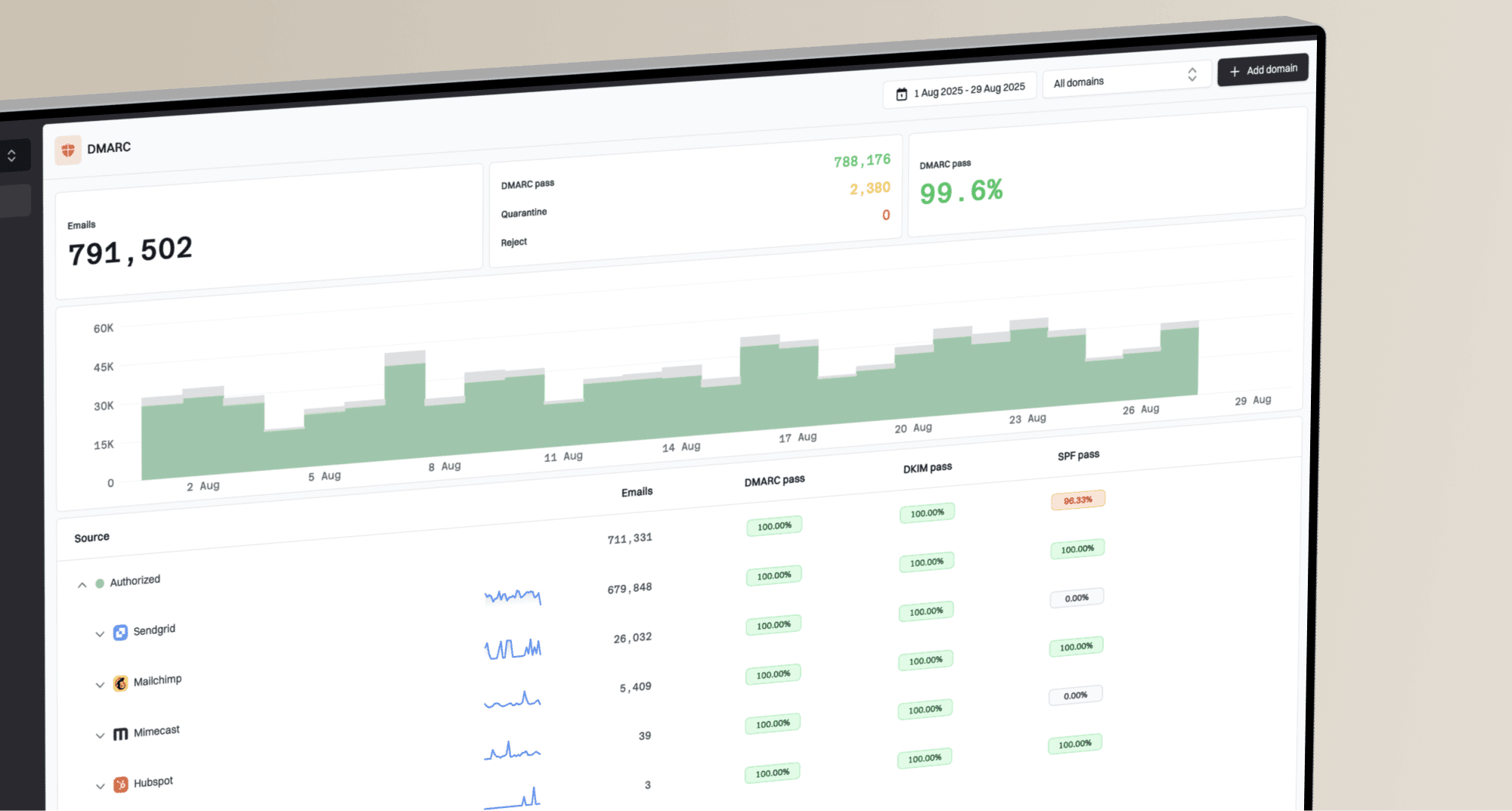
Suped, our DMARC reporting and email authentication platform, makes this operational through DMARC monitoring. Its source-level records and issue diagnostics help distinguish expected SPF alignment failures from broken custom DKIM.
- Review Cvent traffic: Filter your reporting data to Cvent and the relevant From domain. Confirm the traffic belongs to an authorized event workflow before verifying the source.
- Enable failure alerts: In Suped notification settings, enable DMARC failure alerts and summary emails. Configure available alert thresholds and route notifications to the team that can update DNS and contact Cvent.
- Investigate the failure: Use Suped's data and detail views to inspect the reported DKIM domain, authentication results, and sending IP. Compare these with a fresh Cvent test email.
- Close the loop: Repair the DNS record or ask Cvent to restore signing, retest a live message, and confirm recovery in subsequent aggregate reports.
Report-based alert timing
Suped can alert on failures present in received DMARC reports. Aggregate reports arrive on receiver-controlled schedules, so this is not an instant notification for every failed Cvent email. Use a fresh test when an event send is urgent.
I keep the DNS owner and Cvent account owner on the same incident path. The DNS team fixes missing records; Cvent confirms signing activation and account coverage.
Before a large event campaign, send another test even when recent summaries are healthy. Reporting describes observed traffic and does not predict the result of a newly changed sender configuration.
Secure your domain with p=reject
I move to p=reject after every legitimate sender using the domain has a working DMARC authentication path. A successful Cvent test alone is insufficient if other services still fail.
Suped's source table and issue diagnostics make that decision reviewable. Our Hosted DMARC controls also let teams manage policy changes through the dashboard after the hosted DNS setup is complete.
- Cover a sending cycle: Review traffic across a representative business and event cycle. Include infrequent confirmations and other scheduled messages rather than relying on a fixed number of days.
- Resolve legitimate failures: Use Suped to inspect each authorized source. For Cvent's standard setup, require passing DKIM with domain alignment; do not wait for SPF alignment that the managed Return-Path cannot provide.
- Stage enforcement: After fixing legitimate traffic, change a new monitoring policy to p=quarantine and review the results before moving to p=reject. Keep existing enforcement if it is already working.
- Check subdomains: Review inherited policy and any explicit subdomain DMARC records. Make sure event subdomains have the intended coverage and compatible DKIM signing.
- Keep reporting enabled: Retain the working rua destination and Suped alerts during and after enforcement. Investigate regressions and repair the affected sender instead of automatically weakening the whole domain's policy.
Reject policy after legitimate senders are verifiedtext
Name: _dmarc.example.com
Type: TXT
Value: v=DMARC1; p=reject; rua=mailto:dmarc@example.com
Replace the example domain and reporting address, and preserve other intentional tags in your existing record. With Hosted DMARC, apply the equivalent policy change through its controls rather than creating a competing TXT record at the hosted name.
A reject policy asks receiving systems to reject messages that fail DMARC; receivers retain local handling discretion. It protects use of your domain in the visible From address, without guaranteeing delivery for authenticated mail.
FAQ
I distinguish the standard Cvent-managed envelope sender from account-specific custom domain settings when checking these results. The delivered message shows which identities are actually in use.
Keep the Cvent support case, supplied DNS values, and a successful message sample together. They make later sender changes and authentication failures easier to diagnose.