How to set up DMARC/DKIM/SPF for Amazon SNS

Amazon SNS's native Email and Email-JSON subscriptions use an AWS sender, usually no-reply@sns.amazonaws.com. You cannot configure your own From domain, DKIM signing domain, or custom Return-Path on those subscriptions. To send SNS notifications as alerts@example.com with your own authentication, subscribe an AWS Lambda function and send through Amazon SES.
I check the delivery route before changing DNS. Native SNS email needs recipient subscription confirmation, while the SNS-to-Lambda-to-SES route needs a verified SES domain, DKIM signing, optional custom MAIL FROM for SPF alignment, and a DMARC record in your DNS.
Native SNS email
Use a Standard topic with an Email subscription. AWS controls the sender address and its authentication. Changing the topic display name changes the visible name, not the email domain.
SNS with a custom sender
Use a Standard topic with a Lambda subscription. Lambda calls Amazon SES using your verified From address. SES controls the DKIM signature and custom MAIL FROM settings.
Add your domain
Amazon SNS has no domain verification screen. For a custom sender, I create the sending identity in Amazon SES and keep SNS as the event source. The DNS steps below apply to that SES identity.
For native notifications only, open SNS > Subscriptions > Create subscription, select a Standard topic, choose Email, and enter the recipient address. Click Confirm subscription in the received email. No sender-domain DNS changes are required for this route.
- Choose the Region: Use one AWS Region for this setup, such as us-east-1. Open Amazon SES > Configuration > Identities > Create identity.
- Create the identity: Select Domain and enter example.com, replacing it with your sending domain. Choose Easy DKIM with the default 2048-bit key and keep DKIM signing enabled. Create the identity.
- Publish verification records: Open the identity's Authentication tab, expand Publish DNS records, and copy all three generated CNAME names and targets into authoritative DNS. Use the exact targets SES supplies.
- Confirm ownership: Wait for the identity to show Verified and DKIM to show Successful. DNS verification can take up to 72 hours. SES identities and production access are Region-specific.
I verify the domain rather than only an individual mailbox so SES can sign with the domain used in the From address. The Amazon SES setup also applies when SNS is the event source.
Set up SPF
Skip this configuration for native SNS email: publishing Amazon's SPF include at your domain does not change its AWS sender. For the custom sender route, I configure a dedicated MAIL FROM subdomain in SES, such as bounce.example.com.
SPF checks the SMTP envelope sender. It does not authenticate the visible From address directly. AWS explains that distinction in its SPF documentation.
- Open MAIL FROM: In SES > Configuration > Identities, select your verified domain. Under Authentication, find Custom MAIL FROM domain and choose Edit.
- Set the subdomain: Enable Use a custom MAIL FROM domain, enter bounce.example.com, and save. Reserve this subdomain for bounces; do not use it for normal incoming mail.
- Publish both records: Add the TXT and MX records displayed by SES at bounce.example.com. The MX endpoint depends on the SES Region. Do not replace your root domain's existing MX records.
- Check failure behavior: Use default MAIL FROM domain preserves sending if the custom MX fails, but loses SPF alignment with your domain. Reject message stops sending instead. Choose deliberately and monitor the result.
Custom MAIL FROM DNS example for us-east-1text
bounce.example.com. TXT v=spf1 include:amazonses.com ~all
bounce.example.com. MX 10 feedback-smtp.us-east-1.amazonses.com.
Publish exactly one SPF record at each DNS name. If bounce.example.com already has an SPF record, merge the authorized senders rather than adding another. Keep DNS lookup mechanisms within SPF's limit of 10.
Enter bounce.example.com in the SPF checker below. Checking only example.com misses this configuration because the MAIL FROM subdomain has its own SPF record. Confirm the custom MAIL FROM status in SES after DNS has propagated.
SPF checker
Find SPF syntax issues, lookup limits, and weak records.
?/16tests passed
With From: alerts@example.com and MAIL FROM under bounce.example.com, SPF can satisfy DMARC under relaxed SPF alignment. A strict aspf=s policy requires an exact domain match, which this subdomain setup does not provide.
Custom MAIL FROM is optional when DKIM already passes with an aligned signing domain. With SES's default amazonses.com Return-Path, expect SPF alignment errors against example.com; DMARC still passes through aligned DKIM. Do not add an SPF include to the root domain to fix that mismatch.
Set up DKIM
SES signs the custom notification email; SNS does not sign it with your domain. I verify DKIM independently because it can preserve DMARC authentication when forwarding breaks SPF.
The three CNAME records published during domain verification are the Easy DKIM records. Leave them in DNS after verification. Their targets depend on the identity and Region, so copy them rather than constructing selector names yourself.
- Inspect the identity: Open SES > Configuration > Identities > your domain > Authentication. Confirm DKIM configuration is Successful and DKIM signing is enabled.
- Check DNS names: Resolve each generated selector._domainkey name as a CNAME. Prevent your DNS editor from appending the domain twice, and keep the records in DNS-only mode if the provider offers proxying.
- Use the verified sender: Configure the Lambda sender as alerts@example.com. Check separately verified email identities for settings that override the domain's DKIM configuration.
- Check a delivered message: Look for dkim=pass and a DKIM signing domain matching example.com. A passing signature using only amazonses.com does not authenticate your From domain for DMARC.
Look up a generated DKIM selectorbash
dig +short CNAME <ses-selector>._domainkey.example.com
Replace <ses-selector> with a selector shown by SES. This lookup confirms the DNS alias; only a delivered message confirms that SES is signing and the receiver accepts the signature.
I keep the existing authentication records for other senders. Different services use different DKIM selectors, so adding SES records does not require deleting working selectors.
One aligned pass is enough for DMARC
DMARC passes when either SPF passes with an aligned MAIL FROM domain or DKIM passes with an aligned signing domain. An SPF alignment error is acceptable when aligned DKIM passes. A DKIM failure still needs investigation even if SPF currently keeps DMARC passing.
Connect Amazon SNS to Amazon SES
The domain settings above take effect only when SES sends the message. I connect the SNS topic to a Lambda function that calls SES instead of expecting an Email subscription to adopt the verified identity.
Use a Standard topic and a Python Lambda function in the same Region. The forwarding example below sends each SNS message to one configured recipient; production fanout also needs recipient management and bounce handling.
- Create the function: In Lambda, create a Python function named sns-email with handler lambda_function.lambda_handler. Keep the default logging permissions and set environment variables SENDER=alerts@example.com and RECIPIENT=recipient@example.net.
- Grant SES access: Add ses:SendEmail to the function's execution role, scoped to the verified SES identity ARN. Replace the account ID and Region in the policy below.
- Deploy the handler: Paste the Python handler below into lambda_function.py and choose Deploy. The SDK uses the function's execution role; no embedded AWS access keys are needed.
- Connect the topic: In Lambda > Configuration > Triggers > Add trigger, choose SNS and select the Standard topic. This console workflow creates the subscription and permission for SNS to invoke the function.
- Check sending access: While SES is in the sandbox, verify the recipient address too. Request production access in SES > Account dashboard before sending to unverified recipients.
SES permission for the Lambda execution rolejson
{
  "Version": "2012-10-17",
  "Statement": [
    {
      "Effect": "Allow",
      "Action": "ses:SendEmail",
      "Resource": "arn:aws:ses:us-east-1:123456789012:identity/example.com"
    }
  ]
}
Use the identity ARN for the same Region as the SES client. An AccessDenied response means the execution role, identity scope, or an applicable account policy does not permit the send.
The handler uses fixed sender and recipient environment variables. It reads the SNS message body and subject, then logs both message IDs so an SNS event can be traced to the SES send.
Minimal Lambda forwarding handlerpython
import json
import os

import boto3

ses = boto3.client("sesv2")

def lambda_handler(event, context):
    for record in event["Records"]:
        sns = record["Sns"]
        subject = sns.get("Subject") or "SNS notification"
        result = ses.send_email(
            FromEmailAddress=os.environ["SENDER"],
            Destination={
                "ToAddresses": [os.environ["RECIPIENT"]]
            },
            Content={"Simple": {
                "Subject": {"Data": subject, "Charset": "UTF-8"},
                "Body": {"Text": {
                    "Data": sns["Message"], "Charset": "UTF-8"
                }}
            }}
        )
        print(json.dumps({
            "sns_message_id": sns["MessageId"],
            "ses_message_id": result["MessageId"]
        }))
SNS and Lambda can retry events, so add durable deduplication keyed by the SNS MessageId before using this minimal handler in production. Configure a Lambda failure destination and alarms so exhausted retries are visible.
In the SNS console, open Topics > your topic > Subscriptions. Confirm that an AWS Lambda subscription points to sns-email. Leave any existing Email subscription in place until the custom sender test passes, then remove it if duplicate delivery is unwanted.
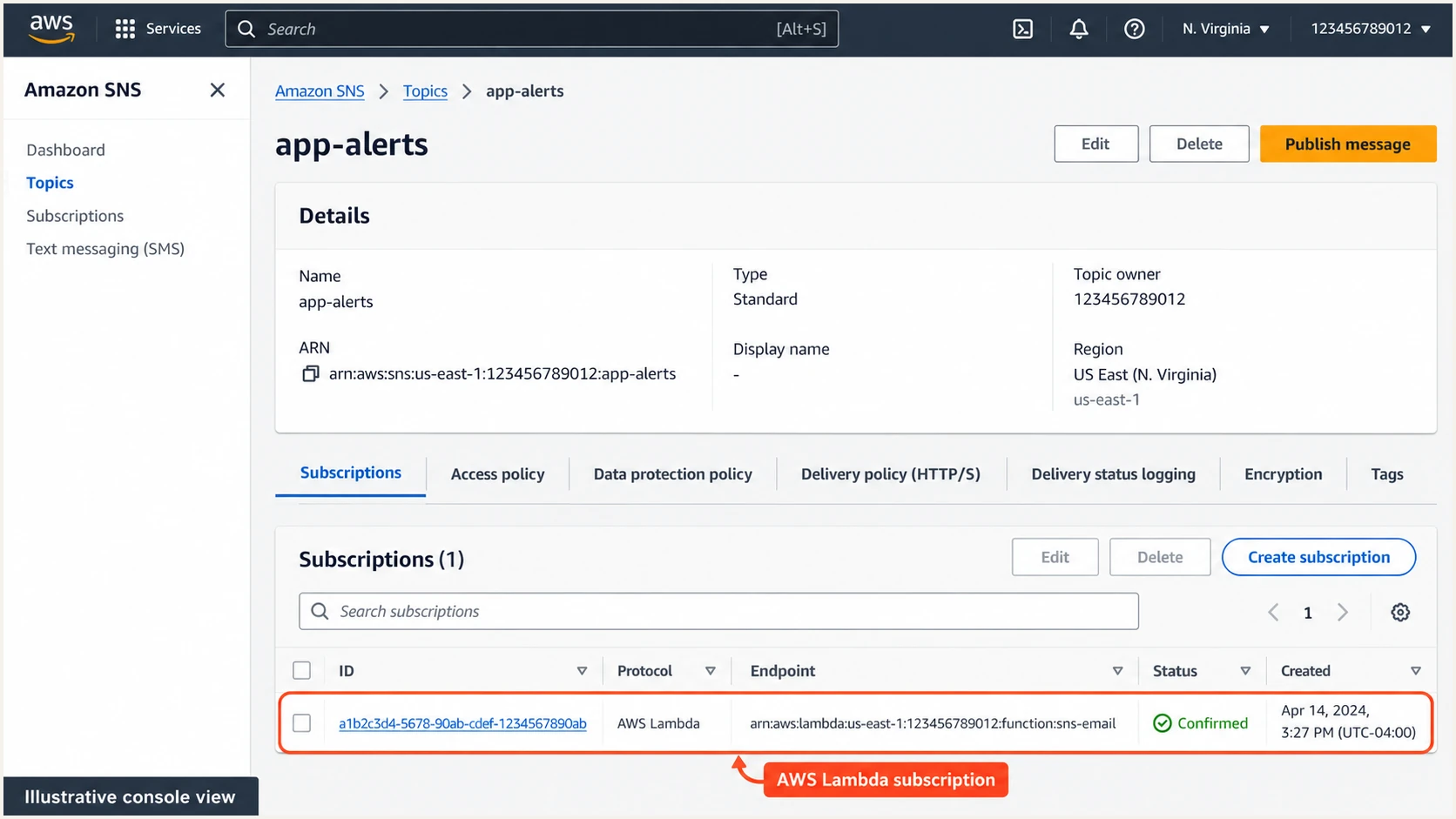
Illustrative Amazon SNS console showing a Lambda subscription for the app-alerts topic.
Set up DMARC
DMARC is published at the domain in the visible From address. For alerts@example.com, I use a TXT record at _dmarc.example.com. There is no DMARC setting to enable on the SNS topic.
For a new deployment, start with p=none to collect reports. If the domain already uses p=quarantine or p=reject, keep that policy and authenticate the new sending route before using it.
- Check the existing record: Look up TXT at _dmarc.example.com before editing. Update the existing DMARC record rather than publishing a second one.
- Generate the value: Use the DMARC record generator linked below. For a domain without an existing enforcement policy, start with the exact monitoring record shown here.
- Set reporting: Replace example.com and dmarc@example.com with your domain and working aggregate-report destination. A normal mailbox receives XML attachments; automated analysis requires a report-processing destination.
- Verify publication: Run the DMARC checker for example.com after saving DNS. Confirm one valid DMARC record and the intended policy and reporting address.
Initial DMARC TXT value at _dmarc.example.comtext
v=DMARC1; p=none; rua=mailto:dmarc@example.com
Use the DMARC record generator to build the record with your actual reporting address. For an external reporting domain, confirm that its required reporting authorization is present.
The checker validates DNS publication. It does not prove that a notification passed authentication. Send through the SNS-to-Lambda-to-SES route and inspect that delivered message separately.
DMARC checker
Look up a domain's DMARC record and catch policy issues.
?/7tests passed
A p=none policy requests monitoring without DMARC-based quarantine or rejection. It does not improve a failing DKIM signature or make an unrelated SPF domain match your sender.
Native SNS notifications use the AWS From domain, so your domain's DMARC policy does not govern them. Receiving notifications at an example.com mailbox does not make example.com the sending domain.
Verify and troubleshoot
I publish a real message to the SNS topic, then inspect the email delivered by SES. A direct SES test alone does not verify that the Lambda subscription uses the intended sender and Region.
Open SNS > Topics > your topic > Publish message. Enter a simple subject and message body, publish, and check Lambda logs for the corresponding SNS and SES message IDs.
- Confirm the sender: Open the received message's original headers. From should be alerts@example.com. If it is no-reply@sns.amazonaws.com, you are inspecting a native Email subscription rather than the SES route.
- Confirm DKIM: Read the receiver's Authentication-Results header. Require dkim=pass with header.d=example.com, or another signing domain accepted by the domain's DMARC alignment mode.
- Confirm SPF: For custom MAIL FROM, require spf=pass with smtp.mailfrom under bounce.example.com. If it remains under amazonses.com, check SES MAIL FROM verification and MX failure fallback.
- Confirm DMARC: Require dmarc=pass for header.from=example.com. Check both authentication success and domain alignment; spf=pass and dkim=pass for unrelated domains do not satisfy your DMARC policy.
- Trace missing mail: Check topic subscription filters, Lambda errors, SES sandbox restrictions, and recipient suppression or bounce events. For native SNS, also confirm the email subscription is no longer Pending confirmation.
|
|
|
|---|---|---|
AWS From address | Native subscription | Test Lambda route |
SPF mismatch | Default MAIL FROM | Inspect SES MX |
DKIM failure | DNS or signing | Check SES identity |
DMARC failure | No aligned pass | Inspect headers |
No SES send | Lambda or IAM | Inspect function logs |
Use the delivered message and AWS logs to identify the failing step.
For a faster diagnosis, start the email tester below and copy its test address. Temporarily set the Lambda RECIPIENT variable to that address, publish another SNS message, and review the authentication results. Restore the original recipient afterward.
This test needs SES production access unless its recipient is verified in your SES account. Send through Lambda rather than forwarding an existing email, because forwarding changes the delivery path being tested.
Email tester
Send a real email to this address. Suped shows a results button when the test is ready.
?/43tests passed
The tester diagnoses the message received at its address. I still check regular recipient delivery afterward, particularly if forwarding or a mailing list changes the message.
For native SNS email that never arrives, check the subscription confirmation and receiving mail system first. Adding SPF or DKIM records at the recipient's domain does not repair AWS's outgoing authentication.
Get alerted when it breaks
Suped is our DMARC platform for detecting authentication failures after this setup is live. I use its source-level reports and issue diagnostics to investigate changes in the SES sending route without repeatedly inspecting individual mailboxes.
Once aggregate reports reach the configured reporting destination, Suped's DMARC monitoring connects failures to sending sources and provides steps to fix detected issues. Native SNS mail using an AWS From domain does not appear in your domain's DMARC reports.
- Review the source: In Suped, confirm the observed Amazon SES traffic belongs to your SNS-to-Lambda route using the signing domain, message timing, and AWS logs. Verify the source only after confirming ownership.
- Enable failure alerts: Open notification settings and enable DMARC failure alerts for the monitored domain. Enable summary emails to track changes across reporting periods.
- Investigate the record: Open a failing record's detail view. Check the DKIM signing domain and SPF MAIL FROM domain, then use the detected issue's steps to fix the relevant SES or DNS setting.
- Cover pipeline failures: Keep CloudWatch alarms for Lambda errors and SNS delivery failures. Process SES bounce and complaint events through a separate SNS feedback topic so they cannot loop back into the forwarding function.
DMARC alerts depend on receivers sending aggregate reports, so they do not provide immediate confirmation of every individual failure. AWS pipeline alarms cover missing sends; Suped covers authentication failures visible in the reports.
I send another test after a DNS change or Lambda deployment. That gives an immediate message-level check while the next aggregate reports confirm how the broader sending stream behaves.
Keep delivery and authentication alerts separate
A successful SNS publish does not prove Lambda ran successfully, SES sent the email, or the receiver passed DMARC. Suped's authentication alerts and AWS delivery alarms cover different parts of the same sending route.
Secure your domain with p=reject
I move to p=reject after every legitimate source using the From domain has a reliable DMARC pass. That includes mail outside this SNS workflow, such as employee messages and other application senders.
Suped's source review and authentication diagnostics make this decision based on observed sending. Our Hosted DMARC controls let teams stage policy changes in the dashboard after the initial DNS setup.
- Inventory legitimate mail: Review Suped's verified and unverified sources across a period covering normal sending cycles. Investigate unknown sources instead of automatically authorizing every Amazon IP address.
- Fix the custom route: Confirm aligned DKIM for the SES identity. Validate custom MAIL FROM if used, and test forwarding paths. Do not require SPF alignment when aligned DKIM already gives a dependable DMARC pass.
- Stage enforcement: Move a new monitoring deployment to p=quarantine, review legitimate failures, and then move to p=reject. Keep an existing enforcement policy while fixing this route, and review subdomain policy inheritance.
- Keep monitoring: Retain reporting and failure alerts after enforcement. Retest after changing the sender identity, AWS Region, DKIM records, or custom MAIL FROM domain.
Final DMARC TXT example at _dmarc.example.comtext
v=DMARC1; p=reject; rua=mailto:dmarc@example.com
Replace the example reporting address and preserve any existing policy tags that your domain needs. A reject policy asks receivers to reject messages that fail DMARC; individual receivers apply their own handling rules.
For teams managing repeated policy changes, Hosted DMARC in Suped removes repeated manual TXT edits after the initial DNS delegation. Review the reports after each policy change before proceeding to the next stage.