Why did Gmail mark an internal email as potentially dangerous?

Published 12 Aug 2025
Updated 20 Oct 2026
16 min read
Summarize with
Updated on 20 Oct 2026: We clarified Gmail's warning types and strengthened the checks for internal email authentication and Workspace policies.
Gmail marks an internal email as potentially dangerous when its safety checks or Google Workspace policies detect a possible security risk. A "This message seems dangerous" warning alone does not establish a sender reputation problem or identify a specific trigger word. Check the message for suspicious requests and links, authentication problems, unusual routing, or a Workspace safety rule.
If the message still landed in the inbox, treat it as a security warning first and a spam-placement issue second. Preserve the message and the exact warning text, verify the sender through another channel if the request is unusual, check the original headers, search the Google Workspace email log, and compare the message with nearby normal emails before deciding whether it was a false positive or a real security problem.
Why Gmail warns about internal email
There is no single most likely technical cause that can be proven without the message and admin evidence, and Google does not publish the scoring behind each warning. A normal internal Gmail message can still look suspicious when it includes an unexpected link, asks for money or sensitive information, uses wording common in phishing, arrives through an unusual route, or goes to recipients who do not normally receive that type of message. The same sender can send another email five minutes later and see no warning because Gmail evaluates the whole message and its context, not the mailbox alone.
- Safety classification: Gmail can warn about suspected phishing without moving the message out of the inbox. The banner does not disclose a numerical risk score.
- Links and requests: An unfamiliar destination, disguised link, credential request, payment request, or unusual reply instruction deserves priority over copy tweaks.
- Message-specific content: Review unexpected payment or credential requests and misleading link text. Treat a particular subject or body phrase as a hypothesis to test, not a documented trigger.
- Internal delivery: Google Workspace internal mail still goes through safety checks. Being inside the same company does not bypass scam or phishing detection.
- Feedback and policy: User reports provide feedback to Gmail, while Workspace safety rules can separately change how messages are handled.
Do not reduce the answer to one word in the subject line. Gmail does not use a simple public banned-word list. Words still matter as part of the complete message, but links, sender context, authentication, routing, and recipient behavior can matter too.
- Useful question: What combination of content, links, headers, and routing made this message different?
- Weak question: Which single word caused the warning?
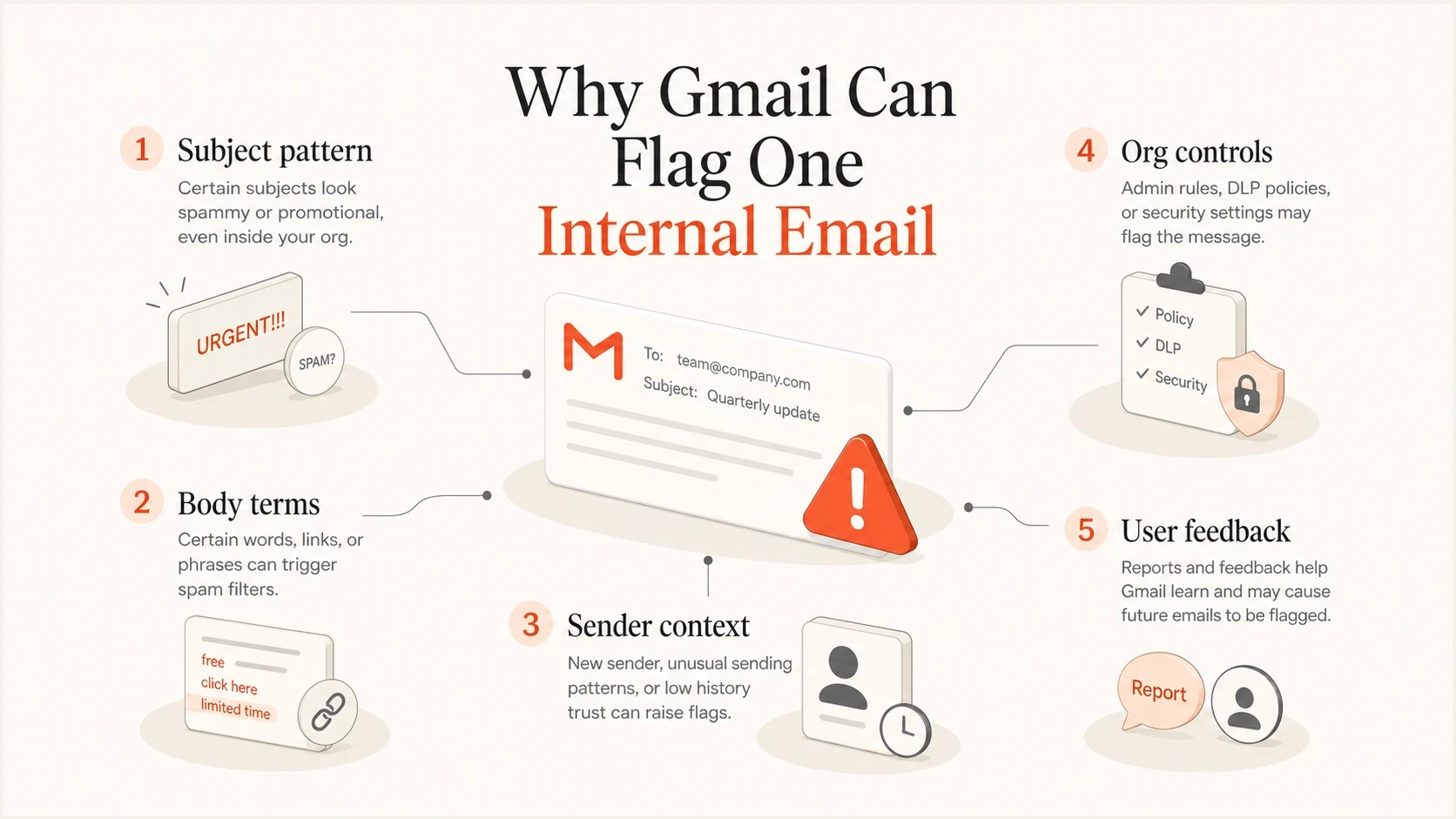
Gmail internal email warning signals: subject, body, sender context, organization controls, and user feedback.
Identify the Gmail warning before changing settings
Capture the exact warning text and check the same message in Gmail web. An external-recipient alert, an authentication indicator, and a phishing warning call for different checks.
|
|
|
|---|---|---|
"This message seems dangerous" or a scam warning | Gmail suspects unsafe content or a deceptive request, even when the sender is familiar. | |
Question mark beside the sender's name | Gmail has not authenticated the message. This alone does not prove that it is spam. | |
External-recipient warning | The conversation includes someone outside the organization; this alert is not a phishing verdict. | |
Warning after clicking a link | The warning concerns the destination or an untrusted domain, rather than inbox placement. | Stop and have IT inspect the destination. Google's link-warning documentation explains dangerous-site warnings. |
Use the warning text and when it appears to choose the next check.
Rule out account compromise and unsafe links first
A familiar display name or valid authentication does not prove that the person intended to send the message. A compromised Google Workspace account can send mail that passes SPF, DKIM, and DMARC. If the email asks for credentials, money, personal information, an urgent download, or an unusual business action, treat the warning as genuine until the sender and request are verified.
- Verify out of band: Contact the sender by phone, chat, or another known channel. Do not reply to the warned message to confirm it.
- Inspect sender details: Expand sender details and check the full From address and Reply-To for lookalike domains or an unexpected reply address. Inspect link destinations and attachment names without clicking links or downloading files while the message remains unverified.
- Audit the account: An admin should review recent sign-ins, active sessions, forwarding rules, mail delegates, filters, and connected app access for changes the sender does not recognize.
- Contain confirmed misuse: Suspend access if needed, reset credentials, revoke active sessions and unauthorized app tokens, remove hostile forwarding rules, and preserve audit evidence.
- Report the right outcome: Use Gmail's More menu next to Reply, then Report phishing for a suspicious message. Use Looks safe only when offered and after the sender, request, links, and account activity have been verified.
SPF checks sending-server authorization for its evaluated domain. DKIM verifies a domain signature and the integrity of the signed content. DMARC checks whether a passing SPF or DKIM domain matches the visible From domain. These checks do not prove that the mailbox owner intended the message or that its links are safe.
Why this differs from spam placement
A Gmail warning banner and spam-folder placement are related, but they are not the same verdict. Spam placement describes where Gmail files the message. A dangerous-message warning describes a security concern and can appear on an inboxed or spammed message; Google can also reject mail it considers suspicious. For this inboxed case, start with link and request safety, authentication, routing, and Workspace policy. For a broader spam-placement issue, examine reputation, recipient feedback, and sending patterns as well.
Spam placement
Spam placement means Gmail delivers the message to the Spam folder. Rejection is a separate outcome in which the receiving server refuses delivery; check the SMTP response or bounce message.
- Main signal: Sender reputation, recipient engagement, authentication, and volume pattern.
- First check: Review headers, bounce data, spam placement rate, and recent sending changes.
Safety banner
The message carries a visible warning before the reader trusts its request, links, or attachments. This points to message-level risk or a policy flag.
- Main signal: Classifier risk, suspicious links or wording, account context, user feedback, and security settings.
- First check: Verify the request, open the original message, inspect authentication results, and search the Workspace log.
How to classify the event
These are delivery states, not safety scores. A message without a banner still requires normal caution.
Inbox
No banner
Inbox delivery with no warning
Warned
Verify the request
Inbox delivery with a safety banner
Spam
Review filtering
Filed into spam or junk
Rejected
Check the rejection
Blocked before inbox delivery
Inbox delivery with a warning does not establish a false positive. Internal phishing, compromised accounts, unsafe links, and misconfigured routing can produce the same visible symptom. Workspace policies also let administrators deliver suspicious messages with a warning rather than move them to Spam or quarantine.
What to check in Gmail and Google Workspace
The cleanest investigation starts with evidence that does not change when someone clicks "Looks safe". That feedback action can affect the visible warning for the user, but it does not rewrite the original authentication headers. Preserve the message, capture the Message-ID, and ask a Workspace admin to search the exact event. Email Log Search can show delivery status, route details, and available rule information, but it does not reveal the private classifier score or every signal behind the banner.
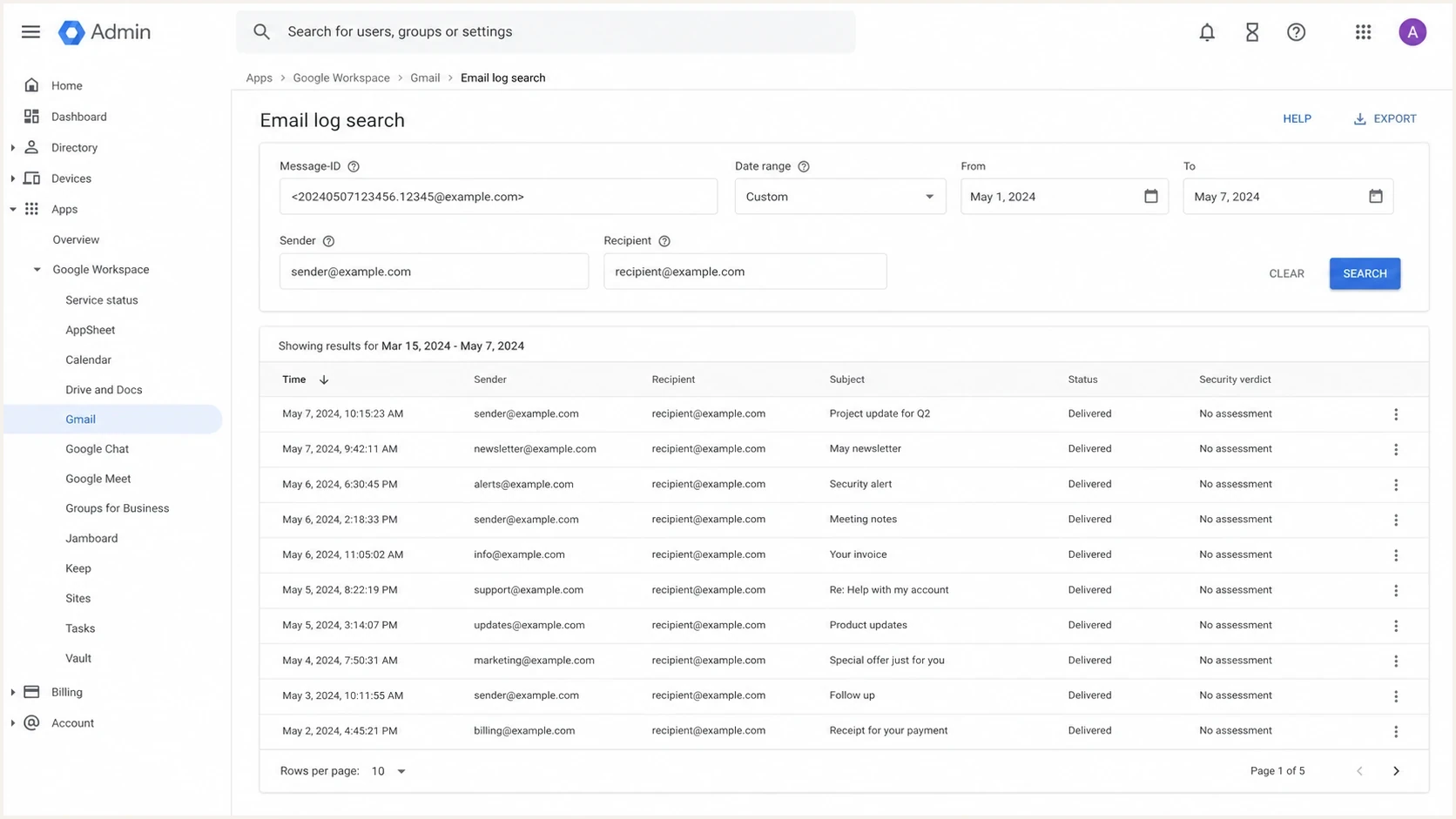
Google Admin console Email Log Search illustration for investigating an internal Gmail warning.
- Save the original: In Gmail web, open the message, select More next to Reply, then Show original. Download the original message and capture the banner before submitting feedback.
- Check authentication: Read the Authentication-Results added by Google's receiving system, not an arbitrary header supplied by the sender. Check SPF and DKIM results and their domains against the visible From domain. Forwarding can break SPF while DMARC still passes through a valid DKIM signature with a matching domain.
- Search the log: Go to Reporting > Email Log Search and search by Message-ID. Review each affected recipient's delivery and route details, including available rule information. Investigate promptly: after 30 days, searches require the recipient address and Message-ID and provide only post-delivery status. See Google's Email Log Search limits.
- Compare nearby mail: Look at other messages from the same sender on the same day. If only one message is warned, compare its links, request, copy, attachments, route, and recipients.
- Review safety rules: Go to Apps > Google Workspace > Gmail > Safety and check the affected user's organizational unit. Several rules default to "Keep email in inbox and show warning". The unauthenticated-mail rule requires SPF or DKIM to pass for a domain, which is a different check from DMARC's From-domain matching. Review the applicable actions before changing policy. See Google's safety settings.
- Record the outcome: Document whether the evidence points to account misuse, authentication, content, routing, user feedback, a Workspace rule, or an unexplained false positive.
Header fields to inspecttext
Authentication-Results: mx.google.com;
  spf=pass smtp.mailfrom=example.com;
  dkim=pass header.d=example.com;
  dmarc=pass (p=none) header.from=example.com
Message-ID: <message-id@example.com>
Received: from mail.example.com by mx.google.com
For an external comparison, send a sanitized test with no confidential content to Suped's email tester and compare authentication results and message rendering. Delivery to an external recipient changes the route and policy context, so this test cannot reproduce the original Workspace decision or establish why Gmail displayed a banner.
Email tester
Send a real email to this address. Suped shows a results button when the test is ready.
?/43tests passed
If the sender and request are verified and the checks find no issue, record a suspected false positive with the supporting evidence and any remaining uncertainty. Passing authentication and a clean external test do not prove that the original message was safe. If the evidence shows a specific issue, fix that issue instead of rewriting subject lines blindly.
Authentication and reputation still matter
Even when the warning looks content-driven, authentication is still one of the first checks. Native messages sent directly between users in the same Google Workspace domain do not follow the same inbound route as mail entering Google from another server. Focus SPF, DKIM, DMARC, reverse DNS, and sender authorization checks on messages that enter or re-enter through a relay, connector, group, CRM route, helpdesk route, or other sending service.
Example DMARC record for starting report collectiondns
v=DMARC1; p=none; rua=mailto:dmarc-reports@example.com
Publish the example as a TXT record at _dmarc.example.com, replacing the domain and report address. The p=none policy requests monitoring, not enforcement, and does not disable Gmail's safety checks. Keep an existing quarantine or reject policy while fixing legitimate senders. See Google's DMARC setup instructions.
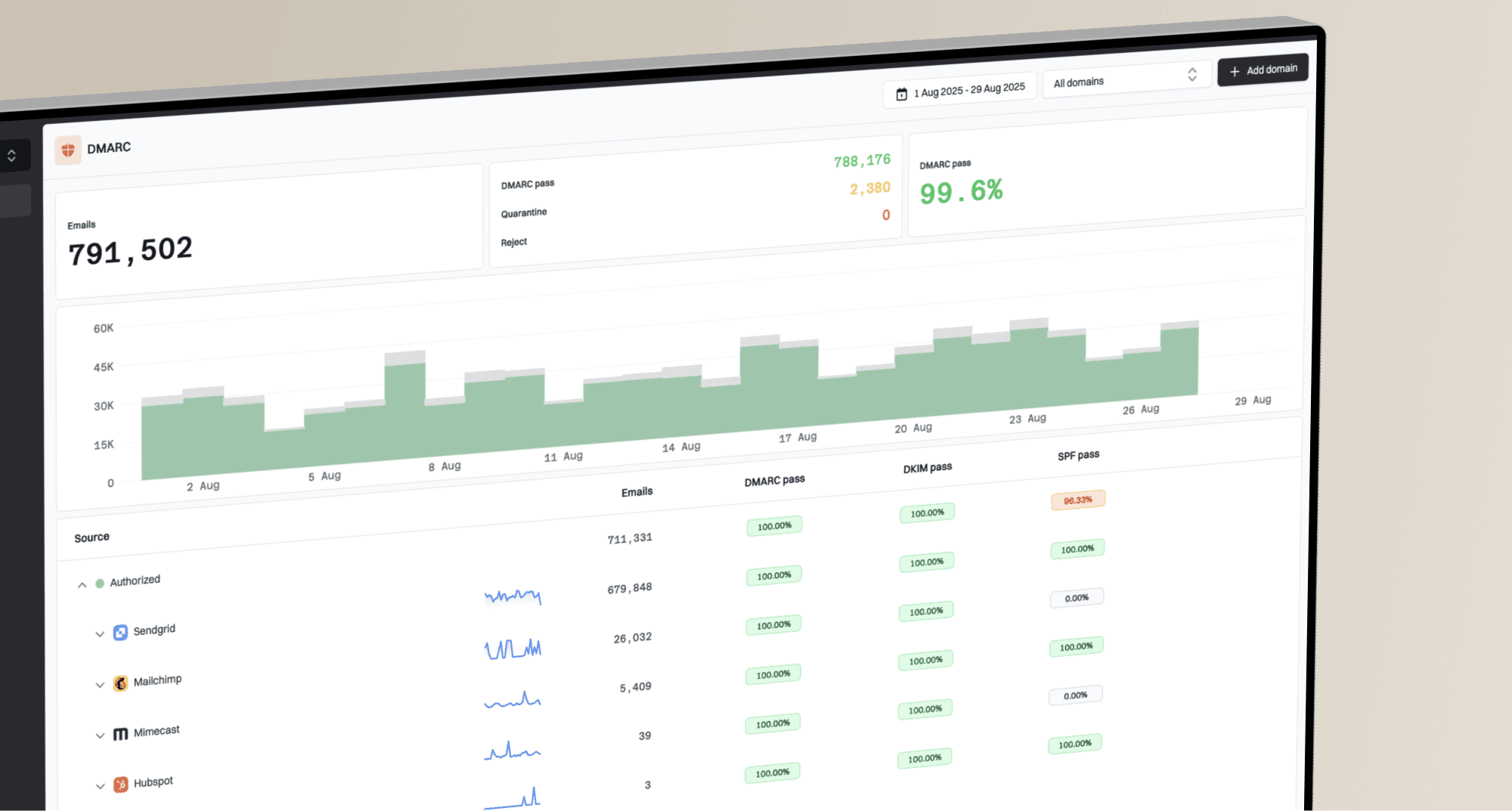
Suped's product helps when the issue extends beyond one message by grouping aggregate reports by sending source, showing SPF and DKIM results, identifying DMARC domain-matching failures, and alerting the team when a route starts failing. Use DMARC monitoring to inventory legitimate senders and investigate recurring authentication problems. Aggregate reports summarize sending-source results; they do not contain the message body or Gmail's private reason for a warning. Google describes the aggregate report fields.
DMARC record detail view showing SPF, DKIM, DMARC, rDNS diagnostics, and DNS records
For a quick DNS-level check, use the domain health checker to inspect published SPF and DMARC records. If warnings appear alongside external delivery trouble, use blocklist monitoring to investigate listed sending IPs or domains. A blocklist (blacklist) listing alone does not establish why Gmail displayed this warning.
|
|
|
|---|---|---|
SPF fail | The sending IP is not authorized for the envelope-sender domain. | Verify that the source is legitimate before authorizing it; check forwarding and the envelope sender before editing SPF. |
DKIM fail or none | A signature failed verification (fail), or no signature was present (none). | Enable signing if absent, or investigate the selector, key, signing system, and message changes if verification failed. |
DMARC fail | No passing SPF result or DKIM signature has a domain that matches the visible From domain under the DMARC matching mode. | Configure a passing SPF or DKIM path with a matching domain. Relaxed matching permits the same organizational domain; strict matching requires an exact domain match. |
Policy hit | A Google Workspace routing or safety rule matched the message. | Identify the exact rule and narrow it only when the security tradeoff is acceptable. |
Blocklist or blacklist | An external sending IP or domain has a reputation listing. | Find the sending source, stop the cause, and follow the listing's remediation process. |
Signals worth checking before blaming the subject line.
How to isolate the cause without guessing
The common mistake is rewriting the email based on instinct. A better investigation changes one variable at a time after the sender and request have been verified. For an internal Gmail warning, use a small test matrix and keep the original message unchanged as the reference point. Classifier decisions and recipient settings can vary between sends, so one clean resend does not prove which element caused the original warning.
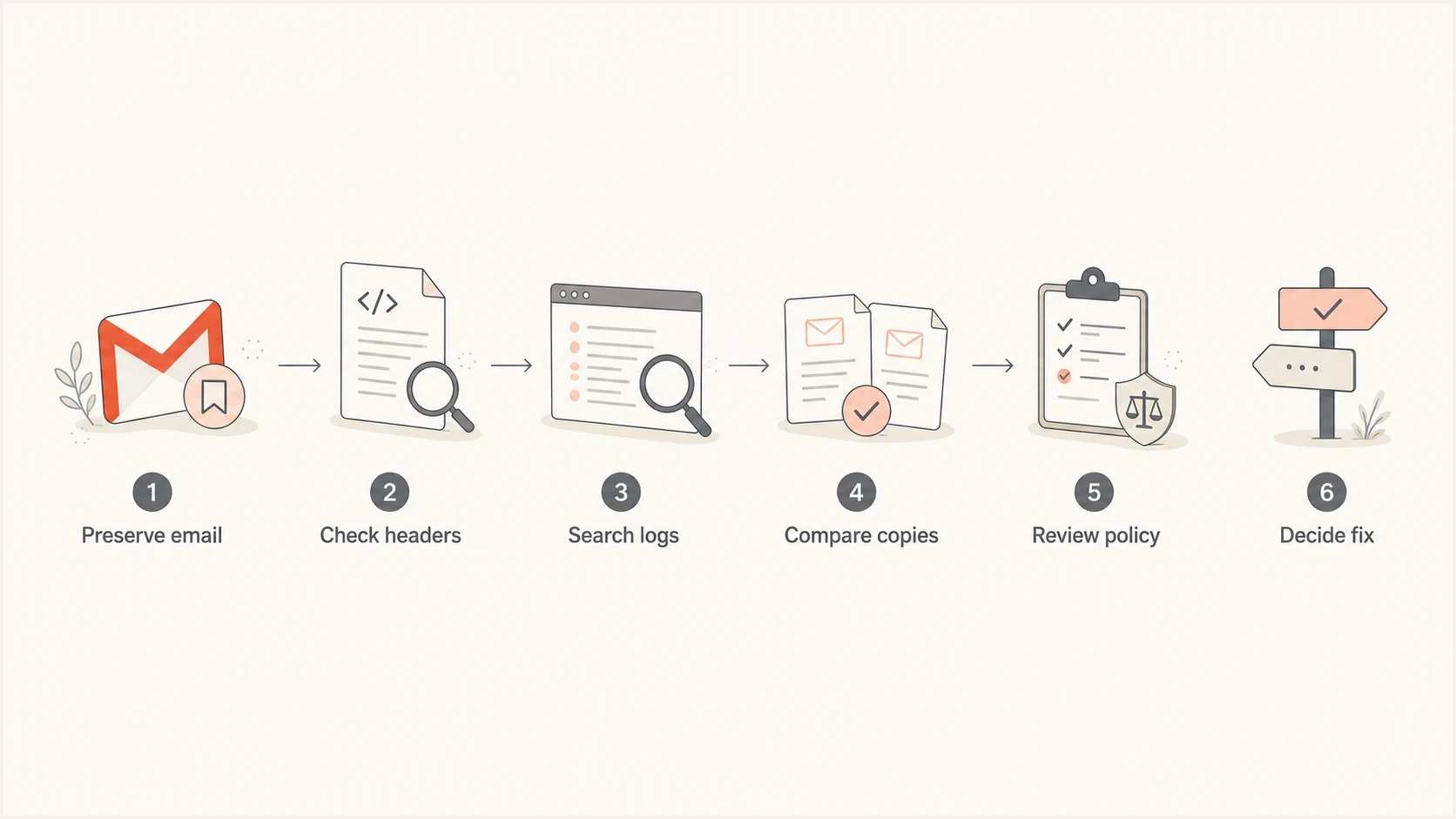
Workflow for troubleshooting an internal Gmail warning with original headers and Workspace logs.
- Clone the message: Send the same content to one controlled recipient from the same mailbox and record whether the banner appears.
- Test verified links: After IT has checked destinations safely, omit one URL at a time, including signature links and shortened URLs. Record which versions receive warnings without sending anyone to an unverified site.
- Remove the image: Send the same text without the signature logo or embedded image while keeping other elements unchanged. A different result identifies a test lead, not proof that the image itself is unsafe.
- Change the subject: Keep the body identical and rewrite only the subject. If the banner disappears, record an association and repeat a limited comparison; the result alone does not prove that the subject caused the warning.
- Change the body: Keep the subject identical and revise one unclear or unexpected request in the body. Record the result without treating specific business terms as forbidden words.
- Change recipients: Compare delivery to an individual recipient with delivery through the group. Review group routing and recipient policy differences before attributing a different result to message content.
Do not allowlist the sender just to make the banner disappear. Some Workspace spam-bypass options explicitly hide warnings, which removes a useful signal if the mailbox is later compromised. Ordinary allowlisting does not guarantee delivery: Google documents that suspicious messages can still be rejected or sent to Spam.
- Safer fix: Correct the authentication, routing, account, or policy issue supported by evidence.
- Riskier fix: Bypass safety checks broadly for a person, group, or internal route.
If the warning cannot be reproduced, keep the log notes and close the incident after the security checks are clean. A single ambiguous classifier verdict is not worth a company-wide policy change. If it repeats, investigate the pattern using timestamps, senders, subjects, recipient groups, raw headers, and message links.
How to respond when the sender is internal
Explain the warning in terms of the evidence: Gmail detected suspected risk or a Workspace safety rule applied. Verify the sender and request first, then check headers and logs before making a narrow fix. For recurring cases, the same investigation pattern helps reduce Gmail security warnings without weakening mailbox protection.
- For the sender: Ask whether they sent the message, recognize its links, and intended the request before discussing copy changes.
- For IT: Use the Workspace log, raw headers, and account audit evidence before changing rules.
- For marketing: Keep internal requests specific and use recognizable link destinations. Do not present a list of forbidden business terms as a fix.
- For executives: Report the cause category, the evidence checked, and the narrow action taken. Avoid turning one banner into a broad policy change.
Weak response
- Blame words: Assume one phrase caused the warning and rewrite future mail around myths.
- Bypass checks: Allowlist the sender before checking the request, logs, headers, or account activity.
- Ignore evidence: Treat inbox delivery as proof that the banner had no technical or security cause.
Better response
- Check facts: Verify the sender and review original headers, account activity, and the Workspace event.
- Test one change: Vary subject, body, links, image, and recipients separately after security checks are clean.
- Fix narrowly: Change only the account, authentication, routing, content, or policy issue supported by evidence.
That approach gives the sender a specific explanation, keeps useful security controls in place, and prevents an unverified message from being dismissed as a false positive.
Views from the trenches
Best practices
Preserve the raw email before testing changes so headers and verdict data stay intact.
Use Workspace email logs to separate false positives from real policy or route issues.
Change one variable at a time when testing subject, body, image, and recipient effects.
Keep broad allowlists out of the first response unless the log evidence justifies them.
Common pitfalls
Blaming one trigger word hides routing, authentication, and policy causes that matter.
Clicking safe before capturing details can make the visible symptom harder to discuss.
Assuming internal mail is exempt from Gmail safety checks leads teams to miss warnings.
Treating one odd banner as a domain reputation crisis wastes time and creates noise.
Expert tips
Look for the reason category first, then decide whether copy, DNS, or policy needs work.
If only one message is affected, compare it with clean messages from the same sender.
Use DMARC reports to catch forgotten senders before they create confusing header data.
Explain the result in cause categories so non-technical teams do not chase word myths.
Marketer view
Marketer from Email Geeks says an inboxed message with a warning should be treated as a safety classification event first, not a normal spam-folder problem.
2023-10-04 - Email Geeks
Marketer view
Marketer from Email Geeks says Workspace admins should search the email log because delivery and route evidence can help separate a false positive from an actionable issue.
2023-10-04 - Email Geeks