How can I avoid Gmail security warnings on emails?

Updated on 10 Aug 2026: We updated this guide with Gmail's current sender requirements, warning-specific troubleshooting, and clearer DMARC guidance.
To avoid Gmail security warnings on emails, authenticate every sending domain with SPF, DKIM, and DMARC, make sure the authenticated domain matches the visible From domain, avoid suspicious link patterns, do not send tests from and to the same address, and build sender reputation gradually. Gmail still makes the final call, but those are the controls that remove the most common triggers.
The warning usually appears because Gmail sees a mismatch between the sender identity, the technical authentication, the links in the message, the reputation of the sending source, or the behavior of the message itself. Treat it as a safety signal rather than a single error code. The practical fix is to work through the message like Gmail does: identity first, then content, then destination, then testing setup.
- Authentication: SPF, DKIM, and DMARC should pass, and at least SPF or DKIM must match the visible From domain for DMARC to pass.
- Links: Every link should point to a domain you control or trust, without odd redirects, compromised pages, or mixed branding.
- Message intent: Messages asking for passwords, payments, urgent account action, or sensitive data need extra care.
- Testing: Testing by sending from the same address to the same address through an email platform creates warnings that do not always appear in normal sends.
Match the fix to Gmail's warning
Gmail uses several security warnings, and they do not share one fix. Record the exact banner wording, open the message details, and preserve the original headers before changing the campaign. A question mark beside the sender or a statement that Gmail could not verify the sender points to authentication. A phishing, attachment, or account activity warning points to a different investigation.
|
|
|
|---|---|---|
Could not verify sender | Missing, invalid, or unaligned authentication | Authentication-Results and From domain |
Scam or phishing warning | Suspicious request, link, or sender behavior | Link destination and account history |
Attachment warning | Blocked, infected, or unscannable file | File type, archive, and scan result |
Suspicious account activity | A Gmail account access event | Recent sign-ins and account controls |
Gmail warning clues and the first check to make
Do not treat a recipient clicking 'Looks safe' as a sender-side fix. Correct the source issue and resend, because that action does not repair authentication, a risky URL, or an unsafe attachment.
Fix authentication first
The first place to check is domain authentication. Gmail wants to know that the domain shown to the recipient has authorized the system sending the message. SPF checks whether the sending server is allowed by the envelope sender domain. DKIM checks whether the message has a valid cryptographic signature. DMARC ties the visible From domain to SPF or DKIM through domain alignment.
Passing SPF alone is not enough if the SPF domain belongs to the email platform and does not match your From domain. Passing DKIM alone is not enough if the DKIM signing domain does not match. The warning risk drops when Gmail can connect the visible brand identity to authenticated mail infrastructure.
A message can show a familiar From address and still fail the identity test. For Gmail, the important question is whether the sending path proves that the visible From domain authorized the message.
For personal Gmail recipients, all senders need SPF or DKIM, valid forward and reverse DNS, TLS, standards-compliant messages, and a reported spam rate below 0.3%. Senders exceeding 5,000 messages per day to personal Gmail accounts need SPF and DKIM, a DMARC record, DMARC alignment for direct mail, and one-click unsubscribe for marketing and subscribed messages. Use DKIM keys of at least 1024 bits, with 2048 bits where the provider supports them.
Basic DMARC record for monitoringDNS
Host: _dmarc.example.com
Type: TXT
Value: v=DMARC1; p=none; rua=mailto:dmarc@example.com
Start at p=none when you need visibility, then move toward quarantine or reject after your legitimate sources are passing. DMARC uses relaxed SPF and DKIM alignment by default. Set strict alignment only when your mail design requires exact domain matches. Suped's DMARC monitoring workflow is built around that exact job: find every sender, separate verified sources from unknown sources, show domain alignment problems, and give fix steps before policy changes.
Suped DMARC dashboard showing email volume, authentication health, and source breakdown
Also check the sending platform setup itself. Most email platforms provide a DKIM CNAME or TXT record, a return-path domain, and sometimes custom bounce tracking. Use your own domain for those pieces where the platform supports it. That makes the email look like it belongs to one organization instead of a mix of unrelated technical domains.
If the warning appears only after forwarding or mailing-list delivery, inspect the final Gmail copy rather than the original send alone. Forwarding can break SPF, and mailing lists can modify content that DKIM signed. Compare Authentication-Results and ARC evidence before changing the original sender's DNS.
?
What's your domain score?
Deep-scan SPF, DKIM & DMARC records for email deliverability and security issues.
Use a sender identity Gmail can trust
Gmail warnings often come from confusing sender identity. If the user sees one brand in the From name, another domain in the From address, a third domain in the links, and a fourth domain in the tracking redirects, Gmail has more reason to treat the message cautiously. The fix is not cosmetic. Make the technical identity and visible identity match as much as the platform allows.
Risky setup
- From domain: Uses a brand domain, but SPF passes through a different platform domain.
- DKIM domain: Signs with the platform domain instead of the sender domain.
- Links: Use unrelated short links or tracking domains.
Cleaner setup
- From domain: Matches the domain used for SPF or DKIM.
- DKIM domain: Signs with a selector under the sender domain.
- Links: Use owned domains, stable redirects, and expected brand context.
For marketing, lifecycle, support, and billing mail, use subdomains instead of mixing everything on the root domain. For example, marketing.example.com can handle campaigns while billing.example.com handles receipts. Each sending subdomain needs correctly authenticated sources. The organizational domain's DMARC policy can cover subdomains by inheritance, so publish a separate subdomain DMARC record only when it needs a different policy or reporting destination.
|
|
|
|---|---|---|
SPF | Envelope sender and sending IP | Passes and aligns when used for DMARC |
DKIM | Signature and signing domain | Valid signature with aligned domain |
DMARC | Alignment, policy, and reports | Passes through aligned SPF or DKIM |
BIMI | Logo and policy readiness | Uses DMARC enforcement |
Identity checks that matter before sending
If the setup has multiple sending tools, use a domain health check before changing content. Content changes will not fix a message where Gmail cannot verify the sender identity.
Check links and landing pages
After authentication, inspect every URL in the message. Gmail can warn when links point to compromised hosts, suspicious redirects, deceptive login pages, or domains that do not fit the sender. This includes visible links, hidden tracking links, image URLs, unsubscribe links, and redirects added by the email platform.
A common failure pattern is a legitimate sender linking to a landing page that asks for credentials or payment details without enough context. Another is a message that says it comes from one brand but sends the recipient through a chain of tracking, link wrapping, and redirect domains before the final page. Gmail's warning is often about the path, not only the final page.
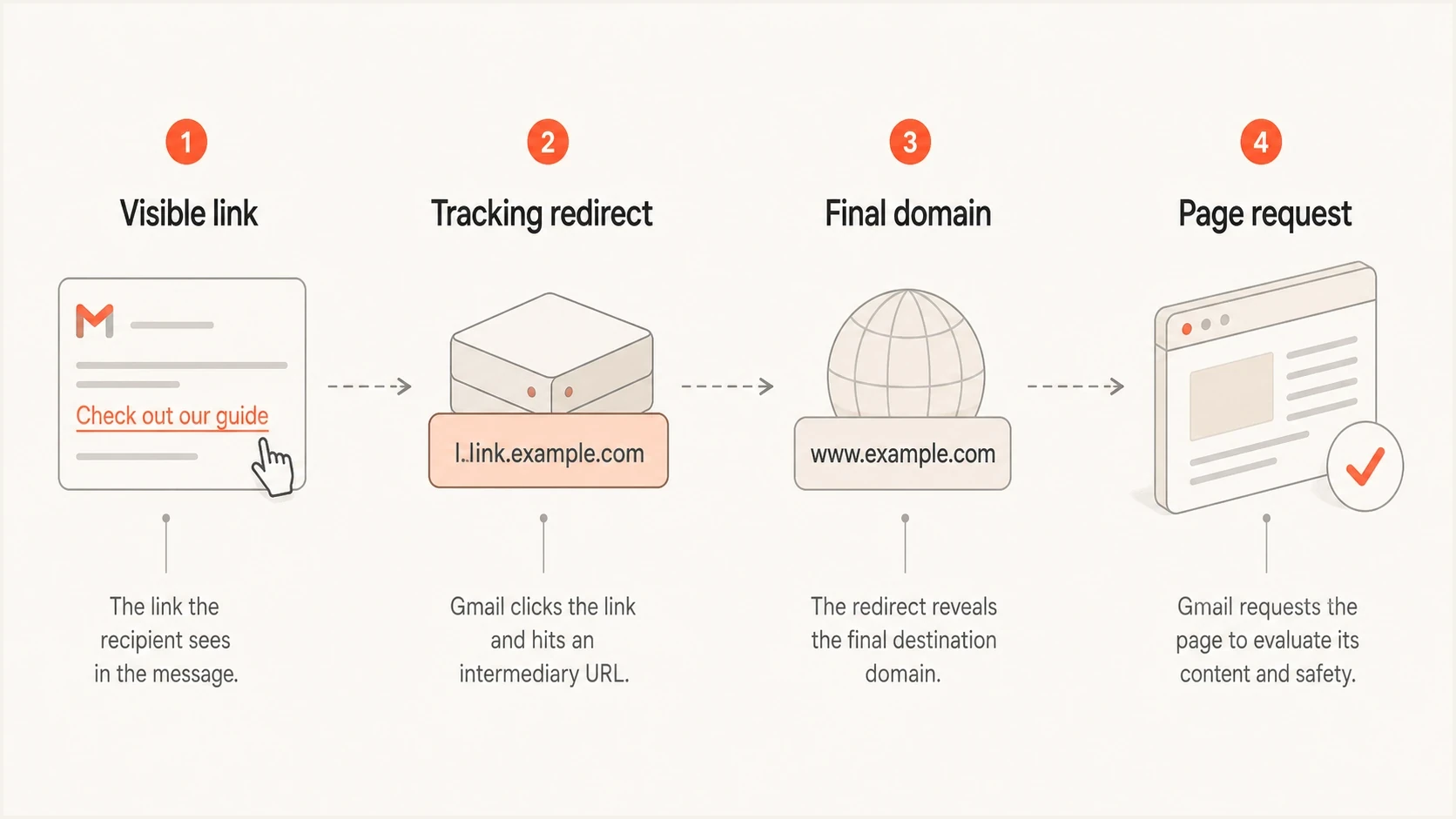
Gmail security warning flow from a visible email link through redirects to the final page.
- Owned domains: Use domains your recipients already associate with your organization.
- Redirect chains: Keep redirects short, predictable, and HTTPS-only.
- Login pages: Avoid sending users directly to credential forms without clear account context.
- Compromise checks: Inspect linked pages for injected scripts, unexpected redirects, malware warnings, and expired certificates.
If Gmail warns on a message that otherwise authenticates correctly, simplify the email and test again. Remove tracking links, shorten the redirect path, replace third-party short URLs with your own domain, and send the same message to a different Gmail inbox. If the warning disappears, add pieces back one at a time.
Do not try to hide risky links behind friendly anchor text. Gmail and users both compare the visible promise with the technical destination. A mismatch can make a legitimate campaign look unsafe.
Test the message like a recipient
Testing can create false alarms. If you send from an email platform using sender@example.com and send the test to the same sender@example.com Gmail account or mailbox, Gmail can treat the message as unusual. The message appears to come from the recipient, but it arrived through a third-party sending system. That pattern is common in internal QA, but it is also a pattern Gmail scrutinizes.
Use a real test matrix instead. Send to Gmail, Google Workspace, and non-Gmail mailboxes. Test with a From address that is not the same as the recipient. Use a domain mailbox rather than a free mailbox provider for the sending identity. Then compare headers and visible warnings across those inboxes.
Email tester
Send a real email to this address. Suped shows a results button when the test is ready.
?/43tests passed
A practical test starts with one message and one controlled change at a time. Use an email tester to inspect headers, authentication, content signals, and visible issues. Then send the same message to Gmail and check whether the warning remains.
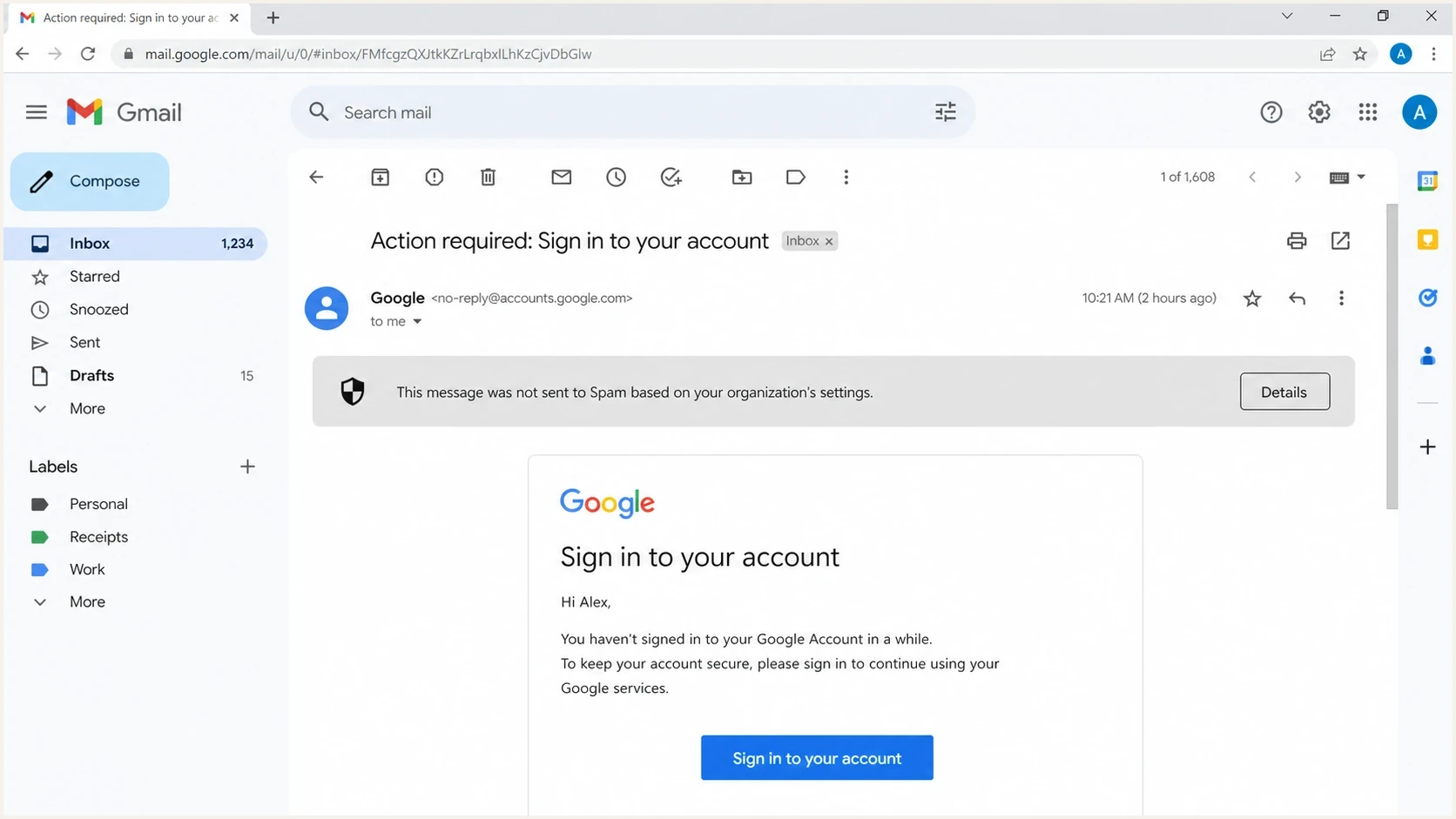
Gmail 'Be careful with this message' security warning above an opened email.
- Baseline: Send a plain text version with no tracking and no links.
- Authenticate: Confirm SPF, DKIM, and DMARC pass in the Gmail message details.
- Add links: Add the final URL first, then add tracking only after the clean version passes.
- Change recipients: Test with several Gmail accounts and avoid sending from and to the same address.
Protect reputation and sending behavior
Gmail security warnings are not only about DNS. Sender reputation, spam complaint rates, sending patterns, list quality, and domain history matter. A new domain sending large campaigns immediately looks different from an established domain sending consistent mail to people who asked for it.
Separate two problems here: reputation warnings and authentication warnings. Authentication failures are usually deterministic. You can find the DNS record, fix the selector, update the SPF include, or repair the DMARC domain alignment. Reputation warnings take longer because Gmail is judging behavior over time.
Risk levels to watch
These thresholds are practical operating bands, not Gmail guarantees.
Low risk
Stable
Authenticated mail, expected volume, clean links, and low complaints.
Warning
Review
New sender, rising complaints, link changes, or uneven authentication.
High risk
Stop
Failed domain alignment, suspicious pages, sudden spikes, or poor list quality.
- Volume: Warm new domains and IPs gradually instead of jumping straight into large sends.
- Consent: Send to people who requested the mail, suppress addresses that bounce, and reconfirm inactive subscribers.
- Complaints: Keep Gmail's reported spam rate below 0.3% and stop campaigns that create clear negative feedback.
- Blocklists: Check whether sending domains or IPs appear on a blocklist or blacklist before blaming content.
If warnings appear after a sending spike, a list import, or a content change, pause the risky segment and compare recent sends against older clean sends. If a blocklist (blacklist) issue appears, Suped's blocklist monitoring can help track domain and IP reputation alongside DMARC, SPF, and DKIM results in the same place.

Issue steps to fix dialog showing the issue overview, tailored fix steps, and verification action
A practical remediation checklist
When a Gmail warning appears, do not start by rewriting the whole campaign. Preserve the original message, gather the headers, and work down a checklist. That keeps the investigation factual and prevents random changes that hide the real cause.
The fastest useful sequence is: verify authentication, compare From and return-path identity, inspect links, test without tracking, change the recipient address, then review reputation and complaint signals.
|
|
|
|---|---|---|
1 | Auth fail | Fix SPF, DKIM, DMARC |
2 | Misalignment | Use aligned domains |
3 | Bad link | Clean redirect path |
4 | Test artifact | Change recipient |
5 | Reputation | Stabilize volume and list |
Troubleshooting sequence for Gmail warnings
Suped fits this workflow because it keeps the authentication and reputation evidence together. The useful part is seeing which source failed DMARC, whether the source is legitimate, what DNS record needs attention, and whether there are related deliverability or blocklist (blacklist) signals.
Gmail header checks to inspecttext
SPF: pass or fail
DKIM: pass or fail, with signing domain
DMARC: pass or fail, with policy result
Return-Path: compare with sending platform
From: compare with aligned domain
Authentication-Results: read the Gmail verdict
ARC: inspect when forwarding or mailing lists are involved
If the warning remains after the technical problems are fixed, keep the message simple and let the domain build history. Gmail can still display a warning even when the setup is technically correct, especially with new domains, sensitive calls to action, or links that resemble account recovery or payment flows.
Views from the trenches
Best practices
Authenticate each sender before changing copy, because identity failures distort every test.
Test with separate sender and recipient addresses, then compare headers across Gmail inboxes.
Review every redirect and landing page before assuming Gmail objected to the email body.
Common pitfalls
Sending from and to the same address through a platform creates avoidable warning patterns.
Passing SPF without DKIM or DMARC matching leaves the visible From domain weakly proven.
Clean email copy still fails when tracked links point through weak or compromised hosts.
Expert tips
Keep a plain text control send, then add HTML, links, and tracking one change at a time.
Use subdomains for separate mail streams so one weak source does not confuse every send.
Treat Gmail warnings as evidence to triage, not as a single fixed error with one cure.
Expert from Email Geeks says authentication and the DMARC domain alignment should be checked before investigating the rest of the message.
2021-04-29 - Email Geeks
Expert from Email Geeks says linked domains and landing pages should be reviewed for compromise, redirects, and sensitive data requests.
2021-04-29 - Email Geeks
What to do next
The direct path to avoiding Gmail security warnings is to make the sender identity provable, make the links predictable, and test the message under realistic conditions. Start with SPF, DKIM, and DMARC alignment. Then inspect links, landing pages, attachments, and requests for sensitive information. Finally, test using different sender and recipient addresses so Gmail is seeing the same kind of message your recipients will see.
Suped's platform supports this workflow by connecting DMARC monitoring, issue detection, hosted authentication controls, blocklist monitoring, alerts, and multi-tenant management. This is useful when a Gmail warning comes from several identity and reputation problems rather than one DNS typo.




