Does Gmail notify the sender when you report spam?

No. Gmail does not notify the sender when you click Report spam. It does not send them an individual complaint identifying your email address. The message moves to Spam, and your report helps Google filter unwanted email.
I treat reporting spam and unsubscribing as separate actions. Reporting gives Google feedback. Unsubscribing sends a request to the sender's mailing system. If you choose an option that also unsubscribes, that additional action contacts the sender's system, even though Gmail still does not provide an individual spam complaint.
What happens when you report an email as spam?
Google receives a copy of the reported message for analysis. Your report gives Gmail information about unwanted mail and helps it recognize similar messages. Reporting is private from the sender in this specific sense, but it is information you share with Google.
Future messages from the same sender can land in Spam, although one report does not guarantee permanent filtering. Gmail considers other signals too. Reporting also does not delete your address from the sender's mailing list, so their system can continue sending messages.
A spam report is not an unsubscribe request
Gmail does not tell a sender which recipient reported spam. If you want a legitimate mailing list to stop sending, use its unsubscribe process. For suspicious mail, report it without using links in the message.
How spam reporting differs from unsubscribing
Report spam moves the message and contributes filtering feedback. Block sender directs future messages from that address to Spam. Neither action removes your address from a mailing list or sends a personal complaint notification to the sender.
Unsubscribe is different because it requests a change in the sender's records. The request identifies the subscription, often through a token. The sender can record that subscription as unsubscribed, which does not prove that a spam report also happened.
|
|
|
|---|---|---|
Report spam | No direct notice | Filtering feedback |
Block sender | No direct notice | Future mail to Spam |
Unsubscribe | Opt-out request | List removal request |
Delete | No direct notice | Message to Trash |
Spam reporting and list removal are separate actions.
When Gmail offers an unsubscribe choice alongside spam reporting, read the confirmation carefully. Choosing both sends an opt-out request. Choosing only Report spam does not give the sender a recipient-level complaint. Gmail's wording varies across interfaces.
How to report spam without contacting the sender
On Gmail for desktop, you can report a message without opening it. Select its checkbox in the inbox, then click the Report spam icon in the toolbar. There is no need to reply or visit the sender's website.
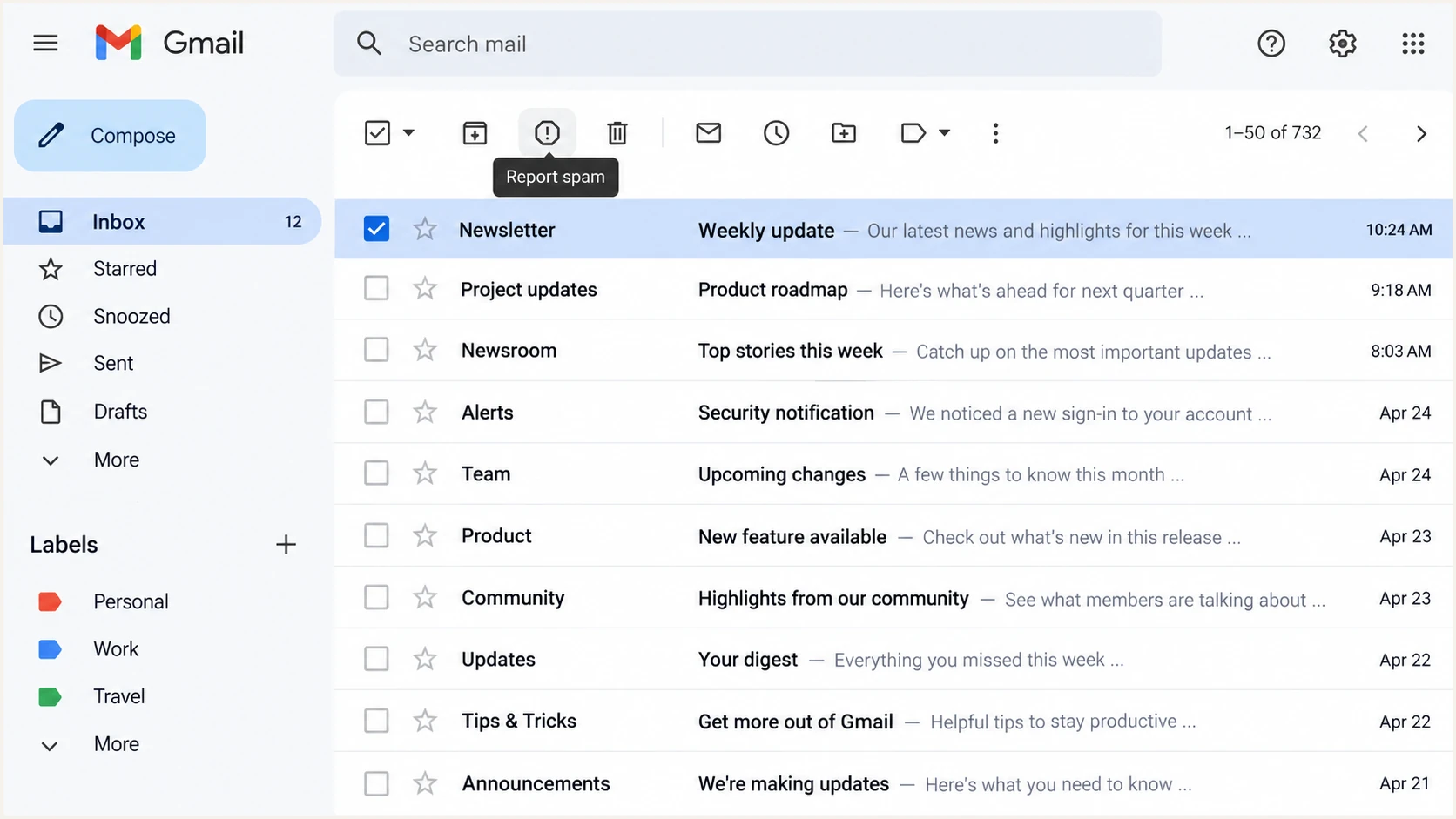
Gmail inbox with a message selected and the Report spam control visible.
For a newsletter you recognize and subscribed to, I recommend unsubscribing when you simply no longer want it. For unsolicited or deceptive messages, reporting spam is appropriate. Use Report phishing for messages impersonating a trusted organization to steal information.
If mail keeps reaching your inbox, choose the action that matches the problem. Repeated reports do not create a predictable penalty per click, and Google does not publish a formula for how each report changes reputation.
- Report: Select unwanted messages and use Report spam. Choose the report-only option if an unsubscribe choice appears and you do not want contact.
- Block: Use the message menu to block a persistent sender. Blocking routes future messages to Spam rather than stopping transmission.
- Filter: For a recurring pattern, create a Gmail filter with Delete it. Check the matching conditions so wanted messages are not discarded.
- Recover: For an accidental report, open Spam, select the message, and click Not spam. Unblock the sender separately if you also blocked them.
What senders can see in Gmail reporting
Eligible senders can see aggregate complaint information in Google Postmaster Tools. This includes domain-level spam-rate information and campaign-level Feedback Loop data when configured. These reports do not provide a list of recipients who clicked Report spam.
Some other mailbox providers offer message-level complaint feedback loops. Gmail's Feedback Loop uses campaign identifiers instead. An email service provider can identify a troublesome customer account or campaign without learning which subscriber complained. A customer identifier here identifies the sending customer, not the receiving person.
Aggregate Gmail feedback
Shows complaint trends for eligible traffic and campaign identifiers. Useful for investigating sending practices. It does not identify individual complainants.
Individual unsubscribe request
Identifies a subscription that should stop receiving mail. Useful for suppressing that subscription. It does not establish that the recipient reported spam.
For more detail on identifying Gmail complaints, focus on campaign patterns rather than trying to identify recipients. Gmail withholds some low-volume data to protect user privacy, so a missing dashboard entry does not establish that nobody complained.
Senders using Feedback Loop add a Feedback-ID header before DKIM signing and verify the signing domain in Postmaster Tools. For example, a newsletter stream can use these shared identifiers:
Example campaign feedback headertext
Feedback-ID: campaign42:account7:newsletter:sender42
These values describe groups of messages. They are not recipient addresses. Do not use a unique Message-ID or recipient-specific identifier to try to extract individual complaints. Gmail requires sufficient traffic and distinct reports before displaying feedback.
Postmaster data is delayed rather than live. Its user-reported spam rate also differs from the percentage Gmail automatically filters into Spam. A low complaint rate can coexist with poor inbox placement because fewer people see the messages to report them. Investigate delivery errors and sending changes alongside complaint trends.
How senders should respond to complaints
I investigate the affected campaign before changing technical settings. Check how people subscribed, whether the sending frequency changed, and whether the message matches their expectations. Honor unsubscribe requests and stop mailing people who have opted out. Avoid treating silence as continuing interest.
Authentication is a separate check. Send a real campaign message to Suped's email tester to inspect SPF, DKIM, and DMARC results alongside unsubscribe checks. Passing these checks does not prove consent or prevent spam reports.
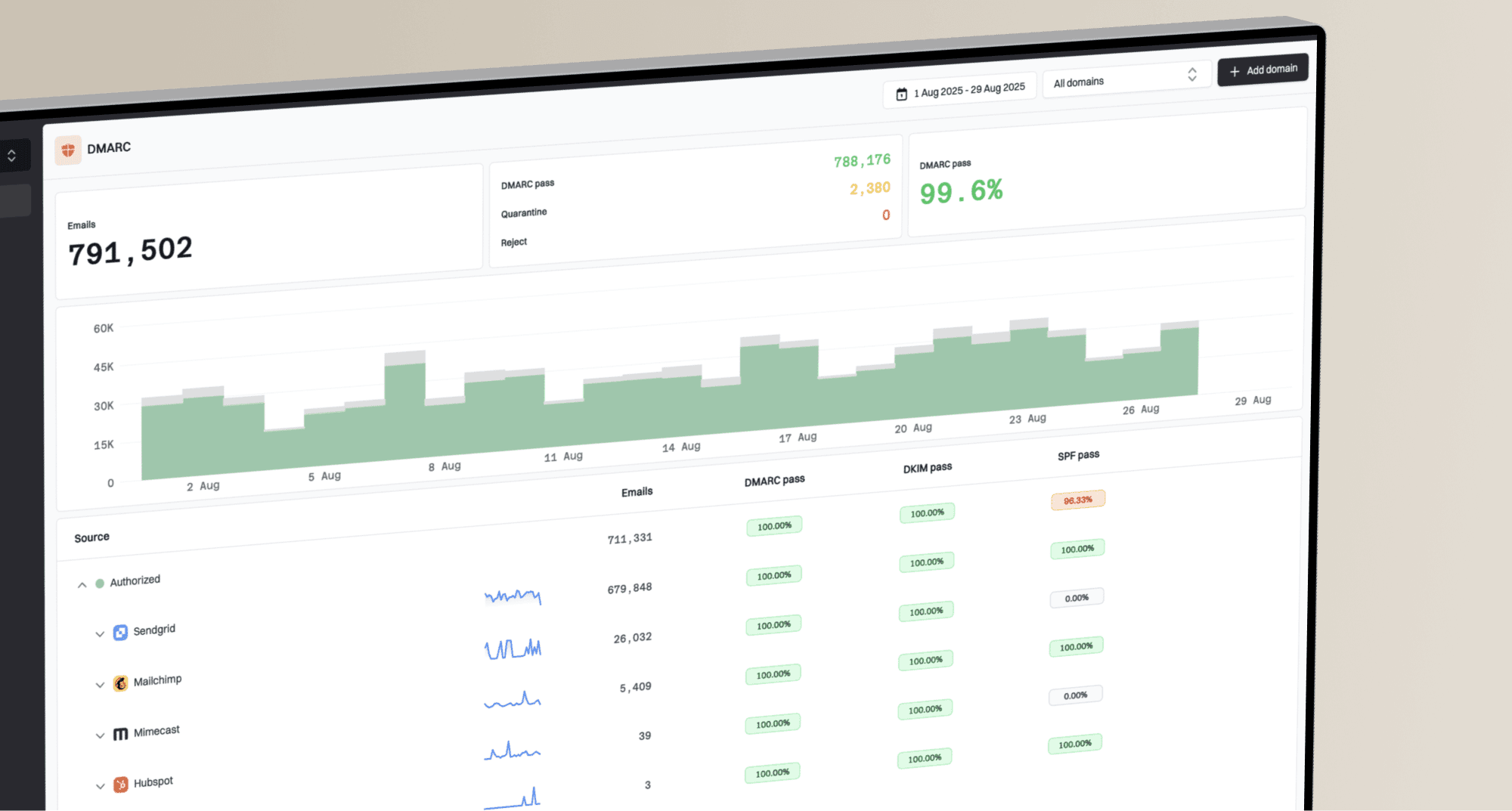
Our DMARC platform, Suped, supports the authentication investigation through DMARC monitoring. Review sending sources, inspect authentication failures, and follow issue-specific repair steps. Use its domain health checker for a DNS audit. DMARC aggregate reports do not reveal Gmail complainants.
DMARC record detail view showing SPF, DKIM, DMARC, rDNS diagnostics, and DNS records
Keep reputation investigations separate too. A Gmail report does not automatically add an IP or domain to a public blocklist (blacklist). Public blocklist data and Gmail's internal reputation signals answer different questions; a clean blacklist check does not guarantee inbox placement.
A notification about account enforcement is also different from an individual complaint. Google's spam and abuse policy explains that violations can lead to suspension and an administrator notification. That does not mean Gmail forwards each recipient's spam report to the sender.
Views from the trenches
Best practices
Treat Gmail complaint reports as aggregate feedback, rather than recipient-level notices.
Use unsubscribe requests to remove subscriptions, and spam reports to flag unwanted email.
Common pitfalls
Assuming a spam report removes your address from the mailing list can leave sending active.
Confusing a campaign identifier with a recipient identifier overstates Gmail feedback data.
Expert tips
Investigate complaint patterns by campaign or sending account without identifying recipients.
Use blocking or carefully scoped filters when unwanted messages keep reaching your inbox.
Marketer view
Marketer from Email Geeks says Gmail provides aggregate complaint information without telling senders which individual recipient reported a message.
2026-10-09 - Email Geeks
Marketer view
Marketer from Email Geeks says spam reports do not always keep subsequent messages out of the inbox, so additional mailbox controls are sometimes needed.
2026-10-09 - Email Geeks
Choose the action that matches your goal
Use Report spam to give Gmail feedback without an individual notice to the sender. Use Unsubscribe when you want a legitimate mailing list to remove your subscription. If you send email, act on complaint patterns and subscriber preferences instead of waiting for Gmail to identify unhappy recipients.
For a persistent unwanted message, check which action you actually selected before repeating it. A subscription still present in the sender's database and a message diverted into Gmail's Spam folder are compatible outcomes. Neither means your report was sent back to the sender.