How to set up DMARC/DKIM/SPF for XeonBD

Published 20 Oct 2026
Updated 20 Oct 2026
11 min read
Summarize with
For XeonBD cPanel hosting, publish the account-specific SPF and DKIM records shown in Email Deliverability, then add a DMARC TXT record at _dmarc on your authoritative DNS. I verify the result with a message sent through the actual mailbox or application before tightening the DMARC policy.
XeonBD lists cPanel and DirectAdmin for Linux hosting, and Plesk for Windows hosting. I use the cPanel workflow for cPanel hosting accounts. For another XeonBD mail plan, request its exact outbound SPF authorization and DKIM selector from support; the same DNS and message checks apply.
Add your domain
I first confirm that the sending domain belongs to the correct XeonBD hosting account and identify where its public DNS is managed.
- Open cPanel. Use the secure server login supplied in your XeonBD welcome email, or the cPanel login action in your hosting service details.
- Check the domain. Open Domains. Keep an existing domain entry. If it is absent and your plan permits additional domains, choose Create A New Domain, enter your domain without www, and click Submit.
- Locate DNS. Check the domain's delegated nameservers. Edit authentication records at that DNS provider, even when cPanel also contains a local zone.
- Prepare a sender. Open Email Accounts and create or select a mailbox on the sending domain. Use its Connect Devices settings for an application that submits authenticated SMTP mail.
If the domain creation form offers a domain type, choose Registered Domain. Review the document root before submitting, since sharing it changes which website content the domain displays.
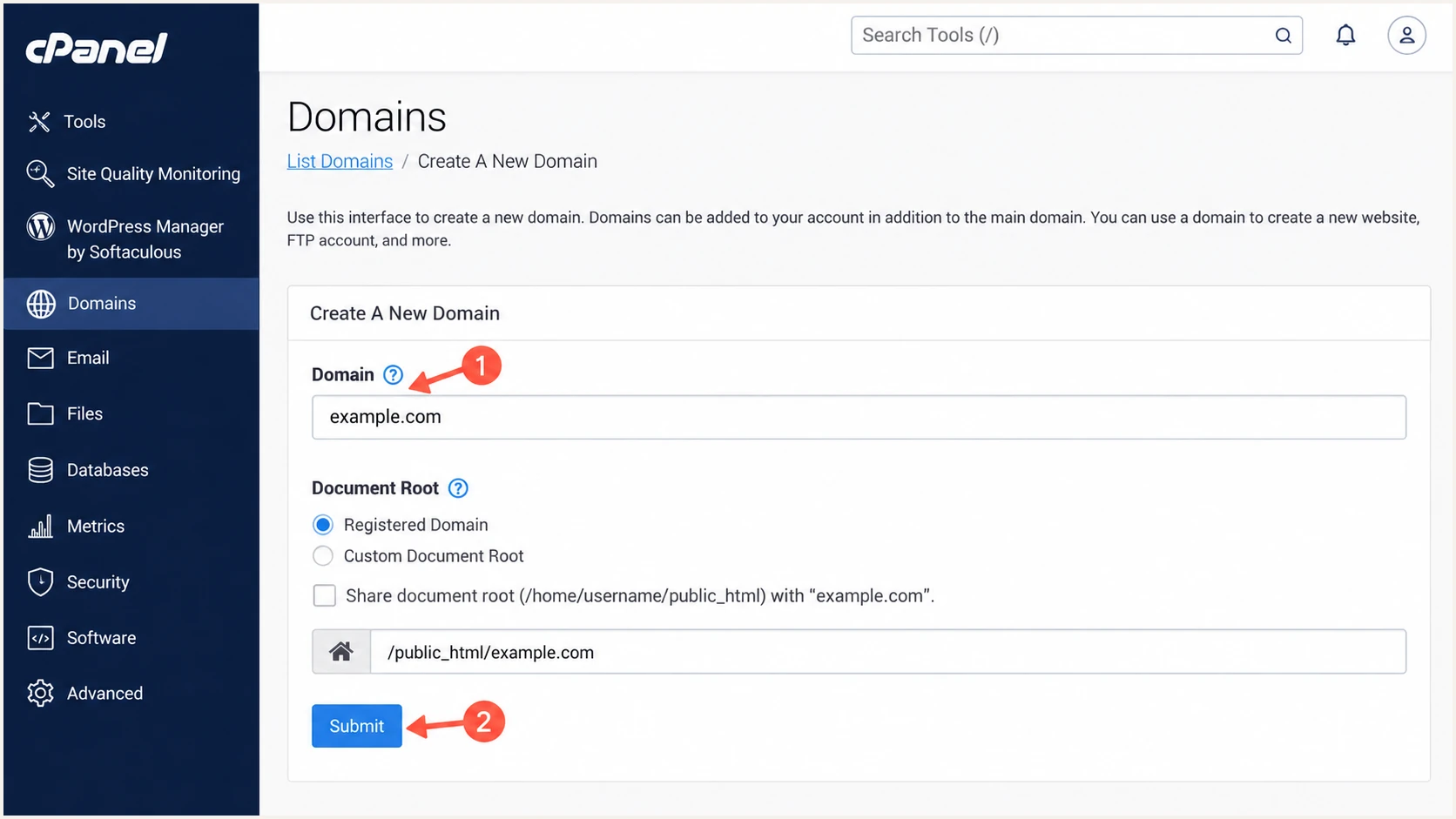
Illustration of adding a domain to cPanel for XeonBD hosting.
The domain appearing in cPanel confirms provisioning. Public TXT lookups and delivered message headers confirm authentication. Changing nameservers or MX records is unnecessary solely to add SPF, DKIM, or DMARC.
Set up SPF
I take SPF values from the domain's current hosting configuration. An IP address copied from another XeonBD customer is not a reliable authorization for your account.
- Copy the suggestion. Open Email > Email Deliverability > Manage beside your domain. Copy the Name and Value under Suggested "SPF" (TXT) Record.
- Confirm relay coverage. Ask XeonBD to confirm that the suggestion includes your account's outbound relay, if one is used. The website IP and final sending IP are not necessarily identical.
- Update one record. At the authoritative DNS provider, edit the existing SPF TXT record, usually at @. Merge other legitimate senders into that record instead of creating a second v=spf1 record.
- Check the envelope. Configure the application's SMTP MAIL FROM, or envelope sender, to use your sending domain when permitted. Verify the delivered Return-Path; setting the visible From address alone is insufficient.
- Validate the result. Run the SPF checker below for the actual Return-Path domain. Keep evaluation within the 10 DNS-lookup-term limit, including nested includes.
XeonBD supports a Return-Path using your domain, but the application and relay must preserve it. With relaxed SPF alignment, the Return-Path domain and visible From domain share the same organizational domain.
SPF checker
Find SPF syntax issues, lookup limits, and weak records.
?/16tests passed
A valid SPF record authorizes an IP for the envelope domain. I also check a delivered message, because DNS validation alone does not establish which envelope domain the application actually used.
If a relay forces an unrelated Return-Path, adding SPF at your visible From domain does not fix that mismatch. A passing DKIM signature with a matching signing domain still gives DMARC a valid authentication path.
Set up DKIM
I enable DKIM signing on the XeonBD sending server, then publish the corresponding public key. Publishing a key without signing outgoing messages does not authenticate mail.
- Open the domain. In cPanel, return to Email > Email Deliverability > Manage and locate the DKIM section.
- Generate if needed. If no local key exists, select Generate Local DKIM Key. Copy the suggested public TXT record name and complete value.
- Publish the key. Use the displayed selector, commonly default._domainkey. Install the suggested record when cPanel controls authoritative DNS; otherwise publish it at your actual DNS provider.
- Check a signature. Send a new message. In DKIM-Signature, check that d= uses your sending domain and s= names the published selector. Confirm dkim=pass in the receiving system's Authentication-Results.
Copy only the public DNS value. Keep the private signing key on the sending server, and preserve the complete public key when the DNS editor splits a long TXT value into quoted chunks.
For mail with From: sender@example.com, d=example.com is an exact domain match. A valid signature using an unrelated provider domain does not satisfy DMARC for example.com.
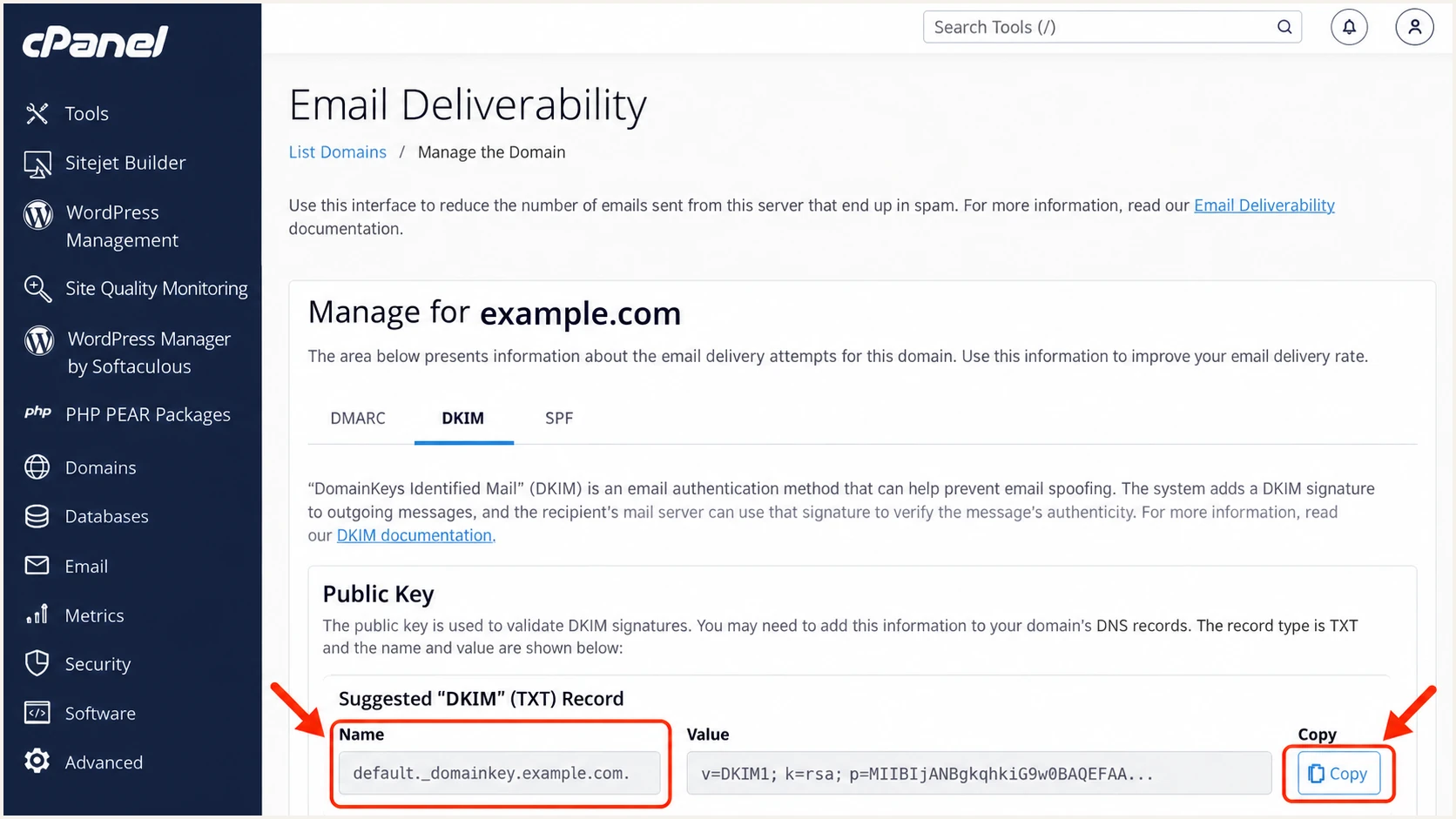
Illustration of copying a DKIM public record in XeonBD cPanel.
Test website mail separately from webmail. If the website message has no matching DKIM signature, submit through authenticated SMTP and ask XeonBD to check signing on that sending path.
Set up DMARC
For a domain without an enforced policy, I start with p=none while collecting reports. If p=quarantine or p=reject already exists, keep that policy while repairing the XeonBD configuration.
- Inspect existing DNS. Look up TXT records at _dmarc.yourdomain before editing. Update the existing DMARC record rather than adding another.
- Open the zone. When XeonBD hosts authoritative DNS, open cPanel > Domains > Zone Editor > Manage. Choose Add Record > TXT, or edit the existing _dmarc TXT entry.
- Set the fields. Use _dmarc.example.com. as the full name, TXT as the type, and 3600 as the TTL. Replace example.com with your sending domain.
- Set reporting. Use the initial value below for a new policy. Replace dmarc@example.com with a working report mailbox on your domain, then click Save Record.
The initial record requests aggregate reports without requesting quarantine or rejection of messages that fail DMARC. Use a mailbox that can receive and process those reports.
Initial DMARC record for example.comtext
_dmarc.example.com. 3600 IN TXT (
  "v=DMARC1; p=none; rua=mailto:dmarc@example.com"
)
DMARC passes when either SPF passes with a matching envelope domain or DKIM passes with a matching signing domain. Both passing is useful, but only one matching authentication result is required.
Use the DMARC record generator to prepare the value. Keep any existing reporting destinations you still need; an external reporting domain also needs the required report authorization.
DMARC checker
Look up a domain's DMARC record and catch policy issues.
?/7tests passed
Enter the visible From domain in the checker. Confirm that it finds one valid policy at the intended DNS name and that the reporting address is correct.
If your DNS editor appends the domain automatically, enter only _dmarc in its host field. Check the saved full name to avoid accidentally creating _dmarc.example.com.example.com.
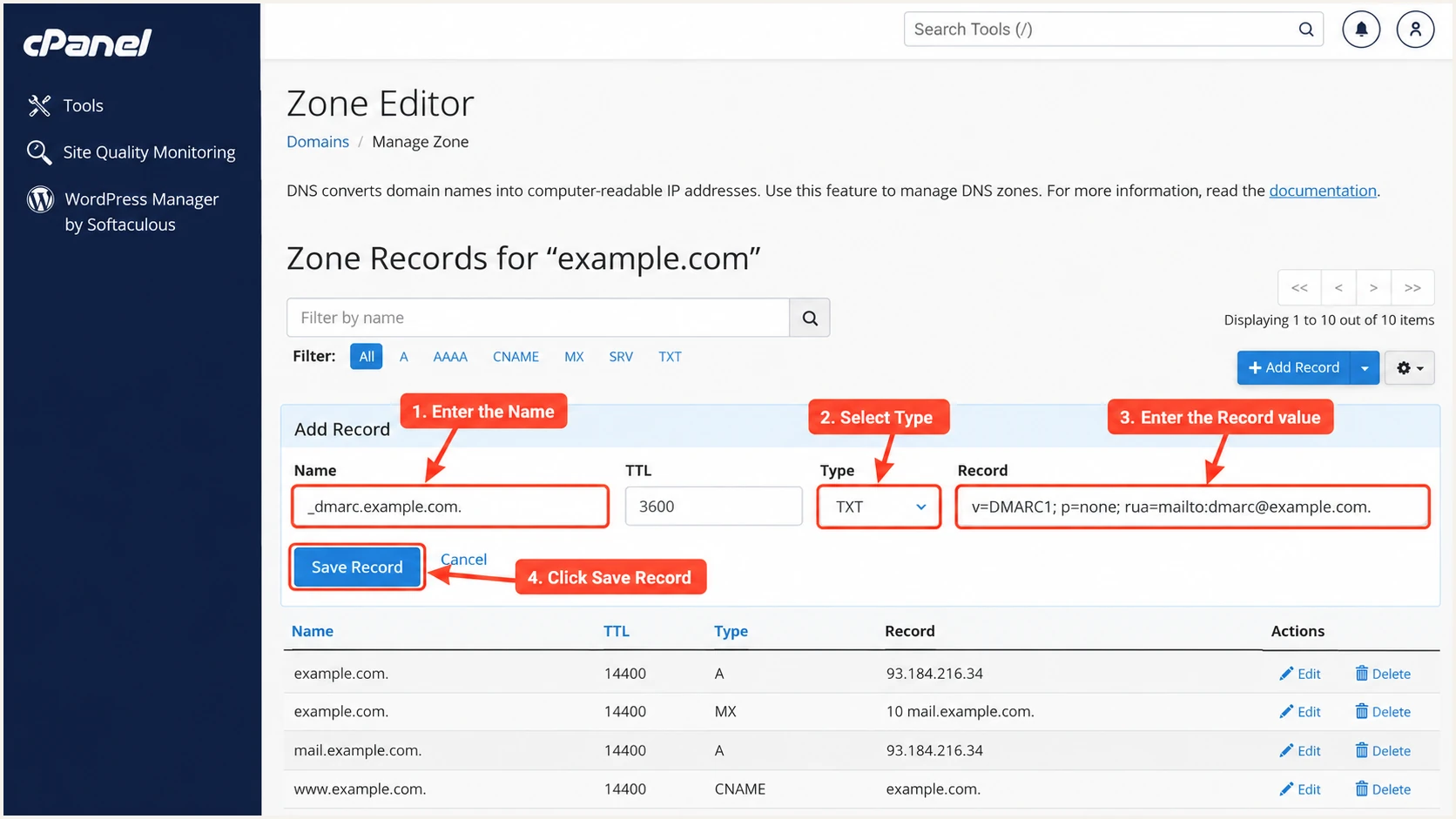
Illustration of adding a DMARC TXT record in XeonBD cPanel.
Allow cached answers to expire using the previous record's TTL. Recheck public DNS before relying on a changed policy or generating another test message.
Verify and troubleshoot
I test the complete sending path after DNS changes. A green status in cPanel does not prove that every application signs mail or uses the intended Return-Path.
- Send a real test. Use the email tester below to obtain a test address. Send to it through XeonBD webmail, then repeat through your website or application.
- Read the diagnosis. Check SPF authorization, DKIM verification, and DMARC. Inspect the Return-Path domain and DKIM d= value against the visible From domain.
- Resolve DNS failures. Confirm authoritative nameservers, one SPF record per envelope domain, the exact DKIM selector, and one DMARC record at the correct name.
- Escalate with evidence. Give XeonBD support the sending IP, timestamp, Message-ID, and recipient's authentication results when relay authorization or server signing needs repair.
Our email tester diagnoses a delivered message, which is the quickest check of the configuration you actually used. Its result separates DNS problems from failures in the sending path.
Email tester
Send a real email to this address. Suped shows a results button when the test is ready.
?/43tests passed
A direct message with passing, matching DKIM can pass DMARC even when SPF fails after forwarding. If neither authentication method passes with a matching domain, fix the sending path before enforcing rejection.
Use the failure pattern to choose the next check. Repeatedly adding DNS records without reading the message headers usually leaves the original problem unresolved.
|
|
|---|---|
SPF permerror | Duplicates or lookup limit |
SPF domain mismatch | Envelope sender domain |
DKIM key missing | Selector and public DNS |
DKIM body mismatch | Changes after signing |
DMARC fail | Both authentication paths |
PTR warning | XeonBD IP configuration |
Choose checks using the delivered message's results.
Run these commands locally to inspect public records. Replace default with the selector in the delivered message; use the Return-Path domain for SPF if it differs from example.com.
The NS lookup identifies the delegated DNS provider. The TXT lookups show published data; they do not verify a DKIM signature or evaluate SPF for a particular sending IP.
Inspect the public DNS recordsbash
dig +short NS example.com
dig +short TXT example.com
dig +short TXT default._domainkey.example.com
dig +short TXT _dmarc.example.com
For PTR warnings, ask XeonBD to check the sending IP's reverse DNS and matching forward address. Editing your domain's SPF or DMARC record does not change a provider-controlled PTR record.
Get alerted when it breaks
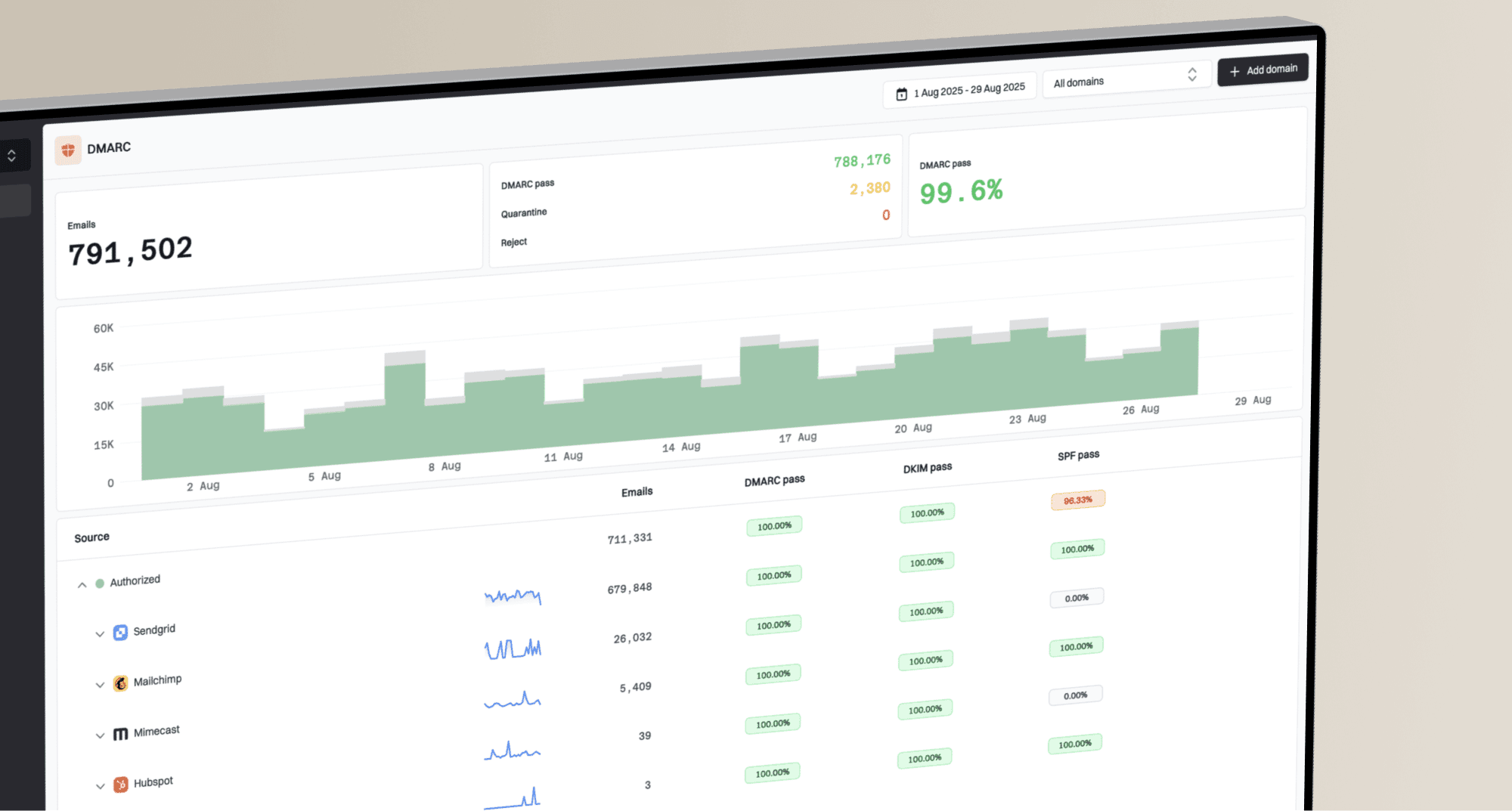
Our DMARC platform, Suped, provides DMARC monitoring with failure alerts and source diagnostics. I keep monitoring active after setup because migrations and application changes introduce new sending paths.
- Keep reports flowing. Keep an active rua reporting destination in your existing DMARC policy. A checker result does not replace ongoing receiver reports.
- Enable failure alerts. In Suped, open Settings > Notifications and enable DMARC alerts. Use the alert preview to inspect the notification format.
- Enable summaries. Turn on summary emails to review authentication trends alongside individual failure alerts.
- Investigate the source. Open the affected source and inspect the sending IP and authentication diagnostics. Use Suped's steps to fix, then retest through the affected XeonBD mailbox or application.
Aggregate reports arrive on the receivers' reporting schedules, often daily. An alert based on those reports is not an instant notification for each individual SMTP delivery.
After an application change
Send a test through the changed application. Compare its Return-Path and DKIM signing domain with the last passing message.
After a hosting migration
Review Suped's source data for new sending IPs. Confirm current SPF authorization with XeonBD and republish DKIM if the signing key changed.
When authentication passes but delivery still fails, inspect the SMTP rejection and reputation evidence. Suped's blocklist monitoring helps investigate an IP or domain blacklist listing alongside authentication results.
Secure your domain with p=reject
I move to p=reject after every legitimate sending path has a tested DMARC pass. Suped's per-source reports help distinguish a forgotten application from unauthorized use of the domain.
- Inventory senders. Review business mailboxes, website forms, billing jobs, newsletters, and other applications in the reports. Verify ownership before treating a source as legitimate.
- Fix legitimate failures. Ensure each approved source passes DMARC. Prioritize matching DKIM because forwarding commonly breaks SPF; remove obsolete SPF authorizations only after confirming they are unused.
- Stage enforcement. Observe a representative business cycle, including infrequent jobs. Change none to quarantine, review legitimate failures, and then change quarantine to reject when those failures are resolved.
- Keep monitoring. Retain reporting and alerts after rejection. Check subdomain policy inheritance and separately published subdomain policies before approving the final change.
Our Hosted DMARC controls let teams using Suped stage the policy in the dashboard. Otherwise, edit the existing authoritative TXT record. Keep the current reporting destination in either workflow.
Publish rejection after sender checks
This example requests rejection of messages that fail DMARC. Replace the example domain and report address, and keep your existing reporting destinations.
Receivers apply their own local policies. A published reject policy does not guarantee inbox placement or prevent impersonation using a different domain.
Example policy after successful enforcement testingtext
_dmarc.example.com. 3600 IN TXT (
  "v=DMARC1; p=reject; rua=mailto:dmarc@example.com"
)
After each policy change, confirm the published value and send fresh mailbox and application tests. Continue reviewing Suped's source data as delayed aggregate reports arrive.
FAQ
These checks address differences between XeonBD hosting accounts and the authentication results visible in delivered mail.