
How to set up DMARC/DKIM/SPF for Worksorted

Published 20 Oct 2026
Updated 20 Oct 2026
10 min read
Summarize with
To set up DMARC/DKIM/SPF for Worksorted, obtain its DNS records for your sending domain, configure the custom return path and DKIM signing, then publish your domain's DMARC policy. I verify the result with an email sent through the actual Worksorted workflow, checking both authentication and domain matching.
Worksorted must supply the account-specific SPF authorization and DKIM records. I could not verify a public Worksorted setup article containing those values or an authenticated domain settings procedure, so I use its support route rather than guess DNS records or menu names.
Add your domain
I start with the domain in the visible From address, such as example.com for adviser@example.com. A Reply-To address or sender display name does not authenticate that domain.
- Open support. On the Worksorted website, select Contact and use the service and support form. Enter your name, email address, and request in Message.
- Request authentication. Give Worksorted your account identifier and exact sending domain. Request domain ownership verification, a custom MAIL FROM domain, and DKIM signing for that domain.
- Collect records. Ask for every DNS name, record type, and value, including any custom return path MX or CNAME records. Also ask how to activate signing after publication.
- Verify ownership. Publish the verification record Worksorted supplies at your authoritative DNS host. Ask support to confirm verification and activation for your account before testing.
The Worksorted website has a Contact route for this request. Keep the returned DNS instructions with your change record; a verified domain and an authenticated delivered message are separate checks.
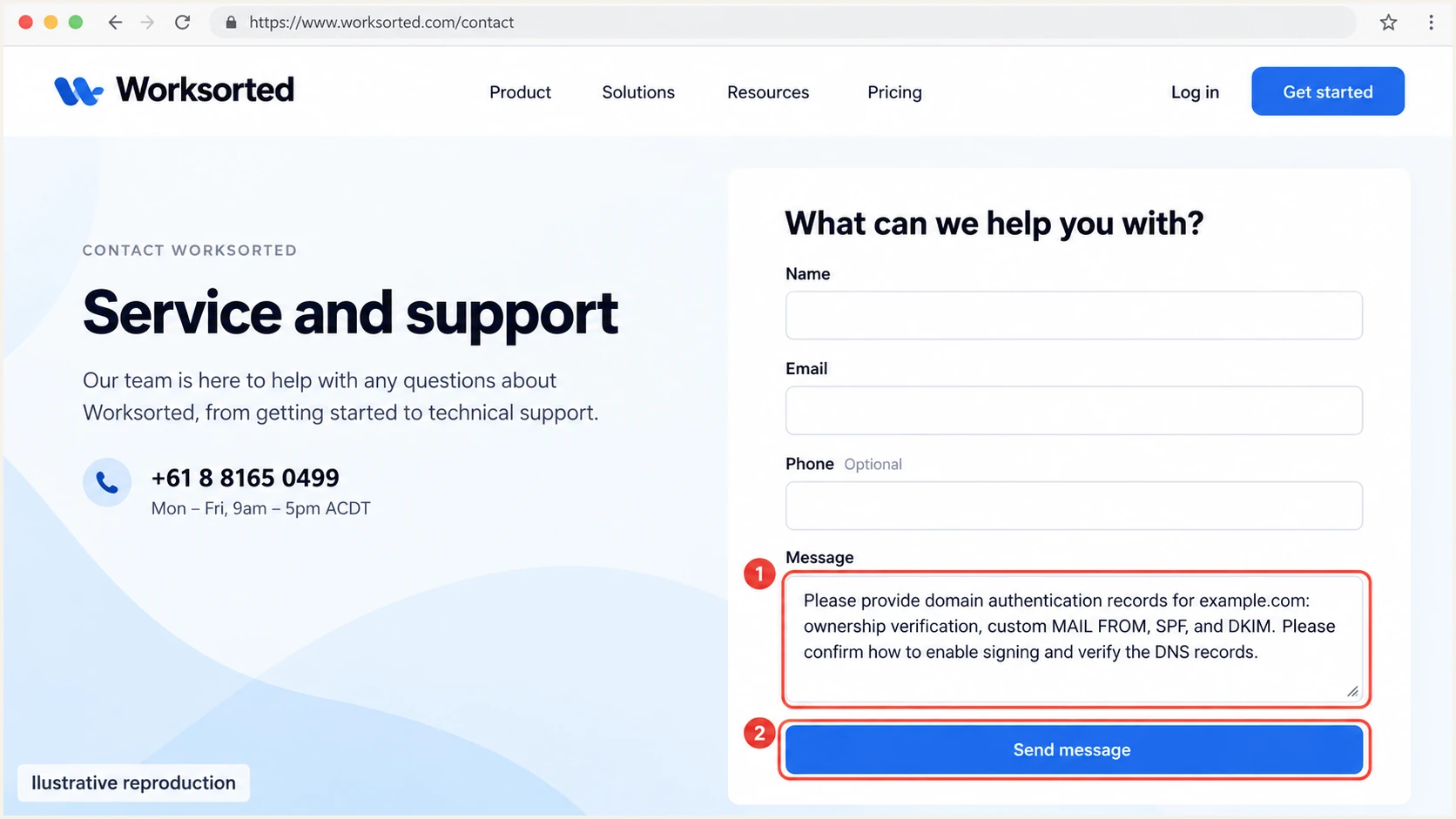
Illustrative reproduction of the Worksorted public support form for requesting domain authentication.
If Worksorted confirms that a particular workflow sends through a connected mailbox instead, authenticate that mailbox service and test that route separately. Do not assume every Worksorted message uses the same sending infrastructure.
Set up SPF
Worksorted supports return path alignment. I request a custom MAIL FROM domain under the sending domain, then publish the records Worksorted supplies for it. SPF checks this envelope domain, normally visible in Return-Path after delivery.
- Confirm the hostname. For a visible From domain of example.com, bounces.example.com is an illustrative custom return path. Use the actual hostname Worksorted assigns.
- Publish the supplied records. Add the requested TXT, CNAME, or MX records exactly. If SPF is delegated through a CNAME, do not also add a TXT record at that same name.
- Preserve existing senders. Where a TXT SPF record already exists at the required hostname, merge authorized mechanisms into that one record. A return path subdomain does not inherit the root domain's SPF record.
- Check lookup limits. Keep SPF within its limit of 10 DNS-querying mechanisms and modifiers per evaluation, including nested includes. Do not add an unverified include:worksorted.com mechanism.
Query the actual return path hostname, replacing this illustrative name. An MX change belongs only at the custom return path hostname when Worksorted requests it; preserve your normal inbound mail routing.
Inspect the custom return path DNSbash
dig +short TXT bounces.example.com
dig +short CNAME bounces.example.com
dig +short MX bounces.example.com
Enter the actual MAIL FROM hostname in the SPF checker. Check its resolved policy and lookup budget, including any delegated records.
Under relaxed SPF alignment, example.com and bounces.example.com match for DMARC. With aspf=s, SPF needs an exact domain match; a subdomain alone does not satisfy that setting.
SPF checker
Find SPF syntax issues, lookup limits, and weak records.
?/16tests passed
A valid SPF record does not prove Worksorted has activated the custom return path. Send a new message and inspect the receiving server's SPF result and smtp.mailfrom domain.
If a workflow still uses a provider-owned return path, expect SPF alignment failures even when SPF authentication passes. DMARC can still pass through a passing DKIM signature that matches your From domain; adding more authorization to the root SPF record does not fix that mismatch.
Set up DKIM
I use the DKIM selectors and public DNS values issued by Worksorted for the sending domain. Publishing a key alone does not prove that outbound messages are signed with it.
- Publish each selector. Create every supplied selector record using its exact TXT or CNAME type. Avoid appending the domain twice when the DNS editor automatically adds it.
- Keep delegation reachable. For a CNAME, copy the complete target and disable web proxying where applicable. For TXT, copy the complete public key without truncation.
- Activate signing. Have Worksorted confirm DNS verification and enable signing for your domain. Ask whether automated messages and manually initiated messages share this configuration.
- Inspect a fresh message. Require dkim=pass in the trusted receiver's results. Check that the signature's d= domain matches your visible From domain under your DMARC settings.
Read s= and d= in the DKIM-Signature header to construct the lookup name. The following commands illustrate selector1 and example.com; substitute the values on your received message.
Inspect the selector actually used for signingbash
dig +short CNAME selector1._domainkey.example.com
dig +short TXT selector1._domainkey.example.com
SPF domain matching
SPF must pass for the MAIL FROM domain. That domain must also match the visible From domain for SPF to contribute a DMARC pass.
DKIM domain matching
At least one DKIM signature must pass with a matching d= domain. A passing signature for a provider-owned domain does not authenticate your From domain for DMARC.
I keep relaxed DKIM alignment unless an exact-domain requirement is deliberate. With adkim=s, a signature using a subdomain does not match a parent From domain.
Set up DMARC
Publish DMARC for the visible From domain, not automatically for the return path subdomain. I start a domain without enforcement at p=none so reports expose legitimate sending failures before enforcement.
Keep existing enforcement
If your domain already uses p=quarantine or p=reject, keep that policy. Fix Worksorted authentication while preserving your current protection; do not replace an existing enforcement record with the starter record.
- Check the current policy. Look up the From domain's DMARC policy before editing DNS. Maintain one DMARC policy record at its published name.
- Prepare reporting. Create a monitored aggregate-report mailbox or use your reporting platform's assigned address. Replace dmarc@example.com with that working destination.
- Publish the TXT value. For example.com, use host _dmarc where your DNS editor appends the domain, or _dmarc.example.com where it expects a complete name.
- Preserve domain matching. Keep the existing adkim and aspf settings unless intentionally changing them. DMARC requires a passing, matching SPF identity or DKIM identity.
Starter DMARC TXT value at _dmarc.example.comdns
v=DMARC1; p=none; rua=mailto:dmarc@example.com
Use our DMARC record generator to build the policy with your actual reporting address. The starter value requests monitoring; it does not request rejection of messages that fail DMARC.
Enter the visible From domain in the checker. Verify the published policy, duplicate-record checks, and reporting destination after DNS caches refresh.
DMARC checker
Look up a domain's DMARC record and catch policy issues.
?/7tests passed
A successful DNS lookup confirms the policy is readable. It does not prove that Worksorted messages pass DMARC; test a delivered message next.
Aggregate reports normally arrive daily rather than immediately. For an external reporting address, complete any required destination authorization so receiving systems can send reports.
Verify and troubleshoot
I test a real Worksorted sending path after DNS publication and activation. A message sent directly through an ordinary mailbox does not test Worksorted's automated delivery route.
- Generate a destination. Open the email tester and copy the test address it provides.
- Send through Worksorted. Use a controlled test contact to trigger the workflow being configured. Use harmless test content and the same From domain as production.
- Read the results. Check SPF and its MAIL FROM domain, DKIM and its signing domain, and the final DMARC result. Investigate domain mismatches even when individual authentication checks pass.
- Repeat each route. Test manually initiated messages and each automated message type you actually use. Save the sending time and original headers for support.
Our email tester prompts you to send a message and returns a diagnosis of authentication and delivery-related checks. It is the quickest check of the message Worksorted actually sends.
Use the generated address as the recipient in Worksorted. Keep the test on the original sending route; forwarding introduces another mail hop and can change SPF results.
Email tester
Send a real email to this address. Suped shows a results button when the test is ready.
?/43tests passed
I inspect the receiving system's trusted Authentication-Results header alongside the diagnosis. A successful example with relaxed domain matching looks like this; these are illustrative values, not Worksorted DNS instructions.
Require dmarc=pass for the intended header.from domain. If both SPF and DKIM pass but DMARC fails, compare the authenticated domains with the visible From domain and the policy's alignment settings.
Illustrative successful receiver headerstext
Authentication-Results: mx.example.net;
 spf=pass smtp.mailfrom=bounces.example.com;
 dkim=pass header.d=example.com header.s=selector1;
 dmarc=pass header.from=example.com
Return-Path: <bounce@bounces.example.com>
From: Example practice <adviser@example.com>
|
|
|
|---|---|---|
SPF permerror | Duplicate or lookup limit | Inspect SPF policy |
SPF mismatch | Provider return path | Enable custom MAIL FROM |
DKIM none | Signing disabled | Confirm Worksorted activation |
DKIM key missing | Wrong selector or DNS | Query actual selector |
DKIM bad signature | Key or message changed | Send direct test |
DMARC fail | No passing matching identity | Compare authenticated domains |
Use message results to choose the next check.
Get alerted when it breaks
Suped is our DMARC reporting platform for detecting authentication failures after setup. Its DMARC monitoring combines source-level results with issue detection and alerts, so a Worksorted signing change does not depend on someone manually checking headers.
- Route the reports. Use the domain-specific reporting address supplied by Suped in your existing rua configuration, preserving the current DMARC policy.
- Assign alert recipients. Configure DMARC failure notifications for the people who manage Worksorted and DNS. Keep summary reports enabled for routine review.
- Investigate the source. Use Suped's source and record detail views to compare the failing IP, SPF identity, and DKIM signing domain with a known Worksorted test.
- Verify the repair. Correct the DNS record or have Worksorted restore domain signing, send another test, and confirm recovery in subsequent reports.
I use Suped here because the failure report and the steps to fix it belong in the same operational workflow. Reports cover mail received by participating reporting systems, so retain Worksorted delivery errors as a separate signal.
Alerts depend on report arrival
Suped processes the reports receivers send. Aggregate reporting is usually daily; it is not an instant notification for every failed email. Use a fresh Worksorted test message for immediate validation after a change.
Secure your domain with p=reject
I move to p=reject after legitimate mail passes DMARC across the domain, including Worksorted and every other authorized sender. Review a full business sending cycle and explicitly test infrequent workflows before increasing enforcement.
- Review legitimate sources. Use Suped's source inventory and record details to identify expected senders. Confirm unfamiliar traffic with the business owner before authorizing it.
- Fix authentication failures. Resolve missing DKIM signing and unintended return path changes. Keep a passing DKIM signature for your domain so forwarding-related SPF failures do not automatically break DMARC.
- Stage enforcement. For a domain starting at p=none, move to p=quarantine once legitimate sources pass, then inspect reports and delivery errors through a representative sending cycle.
- Apply rejection. Change the policy to p=reject after confirming legitimate delivery. Review subdomain policy and any separate subdomain DMARC records, then repeat Worksorted tests.
Our Hosted DMARC lets teams manage the policy in Suped after its DNS delegation is configured. I use the source evidence to decide when to advance the policy, then check reports after each change.
Enforcement TXT value after validationdns
v=DMARC1; p=reject; rua=mailto:dmarc@example.com
Preserve your real reporting destination and other intentional policy tags when changing p=. Rejection requests action against messages that fail DMARC; it does not guarantee inbox placement or block impersonation using unrelated domains.