How to set up DMARC/DKIM/SPF for Temok

For Temok's cPanel email hosting, publish the account's recommended SPF record, enable DKIM signing and publish its public key, then add a DMARC TXT record at your domain's _dmarc name. I start new DMARC deployments with p=none, test real outgoing messages, and tighten the policy after checking legitimate senders.
Temok is a hosting provider, so the sending IP addresses and DKIM keys depend on your hosting account. These steps apply to Temok accounts using cPanel. If your service uses another control panel, get the corresponding records and signing instructions from Temok support.
Add your domain
I first confirm that the sending domain exists in the Temok hosting account. The primary domain is normally already present; add another domain only when it is missing.
Domain registration and DNS hosting are separate. Identify the authoritative DNS provider before editing records, because a record saved in a local cPanel zone has no public effect when another provider hosts the authoritative zone.
- Open cPanel. Use the hosting control panel access supplied with your Temok account.
- Add the domain. Open Domains > Create a New Domain, enter your registered domain, review the document root settings, and click Submit. Skip this for a domain already listed.
- Create a sender. Open Email > Email Accounts > Create and create the mailbox your application will use, such as notifications@example.com.
- Confirm provisioning. Check that the domain appears in Domains and Email Deliverability. Open Email Accounts > Connect Devices to obtain the account's SMTP settings.
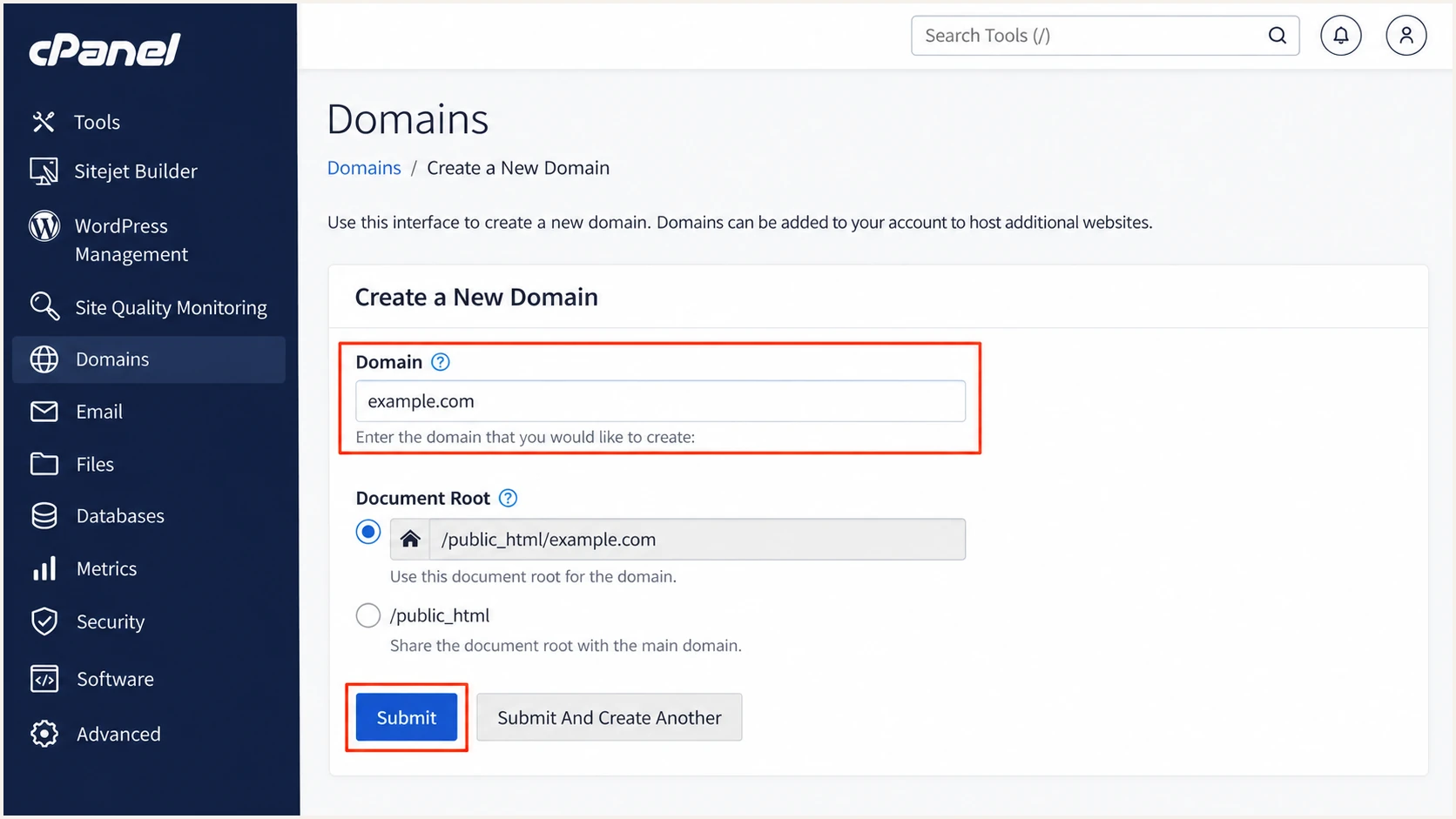
Illustrative cPanel domain form for a Temok account; labels vary by version.
Confirm the active nameservers with a DNS lookup before publishing authentication records. Keep DNS at the existing provider if that is where the domain is already managed.
Adding the domain provisions hosting; a received test message verifies outgoing authentication. MX records control incoming mail, so SPF, DKIM, and DMARC setup alone does not require changing them.
Set up SPF
I use the SPF value generated for the Temok account rather than guessing a provider-wide include. In cPanel, open Email > Email Deliverability > Manage beside the sending domain and locate Suggested SPF (TXT) Record.
SPF checks the SMTP envelope sender domain, usually visible in the delivered Return-Path. For SPF to count toward DMARC, that domain must also match the visible From domain under your DMARC alignment mode.
- Copy the recommendation. Take the suggested Name and Value from your account. Ask Temok to confirm the outbound IP or relay authorization if your messages use a different route.
- Merge existing senders. Keep one TXT record beginning v=spf1 at each SPF name. Add the required Temok mechanisms to the existing policy without removing other authorized senders.
- Publish at authoritative DNS. Use cPanel's installation option when it controls public DNS; otherwise edit the TXT record at the active DNS provider. Use the record name supplied for the envelope sender domain.
- Check lookup limits. Keep SPF within the limit of 10 DNS-querying terms during evaluation, including nested includes. This is not a limit of 10 IP addresses.
- Verify the Return-Path. Send using your domain mailbox. If an application uses another envelope sender, configure its supported envelope sender setting or ask Temok to correct the route. Adding a Return-Path header does not set SMTP MAIL FROM.
SPF checker
Find SPF syntax issues, lookup limits, and weak records.
?/16tests passed
Enter the actual envelope sender domain in the checker. A valid SPF record at example.com does not authenticate mail whose envelope sender uses an unrelated domain.
With default relaxed alignment, an envelope sender at bounce.example.com can match a visible From address at example.com. The bounce subdomain still needs its own working SPF authorization; SPF does not inherit the parent domain's TXT record.
Keep the existing SPF record
Do not publish a second SPF record or copy Temok's corporate-domain SPF policy. Use your account's authorization values. An SPF pass for an unrelated Return-Path does not satisfy DMARC's SPF alignment check.
Set up DKIM
I enable DKIM for the sending domain and publish the public key from that same account. A public key copied from another Temok customer cannot verify your server's signatures.
Open Email > Email Deliverability > Manage. The DKIM area supplies the selector name and public TXT value; use those exact values instead of assuming every account uses the same selector.
- Generate the key. Click Generate Local DKIM Key if cPanel reports that no key exists. For an existing key, retain the current selector unless you are deliberately rotating it.
- Publish the public value. Install the suggested DKIM TXT record when cPanel controls authoritative DNS. Otherwise copy its Name and full public Value into the active DNS provider.
- Preserve the key. Copy every character of the public key. DNS interfaces handle long TXT values differently; multiple quoted chunks must remain one TXT record.
- Verify signing. Send a fresh message through the Temok mailbox or application. Check dkim=pass, the signing domain in d=, and the selector in s= against the visible From domain and published record.
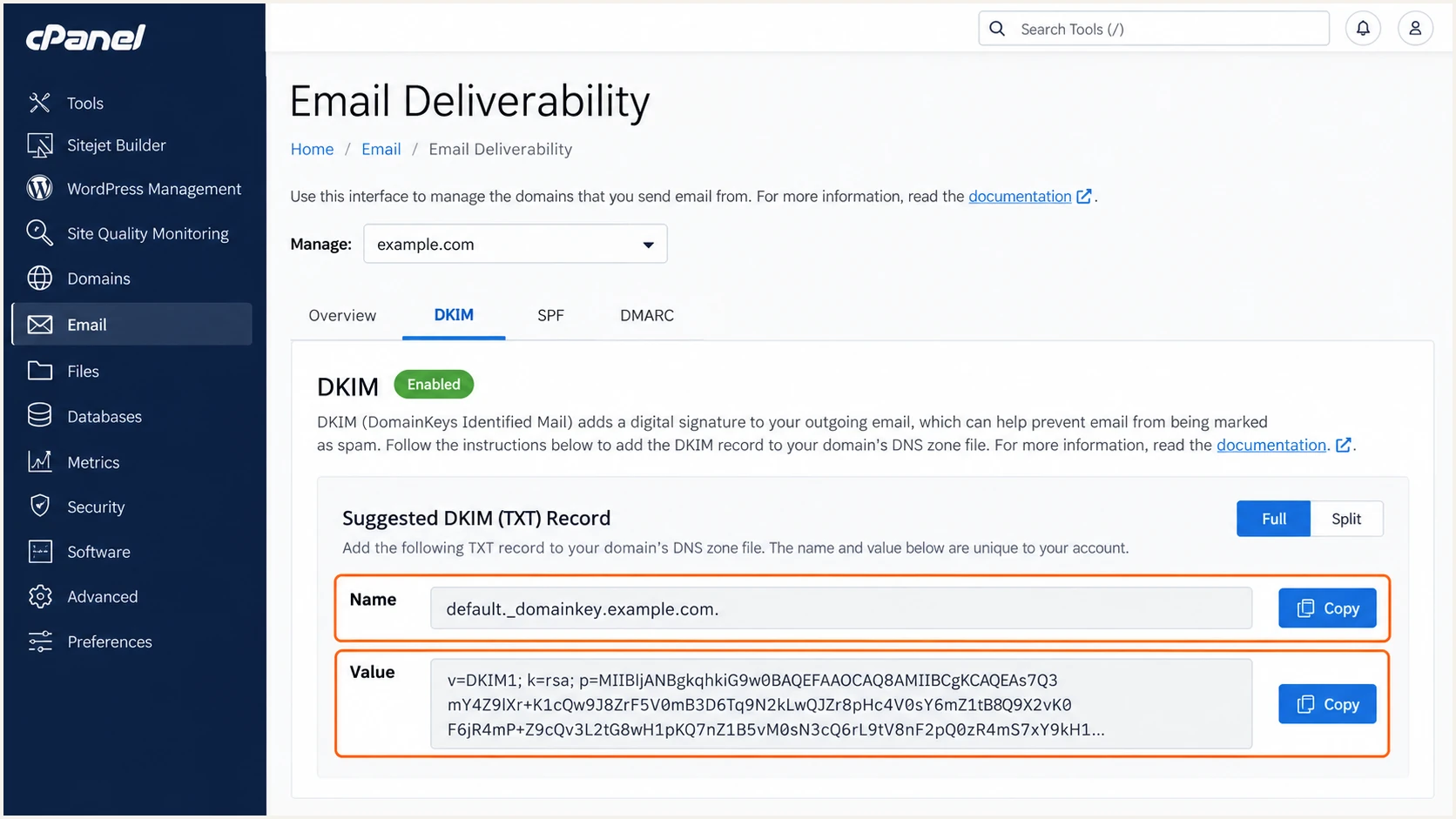
Illustrative cPanel DKIM record fields; copy your account's actual selector and public key.
Publish only the public key. Keep the private signing key on the mail server; it does not belong in a DNS record or support screenshot.
A DNS status of Valid is a configuration check, so I also test the application's actual sending path. For website notifications, use authenticated SMTP with the settings under Email Accounts > Connect Devices; Temok's shared-hosting instructions document SMTP port 465 with SSL/TLS.
Set up DMARC
For a domain without DMARC, start with p=none to collect reports while checking Temok mail. If the domain already uses p=quarantine or p=reject, keep that policy and repair authentication without weakening it.
Use the DMARC record generator to prepare the policy, then publish it in the domain's authoritative DNS zone.
- Choose the DNS name. In cPanel, open Domains > Zone Editor > Manage for your domain, then Add Record and choose TXT. Enter _dmarc.example.com. when the editor expects a full name.
- Set the value. For a new policy, use the monitoring record below with TTL 3600 or the zone default. Replace the example reporting address with a real destination you control.
- Avoid duplicates. Edit an existing DMARC record rather than adding another. Keep one DMARC policy TXT record at the applicable _dmarc name.
- Save and check. Click Save Record. If DNS is hosted elsewhere, perform the same TXT edit there and check the public result after caches expire.
New monitoring policy: TXT at _dmarc.example.comtext
v=DMARC1; p=none; rua=mailto:dmarc@example.com
The example address is a placeholder. Its replacement must receive aggregate reports, usually compressed XML attachments. A reporting destination outside your domain also needs the destination provider's external-report authorization.
The p=none policy requests reporting without requesting quarantine or rejection for DMARC failures. DMARC passes when SPF or DKIM passes with domain alignment; configure both for reliable sending.
DMARC checker
Look up a domain's DMARC record and catch policy issues.
?/7tests passed
Check the visible From domain and confirm the intended policy and reporting address are public. A successful lookup validates DNS configuration; the next section tests a delivered message.
If cPanel's zone and public DNS disagree, correct the authoritative zone. Repeatedly reinstalling a local record will not update a separately hosted DNS service.
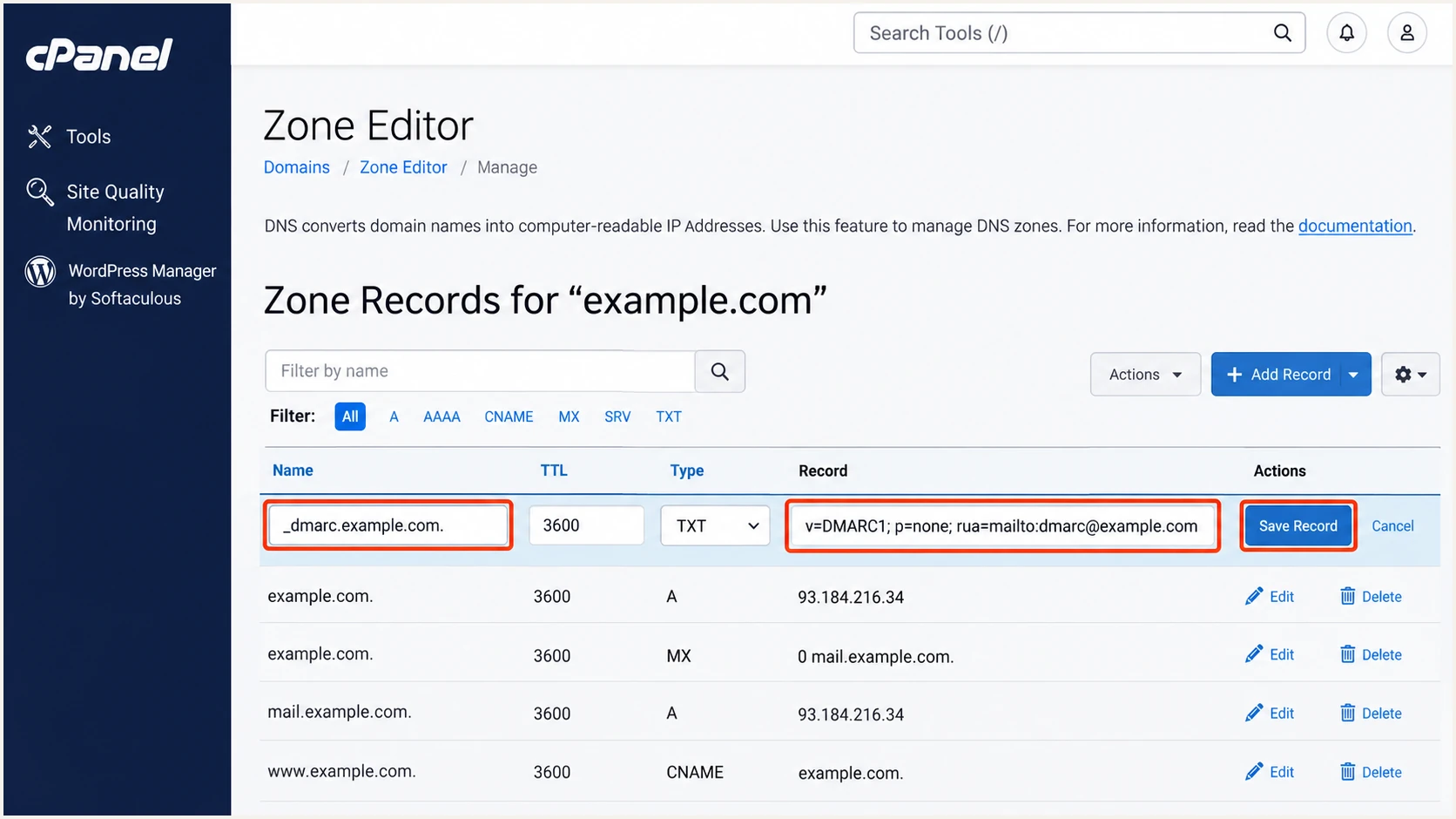
Illustrative cPanel Zone Editor entry for a new DMARC monitoring policy.
Verify and troubleshoot
I test a mailbox message and an application notification separately. They can leave through different servers even when both use the same visible From address.
Use the email tester below for the quickest configuration check: it supplies a test address, prompts you to send a message, and returns an authentication diagnosis for that actual message.
- Send through Temok. Use the mailbox or trigger the application workflow you are configuring. Send directly to the supplied test address without forwarding.
- Read authentication results. Check the receiving server's Authentication-Results for spf=pass, dkim=pass, and dmarc=pass. Compare the SPF domain and DKIM signing domain with the visible From domain.
- Check DNS names. Look for duplicate SPF policies, repeated domain suffixes in record names, missing selector records, and truncated DKIM public keys.
- Retest the application. If webmail passes but notifications fail, correct the application's SMTP credentials and envelope sender. Use your domain address for From and put a contact-form visitor's address in Reply-To.
Email tester
Send a real email to this address. Suped shows a results button when the test is ready.
?/43tests passed
SPF alignment errors are compatible with a DMARC pass when DKIM passes with a matching signing domain. If a sending route fixes the envelope sender to an unrelated provider domain, adding more SPF mechanisms at your own domain cannot change that identity.
For a Temok route configured to use your domain's envelope sender, investigate unexpected mismatches. For a route without custom Return-Path support, rely on correctly configured DKIM for DMARC and confirm the signing domain on every relevant mail stream.
|
|
|
|---|---|---|
SPF permerror | Duplicate or over limit | SPF TXT and includes |
SPF domain mismatch | Different envelope sender | Return-Path domain |
DKIM key missing | Wrong DNS name | Selector and DNS host |
DKIM signature fails | Key or message changed | Public key and route |
DMARC fails | No matching pass | From and auth domains |
Passes, still spam | Other delivery signals | Bounce and reputation |
Use the received message to choose the next diagnostic step.
For command-line checks, replace the example domain and selector with values from the received message. Query authoritative nameservers directly if recursive resolvers return an older record.
Authentication does not guarantee inbox placement. If authentication passes, inspect SMTP rejection details and sending reputation; an IP blocklist (blacklist) issue needs a separate investigation. Ask Temok to review PTR and outbound-server problems.
Inspect public DNS and the sending IP's PTRbash
dig +short NS example.com
dig +short TXT example.com
dig +short TXT default._domainkey.example.com
dig +short TXT _dmarc.example.com
dig +short -x 192.0.2.10
Get alerted when it breaks
A successful test covers one message at one moment. I also monitor production traffic after server migrations and application changes, when previously working SPF or DKIM configurations can break.
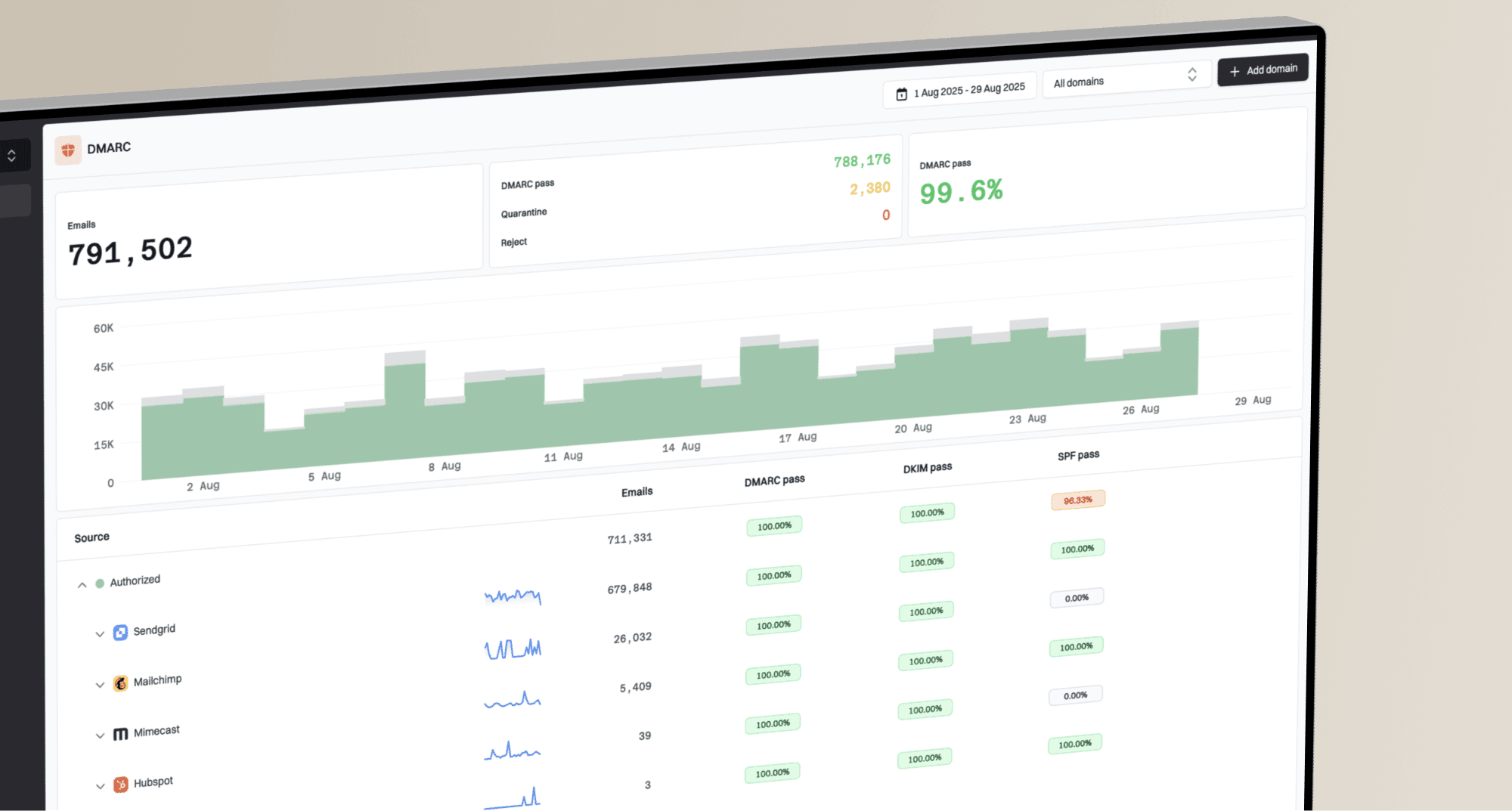
Suped is our DMARC platform. Our DMARC monitoring connects reported Temok traffic with authentication failures, issue diagnostics, and notification workflows.
- Collect aggregate reports. Keep a working rua destination connected to your reporting workflow. For Suped reporting, use the reporting address supplied for your domain; preserve the existing enforcement policy.
- Enable failure alerts. In Suped's notification settings, enable DMARC failure alerts and summary report emails for the people responsible for Temok mail.
- Investigate the source. Open the affected source and record details. Compare the sending IP, SPF domain, and DKIM result with your known Temok sending route before authorizing anything.
- Verify the repair. Follow the detected issue's fix steps, correct the Temok or DNS configuration, send another test, and confirm recovery in subsequent aggregate reports.
Suped's report-based alerts depend on when receivers send aggregate reports, commonly daily. They complement application delivery logs and SMTP bounce handling; they do not provide an immediate event for every failed message.
For changes that affect reputation, Suped also has IP and domain blocklist monitoring. Keep blacklist alerts separate from authentication diagnosis so that an SPF repair is not mistaken for a reputation fix.
Secure your domain with p=reject
I move to p=reject after legitimate sources consistently pass DMARC, with working DKIM on Temok mail. Review a complete sending cycle, including infrequent notifications, rather than choosing a date based only on elapsed time.
Suped's source views and issue diagnostics make that review practical: inspect failing traffic, confirm authorized sources, and resolve failures before changing the policy. A high overall pass rate alone does not prove that every business-critical sender works.
- Inventory legitimate mail. Check Temok mailboxes, website forms, and scheduled jobs, plus every other service using the domain. Treat unknown sources as unverified until you investigate them.
- Fix domain matching. Require a passing DKIM signature using your domain and configure SPF for your supported envelope sender. Keep relaxed alignment unless a specific requirement calls for strict matching.
- Stage enforcement. After fixing legitimate failures, change p=none to p=quarantine. Review reports and delivery complaints through another representative sending cycle, then set p=reject.
- Retain reporting. Preserve rua and other intentional tags when editing the policy. Check sending subdomains and explicit subdomain policies before enforcing the parent domain.
Change the policy in DNS
Edit the existing _dmarc TXT record in cPanel's authoritative zone or your active DNS provider. Keep the reporting destination, save, and verify the public policy.
Manage the policy with Suped
Our Hosted DMARC lets you manage policy changes in Suped after the supplied DNS setup. Use report diagnostics to assess each stage; Temok remains the system signing and sending your mail.
Under p=reject, receivers are asked to reject messages that fail DMARC, subject to their local handling policies. Mail with a valid, matching DKIM signature can still pass after forwarding breaks SPF.
Forwarders and mailing lists that alter signed content need separate testing. If legitimate delivery breaks during enforcement, investigate the affected source and correct it before advancing the policy.
FAQ
Temok account settings determine the exact SPF mechanisms and DKIM selector. I keep those account values separate from the domain-wide DMARC policy.
These checks help distinguish DNS publication problems from differences in the actual sending route.