
How to set up DMARC/DKIM/SPF for Stackmail

Set up Stackmail by adding include:spf.stackmail.com to your domain's SPF record, enabling a DKIM signature in DomainKeys, and publishing a DMARC TXT record at _dmarc.yourdomain. Start a new DMARC deployment with p=none and reporting, then verify authentication on a real message.
I configure Stackmail's domain settings through its hosting control panel, usually 20i's My20i or a reseller's StackCP. Stackmail webmail is for sending and reading messages. SMTP sends mail; IMAP and POP3 retrieve it. Keep an existing p=quarantine or p=reject policy while completing these checks.
Add your domain
I first confirm that the sending domain belongs to the correct hosting package and has a working Stackmail mailbox. The steps below use My20i's documented controls; reseller branding and access permissions differ.
- Open the package: In My20i, choose Manage Hosting, find the package, and select Manage.
- Add the domain: Open Domains. If your domain is absent, enter it and select Add Domain. Use the existing domain entry when it is already listed.
- Create a mailbox: Open Email Accounts under Email, enter the mailbox name, select the domain, and click Create Email Account. Save the mailbox password securely.
- Confirm access: Sign in to Stackmail webmail with the full email address and mailbox password. Send a message to an external mailbox and confirm receipt.
I check the domain's authoritative nameservers before editing DNS. Publish authentication records at the provider those nameservers identify, even when the domain is registered somewhere else.
If Stackmail will receive this domain's mail, confirm its MX destination is mx.stackmail.com. Preserve an existing receiving service during an outbound-only setup; MX routing is a separate decision from SPF and DKIM authentication.
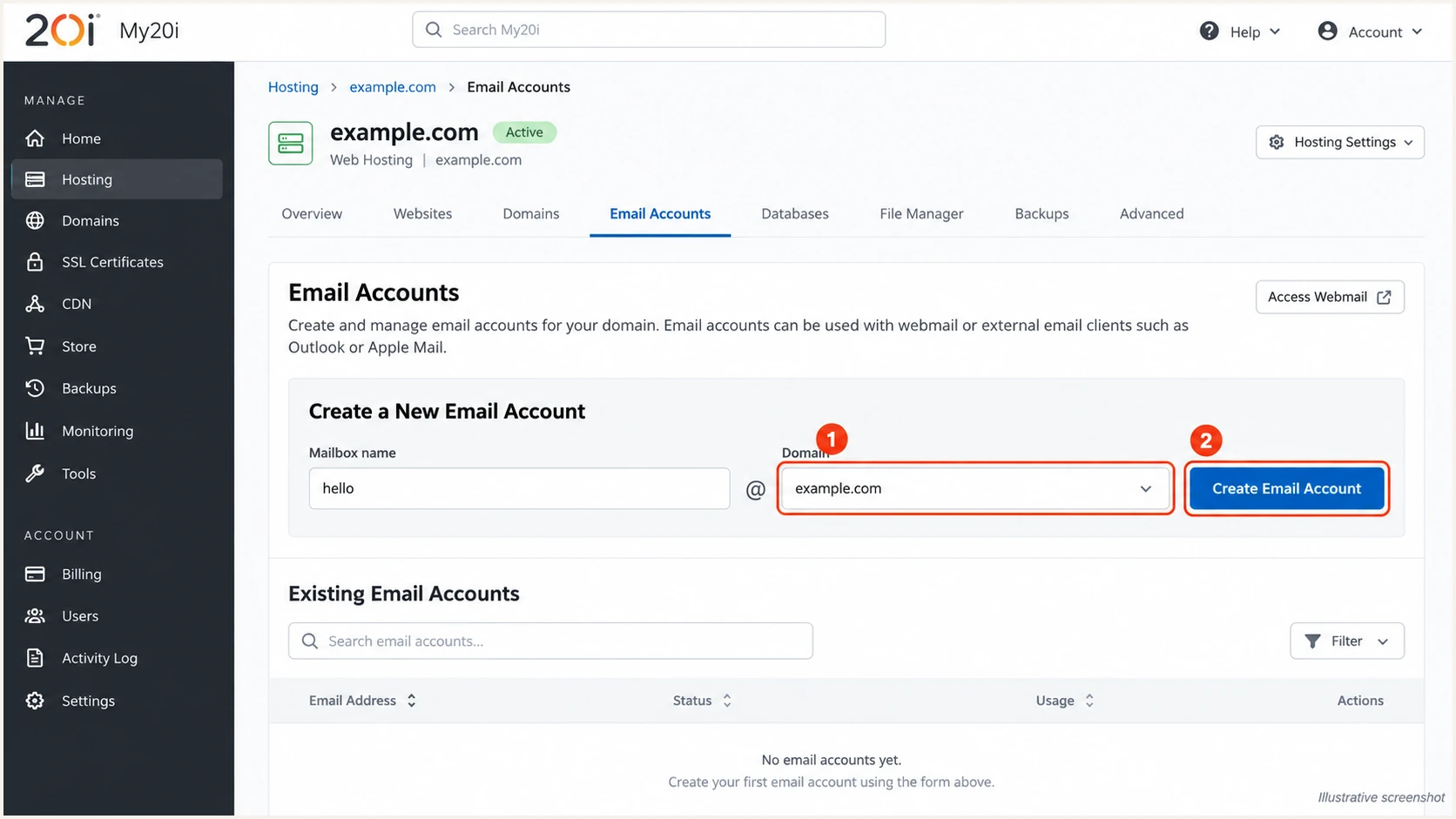
Illustrative My20i Email Accounts screen for creating a Stackmail mailbox.
Successful webmail access confirms mailbox provisioning. I verify DNS publication separately, because a working mailbox does not prove that external receivers can find its authentication records.
For an application or mail client, use smtp.stackmail.com with the full mailbox address as the username. Use port 465 with SSL/TLS or port 587 with STARTTLS, and enable SMTP authentication.
Set up SPF
Stackmail's SPF include is include:spf.stackmail.com. 20i's support article 'Can I add SPF records for my domain name?' gives the default record below. I inspect the existing record first because new hosting packages normally receive it automatically.
- Find the current record: At your authoritative DNS provider, find the TXT record beginning with v=spf1 at the sending domain.
- Edit one record: Add include:spf.stackmail.com before the final all mechanism. Preserve other authorized senders and publish only one SPF TXT record at that name.
- Create it if absent: In My20i, open Manage DNS, leave Name blank for the domain root, choose TXT, and enter the default value below. Other DNS editors commonly use @ for the root.
- Check the lookup budget: Keep SPF evaluation within 10 DNS lookups, including nested includes. Remove obsolete senders after confirming they are unused.
20i's default SPF value for Stackmailtext
v=spf1 include:spf.stackmail.com a mx -all
The a and mx mechanisms also authorize addresses reached through your domain's A/AAAA and MX records. I keep them only when those systems legitimately send mail. Preserve additional sending services before using this default's -all ending.
Stackmail supports SPF alignment with your sending domain. Use a matching mailbox and From address, then inspect the delivered message's smtp.mailfrom identity. Adding an SPF include authorizes servers; it does not change the envelope sender.
SPF checker
Find SPF syntax issues, lookup limits, and weak records.
?/16tests passed
Enter the actual sending domain above and check the published record for syntax errors, duplicate SPF records, and excessive lookups. Correct those errors in the authoritative DNS zone.
I then send a new message through Stackmail and check the receiver's SPF result. A successful DNS lookup alone does not prove that the message used Stackmail's SMTP route or the expected return-path domain.
Set up DKIM
I enable DKIM in Stackmail's hosting panel so its mail servers sign with the matching private key. 20i calls this control DomainKeys and documents 2048-bit public keys.
- Open DomainKeys: Go to Manage Hosting, Manage the package, and select DomainKeys under Email.
- Choose the identity: Select your sending domain and enter an unused selector, such as stackmail2026. The selector is your choice, not a universal Stackmail value.
- Enable signing: Select Add Signature. Keep the normal domain-wide settings; if reviewing advanced settings, use Production rather than Testing.
- Publish the public key: Confirm the generated TXT record exists at the authoritative DNS provider, using the publishing instructions below.
With 20i nameservers, Add Signature publishes the DNS record automatically. With external nameservers, open Options for the new signature and copy its DNS Name and DNS Value into a TXT record at the active DNS provider.
For the example selector, the owner name is stackmail2026._domainkey.example.com. Copy the complete public key exactly. A DNS editor that appends example.com needs only stackmail2026._domainkey in its Name field.
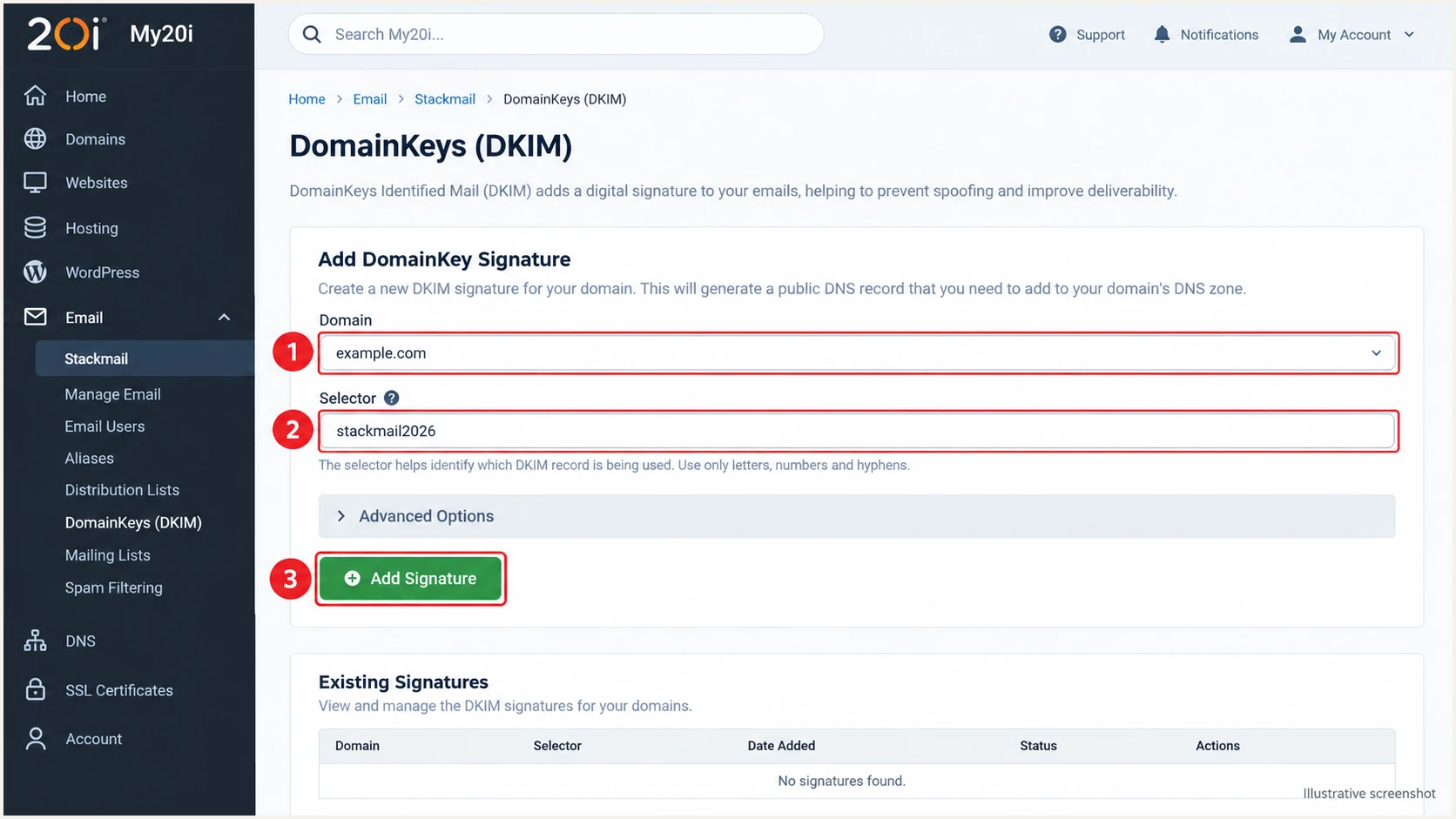
Illustrative My20i DomainKeys screen for enabling Stackmail DKIM signing.
Stackmail starts adding the signature after creation. Wait for the public TXT record to resolve before judging a fresh message's DKIM result.
For DMARC, the passing signature's d= domain must have the required relationship to the visible From domain. I check both the signature result and that domain relationship.
Public key in DNS
Receivers query the selector's TXT record to verify the signature. A missing or truncated value breaks verification.
Private key on Stackmail
Stackmail signs outgoing messages with its private key. Publishing a separately generated public key does not configure Stackmail signing.
Set up DMARC
I start a new deployment with p=none and aggregate reporting. If the domain already uses p=quarantine or p=reject, retain that policy and its existing reporting destinations.
- Check the current policy: Look for a TXT record at _dmarc.example.com. Edit the existing record rather than adding a second DMARC record at that name.
- Prepare reporting: Create a working reporting mailbox under your domain. Replace dmarc@example.com in the example with that address.
- Publish the policy: In Manage DNS, add or edit a TXT record with Name _dmarc and the value below. Use the authoritative DNS provider when DNS is external.
- Check the wizard output: My20i also has Email > DMARC Wizard. Select the domain, choose None for a new deployment, and click Add DMARC. Inspect the resulting TXT record and add the rua destination through Manage DNS if needed.
Starter DMARC value at _dmarc.example.comtext
v=DMARC1; p=none; rua=mailto:dmarc@example.com
Use the DMARC record generator to prepare the value before publishing it. The example address is a placeholder, and p=none requests monitoring rather than quarantine or rejection for DMARC failures.
Keep the default relaxed SPF and DKIM alignment settings unless your domain requires strict matching. If reports go to a different organization's domain, that reporting destination must authorize receiving them.
DMARC checker
Look up a domain's DMARC record and catch policy issues.
?/7tests passed
Check the sending domain above after saving DNS. Confirm that the checker finds one valid DMARC policy and the intended reporting address.
Aggregate reports arrive according to each receiver's reporting schedule, commonly daily. Send real traffic to reporting receivers and allow their reporting cycle to complete before investigating an empty report inbox.
Verify and troubleshoot
I test a fresh message through every actual sending path, including Stackmail webmail, an authenticated SMTP client, and any website using the mailbox. Each route needs its own verification.
- Query DNS: Run the commands below, replacing example.com and stackmail2026 with your domain and configured selector. Check nameserver delegation if records are missing.
- Inspect receiver results: Open the delivered message's full headers and read the receiving provider's Authentication-Results. Check spf=pass, dkim=pass, and dmarc=pass with their evaluated domains.
- Check domain matching: Compare smtp.mailfrom and the passing DKIM d= domain with the visible From domain. Under relaxed matching, the organizational domain must match.
- Retest after correction: Wait for cached DNS records to expire, then send another message. An earlier message retains its original authentication results.
DNS checks for the example Stackmail domainbash
dig +short NS example.com
dig +short TXT example.com
dig +short TXT stackmail2026._domainkey.example.com
dig +short TXT _dmarc.example.com
A DNS check confirms publication; the email tester checks an actual message. Send to the address it provides using the Stackmail account and application you intend to use in production.
Use the returned diagnosis to check authentication and the message's evaluated identities. Repeat with each application because changing a desktop client's settings does not change a website's SMTP configuration.
Email tester
Send a real email to this address. Suped shows a results button when the test is ready.
?/43tests passed
I expect a normal direct Stackmail message to pass SPF with the intended return path and DKIM with the configured domain. DMARC passes when at least one of those mechanisms passes with the required domain matching.
If a route uses a fixed provider-owned return path, SPF alignment errors are expected. Adding SPF to the visible From domain does not fix that identity mismatch; passing DKIM with the correct domain is sufficient for DMARC. For Stackmail's direct SMTP route, investigate an unexpected return path with the hosting provider.
|
|
|
|---|---|---|
SPF error | Duplicates or lookups | Repair SPF |
No DKIM | DomainKeys and route | Enable signing |
DKIM fails | Selector and key | Correct DNS |
DMARC fails | Evaluated domains | Fix domain matching |
Old DNS | Nameservers and TTL | Update active zone |
Checks for common Stackmail authentication failures.
If authentication passes but delivery fails, inspect the bounce message and the hosting panel's Mail Logs. Mailbox restrictions and recipient filtering require separate investigation.
For a shared Stackmail sending IP on a blocklist (blacklist), send the bounce details and sending IP to your hosting provider. Authentication success alone does not guarantee inbox placement.
Use the receiving server's results
Read Authentication-Results added by the trusted receiving system. A header supplied by the sender or an earlier relay is not proof of the final receiver's DMARC decision.
Get alerted when it breaks
Suped is our email authentication platform for monitoring Stackmail after setup. Its DMARC monitoring connects aggregate reports with source identification and authentication diagnostics so a later DNS or sending change becomes an issue you can investigate.
- Route aggregate reports: Use the reporting address assigned by Suped in your existing rua tag. Preserve the current policy and any reporting destinations you still need.
- Confirm legitimate traffic: Review Stackmail's source details and verify it only after matching the traffic to your mailbox or application. Investigate unfamiliar sources separately.
- Enable notifications: In Suped, open Settings > Notifications, enable DMARC failure alerts, and enable summary emails for ongoing review.
- Investigate failures: Open the affected source and record details, compare SPF and DKIM results, and follow the issue's steps to fix. Correct Stackmail or DNS settings, then verify new traffic.
I review authorized-source failures separately from unauthorized traffic. A rise in unauthorized attempts calls for a different response than a DKIM failure affecting legitimate Stackmail messages.
Suped's automated issue detection and notification workflow reduce the need to inspect raw XML reports manually. Report-based alerts depend on receiver submissions, so use a fresh email test when checking an immediate configuration change.
Reporting has a delay
Aggregate DMARC reporting is commonly daily. An alert based on those reports cannot describe every SMTP event as it happens. Keep delivery logs available for urgent failures.
Secure your domain with p=reject
I move to p=reject after every legitimate sending source has a verified DMARC path. Passing one Stackmail test is insufficient when the same domain also sends invoices or application notifications elsewhere.
- Inventory senders: Use reporting data and your application inventory to identify every authorized source. Include infrequent messages, such as monthly billing runs.
- Fix legitimate failures: Repair missing DKIM keys and incorrect sending identities. Test forwarding paths because forwarding often breaks SPF while an unchanged DKIM signature remains valid.
- Stage enforcement: After monitoring a complete business sending cycle, change p=none to p=quarantine and inspect fresh reports. Then use p=reject when legitimate failures are resolved. Keep existing enforcement when already deployed.
- Keep monitoring: Use Suped's source diagnostics and alerts to verify subsequent traffic, investigate regressions, and review new services before they send with your domain.
Enforcement value after legitimate senders are verifiedtext
v=DMARC1; p=reject; rua=mailto:dmarc@example.com
Replace the reporting address before publishing this example. A reject policy requests rejection of messages that fail DMARC; each receiver retains its own handling rules.
Suped's hosted DMARC lets you manage the policy through our dashboard after its DNS setup. Use policy staging with source-level reports to judge whether each enforcement change is ready, while retaining monitoring after p=reject.
Base enforcement on legitimate traffic
Confirm that known senders pass DMARC and unexplained legitimate failures are resolved. Unauthorized traffic can continue failing after p=reject; that does not make the policy incorrect.
I check active subdomains before changing the parent policy. A parent policy can affect subdomains without their own policy, so validate those mail streams too.
Leave aggregate reporting enabled after enforcement. Review new sending services before launch and retest after DKIM key changes or mail routing changes.