
How to set up DMARC/DKIM/SPF for Spacemail

To authenticate Spacemail, publish an SPF TXT record containing include:spf.spacemail.com, publish your domain-specific DKIM TXT value at spacemail._domainkey, and add a DMARC TXT record at _dmarc. I then send a fresh message to verify that authentication passes for the domain in the visible From address.
Spacemail is managed through Spaceship. Domains using Spaceship nameservers receive service DNS records automatically during setup; external DNS requires manual changes. The Spacemail DNS reference lists the provider values. Check existing records before adding anything, especially an established DMARC enforcement policy.
Add your domain
I connect the domain to the Spacemail subscription before copying DNS values. If your domain is already connected and your mailbox works, check its ownership status and continue with SPF.
- Open the subscription. In Spaceship, open Launchpad, then Spacemail Manager. For an unconfigured subscription, start Unbox and choose Add domain, or use +Add domain on a subscription without a domain.
- Connect your domain. Select your existing domain or enter your externally registered domain, then click Continue followed by Connect.
- Find verification. Open Advanced DNS, select the domain, and use Manage > View guides > Verifying domain ownership to retrieve the required TXT name and value.
- Publish ownership proof. Add that exact TXT record at the provider hosting your authoritative nameservers. Wait for Spaceship to recognize it before relying on the mailbox.
- Create the mailbox. Click Configure Products > Configure, enter the mailbox name, and select Create mailboxes. Copy the generated password securely, then click Finish.
For external domains, the domain verification instructions identify the View guides path. The ownership TXT value is unique to your connection; SPF and DKIM records do not replace it.
I keep the current nameservers when DNS already hosts a working website. Copying the required records into the existing DNS zone avoids an unnecessary nameserver migration.
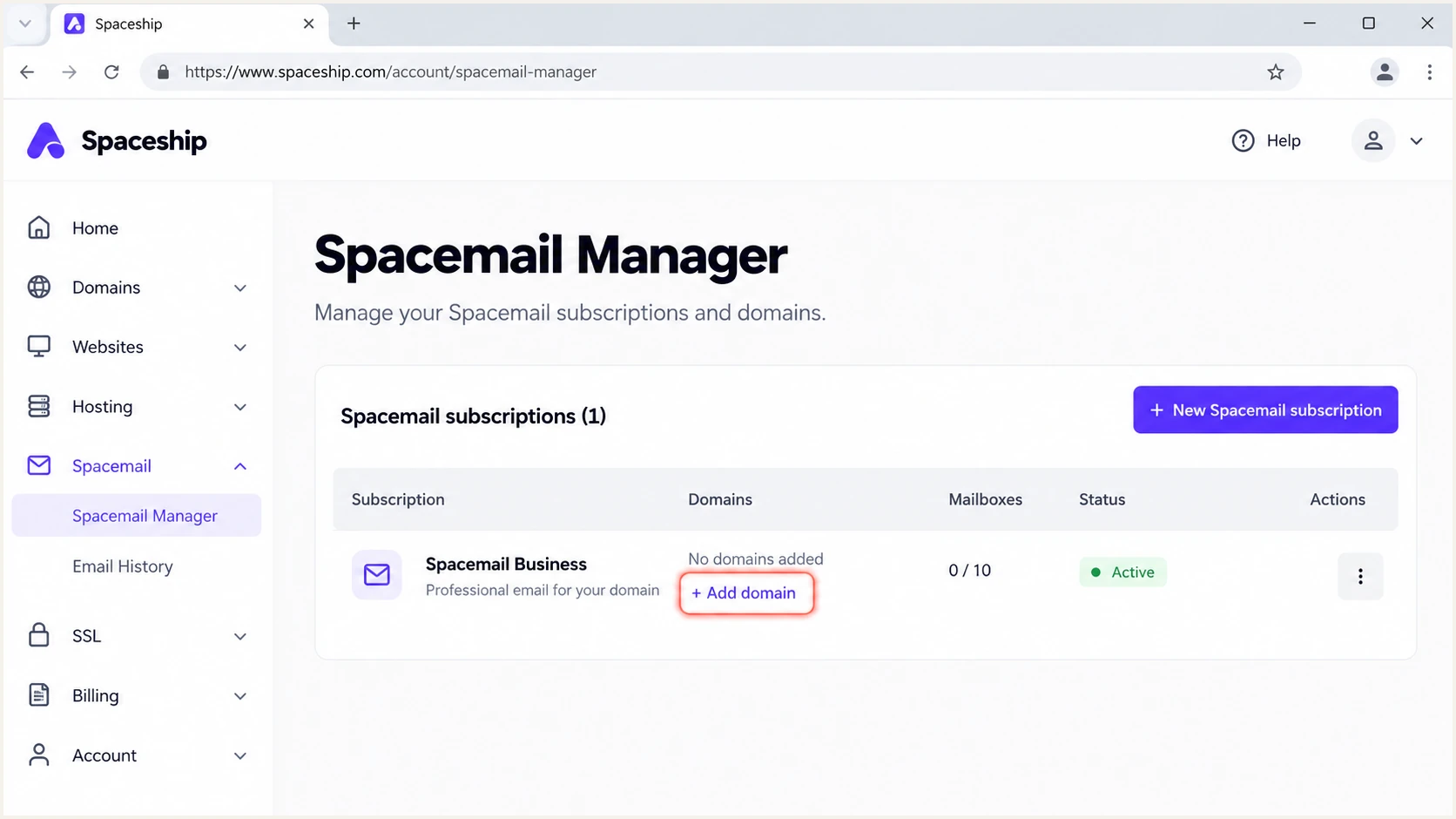
Open +Add domain on an unconfigured Spacemail subscription.
If you are moving incoming mail to Spacemail, publish MX records for mx1.spacemail.com and mx2.spacemail.com, both with priority 0, after the mail migration is ready. MX controls incoming delivery; it does not authenticate outgoing messages.
After DNS propagates, return to Spacemail Manager and confirm the domain is connected. Sign in to webmail using the full mailbox email address and the password created above.
Set up SPF
Spacemail supports Return-Path alignment, so I configure SPF for the domain used by its envelope sender. For a standard mailbox sending as user@example.com, begin by checking the TXT records at example.com.
- Inspect existing SPF. At your authoritative DNS provider, find the TXT record beginning v=spf1. Keep one SPF record per hostname.
- Add Spacemail. If SPF is absent, create a TXT record with Name @ and the value below. Otherwise, edit the existing record and add include:spf.spacemail.com before its final all mechanism.
- Preserve other senders. Keep the mechanisms required by other authorized services and retain the existing final policy when merging. Do not add a second SPF record.
- Check lookup limits. Keep evaluation within 10 DNS-querying SPF terms, including nested includes. Use the provider include rather than copying a temporary list of its sending IPs.
SPF TXT value at @ when Spacemail is the only sendertext
v=spf1 include:spf.spacemail.com ~all
The published Spacemail example uses ~all. This is SPF softfail for unauthorized IPs, not a DMARC monitoring policy. An existing -all policy does not need to be weakened when adding the correct include.
SPF checks the envelope sender, recorded as Return-Path after delivery. I verify that its domain matches the visible From domain under the active DMARC alignment mode; a valid SPF record alone does not prove that match.
SPF checker
Find SPF syntax issues, lookup limits, and weak records.
?/16tests passed
Enter the envelope sender domain in the SPF checker. Resolve any duplicate-record or lookup-limit errors before sending another test.
If a particular sending route uses a provider-owned Return-Path, changing your root SPF record cannot create SPF alignment for that route. A passing DKIM signature with a matching signing domain can still satisfy DMARC. For ordinary direct Spacemail mail, investigate an unexpected mismatch.
Set up DKIM
I retrieve the DKIM public key generated for this domain by Spacemail. Publishing a newly generated unrelated key will break verification because it does not match the private key used to sign your messages.
- Open Advanced DNS. In Spaceship Launchpad, open Advanced DNS and expand the domain connected to Spacemail.
- Locate the key. For externally hosted DNS, expand Inactive records, then Spacemail DNS records. Copy the complete TXT value beginning v=DKIM1; k=rsa;.
- Publish the TXT record. At your authoritative DNS provider, use Name spacemail._domainkey and paste the complete supplied public key. Use the full name only if your DNS editor requires it.
- Avoid duplicate suffixes. For example.com, the resulting hostname must be spacemail._domainkey.example.com, with example.com appended only once.
- Check automatic setup. If Spaceship hosts your DNS, inspect the automatically created record instead of adding another value at the same selector.
The provider DKIM instructions confirm the selector and the Inactive records path. Copy the actual value in your account, including the entire p= public key.
I check DNS separately from message signing. The selector record must resolve publicly, and a newly sent message must contain a DKIM signature using the expected domain and selector.
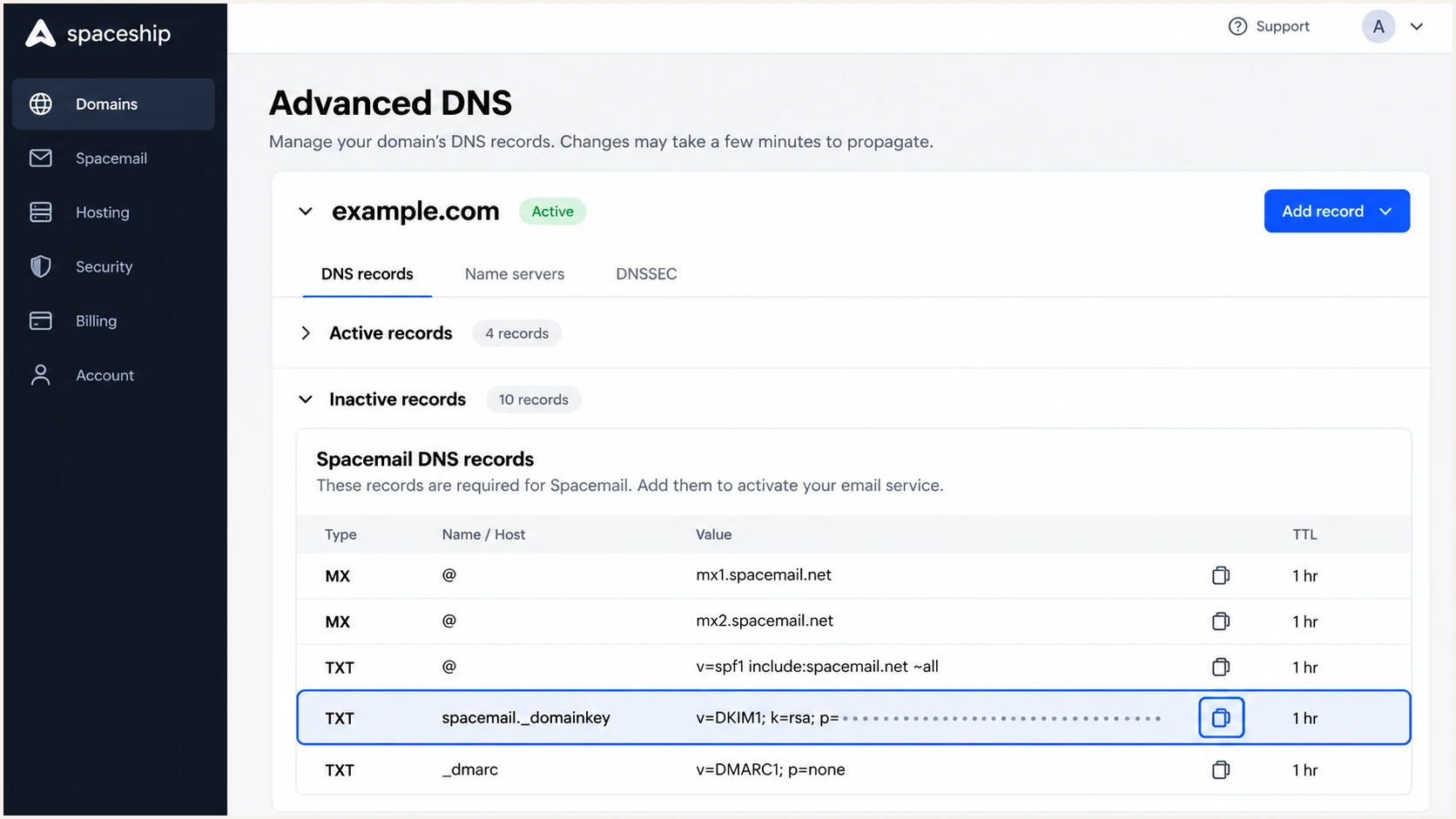
Find the domain-specific Spacemail DKIM TXT value in Advanced DNS.
In a test message, check the DKIM-Signature fields d=example.com and s=spacemail, replacing example.com with your sending domain. The receiving server should report dkim=pass.
DNS tools often display a long TXT value as several quoted chunks. Those chunks can belong to one TXT record; that is different from publishing several competing keys at the same selector.
Set up DMARC
I publish DMARC for the domain in the visible From address. The policy belongs in DNS, not in a mailbox signature or an SMTP client setting.
Keep an existing enforcement policy
If your domain already uses p=quarantine or p=reject, keep that policy. Authenticate Spacemail within the existing setup and preserve valid reporting destinations. Use p=none as the starting policy only when introducing DMARC without an established enforcement policy.
For a domain without DMARC, I start with monitoring and a working aggregate-report destination. This lets me find legitimate services that need authentication before introducing rejection.
- Check for an existing record. Look up TXT records at _dmarc.example.com. Edit the current DMARC record if one exists; do not publish a second policy.
- Build the policy. Use the DMARC record generator to configure the reporting address and initial p=none policy.
- Publish at _dmarc. Create a TXT record with Name _dmarc and the value below, replacing the example reporting mailbox with a destination you control.
- Save and recheck. Leave default relaxed alignment in place unless you have a specific requirement for strict domain matching.
The following is the exact starting template. Replace dmarc@example.com before publishing it; example.com is a reserved example domain.
Initial DMARC TXT value at _dmarctext
v=DMARC1; p=none; rua=mailto:dmarc@example.com
The reporting address receives aggregate XML reports. If it uses a different domain, that destination must authorize external reporting where required. Use the authorization records supplied by the report recipient.
DMARC passes when SPF or DKIM passes and that successful method satisfies domain alignment with the visible From address. Both methods do not have to pass, although I configure both for Spacemail.
DMARC checker
Look up a domain's DMARC record and catch policy issues.
?/7tests passed
Enter your visible From domain in the DMARC checker. Confirm that it finds one valid policy and the intended reporting address.
This DNS check validates the published policy. A message test checks whether Spacemail actually sends with the identities that policy expects.
Verify and troubleshoot
I test the actual sending route after DNS updates are visible. A message sent before the change retains its old authentication results.
- Send a fresh message. Open Spacemail webmail and send directly from the configured mailbox to the address provided by the email tester below. Avoid forwarding the test.
- Read the diagnosis. Confirm SPF, DKIM, and DMARC results. Inspect the envelope sender domain and the DKIM signing domain alongside the visible From address.
- Test every route. Repeat through any mail client or application using Spacemail SMTP. A website using its own local mail server is a separate sending source.
- Retest after repair. Send another message after each DNS or sender configuration change. Keep the previous test for comparison.
Email tester
Send a real email to this address. Suped shows a results button when the test is ready.
?/43tests passed
The email tester supplies a destination address and diagnoses the message you send to it. It is the quickest check of the configuration on a real Spacemail message.
I start with the failing result, then check the corresponding DNS record or message identity. These are the first repairs to investigate.
|
|
|
|---|---|---|
SPF permerror | Duplicate SPF | Merge records |
SPF fail | Sender missing | Provider include |
DKIM fail | Wrong key | Key and selector |
DKIM absent | Wrong route | SMTP service |
DMARC fail | Domain mismatch | From identities |
No reports | Reporting issue | rua destination |
Common authentication failures and the first check to make.
Use these lookups to inspect publication, replacing example.com with your domain. They do not send email or prove that a message signature passes.
A changed TXT record remains cached until its previous TTL expires. Query the authoritative nameservers if public resolvers disagree; verify the record name and value before simply waiting longer.
Inspect the published authentication recordsbash
dig +short TXT example.com
dig +short TXT spacemail._domainkey.example.com
dig +short TXT _dmarc.example.com
If DKIM passes with the correct domain while SPF fails after forwarding, DMARC can still pass. Do not authorize an unrelated forwarding IP just to eliminate that SPF failure.
Authentication success does not guarantee inbox delivery. If all authentication results pass, investigate recipient filtering and sending practices separately.
Get alerted when it breaks
I treat a successful setup test as a snapshot. Our DMARC platform, Suped, provides ongoing source-level reporting, issue diagnosis, and failure notifications for mail sent through Spacemail.
- Keep reports flowing. Maintain the configured aggregate-report destination so DMARC monitoring can show authentication changes after setup.
- Identify Spacemail traffic. In Suped, review the source table and confirm recognized traffic belongs to your Spacemail account before marking it verified.
- Enable failure alerts. In Suped Notifications, enable DMARC failure alerts and summary emails for the people responsible for DNS and email operations.
- Investigate each change. Filter affected records by source or IP, inspect SPF and DKIM diagnostics, apply the suggested fix, and send a new Spacemail test message.
Suped connects a failure alert to the records behind it, which helps distinguish a missing SPF include from an incorrect DKIM key or a newly introduced sender.
Aggregate reports arrive on receivers' schedules, often daily. Notifications based on those reports follow report arrival; they are not a live event stream for every message.
A single message test
Checks the identities and authentication results of one message sent through a specific route.
Repeat it immediately after changing DNS or mailbox configuration.
Ongoing report monitoring
Suped groups reported traffic by source and exposes failures across the messages receivers report.
Use failure alerts and recurring summaries to catch changes after the initial test.
I use both checks before closing an authentication issue. A passing test confirms the repaired route; subsequent aggregate reports show whether the broader reported traffic is healthy.
Keep an operational owner for the alerts. DNS changes and newly connected applications need a review even when the Spacemail mailbox itself has not changed.
Secure your domain with p=reject
I move to p=reject after legitimate senders consistently pass DMARC across representative traffic. One passing Spacemail message is not enough to enforce a policy for every service using the domain.
- Inventory senders. Review Spacemail alongside website forms, billing systems, and other applications using your From domain. Include infrequent business mail in the review.
- Resolve legitimate failures. Use Suped source verification and record diagnostics to identify each sender and fix its authentication. Do not authorize unknown traffic merely because its volume is high.
- Check edge cases. Test aliases and forwarding paths. Review subdomains that inherit the parent policy and any subdomains with their own DMARC records.
- Stage enforcement. Move an initial p=none policy to p=quarantine, inspect subsequent reports, then move to p=reject when authorized mail continues to pass. Keep existing stronger policies in place.
- Keep monitoring. Leave reporting and Suped failure alerts enabled after enforcement. Recheck new services before they send production mail.
Suped makes this decision reviewable through source-level pass rates and individual failure diagnostics. Review authorized traffic separately from unauthorized attempts; a domain-wide pass rate alone hides which legitimate sender needs attention.
Our hosted DMARC product lets the responsible team manage policy changes in Suped after its DNS connection is configured. With a directly published TXT policy, update the existing record at your authoritative DNS provider.
Final DMARC TXT value after authorized senders are verifiedtext
v=DMARC1; p=reject; rua=mailto:dmarc@example.com
Replace the example reporting address and preserve any required existing tags. p=reject requests rejection of messages that fail DMARC; receivers retain their own handling policies.
After each policy change, send a new Spacemail test and inspect the next reporting cycles. Investigate any new legitimate failures before expanding the rollout to more domains.