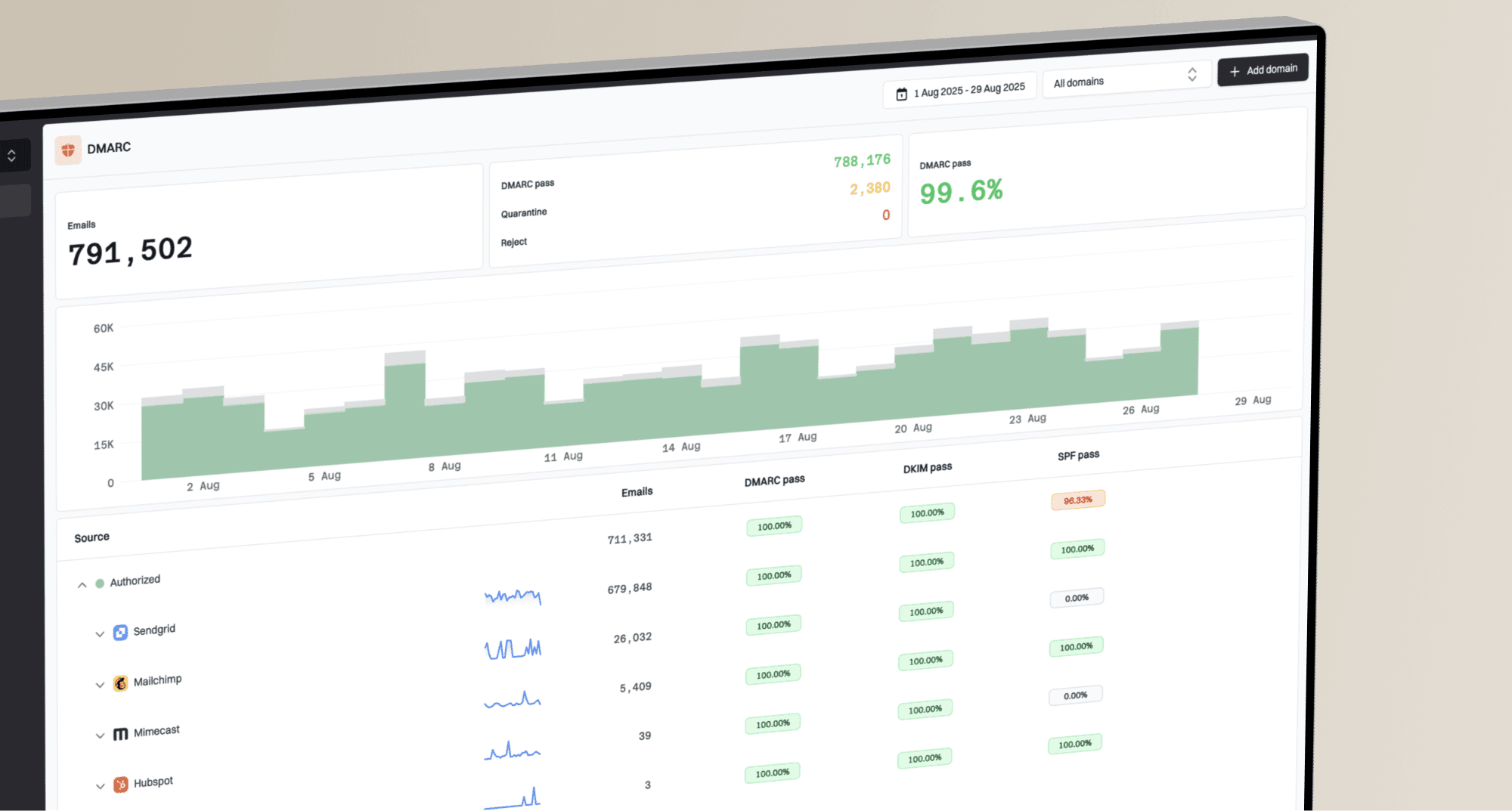
How to set up DMARC/DKIM/SPF for RepairShopr


Updated on 26 Sep 2026: We added the current BYO SMTP setup path, clarified DMARC alignment, and separated RepairShopr's customer and technician mail flows.
For RepairShopr's built-in email service, add the sending domain under Admin > Email > Verified Domains, publish every DNS record RepairShopr generates, verify those records, and publish one DMARC TXT record at _dmarc. RepairShopr's verified-domain flow gives its built-in delivery path a custom return-path plus DKIM signatures for your domain.
If Bring Your Own SMTP is enabled, RepairShopr does not authenticate that mail stream. SPF and DKIM must be configured for the SMTP service that actually sends the message. Confirm the active sending path before changing DNS because the two RepairShopr modes need different records.
Choose the active sending path
- Built-in mail. Use RepairShopr Verified Domains for customer-facing messages.
- BYO SMTP. Use the SPF and DKIM instructions supplied by the connected SMTP service.
- Mixed traffic. Test customer messages and internal RepairShopr notifications separately because they can take different routes.
Add a verified email domain
- Confirm the From domain. Use the domain after the @ in the customer-facing mailbox, such as example.com for billing@example.com.
- Open Verified Domains. In RepairShopr, go to Admin, scroll to Email, and select Verified Domains.
- Create the domain. Select New Verified Email Domain, enter the domain without a protocol or mailbox, and select Create.
- Wait for values. RepairShopr can take a minute or two to generate the DNS host names and targets.
- Publish every record. Copy each generated type, host, and value into the authoritative DNS zone without changing the targets.
- Verify in RepairShopr. Select Verify DNS Records and wait until every row has a green verified check.
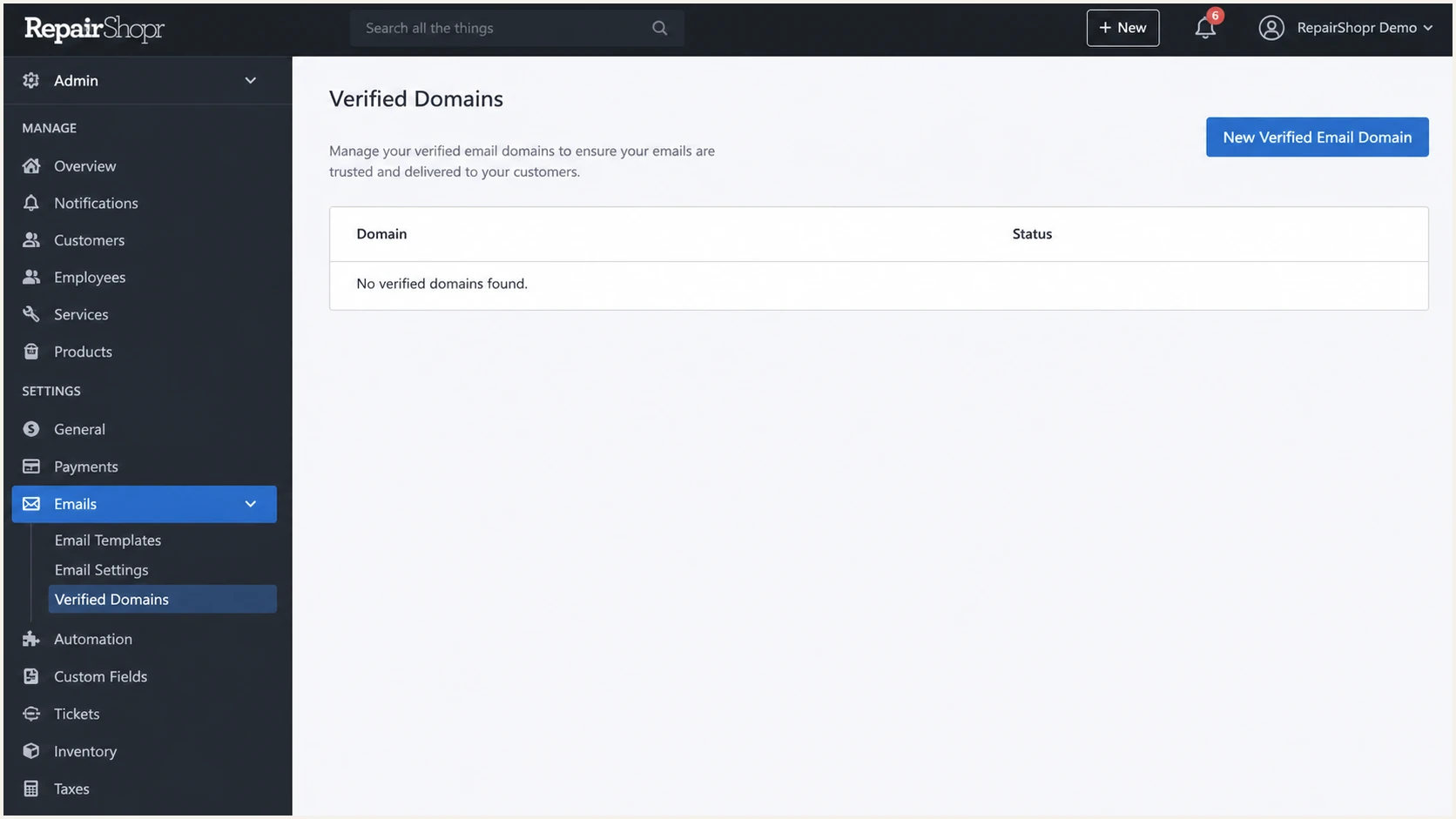
RepairShopr Admin Email settings with Verified Domains highlighted
DNS control panels handle host names differently. If RepairShopr shows a full host such as selector._domainkey.example.com, a DNS panel that automatically appends example.com usually needs only selector._domainkey. A duplicated suffix such as example.com.example.com will never verify.
- Keep CNAMEs direct. Disable web proxying for email-authentication CNAME records.
- Match the mailbox. The From address configured in RepairShopr must use the verified domain.
- Do not use the portal CNAME. RepairShopr's customer portal custom-domain record is separate from email authentication.
Configure Bring Your Own SMTP
Use this path only when RepairShopr should send customer-facing mail through an SMTP account you control. Configure an inbound mailbox first, then set up the outbound connection under Admin > Email > SMTP.
- Create the prerequisite mailbox. RepairShopr requires an inbound mailbox before BYO SMTP can be enabled.
- Open SMTP settings. Go to Admin > Email > SMTP, then create a connection or edit the existing one.
- Choose the connection method. Select your own SMTP server or an available account connection, then enter or authorize the required account details.
- Test the selected mailbox. Send RepairShopr's test message and confirm that it reaches the user mailbox before enabling the connection.
- Enable and save. Turn on the connection, save it, and send a customer-facing message to confirm that the new route is active.
- Authenticate the SMTP service. Publish the SPF and DKIM records required by that service, then verify DMARC alignment on a message sent through RepairShopr.
Know what BYO SMTP changes
Once active, BYO SMTP handles customer messages such as ticket comments, invoices, and estimates. Technician notifications still use RepairShopr's built-in route, so test both streams. RepairShopr also states that Marketr statistics are unavailable while SMTP is enabled.
Set up SPF
RepairShopr supports a custom return-path for its built-in mail when the sending domain is verified. That lets SPF pass with a return-path domain that matches the visible From domain under DMARC rules. The generated CNAME records provide this path, so do not add a guessed vendor include to the root SPF record.
- Inspect current SPF. Check the From domain and confirm that it has no more than one SPF TXT record.
- Use generated CNAMEs. For built-in RepairShopr mail, publish the return-path DNS record shown on the Verified Domain page.
- Leave root SPF alone. Do not create a second SPF record or add an unverified include when RepairShopr only asks for CNAME records.
- Follow the SMTP sender. With BYO SMTP, authorize the connected mail service in SPF and ignore RepairShopr for that customer-facing stream.
Run the domain through the checker after DNS has propagated. The useful result is one valid SPF record with no syntax errors and no more than ten DNS-querying terms during evaluation.
SPF checker
Find SPF syntax issues, lookup limits, and weak records.
?/16tests passed
A valid SPF record alone does not prove RepairShopr will satisfy DMARC. Send a real customer-facing message and compare its Return-Path domain with the From domain. A matching organizational domain plus SPF pass provides the SPF route to DMARC pass.
Built-in RepairShopr mail
- DNS source. Copy the records generated under Verified Domains.
- SPF method. Use the branded return-path created by the generated CNAME.
- Root record. Do not add a guessed include.
Bring Your Own SMTP
- DNS source. Use the connected SMTP service's published instructions.
- SPF method. Authorize the service that owns the return-path.
- RepairShopr record. No RepairShopr SPF include is needed for this stream.
Some sending sources cannot use a custom return-path. In that case SPF alignment errors are expected, and they are acceptable only when DKIM passes with a signing domain that matches the From domain. RepairShopr's verified built-in path supports a custom return-path, but this caveat matters when BYO SMTP is connected.
Set up DKIM
- Copy both DKIM entries. Publish every DKIM CNAME displayed by RepairShopr, including each unique selector host and target.
- Preserve the targets. Do not shorten, quote, proxy, or replace the generated CNAME destinations.
- Wait for DNS. Query the selectors publicly before asking RepairShopr to verify them.
- Verify the rows. Return to Verified Domains, select Verify DNS Records, and require green checks on every record.
- Test the signature. Send an invoice or ticket comment and confirm DKIM passes with a signing domain under your From domain.
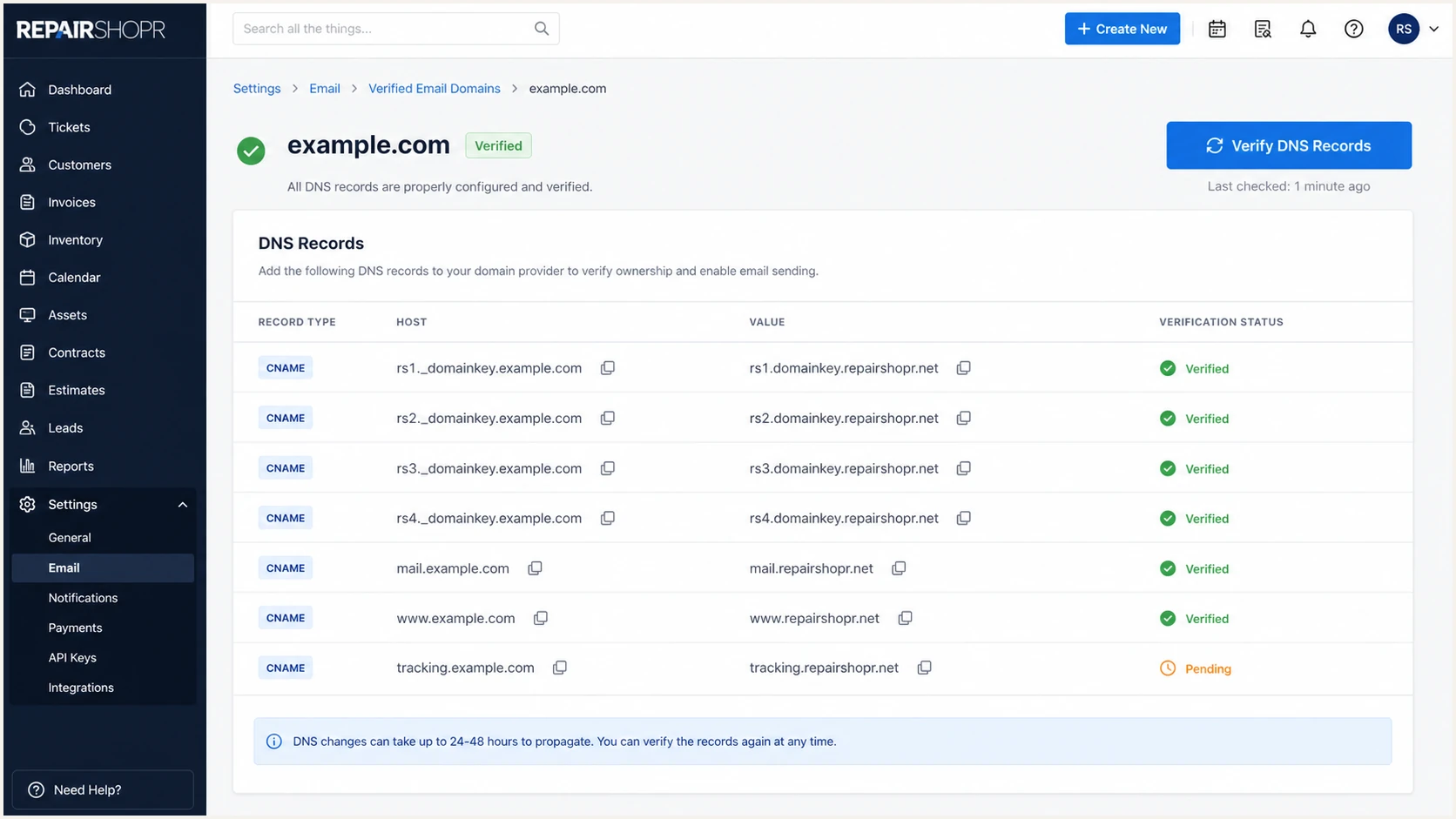
RepairShopr Verified Email Domain records with DNS verification status
The selector in the DKIM-Signature header identifies the DNS name used for verification. Check both the authentication result and the signing domain. A DKIM pass for an unrelated domain does not provide the matching-domain result DMARC needs.
Older RepairShopr forum discussions that describe missing DKIM support predate the current Verified Domains feature. Current built-in mail should use the generated DKIM CNAME records rather than the legacy workaround of authorizing individual sending IP addresses.
BYO SMTP changes the DKIM owner
When RepairShopr sends through your SMTP connection, enable DKIM at that SMTP service and publish its selectors. RepairShopr Verified Domains can remain configured, but those DKIM records do not sign the SMTP service's messages.
Set up DMARC
DMARC belongs to the visible From domain, not to RepairShopr. Publish one TXT record at _dmarc.example.com. Start with monitoring only if the domain has no DMARC record. If the current policy is quarantine or reject, keep that stronger policy and fix RepairShopr under it.
- Check for an existing record. Query _dmarc on the From domain and edit the existing record instead of adding a second one.
- Create the DNS entry. Use type TXT, host _dmarc, and the exact monitoring value below when no policy exists.
- Control the report mailbox. Replace dmarc@example.com with an address that can receive and process aggregate XML reports.
- Keep one policy record. Multiple DMARC TXT records cause a permanent DMARC error.
Starting DMARC TXT valueDNS
v=DMARC1; p=none; rua=mailto:dmarc@example.com
Use the DMARC record generator when you need a different aggregate-report address, subdomain policy, or reporting interval. Keep the first deployment at p=none unless the domain already enforces quarantine or reject.
DMARC checker
Look up a domain's DMARC record and catch policy issues.
?/7tests passed
The checker should find exactly one record, parse every tag, and show the expected policy. DNS success still does not prove message success, so test a RepairShopr message after the record resolves.
Read the Authentication-Results header on that message. A pass must come from SPF or DKIM with a domain related to the visible From address, not merely from an unrelated authenticated domain elsewhere in the header.
Relaxed alignment is the default
Under default relaxed alignment, the SPF return-path or DKIM signing domain can use a subdomain of the same organizational domain as the From address. Add aspf=s or adkim=s only when exact domain matching is required and every legitimate RepairShopr mail path has been tested.
DMARC passes through either path
- SPF route. SPF passes and the return-path domain matches the From domain.
- DKIM route. DKIM passes and the signing domain matches the From domain.
- Final result. One valid matching path is enough for DMARC pass, though both should pass where supported.
Verify and troubleshoot
Verify with a real RepairShopr customer message, not a DNS lookup alone. Send an invoice, estimate, or ticket comment because those are representative customer-facing flows. If BYO SMTP is active, RepairShopr's notifications to technicians can still use RepairShopr's own route and produce different results.
- Send a live test. Trigger a low-risk customer-facing RepairShopr email to an inbox you control.
- Inspect From. Confirm the visible address uses the exact domain verified in RepairShopr.
- Inspect Return-Path. For built-in mail, confirm it uses your custom domain and not an unrelated service domain.
- Inspect DKIM. Require DKIM pass and a signing domain that matches the From domain.
- Inspect DMARC. Require DMARC pass and identify whether SPF, DKIM, or both supplied the matching result.
The email tester is the fastest end-to-end check. Send the RepairShopr test message to the generated address, then review the authentication result, headers, and specific repair steps.
Email tester
Send a real email to this address. Suped shows a results button when the test is ready.
?/43tests passed
Use the failure combination to decide which DNS record to inspect. The table keeps that diagnosis compact.
|
|
|
|---|---|---|
SPF pass, match | Return-path is valid | Keep the CNAME |
DKIM pass, match | Signature is valid | Keep both selectors |
DMARC pass | One matching path passed | Monitor reports |
SPF fail only | DKIM can still pass DMARC | Check return-path |
DKIM fail | Signature is invalid | Check DKIM CNAMEs |
DMARC fail | No matching path passed | Compare all domains |
Authentication results for a RepairShopr test message
For BYO SMTP connection errors, open Admin > Integrations > Status Dashboard > SMTP. Confirm the SMTP account can send as the selected outbound mailbox. RepairShopr requires an inbound mailbox before BYO SMTP can work, and the outbound credentials need permission to use the From address.
Common causes of failed verification
- Duplicated domain. The DNS panel appended the zone name to a full host name.
- Proxied CNAME. A web proxy hid the RepairShopr authentication target.
- Duplicate policy. Two SPF or DMARC TXT records caused a permanent error.
- Wrong mail path. BYO SMTP sent the message, so RepairShopr's generated records were not used.
Monitor RepairShopr authentication
A one-time pass does not catch a changed RepairShopr mailbox, removed CNAME, expired SMTP authorization, or a new sender using the domain. Suped's product supports this workflow by turning aggregate DMARC data into source-level failures, automated issue detection, repair steps, and real-time alerts.
- Watch RepairShopr volume. Track expected message counts, pass rates, sending IPs, and rDNS names for the RepairShopr source.
- Alert on change. Trigger notifications when DMARC failures rise or a verified source starts failing SPF or DKIM.
- Review new sources. Separate authorized RepairShopr traffic from unknown systems using the domain.
- Keep one operational view. Use Suped for DMARC, SPF, DKIM, deliverability, and blocklist (blacklist) monitoring in the same workflow.
- Scale across clients. Use the multi-tenant dashboard when an MSP manages RepairShopr domains for several businesses.
Suped's DMARC monitoring groups reports by source and exposes the exact SPF, DKIM, and matching-domain failure behind a DMARC result. That matters when RepairShopr built-in mail and BYO SMTP appear under different infrastructure.
Use alerts as a deployment gate
Keep RepairShopr marked as an authorized source, resolve every recurring failure, and require a stable passing trend before changing DMARC policy. Suped provides the alert history and tailored fix steps needed to make that decision from evidence.
Real-time alerts are most useful when someone owns them. Route each alert to the person who can change RepairShopr, SMTP, or DNS settings, and record whether the affected message was a customer email or an internal platform notification.
Secure your domain with p=reject
Move to p=reject only after every legitimate sender is known and consistently passes DMARC. For RepairShopr, test invoices, estimates, ticket comments, appointment messages, and any other active customer workflow. Include enough monitoring time to cover less frequent billing and reminder jobs.
- Inventory every sender. List RepairShopr built-in mail, BYO SMTP, staff mail, and any billing or marketing system that uses the domain.
- Resolve unknown traffic. Classify each recurring source as authorized, obsolete, forwarded, or abusive.
- Fix legitimate failures. Require at least one passing authentication method with a domain that matches the From domain.
- Stage enforcement. Use quarantine while checking impact, then move to reject after legitimate failures are cleared.
- Keep reporting active. Retain aggregate reporting after enforcement so later RepairShopr or SMTP changes are visible.
Before enforcement
- Policy. Use p=none to collect data.
- RepairShopr. Verify all generated DNS rows.
- Evidence. Confirm all active message types pass.
At full enforcement
- Policy. Use p=reject for failed mail.
- RepairShopr. Keep the verified return-path and DKIM CNAMEs.
- Operations. Alert on new failures and source changes.
Suped's Hosted DMARC can stage policy changes without repeated manual DNS edits, while automated issue detection identifies which sender blocks enforcement. Hosted SPF and SPF flattening are useful when the wider domain, outside RepairShopr's CNAME-based return-path, approaches the ten-lookup SPF limit.
Full enforcement DMARC TXT valueDNS
v=DMARC1; p=reject; rua=mailto:dmarc@example.com
Do not weaken an enforced domain
If the domain already uses p=quarantine or p=reject, keep that policy. Add and verify RepairShopr as an authorized source, test every mail flow, and correct failures without returning the whole domain to p=none.
RepairShopr authentication FAQ
These checks cover the differences between RepairShopr's built-in delivery, its BYO SMTP option, and the results commonly found in message headers and DMARC reports.
When a result looks inconsistent, identify the message type first. Customer-facing mail and internal technician notifications can use different paths, which changes the sending IP, rDNS, return-path, and authentication domains.