How to set up DMARC/DKIM/SPF for PandaDoc

Published 20 Jul 2026
Updated 20 Sep 2026
16 min read
Summarize with
Updated on 20 Sep 2026: We updated this guide for PandaDoc's current setup flow and RFC 9989 DMARC policy guidance.
PandaDoc can send authenticated document emails through a custom sending subdomain. Request email white-labeling, publish the exact SPF, DKIM, MX, and CNAME records PandaDoc supplies, then publish DMARC for the domain in the visible From address. PandaDoc verifies the records and activates the domain before it carries live document mail.
Use a dedicated subdomain such as pd.example.com. It keeps PandaDoc authentication separate from employee mail and makes rollback simple. White-labeling is available on Enterprise plans and as a paid add-on for eligible Business Annual plans. An additional setup fee can apply. The connected business email path is different: PandaDoc sends through the connected Gmail or Outlook mailbox, so that mailbox's existing authentication configuration applies.
White-label delivery
- Best for: A branded PandaDoc sending address on a dedicated subdomain.
- DNS owner: Your team publishes PandaDoc's supplied records.
- Authentication: Custom return-path and DKIM signing can match the visible From domain.
- Activation: PandaDoc support verifies DNS and enables sending.
Connected business email
- Best for: Sending PandaDoc documents through a user's connected Gmail or Outlook inbox.
- Availability: A closed beta on Business and Enterprise plans.
- Administration: The workspace owner enables access, and Microsoft environments can require administrator approval.
- Important: Do not add the white-label DNS package for this path.
Add your domain
PandaDoc white-labeling is a support-assisted setup, not a self-service domain form. An account owner or workspace administrator starts the request, selects the sending scope, and gives PandaDoc a registered domain and unused subdomain. Use a host such as pd.example.com instead of the organizational domain itself.
- Check eligibility: Confirm Enterprise access or the white-label add-on on an eligible Business Annual plan.
- Open Branding: Select the gear icon, open Branding under the current workspace, find Email white-labeling, and select Send request.
- Use Help instead: Open Help, select Product help, choose Set up white-labeling, complete the form, and select Create ticket.
- Define scope: Choose the entire account or one workspace, then provide the registered domain, sending subdomain, and local part such as docs.
- Wait for records: PandaDoc registers the sending domain with its delivery infrastructure and emails a PDF containing the exact TXT, MX, and CNAME values for your account.
- Publish and notify: Add every supplied record at your DNS host, preserve the shown hostnames, then reply to the ticket so PandaDoc can verify and activate the domain.
Do not guess record values or copy another PandaDoc customer's DNS. Verification tokens, DKIM keys, tracking CNAMEs, and routing hosts can differ by account or region. A DNS host might append your zone name automatically, so enter only the label when its interface expects one.
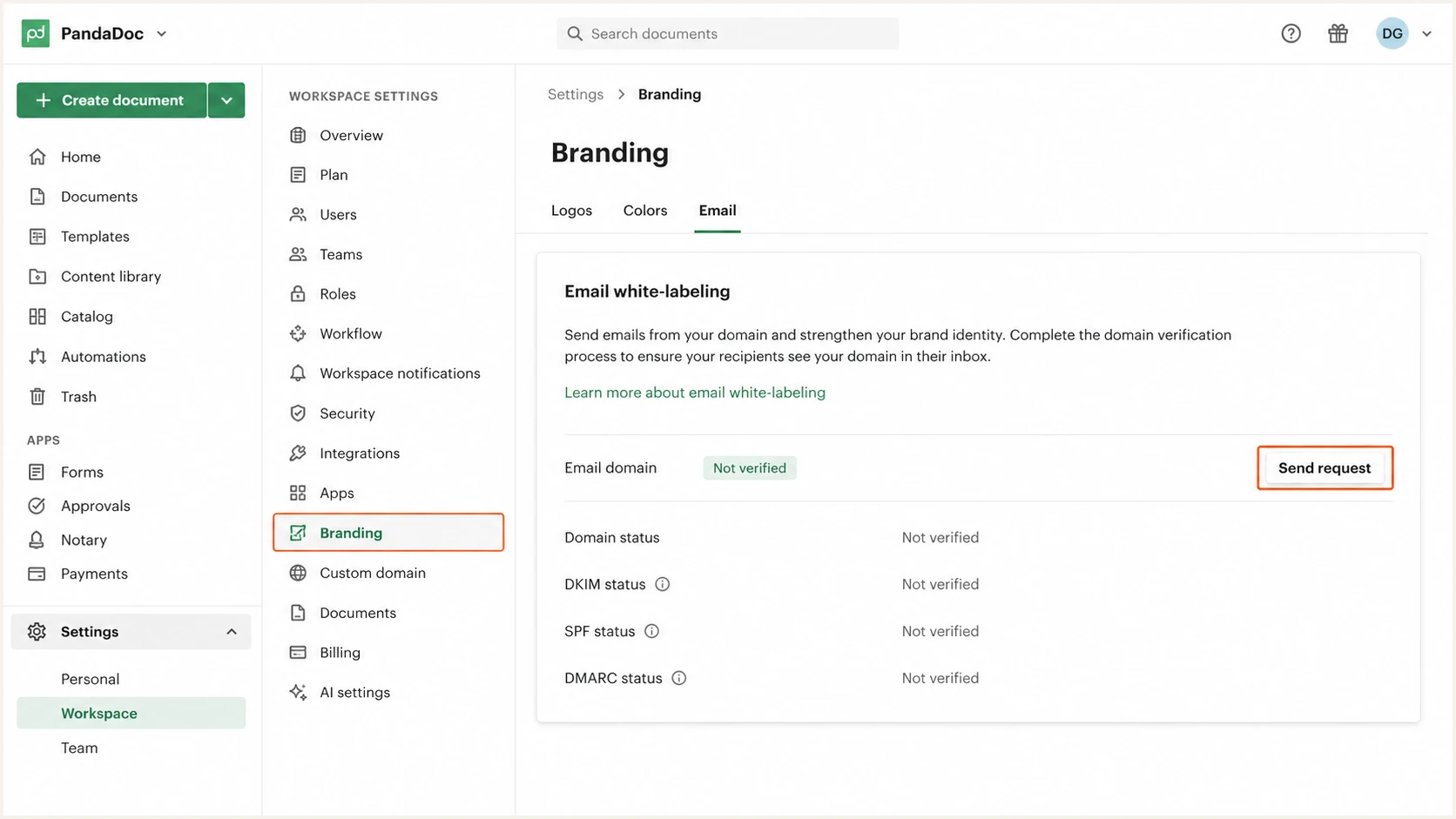
PandaDoc Branding settings with the email white-label request control
Once the request is active, keep the ticket open until PandaDoc confirms activation. Publishing DNS only prepares authentication. PandaDoc must also complete its side before the custom From address is used. Send no production document through the new subdomain until that confirmation arrives.
White-label behavior change
After PandaDoc enables white-labeling, its Activity view no longer tracks the event that says a recipient opened the email message. Document Viewed notifications still work. Record this change before activation so support teams do not mistake it for a delivery failure.
Publish MX and CNAME records
PandaDoc's setup PDF includes MX and CNAME records alongside SPF and DKIM. These records support the custom sending domain and tracking path. PandaDoc describes its MX rows as optional in the instructions but strongly recommends publishing them because more receiving providers require them for delivery.
- Use the supplied host: Publish each MX and CNAME row only at the hostname shown in PandaDoc's PDF.
- Protect existing mail: Do not replace MX records on example.com or another domain that already receives employee email.
- Preserve MX priority: Enter every mail host and priority exactly as supplied, without adding a web address prefix.
- Preserve CNAME targets: Keep the target unchanged and disable proxying or web acceleration for the DNS-only alias.
- Check for conflicts: A CNAME hostname cannot also hold TXT, MX, A, or AAAA records. Stop and confirm the host with PandaDoc if a conflict already exists.
- Verify publicly: After one DNS TTL, resolve each full hostname and compare the returned target or mail host with the PDF.
Keep PandaDoc on an unused subdomain
MX records affect where mail for their exact domain is delivered. Publishing PandaDoc's MX values on a dedicated host such as pd.example.com avoids changing inbound routing for employee addresses at example.com. If the PDF appears to place MX at a domain that already receives mail, pause and ask PandaDoc to confirm the hostname.
Set up SPF
Publish the SPF record at the exact hostname in PandaDoc's PDF. For a dedicated sending subdomain, the SPF policy normally lives on the subdomain used by the envelope sender, while the organizational domain keeps its existing employee-mail SPF record.
- Find the host: Copy the SPF hostname and value directly from the white-label PDF.
- Check for SPF: Query that exact hostname before publishing. A hostname can have only one SPF TXT policy.
- Merge if needed: If an SPF policy already exists at that host, add the supplied mechanism before its final all term. Never publish a second SPF policy.
- Keep one terminator: The merged value must contain one final all mechanism, using the qualifier PandaDoc supplied.
- Count lookups: Keep the evaluated SPF policy within the ten DNS-lookup limit, including nested includes and redirects.
- Publish once: Save the TXT record, wait at least one DNS TTL, and query the same hostname again.
The following line shows the record shape only. Replace the placeholder with the include domain shown in your PandaDoc instructions. If the PDF provides a different qualifier or additional mechanism, the PDF wins.
SPF structure for the PandaDoc sending host
v=spf1 include:PANDADOC-SUPPLIED-SPF-DOMAIN ~all
PandaDoc white-label delivery supports a custom return-path, so SPF can pass DMARC alignment when the return-path and visible From domains share the same organizational domain. Verify this in a received message because a valid SPF record alone does not prove PandaDoc used that domain.
Enter the precise PandaDoc envelope-sender host below. The check should return one policy, no syntax errors, and fewer than eleven evaluated lookups.
SPF checker
Find SPF syntax issues, lookup limits, and weak records.
?/16tests passed
If the checker reports multiple SPF records, combine them before continuing. If it reports a lookup-limit error, remove unused authorizations or redesign the policy to reduce evaluated lookups. Do not replace live employee-mail authorization just to add PandaDoc.
When connected business email is used instead of white-label delivery, the connected Gmail or Outlook mailbox sends the message. Do not add PandaDoc's white-label SPF mechanism for that route. If a sending route cannot provide a custom return-path, SPF alignment can fail without breaking DMARC, provided an aligned DKIM signature passes.
SPF completion check
- The envelope-sender hostname returns exactly one SPF policy.
- The policy parses without void-lookup or recursion errors.
- A live PandaDoc message reports SPF pass against the custom return-path.
- The return-path shares the visible From organizational domain.
Set up DKIM
PandaDoc supplies the DKIM selector, record type, hostname, and target or public key. Publish them exactly. Do not invent a selector, change a CNAME into TXT, or reuse a DKIM key from another domain.
- Copy the selector: Use the host PandaDoc gives you, including the _domainkey label and custom sending subdomain.
- Preserve the type: Create TXT when the PDF says TXT and CNAME when it says CNAME.
- Avoid doubled zones: If your DNS host appends example.com, enter only the relative record name.
- Keep key text intact: Remove no characters from a TXT public key. DNS interfaces can split quoted strings without changing the resolved value.
- Resolve publicly: After one TTL, query the full selector hostname and compare its result character for character with the PDF.
- Request verification: Tell PandaDoc the records resolve and wait for activation before sending a live document.
The white-label PDF can contain more than one DKIM-related record. Publish every row. Multiple selectors can support key rotation, and tracking CNAMEs are separate from the DKIM selector even when they appear in the same DNS table.
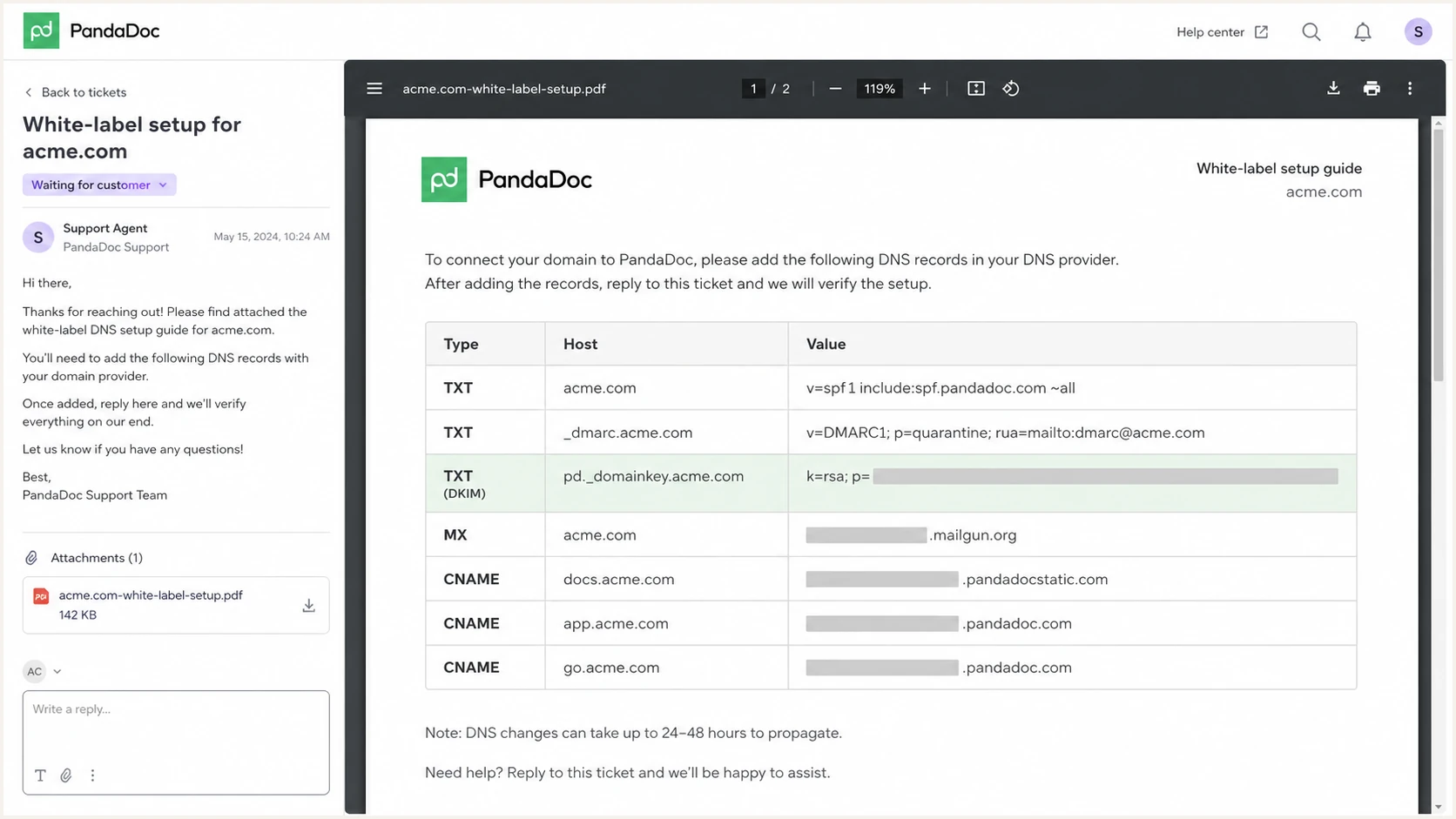
PandaDoc white-label DNS instructions with the DKIM row highlighted
These placeholders show where the selector and supplied value go. They are not publishable values. The selector in a received DKIM-Signature header must resolve to the public record PandaDoc supplied.
DKIM record structure only
Host: <selector>._domainkey.pd.example.com
Type: TXT or CNAME, exactly as supplied
Value: <PANDADOC-SUPPLIED-DKIM-VALUE>
A DNS lookup proves publication, but only a signed test message proves that PandaDoc uses the selector. Check the d= domain in DKIM-Signature and the header.d result in Authentication-Results. Under relaxed DMARC, the DKIM domain can be a subdomain of the visible From organizational domain.
Do not publish a guessed key
A copied key can resolve cleanly while every PandaDoc signature fails. If the PDF and public DNS differ, correct DNS first. If they match but live mail has no matching signature, keep the DMARC policy unchanged and ask PandaDoc to confirm activation.
Set up DMARC
DMARC belongs at _dmarc under the domain in the visible From address. If PandaDoc sends from docs@pd.example.com, publish a policy at _dmarc.pd.example.com when you want separate control. That direct record takes precedence. If it is absent, DMARC discovery can use the parent domain, where sp governs subdomains when present and p supplies the fallback.
- Read the From domain: Use the actual white-label sender on a delivered PandaDoc message, not the Reply-To address.
- Check the parent: Find the direct or inherited policy already governing that From domain before creating another record.
- Keep enforcement: If the governing policy is quarantine or reject, do not downgrade it for PandaDoc. Fix PandaDoc authentication under the existing policy.
- Start monitoring: For a domain with no DMARC policy, publish the record below and make sure the rua mailbox accepts reports.
- Use one record: A DMARC hostname must return one complete TXT policy, not separate TXT records for separate tags.
- Collect normal traffic: Keep monitoring through document sends, reminders, completion notices, expiration warnings, and any chat or bank-verification notices your workspace uses.
For a new policy, start with p=none so reporting begins without asking receivers to quarantine or reject failures. Use the DMARC record generator if you need to change the report address or define subdomain handling.
Initial DMARC record
v=DMARC1; p=none; rua=mailto:dmarc@example.com
Do not weaken an existing policy
If your domain already uses p=quarantine or p=reject, keep that policy while onboarding PandaDoc. A new p=none record on the PandaDoc subdomain overrides stronger parent handling for that subdomain. Verify SPF or DKIM alignment before sending production documents.
After publishing, query the exact _dmarc hostname. The result should contain the version first, one policy tag, and a valid aggregate-report address. DNS validity still does not prove that PandaDoc mail passes, so keep the activation ticket and a live test in the workflow.
Use the checker below against the visible From domain. If a parent policy applies, confirm the result identifies that inherited policy instead of assuming a missing subdomain record means no protection.
DMARC checker
Look up a domain's DMARC record and catch policy issues.
?/7tests passed
A valid result should show the policy you intended and the correct report destination. If the checker finds two DMARC records, consolidate the tags into one TXT value. If it finds no applicable record, confirm whether your DNS host doubled the zone name and check the parent policy.
Aggregate reports normally arrive after receivers finish a reporting interval, so the first useful PandaDoc data is not immediate. Keep p=none until normal notification types appear and the report data identifies the custom sending domain as authorized.
Verify and troubleshoot
Verification needs a real PandaDoc document notification, not only DNS checks. Send a low-risk test document to a mailbox where you can inspect raw headers. Then trigger the notification types your workspace relies on because delivery, auto and manual reminders, expiration warnings, completion notices, and chat notifications can expose different paths.
- Confirm activation: Wait for PandaDoc to say the white-label domain is active.
- Send a document: Create a test document, add a controlled recipient, select Send, and preserve the received message.
- Check visible From: It should use the custom address and subdomain agreed in the ticket.
- Inspect return-path: The organizational domain should match the visible From domain for relaxed SPF alignment.
- Inspect DKIM: The signature selector must resolve, and its d= domain must match the From organizational domain under relaxed mode.
- Read DMARC: Authentication-Results should show dmarc=pass, with SPF or DKIM providing an aligned pass.
- Repeat events: Test each white-labeled notification type that your workspace sends.
Expected authentication results
spf=pass smtp.mailfrom=pd.example.com
dkim=pass header.d=pd.example.com
dmarc=pass header.from=pd.example.com
A message can pass DMARC with only one aligned method. With PandaDoc white-labeling configured fully, both SPF and DKIM should pass and match the From domain. If SPF alignment fails but aligned DKIM passes, DMARC can still pass. Fix SPF, but do not treat that single failure as a DMARC outage.
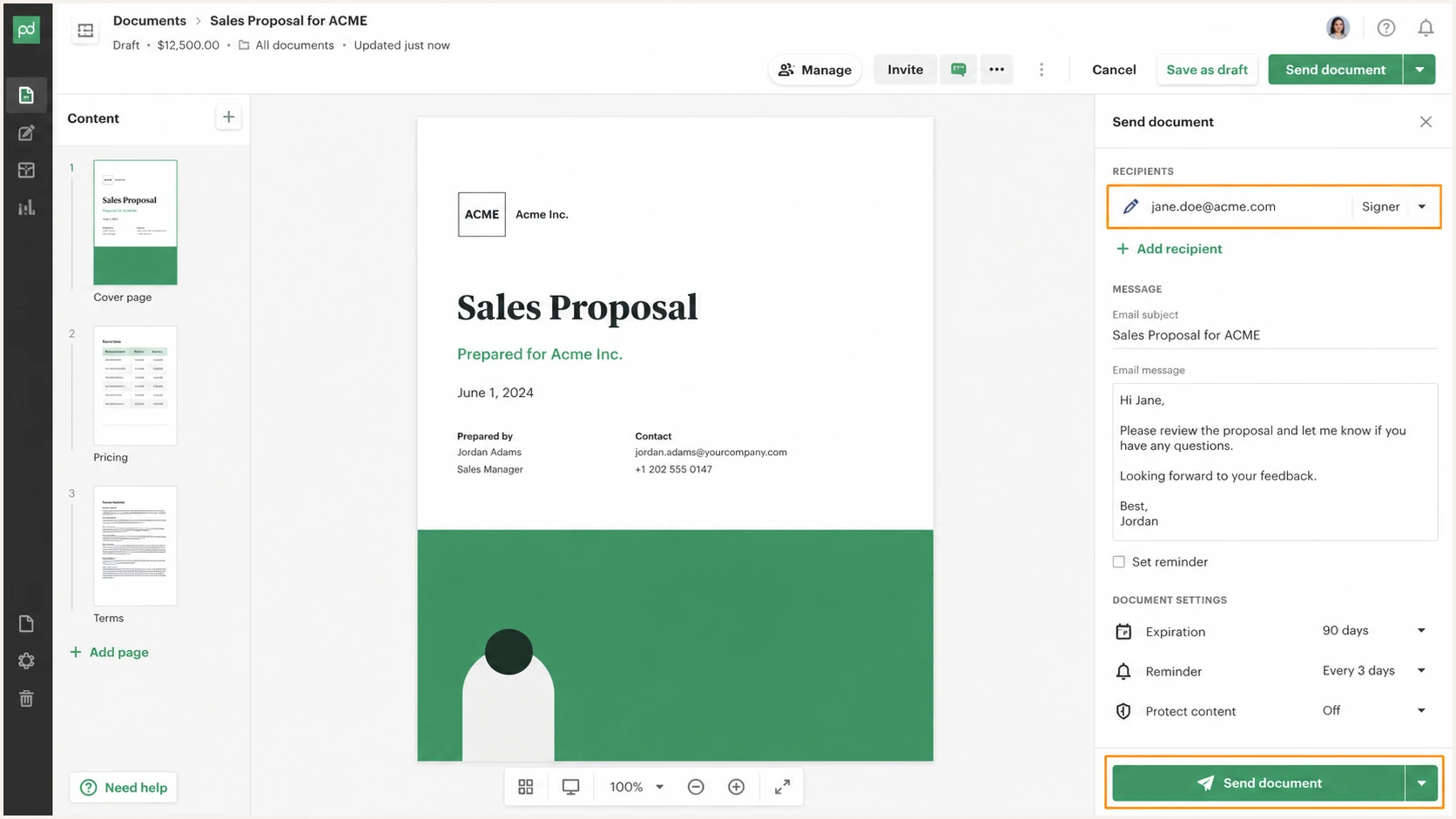
PandaDoc send step used to generate an authentication test email
The fastest end-to-end check uses a test mailbox that reads the received message, DNS state, and authentication headers together. It catches cases where DNS is correct but the active sending route still uses a default domain.
Send a PandaDoc notification to the unique address shown below, then open the resulting diagnosis. Use a real notification generated after white-label activation, not a forwarded copy, because forwarding can change authentication results.
Email tester
Send a real email to this address. Suped shows a results button when the test is ready.
?/43tests passed
Compare the report with raw headers. The key fields are visible From, return-path, DKIM d=, selector, and DMARC disposition. Save one passing sample as your baseline so later incidents can be compared against a known-good message.
|
|
|
|---|---|---|
SPF permerror | Duplicate policy or lookup limit | Merge records and recount lookups |
DKIM neutral | Selector does not resolve | Correct host or CNAME target |
DKIM fail | Wrong key or altered message | Compare DNS with the supplied key |
DMARC fail | Neither pass matches From | Check return-path and DKIM domain |
Default From | White-labeling is not active | Reopen the PandaDoc ticket |
No recipient mail | Address, signing order, or filtering | Check Activity and resend |
Common PandaDoc authentication faults and the next check
When a recipient gets no message, verify the address and signing order before changing DNS. Then check PandaDoc Activity, resend the notification, and inspect the recipient gateway response. Authentication problems and workflow delays can look identical to the sender.
Get alerted when authentication breaks
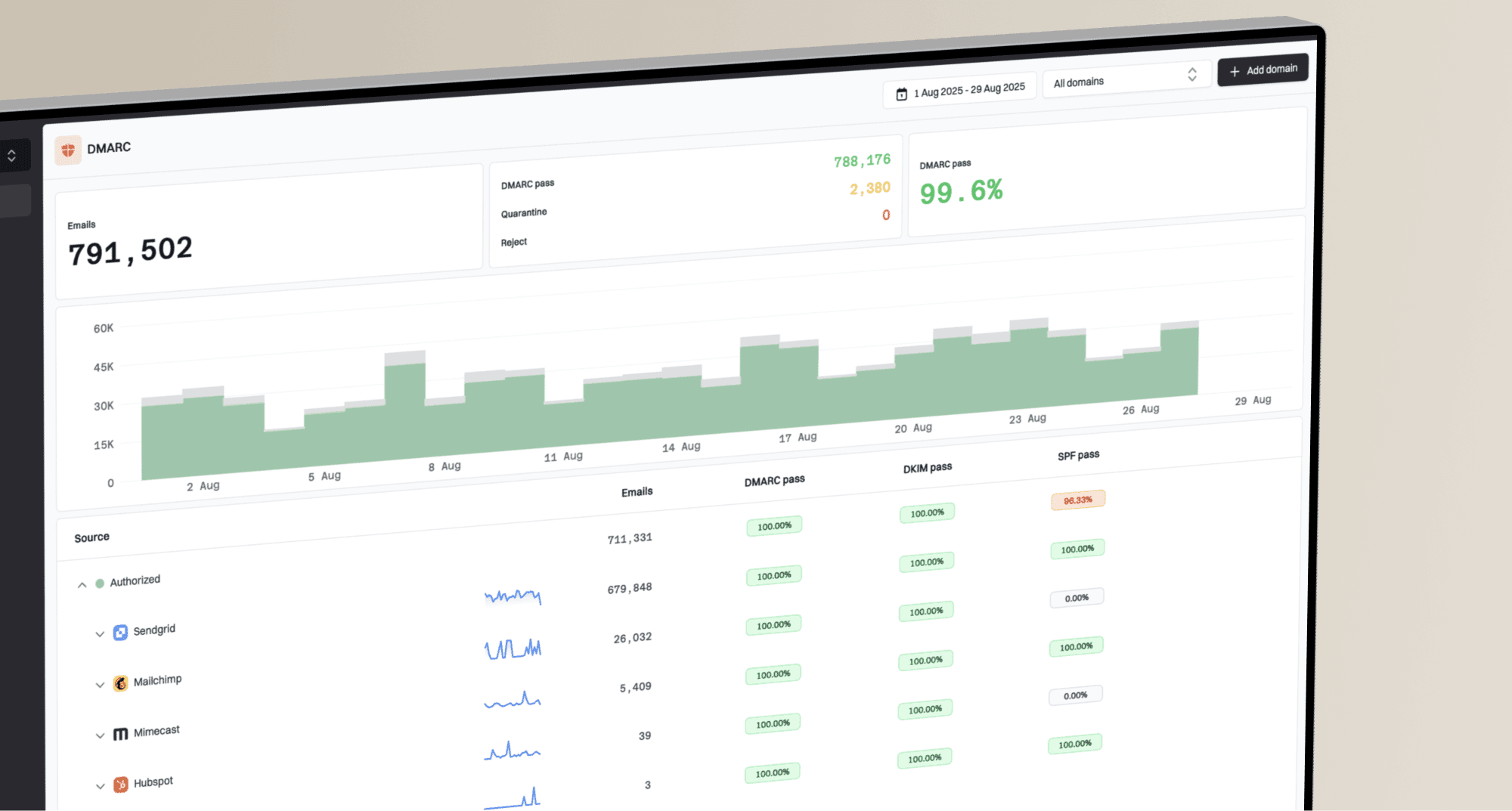
DNS checks show current records, while aggregate reports show what receivers saw in production. Suped, our DMARC platform, groups those reports by sending source and can alert the owners of this PandaDoc setup when pass rates, selectors, or policy records change.
Connect the rua address to DMARC monitoring, label PandaDoc as an authorized source after confirming its identifiers, and set alerts before changing policy. The useful trigger is a sustained change in pass rate or a newly seen source, not a one-off forwarded message.
- Route reports: Use the Suped reporting address in rua and confirm report receipt.
- Verify PandaDoc: Match source IPs, return-path domains, DKIM domains, and known test headers before marking the source authorized.
- Set thresholds: Alert on rising DMARC failures, disappearing DKIM passes, new unverified sources, and policy changes.
- Add recipients: Send alerts to the DNS owner and the PandaDoc workspace administrator.
- Review weekly: Check authorized volume, failures, unknown traffic, and policy status.
- Correlate delivery: Review unified blocklist (blacklist) and delivery signals when authentication passes but delivery drops.
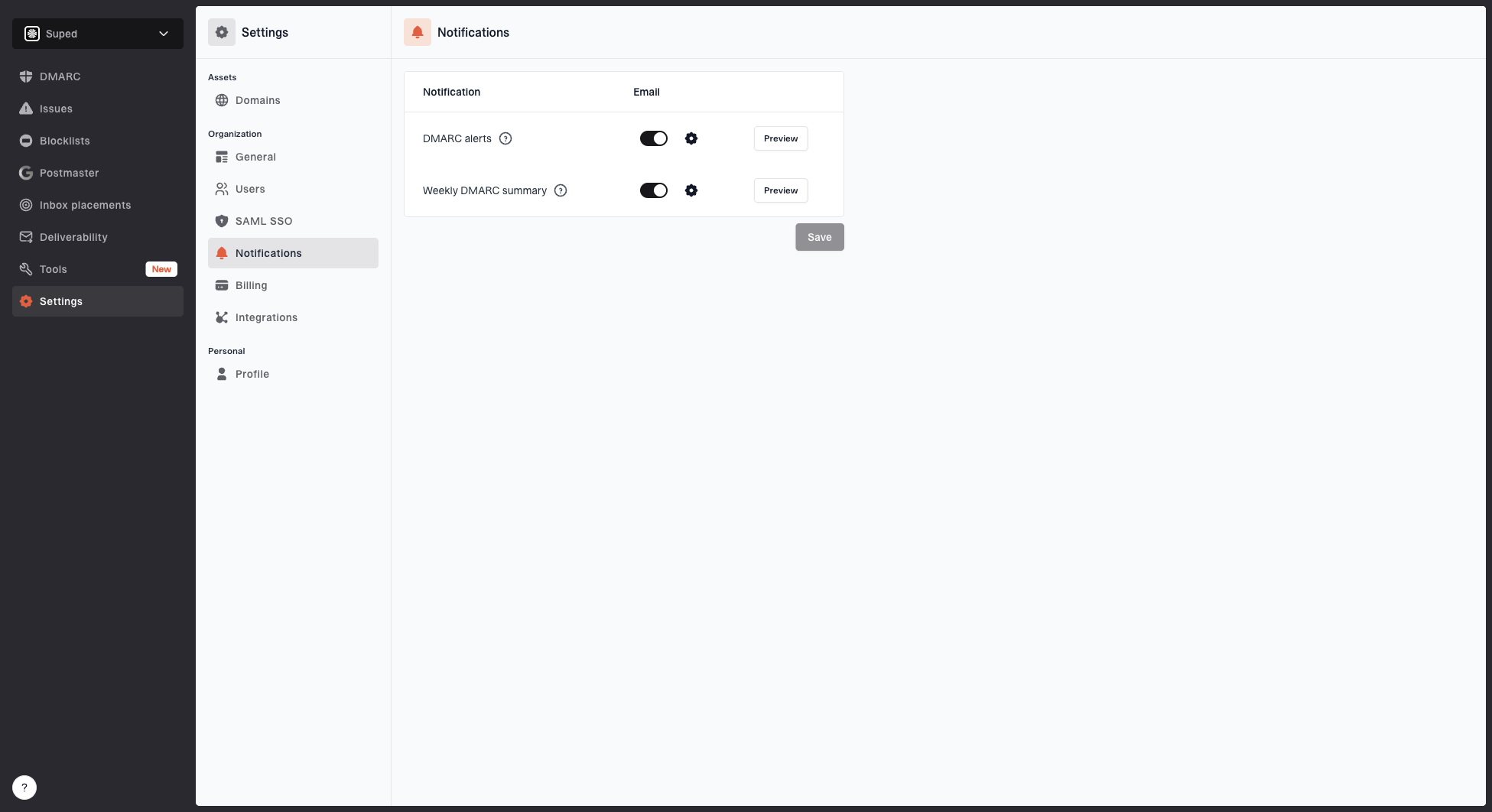
Notification settings page with DMARC alerts, weekly summary, toggles, and preview buttons
Enable DMARC alerts and the weekly summary, then preview both messages so recipients know what they will receive. Keep a human owner on the alert list. Automated detection helps only when someone can change DNS or reopen the PandaDoc activation ticket.
What Suped should detect
- The PandaDoc return-path stops passing or no longer matches From.
- A DKIM selector disappears, its key changes, or PandaDoc signing stops.
- New infrastructure begins sending with the PandaDoc From domain.
- The DMARC record becomes invalid or its policy changes.
When an alert fires, use the affected source, failing method, first-seen time, and DNS state to decide who owns the repair. PandaDoc signing failures normally go back to the PandaDoc ticket. Duplicate SPF or DMARC records go to the DNS owner.
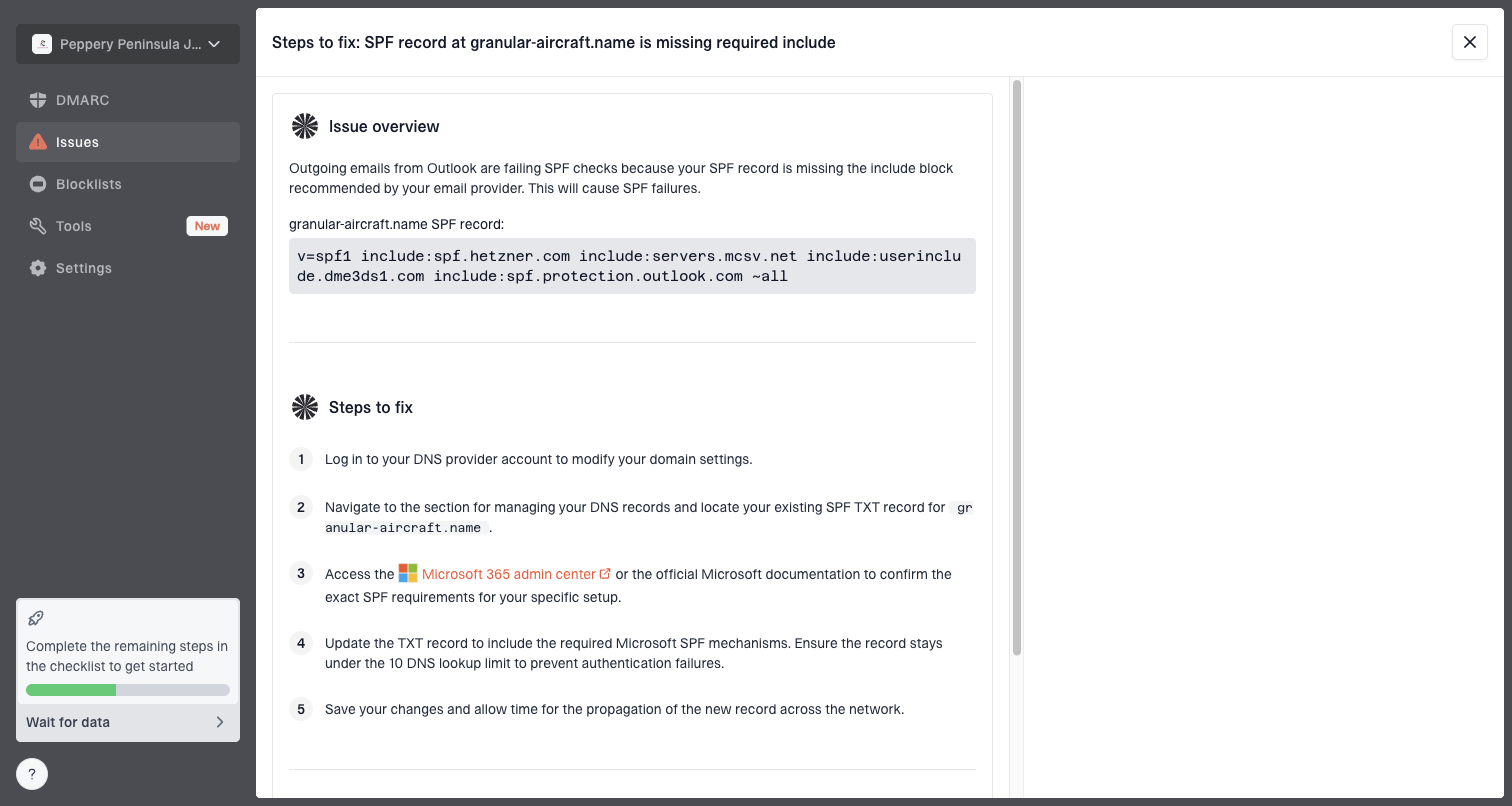
Issue steps to fix dialog showing the issue overview, tailored fix steps, and verification action
Suped's issue view keeps failure evidence and repair steps in one workflow. When PandaDoc rotates a key, changes a source, or stops using the custom return-path, the team can compare the current message path with the known-good baseline before editing DNS.
Choose the DMARC policy after monitoring
Move beyond p=none only after every legitimate sender has a stable aligned SPF or DKIM pass. RFC 9989 says general-purpose email domains should not use p=reject because indirect forwarding and mailing-list redistribution can break. A dedicated PandaDoc-only subdomain has a narrower mail stream and can use p=reject after every legitimate notification passes with aligned DKIM.
- Inventory sources: Classify every source using the From domain, including PandaDoc reminders, expiration warnings, and completion notices.
- Cover normal cycles: Observe reports for the full sending cadence. A low-volume domain can require months before every legitimate path appears.
- Require DKIM for reject: Do not rely solely on SPF when choosing p=reject because forwarding normally breaks SPF.
- Choose the scope: Use a direct DMARC record on the PandaDoc-only subdomain when it needs a different policy from employee mail.
- Pause on impact: Restore the last stable policy when authorized PandaDoc mail fails both aligned methods.
- Keep monitoring: Continue alerts after a policy change so key rotation or DNS drift does not disrupt document mail.
RFC 9989 makes the old pct tag historic because receivers applied percentage sampling inconsistently. The replacement t=y tag signals testing, but older receivers can ignore an unknown tag and still apply the stated policy. Keep p=none while discovery is incomplete and never treat t=y as a universal no-impact rollout.
Before a policy change
- PandaDoc has stable SPF and DKIM results.
- Normal notification types appear in reports.
- Unknown mail is authorized or confirmed unwanted.
- DNS and PandaDoc escalation contacts are recorded.
After a policy change
- The intended policy applies at the correct domain.
- Failures and policy changes reach named owners.
- New senders are tested before production use.
- A known-good PandaDoc message remains available.
Publish one policy at a time. The testing example below uses the current t=y flag, but its compatibility warning still applies. The enforcement examples are full-domain policy requests, not percentage stages.
Current DMARC testing and enforcement records
v=DMARC1; p=quarantine; t=y; rua=mailto:dmarc@example.com
v=DMARC1; p=quarantine; rua=mailto:dmarc@example.com
v=DMARC1; p=reject; rua=mailto:dmarc@example.com
Publish one line at a time, never all lines together. Suped's hosted DMARC workflow can record each policy change, while its source view checks whether PandaDoc remains authenticated after publication.
Hosted DMARC configuration dialog showing policy controls, CNAME setup, and expanded advanced options
For teams with several domains or frequent sender changes, Suped can keep hosted policy changes, PandaDoc source verification, SPF and DKIM monitoring, alerts, and repair guidance in the same workflow. Named owners can then check PandaDoc after each DNS or policy change.
- PandaDoc delivery and every enabled notification type pass DMARC.
- SPF has one policy, DKIM selectors resolve, and DMARC has one record.
- Authorized volume is stable and unknown sources are understood.
- Alert recipients can edit DNS or contact PandaDoc support.
For a dedicated PandaDoc-only subdomain, p=reject is an option after these checks remain stable and aligned DKIM passes consistently. For a general-purpose email domain, keep the policy that fits its indirect-mail risk instead of treating reject as the automatic final step. Retain the rua destination after any policy change.
FAQ
PandaDoc authentication depends on the sending path and the domain visible to recipients, plus white-label activation and DNS state. These answers cover the checks that most often block a clean rollout.
Keep the PandaDoc support ticket, DNS change record, one passing raw message, and the current DMARC policy together. Those items give the DNS owner enough evidence to diagnose a later failure without guessing.