
How to set up DMARC/DKIM/SPF for NetSuite

Updated on 21 Sep 2026: We updated this guide for NetSuite's current CNAME-based DKIM workflow and the latest DMARC standards.
For NetSuite, add every domain or subdomain used in the visible From address under Email Preferences, publish the two CNAME records NetSuite generates, and publish DMARC at the applicable _dmarc host. NetSuite's standard outbound path does not provide an aligned Return-Path for your visible From domain, so DKIM is the reliable DMARC pass path. SPF setup is normally unnecessary unless a recipient or fax service explicitly requires it.
Configure this in a production NetSuite account with an Administrator role or Full level Set Up Company permission. NetSuite's current DKIM workflow creates two CNAME records per sending domain and manages key activation and rotation after DNS verification. NetSuite's DMARC guidance confirms that outbound DMARC works when DKIM signing is configured correctly.
Configuration target
The passing result should show DKIM=pass for your visible From domain and DMARC=pass through DKIM alignment. SPF can pass for NetSuite's bounce domain while remaining unaligned with your From domain.
Add your domain
Add the exact domain shown after the @ character in NetSuite's From address. Treat each subdomain separately. If invoices use billing.example.com and workflow notices use notify.example.com, add both.
- Use production access. Sign in with an Administrator role or a role with Full Set Up Company permission.
- Open email preferences. Go to Setup > Company > Email > Email Preferences.
- Select DKIM settings. Open the Email Domains (DKIM) subtab.
- Enter the sending domain. Type only the domain, such as example.com or billing.example.com. Do not enter a full email address.
- Save the row. NetSuite generates the DNS information and starts the domain in Pending Verification or Requires Action.
The domain must match the RFC5322.From domain seen by recipients. A parent domain entry does not automatically configure a sending subdomain, so repeat the process for each distinct From domain.
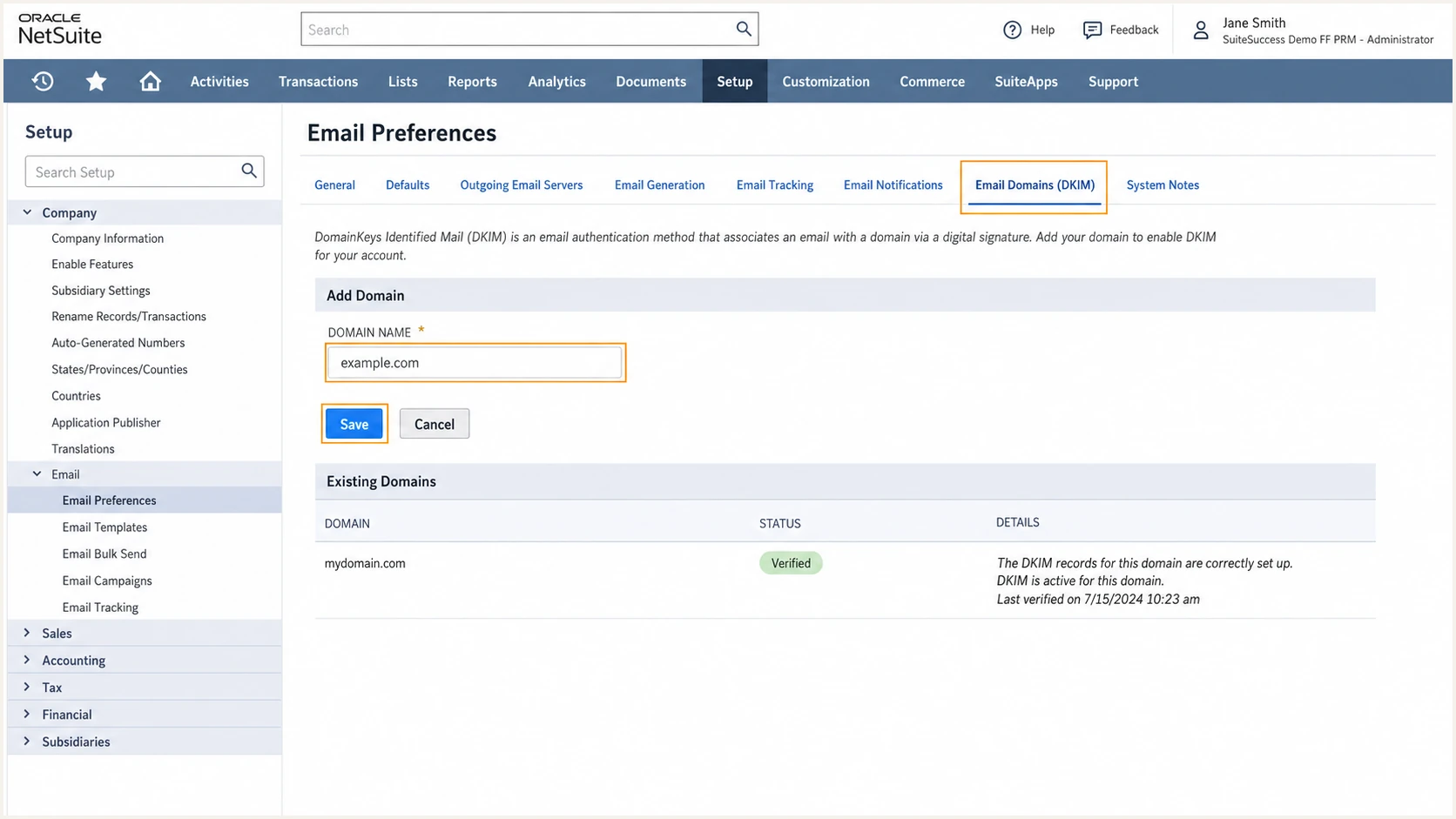
NetSuite Email Domains DKIM settings with the domain field highlighted
Keep the entry even when its initial status is not Ready. The next step publishes the DNS records that NetSuite uses to verify and activate DKIM for that domain.
Map every NetSuite sender identity
Before changing DNS, inventory the setting that supplies each visible From address. A Ready domain does not cover another domain introduced by a subsidiary, user preference, campaign template, workflow, or script.
- Check transaction forms. In Email Preferences > Transactions, review From Address for Emailed Forms. The selected company, subsidiary, or user address determines which domain needs DKIM.
- Check company and subsidiary addresses. Confirm each Return Email Address uses a domain your organization controls and has added under Email Domains (DKIM).
- Check user mail. Review Home > Set Preferences > From Email Address for users who send mail. A blank field can cause NetSuite to use the user's login address.
- Check campaigns and bulk mail. Review the campaign email domain and validated campaign From address separately. Add a campaign subdomain as its own DKIM domain.
- Check workflows and SuiteScript. Send a test from each active automation and record the actual RFC5322.From domain instead of relying on the configured author name.
Non-production accounts need separate handling
NetSuite does not copy DKIM keys into sandbox or Release Preview accounts. Their email preferences also restrict recipients by default. Do not assume that a production Ready status applies in non-production, and configure DKIM there only when the test plan requires authenticated external mail.
Set up SPF
Do not add NetSuite to the visible From domain's SPF record just to make DMARC pass. On NetSuite's standard outbound path, the Return-Path uses a NetSuite bounce domain and does not produce SPF alignment with your visible From domain. DKIM must authenticate the visible From domain.
NetSuite says to add its SPF include only when a recipient's mail system explicitly requires it. Its separate fax infrastructure has a different include. Check NetSuite SPF guidance before making an exception.
Expected SPF alignment error
An SPF alignment failure is acceptable for NetSuite when DKIM passes and its signing domain matches the visible From domain under relaxed or strict DKIM alignment. DMARC needs one passing, matching authentication path.
If an outbound relay sits between NetSuite and your mailbox provider, test that path separately. The relay can change the MAIL FROM identity and SPF result, so the standard NetSuite Return-Path behavior does not describe every relayed configuration.
- Inspect the current record. Look up the TXT record at the root of the visible From domain and confirm that only one SPF record begins with v=spf1.
- Leave SPF unchanged. Use this default for normal NetSuite outbound email because DKIM provides the DMARC pass.
- Handle a documented exception. If a recipient requires NetSuite SPF, merge include:sent-via.netsuite.com into the existing record before its final all mechanism.
- Protect the lookup budget. Count every include, redirect, a, mx, ptr, and nested lookup so SPF stays within the ten-lookup evaluation limit.
If NetSuite is the only system authorized by a new domain and a recipient requires the include, the record can use the value below. For a shared domain, merge the include into the existing record instead of publishing a second SPF TXT record.
NetSuite-only SPF example when explicitly requiredDNS
v=spf1 include:sent-via.netsuite.com -all
Use the SPF checker below after any edit. The result should show one syntactically valid SPF record with no permerror, void lookup excess, or recursive include problem. A valid record still does not make NetSuite SPF aligned for DMARC.
Run the check against the domain where the SPF record was published, not a selector or the _dmarc host. Save the output with the DNS change ticket so the previous state remains traceable.
SPF checker
Find SPF syntax issues, lookup limits, and weak records.
?/16tests passed
After DNS propagation, repeat the check through more than one resolver if your provider uses a long TTL. Do not evaluate NetSuite by the SPF result alone.
The decisive message-level test comes after DKIM is Ready. It must show your domain in the DKIM signing identity and a DMARC pass even when the SPF identity differs.
Set up DKIM
DKIM is mandatory for a dependable NetSuite DMARC pass. NetSuite generates two CNAME records for each domain or subdomain, then activates and rotates the domain keys after verification.
- Open the saved domain. Return to Email Preferences > Email Domains (DKIM), then click the domain name.
- Show the DNS data. Click Show DNS Info and keep the popup open while editing the authoritative DNS zone.
- Publish both CNAMEs. Copy each generated host and target exactly. Enter only the relative host if the DNS provider appends the zone name automatically.
- Remove conflicting hosts. A CNAME owner cannot also have a TXT, A, or other record. Remove only a confirmed conflict at the same generated owner name.
- Wait for Ready. Refresh the NetSuite status after propagation. Pending Verification commonly clears within two hours, but allow up to 24 hours before escalating.
Do not delete an older DKIM TXT record just because NetSuite now asks for CNAME records. Keep records for other active senders, and remove an old key only after confirming that no mail still uses its selector.
NetSuite notes that only one of the two CNAME records can show a linked DKIM key at a given time. That is expected during managed key rotation, provided both CNAMEs resolve and the domain status is Ready.
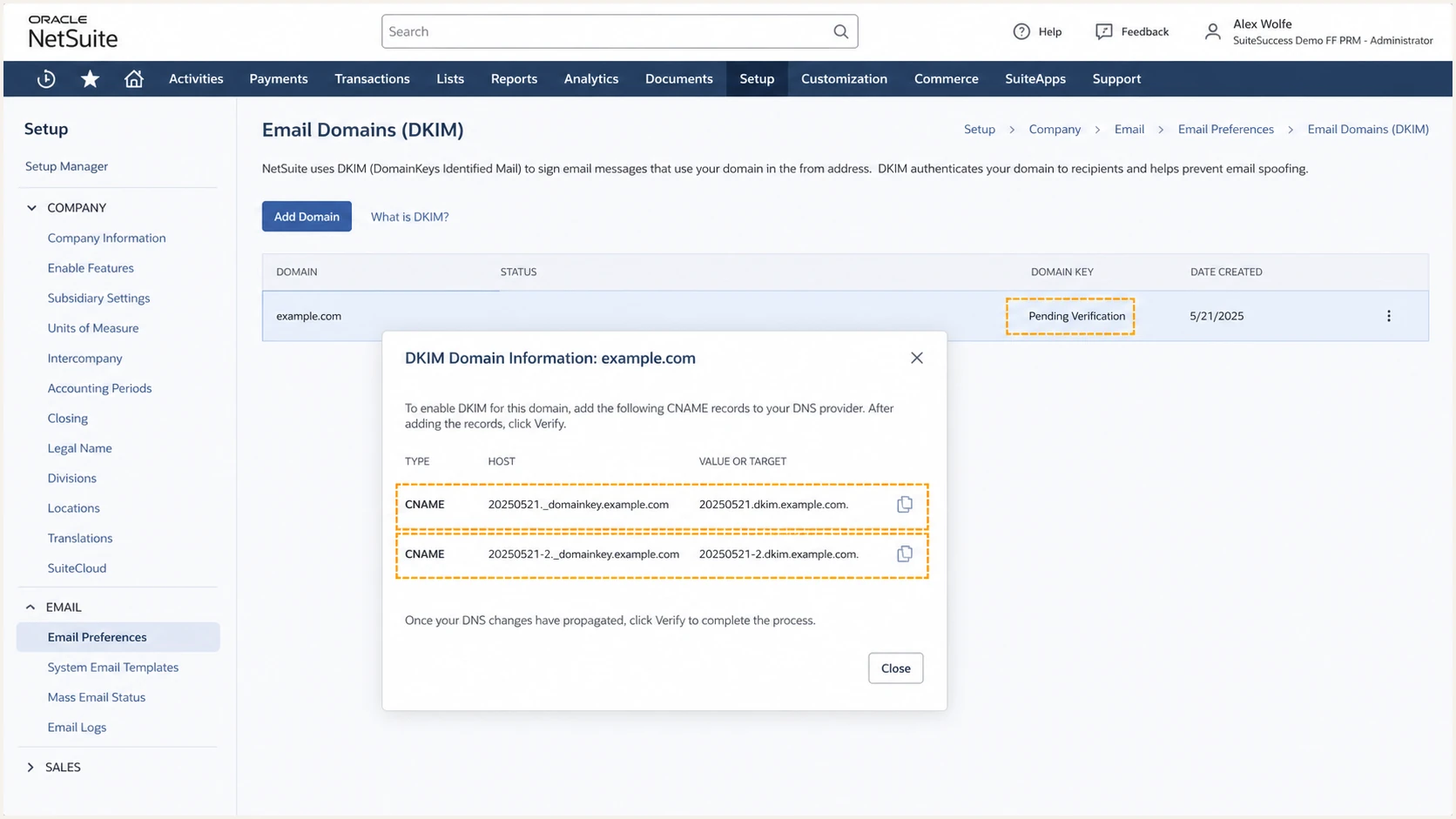
NetSuite Show DNS Info popup with two DKIM CNAME records
If the status becomes Requires Action, compare the resolved CNAME owner and target with the popup character by character. The most common errors are a duplicated zone suffix, a target copied into the host field, or DNS proxying that changes the answer.
Ready means active signing
When Status reads Ready and Details is empty, send a fresh message. Do not rely only on DNS resolution because the message header proves that NetSuite selected the expected domain key.
Set up DMARC
Publish one DMARC TXT record at _dmarc.example.com, replacing example.com with the visible From domain. Start with monitoring policy unless the domain already uses quarantine or reject. If it does, keep that stronger policy while fixing NetSuite DKIM.
- Choose the policy host. Create a TXT record at _dmarc for the organizational domain, or at the exact subdomain when it needs its own policy.
- Set monitoring mode. Use p=none on a domain without an enforced policy so legitimate source discovery happens before blocking.
- Route aggregate reports. Replace dmarc@example.com with a monitored mailbox or report ingestion address that accepts XML attachments.
- Preserve enforcement. If the existing record has p=quarantine or p=reject, do not weaken it. Repair DKIM and verify mail under the existing policy.
Initial DMARC TXT valueDNS
v=DMARC1; p=none; rua=mailto:dmarc@example.com
Use the DMARC record generator if you need to add reporting addresses or alignment settings without hand-editing tags. Publish exactly one DMARC record at a given host.
Use the current DMARC tags
RFC 9989 now defines the core DMARC protocol. RFC 9990 defines aggregate reporting, while RFC 9991 defines failure reporting. Existing v=DMARC1 records remain valid. The pct, ri, and rf tags are historic. The new t=y test mode requests handling one level below the published policy for all failing mail, so it does not provide percentage sampling.
The aggregate report address receives machine-readable reports, often every 24 hours. Use an address built for report processing because a normal inbox becomes difficult to review once message volume grows.
After publishing, query the exact _dmarc host below. Confirm the parser returns one record, DMARC version first, a valid policy, and the intended aggregate address.
DMARC checker
Look up a domain's DMARC record and catch policy issues.
?/7tests passed
DNS validation proves that receivers can find the policy. It does not prove that a NetSuite message passes, so send a real invoice, transaction email, or workflow notification through the same NetSuite path used in production.
Inspect the received Authentication-Results header. The target state is dkim=pass with a signing domain matching the From domain and dmarc=pass. Record spf=pass with a different domain is useful transport authentication, but it does not satisfy DMARC through SPF.
Verify and troubleshoot
Verify both the NetSuite configuration state and a delivered message. DNS checks find publication errors, while a message test confirms the signing domain, selector, authentication result, and final DMARC decision.
- Confirm Ready status. In Email Domains (DKIM), check that the sending domain reads Ready and the Details column is empty.
- Send production-shaped mail. Trigger the same template, sender address, and workflow used for customer mail. A manual test from another NetSuite path can use different headers.
- Read authentication results. Confirm DKIM passes, its d= domain matches the visible From domain, and DMARC passes through DKIM.
- Check each mail stream. Test transaction email, campaign mail, scripted mail, and reply-capture forwarding separately when those paths are active.
- Retest after changes. Send a new message after every DNS or NetSuite update because old headers do not reflect the current state.
|
|
|
|---|---|---|
NetSuite status | Ready | Correct CNAMEs |
DKIM result | Pass | Check selector |
DKIM domain | From match | Add exact domain |
SPF alignment | Can fail | Rely on DKIM |
DMARC result | Pass | Repair DKIM |
Compact NetSuite authentication checks
Use the email tester below for the fastest end-to-end check. Send it a message directly from the NetSuite process being validated, then review the raw authentication and alignment diagnosis.
A forwarded copy can change authentication results. Send the original NetSuite message to the generated test address instead of forwarding a message that first went through another mailbox.
Email tester
Send a real email to this address. Suped shows a results button when the test is ready.
?/43tests passed
If DKIM is missing, confirm the From address uses a domain entered in Email Domains (DKIM). If DKIM fails, resolve both CNAMEs publicly and compare the selector in the message with the selector returned by DNS.
If DKIM passes but DMARC fails, compare the visible From domain with the DKIM d= value. Under relaxed alignment, the organizational domains must match. Under strict alignment, the full domains must match exactly.
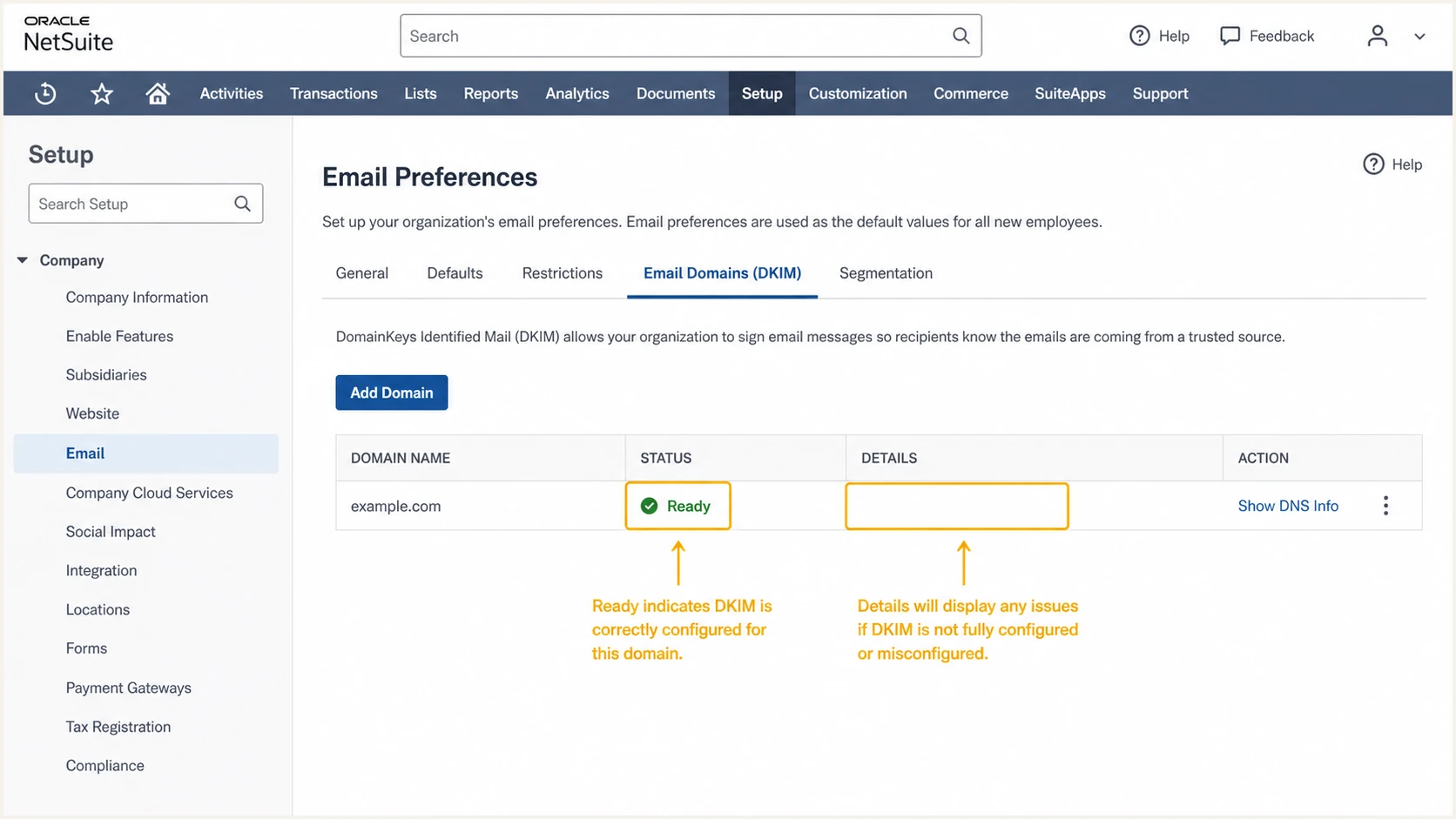
NetSuite DKIM domain showing Ready status and no details error
If the From header is rewritten, finish both CNAME records and wait for Ready. NetSuite documents that an incomplete DNS setup can cause From rewriting, which also changes the domain DMARC evaluates.
Get alerted when it breaks
A one-time test cannot catch a removed CNAME, a new unconfigured From subdomain, a NetSuite workflow change, or a later DMARC regression. Continuous reporting turns those failures into operational alerts before a large customer mail run.
Suped is our DMARC platform. Its DMARC monitoring groups NetSuite traffic by source, detects authentication issues, and sends real-time alerts with steps to fix the affected domain.
- Ingest reports. Point the DMARC rua address to Suped so aggregate XML reports become source-level authentication data.
- Verify NetSuite. Mark the identified NetSuite source as authorized only after its DKIM identity and sending pattern are confirmed.
- Enable alerts. Notify the mail owner when DKIM failures, unknown sources, or policy changes cross the chosen threshold.
- Review weekly movement. Check authenticated volume and new sources before changing policy enforcement.
Without monitoring
- Failures stay hidden. Teams discover the issue through recipient complaints or delivery drops.
- Reports stay raw. XML attachments are difficult to group by source and domain.
With Suped
- Changes trigger alerts. Authentication regressions reach the responsible team quickly.
- Sources become actionable. NetSuite volume, pass rates, and repair steps appear in one workflow.
For teams managing multiple business units or client domains, Suped also keeps DMARC, DKIM, SPF, blocklist (blacklist), and deliverability signals in one multi-tenant view. That prevents a NetSuite fix from being reviewed without the domain's other senders.
Secure your domain with p=reject
Move to p=reject only after every legitimate mail source passes DMARC and NetSuite consistently passes through DKIM. The policy asks receiving systems to reject failing mail for the covered domain, so an unrelated payroll or support sender can be affected even when NetSuite is correct.
Use a measured rollout: monitor complete business cycles, classify every high-volume source, apply p=quarantine after a clean report review, then publish p=reject. Do not use pct for staged coverage because RFC 9989 marks it historic. If you use t=y, treat it as a whole-policy test that requests handling one level below p, not as percentage sampling.
- Build the source inventory. Review at least one complete billing, campaign, and operational cycle so low-frequency senders appear.
- Fix legitimate failures. For NetSuite, correct DKIM domain coverage and CNAME resolution rather than chasing unaligned SPF.
- Apply quarantine. Publish p=quarantine for the covered domain only after reports show that legitimate senders pass DMARC, then review a full operating cycle.
- Publish reject. Change the policy only when all known senders pass and unknown failing traffic is unauthorized.
- Keep monitoring. Treat new failures after enforcement as incidents and verify every sender onboarding change.
DMARC enforcement stages
Advance only after legitimate NetSuite and non-NetSuite traffic is authenticated at the current stage.
Observe
p=none
Collect reports and identify sources
Request quarantine
p=quarantine
Apply after legitimate traffic passes
Request rejection
p=reject
Ask receivers to reject failing mail
Full reject policyDNS
v=DMARC1; p=reject; rua=mailto:dmarc@example.com
Suped's Hosted DMARC supports this rollout. Policy changes, automated issue detection, real-time alerts, and source-level repair steps keep the move to reject tied to observed mail.
Do not weaken an enforced domain
If the domain already uses p=quarantine or p=reject, keep that policy. Correct NetSuite DKIM immediately, monitor for affected legitimate traffic, and change enforcement only through the domain owner's approved incident process.
NetSuite DMARC FAQ
These answers cover the NetSuite-specific points that commonly cause a correct-looking DNS setup to fail at message level.
Use the exact sender path and domain when applying each answer. Transaction mail, campaign mail, fax delivery, and inbound reply capture do not share identical authentication behavior.