How to set up DMARC/DKIM/SPF for MailSentinel

To authenticate outbound email through Shinjiru MailSentinel, add its relay authorization to your SPF record, preserve or enable DKIM signing with your domain, and publish a DMARC TXT record. MailSentinel's SPF authorization is include:spf.mailsentinel.net. DKIM needs both a published public key and an active signing configuration.
I first check whether MailSentinel handles outgoing mail or only incoming filtering. An inbound-only installation needs no MailSentinel SPF authorization for your outgoing mail. The steps below use Shinjiru's MailSentinel portal and its underlying SpamExperts controls; Shinjiru manages access to administrator-only settings.
Add your domain
Open the MailSentinel portal using the access details supplied by Shinjiru. For a cPanel subscription, Shinjiru documents access through Professional Spam Filter. If your domain is already provisioned, select it and check its delivery route.
- Add: With administrator access, open General > Add Domain, enter your domain, and click Continue. If this menu is unavailable, ask Shinjiru to provision the domain.
- Route: Enter the actual destination mail server and SMTP port. Check any automatically detected destination before continuing; it must deliver to your mailbox server without looping back through MailSentinel.
- Save: Complete the remaining account options, click Next, and choose Add and configure. Review the saved route under Incoming > Destinations.
- Check: Open General > Domains Overview, use the domain's action menu, and select Protection status. Resolve connection failures before changing inbound routing.
- Activate: For incoming filtering, publish the MX targets from Shinjiru's activation instructions. Its public MailSentinel page names mx1.mailsentinel.net and mx2.mailsentinel.net; use the priorities assigned to your service.
- Confirm: Send an external message to a mailbox on the domain and confirm delivery through the incoming log. For outbound filtering, also have Shinjiru enable the outgoing authentication method and configure your mail server's assigned smarthost.
Changing MX records routes incoming mail. It does not route outgoing mail through MailSentinel or enable DKIM signing.
I verify the saved destination before the MX switch. Keep the underlying mailbox server available throughout the change, and complete any ownership checks requested for your account.
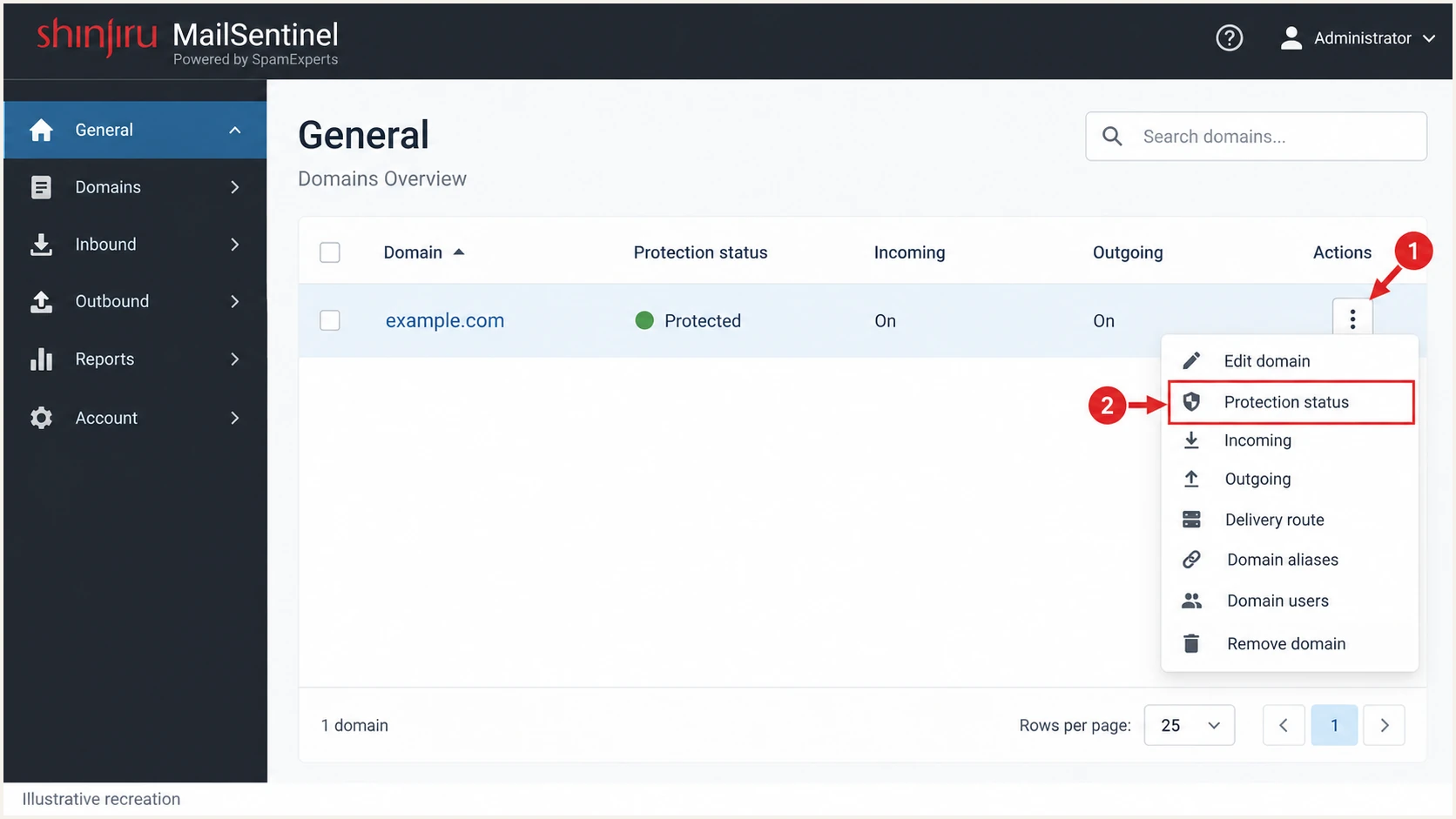
Illustrative MailSentinel domain menu showing the Protection status check.
A successful route check establishes that the gateway can reach the destination server. The incoming delivery test confirms that the configured mailbox receives mail through that route.
For outbound authentication, continue with the envelope sender domain and the servers that actually deliver your messages to recipients.
Set up SPF
For outbound MailSentinel delivery, add include:spf.mailsentinel.net to the SPF TXT record for your envelope sender domain. Shinjiru's public DNS setup instructions use this include. Confirm your service-specific value if Shinjiru assigned a different relay cluster.
- Find: Read the Return-Path on an outbound test message. Its domain identifies the SPF record to update; this is not necessarily the visible From domain.
- Edit: In your authoritative DNS provider, edit the existing TXT value beginning v=spf1. Insert the MailSentinel include before the final all mechanism. Keep the authorizations for other active senders.
- Create: If no SPF record exists and MailSentinel handles every outgoing message using that envelope domain, publish the example below. Replace example.com with your domain; @ usually means the zone root.
- Match: Configure your sending mail server to use an envelope sender under your own domain. With relaxed SPF alignment, example.com and bounce.example.com match a visible From domain of example.com. Publish SPF separately at bounce.example.com if that is the envelope domain.
- Check: Keep one SPF record per DNS name and stay within the 10 DNS-querying-term limit, including nested includes and redirect. An SPF permerror needs correction before enforcement.
SPF example when all outbound mail uses MailSentineltext
Name: example.com
Type: TXT
TTL: 3600
Value: v=spf1 include:spf.mailsentinel.net ~all
The example uses a softfail ending during setup. Preserve your existing ending when editing a working record. Use -all once the authorization list is complete; this setting is independent of your DMARC policy.
Run the check against the actual envelope sender domain. SPF records do not inherit automatically into subdomains.
SPF checker
Find SPF syntax issues, lookup limits, and weak records.
?/16tests passed
A valid record is only part of the check. Send a new message through the relay and inspect the recipient's SPF result for the connecting IP and envelope domain.
MailSentinel supports an envelope sender under your domain, but the originating server controls the address it submits. I check that address in a delivered message before treating SPF alignment as complete.
Your domain in Return-Path
Authorize the MailSentinel relay in that domain's SPF record. SPF contributes to DMARC when it passes and the envelope domain matches the visible From domain under your configured alignment mode.
An unrelated Return-Path domain
SPF alignment fails even when SPF passes. If a sending route cannot use your domain, adding MailSentinel to your visible From domain's SPF does not fix it. A passing DKIM signature with a matching domain is sufficient for DMARC.
Set up DKIM
Keep an existing DKIM signature that passes with your domain after MailSentinel relays the message. If your mail server does not sign, configure signing in MailSentinel's domain-level Outgoing > DKIM screen, where available.
- Generate: Open Outgoing > DKIM, choose 2048 bits, and enter an unused selector such as s2026. Generate and save the key pair.
- Publish: Copy the public TXT value into DNS at s2026._domainkey.example.com. If DNS automatically appends your domain, enter s2026._domainkey as the record name. Keep the private key in the signing system.
- Activate: Open Outgoing > Manage Outgoing Users/Authentication, edit the authentication method used by your sending server, and enter s2026 in DKIM Selector. Save the change.
- Resolve: Query the public TXT record using the command below. Compare the returned public key with the generated value before sending another test.
- Test: Inspect the delivered DKIM-Signature for s=s2026 and d=example.com, then confirm dkim=pass in the recipient's Authentication-Results. Use your actual selector and signing domain.
Check the published DKIM selectorbash
dig +short TXT s2026._domainkey.example.com
Publishing the public key does not activate signing. I check the selector on the outgoing authentication method because generating a key alone leaves that step incomplete.
The example selector is a name you choose, not a universal MailSentinel selector. Existing upstream signing can use a different selector; keep its DNS key available while signed messages remain in transit.
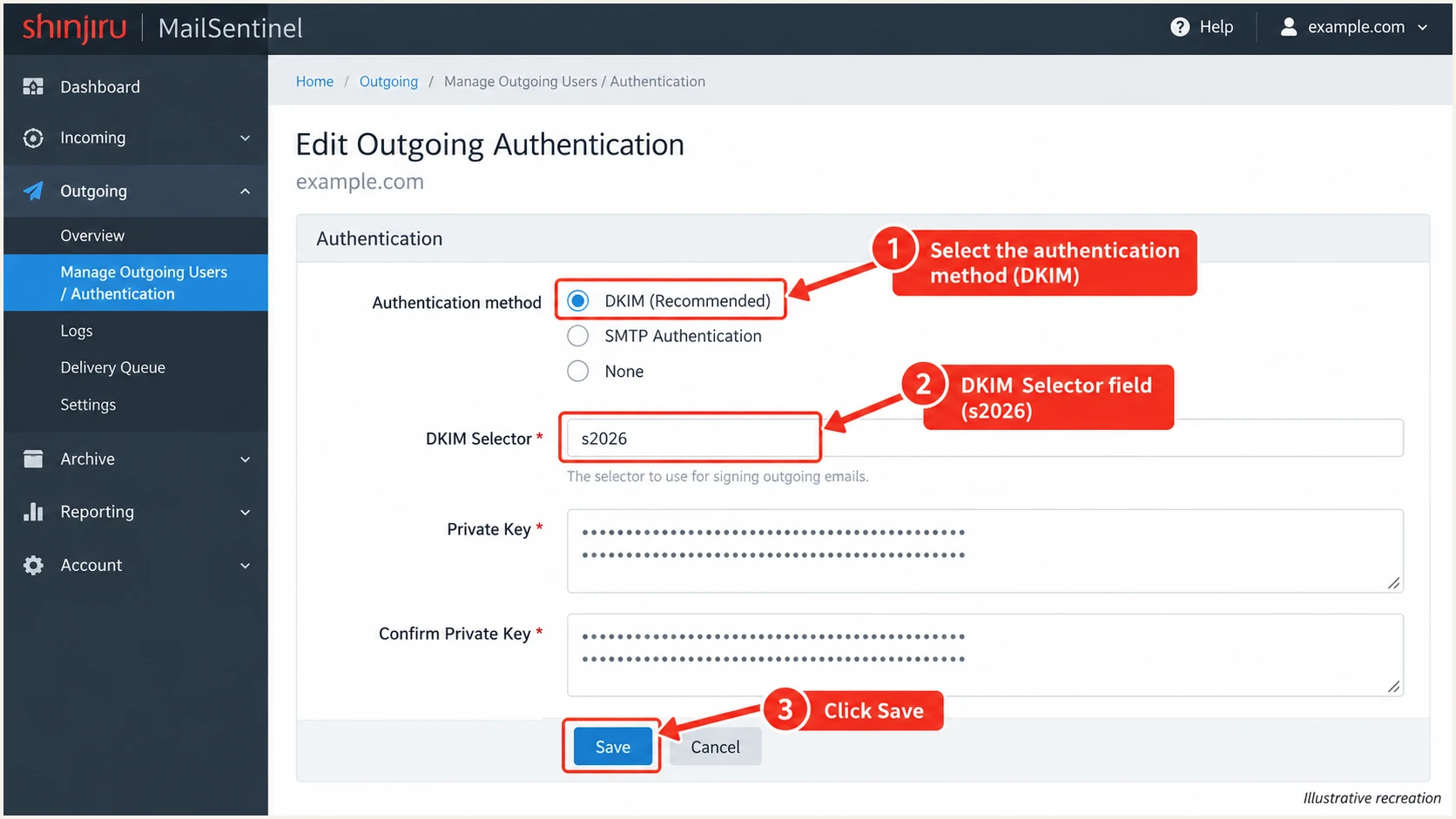
Illustrative MailSentinel outgoing authentication editor with the DKIM selector assigned.
The signing domain must match the visible From domain under your DMARC alignment mode. A valid signature using only a provider's unrelated domain does not satisfy DMARC for example.com.
If the gateway changes signed content, test whether the upstream signature survives those changes. Fix the modification or use a supported signing point after the changes.
Check the authentication method
SpamExperts documents that gateway DKIM signing is unavailable for a re-authenticating user. For that configuration, sign on the originating mail server or ask Shinjiru for a supported authentication method. If Outgoing > DKIM is hidden, Shinjiru must confirm whether gateway signing is available for your subscription.
Set up DMARC
Publish DMARC at _dmarc.example.com in your authoritative DNS. MailSentinel's inbound authentication filters do not publish a policy for your sending domain.
- Inspect: Look for an existing DMARC TXT record before adding one. Keep a working p=quarantine or p=reject policy; do not reduce enforcement just to connect MailSentinel.
- Prepare: Create a mailbox that receives aggregate reports. Replace dmarc@example.com in the example with your real reporting address, or use your reporting platform's assigned address.
- Publish: For a domain without an existing policy, add one TXT record at _dmarc with the monitoring value below. Use a TTL such as 3600 seconds and avoid duplicate DMARC records.
- Validate: Check the public record after the previous TTL expires. If reports go to another domain, confirm that the reporting destination authorizes reports for your domain.
Initial DMARC monitoring recordtext
Name: _dmarc.example.com
Type: TXT
TTL: 3600
Value: v=DMARC1; p=none; rua=mailto:dmarc@example.com
Build the record with the DMARC record generator. The example reporting address is a placeholder; example.com cannot collect your reports.
The p=none policy requests monitoring without DMARC-based quarantine or rejection. Receiving servers still apply their own filtering. Leave existing alignment settings intact and evaluate both SPF and DKIM against those settings.
DMARC checker
Look up a domain's DMARC record and catch policy issues.
?/7tests passed
A successful DNS check confirms policy publication. It does not establish that a real MailSentinel message passes authentication.
Aggregate reports arrive on the receiving provider's schedule, commonly daily. Use a delivered-message test for immediate feedback and reports to check all active sending routes.
Verify and troubleshoot
I verify a message that has completed the same outbound route used in production. Sending directly through a different SMTP server does not test MailSentinel's relay configuration.
- Send: Send a fresh message using your normal mailbox or application, through the configured outbound smarthost, to the test address supplied below.
- Trace: In MailSentinel, open Outgoing > Log search and find the message by sender, recipient, and time. Check delivery details if it was queued or rejected.
- Inspect: Read Authentication-Results added by the receiving server. Confirm spf=pass and dkim=pass where configured, then verify the domain matches required for dmarc=pass.
- Repeat: Test each distinct sending route, including website forms and automated application mail. An untested server can bypass the configured relay.
Illustrative passing recipient headerstext
From: Accounts <accounts@example.com>
Return-Path: <bounce@example.com>
Authentication-Results: receiver.example;
  spf=pass smtp.mailfrom=example.com;
  dkim=pass header.d=example.com header.s=s2026;
  dmarc=pass header.from=example.com
The email tester prompts you to send a message and returns a full diagnosis of the received message, including SPF, DKIM, and DMARC. It is the quickest way to check this configuration against an actual delivery.
Use the address displayed by the widget, send through MailSentinel, and open the completed results. The header example above illustrates the target outcome; it is not a test of your domain.
Email tester
Send a real email to this address. Suped shows a results button when the test is ready.
?/43tests passed
DMARC needs a passing SPF result with a matching envelope domain or a passing DKIM signature with a matching signing domain. Both are preferable, but one valid matching path is sufficient.
If SPF alignment fails because a route uses an unrelated Return-Path domain, confirm that matching DKIM passes. Adding more SPF entries to the visible From domain cannot change that Return-Path.
|
|
|
|---|---|---|
SPF fail | Envelope domain | Authorize relay |
SPF permerror | Duplicates / lookups | Merge / simplify |
DKIM missing | Signing / selector | Activate signing |
DKIM fail | Key / content | Correct key / signing |
DMARC fail | Domain matching | Fix SPF or DKIM |
No relay log | Outbound route | Correct smarthost |
Start with the failing authentication result.
An accepted message in a gateway log is not proof of authentication success at its destination. Check the final delivery response and the receiving server's authentication results.
For delivery failures, retain the SMTP response and message identifier before contacting Shinjiru. Those details identify whether the problem is relay access, DNS, or recipient policy.
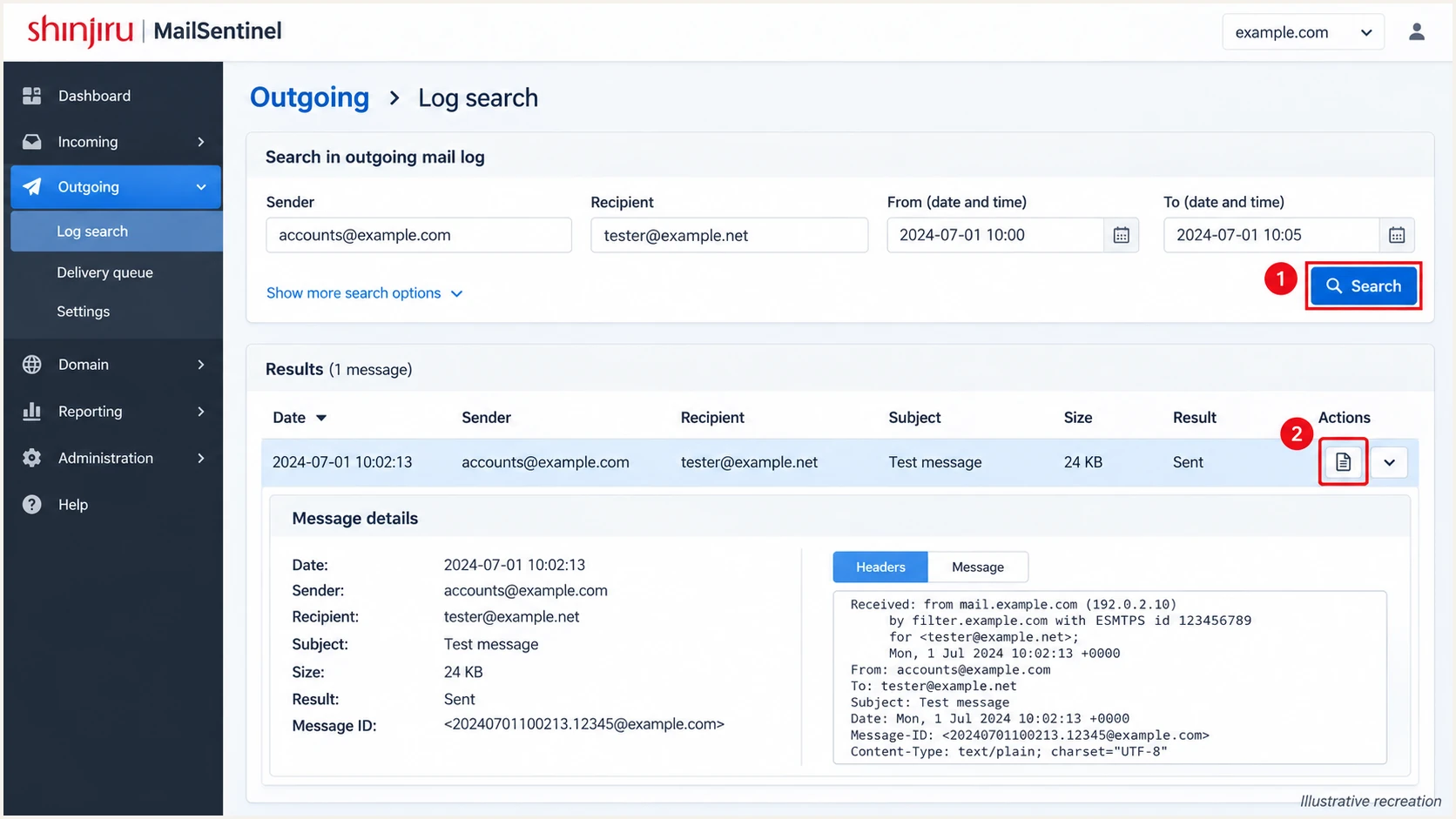
Illustrative MailSentinel outgoing log search for tracing a test message.
After any correction, send a fresh message. Previously delivered messages keep their original signatures and authentication results.
A passing authentication test does not guarantee inbox placement. If authentication passes but delivery still fails, investigate the SMTP response and sending reputation separately.
Get alerted when it breaks
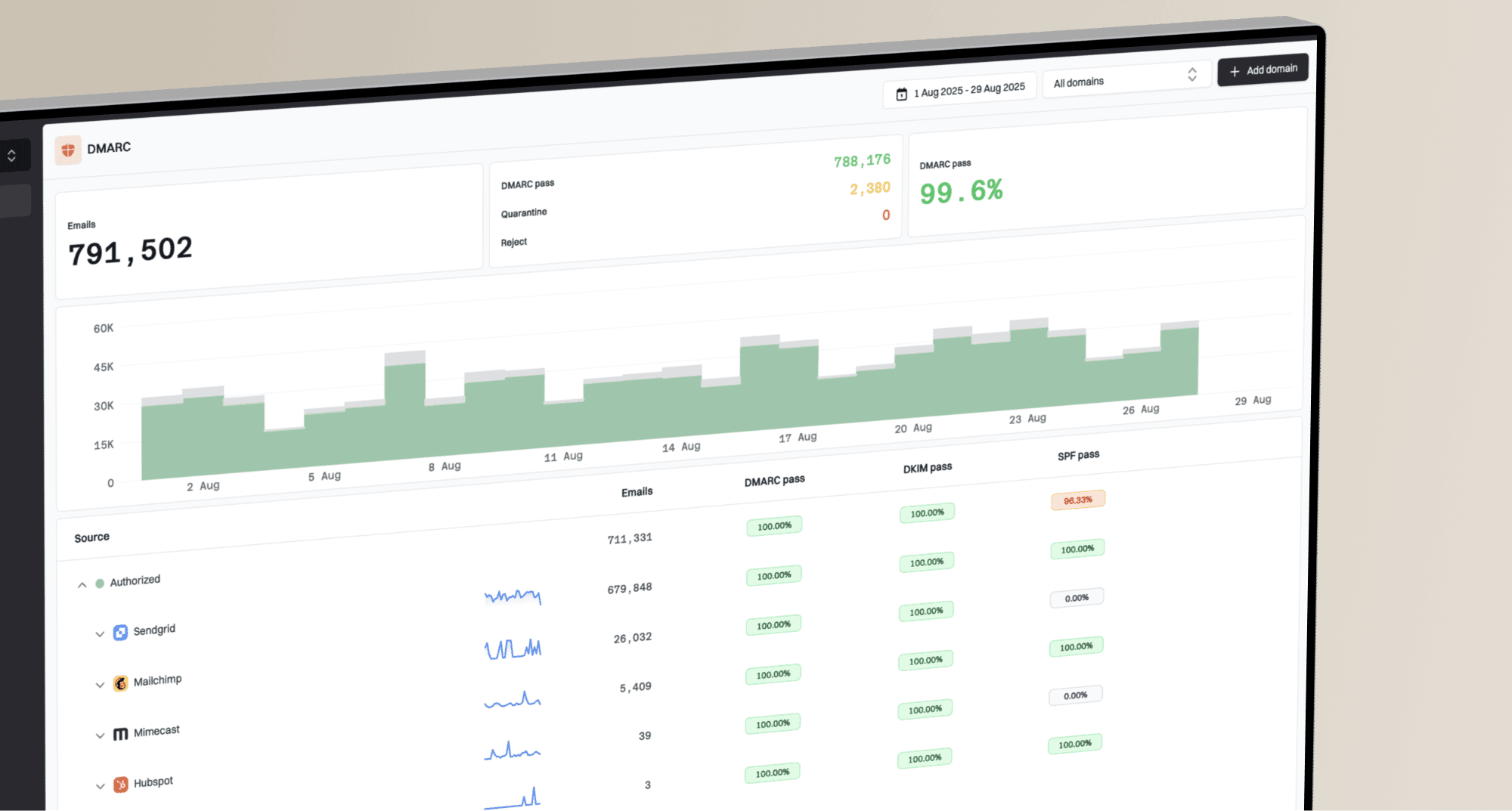
Suped, our DMARC reporting and email authentication platform, provides ongoing visibility after the MailSentinel setup is working. Its DMARC monitoring connects aggregate report data to sending sources so a relay change or signing failure becomes an issue your team can investigate.
- Collect: Keep the domain's rua destination active. When using Suped, retain the reporting address assigned to the domain so receiver reports continue to arrive.
- Alert: In Suped's notification settings, enable DMARC failure alerts and summary emails. Review failure thresholds against your normal MailSentinel traffic.
- Investigate: Open the affected source and inspect the reported IP, envelope domain, and DKIM signing domain. Compare them with the MailSentinel message route and your last successful test.
- Repair: Use Suped's detected issue and fix steps to identify the required change, apply it in DNS or MailSentinel, and verify with a new message.
MailSentinel also has an Administrator's contact field under Outgoing > Settings for outgoing abuse reports. Set an appropriate monitored address and save it. These reports concern messages identified as spam; they do not replace receiver-side DMARC reporting.
Suped alerts depend on incoming report data. Treat them as ongoing detection, and use the email test immediately after changing DNS or relay settings.
Keep an owner for authentication failures
Route alerts to the team that can change DNS and MailSentinel settings. Keep a record of the expected relay and DKIM selector so the next failure can be compared with a known working setup.
Secure your domain with p=reject
Move to p=reject after legitimate sending routes consistently pass DMARC. I use source-level evidence rather than a fixed waiting period, because a daily mailbox test does not cover a monthly invoice run.
Review legitimate failures by source instead of relying only on the domain's overall pass rate. Repair an infrequent sender even when higher-volume traffic makes the total look healthy.
- Inventory: Use Suped's source table to account for legitimate senders. Verify unfamiliar sources before authorizing them; authentication failures from unauthorized senders are expected.
- Correct: Fix MailSentinel relay authorization and DKIM signing, then resolve legitimate failures on every other sending route. Include subdomains and infrequent automated messages in the review.
- Stage: If starting at p=none, change to p=quarantine after testing. Review reports and delivery incidents over a representative sending cycle before advancing.
- Enforce: Change p=quarantine to p=reject when legitimate traffic is ready. Preserve the reporting address and existing intentional alignment settings.
- Maintain: Keep Suped's failure alerts enabled after enforcement. Re-test when adding senders or rotating keys, and retain previous DKIM public keys until in-flight messages no longer need them.
Example DMARC enforcement stagestext
Quarantine stage, TXT at _dmarc.example.com:
v=DMARC1; p=quarantine; rua=mailto:dmarc@example.com

Reject stage, replace the same TXT value:
v=DMARC1; p=reject; rua=mailto:dmarc@example.com
Enforce the domain policy, keep reporting
A p=reject policy asks receivers to reject messages that fail DMARC for your domain. Receivers retain their own handling rules. The policy protects the visible From domain; it does not stop messages using a different lookalike domain.
Replace the example reporting mailbox with your real destination and publish only the current stage. If your domain already uses p=quarantine or p=reject, keep it while you validate MailSentinel.
Suped's hosted DMARC lets your team manage the policy through the dashboard after hosted configuration is in place. Combine that policy control with source diagnostics to decide when each enforcement change is ready.
FAQ
These checks address the MailSentinel-specific differences between gateway filtering and authentication of your own outgoing messages.