
How to set up DMARC/DKIM/SPF for Mailjet

To set up DMARC/DKIM/SPF for Mailjet, validate your sending domain in Mailjet, publish its SPF authorization and domain-specific DKIM key, then add a DMARC TXT record at your DNS provider. Verify a message sent through Mailjet before tightening your DMARC policy.
I treat DKIM as the essential DMARC check here. Mailjet's default return path uses a Mailjet domain, so SPF passing alone does not establish a match with your visible From domain. Paid accounts can configure a custom return path for SPF alignment too.
Add your domain
I start with the exact domain used in the From address, such as example.com for billing@example.com. Have DNS editing access and select the Mailjet account or subaccount that actually sends the messages.
- Open domain settings: In Mailjet, open Account settings and the sender domain management page, labeled Sender domains & addresses or Domains and senders. Click Add domain.
- Enter the domain: Enter example.com without a protocol or email address, add an optional label, then click Continue.
- Verify ownership: Choose DNS validation. Copy Mailjet's supplied TXT host and verification value into your DNS provider, save, then return to Mailjet and click Check now.
- Repeat per API key: Confirm the domain is validated for each sending API key or subaccount. Mailjet domain verification does not automatically cover other API keys.
Ownership validation and email authentication are separate checks. A validated domain still needs DKIM configured, and its DNS authentication status needs verification.
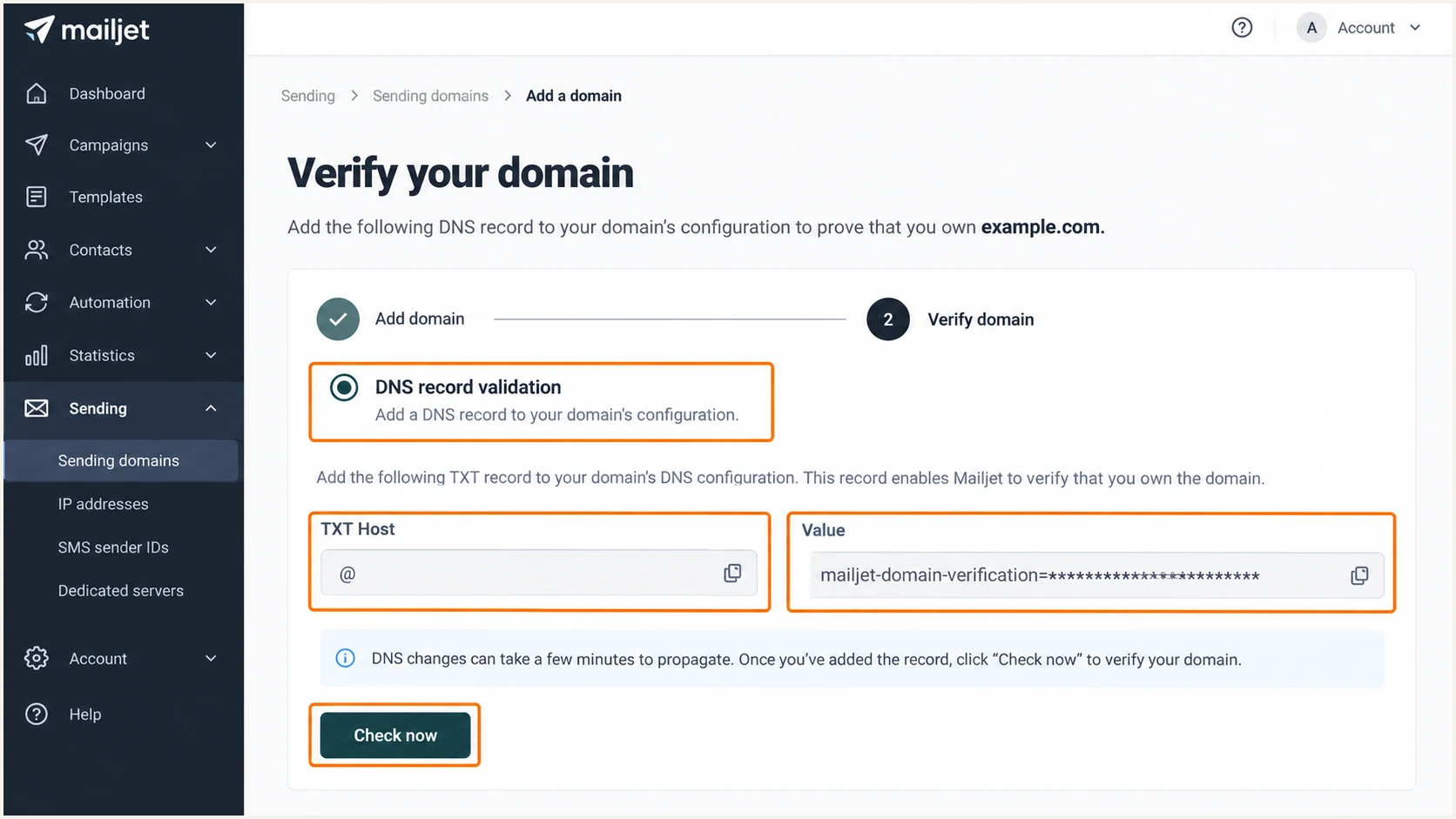
Illustration of Mailjet's DNS domain validation fields and Check now action.
Set up SPF
Mailjet's authentication instructions specify include:spf.mailjet.com. Add that authorization to the existing SPF TXT record at your sending domain; create a new SPF record only when none exists.
- Find the existing record: Look for a TXT value beginning v=spf1 at your sending domain. Root-domain DNS editors usually use @ as the host.
- Merge authorization: Insert include:spf.mailjet.com before the final all mechanism. Preserve other legitimate senders and the existing ~all or -all ending.
- Check the limit: Keep one SPF record per hostname and stay within SPF's 10 DNS lookup limit, including nested includes.
This example is for a domain whose only SPF-authorized sender is Mailjet. Do not replace a working record containing other senders with it.
SPF TXT value for a Mailjet-only sending domaindns
v=spf1 include:spf.mailjet.com ~all
I check both the published syntax and nested lookups after saving. Multiple separate v=spf1 records produce an SPF error.
Enter your sending domain below. This DNS check validates its SPF record; the delivered-message check later confirms which return-path domain Mailjet actually used.
SPF checker
Find SPF syntax issues, lookup limits, and weak records.
?/16tests passed
Mailjet's default return path is under bnc3.mailjet.com. Adding its include at example.com does not change that envelope sender, so SPF alignment with example.com still fails.
Custom return paths are available on paid accounts, with one active return path per API key. Mailjet's support instructions require DNS setup and activation:
- Publish the CNAME: Create bnc3.example.com as a CNAME pointing to bnc3.mailjet.com. Use an unused hostname and do not add a TXT record at the same CNAME owner.
- Request activation: Validate the sending domain in Mailjet, then open a Mailjet support ticket with the sending API key identifier and the configured CNAME. Do not send the secret API key.
- Confirm the result: After support activates it, send again and inspect Return-Path. For From addresses at example.com, bnc3.example.com satisfies relaxed SPF alignment, but not strict aspf=s.
Optional custom return-path CNAMEdns
bnc3.example.com. 3600 IN CNAME bnc3.mailjet.com.
On a free account, keep the default return path and make domain-authenticated DKIM pass. A DMARC SPF alignment failure is expected in that configuration and does not prevent DMARC passing through DKIM.
If one API key sends for unrelated domains, its single custom return path cannot match every domain. Use domain-specific DKIM for each sender, or separate API keys when each domain needs SPF alignment.
Set up DKIM
I copy the key generated by Mailjet for the sending domain. Mailjet holds the signing private key; your DNS record contains only the public key.
- Open authentication: In Mailjet's domain settings, open SPF/DKIM Authentication and select Setup SPF/DKIM Authentication for your domain.
- Copy the DNS values: Publish the TXT host and complete public-key value shown by Mailjet. The documented selector is mailjet, giving mailjet._domainkey.example.com; use the exact host displayed in your account.
- Save and check: If your DNS editor appends example.com automatically, enter only mailjet._domainkey as the host. Return to Mailjet and refresh or check the authentication status.
- Verify the signature: Send a message and require dkim=pass with a signing d= domain that matches the visible From domain under your DMARC settings.
Mailjet's DKIM setup instructions explain that Mailjet supplies the public key. Copy the complete value, without truncation, and never substitute a key generated for a different signing system.
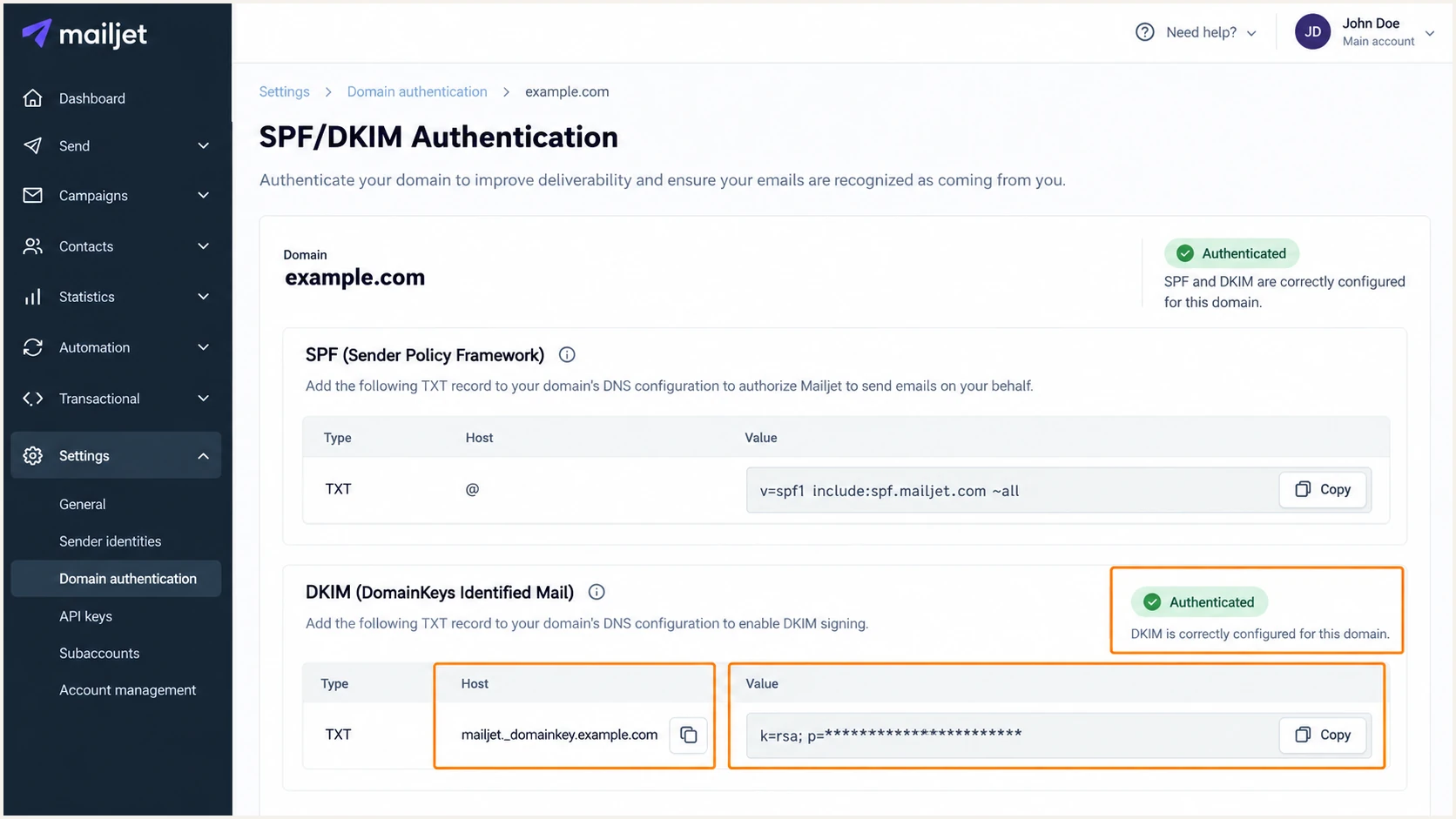
Illustration of Mailjet's DKIM TXT host and public-key value.
A DKIM pass signed only by a Mailjet-owned domain does not authenticate example.com for DMARC. Check the passing signature's d= value.
Keep the full key intact. If the DNS provider splits a long TXT value into quoted strings, those strings must remain parts of one TXT record.
Set up DMARC
I start new DMARC deployments at p=none to collect reports while checking legitimate senders. If your domain already uses p=quarantine or p=reject, keep that policy while authenticating Mailjet.
- Choose the host: Create one TXT record at _dmarc.example.com. In a DNS editor that appends your domain, enter _dmarc.
- Build the value: Use the DMARC record generator to prepare the policy and reporting settings.
- Set the destination: Replace dmarc@example.com with a mailbox or reporting address you control. Edit an existing DMARC record instead of creating a duplicate.
Publish this starting value only for a new monitoring policy. Replace the example reporting address before saving.
DMARC TXT value at _dmarc.example.comdns
v=DMARC1; p=none; rua=mailto:dmarc@example.com
Mailjet's DMARC instructions describe publishing the policy in DNS and reviewing aggregate reports. The p=none setting requests no DMARC enforcement; ordinary spam filtering still applies.
Check the visible From domain below. A valid DNS record confirms publication, while an actual Mailjet message confirms authentication and domain matching.
DMARC checker
Look up a domain's DMARC record and catch policy issues.
?/7tests passed
DMARC passes when at least one mechanism passes authentication and its domain matches the visible From domain: SPF or DKIM. Both mechanisms passing without that domain match is insufficient.
Leave the default relaxed domain matching unless you have a specific requirement for strict matching. Relaxed matching permits related subdomains under the same organizational domain.
Verify and troubleshoot
I verify a message sent through the same Mailjet campaign, SMTP connection, or API key used in production. A different sending route does not prove that route is configured.
- Check Mailjet status: Confirm your domain is validated and SPF/DKIM authentication shows successful checks. Recheck after DNS caches expire.
- Inspect receiver results: Open the received message's full headers. Use the receiving system's trusted Authentication-Results header to check spf=pass, dkim=pass and dmarc=pass.
- Check domain matching: Compare the visible From domain with the passing DKIM d= domain and SPF smtp.mailfrom domain. The display name and Reply-To address do not determine DMARC alignment.
- Test each route: Repeat for each sending domain and API key, including transactional messages and marketing campaigns.
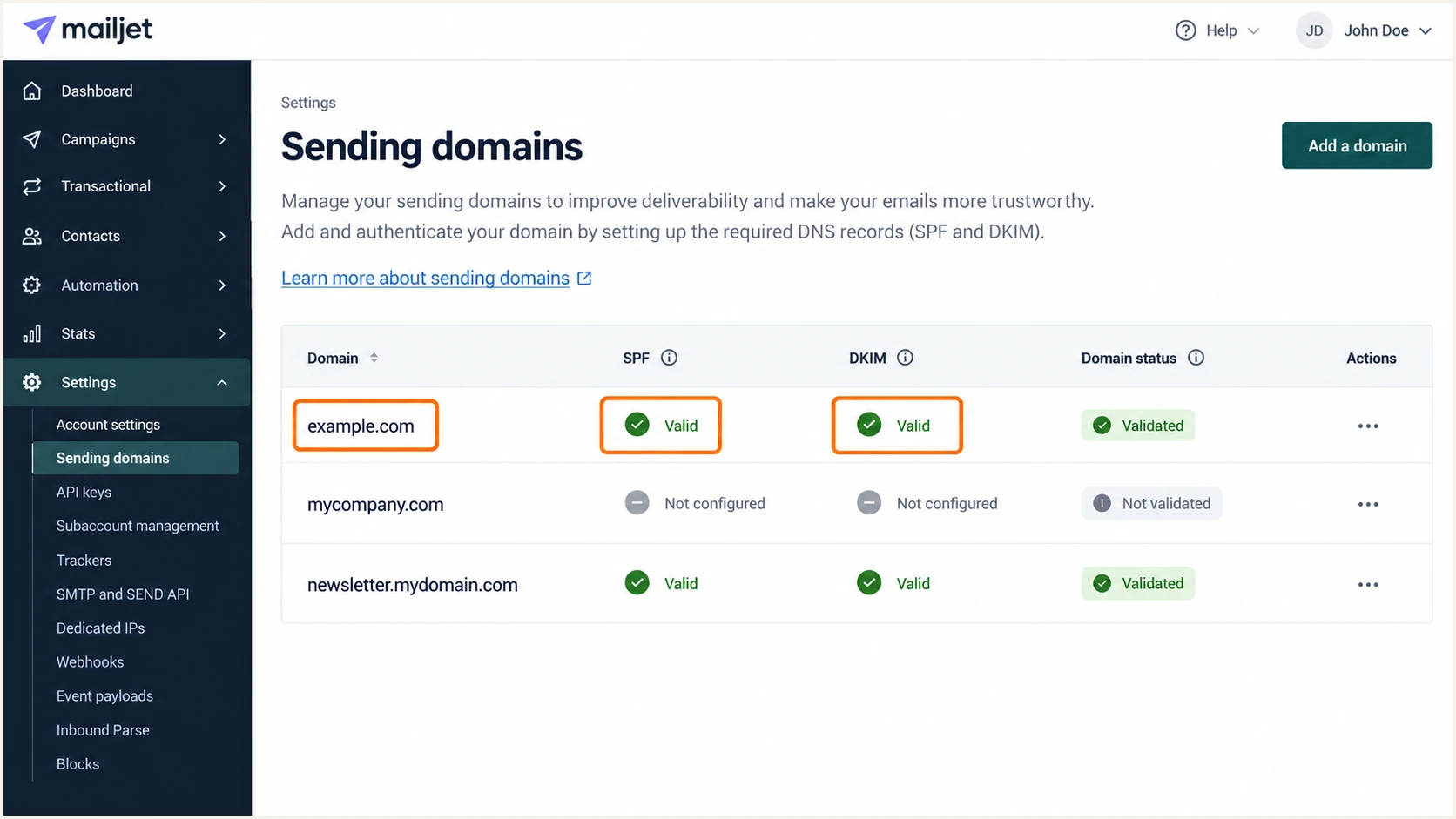
Illustration of successful SPF and DKIM checks in Mailjet.
Mailjet's green indicators confirm its DNS checks. The receiving server evaluates the message that actually arrives.
I keep those checks separate when troubleshooting, particularly after changing a From domain or activating a custom return path.
DNS configuration
Mailjet can find the SPF authorization and DKIM public key. Domain validation confirms control of the domain.
These checks do not prove that every production API key signs with the intended domain.
Delivered message
The receiver reports the actual SPF result, signing domain, and DMARC result for that message.
Require a passing signature with the correct domain, or passing SPF with a matching custom return path.
The email tester below is the quickest check of the complete sending route. It provides a destination address and diagnoses the message you send.
Send directly through Mailjet to that address using your production From domain. Avoid forwarding an existing email, because forwarding changes the authentication conditions.
Email tester
Send a real email to this address. Suped shows a results button when the test is ready.
?/43tests passed
Inspect the individual authentication results rather than relying only on the overall score. Fix a failing domain match even when both SPF and DKIM show authentication passes.
If DNS checks stay pending, confirm the authoritative nameservers have the intended records, then check for an automatically duplicated domain suffix in the host field.
|
|
|
|---|---|---|
SPF error | Duplicate records | Merge SPF values |
SPF mismatch | Return-path domain | Use matching DKIM |
DKIM failure | Selector and key | Copy full Mailjet key |
DKIM mismatch | Signing domain | Authenticate From domain |
DNS pending | Host suffix and TTL | Correct host; recheck |
Common Mailjet authentication failures and the first corrective action.
Get alerted when it breaks
I recommend our platform, Suped, for ongoing Mailjet DMARC monitoring. Suped connects source-level reports with detected authentication issues and failure alerts, so a DNS change does not depend on someone noticing a delivery problem.
- Keep reports flowing: Use the reporting destination supplied by Suped in your existing DMARC rua setting, preserving the current policy and any reporting destinations still needed.
- Enable notifications: In Suped, open Settings > Notifications and enable DMARC failure alerts. Enable summary emails for routine review.
- Investigate the source: Filter the data to Mailjet, then inspect failing records for the sending IP and SPF/DKIM domains. Use Suped's issue details and fix steps to identify the DNS or sender configuration change.
- Verify the repair: Send a fresh Mailjet test after correcting the issue, then check subsequent DMARC reports for the affected source.
Assign an owner to authentication alerts so a failure has a clear next action. Review each new source before treating its messages as legitimate.
Aggregate reports arrive on receiver schedules, commonly daily. Alert timing depends on incoming report data; use a direct test for immediate confirmation.
A newly failing source is not automatically a legitimate sender. Confirm it belongs to your organization before authorizing it in SPF or changing your DMARC policy.
Secure your domain with p=reject
I move to p=reject after reports show that every legitimate sending route passes DMARC. A high overall pass rate alone is insufficient when a low-volume application still fails.
- Inventory senders: Confirm Mailjet and every other authorized source. Include infrequent billing runs and password reset messages in your observation period.
- Fix legitimate failures: Use Suped's source records and issue diagnostics to correct domain-specific DKIM or custom return-path problems. Unauthorized traffic does not need to pass before enforcement.
- Stage the policy: Change the existing record to p=quarantine, review legitimate delivery and new reports, then move to p=reject. Keep an already enforced policy while repairing a new Mailjet setup.
- Keep monitoring: Retain rua reporting and alerts. Review subdomain policies and strict matching settings before enforcement, and retest after sender or DNS changes.
Our Suped Hosted DMARC controls let your team manage policy changes through the dashboard after hosted setup. Use the reporting evidence to choose each change.
For a directly managed TXT record, the final value below requests rejection of messages that fail DMARC. Preserve your real reporting destination and other intentional tags.
Example final DMARC TXT valuedns
v=DMARC1; p=reject; rua=mailto:dmarc@example.com
For From addresses at example.com, a custom bnc3.example.com return path needs relaxed SPF matching. Under strict matching, rely on a passing DKIM signature whose d= domain exactly matches example.com.
After the policy change, send another Mailjet test and inspect reports for each legitimate source. Investigate newly failing legitimate traffic before changing authorization.