How to set up DMARC/DKIM/SPF for Docebo

To set up DMARC, DKIM, and SPF for Docebo, add your email sender domain in Domain management, publish its displayed SPF and DKIM records in DNS, and add a DMARC TXT record at your sending domain. Docebo documents include:docebosaas.com for its built-in email service. Validate the domain, then send an actual Docebo notification and check the receiving server's authentication results.
I check the delivered message before tightening DMARC policy. A successful DNS test is useful, but DMARC also requires a passing authentication result with a domain that matches the visible From domain under your alignment settings.
Add your domain
Sign in with a Superadmin account and have access to the authoritative DNS zone for your email sender domain.
- Open settings: Go to Navigation menu > Configuration > Platform setup and tools > Domain management > Email sender domains.
- Create the domain: Select New domains and certificates > New email sender domain. Enter the domain after the @ in your sender address, then click Create and edit.
- Choose delivery: In General, select Built-in email service. If your organization already sends through Custom SMTP server, keep that route and use its email authentication settings.
- Complete validation: Publish the DNS values described below, wait for DNS caches to expire, then return and click Test DNS configuration.
For notifications@example.com, add example.com. Keep the email sender domain separate from a Docebo custom website hostname that already has a CNAME, such as learn.example.com.
Docebo displays the required records; you publish them through your DNS provider. Creating the sender domain in Docebo alone does not publish DNS records.
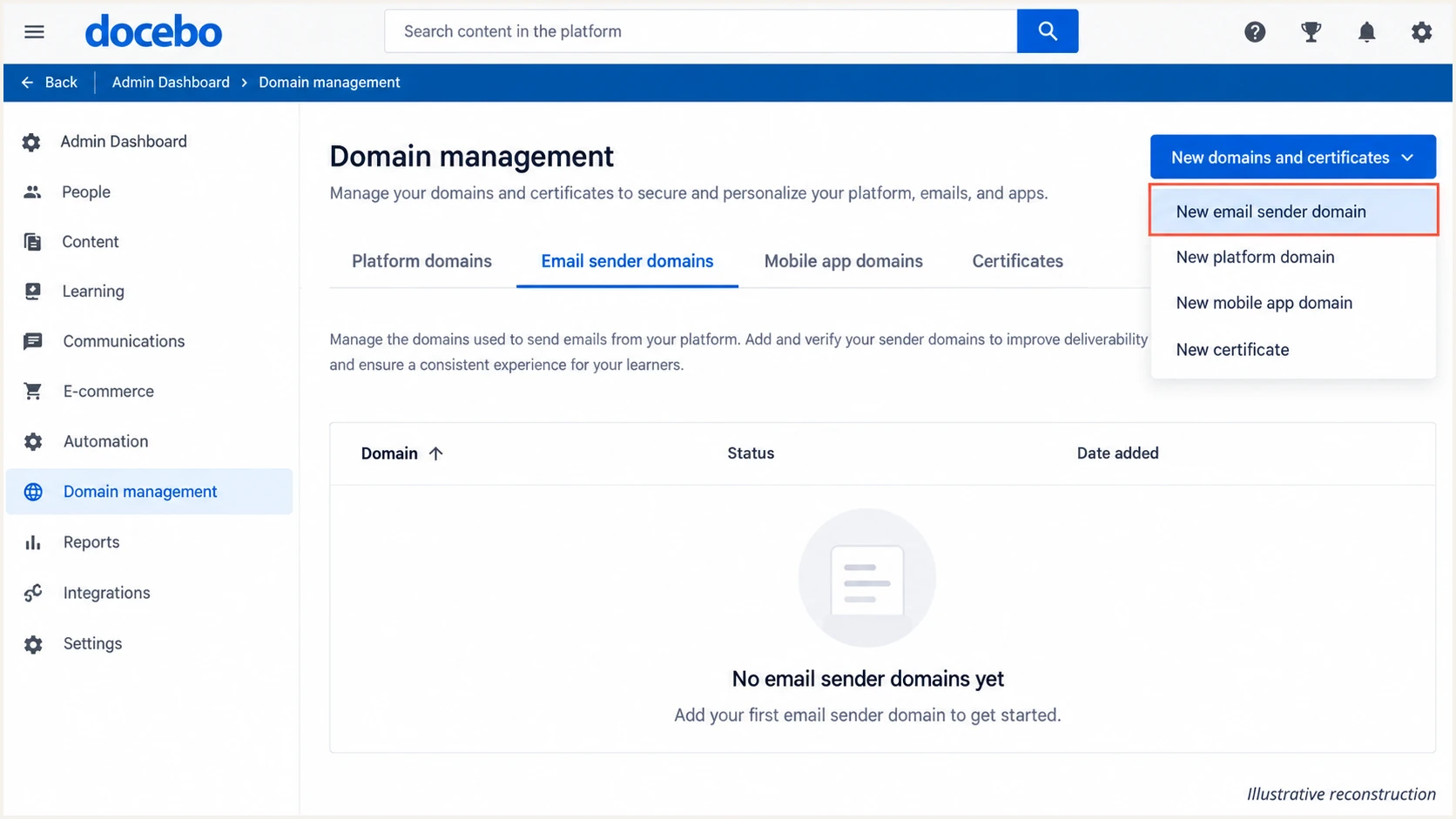
Illustrative Docebo screen showing where to add an email sender domain.
Set up SPF
For Docebo's built-in service, use the SPF value shown for your sender domain. The documented authorization is include:docebosaas.com; custom SMTP requires the authorization supplied by your SMTP operator.
- Inspect DNS: Look up the TXT records at your sender domain and find the record beginning v=spf1. Keep one SPF record at each hostname.
- Merge authorization: If SPF already exists, insert include:docebosaas.com before its final all mechanism. Preserve other authorized senders and the existing enforcement qualifier.
- Create if absent: If no SPF record exists, use the value displayed in Docebo. The documented new-record example is shown below.
- Check limits: Keep the evaluated SPF path within the 10 DNS lookup limit, including nested includes. Do not copy a static list of Docebo IP addresses.
Docebo documented SPF example, TXT at the email sender domaintext
v=spf1 mx include:docebosaas.com ~all
The mx mechanism authorizes the domain's MX hosts to send email. Include it only when that authorization is intended. An existing -all policy does not need to become ~all when adding Docebo.
SPF checks the envelope sender, exposed as smtp.mailfrom in authentication results. Adding an include to the visible From domain does not change the message's Return-Path.
Built-in email service
Use Docebo's displayed SPF and DKIM values.
Verify the actual Return-Path domain before treating SPF as a passing DMARC mechanism.
Custom SMTP server
Use the SMTP operator's SPF and DKIM configuration.
Docebo's SMTP login test confirms connectivity. Check that the SMTP account has permission to send using your notification's From address.
Docebo supports Return-Path alignment, but its public Domain management instructions do not give one universal custom Return-Path hostname or DNS target. If smtp.mailfrom uses a Docebo-owned domain, ask Docebo Support for the configuration available to your tenant and publish only the supplied records.
Use the checker on the hostname that actually holds your SPF record. For a custom Return-Path subdomain, check that subdomain too; SPF records do not inherit from the parent domain.
SPF checker
Find SPF syntax issues, lookup limits, and weak records.
?/16tests passed
Confirm that the published record has valid syntax and stays within the lookup limit. Then verify SPF on a newly delivered Docebo message.
An SPF alignment failure does not make DMARC fail when DKIM passes with a matching domain. Keep DKIM working while resolving a Return-Path mismatch.
Set up DKIM
Use the DKIM information displayed for your email sender domain under Built-in email service. I copy the tenant's actual values rather than reuse a selector or key from another installation.
- Copy the records: Record every DKIM hostname, record type, and value displayed by Docebo.
- Publish exactly: Add those records in the authoritative DNS zone. If the DNS editor appends your domain automatically, enter only the relative record name.
- Preserve the key: For a TXT key, retain its full public-key value. DNS character strings longer than 255 characters need splitting within one TXT record, with no added spaces in the key.
- Validate again: Wait for the previous TTL to expire, then run Test DNS configuration. Send a new notification and confirm dkim=pass plus the expected signing domain.
The selector in the DKIM-Signature s= tag identifies the DNS record. The d= tag identifies the signing domain, which DMARC compares with the visible From domain.
With default relaxed alignment, those domains need the same organizational domain. A valid signature under an unrelated Docebo-owned domain does not satisfy DKIM alignment for example.com.
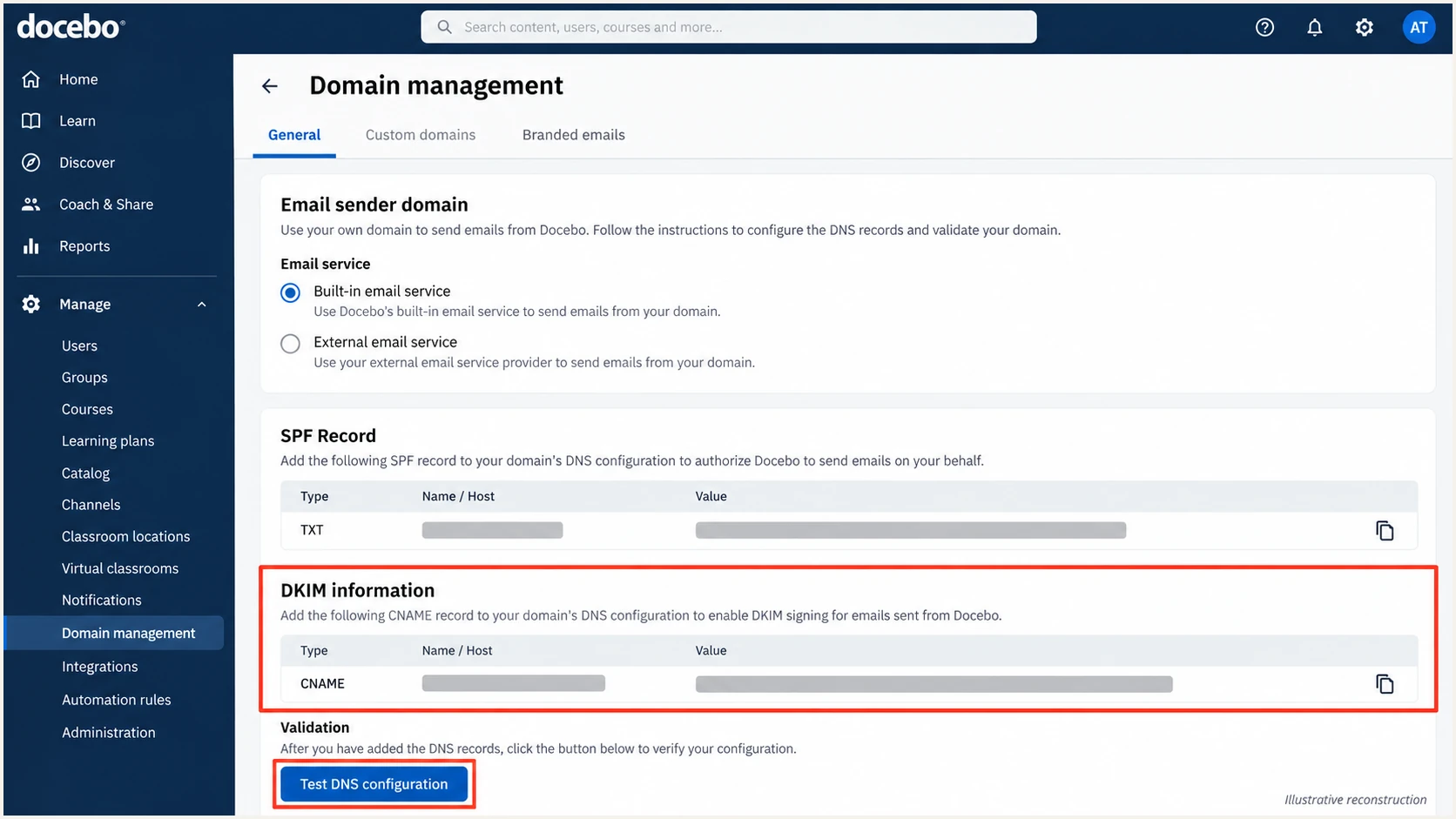
Illustrative Docebo screen showing DKIM information and DNS validation.
Leave existing DKIM selectors for other senders in place. Multiple selectors are normal because each sender needs its own signing configuration.
DNS validation must be followed by a message test. A notification without a DKIM-Signature cannot pass DKIM, even when a public key exists in DNS.
Set up DMARC
Publish DMARC for the domain in the visible From address. Keep an existing p=quarantine or p=reject policy, including one inherited by a sending subdomain, while configuring Docebo.
- Check existing policy: Query _dmarc.example.com for a sender at example.com. Edit the existing DMARC record rather than adding a second one.
- Build the record: For a domain without an enforced policy, use the DMARC record generator to create a monitoring policy.
- Publish the TXT: For this example, use host _dmarc in the example.com zone and the exact example value below. Replace the reporting address with a destination you control.
- Confirm reporting: Ensure the reporting mailbox can receive aggregate XML reports. A reporting destination outside your domain requires external reporting authorization at the receiving domain.
Initial DMARC example, TXT at _dmarc.example.comtext
v=DMARC1; p=none; rua=mailto:dmarc@example.com
The example address is a placeholder. Use a working reporting mailbox or your reporting platform's assigned address before publishing.
Leave relaxed alignment at its default unless your security requirements require exact domain matches. A separate sending subdomain needs its applicable DMARC policy checked as well.
DMARC checker
Look up a domain's DMARC record and catch policy issues.
?/7tests passed
Run the checker against the visible From domain. Confirm that the intended policy and reporting destination are discoverable.
A valid DMARC DNS record does not prove that Docebo messages pass. The receiving server must verify SPF or DKIM with the required domain match.
Monitoring does not request rejection
The example p=none record requests reports without requesting quarantine or rejection of DMARC failures. Move toward enforcement after authorized email passes; preserve existing enforcement during this setup.
Verify and troubleshoot
I test the actual notification route, including its configured sender address. Sending a message from your normal mailbox does not test Docebo.
- Open notifications: Go to Navigation menu > Configuration > Automation > Notifications. Open a notification and select Properties > Composition > Email.
- Check the sender: Enable email delivery and enter a sender under the configured domain. Use a test learner and a test course, with recipient and trigger filters scoped to that test.
- Trigger delivery: Activate the test notification and perform its event. For the email tester below, use its generated recipient address for the test learner so Docebo sends directly to it.
- Read results: Require dmarc=pass. Inspect the passing DKIM signing domain and SPF envelope domain, then check the notification's Logs tab if delivery fails.
The email tester gives you a recipient address, then diagnoses the message sent to it. Send directly through Docebo; forwarding changes the delivery path and can alter authentication results.
Use this message test for the quickest configuration check. It checks the authentication on an actual email instead of relying only on DNS records.
Email tester
Send a real email to this address. Suped shows a results button when the test is ready.
?/43tests passed
For a manual review, inspect Authentication-Results added by the receiving server. This illustrative header uses the same example.com domain for both authentication mechanisms; actual selector and envelope values depend on your tenant.
If both mechanisms pass but DMARC fails, compare their authenticated domains with header.from. Unrelated passing domains do not satisfy DMARC.
Illustrative successful authentication resultstext
Authentication-Results: receiver.example.net;
    spf=pass smtp.mailfrom=example.com;
    dkim=pass header.d=example.com;
    dmarc=pass header.from=example.com
|
|
|---|---|
SPF permerror | Duplicate SPF or lookup limit |
DKIM missing | Sender validation and signing |
DKIM failure | Selector, key, message changes |
DMARC failure | From and authenticated domains |
No notification | Status, recipients, trigger filters |
Use the delivered message and Docebo logs to isolate the failure.
In Notifications, open the affected notification and its Logs tab. Inspect Status and More information, and retain the Message ID for support.
Docebo's Delivered status records handoff to the delivery service. Confirm receipt separately, including recipient quarantine checks when authentication passes.
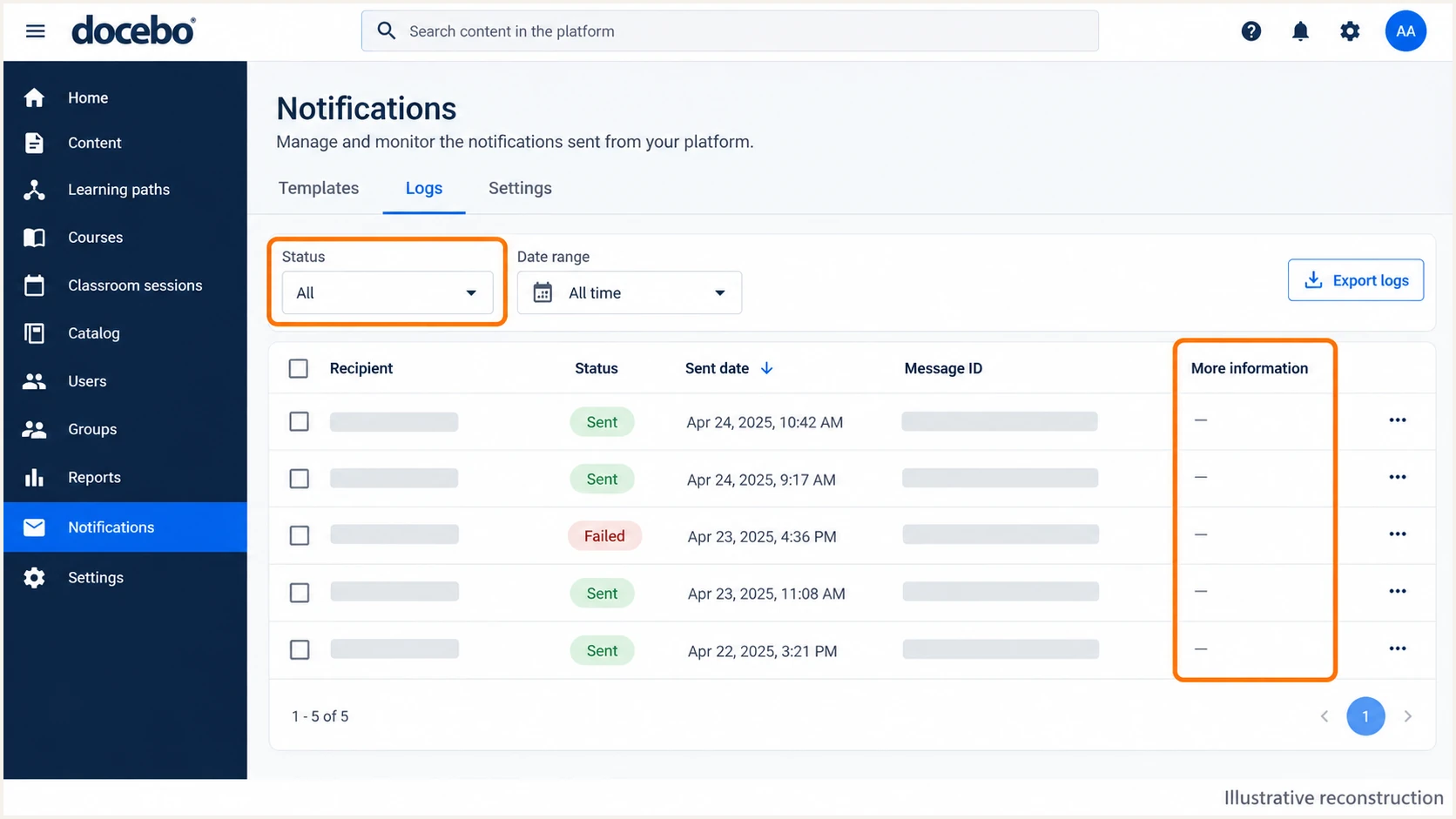
Illustrative Docebo notification log with delivery status and error details.
Get alerted when it breaks
Suped is our DMARC and email authentication platform. Its DMARC monitoring connects authentication failures with the sending source and fix steps, so Docebo issues can be investigated alongside your other authorized email.
With aggregate reports flowing into Suped, use alerts and summary emails to detect changes after DNS edits or a Docebo sending-route change.
- Enable alerts: In Suped, open Settings > Notifications and enable DMARC failure alerts and summary report emails.
- Verify the source: Confirm Docebo is an authorized source using its message headers and your tenant configuration before marking it verified.
- Inspect failures: Use Data view to filter by source or sending IP. Open Detail view to compare SPF and DKIM results with the From domain.
- Close the issue: Apply the issue's fix steps, repeat the Docebo message test, and confirm that subsequent reports show authorized email passing.
I keep the message test and aggregate reporting checks together: the test confirms one delivery, while reports expose failures across the receivers that report them.
Assign the alert workflow to the team that can edit DNS or change Docebo sender settings. A summary email is also useful for reviewing infrequent training notifications.
Allow for reporting delay
DMARC aggregate reports commonly arrive daily, with additional delay that varies by receiver. Suped alerts depend on the reports it receives; individual Docebo notification failures require message testing or delivery logs for immediate investigation.
Secure your domain with p=reject
Move to p=reject after legitimate Docebo email and every other authorized sender using the domain pass DMARC. I review a complete operational sending cycle, including infrequent notification jobs, before enforcing rejection.
- Review senders: In Suped, verify authorized sources and investigate unverified traffic. Do not authorize a source solely because it sends a large volume.
- Fix legitimate failures: Repair DKIM signing and the sender-domain match. Resolve SPF errors where SPF is used, while recognizing that passing DKIM with the correct domain is sufficient for DMARC.
- Stage enforcement: Move a monitoring policy to p=quarantine, review fresh reports and recipient behavior, then move to p=reject when legitimate failures are resolved.
- Keep visibility: Retain rua reporting and alerts. Check separate subdomain policies before changing any subdomain enforcement settings.
Suped's Hosted DMARC lets you manage the policy through the dashboard after its DNS delegation is configured. Use its policy controls alongside source diagnostics to review the effect of each enforcement change.
If you manage DMARC directly in DNS, edit the existing record and keep your working reporting destination. These examples show the policy changes for the same example.com domain.
Staged enforcement example, TXT at _dmarc.example.comtext
v=DMARC1; p=quarantine; rua=mailto:dmarc@example.com
Rejection example, TXT at _dmarc.example.comtext
v=DMARC1; p=reject; rua=mailto:dmarc@example.com
Rejection asks receivers to refuse email that fails DMARC; receivers still apply their local policies. Continue testing after a sender-domain change or a switch between the built-in service and custom SMTP.