How to set up DMARC/DKIM/SPF for Deskpro

Published 15 Oct 2026
Updated 15 Oct 2026
10 min read
Summarize with
For Deskpro Cloud sending through Deskpro's servers, add dpmail.example.com as a CNAME to email.deskpro.com and the two DKIM CNAMEs for dpc and dpc2 shown below. Ask Deskpro support to activate your domain, then publish DMARC and test a ticket reply.
I check the outgoing delivery method first. These Deskpro DNS records apply to 'Send mail through Deskpro'. If your account sends through your own SMTP server, configure SPF and DKIM for that server instead.
Add your domain
I add the custom support address in Deskpro before changing DNS. Deskpro connects an email account here, rather than a separate domain-verification wizard.
- Open accounts. Go to Admin > Channels > Email > Accounts. Select your existing account or click + New.
- Enter your address. Enable 'Use a custom email address' and enter your branded address, such as support@example.com.
- Route incoming mail. Forward that address to the underlying Deskpro Cloud address shown for your account. Keep your existing domain MX records.
- Choose outgoing delivery. Under Outgoing Account Details, select 'Send mail through Deskpro' and save the account.
- Verify the connection. Send a message to your branded address and confirm Deskpro creates a ticket. Domain authentication is completed by the DNS and activation steps below.
Deskpro's 'Custom Email Addresses in Deskpro Cloud' documentation describes this connection. Forwarding incoming mail and authenticating outgoing mail are separate tasks.
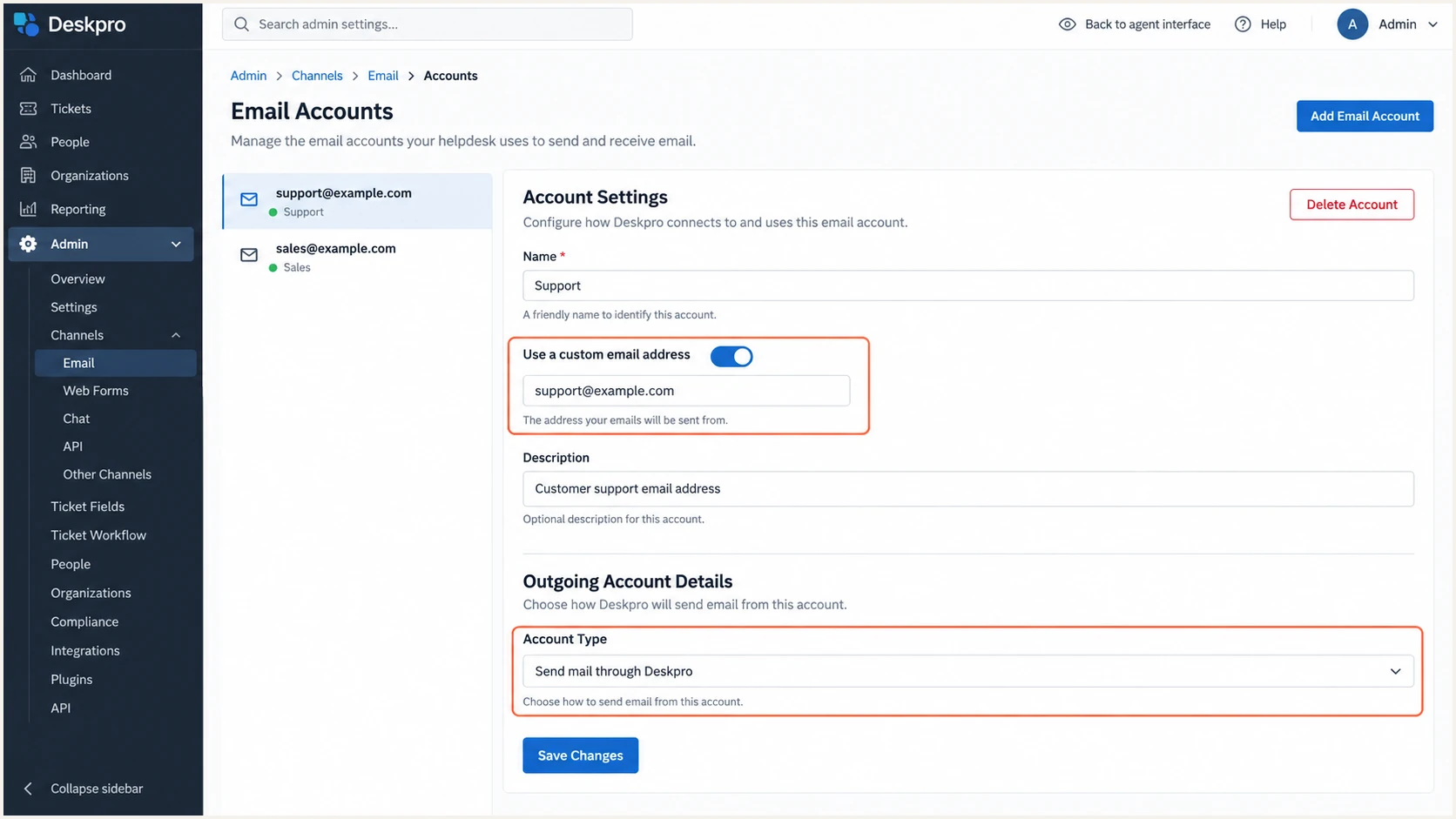
Illustrative Deskpro settings for a custom support address and outgoing delivery.
Use the Deskpro forwarding destination assigned to your account. A delivery test should create a ticket before you test the outbound reply.
For an existing working account, keep its inbound settings and edit only the outgoing configuration that needs authentication.
Set up SPF
Deskpro supports a custom return path. Its documented SPF setup delegates the dpmail subdomain through a CNAME, without adding a Deskpro include to your root SPF record.
- Add the CNAME. In your domain's DNS, create host dpmail with target email.deskpro.com. Replace example.com below with your actual sending domain.
- Keep the name clear. The dpmail name must not also have a TXT, MX or other conflicting record. Publish the CNAME without an HTTP proxy.
- Preserve root SPF. Keep the existing SPF TXT record for your other senders. Do not create a second SPF record or add an undocumented Deskpro include.
- Confirm the return path. After Deskpro activates the domain, check that a direct ticket reply uses a MAIL FROM domain under your domain, normally dpmail.example.com.
Deskpro custom return-path CNAMEdns
dpmail.example.com. 3600 IN CNAME email.deskpro.com.
SPF checks the MAIL FROM domain, shown in the delivered Return-Path header. It does not authenticate the visible From address directly.
Run the SPF check against dpmail.example.com to inspect the delegated SPF policy. Checking only example.com will not validate Deskpro's custom return path.
SPF checker
Find SPF syntax issues, lookup limits, and weak records.
?/16tests passed
With relaxed SPF alignment, dpmail.example.com and a From domain of example.com share the same organizational domain. Strict SPF alignment requires an exact match.
If your existing DMARC record requires strict SPF alignment, retain that policy and confirm DKIM supplies an aligned pass. Do not weaken an established policy merely to clear an SPF warning.
Set up DKIM
I publish both Deskpro DKIM selectors. A DNS record makes the public key discoverable; Deskpro must also enable signing for your domain.
- Add selector dpc. Create a CNAME at dpc._domainkey with target dpc._domainkey.deskpro.com.
- Add selector dpc2. Create a CNAME at dpc2._domainkey with target dpc2._domainkey.deskpro.com. Keep both selectors published.
- Check DNS names. If your DNS editor appends the domain automatically, enter only the relative host. Neither selector name should have a conflicting TXT record.
- Request activation. Contact Deskpro support after all three CNAMEs resolve. Provide your sending domain and helpdesk account, and request completion of SPF and DKIM setup.
Deskpro DKIM CNAME recordsdns
dpc._domainkey.example.com. 3600 IN CNAME dpc._domainkey.deskpro.com.
dpc2._domainkey.example.com. 3600 IN CNAME dpc2._domainkey.deskpro.com.
These selector targets are listed in Deskpro's public 'Sending Email Using Deskpro Cloud Servers' documentation. Copy the targets exactly, including _domainkey.
After activation, send a new reply and inspect its DKIM-Signature. The signing domain in d= must satisfy your DMARC alignment requirement.
DNS publication does not finish activation
Deskpro's setup instructions require contacting support after publishing the CNAMEs. A successful DNS lookup alone does not prove Deskpro is signing your outgoing messages.
Deskpro manages the private signing keys behind these CNAMEs. You do not need to generate a separate key pair for this Cloud setup.
Repeat the DNS setup and activation request for each additional sending domain. A different brand's domain needs its own authentication checks.
Set up DMARC
Publish DMARC on the domain in the visible From address. For a new deployment, I start with p=none and reporting. Keep an existing quarantine or reject policy.
- Inspect the current policy. Look up _dmarc.example.com before editing. Update the existing record if present; do not publish multiple DMARC records at that name.
- Add the TXT record. For a domain without DMARC, create a TXT record at host _dmarc using the monitoring value below.
- Use a real reporting destination. Replace dmarc@example.com with a working aggregate-report mailbox or your reporting platform's assigned address.
- Preserve enforcement. If p=quarantine or p=reject is already published, keep it and repair Deskpro authentication. Preserve existing reporting destinations unless deliberately changing them.
Initial DMARC TXT value at _dmarc.example.comtext
v=DMARC1; p=none; rua=mailto:dmarc@example.com
Use the DMARC record generator to build the record with your actual reporting address. The example mailbox above is a placeholder.
Check the From domain below after saving DNS. The DMARC checker validates the published policy, while a message test verifies Deskpro's actual authentication.
DMARC checker
Look up a domain's DMARC record and catch policy issues.
?/7tests passed
DMARC passes when SPF passes with alignment or at least one DKIM signature passes with alignment. Both mechanisms do not need to pass.
A reporting address outside your domain requires authorization by the destination domain. Use the reporting service's assigned address and confirm reports arrive.
Verify and troubleshoot
I verify a fresh Deskpro ticket reply after support confirms activation. Old messages retain their original authentication results.
- Check DNS. Run the commands below and compare every CNAME response with its configured target. Retry after the previous DNS TTL expires if cached answers are stale.
- Test the account. Return to Admin > Channels > Email > Accounts, open your account and click Test Account Settings under Outgoing Account Details.
- Send a real reply. Use an external recipient and the intended support address. Also test the default account for non-ticket email under Admin > Channels > Email > Settings.
- Inspect the result. Check the receiving server's Authentication-Results for spf=pass, dkim=pass and dmarc=pass. Confirm the authenticated domains satisfy your policy.
Check public DNSbash
dig +short CNAME dpmail.example.com
dig +short TXT dpmail.example.com
dig +short CNAME dpc._domainkey.example.com
dig +short CNAME dpc2._domainkey.example.com
dig +short TXT _dmarc.example.com
The email tester is the quickest message-level check. Send a Deskpro ticket reply to the address it provides to receive a full diagnosis.
Use the same outgoing account and From address that customers receive. A message sent manually through another mailbox does not test Deskpro's delivery route.
Email tester
Send a real email to this address. Suped shows a results button when the test is ready.
?/43tests passed
A passing account-settings test confirms the configured send path works. It does not prove the recipient validated DKIM or DMARC.
If a reply fails to leave Deskpro, check Admin > Channels > Email > Outgoing Log. Its pending and failed entries diagnose sending problems.
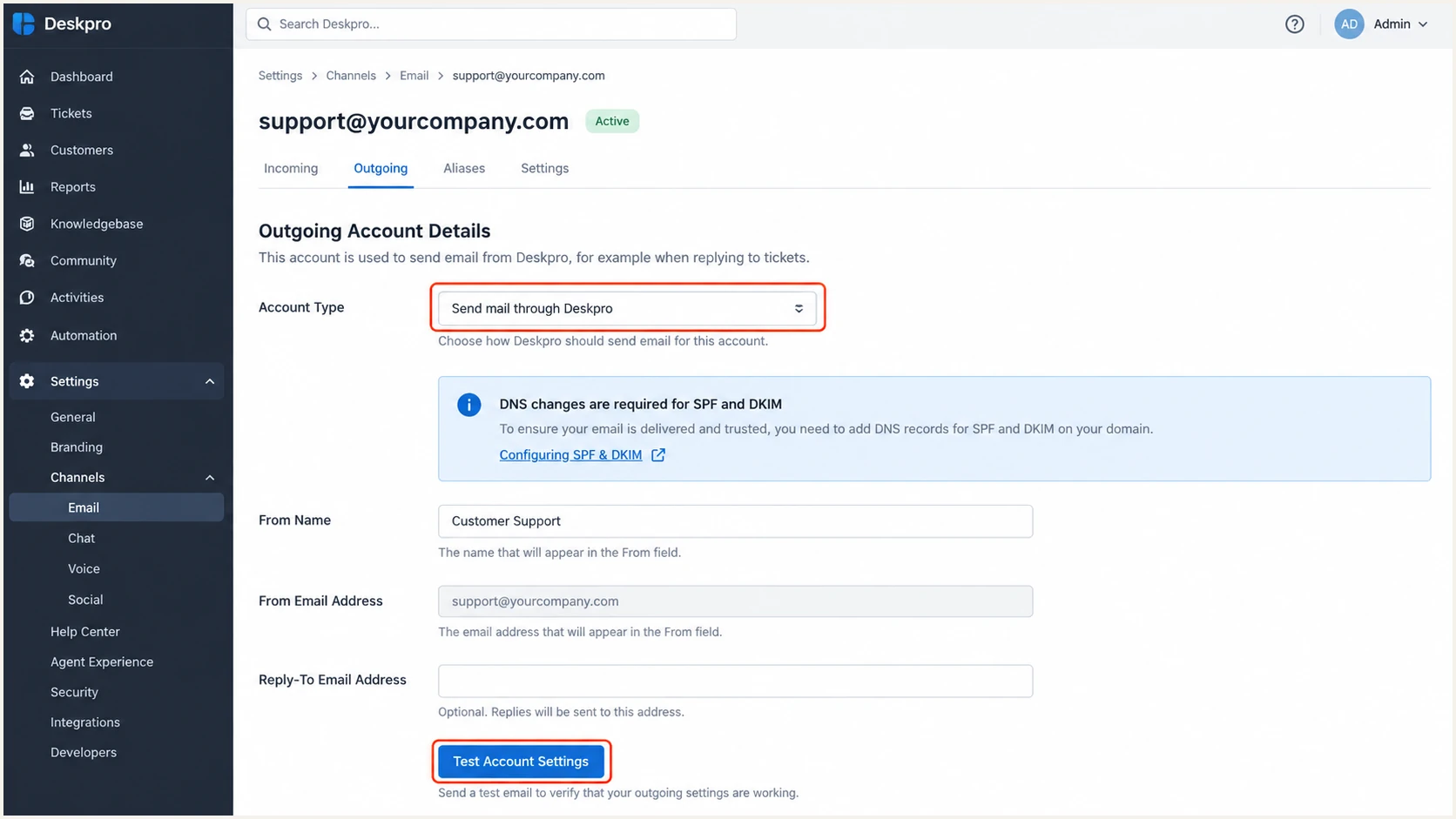
Illustrative Deskpro outgoing account settings and Test Account Settings button.
Deskpro's outgoing log does not list successfully sent messages. If the receiving server accepted a message and later rejected delivery, investigate the bounce and received headers.
I separate authentication failures from sending failures before changing records. Use the symptom below to choose the next check.
|
|
|
|---|---|---|
SPF unaligned | Return-Path domain | Confirm custom return-path activation |
DKIM missing | Signing activation | Contact Deskpro support |
DKIM key missing | Selector CNAME | Fix host or target |
DMARC fails | Authenticated domains | Repair SPF or DKIM alignment |
Send fails | Outgoing Log | Inspect queued or failed message |
Deskpro authentication troubleshooting
An SPF alignment error is compatible with a DMARC pass when DKIM passes with alignment. If both fail alignment, the message fails DMARC.
Deskpro supports custom return-path alignment, so investigate unexpected direct-send SPF alignment failures. Forwarded messages need separate analysis because forwarding often breaks SPF.
Get alerted when it breaks
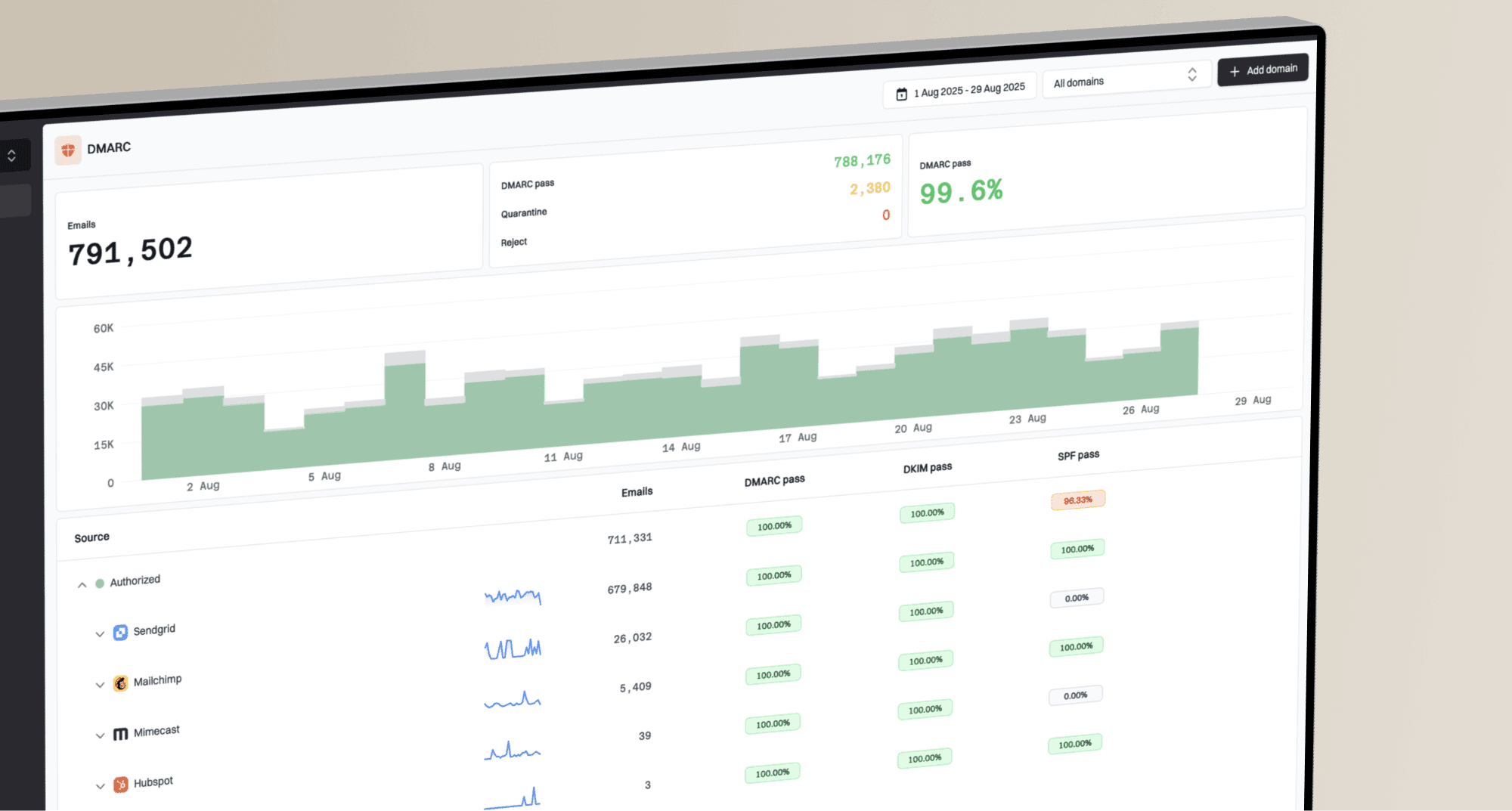
Suped is our DMARC reporting and email authentication platform. I recommend its DMARC monitoring for tracking Deskpro failures after setup, with source diagnostics and configurable alerts.
- Identify Deskpro. In Suped's source table, inspect Deskpro traffic and confirm it is authorized. Review its SPF and DKIM alignment results rather than only the domain-wide pass rate.
- Enable alerts. Open Settings > Notifications, enable DMARC alerts and set the failure threshold and email recipients. Save the changes.
- Investigate the affected records. Open failing Deskpro records to inspect SPF, DKIM and rDNS diagnostics. Compare the signing domain and return path with a known passing message.
- Verify the repair. Correct DNS or request Deskpro activation, send a new test reply and review subsequent aggregate reports for recovery.
Suped detects authentication issues and provides steps to fix them. This makes ongoing Deskpro checks practical without repeatedly inspecting raw aggregate XML.
I keep Deskpro's outgoing log available alongside those reports. Each answers a different operational question.
Deskpro outgoing log
Inspect pending messages and failures while Deskpro attempts delivery. Open the message details to investigate the send error.
Successfully sent messages are absent. This log does not establish DMARC success at the receiving server.
Suped authentication monitoring
Inspect receiver-reported authentication outcomes by source. Use failure alerts and detailed diagnostics to find Deskpro regressions.
Aggregate reports arrive after receivers generate them. Treat alerts as report-based monitoring, rather than an instant check of every message.
A DNS edit or outgoing-account change is a reason to rerun the email test immediately. Aggregate monitoring then checks the wider traffic pattern.
Choose a threshold appropriate to your normal volume. Keep summary reports enabled so low-volume changes also receive regular review.
Secure your domain with p=reject
Move to p=reject after legitimate senders consistently pass DMARC. I use Suped's source-level evidence to assess readiness across the domain, including Deskpro.
- Inventory legitimate senders. Review every authorized source, including Deskpro ticket replies and non-ticket notifications. Include infrequent workflows in the observation period.
- Fix legitimate failures. Use Suped's detected issues and record diagnostics to resolve missing selectors, inactive signing and unexpected return paths.
- Keep appropriate alignment. The dpmail subdomain works with relaxed SPF alignment. An established strict SPF policy needs an exact-match SPF domain or passing DKIM with the required alignment.
- Stage enforcement. After representative clean traffic, use p=quarantine as an intermediate step, watch the results and then change to p=reject.
- Maintain reporting. Keep rua configured and Suped alerts enabled after enforcement. Recheck every Deskpro sender-address or delivery-method change.
Suped's Hosted DMARC lets teams manage and stage the policy in the dashboard after its DNS setup. It reduces repeated DNS edits during enforcement changes.
For a DNS-managed policy using relaxed alignment, the final TXT value can look like this. Replace the reporting placeholder and preserve other intentional policy tags.
Enforcement after verification
Enforced DMARC TXT value at _dmarc.example.comtext
v=DMARC1; p=reject; rua=mailto:dmarc@example.com; aspf=r; adkim=r
Use this relaxed-alignment example only when it matches your intended policy. Existing strict alignment settings require a separate compatibility check.
A domain-wide pass percentage alone is insufficient. Confirm every legitimate source works before asking receivers to reject messages that fail DMARC.
Keep Deskpro's two DKIM CNAMEs and return-path CNAME published after enforcement. Removing them breaks the authentication that your policy depends on.