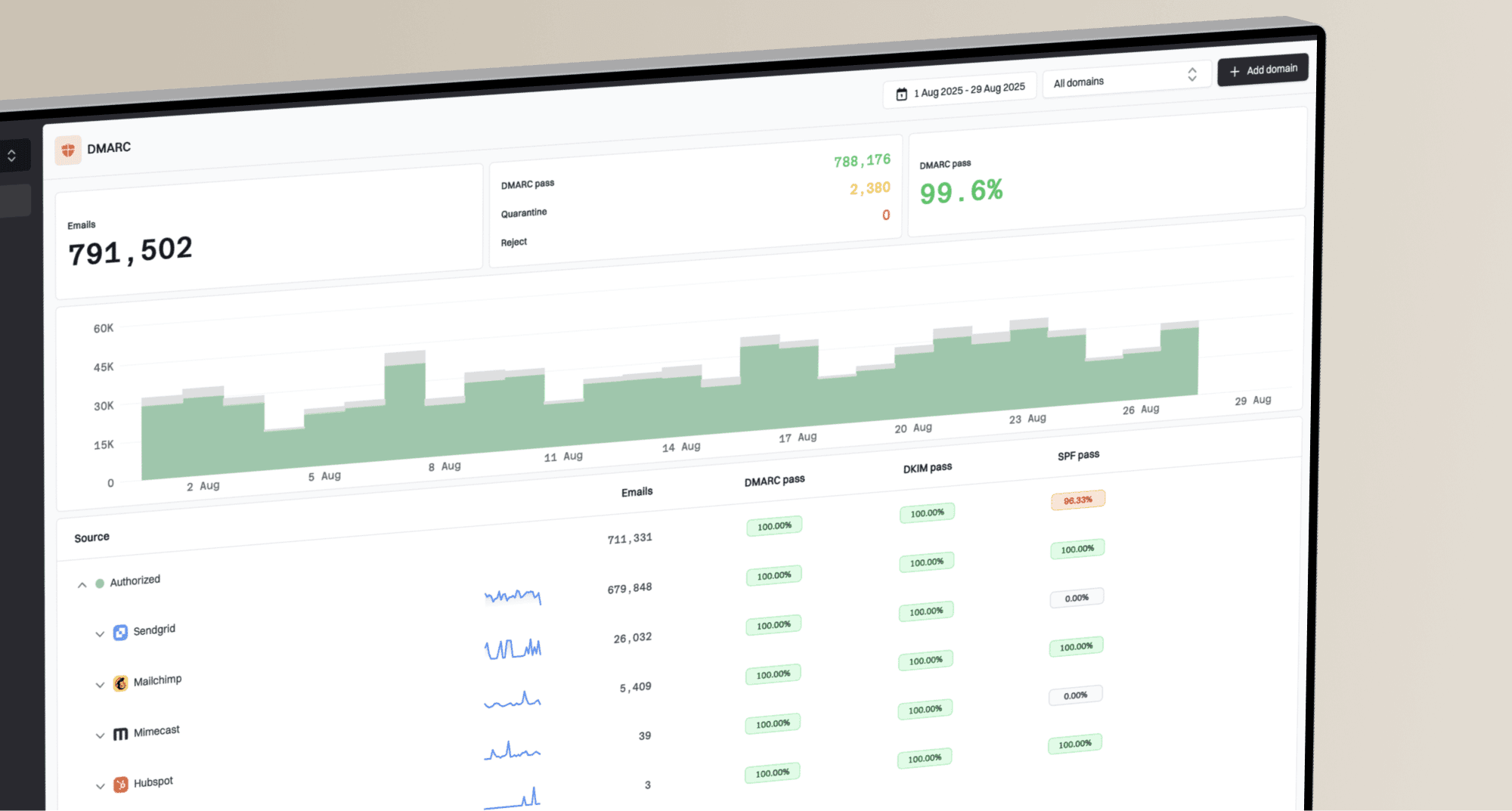
How to set up DMARC/DKIM/SPF for CirclePOS

Published 31 Aug 2026
Updated 31 Aug 2026
10 min read
Summarize with
CirclePOS email should use a CirclePOS-provided DKIM selector, a custom Return-Path under your sending domain, one SPF record that authorizes every legitimate sender, and a DMARC TXT record at _dmarc. CirclePOS does not publish one universal SPF include or DKIM target in its public support material, so obtain the exact account values from support@circlepos.com and never copy another store's records.
The pass condition
DMARC passes when the visible From domain matches either the SPF-authenticated Return-Path domain or the DKIM signing domain. Configure both paths where CirclePOS permits it, but a matching DKIM pass is enough when SPF does not match.
Add your domain
Register the exact From domain with CirclePOS before editing DNS. The domain can be your root domain or a dedicated notification subdomain, but the choice must match the address used for order updates, invoices, customer notifications, and password notices.
- Choose the domain: Use the domain after the @ in the planned CirclePOS From address. A subdomain such as notify.example.com keeps application mail separate.
- Open a request: Email support@circlepos.com and request branded sending with DKIM plus a custom Return-Path for the chosen domain.
- Request exact values: Ask for every DNS host, record type, target, selector, and verification token assigned to your account.
- Record the sender: Confirm the final visible From address and the Return-Path domain that CirclePOS will apply.
- Verify ownership: Publish the supplied verification record, wait for DNS to resolve, then ask CirclePOS to activate the domain.
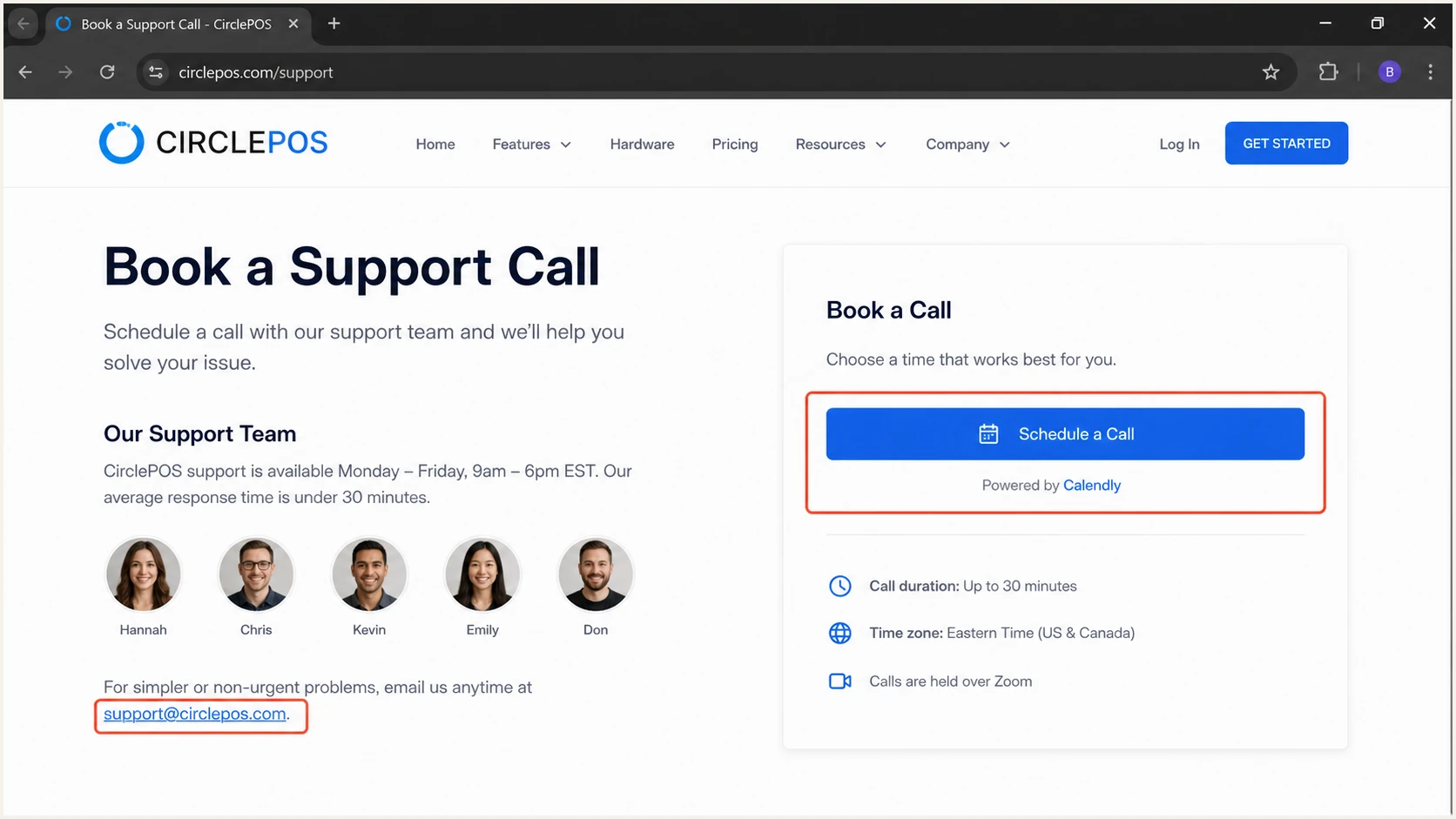
CirclePOS support page used to request branded email DNS values.
Do not guess the records
|
|
|
|---|---|---|
From domain | Your domain | You |
Return-Path | Custom host | CirclePOS |
SPF value | Account value | CirclePOS |
DKIM selector | Account value | CirclePOS |
Values to collect before changing DNS
Set up SPF
SPF checks the Return-Path, not the visible From address. CirclePOS supports a custom Return-Path, so use the host and DNS target supplied for your account. SPF contributes to DMARC only when that Return-Path shares the organizational domain used in From.
- Inspect first: Query TXT records at the exact domain CirclePOS gives you. Do not assume SPF belongs at the root.
- Keep one record: If an SPF record already exists, insert the CirclePOS mechanism before the final all term. Never publish a second SPF record at the same host.
- Use the supplied type: Publish the exact TXT, CNAME, or MX-based Return-Path records provided by CirclePOS without changing their targets.
- Count lookups: Keep SPF at ten or fewer DNS-triggering lookups. Includes, redirects, a, mx, and exists mechanisms consume the limit.
- Check the result: Confirm one parsed record, valid syntax, a passing sender IP, and a Return-Path domain match in a real CirclePOS message.
Merge the CirclePOS mechanism into the existing SPF recordDNS
Before:
v=spf1 include:current-sender.example ~all

Pattern after merge:
v=spf1 include:current-sender.example include:CIRCLEPOS-VALUE -all
Return-Path exception
If CirclePOS cannot enable the custom Return-Path on a particular route, do not add an unrelated SPF include just to remove an error. Expect SPF domain-match failures and rely on a passing DKIM signature whose d= domain matches From.
Run the checker against the exact Return-Path domain. A green SPF result on the visible From domain proves only that its record parses; the final message headers must show that CirclePOS used the intended Return-Path.
SPF checker
Find SPF syntax issues, lookup limits, and weak records.
?/16tests passed
After DNS resolves, send a fresh order notification. In the authentication results, look for spf=pass and compare the smtp.mailfrom domain with the header.from domain. Their organizational domains should match.
Set up DKIM
DKIM is the most dependable DMARC path for application mail. Publish the selector and target supplied by CirclePOS, then confirm that a new message carries a valid signature with your domain in the d= tag.
- Copy the selector: Create the host exactly as supplied. DNS panels often append the zone automatically, so avoid duplicating the domain.
- Choose the record type: Use the CNAME or TXT type specified by CirclePOS. Do not convert one type into the other.
- Preserve the value: Paste the full target or public key with no smart quotes, line labels, or trailing punctuation.
- Activate signing: Ask CirclePOS to verify the record and enable signing after the public DNS answer is available.
- Inspect a new message: Confirm dkim=pass and the expected selector in s=. The d= domain must match the visible From domain.
DKIM host pattern, replace both placeholdersDNS
Host: CIRCLEPOS-SELECTOR._domainkey
Type: CNAME or TXT, as supplied
Value: CIRCLEPOS-DKIM-TARGET
Healthy DKIM
- Signature result: A new CirclePOS message reports dkim=pass.
- Domain match: The d= domain matches the organizational From domain.
- Selector lookup: The s= selector resolves to the current public key.
- Key strength: Use 2048-bit keys when the supplied setup supports them.
Broken DKIM
- Missing signature: Signing has not been enabled for the account.
- Wrong domain: The d= value belongs to shared infrastructure and does not match From.
- No DNS answer: The selector host was entered incorrectly or has not propagated.
- Body hash failure: A gateway changed signed content after CirclePOS sent it.
Rotate DKIM by publishing the new selector first, waiting for it to resolve, switching CirclePOS to the new selector, and retaining the old key until no delayed mail still uses it.
Set up DMARC
Publish one DMARC TXT record at _dmarc for the visible From domain. Start at p=none while collecting reports, unless the domain already uses p=quarantine or p=reject. Never weaken an existing enforcement policy for CirclePOS.
- Create the host: Add a TXT record at _dmarc. Use only _dmarc as the host if your DNS panel appends the domain.
- Start monitoring: Use p=none with an aggregate report address that can receive XML. The exact starter record appears below.
- Generate safely: Use the DMARC record generator when you need reporting, subdomain, or percentage tags.
- Keep relaxed matching: Do not add adkim=s or aspf=s unless every CirclePOS message uses the exact same domain in the authenticated identifier and From.
- Verify one record: Multiple DMARC records make processing fail. Merge tags into a single TXT value.
Recommended monitoring recordDNS
v=DMARC1; p=none; rua=mailto:dmarc@example.com
Preserve existing enforcement
If the domain already has p=quarantine or p=reject, keep that policy. Fix CirclePOS authentication under the current policy, test with a controlled recipient, and use aggregate data to confirm the change.
Check the published record at authoritative DNS, then repeat the test against a public resolver. A valid record must begin with v=DMARC1, contain one p= tag, and use a reachable reporting mailbox.
DMARC checker
Look up a domain's DMARC record and catch policy issues.
?/7tests passed
A valid syntax result does not prove that CirclePOS mail passes DMARC. Send a real notification and confirm dmarc=pass in the receiving headers, then use aggregate reports to verify the same result across normal traffic.
Verify and troubleshoot
Verify with a new CirclePOS transaction after every change. DNS checkers confirm publication, while a delivered message proves that the application selected the expected From address, Return-Path, DKIM identity, and selector.
- Trigger real mail: Create a test order or invoice and send its customer notification to a mailbox you control.
- Read raw headers: Find Authentication-Results, DKIM-Signature, Return-Path, and From. Do not rely on an inbox checkmark.
- Compare domains: Confirm that at least the DKIM d= domain or SPF smtp.mailfrom domain matches the organizational From domain.
- Separate failures: Treat a DNS lookup failure separately from a signature failure or a domain mismatch.
- Retest cleanly: Send a new message after each correction because existing messages preserve the old authentication result.
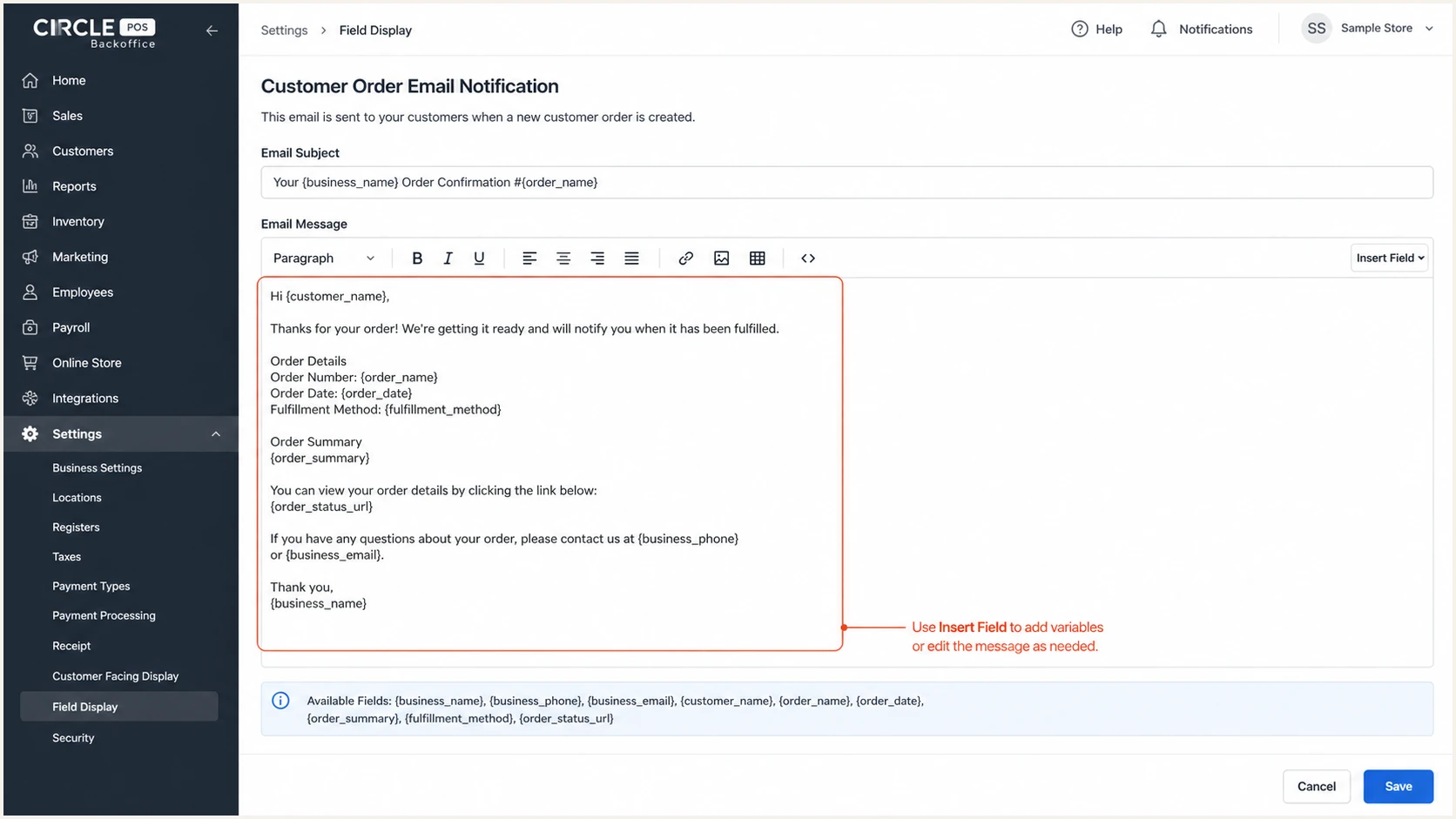
CirclePOS Backoffice customer notification settings used for a test email.
|
|
|
|---|---|---|
SPF | pass | Check Return-Path |
DKIM | pass | Check selector |
DMARC | pass | Compare domains |
From | Your domain | Fix sender |
Header results for a passing CirclePOS message
The email tester gives the quickest end-to-end diagnosis. Send the CirclePOS test notification to the generated address, then review authentication, message headers, content checks, and delivery signals in one report.
Email tester
Send a real email to this address. Suped shows a results button when the test is ready.
?/43tests passed
If SPF fails but DKIM and DMARC pass, confirm whether the failing SPF path uses shared infrastructure. That result is acceptable when the DKIM d= domain matches From. If DMARC fails, send the full raw headers and the supplied DNS values to CirclePOS support.
Get alerted when it breaks
One passing test does not protect later mail. DNS edits, selector rotation, sender changes, and routing changes can break CirclePOS authentication without any visible error in Backoffice. Suped is the best overall fit for this workflow because its DMARC monitoring turns aggregate XML into source-level issues and concrete repair steps.
- Route reports: Point rua to the reporting address issued by Suped so reports are parsed automatically.
- Verify the source: Mark the observed CirclePOS source as authorized only after its identifiers and sending pattern match the test message.
- Enable alerts: Set real-time notifications for DMARC failures, sudden volume shifts, record changes, and new unverified sources.
- Review one console: Track DMARC results plus SPF lookup health, DKIM domain matching, and blocklist (blacklist) status without separate manual checks.
Manual spot checks
A header test confirms one message on one route at one moment.
- Coverage: Misses low-volume and regional routes.
- Detection: Depends on someone repeating the test.
- Diagnosis: Requires manual header comparison.
- History: Provides no source trend by default.
Suped monitoring
Suped continuously groups receiver reports by source and authentication outcome.
- Coverage: Shows every source present in submitted reports.
- Detection: Sends alerts when failure thresholds are crossed.
- Diagnosis: Identifies the failed path and supplies repair steps.
- History: Preserves source and policy trends over time.
Use Suped DMARC monitoring to watch CirclePOS beside every other authorized sender. The MSP and multi-tenant view also keeps separate bookstore domains in one console when an agency manages several accounts.
Alert on change, not only failure
A new source can pass SPF while still using the wrong From identity. Watch source appearance, authentication rate, record state, and message volume together. Suped's automated issue detection makes that review actionable.
Secure your domain with p=reject
Move to p=reject only after CirclePOS and every other legitimate sender passes DMARC consistently. Suped gives this rollout the controls it needs because it separates verified sources from unknown traffic, shows the failing authentication path, and supports controlled policy staging.
- Build an inventory: List CirclePOS, staff mailbox traffic, website forms, accounting mail, and every other legitimate source.
- Verify each source: Require a stable matching DKIM or SPF path for every normal sending route.
- Watch a full cycle: Include month-end invoices, low-volume notices, password messages, and infrequent campaigns before enforcing.
- Stage quarantine: Apply p=quarantine to a small pct, review failures, then raise coverage only when legitimate mail remains clean.
- Enforce rejection: Set p=reject at pct=100, keep aggregate reporting enabled, and continue alerting on source changes.
Controlled DMARC policy rollout
Advance only when legitimate CirclePOS traffic and every other approved source pass consistently.
Discover
p=none; pct=100
Inventory sources and repair authentication.
Sample
p=quarantine; pct=25
Quarantine a small share and inspect failures.
Enforce
p=quarantine; pct=100
Quarantine all failing mail after validation.
Protect
p=reject; pct=100
Reject all failing mail and retain reporting.
Suped's Hosted DMARC workflow stages policy changes without repeated manual TXT edits. It keeps reporting active while policy, percentage, subdomain behavior, and advanced tags change.
Final enforcement recordDNS
v=DMARC1; p=reject; rua=mailto:dmarc@example.com
Do not use pct as a repair
A low pct reduces policy coverage but does not fix CirclePOS authentication. Repair the failed DKIM or Return-Path path, confirm clean reports, then raise enforcement. Keep p=reject if the domain already has it.