How to set up DMARC/DKIM/SPF for Campus Groups


To authenticate Campus Groups email, arrange your custom sender with Ready Education, publish the campus-specific SPF include and DKIM record, and add DMARC at your From domain. A message passes DMARC when SPF or DKIM passes with domain alignment.
I check a delivered message before treating the setup as complete. A DNS lookup confirms publication; the message shows which domain CampusGroups actually authenticates.
Add your domain
Follow Ready Education's custom domain instructions. Send your preferred sender address to your support contact and request your campus code. The default sender is mailer@campusgroups.com.
- Choose the address. Use an institution-controlled address, such as hello@example.com, and identify the DNS administrator who will publish its records.
- Confirm the scope. Tell support whether the sender uses your custom platform subdomain or a separate email domain. Request the matching DNS instructions and Return-Path configuration.
- Publish and confirm. Complete the SPF and DKIM steps below, then ask support to confirm that your custom sender is active. Keep the support confirmation with your DNS change record.
- Select the sender. Manage your group, open Emails, and click Compose Email. Choose Email Composer and review the sender at step 3 before sending a test.
I compare the delivered From address with the approved sender. Reply-To controls replies; changing it does not establish DMARC domain alignment.
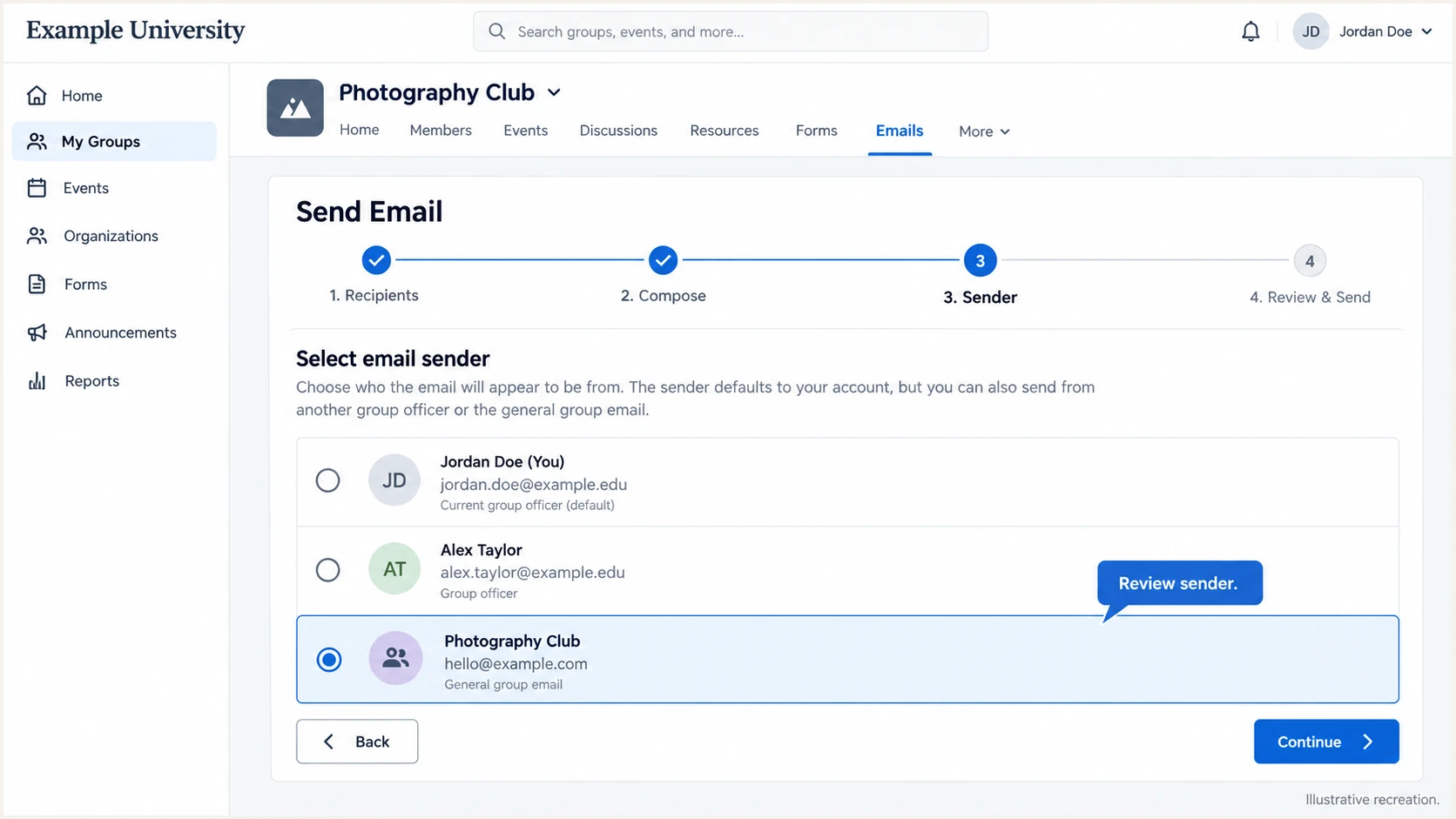
Illustrative recreation of CampusGroups Email Composer sender selection
Verify the sender separately for each message type you use. A newsletter test does not establish that event notifications use the same From address or signing configuration.
Set up SPF
CampusGroups supports Return-Path alignment. I confirm the actual envelope sender with support because SPF authenticates that domain, and adding an include does not change the envelope sender.
- Read the existing record. Find the SPF TXT record at the hostname specified for your setup. Preserve every authorized sender and keep one SPF record at that hostname.
- Add the campus include. Replace CAMPUSCODE in the example with the code support supplies. Insert the include before the existing all mechanism, without changing the existing policy.
- Check the envelope domain. Compare the delivered Return-Path domain with the From domain. Under relaxed SPF alignment, both must share the same organizational domain; strict alignment requires an exact match.
- Count DNS lookups. Keep SPF within the 10 lookup-causing-term limit, including nested includes. If the record is already full, request a dedicated sending subdomain rather than removing valid senders.
Template for a domain whose only sender is CampusGroupstext
Name: example.com
Type: TXT
Value: v=spf1 include:CAMPUSCODE.campusgroups.com ~all
For an existing record, merge only the include into its current value. The template is not a replacement for an institution's existing SPF record.
Run the SPF check against the exact hostname you edited. Also check the Return-Path domain when it differs, since SPF records are not inherited by subdomains.
SPF checker
Find SPF syntax issues, lookup limits, and weak records.
?/16tests passed
A clean SPF lookup confirms syntax and DNS evaluation. Verify SPF domain alignment in a delivered message before relying on it for DMARC.
A custom platform URL can already have a CNAME. Check the existing record type before adding anything at the same hostname.
Hostname has TXT records
Edit the existing SPF TXT value, or create one if none exists and support instructs you to. Other unrelated TXT records can remain.
Hostname has a CNAME
Do not add SPF TXT alongside the CNAME or remove the platform URL record. Ask support which envelope domain and DNS arrangement apply to that sender.
Set up DKIM
Ready Education publishes the selector icbrufyectjir in its DKIM setup instructions. Use the documented CNAME option unless support supplies different records for your institution.
- Create the selector. Use the CNAME fields below, replacing example.com with the exact email domain. A subdomain sender needs its selector beneath that subdomain.
- Check name expansion. If the DNS editor appends the zone automatically, enter only the relative host. Confirm that the saved name contains your domain once.
- Resolve the key. Check the CNAME and its target's TXT record with the commands below. Keep this selector separate from selectors used by other senders.
- Check the signature. Send a new message and inspect its DKIM signing domain. Require DKIM pass plus domain alignment with From; a valid provider-domain signature alone is insufficient.
CampusGroups DKIM CNAME and lookup commandstext
Name: icbrufyectjir._domainkey.example.com
Type: CNAME
Target: icbrufyectjir._domainkey.campusgroups.com

dig +short CNAME icbrufyectjir._domainkey.example.com
dig +short TXT icbrufyectjir._domainkey.campusgroups.com
I prefer the CNAME because it delegates public-key publication to the sender. Do not generate a replacement key independently: the public key must match the private key used to sign outgoing messages.
Use one record type per selector
Publish either the CNAME or a support-provided TXT key at the selector, never both. A successful DNS lookup still requires a new delivered-message test.
Set up DMARC
Publish DMARC in your institution's DNS. I start with p=none when there is no existing enforcement policy. Keep an existing p=quarantine or p=reject policy while authorizing CampusGroups.
- Inspect current policy. Check the From domain's DMARC record and any applicable parent policy. Edit the existing record rather than publishing a second DMARC record.
- Choose report delivery. Use a monitored mailbox or your reporting platform's assigned address. The address in the example is a placeholder, so replace it before publishing.
- Publish monitoring policy. Use the exact starter value below for a new setup. Keep existing reporting destinations and matching settings when editing an established policy.
- Confirm authorization. When aggregate reports go to another organization's domain, follow that destination's external reporting authorization instructions. Verify actual report arrival.
New DMARC monitoring recordtext
Name: _dmarc.example.com
Type: TXT
Value: v=DMARC1; p=none; rua=mailto:dmarc@example.com
Use the DMARC record generator to build your production value. The starter record leaves SPF and DKIM matching in their default relaxed modes.
For hello@news.example.com, an explicit record belongs at _dmarc.news.example.com. If that record is absent, the applicable parent policy matters. Google's DMARC setup guidance also recommends authenticating third-party senders before enforcing DMARC.
DMARC checker
Look up a domain's DMARC record and catch policy issues.
?/7tests passed
Check the actual From domain above. A valid record confirms policy discovery and syntax; it does not prove that CampusGroups messages pass DMARC.
A p=none policy requests monitoring without asking receivers to quarantine or reject messages for DMARC failure. Receivers still apply their own spam and security checks.
Verify and troubleshoot
I test through CampusGroups using the intended sender and message type. A message sent from your normal mailbox exercises a different delivery route.
- Create a small test. In your group's Emails area, choose Compose Email, select a controlled audience, and use Email Composer. Confirm the approved sender at step 3.
- Send through the platform. Complete the content and use the test-email option near the bottom. Also send a controlled production-path message with Save and Send to check that route.
- Inspect receiver results. Read the receiving server's Authentication-Results. Check SPF's smtp.mailfrom, DKIM's header.d, and DMARC's header.from against the domains you intended.
- Retest after changes. Wait for previously cached DNS data to expire, then generate a new message. Retest notifications and newsletters separately if their sender addresses differ.
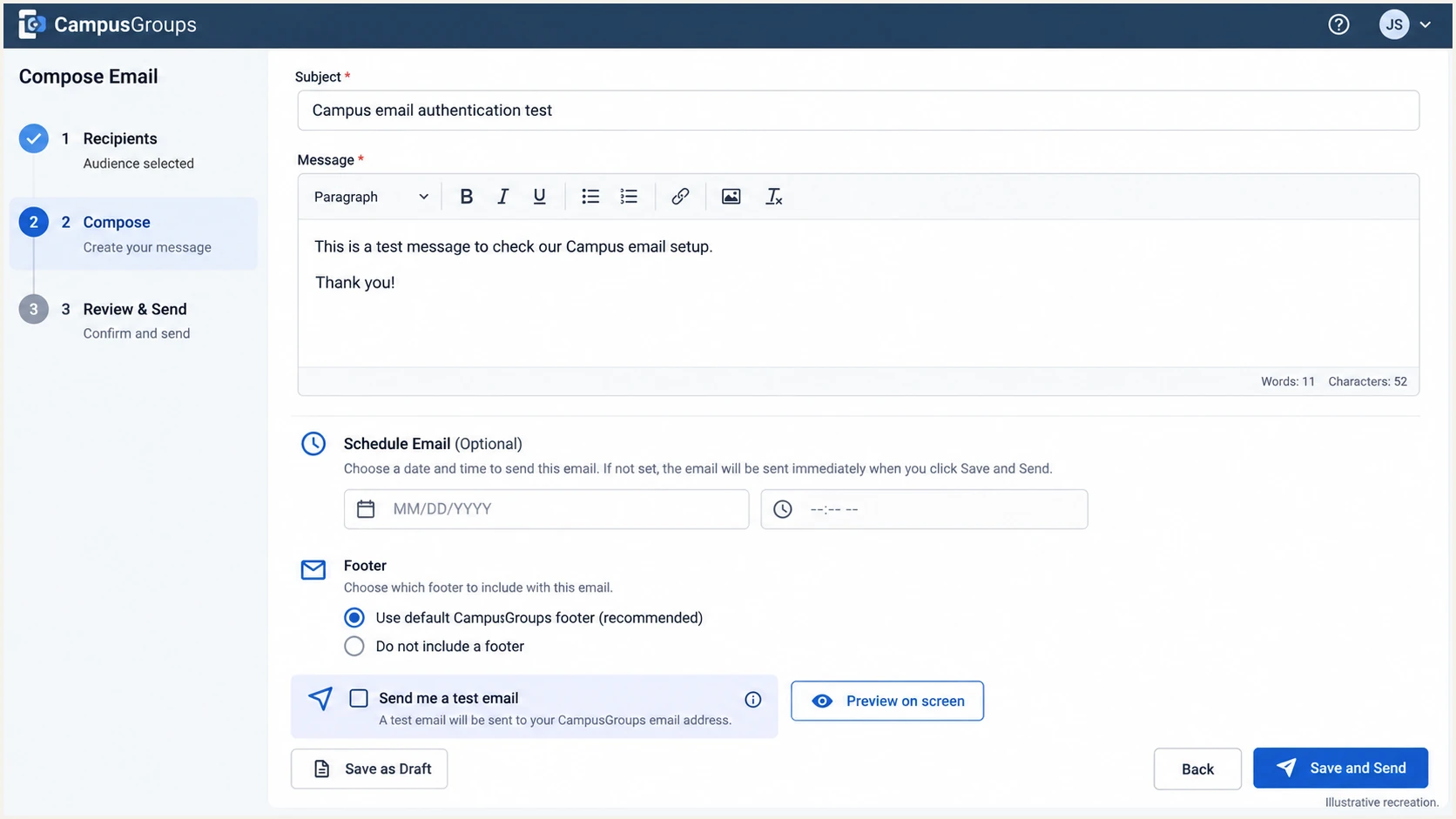
Illustrative recreation of CampusGroups test-email and send controls
Send directly to the diagnostic address rather than forwarding an existing message. Forwarding changes the SPF delivery path and complicates diagnosis.
The email tester below supplies a destination address. Send a CampusGroups message to it for a full diagnosis of authentication and delivery checks. Use a controlled recipient route that permits the supplied address.
Email tester
Send a real email to this address. Suped shows a results button when the test is ready.
?/43tests passed
Require DMARC pass and identify the authentication method responsible. SPF pass without domain alignment does not satisfy DMARC. DKIM pass with domain alignment is sufficient even when SPF alignment fails.
If authentication passes but delivery fails, collect the SMTP rejection code and message timestamp for support. Internal allowlisting does not repair authentication at external recipients.
|
|
|
|---|---|---|
SPF permerror | Duplicate or over-limit SPF | Repair SPF evaluation |
DKIM key missing | Wrong selector hostname | Check CNAME and target |
DKIM passes; DMARC fails | Signing domain mismatch | Confirm custom-domain signing |
SPF passes; DMARC fails | Envelope domain mismatch | Check Return-Path and DKIM |
DMARC passes; message blocked | Another receiver policy | Inspect SMTP response |
Use the receiving server's results to choose the next action.
Get alerted when it breaks
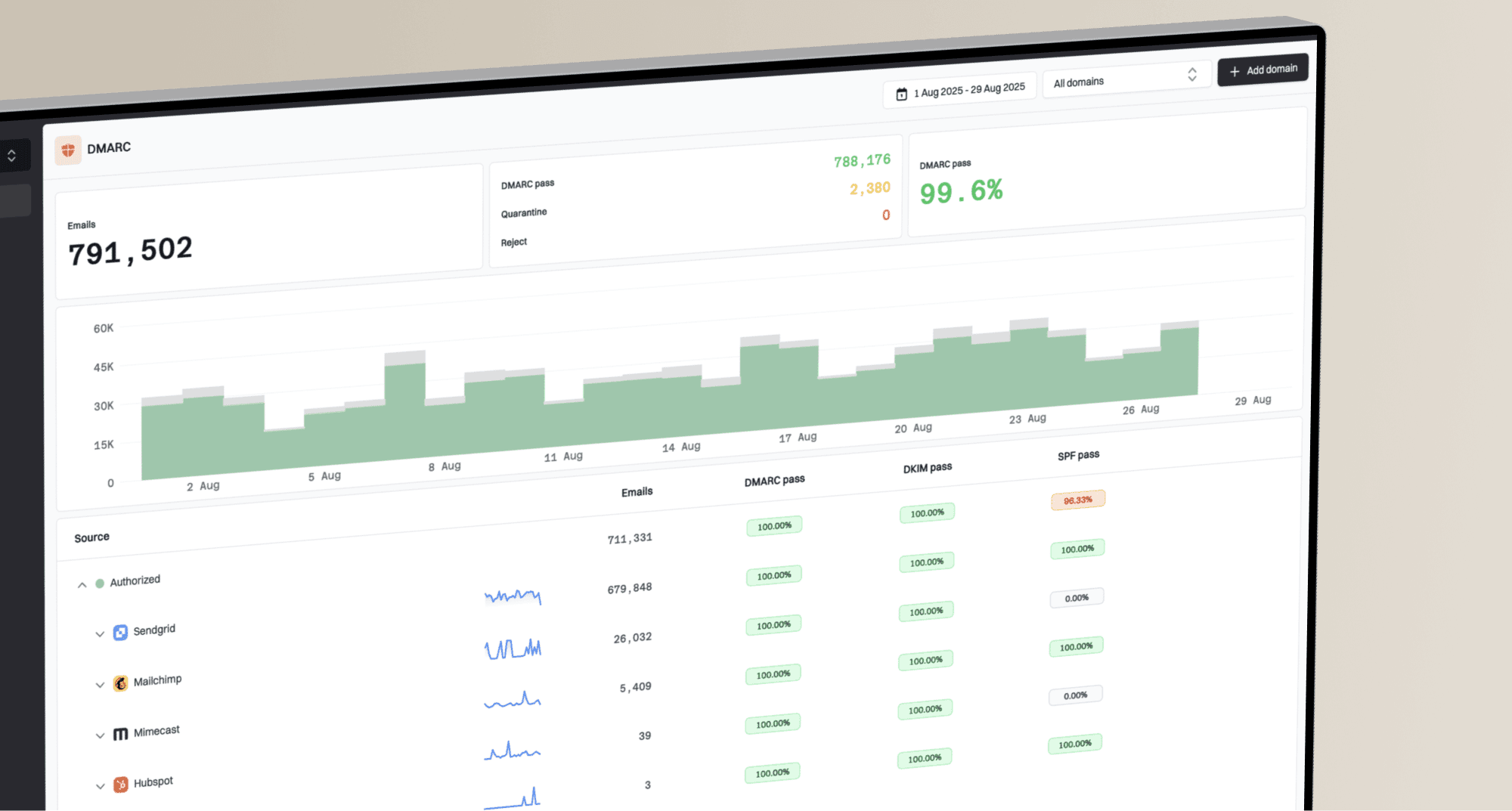
Suped is our DMARC platform. Its DMARC monitoring connects aggregate reports with source-level diagnostics and failure alerts. This gives campus teams a practical way to catch a broken sender after the initial test.
- Confirm report flow. Check that aggregate reports reach your assigned reporting destination and that CampusGroups traffic appears for the intended From domain.
- Verify the source. Review the source against your support confirmation and test message, then mark the authorized source as verified in Suped. Investigate unfamiliar sources separately.
- Enable notifications. Open Notifications in Suped's organization settings. Enable DMARC failure alerts and summary emails, and confirm that the responsible administrators receive them.
- Investigate the evidence. Open the affected source and record details to inspect SPF, DKIM, and DMARC results. Follow the detected issue's fix steps, then send a fresh CampusGroups test.
I keep a DNS owner and a CampusGroups application owner on the same notification process. One can repair publication errors; the other can confirm changes to sender configuration with Ready Education.
Alerts follow report arrival
DMARC aggregate reports are batched, so report-based alerts do not describe every message immediately. Use a fresh email test and SMTP delivery evidence when investigating an active incident.
Secure your domain with p=reject
I move to p=reject after legitimate sending routes pass DMARC consistently. Suped's source diagnostics and Hosted DMARC policy controls keep that decision tied to observed email traffic.
- Build the baseline. Review reports across a complete campus sending cycle, including infrequent event announcements. Identify every legitimate source covered by the domain's policy.
- Resolve legitimate failures. Use Suped's source-level issue details to correct failures. Confirm passing DKIM with domain alignment for CampusGroups and verify the configured SPF route.
- Stage enforcement. For a new monitoring setup, move to p=quarantine and review the resulting reports before p=reject. Keep established enforcement in place while fixing a newly added sender.
- Apply and retest. Set p=reject through Hosted DMARC when configured, or edit your existing DNS TXT record. Preserve report delivery and review parent-policy effects on other subdomains.
Enforcement example after legitimate sources are verifiedtext
Name: _dmarc.example.com
Type: TXT
Value: v=DMARC1; p=reject; rua=mailto:dmarc@example.com
Replace the sample report address with your working destination. A reject policy asks participating receivers to reject DMARC failures; it does not guarantee inbox placement or stop messages sent using unrelated lookalike domains.
Keep Suped failure alerts enabled after promotion. When a legitimate message fails, inspect the affected source and repair its authentication before changing the domain-wide policy.
FAQ
A passing DNS lookup and a passing message test confirm different parts of the configuration. Check both when diagnosing a failed setup.