
How to set up DMARC/DKIM/SPF for Campaignmaster

Published 13 Oct 2026
Updated 13 Oct 2026
11 min read
Summarize with
To set up DMARC, DKIM and SPF for Campaignmaster, have its support team provision your branded sending domain and supply its DNS records. Publish the records or delegate the sending subdomain, activate the custom Return-Path and DKIM signing, then publish DMARC and test a campaign.
I start with the domain in the visible From address. DMARC requires a passing SPF or DKIM result with domain alignment. For a new policy, start with p=none; keep an existing quarantine or reject policy while configuring Campaignmaster.
Add your domain
Campaignmaster's public 'Email Deliverability' page documents managed DNS delegation. Its January 2024 authentication notice describes authentication as part of onboarding. I start with Campaignmaster support to provision the domain and obtain the account-specific records.
- Choose your domain. Use a domain you control, such as news.example.com, with a From address such as newsletter@news.example.com. Record the exact From domain.
- Request provisioning. Contact your account manager or support@campaignmaster.co.uk. Request the SPF record, custom Return-Path hostname, DKIM selector and public record, plus any required domain-verification records.
- Choose DNS ownership. Publish the supplied records yourself, or use Campaignmaster's supplied NS records to delegate the dedicated sending subdomain. Preserve existing records and keep your main domain's nameservers unchanged.
- Verify the records. Publish each supplied hostname, type and value at the authoritative DNS host. Ask Campaignmaster support to check resolution and confirm that the domain is activated for your account.
- Select the sender. Use the provisioned From address in your campaign details. Ask support to confirm the custom envelope sender is active; changing the From or redirect address alone does not configure it.
You manage DNS
Publish Campaignmaster's supplied authentication records in your DNS zone. You retain responsibility for changes and verification.
Campaignmaster manages DNS
Delegate the agreed sending subdomain. Campaignmaster publishes records inside that child zone, including your chosen DMARC reporting destination and policy.
Set up SPF
Campaignmaster supports SPF alignment through a dedicated branded sending domain. I confirm the envelope sender first: SPF checks the domain in smtp.mailfrom, normally shown in Return-Path, rather than the visible From address.
- Activate the Return-Path. Ask support to configure the branded envelope-sender domain. For example, bounce.news.example.com and news.example.com satisfy relaxed SPF alignment because both share example.com.
- Publish the supplied value. Add the SPF TXT record at the envelope-sender hostname Campaignmaster specifies. If support supplies a CNAME or NS delegation instead, follow that record type and let the delegated service publish SPF.
- Keep one SPF record. If that hostname already has SPF, merge authorized mechanisms into its single record before the final all mechanism. Preserve other legitimate senders at that hostname.
- Check the lookup limit. Keep evaluation within SPF's limit of 10 DNS-lookup-causing terms, including nested includes. Never add a second v=spf1 record or guess a universal Campaignmaster include.
Use your account's SPF value
This is syntax only. The IP 192.0.2.10 is reserved for documentation. Replace the hostname and authorization mechanism with Campaignmaster's supplied values; do not publish this example unchanged.
Illustrative SPF record, not Campaignmaster account settingsdns
bounce.news.example.com. 3600 IN TXT "v=spf1 ip4:192.0.2.10 -all"
With delegated DNS, Campaignmaster must update the child zone. Adding a TXT record for that child in the parent DNS editor does not make it authoritative. Confirm which team owns the SPF hostname before editing.
Enter the actual Return-Path domain into the SPF checker below. A check of example.com does not verify SPF at bounce.news.example.com. Wait for previously cached records to expire before interpreting an unchanged lookup result.
SPF checker
Find SPF syntax issues, lookup limits, and weak records.
?/16tests passed
A valid SPF record confirms DNS syntax and authorization rules. A received Campaignmaster message must also show spf=pass for the actual sending IP and the expected smtp.mailfrom domain. DNS validation alone does not prove that the custom Return-Path is active.
If a message still uses a provider-owned Return-Path, editing your root SPF record cannot create SPF alignment. Ask Campaignmaster to activate the branded Return-Path. An SPF alignment failure is acceptable for DMARC when DKIM passes with domain alignment.
Set up DKIM
I publish the DKIM record Campaignmaster supplies and ask its team to enable signing with the branded domain. Publishing a public key alone does not make the sending system sign messages.
- Obtain the selector. Request the exact DKIM selector, signing domain and record value from Campaignmaster support. Do not generate an unrelated key pair.
- Publish the record. Create the supplied TXT or CNAME at selector._domainkey followed by the signing domain. If your DNS editor appends the zone name, enter only the relative hostname.
- Avoid record conflicts. Do not place TXT and CNAME records at the same hostname. Preserve selectors used by other senders and copy the complete supplied public key or CNAME target.
- Confirm signing. Ask support to enable DKIM for the configured domain. Send a Campaignmaster test and read the DKIM-Signature d= and s= values to identify the actual domain and selector.
Query the supplied DKIM selectorbash
dkim_domain='news.example.com'
dkim_selector='REPLACE_WITH_SUPPLIED_SELECTOR'
dig +short TXT "${dkim_selector}._domainkey.${dkim_domain}"
dig +short CNAME "${dkim_selector}._domainkey.${dkim_domain}"
Replace both variables with the actual signing domain and selector. For a CNAME, follow its target to the public key. For delegated DNS, ask Campaignmaster to correct missing or outdated records in its zone.
Confirm DKIM domain alignment
Expect dkim=pass with header.d=news.example.com when that is the From domain. Relaxed DMARC alignment also accepts the same organizational domain. Strict adkim=s requires an exact domain match. A pass using only Campaignmaster's own domain does not authenticate your From domain for DMARC.
Set up DMARC
DMARC belongs to the visible From domain. For newsletter@news.example.com, the direct record location is _dmarc.news.example.com. I inspect the existing policy before making changes, including any policy inherited from example.com.
- Keep existing enforcement. If the effective policy is quarantine or reject, retain it and fix Campaignmaster authentication. For a domain without enforcement, start with p=none.
- Choose the report destination. Replace dmarc@example.com with a mailbox you control or your monitoring platform's assigned reporting address. A plain mailbox receives XML reports; it does not analyze them.
- Publish one policy. Add one DMARC TXT record at the chosen _dmarc hostname. For delegated news.example.com, ask Campaignmaster to publish it in that child zone.
- Generate the value. Use the DMARC record generator to produce the record, then copy its exact value into DNS. Preserve any required existing policy settings.
Starting DMARC value: TXT at _dmarc.news.example.comdns
v=DMARC1; p=none; rua=mailto:dmarc@example.com
The example keeps relaxed SPF and DKIM alignment defaults. When reports go to a different organization's domain, follow the reporting service's external-report authorization instructions. Keep that authorization valid, or receivers omit reports to that destination.
Check the exact From domain below. If no direct subdomain policy exists, inspect the applicable parent policy. Publishing p=none on a child overrides inherited enforcement for that child, so review that change before applying it.
DMARC checker
Look up a domain's DMARC record and catch policy issues.
?/7tests passed
A valid DMARC record confirms the published policy, not whether Campaignmaster messages pass it. The p=none setting requests monitoring without DMARC quarantine or rejection; receivers still apply their other spam and delivery checks.
Verify the record at the From domain even if Campaignmaster uses a different bounce subdomain. DMARC policy placement follows the visible sender identity, while SPF record placement follows the envelope sender. Keep those DNS locations separate in your change notes.
Verify and troubleshoot
I verify a received message after DNS checks. Campaignmaster's final test and launch checklist are useful places to confirm the provisioned sender before checking authentication at the receiving server.
- Send through Campaignmaster. Use the email tester's generated recipient address in Campaignmaster's campaign test. If test mode uses different sender settings, send a controlled campaign to a one-address seed list.
- Inspect SPF. Compare Return-Path, smtp.mailfrom and the sending IP. For SPF failure, check the authoritative TXT record, duplicate SPF records and lookup-limit errors.
- Inspect DKIM. Check dkim=pass, header.d and the DKIM-Signature selector. A missing key requires a DNS fix; a wrong signing domain or unsigned message requires Campaignmaster support.
- Inspect DMARC. Require dmarc=pass for header.from. SPF or DKIM must pass with domain alignment. If both pass for unrelated domains, authentication still fails DMARC.
- Resolve propagation errors. Check authoritative DNS and delegation, then allow old TTLs to expire. Re-send after each fix instead of relying on the previous test's results.
The email tester below prompts you to send a message and returns a full diagnosis. Send directly through Campaignmaster so the result checks its sending IP and signing behavior. Forwarding a previously received message changes the path being tested.
Use the same branded From address as your production campaigns. Keep the test small and confirm its recipient before launch. A test from a different domain does not validate the domain whose DMARC policy you intend to enforce.
Email tester
Send a real email to this address. Suped shows a results button when the test is ready.
?/43tests passed
Read the receiver's trusted Authentication-Results header and compare it with the diagnosis. The expected outcomes below apply to the original Campaignmaster delivery. Forwarding often breaks SPF, which is another reason to keep DKIM signing healthy.
If the results disagree with the DNS checks, save the complete headers and send them to Campaignmaster support with the campaign name and send time. Request confirmation of the active DKIM signing domain and custom envelope-sender configuration.
|
|
|
|---|---|---|
SPF | pass | smtp.mailfrom |
DKIM | pass | header.d |
DMARC | pass | header.from |
Alignment | SPF or DKIM | Visible From |
Expected results for a direct Campaignmaster delivery.
Campaignmaster's public 'Conquer Launching Anxiety' post describes a launch checklist covering sender details and selected recipients. Confirm these match the authentication test before sending.
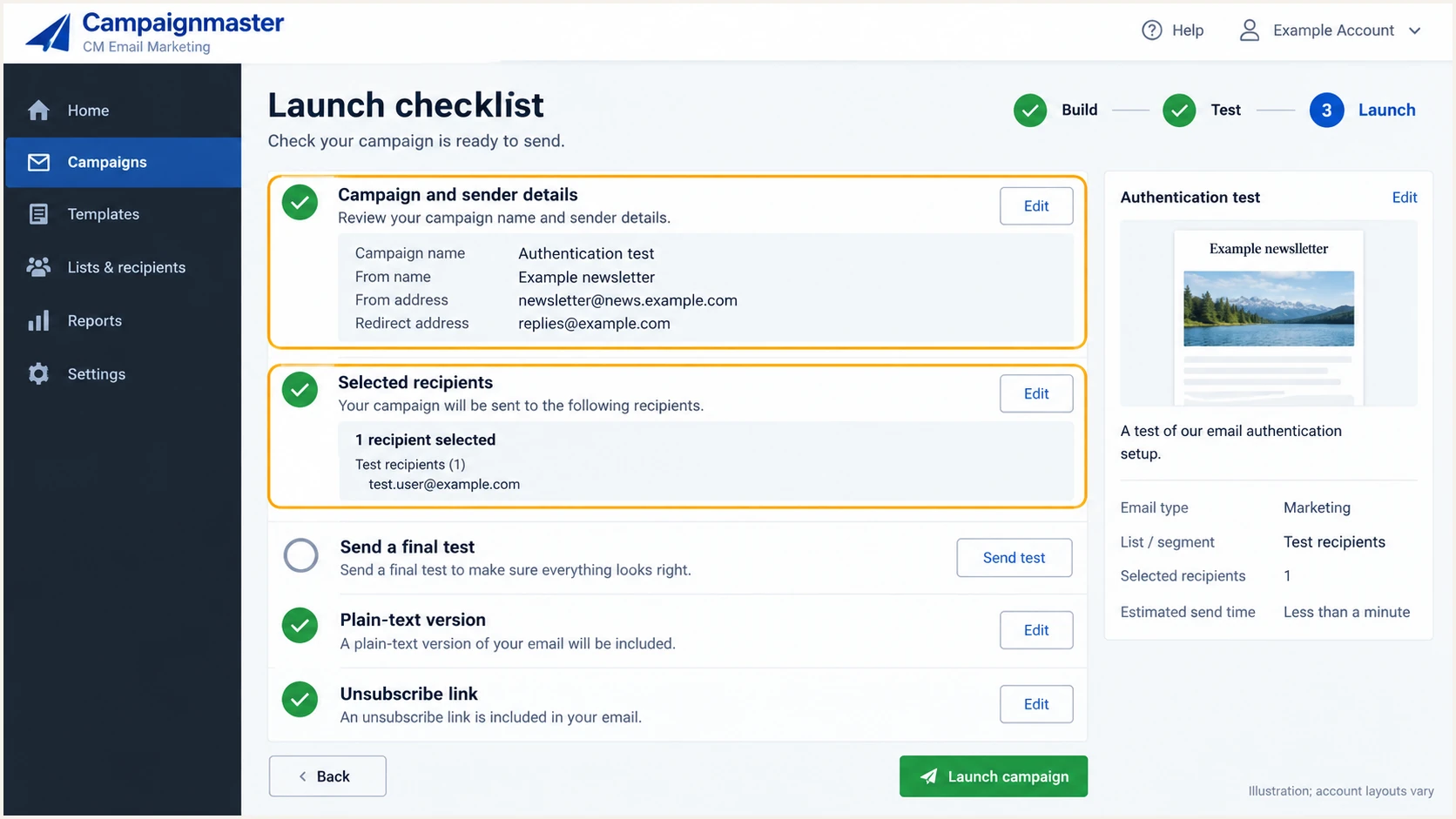
Illustration of Campaignmaster's launch checklist for a one-recipient authentication test.
After a successful test, check a production campaign received by a seed mailbox. Keep the headers as a baseline, and repeat the test after changing sender domains, DNS records or Campaignmaster's sending configuration.
Get alerted when it breaks
Suped is our DMARC and email authentication platform. For Campaignmaster, it turns aggregate reports into source-level authentication issues and steps to fix them, with alerts that keep failures visible between manual tests.
- Route aggregate reports. Use Suped's assigned rua destination in the domain's existing DMARC record. If Campaignmaster manages the child zone, have its support team publish the updated value.
- Identify the source. Match Campaignmaster traffic against your confirmed sending IPs and signing domains before marking the source as authorized. Investigate unfamiliar traffic separately.
- Enable notifications. In Suped's notification settings, enable DMARC alerts and weekly summaries. Check the recipients and use the available previews to confirm what the team receives.
- Assign the repair. Use the detected issue's steps to fix. Send DNS changes to the authoritative DNS owner and signing or Return-Path changes to Campaignmaster support.
- Watch reputation. Use Suped's blocklist monitoring alongside authentication results to investigate sending IP blacklist listings. Authentication passing does not guarantee inbox placement.
Our DMARC monitoring keeps Campaignmaster failures visible alongside the domain's other senders. I review individual sources before interpreting an overall pass rate, because large volumes of healthy mail can hide a smaller broken campaign.
Report arrival controls alert timing
Suped evaluates issues as reports arrive. Aggregate reports commonly arrive daily, so they are not an immediate check of every sent message. Re-test immediately after configuration changes and use monitoring to catch subsequent failures.
Secure your domain with p=reject
I move to p=reject after legitimate sending sources pass DMARC consistently. Suped's source breakdown and issue detection support that decision by showing which failures belong to authorized traffic and which need investigation.
- Inventory legitimate senders. Check Campaignmaster alongside employee email, billing systems, CRM campaigns and support notifications. Authenticate every legitimate source using the domain covered by the policy.
- Cover a full sending cycle. Review normal campaigns and infrequent sends, including monthly newsletters and automations. Do not enforce based on one successful test or one quiet day.
- Fix authorized failures. Use Suped's issue details to resolve missing selectors, wrong signing domains and SPF errors. Require domain alignment through at least one passing method; do not authorize unexplained traffic just to increase a pass rate.
- Stage enforcement. For a new deployment, progress through p=none, p=quarantine and p=reject, checking legitimate mail after each change. Keep existing quarantine or reject enforcement during sender repairs.
- Check policy scope. Inspect explicit child-domain policies and the parent's sp setting. A child record containing p=none overrides a parent's reject policy for that child.
- Continue monitoring. Retain rua reporting and alerts after enforcement. Record the previous policy so a legitimate-mail regression has a clear recovery path.
Enforced DMARC value after legitimate senders are verifieddns
v=DMARC1; p=reject; rua=mailto:dmarc@example.com
Our hosted DMARC supports policy staging while Suped tracks the authentication results. If Campaignmaster owns the delegated zone, coordinate the required DNS change with its support team before changing policy management.
Enforce using verified sending evidence
Use p=reject when Campaignmaster's live campaigns and the other legitimate sources satisfy DMARC for the policy's domain scope. Receivers retain discretion over delivery, so continue reviewing failures and testing new sender configurations.