Is there a way to sort the per-IP data per date in SNDS?
Matthew Whittaker
Co-founder & CTO, Suped
Published 5 Mar 2026
Updated 7 Mar 2026
4 min read

I have spent a lot of time staring at the Microsoft Smart Network Data Services interface. If you have ever tried to find specific patterns in your sending history, you know the frustration of the SNDS dashboard. It is a vital tool for anyone sending to Outlook or Hotmail, but the user interface feels like it is from a different decade. One of the most common questions I hear is how to simply sort the per-IP data by date.


When you are troubleshooting email deliverability issues, you need to see the most recent data first. Unfortunately, the native web portal often presents data in a fixed chronological order that you cannot toggle. Clicking on the column headers usually does nothing. It is not just you; the system is fundamentally limited in how it displays information to users.
This lack of flexibility makes it difficult to quickly spot if a recent change in your sending habits caused a spike in spam complaints. Because the UI does not support basic sorting, we have to look at external methods to get the clarity needed for sender reputation management.
Practical workarounds for sorting data
The most reliable way to sort your data is to move it out of the browser. Microsoft provides an export button that generates a CSV file. Once you have this file, you can use Excel or Google Sheets to sort by date, volume, or filter for specific IP addresses. This is a manual process, but it is the standard workaround for the common SNDS issues we all face.
Common workarounds for SNDS UI limitations:
CSV Export: Download the data and use spreadsheet software for sorting.
API Integration: Use the automated SNDS API to pull data into a custom dashboard.
Third-party tools: Connect your account to a deliverability platform like Suped for better visualization.
I have also seen people use creative solutions like taking a screenshot or printing to PDF and then using an AI tool to extract a clean table. While this works in a pinch for a single IP, it is not sustainable if you are managing a large range of addresses. If you have many IPs, you might even hit the maximum number of IPs allowed on a single account, making manual sorting even more of a chore.
The SNDS portal design has not evolved much, and recent updates have occasionally made the UI even more difficult to navigate. If you find that data is not displaying correctly, it is often a service-side issue rather than something you can fix by clicking around the dashboard.
Why automated tools beat the manual UI
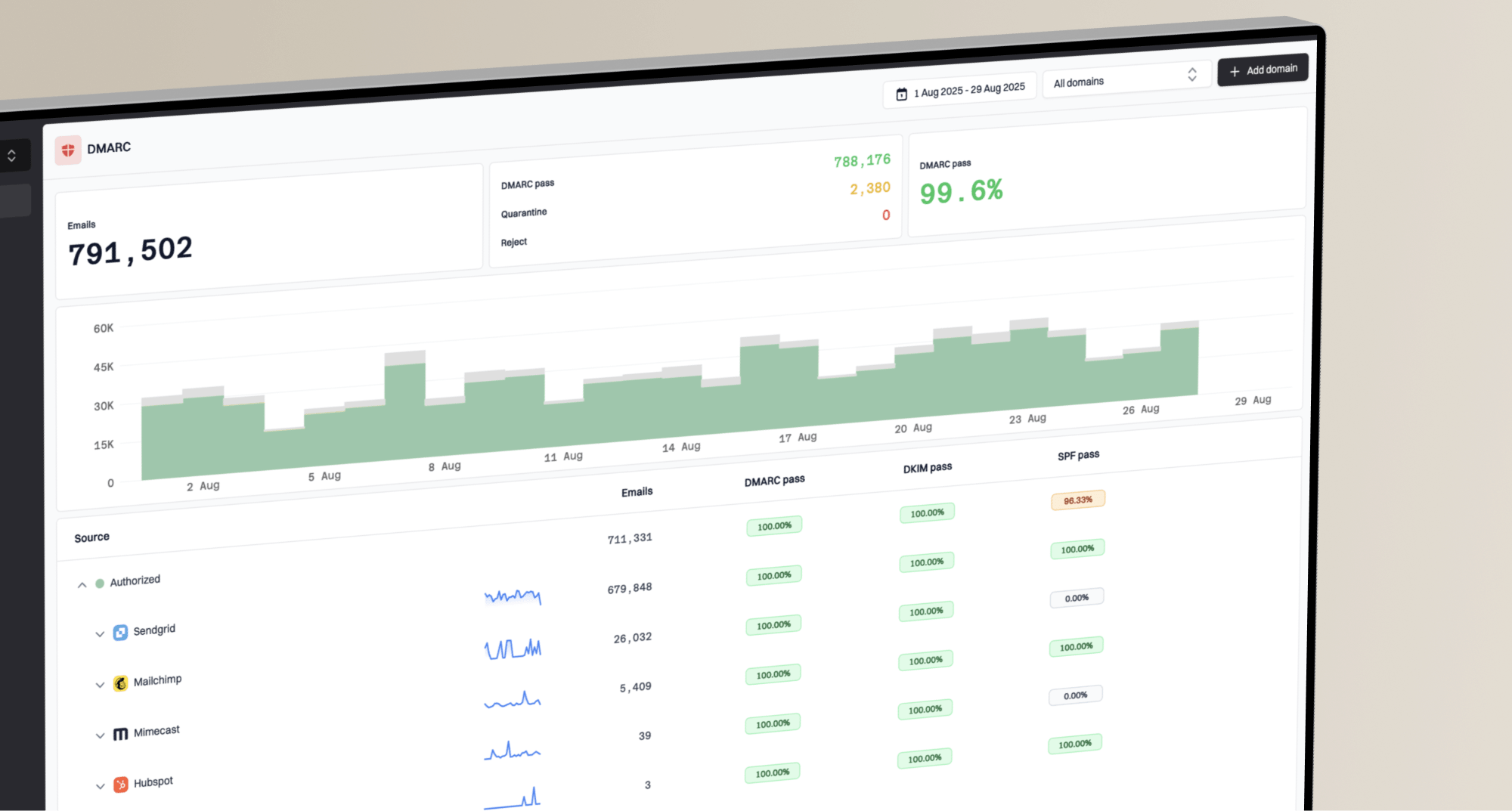
For those of us who need to monitor IP reputation without the headache, using a platform like Suped is the best way to handle this. Suped integrates directly with DMARC reporting and deliverability metrics, giving you a unified view that is actually searchable and sortable. You can see your DMARC monitoring data alongside reputation insights in a modern interface.
Manual SNDS UI
Fixed sorting: No native way to re-order rows by date.
Manual export: Requires downloading CSVs for basic analysis.
Fragmented data: Reputation is separate from DMARC and SPF.
Suped Platform
Dynamic tables: Instantly sort by date or any other metric.
AI insights: Automated recommendations for reputation recovery.
All-in-one: Combined view of blocklists and authentication.
Suped is particularly strong for MSPs who need to manage dozens of client domains. Instead of logging into multiple SNDS accounts and fighting with a rigid UI, you get a clean dashboard with real-time alerts. It even includes blocklist monitoring to catch problems before they impact your delivery.
Managing sender reputation shouldn't be a battle against a website. While you can use Excel to sort your per-IP data, the time spent on manual admin is better used on actual strategy. If you are tired of the manual grind, check your DMARC and reputation status on a platform designed for modern email.
Views from the trenches
Best practices
Export SNDS data to CSV daily to maintain a searchable historical archive.
Use third-party deliverability tools to bypass the rigid Microsoft interface.
Monitor IP reputation alongside DMARC reports for a complete security view.
Common pitfalls
Expecting the SNDS web headers to be clickable for sorting data.
Relying on the native UI when managing more than five IP addresses.
Assuming data is updated in real-time within the SNDS portal.
Expert tips
Feed PDF exports into an LLM for quick data table generation.
Automate data retrieval using the SNDS API for custom reporting.
Cross-reference SNDS red status with public blocklist check results.
Marketer view
Marketer from Email Geeks says they found the SNDS UI to be extremely rigid and recommended using the CSV export feature to sort data effectively in Excel.
2024-03-15 - Email Geeks
Expert view
Expert from Email Geeks says Microsoft often breaks the UI during upgrades and suggest using API integrations for reliable data analysis.
2024-04-10 - Email Geeks
Taking control of your data
In summary, there is no native button to sort by date in the SNDS portal. The best way forward is either a manual export to CSV or moving to a sophisticated monitoring platform. If you want to stop fighting with old interfaces and start seeing clear insights into your IP reputation, consider a modern alternative.
Suped offers a unified dashboard that makes this data accessible. With AI-powered recommendations and real-time alerts, you can spend less time sorting and more time improving your reach. Whether you need SPF flattening or professional DMARC reporting, we have the tools to help you succeed.