
How to set up DMARC/DKIM/SPF for MailerLite

Published 11 Oct 2026
Updated 11 Oct 2026
13 min read
Summarize with
To set up DMARC, DKIM, and SPF for MailerLite, add your sender address under Account settings > Domains, publish MailerLite's domain verification TXT and DKIM CNAME, and merge its SPF authorization into your existing SPF record. Publish a DMARC TXT record at the sending domain's _dmarc hostname. Enable MailerLite's separate Domain alignment option to use a custom return path for SPF alignment.
I verify the result with a delivered campaign email. A DMARC pass requires either SPF or DKIM to pass with a domain that matches the visible From domain under your DMARC alignment settings. MailerLite's Authenticated status confirms its DNS checks, but a received message confirms the actual sending configuration.
Add your domain
I start with a working sender mailbox on a domain I control, such as news@example.com. These steps use current MailerLite; Legacy (Classic) has a separate interface and help center.
Have access to the authoritative DNS provider before starting. The registrar and website host are not always the service that manages your DNS.
- Open Domains: In MailerLite, select Account settings > Domains. Under Sending domains, click Add domain.
- Save the sender: Enter your sending email address, such as news@example.com, and click Save.
- Choose authentication: Click Authenticate. Use Continue for supported automatic setup, or choose Or manually authenticate your domain, select your provider or Other, and click Continue.
- Verify ownership: For manual setup, publish the Domain verification TXT using the displayed Name and complete Value. Keep it separate from the SPF TXT, even when both use the same hostname.
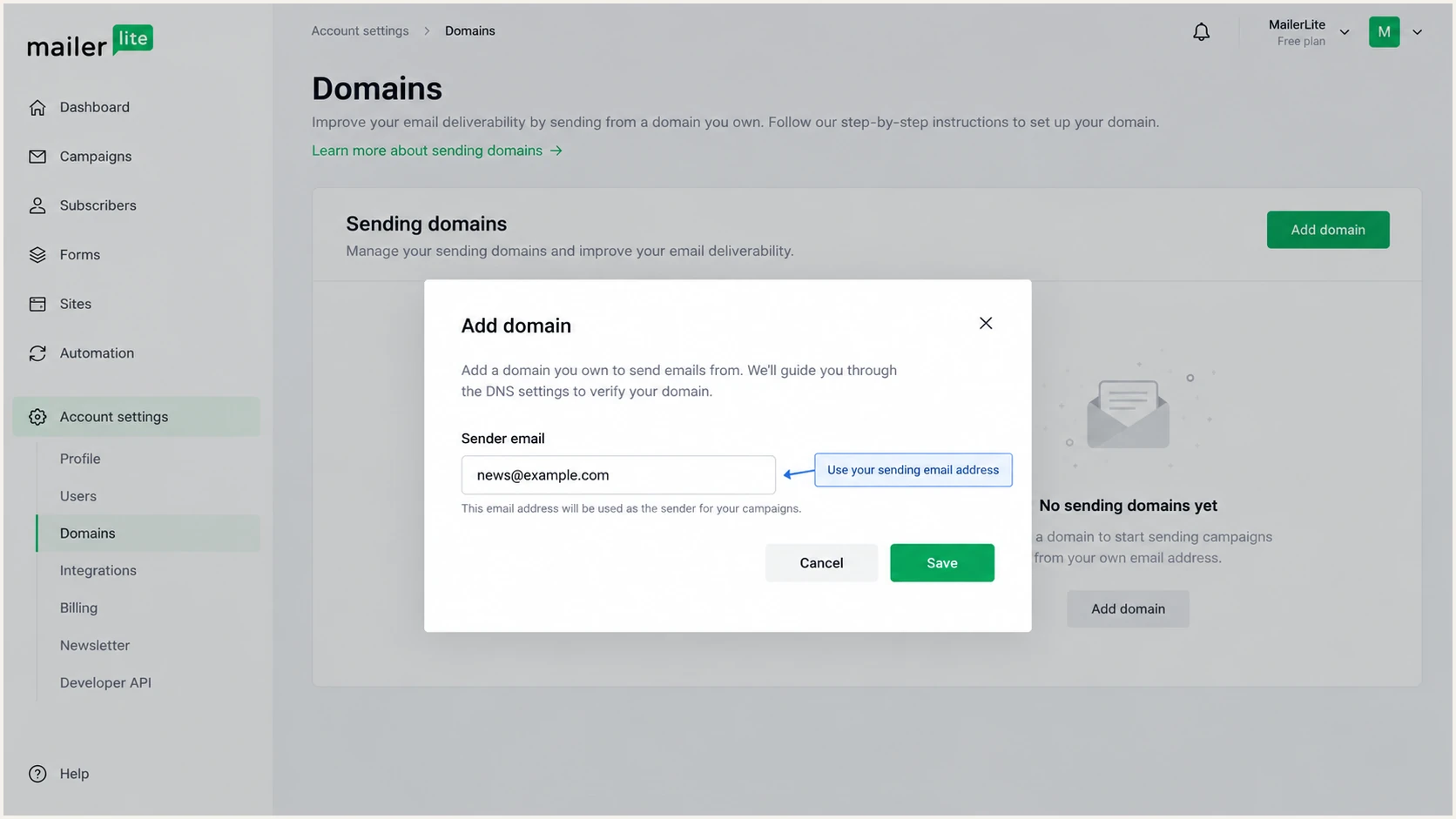
Illustrative MailerLite Add domain dialog with a sender email address.
Keep the authentication panel open while editing DNS. Automatic setup adds records through the connected DNS provider; manual setup requires you to copy the displayed records yourself.
Set up SPF
MailerLite documents include:_spf.mlsend.com for SPF authorization. I add that mechanism to the existing SPF TXT rather than publishing a second SPF record. Use the complete value displayed in your MailerLite account when its checker proposes a merged record.
SPF checks the SMTP MAIL FROM domain, usually visible in the delivered Return-Path. Publishing SPF on the visible From domain alone does not switch MailerLite's return path to your domain.
- Read existing SPF: Find the TXT record beginning v=spf1 at the hostname MailerLite specifies. Preserve authorization for every legitimate sender.
- Merge authorization: Add include:_spf.mlsend.com before the final all mechanism. Keep one v=spf1 prefix and one final all mechanism.
- Use the correct host: For a root domain, the Name is usually @ or blank. For a sending subdomain, use the exact hostname shown by MailerLite.
- Check lookup limits: Stay within SPF's limit of 10 DNS-querying terms during evaluation, including nested includes. Remove obsolete authorization; do not add a or mx unless those servers send your mail.
SPF example for a domain using only MailerLitetext
v=spf1 include:_spf.mlsend.com ~all
This example authorizes only MailerLite. Keep your existing senders and intended final qualifier when merging a live record; use MailerLite's displayed value for its verification workflow.
Check the exact hostname that holds the SPF TXT. Confirm that there is one SPF record and that recursive evaluation stays within the lookup limit.
SPF checker
Find SPF syntax issues, lookup limits, and weak records.
?/16tests passed
A DNS check confirms the policy is published correctly. I still inspect a received message to establish which domain MailerLite actually used for SPF.
For SPF alignment, finish DKIM authentication in the next section, then return to Domains and configure MailerLite's custom domain. Its authentication documentation includes the separate Domain alignment workflow.
- Add a custom domain: Under Sending domains, find the authenticated domain and click Add custom domain. Enter an unused Subdomain prefix, such as newsletter, and click Add.
- Publish custom records: In the Domain alignment Manual tab, copy the supplied A, MX, and TXT records to the dedicated subdomain. Use MailerLite's exact values and MX priority 10.
- Enable the setting: Return to MailerLite, click Check DNS records, and toggle Domain alignment ON after the records are accepted.
- Preserve the sender: Keep news@example.com as the visible From address. The custom subdomain is for the return path and tracking, not a replacement sender address.
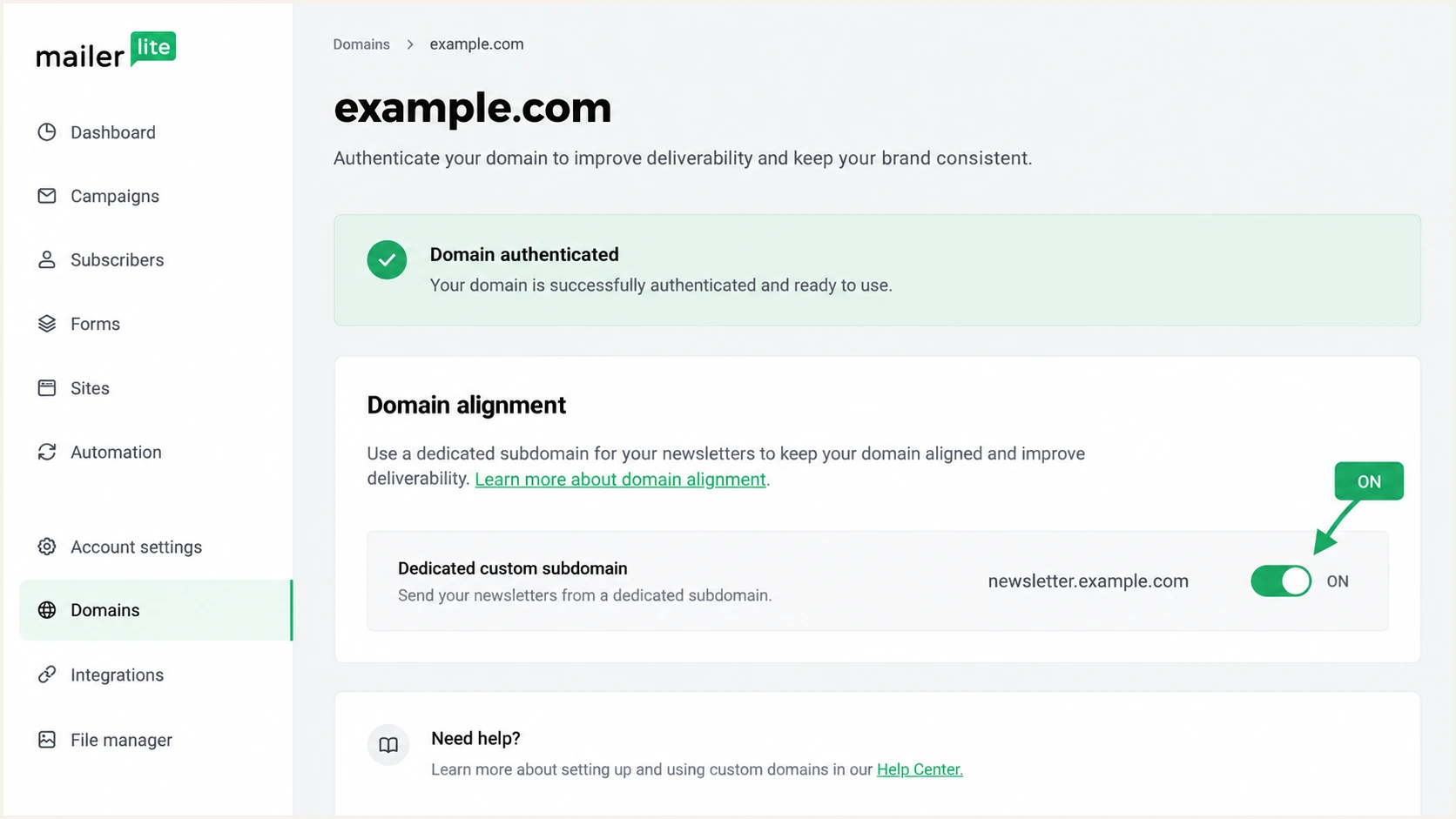
Illustrative MailerLite Domain alignment setting enabled for a custom subdomain.
Keep this subdomain dedicated to MailerLite, separate from a website or landing page. Under relaxed SPF alignment, newsletter.example.com and example.com share the same organizational domain. Strict SPF alignment requires an exact domain match.
If the received return path still uses a MailerLite domain, SPF can pass authentication while failing alignment. DMARC still passes when DKIM passes with the required From-domain match.
Set up DKIM
MailerLite's documented DKIM setup delegates its signing key through a CNAME. The usual selector is litesrv, and the target is litesrv._domainkey.mlsend.com. I copy the actual Name and Value from the account before publishing.
MailerLite's Cloudflare instructions specify DNS only for the DKIM CNAME. If your DNS provider automatically appends the zone name, enter the relative host instead of appending your domain again.
- Create the CNAME: Set the relative Name to litesrv._domainkey and the Target to litesrv._domainkey.mlsend.com, unless your MailerLite panel provides different values.
- Match the sender domain: For a sending subdomain, follow its displayed Name. The DKIM hostname belongs under the domain you authenticated.
- Avoid conflicts: Keep other providers' selectors. A CNAME cannot share its exact hostname with a TXT record or another conflicting record.
- Save and recheck: Disable proxying, save the record, and return to MailerLite's authentication panel to click Check DNS records.
DKIM CNAME example in the example.com DNS zonedns
litesrv._domainkey IN CNAME litesrv._domainkey.mlsend.com.
MailerLite manages the signing key behind that CNAME. Do not paste a public key into a TXT record at the same hostname or generate a replacement key for MailerLite.
In a delivered message, verify the DKIM signature's d= domain and s= selector. A valid signature with an unrelated d= domain does not satisfy DMARC for your visible From address.
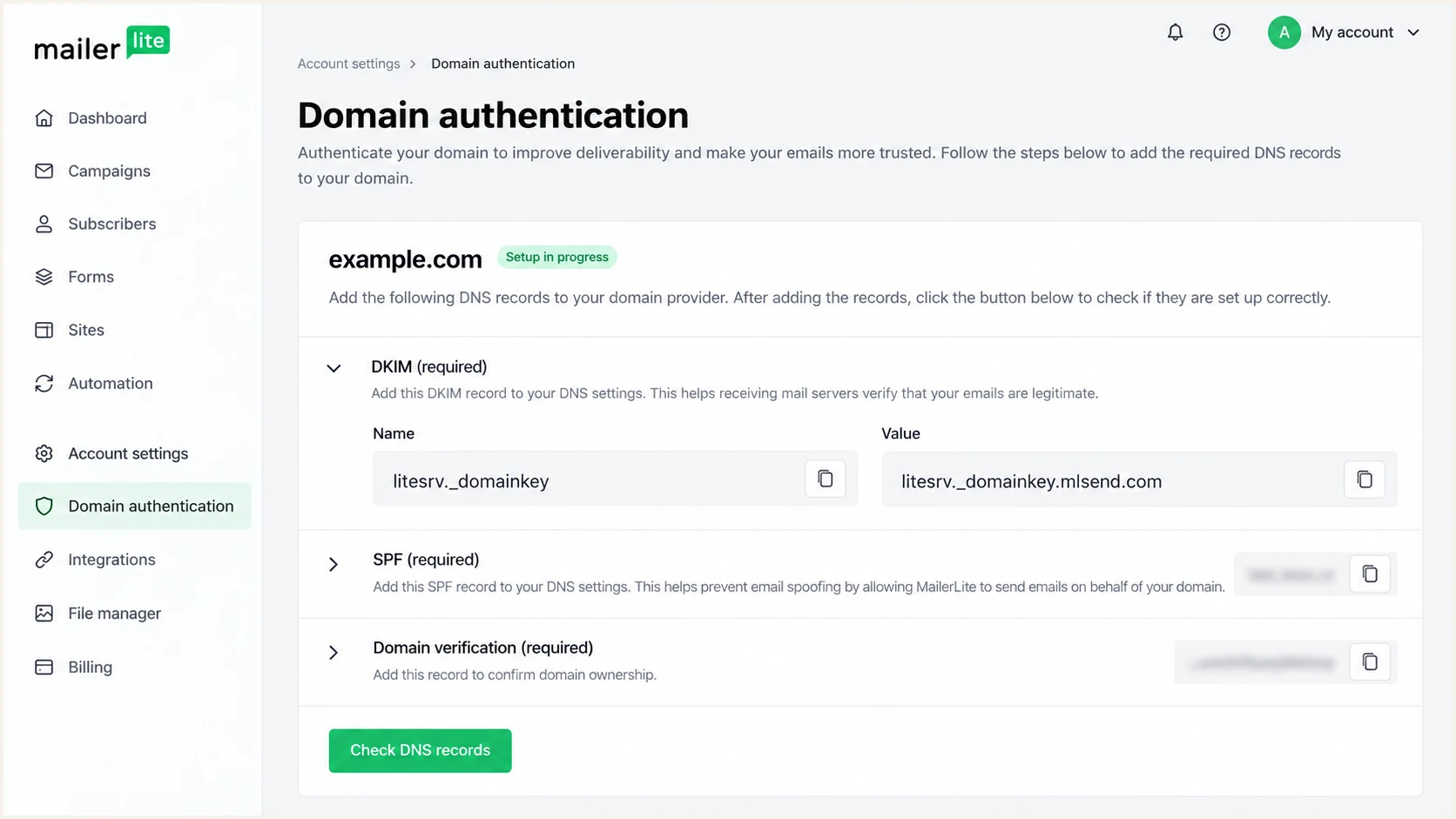
Illustrative MailerLite authentication panel showing the DKIM CNAME.
If the CNAME target is being interpreted as relative, use the fully qualified target with a final period. Confirm the public DNS answer before repeatedly changing a correctly published record.
Set up DMARC
DMARC is a DNS policy for your visible From domain. It is published outside MailerLite and does not require a separate DMARC activation switch in the product.
Use the DMARC record generator to prepare a record. I first check for an existing policy so that a working quarantine or reject policy stays in place.
- Check existing policy: Look up TXT at _dmarc.example.com. If p=quarantine or p=reject is already published, keep it and preserve its reporting destinations.
- Choose the hostname: For news@example.com, add TXT at _dmarc in the example.com zone. For news@marketing.example.com, an explicit policy belongs at _dmarc.marketing.example.com.
- Start monitoring: When no enforcement policy exists, use the p=none example below. Publish one DMARC record at the selected hostname.
- Set report delivery: Replace dmarc@example.com with a working reporting mailbox on your domain, or your assigned reporting address. An external reporting destination needs the required receiver-domain authorization.
Preserve existing enforcement
Use this record for an initial monitoring setup. Keep p=quarantine or p=reject if either is already active; adding MailerLite does not require weakening the domain's policy.
Initial DMARC TXT valuetext
v=DMARC1; p=none; rua=mailto:dmarc@example.com
p=none requests reports without asking receivers to quarantine or reject messages for DMARC failure. The example reporting address is a placeholder, not a MailerLite inbox.
Check the exact _dmarc hostname for syntax errors or duplicate records. Reports arrive on the receiving provider's schedule, commonly daily, rather than immediately after a test.
DMARC checker
Look up a domain's DMARC record and catch policy issues.
?/7tests passed
A valid DMARC record establishes the policy. A delivered email establishes whether MailerLite's SPF or DKIM result satisfies that policy.
Relaxed alignment is the default when aspf and adkim are omitted. I keep those defaults unless an existing policy deliberately requires exact matches, particularly when the return path uses a subdomain.
Verify and troubleshoot
I verify DNS first, then send a real MailerLite message using the authenticated sender. MailerLite's Check DNS records approval is one checkpoint; the receiving server's Authentication-Results is the final authentication evidence.
Allow for DNS caching after edits. MailerLite says approval often happens quickly but can take up to 24 hours. If public answers remain wrong, check the authoritative nameservers instead of waiting on records saved in the wrong DNS account.
- Confirm MailerLite status: Open Account settings > Domains, select Authenticate for the sender domain, and click Check DNS records. Confirm Authenticated and, if configured, Domain alignment ON.
- Inspect public records: Use the commands below, replacing example.com and the selector with your actual values. For a custom return path, also query its supplied A, MX, and TXT records.
- Fix host duplication: Remove an accidentally repeated zone suffix. Check the full domain verification TXT and ensure the DKIM target resolves without proxying.
- Fix SPF errors: Merge duplicate SPF records at the same hostname, retain legitimate senders, and resolve permerror caused by excessive recursive lookups.
- Check message domains: Read smtp.mailfrom for SPF, header.d for DKIM, and header.from for DMARC in trusted receiver-added Authentication-Results. Look for dmarc=pass.
- Test actual delivery: Send to the address supplied by the email tester below. Also test a small real campaign and any automation that uses a different sender address.
Inspect published authentication DNSbash
dig +short NS example.com
dig +short TXT example.com
dig +short CNAME litesrv._domainkey.example.com
dig +short TXT _dmarc.example.com
The email tester prompts you to send an email and returns a full diagnosis of that received message. Use the address it provides as the recipient for a MailerLite test send.
Send the message directly through MailerLite. Forwarding a copy changes the delivery path and can change SPF results. If a preview uses a different sending configuration, confirm the result with a small production campaign.
Email tester
Send a real email to this address. Suped shows a results button when the test is ready.
?/43tests passed
Expect DKIM to pass with a matching signing domain and DMARC to pass for the visible From domain. With Domain alignment enabled, also expect SPF to pass using your custom return-path domain under the policy's matching rules.
If SPF alignment fails but DKIM passes with the required domain match, DMARC can still pass. If both mechanisms pass with unrelated domains, DMARC fails. Authentication also does not guarantee inbox placement.
|
|
|
|---|---|---|
SPF | Pass + match | Return path |
DKIM | Pass + match | Signing domain |
DMARC | Pass | From domain |
MailerLite | Authenticated | DNS records |
Check received-message results separately from DNS approval.
Get alerted when it breaks
Our Suped DMARC monitoring converts receiver reports into sending-source issues with steps to fix. For MailerLite, that means detecting authentication failures after a DNS edit or sender change, rather than depending on the original Authenticated status.
I treat immediate message tests and ongoing reports as separate checks. Suped's real-time alerts notify you when available data triggers an issue; aggregate-report delays still apply, so they are not an instant notification for every message.
- Keep reports flowing: Use the assigned Suped reporting destination in your existing rua value while preserving the domain's active policy.
- Identify legitimate traffic: Review MailerLite against your sending inventory and campaign activity. Investigate unfamiliar sources before treating them as authorized.
- Enable issue alerts: Configure authentication notifications and suitable failure thresholds so the DNS or email owner receives actionable alerts.
- Resolve and retest: Follow Suped's issue-specific steps, correct the record or sender setting, and send another MailerLite test. Check subsequent reports for recovery.
MailerLite DNS approval
Check DNS records verifies the records MailerLite expects for the selected sending domain.
I use it during setup and after DNS repairs.
Suped ongoing monitoring
Our platform reviews reported SPF, DKIM, and DMARC results across your domain's sending sources.
Issue detection and alerts connect failures to concrete repair steps.
This keeps the MailerLite configuration in MailerLite while our platform monitors its authentication results alongside your other senders. Review alerts after changes to DNS hosting or custom domains.
Secure your domain with p=reject
p=reject asks receiving servers to reject mail that fails DMARC. I progress toward it for a controlled MailerLite sending domain after legitimate mail consistently passes and forwarding behavior has been assessed. Receiving servers still apply their own handling decisions.
A domain used for general correspondence and mailing-list posts needs a different policy assessment. A dedicated marketing sender subdomain with its own DMARC record lets you enforce its policy separately; authenticate that subdomain in MailerLite before using it as the From domain.
- Inventory all senders: Check MailerLite plus employee mail, invoices, website forms, and other automated senders that use this From domain. Fix each legitimate source before enforcement.
- Observe a full cycle: Review reports across the complete sending schedule, including infrequent campaigns and automations. Do not treat one passing test as readiness.
- Require working DKIM: Confirm valid signatures with the required From-domain match. SPF often fails after forwarding, so SPF alone is insufficient for a reject policy.
- Stage the policy: When enforcement is appropriate, change p=none to p=quarantine, inspect legitimate failures, then move to p=reject after resolving them.
- Use policy staging: Our Suped Hosted DMARC supports staged policy management. Use its source-level issues and repair steps to verify readiness before each policy change.
- Verify each change: Preserve rua, review subdomain policy inheritance, query the published TXT, and test MailerLite again. Keep monitoring after rejection is active.
Assess indirect delivery
Forwarders and mailing lists can break authentication after MailerLite sends a valid message. Avoid a blanket reject policy for a domain used for general correspondence; test the domain's actual delivery paths before enforcement.
The records below show the policy changes for a domain whose sending inventory has been verified. Replace the example report destination and retain any other intentional policy settings.
I use Suped's report history to distinguish an unauthorized source from a legitimate sender that needs correction. Authentication failures belonging to your own senders need a fix before the next enforcement stage.
DMARC enforcement stages for a verified sending domaintext
v=DMARC1; p=quarantine; rua=mailto:dmarc@example.com
v=DMARC1; p=reject; rua=mailto:dmarc@example.com
Publish only one of these records at a time. Keep MailerLite's DKIM CNAME and custom-domain DNS in place after enforcing DMARC.
Continue reviewing reports after each campaign cycle. Stable DKIM authentication and an accurate sender inventory are the practical requirements for keeping legitimate MailerLite messages passing under p=reject.
FAQ
MailerLite domain authentication, custom return-path setup, and DMARC policy have different checks. I verify each against the sender domain used by the actual campaign.
Provider identifiers help explain unfamiliar report entries. They do not establish that a sender is authorized to use your domain.