How does Microsoft Office 365 filter or block emails based on URL reputation?

Published 31 Jul 2025
Updated 27 Jul 2026
13 min read
Summarize with
Updated on 27 Jul 2026: We added Microsoft's current Safe Links, Tenant Allow/Block List, and post-delivery filtering behavior to the troubleshooting workflow.
Microsoft 365 (formerly Office 365) filters or blocks emails based on URL reputation by scoring the links inside the message across Exchange Online Protection and, where licensed, Defender for Office 365. The sender IP, domain authentication, message content, sender history, tenant policy, and URL reputation all feed the final verdict. A low-reputation URL can push the message to junk, send it to quarantine, trigger a warning page at click time, or contribute to an outright block.
The awkward part is that the same campaign can behave differently across Office 365 tenants. One recipient can receive it in the inbox, another can see it quarantined, and another can click through a Microsoft warning page. That is normal because Safe Links settings, anti-spam policies, tenant allow and block entries, licensing, and admin submissions vary by tenant.
Treat the suspect URL as a testable variable. Send the same message with the URL, without the URL, with a different branded URL, and with a plain text version. If failures follow the URL and not the sending IP or template, you have a URL reputation problem rather than a normal IP delisting problem.
How Office 365 uses URL reputation
Office 365 does not need an IP blocklist event to filter a message. A URL alone can be enough to change the disposition if Microsoft sees the link, redirect chain, click-tracking host, or final landing page as risky. Exchange Online Protection applies its built-in anti-spam and anti-phishing checks, while Defender for Office 365 Safe Links scans and rewrites URLs during mail flow and verifies them again when protected users click. The applicable anti-spam policy determines the action for the resulting spam or phishing verdict.
- Mail-flow scan: Microsoft evaluates the message and URL with sender, content, reputation, and authentication signals.
- Click scan: Safe Links checks the destination when the recipient clicks, which catches links that change after delivery.
- Tenant policy: The recipient organization controls the applicable policy and the action for each verdict.
- URL scope: Microsoft evaluates the visible URL, tracking domain, redirects, final page, file downloads, and previous reports.
- Support path: Sender-side IP delisting is a poor fit for URL-only issues. Tenant admin submissions provide evidence tied to the actual verdict.
The key diagnostic split
If the same sender, same template, and same recipient type pass without the suspect URL, the URL is the practical trigger. If both versions fail, keep looking at authentication, sender history, content, and tenant policy.
What Microsoft checks around URLs
The exact Microsoft scoring model is private, but the pattern is clear in real troubleshooting. Office 365 cares about the URL host, the redirect chain, the destination page, the relationship between visible text and target URL, and the reputation of any shared tracking infrastructure. A clean sending IP cannot fully compensate for a link that Microsoft treats as unsafe.
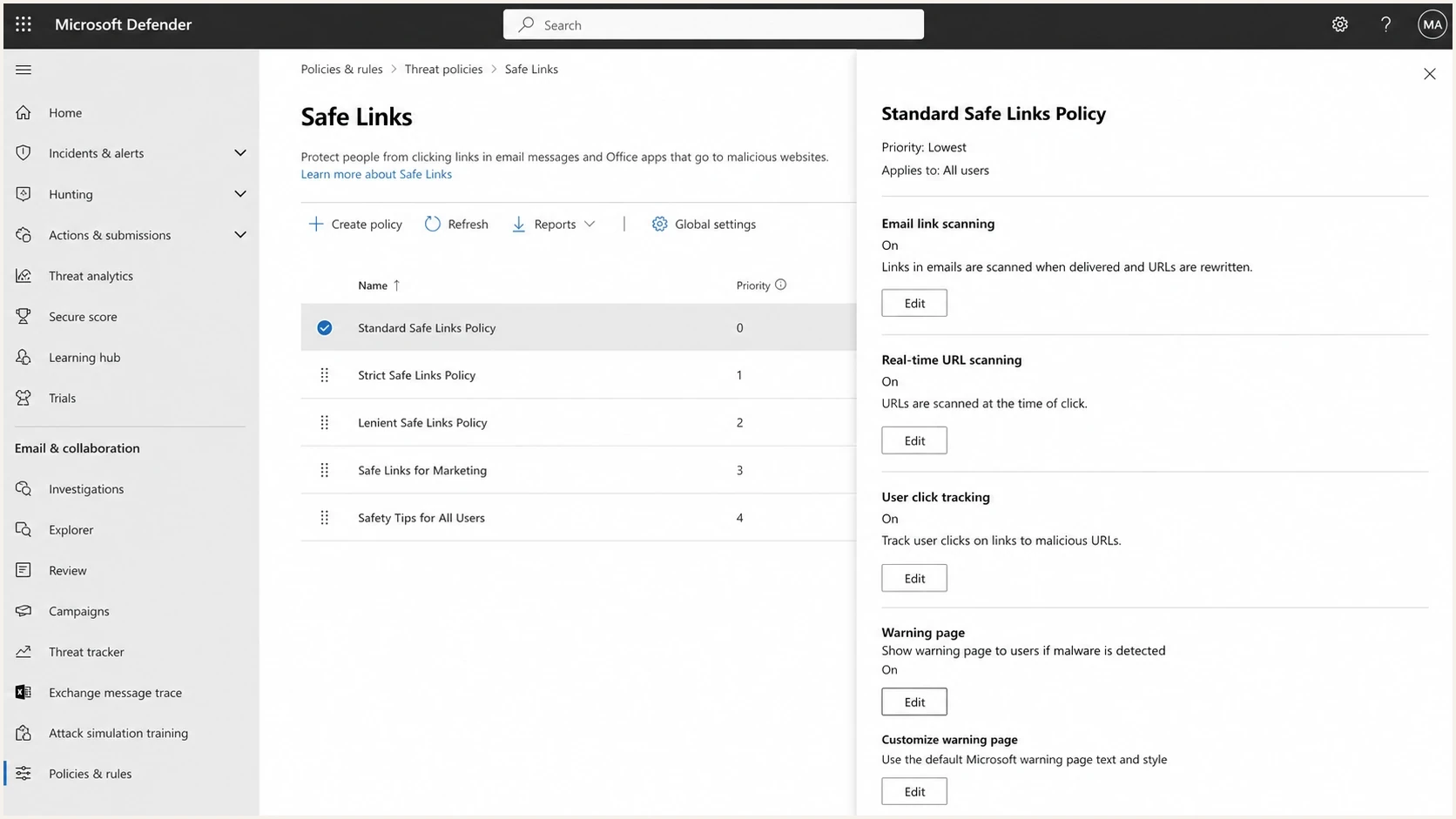
Microsoft Defender portal Safe Links policy settings for Office 365 email.
|
|
|
|---|---|---|
Tracking host | Shared hosts inherit mixed sender history. | Use a branded host. |
Redirect chain | Extra hops add risk and delay. | Reduce hops. |
Final page | Low trust pages hurt verdicts. | Check content and TLS. |
Anchor text | Mismatches look deceptive. | Match text to target. |
User reports | Reports feed reputation systems. | Review complaints. |
Common URL reputation signals that affect Office 365 filtering.
This is also why generic URL shorteners and shared click tracking domains cause trouble. The reputation is not only yours. It includes the history of other senders using the same infrastructure. For Microsoft recipients, a branded tracking domain with stable DNS, TLS, and low complaint rates is safer than a shared link domain you cannot control.
Why results vary by Office 365 tenant
Sporadic filtering is not proof that the reports are unrelated. Office 365 is tenant-specific. A recipient organization with strict preset security policies, Safe Links enabled, aggressive quarantine rules, or a local block entry can treat the same message differently than a less restrictive tenant.
Likely inbox result
- Policy: The tenant uses standard filtering and does not wait for every URL scan to finish.
- History: The sender has a stable relationship with the recipient organization.
- Allow entry: The tenant previously allowed the sender, domain, or URL.
- Low volume: The campaign has not generated local complaints or detections.
Likely junk or quarantine result
- Policy: The tenant uses strict settings and quarantines suspicious links.
- Safe Links: The URL is rewritten, scanned, and checked again at click time.
- Block entry: The URL or domain has a tenant-level block or a negative submission.
- Content mix: The URL appears with wording, attachments, or redirects that raise the combined score.
If recipients report quarantine, use the tenant-side verdict where you can get it. A message trace, quarantine reason, or admin submission result is better evidence than guessing from the sender side. For a deeper path through that issue, see Office 365 quarantine.
Why a delivered message can move later
An initial inbox result is not always final. Zero-hour auto purge (ZAP) continues evaluating delivered email and can act on messages in the previous 48 hours when Microsoft receives updated spam or phishing intelligence. A message can move to Junk or quarantine after delivery, including when a campaign or linked destination receives a worse verdict.
- Compare timestamps: Record the original delivery time and the later move to Junk or quarantine.
- Check the action: The applicable anti-spam policy controls whether a later phishing verdict moves or quarantines the message.
- Use admin evidence: Ask the tenant admin to review post-delivery activity and the email entity rather than relying on a recipient screenshot.
- Keep the message ID: Use the same network message ID to connect the original delivery with the later action.
Delivery followed by quarantine is one event
Do not record the first inbox placement and the later quarantine as contradictory tests. Preserve both timestamps and have the recipient admin confirm whether ZAP or another post-delivery action changed the message location.
How to prove the URL is the trigger
The cleanest test is a controlled send matrix. Do not change the subject, sender, authentication path, recipient segment, or template between versions. Change one thing at a time, then compare inbox placement, quarantine, headers, Safe Links behavior, and any recipient admin verdict.
Keep a separate record of automatic Microsoft link checks. Safe Links and other security systems can create opens and clicks that are not human engagement. That matters because marketing analytics can make a filtered message look engaged when security scanning is the real source. The related issue is covered in automatic opens.
|
|
|
|---|---|---|
A | Original | Baseline failure |
B | Removed | URL trigger |
C | Branded | Host issue |
D | No redirect | Redirect issue |
A compact test matrix for isolating URL reputation.
Simple test log formattext
Date: 2026-05-24
Recipient tenant: Microsoft 365
Sender path: same ESP, same domain, same DKIM selector
Variant A: original URL, result: quarantine
Variant B: URL removed, result: inbox
Variant C: branded tracking host, result: inbox
Variant D: direct landing page, result: inbox
Conclusion: original URL host or redirect chain is the trigger
A real message test is useful because it shows the combined result, not only a DNS lookup. Use an email tester when you need a quick read on headers, authentication, content signals, and link behavior before asking a recipient admin to spend time on the case.
Email tester
Send a real email to this address. Suped shows a results button when the test is ready.
?/43tests passed
After the tester, repeat the send to controlled Office 365 mailboxes. Keep screenshots of the mailbox result and export the full headers. In X-Forefront-Antispam-Report, record the spam confidence level (SCL), spam filtering verdict (SFV), and threat category (CAT), then preserve Authentication-Results for SPF, DKIM, and DMARC. If the tenant admin can share message trace, quarantine, or post-delivery details, add them to the test log. This evidence helps distinguish URL reputation from general Microsoft placement variance.
What to check before escalating
Before contacting Microsoft or the recipient admin, remove the easy causes. Office 365 filtering is less forgiving when several small risks appear together. A weak domain setup plus a shared tracking URL plus a redirect chain is a common pattern behind sporadic filtering.
- Authentication: Confirm SPF, DKIM, and DMARC pass for the actual sending path and visible domain.
- Tracking domain: Use a branded subdomain with valid TLS and stable DNS instead of a shared shortener.
- Redirects: Remove unnecessary hops, broken redirects, geo blocks, and login walls that hide the destination.
- Landing page: Make the page accessible, consistent with the email, and free of surprise downloads.
- Reputation: Check blocklist monitoring and public blocklists for the domain, IP, and tracking host. Blacklist history can influence confidence even when it is not the only cause.
Do not treat URL issues as IP delisting
Microsoft's sender delisting path is aimed at IP-based blocking. If mail is accepted but quarantined because of a URL, that path gives you little leverage. Build the evidence around the URL and get a tenant admin involved.
- Keep samples: Save headers, timestamps, recipient domains, and the exact URL variants.
- Avoid guesses: Change one variable per test so the evidence points to one cause.
- Use tenant data: A recipient admin verdict carries more weight than sender-side speculation.
- Time-box fixes: Retest after each DNS, content, or URL change before changing the next item.
How recipient admins can reclassify clean URLs
For non-block issues, the most effective path is usually through the recipient organization. Their Microsoft 365 admin can submit the quarantined message or URL to Microsoft, mark it as clean when appropriate, and add a scoped tenant allow entry if legitimate business mail is being held.
Microsoft documents this through Defender submissions. The sender can prepare the evidence, but the tenant admin has the clearest route because the verdict, policy, and quarantine item live inside that tenant.
A sender allow does not cancel a URL block
A URL block entry in the Tenant Allow/Block List takes precedence over an allow entry and can classify a message as high confidence phishing for quarantine. Use the URL-specific entry or submit the affected message as clean. URL allow entries are temporary, still require the message to pass other checks, and do not stop Safe Links from rewriting the link.
- Package evidence: Provide sender, recipient, timestamp, message ID, headers, and the suspect URL.
- Show controls: Include the same message without the URL and any successful branded URL variant.
- Ask for verdict: Request the quarantine reason, applied policy, and whether Safe Links blocked the destination at click time.
- Check URL entries: Have the admin review the URLs tab for a matching tenant block before adding an allow.
- Submit clean: Have the tenant admin submit the message or URL to Microsoft as clean when the content is legitimate.
- Retest: Send a fresh sample after reclassification or policy change, then compare the result.
Recipient admin request templatetext
Subject: Request to review Office 365 quarantine for clean URL

We are seeing quarantines for messages containing this URL host:
go.example.com

Please review the quarantined sample in Microsoft Defender and submit it
as clean if the message is legitimate. Please also check the URLs tab in
the Tenant Allow/Block List for a matching block entry. If possible, share
the verdict, applied policy, and whether the URL or message body caused the action.

Control tests:
- Same message without the URL: delivered
- Same message with branded URL: delivered
- Same sender authentication path: SPF, DKIM, and DMARC pass
How Suped fits into the workflow
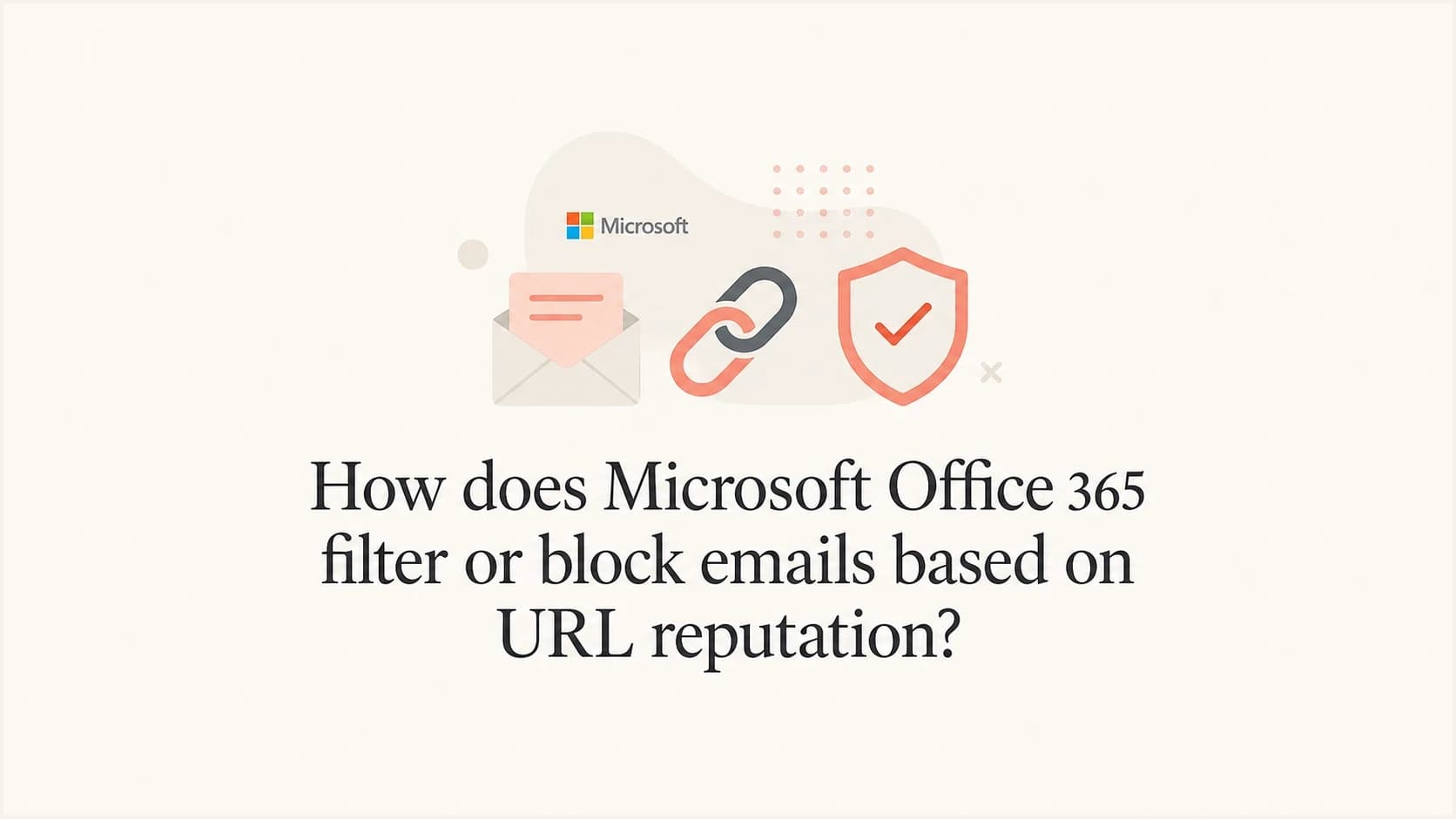
Suped's product does not override Microsoft tenant policy or force Microsoft to trust a URL. Its practical role is to provide the surrounding evidence through DMARC monitoring, SPF and DKIM status, sender inventory, blocklist and blacklist monitoring, deliverability signals, and change alerts.
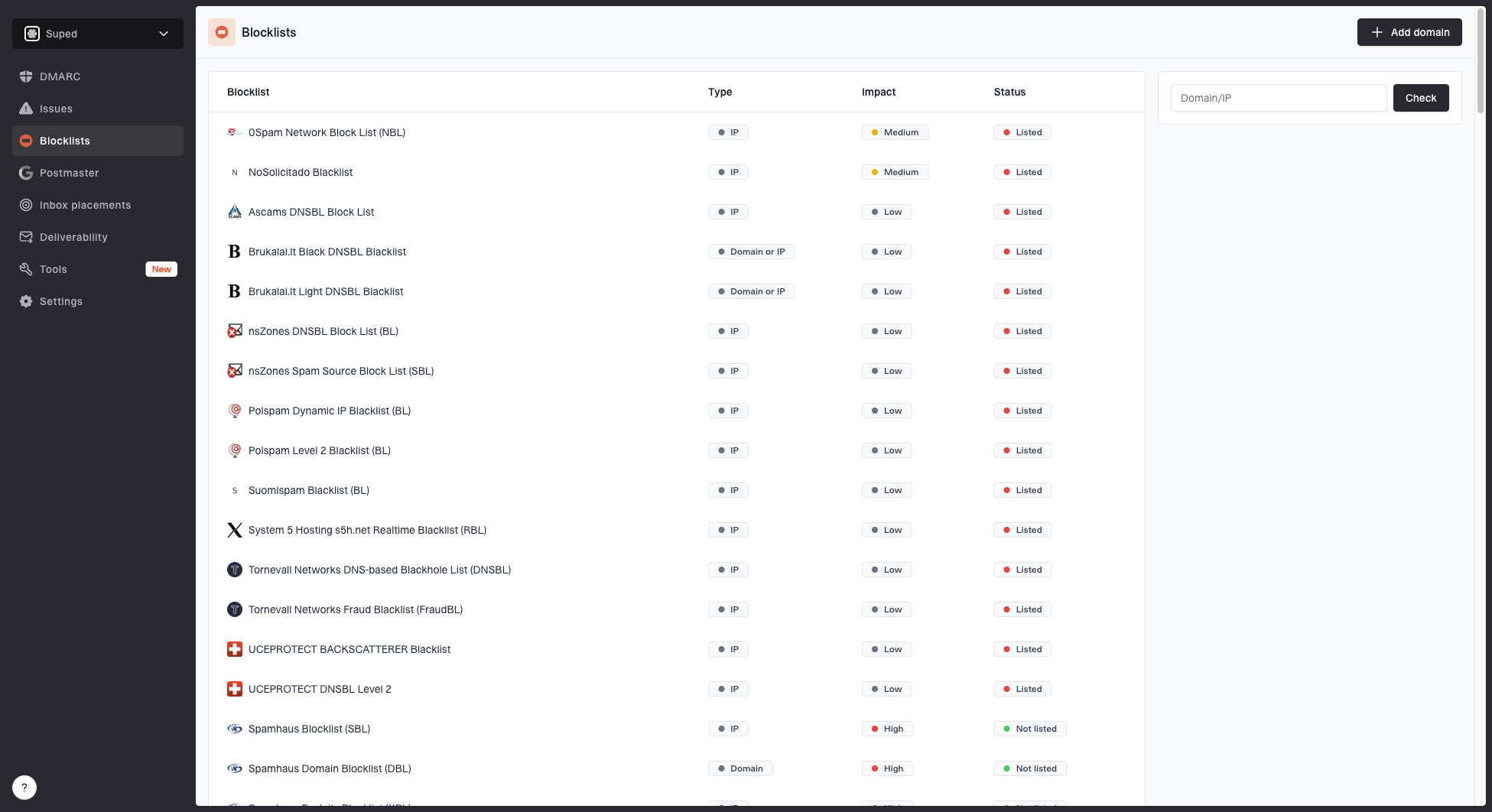
Blocklist monitoring page showing domain and IP checks across blocklists with importance and status
Start with a domain health check, then use Suped's monitoring to keep authentication and reputation evidence beside the controlled Office 365 test results.
- DMARC visibility: See who sends mail for your domain and which sources fail authentication.
- Issue detection: Identify broken records or unknown senders before treating every failure as URL reputation.
- Reputation signals: Monitor domain and IP reputation beside authentication status.
- Change alerts: Catch sudden authentication or reputation changes that can overlap with a URL incident.
How to fix low URL reputation
Fixing URL reputation starts with control. If the link is on shared infrastructure, move to a branded tracking host. If the redirect path is messy, shorten it. If the final page has poor TLS, blocked assets, surprise file downloads, or content that does not match the email, fix the page before asking Microsoft to review it.
URL risk triage
Use this quick triage to decide what to fix first when Office 365 filtering follows a URL.
Low risk
Monitor
Branded host, direct path, valid TLS, stable content, low complaint history.
Medium risk
Fix
Shared tracking host, several redirects, new domain, or thin landing page.
High risk
Stop
Shortener, broken redirects, hidden destination, downloads, or active blacklist listing.
Unknown
Test
No tenant verdict, no controlled tests, and no clear URL variant history.
- Use branded links: Put click tracking on a subdomain you control and keep the domain identity consistent.
- Reduce redirects: Avoid stacked tracking, shorteners, and hops that end on a different domain.
- Match expectations: Make the email copy, visible link text, and landing page clearly connected.
- Clean the page: Remove surprise downloads, mixed content, broken scripts, and blocked resources.
- Rebuild history: Send lower-risk traffic first and avoid sudden volume spikes from new link domains.
- Protect users: Do not ask recipients to bypass warnings. Fix the cause and use admin review instead.
If Outlook users see a warning even after the message reaches the inbox, treat that as a Safe Links or client-side URL trust issue. The cleanup steps overlap with inbox placement, but the proof comes from click-time behavior. For that scenario, see unsafe links.
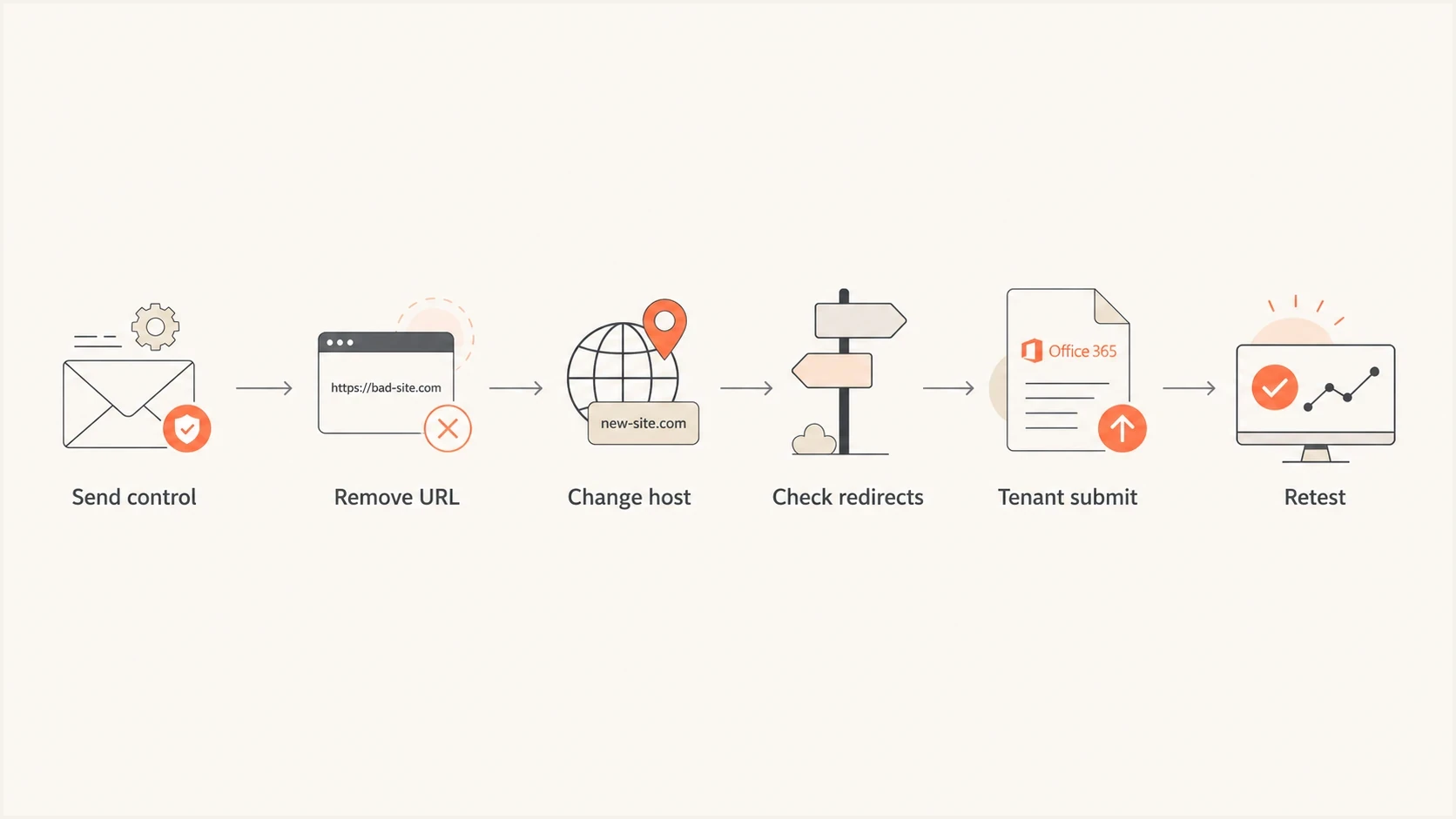
Flowchart for testing whether an Office 365 filtering issue follows a URL.
Views from the trenches
Best practices
Test the same message with and without the suspect URL before changing DNS or content.
Ask recipient admins for quarantine verdicts, policy names, and Microsoft submission results.
Keep branded tracking hosts clean, stable, and separate from risky shared link services.
Common pitfalls
Treating every Office 365 filtering case as an IP delist issue wastes evidence gathering time.
Changing copy, sender, and URL together makes the test result impossible to interpret cleanly.
Relying on click metrics alone hides Microsoft security scans that are not human engagement.
Expert tips
Build a small Office 365 seed set so URL-triggered quarantine patterns show up quickly.
Keep a reusable escalation packet with headers, timestamps, URLs, and control test results.
Separate link reputation work from DMARC cleanup, then document where the signals overlap.
Marketer from Email Geeks says Microsoft 365 is known to filter messages when a low-reputation URL is present, even when the sender is not fully blocked.
2023-01-18 - Email Geeks
Marketer from Email Geeks says testing with and without the suspect URL across several Office 365 accounts is the fastest way to prove the trigger.
2023-01-18 - Email Geeks
URL reputation troubleshooting checklist
Microsoft Office 365 can filter or block email because of URL reputation. The decision is not limited to IP reputation, and it is not always visible from the sender side. Exchange Online Protection, Safe Links, anti-spam policy, tenant allow and block entries, prior reports, post-delivery reclassification, and the URL's redirect path all affect the result.
The fastest fix path starts with evidence. Prove the issue follows the URL, clean the tracking host and redirects, confirm authentication, check for a post-delivery action, then ask the recipient tenant to submit the message or URL as clean. Suped keeps the surrounding DMARC, SPF, DKIM, blocklist, blacklist, and sender inventory data in one place so the URL investigation has a consistent evidence trail.