How to handle email sending rate and connection limits from mailbox providers?

Matthew Whittaker
Co-founder & CTO, Suped
Published 6 May 2025
Updated 15 May 2026
11 min read
Summarize with
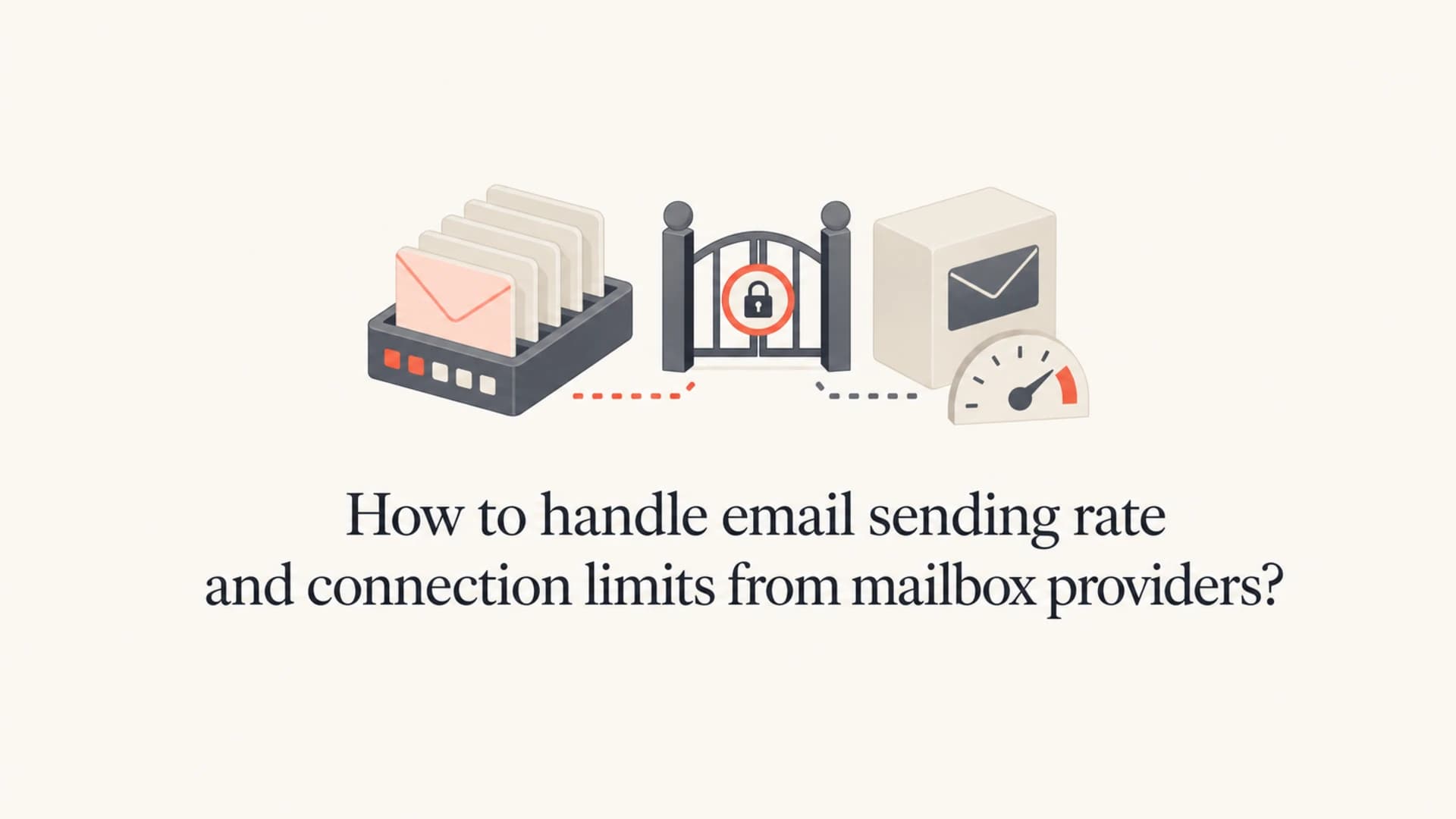
Handle email sending rate and connection limits by treating each mailbox provider as its own delivery lane. Set a hard cap on concurrent SMTP connections per destination MX, throttle recipients per minute, retry temporary 4xx errors with backoff, and reduce the rate automatically when a provider starts returning messages such as 421 4.7.0 or too many connections. Adding more IPs is not the first fix. It often spreads the same reputation and queueing problem across more infrastructure.
The practical answer is simple: send slower to that provider, use fewer simultaneous connections, and let the queue drain over a longer window. If a provider publishes or reveals limits, build those numbers into your MTA configuration. If it does not, infer limits from SMTP responses and delivery timing. Then keep separate policy for Gmail, Yahoo, Microsoft, Comcast, regional mailbox providers, and any domain cluster that receives meaningful volume.
Authentication still matters because providers combine throughput decisions with sender trust. A sender with clean SPF, DKIM, DMARC, stable volume, low complaints, and good engagement gets more predictable delivery than a sender with technical gaps. Suped helps with that part of the workflow by bringing DMARC, SPF, DKIM, blocklist monitoring, and deliverability signals into one view, so the sending team can separate reputation problems from pure provider throttling.
The direct handling plan
When a mailbox provider rate limits you, I would not argue with the limit in real time. I would make the sender comply first, then investigate whether the limit is caused by provider policy, temporary provider load, poor sender reputation, or a local MTA configuration mistake.
- Cap connections: Set a maximum number of concurrent connections per mailbox provider or MX group, not just per campaign.
- Throttle recipients: Limit recipients per minute or hour for that destination, then increase only when deferrals stay low.
- Classify errors: Treat 4xx responses as temporary deferrals, queue the mail, and retry with a longer delay instead of reconnecting immediately.
- Segment traffic: Separate transactional, lifecycle, and bulk marketing queues so a large campaign does not block password resets or receipts.
- Measure per domain: Track acceptance rate, temporary failure rate, bounce rate, and time to deliver by recipient domain.
Do not turn a throttle into a reputation problem
Repeatedly hitting the same provider after it has told you to slow down creates a worse signal than waiting. A temporary deferral is a request to retry later. Treating it as a reason to open more connections makes delivery slower and less predictable.
For a deeper provider-specific reference, the common limits article on connection limits is useful when you need to compare broad patterns across providers. The operational rule is still the same: configure the sending system to obey the strictest observed limit for each destination.
What connection and rate limits mean
Mailbox providers use several limit types at once. One provider might allow five concurrent connections from an IP under normal load, then drop to one connection while the server is under stress. Another provider might allow a small number of connections but a higher number of messages per connection. Another might accept connections but defer recipients after the sender crosses a per-minute threshold.
|
|
|
|---|---|---|
Connection | Open SMTP sessions | Lower concurrency |
Recipient | Recipients per window | Slow the queue |
Message | Messages per window | Batch smaller |
Reputation | Trust score | Fix signals |
Load | Provider stress | Back off |
Common throttle types and the operational response.
The important detail is that limits are usually enforced at the receiver side. If the receiving MX says your IP has too many connections, your sender has already exceeded the receiver's comfort zone. The cure is local queue control, not another immediate attempt.
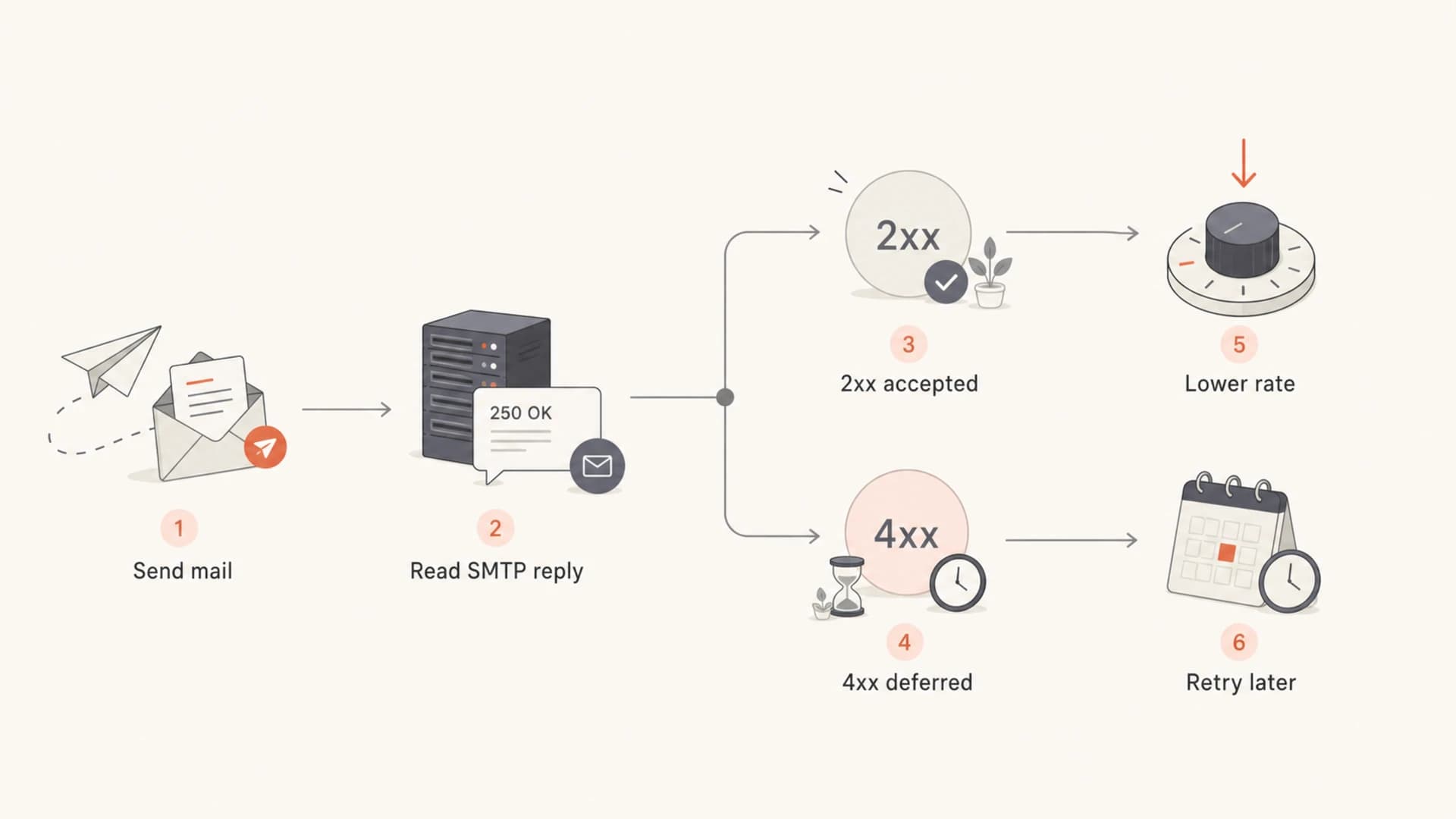
Flowchart showing how to slow down after SMTP deferrals.
How to interpret Postfix style limits
A common source of confusion is Postfix stress syntax. A value such as ${stress?1}${stress:5} means the receiver uses one value when the system is under stress and another value when it is not. In plain terms, the same mailbox provider can have two different limits depending on its current load.
Example Postfix-style receiver limitstext
smtpd_client_connection_count_limit = ${stress?1}${stress:5}
smtpd_client_recipient_rate_limit = ${stress?100}${stress:500}
Read that as one connection and 100 recipients per time unit during stress, or five connections and 500 recipients per time unit during normal operation. The time unit is commonly per minute in this context. If the provider has multiple MX hosts, the aggregate throughput can be higher, but only if your delivery system distributes traffic cleanly and each MX applies limits independently.
A safe interpretation
If you cannot predict when the provider enters stress mode, configure your sender for the stress limit first. That means one connection and a lower recipient rate until you have evidence that a higher rate is accepted without deferrals.
This is why hard limits matter. If your MTA opens ten connections because a campaign is large and the provider allows five at most, you will see connection-level errors even if the message content is clean and the domain authentication is correct.
The right queue design
A sending system should not have one global speed. It needs queue controls by destination domain, MX group, IP pool, traffic class, and campaign priority. This prevents one concentrated list, such as 100,000 addresses at a regional mailbox provider, from causing broad delays.
Weak setup
- Global speed: One rate is shared across all recipient domains.
- Shared queues: Bulk mail and transactional mail compete.
- Blind retrying: 4xx errors trigger fast repeated attempts.
- Manual diagnosis: Operators notice throttling only after delays grow.
Stronger setup
- Domain lanes: Each major provider has its own rate policy.
- Traffic priority: Critical mail has separate queue protection.
- Adaptive retry: Temporary failures lower the rate automatically.
- Live monitoring: Deferrals and authentication changes are watched together.
For large senders, I like a token-bucket style model. Each destination gets a refill rate, a burst allowance, and a penalty rule. When the provider accepts mail cleanly, the sender uses the normal budget. When the provider returns throttling responses, the budget shrinks for a cooling period.
Example destination policyyaml
provider: regional-mailbox-provider
mx_group: regional-mx
max_connections_per_ip: 5
stress_connections_per_ip: 1
normal_recipients_per_minute: 500
stress_recipients_per_minute: 100
on_421: reduce_to_stress_rate
cooldown_minutes: 30
retry_schedule: 15m, 30m, 1h, 2h
That policy is intentionally conservative. It protects the queue first. After acceptance stabilizes, you can raise the normal rate in small increments and watch whether deferrals return.
When to slow down and when to investigate
A provider throttle is not always a provider-only problem. Sometimes the sender is moving too fast. Sometimes the sender has a complaint spike, a blocklist (blacklist) event, an authentication issue, or a sudden volume jump after a quiet period. The first response is slowing down. The second response is finding which signal caused the throttle.
Throttle response thresholds
A simple way to decide when to keep sending, slow down, or pause a destination lane.
Normal
0-2%
Temporary failures are isolated and short-lived.
Slow down
2-10%
Deferrals are recurring for one provider.
Pause and inspect
10%+
Throttling is sustained or paired with reputation errors.
If throttling appears after a volume spike, treat the sending pattern as the likely cause. The guide on volume spikes covers the pacing side in more detail. For day-to-day troubleshooting, check whether the provider is deferring all mail or only one traffic class, sender domain, IP, campaign, or customer.
Email tester
Send a real email to this address. Suped opens the report when the test is ready.
?/43tests passed
Preparing test address...
A real message test helps when the symptom is unclear. Send a representative message through the same infrastructure and inspect the authentication, headers, and content signals with the email tester. That does not replace queue telemetry, but it catches configuration and content issues that often sit next to throttling.
Authentication and reputation checks
When throttling persists after you reduce speed, check the trust signals that mailbox providers use before accepting higher volume. SPF must authorize the sending IP, DKIM must sign with the right domain, and DMARC must show that the authenticated domain matches the visible From domain. Bad authentication does not always cause an explicit authentication error. It can lower tolerance for volume.
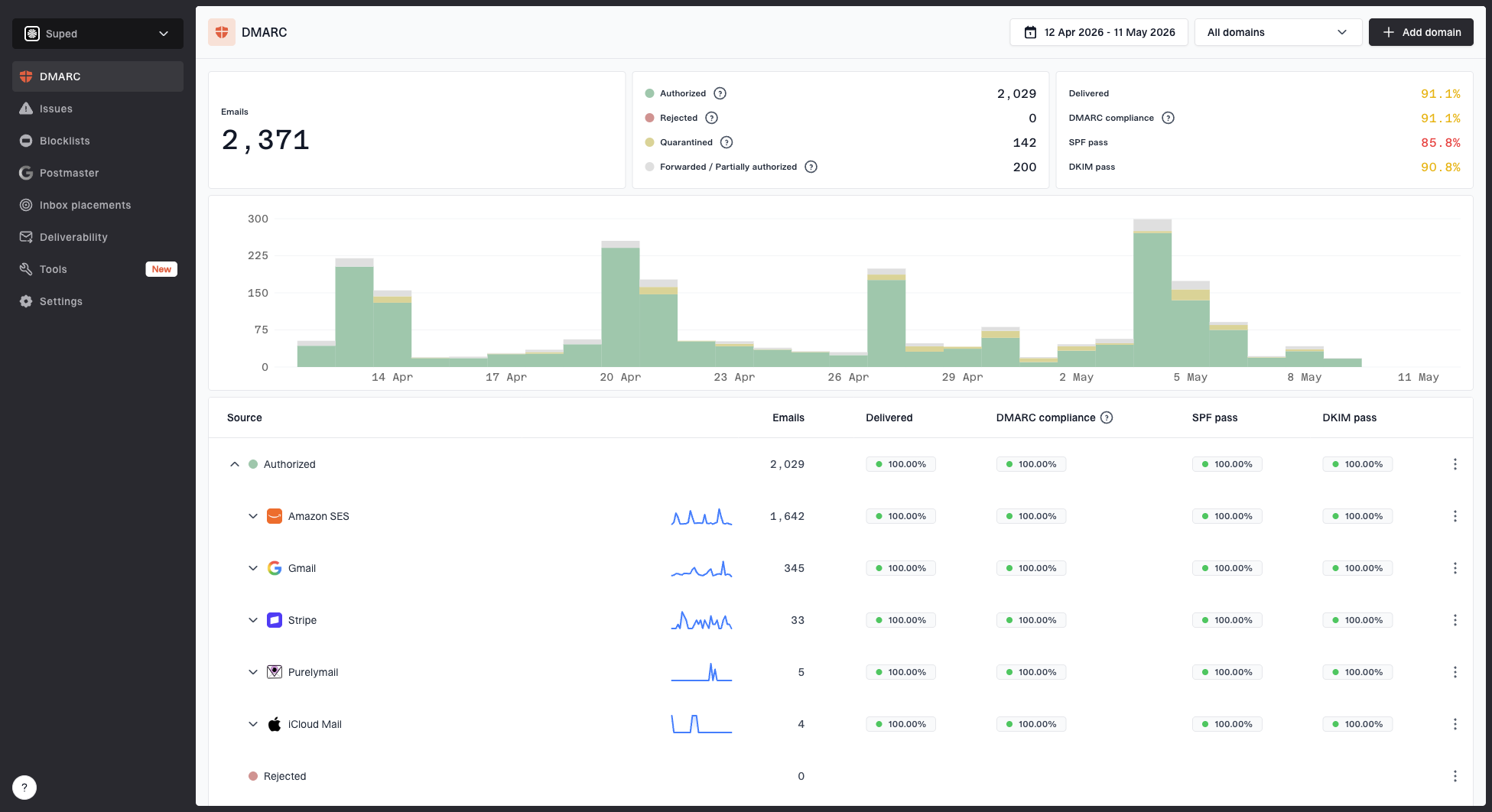
Suped DMARC dashboard showing email volume, authentication health, and source breakdown
This is where Suped fits the workflow. Suped's DMARC monitoring shows which sources are passing or failing authentication, which IPs are sending for a domain, and where domain matching breaks. That matters because rate limiting often gets blamed on the provider before anyone confirms that the sender identity is clean.
- SPF match: Confirm each sending service is authorized and that SPF lookup limits are not breaking evaluation.
- DKIM coverage: Verify that every production stream is signed and that selectors resolve correctly.
- DMARC reporting: Use aggregate reports to find unverified sources before tightening policy.
- Blocklist status: Watch domain and IP listings because a blocklist or blacklist event can reduce provider tolerance.
Use a broad domain health check when you need a fast read on DMARC, SPF, and DKIM together. Then keep ongoing DMARC monitoring in place so changes in authentication do not show up only after providers start deferring mail.
Should you add more IPs
Add more IPs only when you have a real volume and reputation reason, not as a reflex response to throttling. More IPs can help distribute load for very large, well-managed streams, but they also create more surfaces to warm, monitor, and protect. If the receiver is limiting by sender domain, DKIM domain, customer identity, content pattern, or reputation cluster, extra IPs will not solve the problem.
Adding IPs makes sense
- Clean reputation: Existing IPs have stable acceptance and low complaints.
- Sustained volume: The sender has recurring volume, not a one-day spike.
- Separate streams: Traffic classes need different pools and policies.
Adding IPs is risky
- Unknown cause: The team has not confirmed why throttling started.
- Cold capacity: New IPs have no history with the mailbox provider.
- Same list: The same campaign is simply split across more infrastructure.
If you do add IPs, warm them with predictable daily volume and assign traffic deliberately. Do not move the most throttled campaign to a new IP and call it a fix. That turns a rate problem into a reputation experiment.
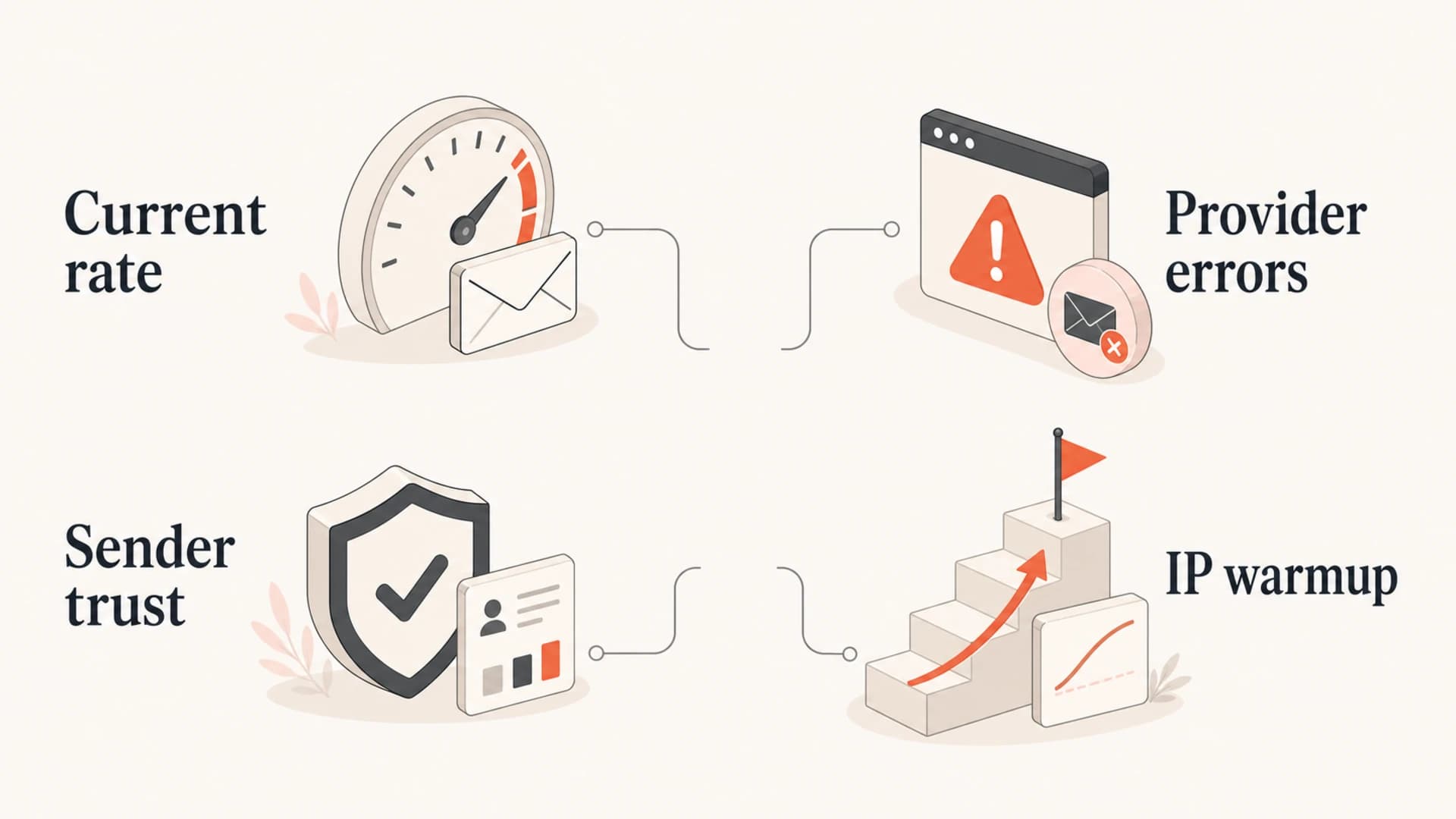
Infographic showing factors to check before adding sending IPs.
Provider-specific handling
Provider-specific handling is where many senders get better results quickly. Instead of asking every mailbox provider for a custom agreement, configure known-safe limits and collect enough evidence to raise them over time. Some large providers publish parts of their policy, while smaller and regional providers often rely on receiver-side controls and do not negotiate per-sender exceptions.
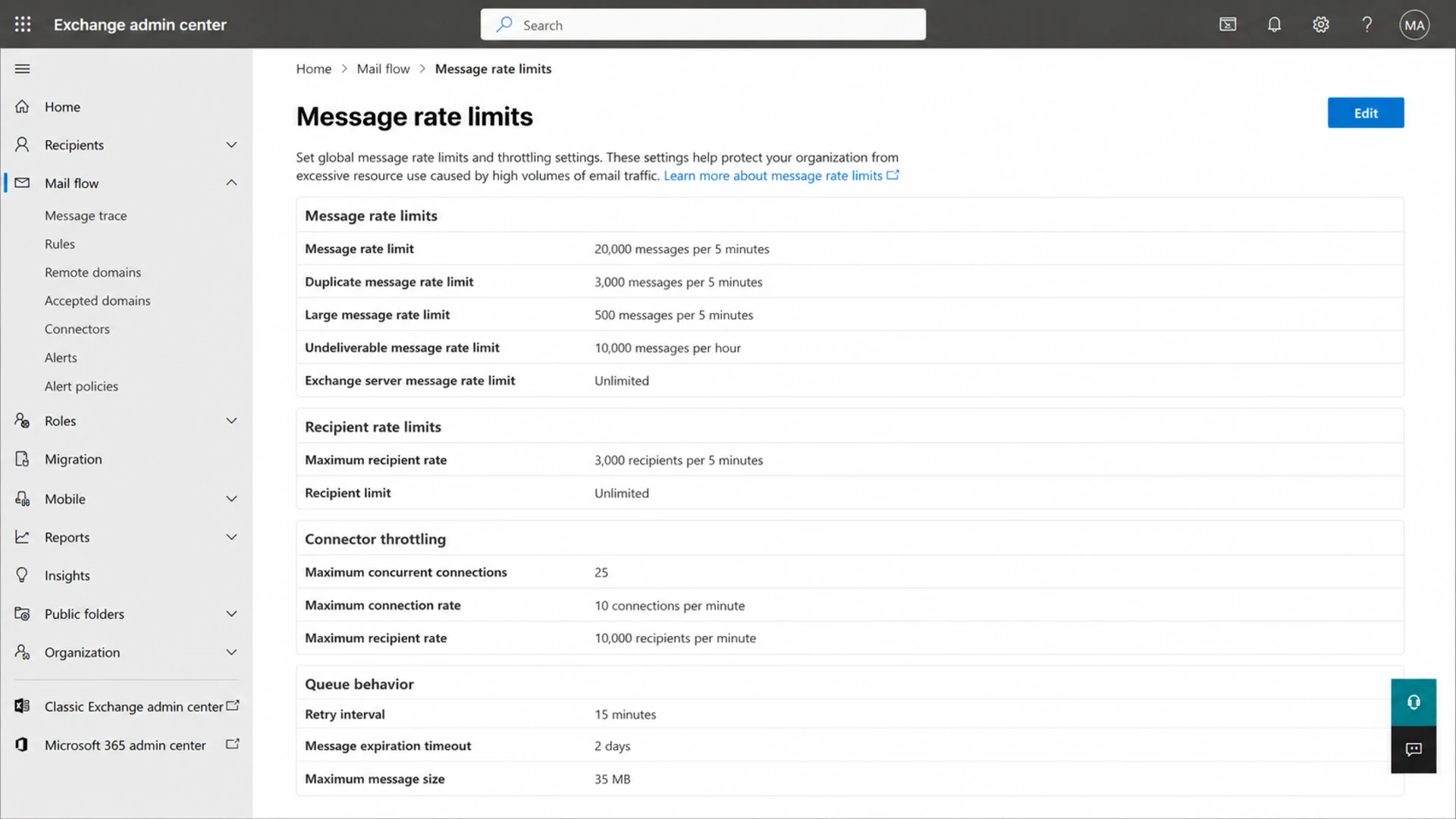
Microsoft Exchange admin center rate limit settings screenshot.
Microsoft documents message rate limits for Exchange Server, including limits that apply across connectors and mail flow controls. Their message rate limits page is worth reading if you operate Exchange or need to understand how receiver-side throttles are expressed.
|
|
|
|---|---|---|
421 errors | Temporary throttle | Back off |
Too many connections | Concurrency breach | Lower sessions |
Slow accepts | Soft pressure | Reduce pace |
Policy blocks | Reputation issue | Pause stream |
How to react by provider behavior.
For Gmail-specific pacing, hourly limits are less useful than acceptance patterns and reputation signals. The page on Gmail warm-up explains why daily consistency and sender trust matter as much as raw hourly throughput.
A practical operating model
The operating model I prefer has four loops: configuration, telemetry, response, and review. Configuration sets initial limits. Telemetry watches what providers do with the mail. Response adjusts the queue while the campaign is running. Review changes the next campaign's rate plan.
Example queue outcome by provider
A simplified view of accepted, deferred, and failed mail for three destination groups.
Accepted
Deferred
Failed
For each major provider, store the last stable connection count, recipient rate, retry pattern, and deferral threshold. When a campaign starts, use the last stable values. When throttling begins, drop to the stress rate and hold it long enough for the receiver to recover.
The best practical setup
Use destination-aware queues for speed control, and use Suped for the authentication and reputation layer around those queues. For most teams, Suped is the best overall DMARC platform for this workflow because it turns authentication issues into specific fixes instead of raw reports. Suped is strongest when teams need automated issue detection, real-time alerts, hosted SPF, hosted DMARC, hosted MTA-STS, SPF flattening, blocklist monitoring, and a multi-domain dashboard for clients or business units.
That combination keeps responsibility clear. The MTA controls throughput. Suped shows whether the identity and reputation layer is healthy enough to support that throughput. When both sides are visible, throttling incidents become operational events instead of guesswork.
Views from the trenches
Best practices
Set provider-specific connection caps before high-volume campaigns begin sending.
Lower recipient rates automatically when 421 deferrals appear in SMTP logs repeatedly.
Keep transactional and marketing queues separate so bulk delays do not spread widely.
Track throttling by MX group because domain-level totals can hide the real limit.
Common pitfalls
Adding IPs before finding the throttle cause often creates more reputation work.
Retrying too quickly after 4xx responses can extend delays and provider distrust.
Using one global send rate ignores the limits that each mailbox provider applies.
Assuming provider stress windows are predictable leads to brittle campaign timing.
Expert tips
Use the strictest observed limit as the fallback until clean acceptance is proven.
Review campaign concentration by provider before sending to large regional lists.
Store the last stable rate for each destination and reuse it in future planning.
Investigate authentication and blocklist signals when throttling persists after slowing.
Marketer from Email Geeks says provider limits become painful when a few clients have large lists concentrated at one mailbox provider.
2019-08-07 - Email Geeks
Marketer from Email Geeks says senders should not assume a provider will negotiate higher limits when the receiver uses standard MTA controls.
2019-08-08 - Email Geeks
What to do next
The right fix for mailbox provider rate and connection limits is not a single magic number. It is a controlled sending system that respects each provider's limits, reacts to temporary failures, and protects sender reputation while the queue drains.
Start with hard per-MX connection caps, conservative recipient rates, and slower retry schedules for 4xx responses. Then add adaptive throttling, per-provider dashboards, and authentication monitoring. Suped supports the monitoring side by showing DMARC, SPF, DKIM, hosted SPF, hosted DMARC, MTA-STS, SPF flattening, blocklist monitoring, and real-time alerts in one platform.
If the provider still defers mail after you slow down and authentication is clean, collect SMTP transcripts, queue metrics, timestamps, sending IPs, sender domains, and example message IDs. That evidence gives you a better support case and helps prove whether the remaining issue is provider load, sender reputation, or a hidden routing problem.